
Today we are discussing Turn Off Customer Experience Improvement Program Prevent Enterprise Data Sharing Using Intune. Windows provides several settings that control how it communicates with Microsoft. One of them is the Windows Customer Experience Improvement Program, often known as CEIP.
This program gathers anonymous usage data such as how often features are used, which buttons are clicked, or if any unexpected application issues occur. Microsoft uses this feedback to improve future updates, but many enterprises prefer to control outgoing data for privacy or compliance reasons.
In small personal computers, keeping CEIP turned on may not cause any problem because the data collected is very minimal. However, in managed IT environments where thousands of users work on company devices, IT administrators must decide what data is allowed to leave the network.
This policy benefits the organization by reducing the risk of any unexpected data sharing. Even though Microsoft says the data is anonymous, many enterprises classify all system behavior as internal information. With CEIP turned off, corporate IT can confidently say no behavioral or usage patterns are transmitted.


Table of Contents
Turn Off Customer Experience Improvement Program Prevent Enterprise Data Sharing Using Intune
This policy also supports CIS Control such as limiting unnecessary services. Implementing this policy through Intune or other MDM platforms supports secure baseline. It strengthens the company’s security and aligns with compliance expectations. By disabling CEIP, the organization reduces unnecessary services, improves privacy,
- Unlock Optimal Remediation Action for High-Severity Threats using Intune
- Stop Hidden Threats Your Step by Step Guide to Activating Network File Scanning using Intune
- How to Delete Attack Surface Reduction ASR Policy from Microsoft Intune
Create Profile
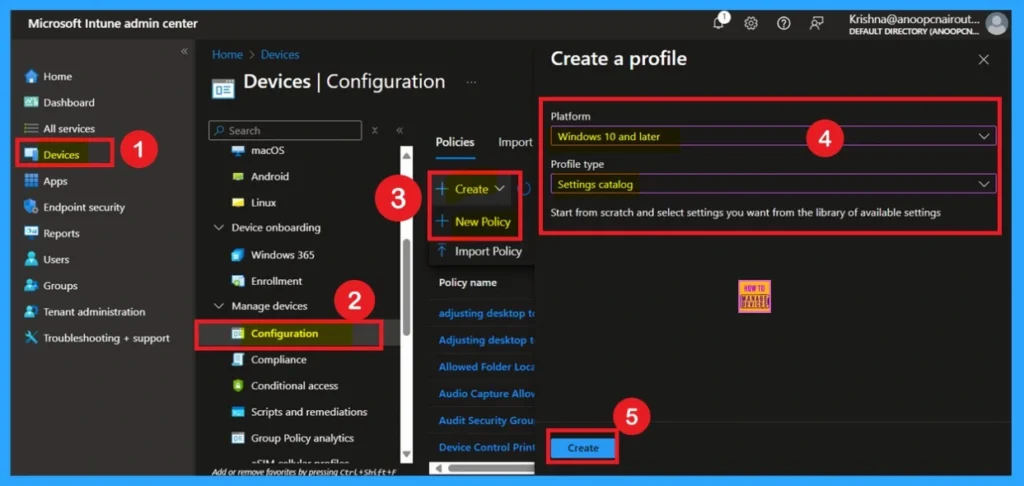
Now, let’s look at how to deploy this policy using the Microsoft Intune Admin Center. To begin, sign in to the Microsoft Intune Admin Center and navigate to the Devices section. Under Devices, go to Configuration, and click on the + Create option to set up a new profile.
In the setup window, select Windows 10 and later as the platform and choose Settings catalog as the profile type. Once these options are selected, click on Create to continue with the policy configuration.
How to Add Basic Details
The first step is the Basics tab, where you need to enter the essential details for the policy, such as the Name, Description, and Platform information. The platform will already be set to Windows by default. Simply provide a meaningful name and brief description for the policy, then click Next to proceed.
| Policy Details | Info |
|---|---|
| Name | Turn off Customer Experience Improvement Program |
| Description | Disables Windows CEIP to prevent sending anonymous usage data to Microsoft |
| Platform | Windows |

Configuration Settings
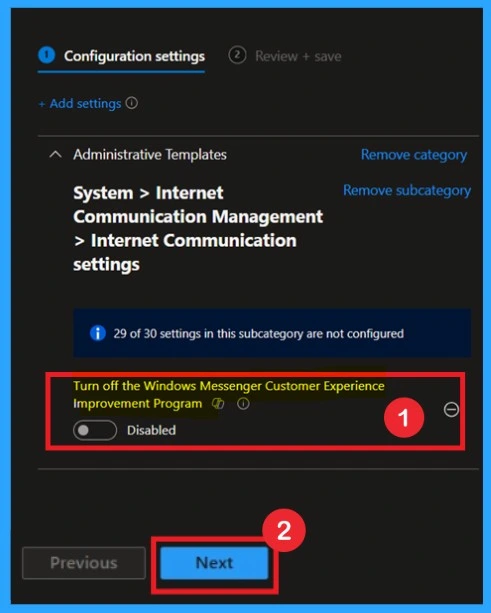
The next step is configuring the settings. In the Configuration settings page, click on Add settings to open the settings picker window. In the search bar, type Customer Experience, and you will see the related categories appear. From there, select Administrative Templates\ System \ Internet Communication Management \ Internet Communication Settings.
- In this category, choose Turn off Windows Messenger Customer Experience Improvement Program to add it to your profile.

Disabled the Policy by Default
When you select the policy and close the settings picker window, you will return to the main Configuration settings page. Here, the policy Turn off Windows Messenger Customer Experience Improvement Program will appear, and by default, it will be set to Disabled. This means the setting has not been activated yet. If you want to continue without making any changes, you can click Next and move forward in the profile setup.
Enabled the Policy by Default
If you want to activate this policy, you need to change its from Disabled to Enabled. To do this, select the policy and switch the toggle to Enabled. Once enabled, the setting will block the Customer Experience Improvement Program from running on user devices. After enabling the policy, click Next to continue with the remaining steps and complete the profile configuration.

Importance of Scope Tags
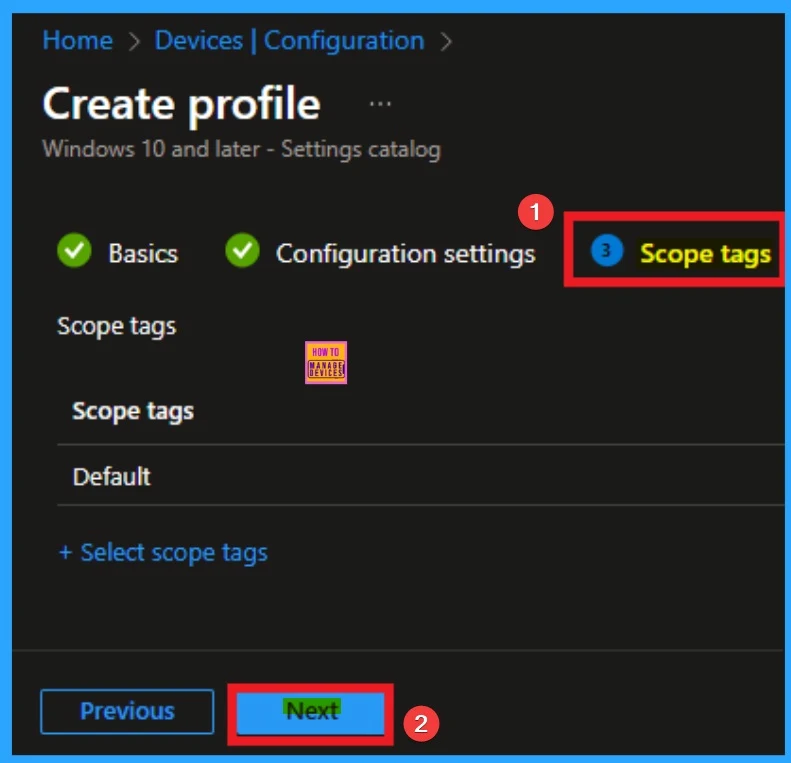
Now you are on the Scope tags section. Scope tags are used to assign policies to specific admin groups for better management and filtering. If needed, you can add a scope tag here. However, for this policy, I chose to skip this section.
Know Assignments
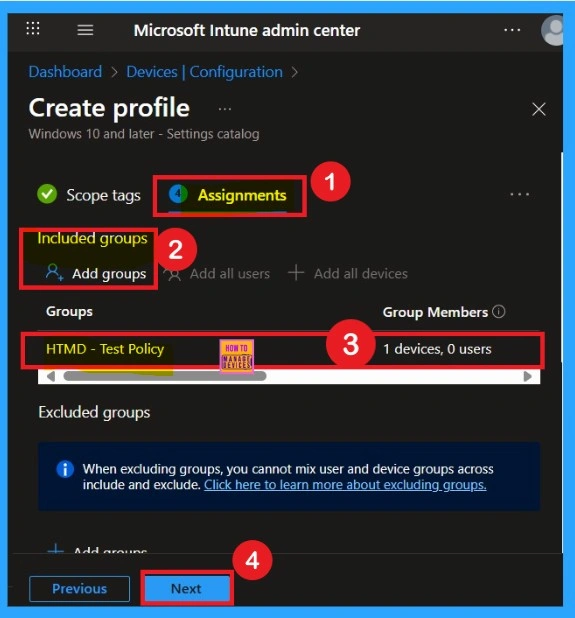
Assignment is another important step you need to complete, just like Configuration settings. In this step, you have to decide which group you want to deploy the policy to. First, click on Add groups under the Include groups section, and select the group to which you want to apply the policy. Then, click Next to continue.
What is Review + Create Tab
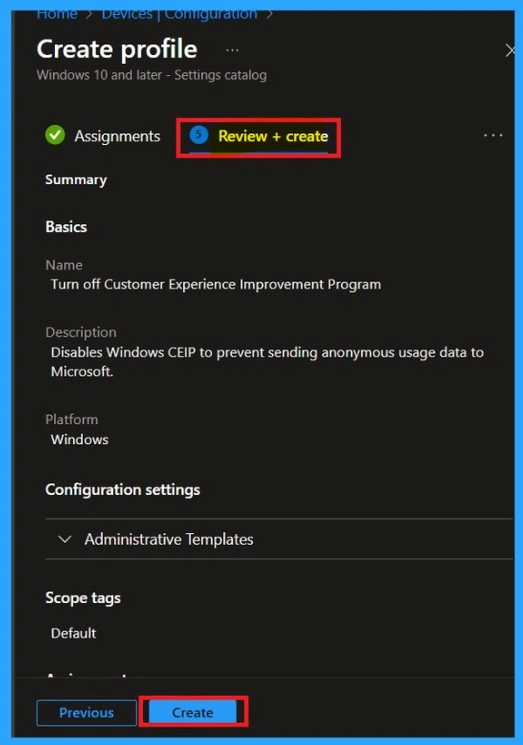
Review + Create is the final step in the policy creation process. You will reach this section after completing the Assignment step. This section acts like a summary page, showing all the steps, you have previously completed. If you notice any mistakes, this is your final chance to edit them. If everything looks correct, click on the Create button.
Device and user Check in Status
After creating the policy, the next step is to check if it was applied successfully. Always remember that it can take up to 8 hours for the policy to be fully deployed. If you’ve synced the policy through the Company Portal, you can check its status easily. Just go to Devices > Configuration, then search for the name of your policy in the list.

Remove Assigned Groups
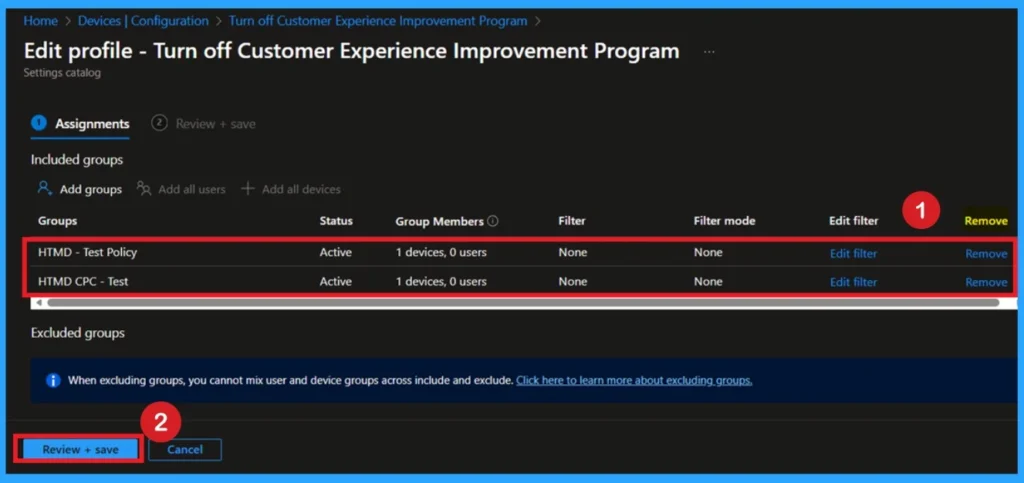
If you want to remove any group from your policy after the policy creation you can easily do that. First go to the Device Configuration then search the policy name and now you get the policy monitoring status page. Here you have to scroll down, and you will get the Assignment section there you will get an edit option. In the Assignment page you can see the Remove Option Click on that for removing the Policy
Delete Policy Permanently
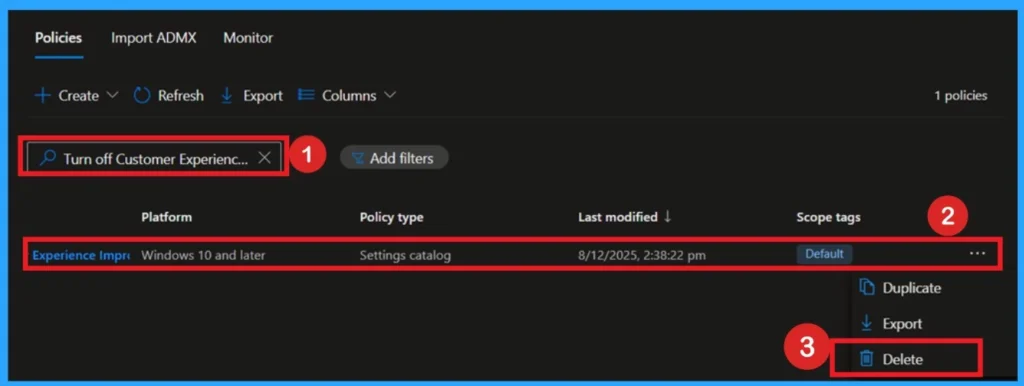
If you want to delete the Policy that you created, you can easily do that. First go to the Device Configuration profile then search the policy name and now you get the policy here click on the 3-dot menu of the policy then clicks on the Delete and the policy Deleted permanently.
End User Result
When this policy is applied, the end user does not see any pop-ups, or notifications. Everything happens silently in the background. The user can continue using the device normally without interruption. The only difference is that Windows will no longer ask them to join or participate in the Customer Experience Improvement Program. Any background data collection related to usage is disabled, so nothing is sent to Microsoft from the user’s device.
Need Further Assistance or Have Technical Questions?
Join the LinkedIn Page and Telegram group to get the step-by-step guides and news updates. Join our Meetup Page to participate in User group meetings. Also, Join the WhatsApp Community to get the latest news on Microsoft Technologies. We are there on Reddit as well.
Author
Anoop C Nair has been Microsoft MVP for 10 consecutive years from 2015 onwards. He is a Workplace Solution Architect with more than 22+ years of experience in Workplace technologies. He is a Blogger, Speaker, and Local User Group Community leader. His primary focus is on Device Management technologies like SCCM and Intune. He writes about technologies like Intune, SCCM, Windows, Cloud PC, Windows, Entra, Microsoft Security, Career, etc