
Key Takeaways:
- Default Inbound Action for Public Profile
- Strengthens network safety for devices managed in modern workplaces
- Ensuring consistent enforcement across endpoints
- Actionable for real-world deployment
Let’s discuss Default Inbound Action for Public Profile in Windows Defender Firewall using Intune. This setting is a critical line of defense for mobile and remote devices. This policy dictates how a device’s firewall handles unsolicited incoming network traffic when the device is connected to a Public network location (like a coffee shop, airport, or hotel Wi-Fi).
Table of Contents
Table of Contents
Default Inbound Action for Public Profile in Windows Defender Firewall using Intune
This policy is vital because it ensures that security is device-centric rather than network-centric. As the workforce moves away from the office (the “Domain Profile“) and into the world, the Intune Firewall policy becomes the primary shield protecting the device’s entry points.
- 4 New Intune Windows Firewall Logging Configuration Policies
- Ways to Allow an App through Windows Defender Firewall
- Check Firewall Policy Reports from Intune
How to Start Policy Creation
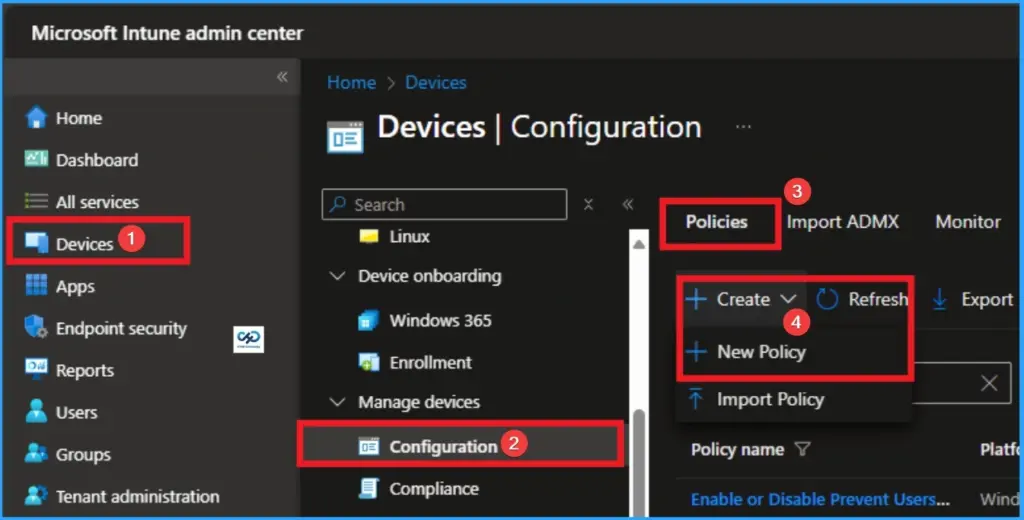
As an Admin, you can quickly configure this policy on your organisation. To start the Policy Creation, open the Microsoft Intune Admin center. Then go to Devices > Configuration >+ Create > +New Policy.
Profile Creation
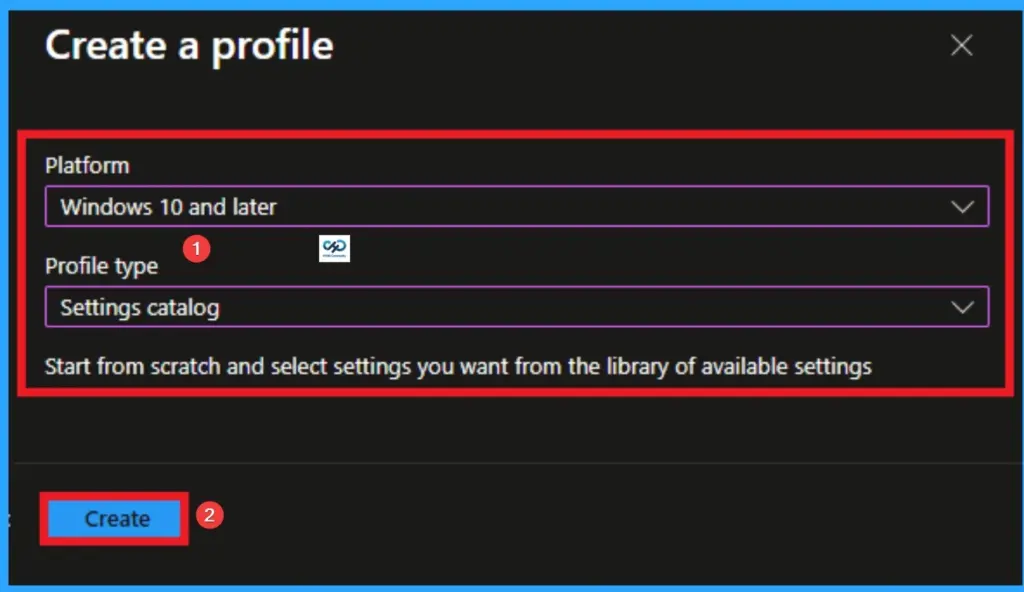
Profile creation is the necessary step that helps you to assign the policy to appropriate platform and Profile. Here I would like to configure the policy to Windows 10 and later platform and settings catalog profile. Then click on the Create button.

Basic Details of Policy
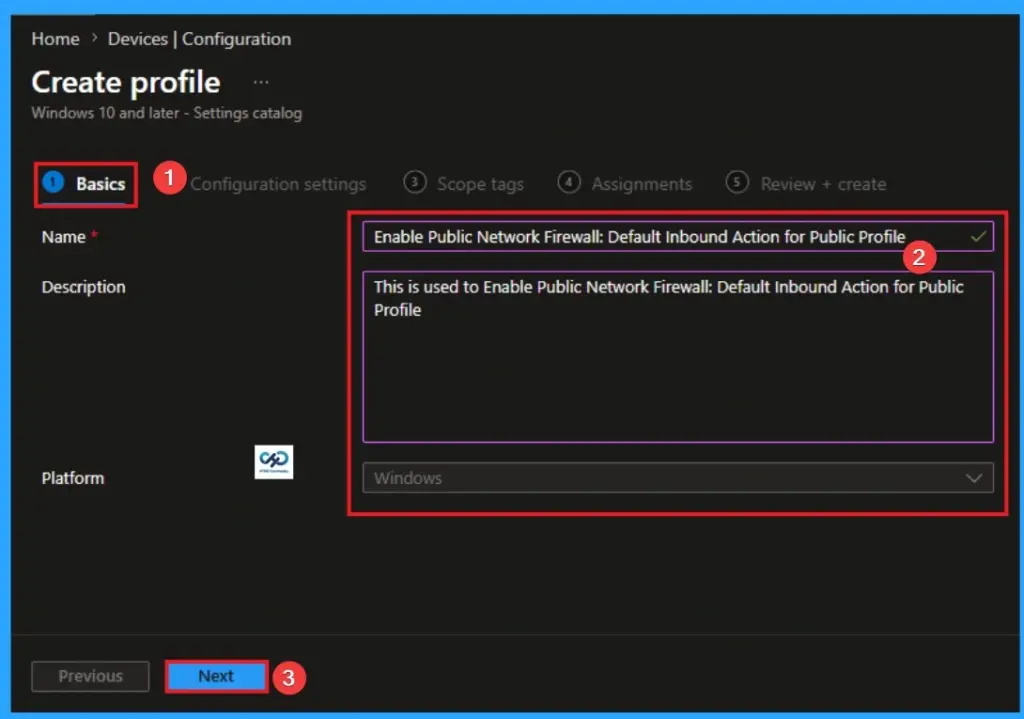
Naming the policy is the primary step that help admins to identify the policy later. This is important and necessary step that allows you to know the purpose of the policy. Here is Name is mandatory and description is optional. After adding this click on the Next button.
Configure Allow ICMP Redirects to Override OSPF Generated Routes
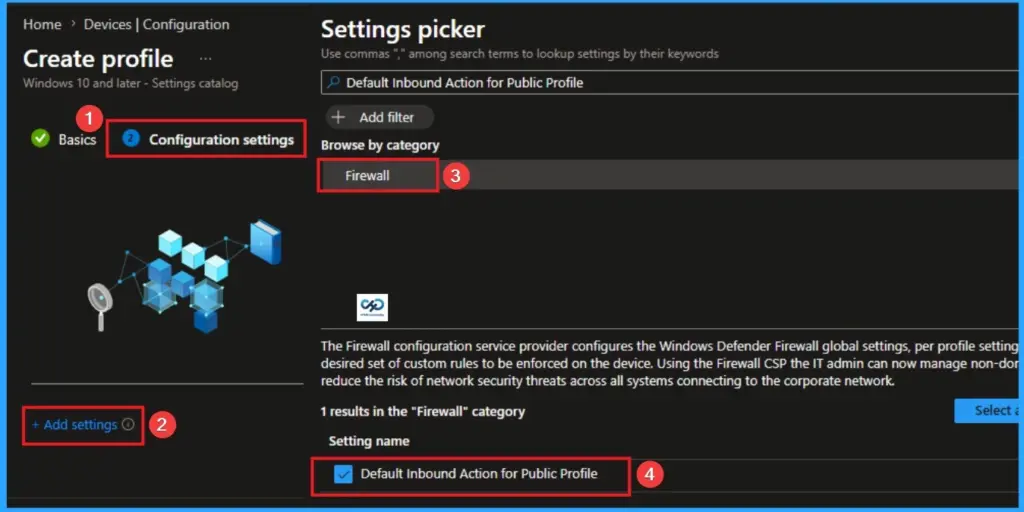
With Settings Picker, you can use the Configuration Settings Tab. On this tab, you can click on the +Add Settings hyperlink to get the Settings Picker. The settings picker shows huge number of settings. Here, I would like to select the settings by browsing by Category. I choose Firewall\Enable Public Network Firewall: Default Inbound Action for PublicProfile.
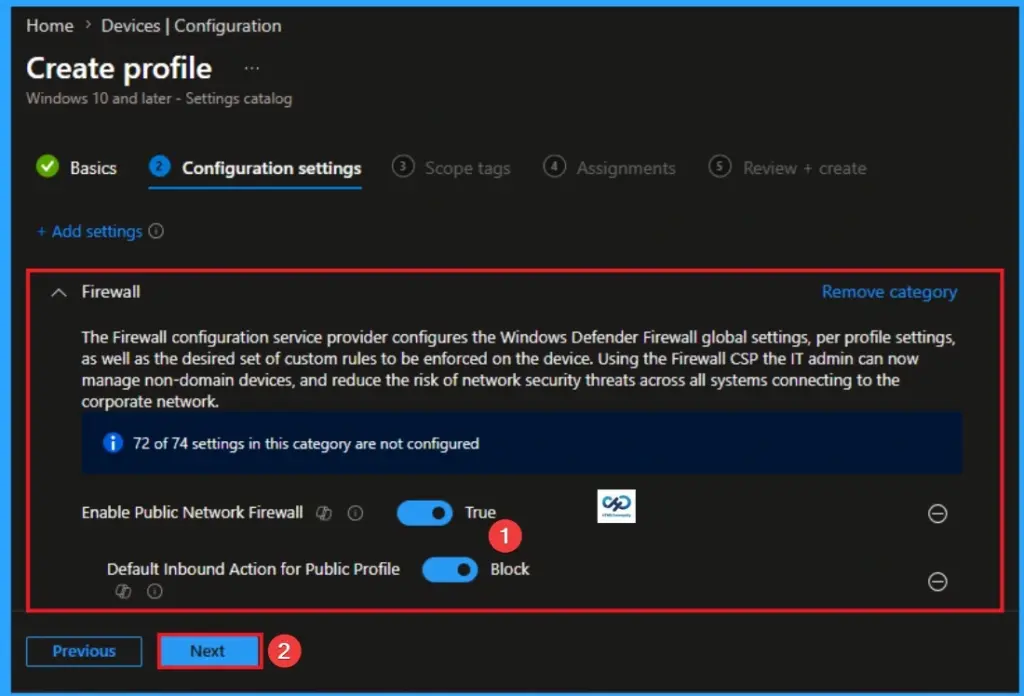
Block Default Inbound Action for Public Profile
All inbound traffic is dropped unless an explicit “Allow” rule exists. This is the default behaviour of this policy. If you want to configure this policy with deafult value, click on the Next button.
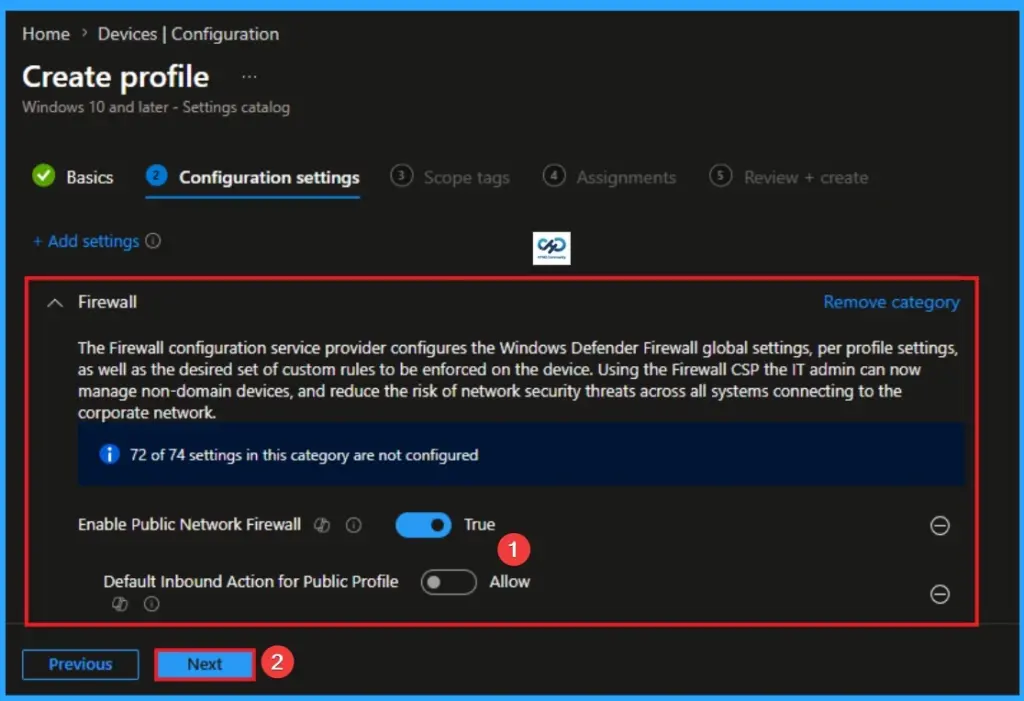
Allow Default Inbound Action for Public Profile
All inbound traffic is permitted unless an explicit “Block” rule exists. This value is recommended for Testing only; highly dangerous for Public networks. Click on the Next button to continue.
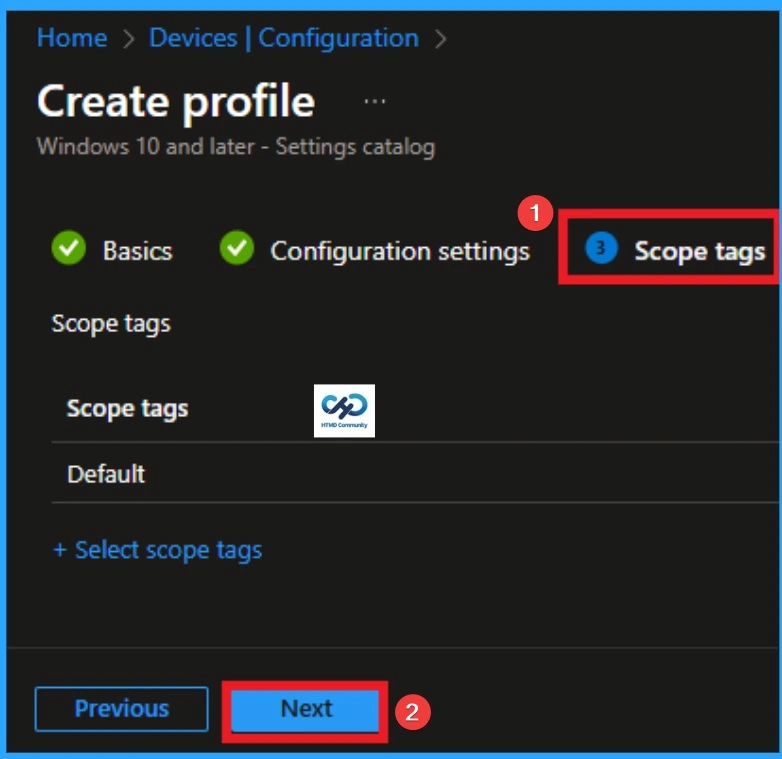
Scope Tags
With scope tags, you create a restriction to the visibility of theEnable Log Success Connections in Windows Defender Firewall. It helps to organise resources as well. Here, I would like to skip this section, because it is not mandatory. Click on the Next button.
Assignments Tab for Selecting Group
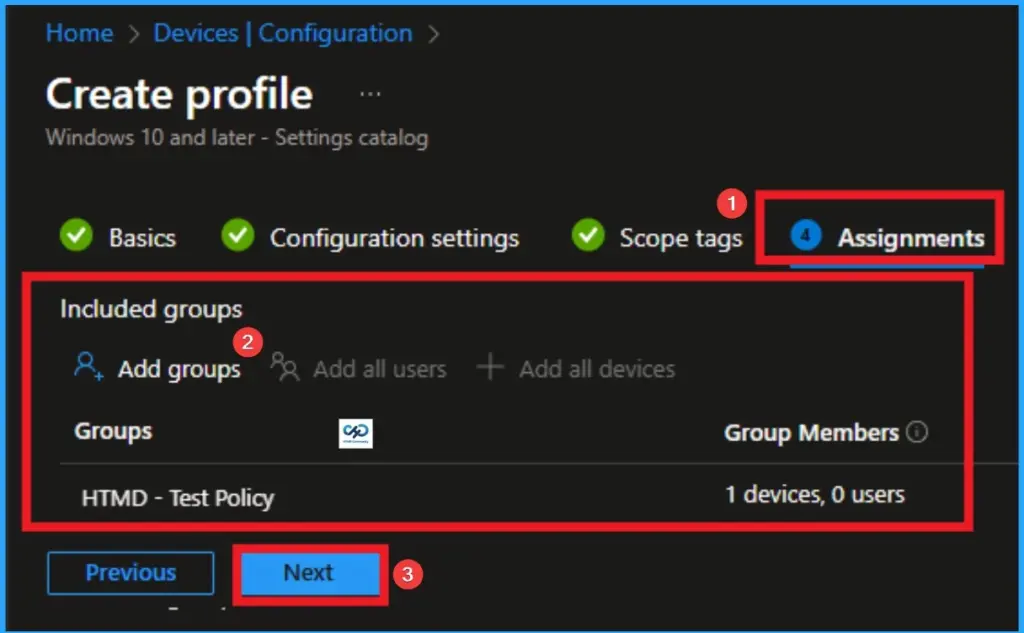
To assign the policy to specific groups, you can use the Assignment Tab. Here I click, +Add groups option under Included groups. I choose a group from the list of groups and click on the Select button. Again, I click on the Select button to continue.
Review + Create Tab
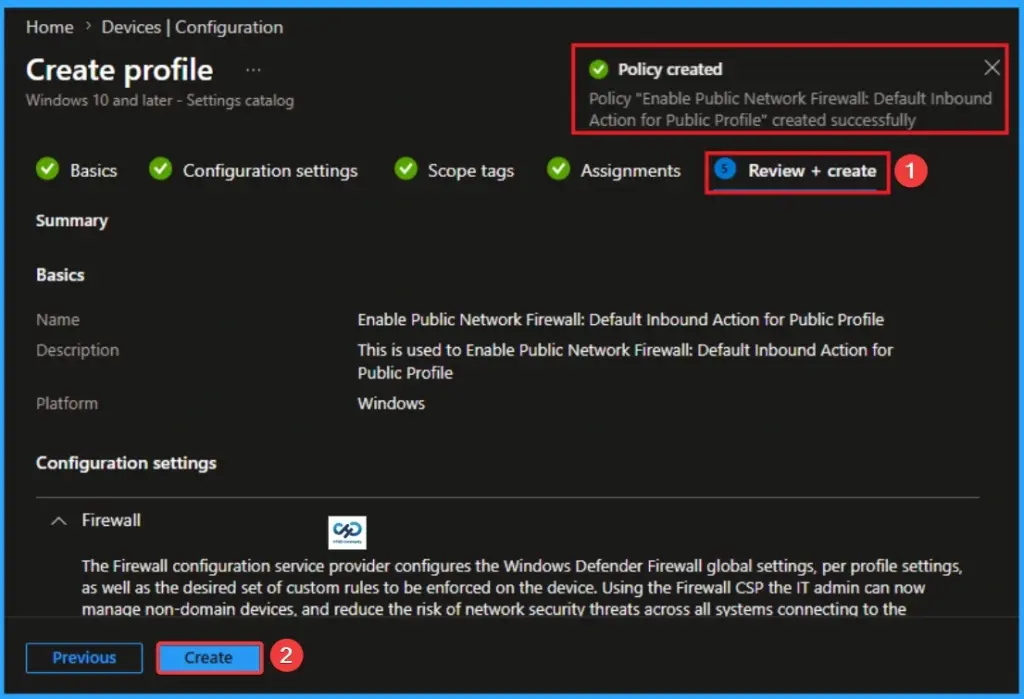
Before completing the policy creation, you can review each tab to avoid misconfiguration or policy failure. After verifying all the details, click on the Create Button. After creating the policy, you will get a success message.
Monitoring Status
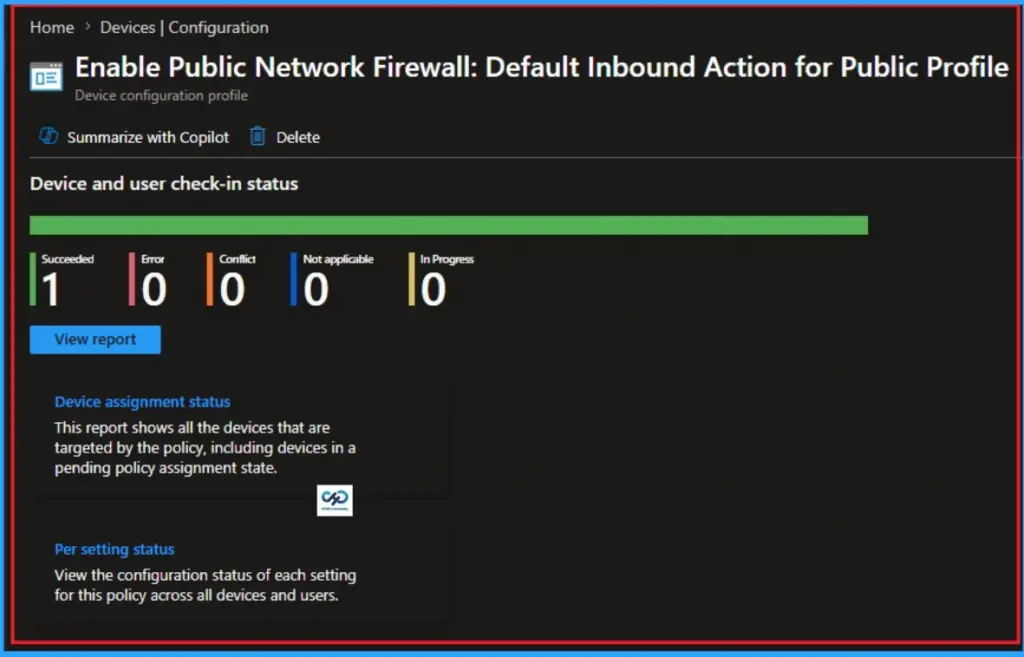
The Monitoring Status page shows whether the policy has succeeded or not. To quickly configure the policy and take advantage of the policy sync the assigned device on Company Portal. Open the Intune Portal. Go to Devices > Configuration > Search for the Policy. Here, the policy shows as successful.
Removing the Assigned Group from Default Inbound Action for Public Profile in Windows Defender Firewall
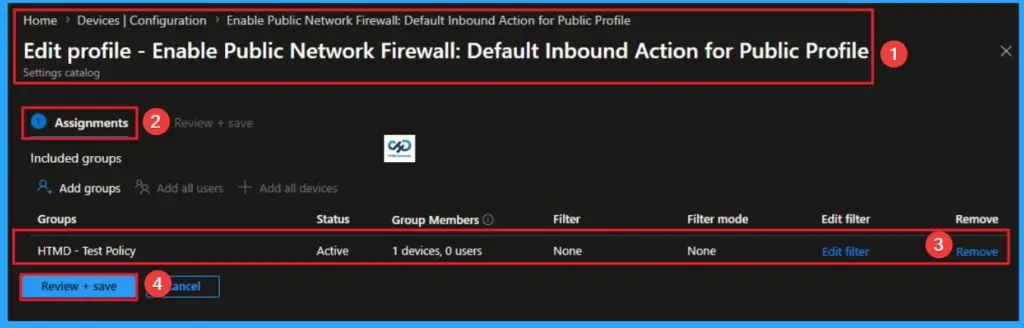
If you want to remove the Assigned group from the policy, it is possible from the Intune Portal. To do this, open the Policy on Intune Portal and edit the Assignments tab and the Remove Policy.
To get more detailed information, you can refer to our previous post – Learn How to Delete or Remove App Assignment from Intune using by Step-by-Step Guide.
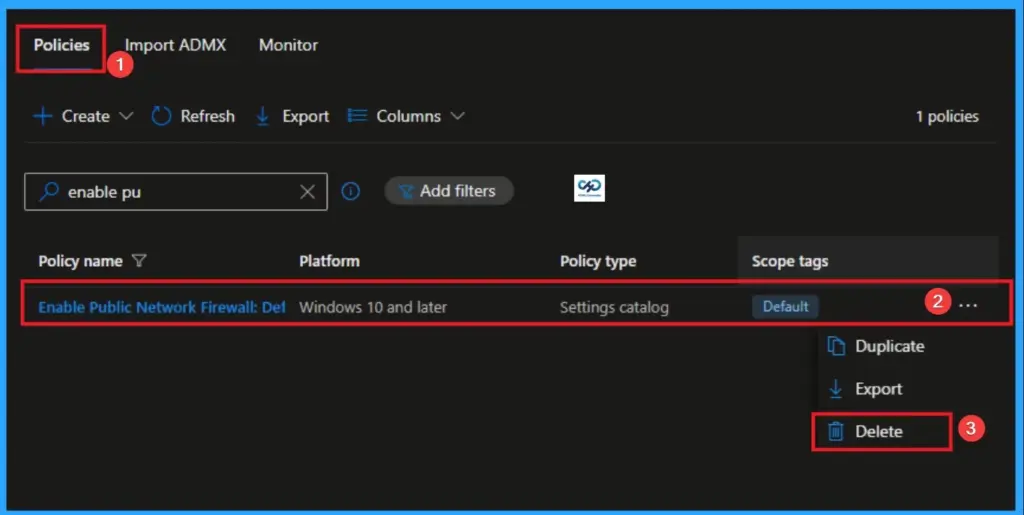
How to Delete How to Delete Default Inbound Action for Public Profile in Windows Defender Firewall
You can easily delete the Policy from the Intune Portal. From the Configuration section, you can delete the policy. It will completely remove it from the client devices.
For detailed information, you can refer to our previous post – How to Delete Allow Clipboard History Policy in Intune Step by Step Guide.
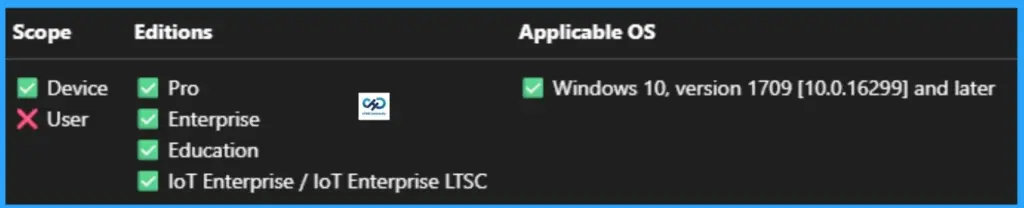
Windows CSP Details
This value is the action that the firewall does by default (and evaluates at the very end) on inbound connections. The allow action is represented by 0x00000000; 0x00000001 represents a block action. The following are the Description framework properties.
| Property name | Property value |
|---|---|
| Format | int |
| Access Type | Get, Replace |
| Default Value | 1 |
| Dependency [Enable Firewall] | Dependency Type: DependsOnDependency URI: Vendor/MSFT/Firewall/MdmStore/DomainProfile/EnableFirewallDependency Allowed Value: trueDependency Allowed Value Type: ENUM |
Need Further Assistance or Have Technical Questions?
Join the LinkedIn Page and Telegram group to get the latest step-by-step guides and news updates. Join our Meetup Page to participate in User group meetings. Also, join the WhatsApp Community and the WhatsApp channel to get the latest news on Microsoft Technologies. We are there on Reddit as well.
Author
Anoop C Nair is a Workplace Technology solution architect with 25+ years of experience. Microsoft Certified Trainer. Microsoft MVP from 2015 onwards for consecutive 11+ years! He is a blogger, Speaker, and Founder of HTMD Community and HTMD Conference. His main focus is on Device Management technologies like Intune, Windows, and Cloud PC. He writes about technologies like Intune, SCCM, Windows, Cloud PC, Entra, and Microsoft Security.