
Key Takeaways
- Microsoft Intune will support deploying required Line of Business (LOB) apps using Declarative Device Management (DDM) for Apple devices.
- Apps are installed as configurations instead of traditional commands, improving reliability.
- The device automatically checks the configuration and installs the required app.
- Administrators can view real-time installation status and quickly identify issues.
Deploy DDM-Based Line of Business Apps in Microsoft Intune for iOS and iPadOS Devices! Microsoft Intune will soon support deploying required Line of Business (LOB) apps using Declarative Device Management (DDM) for Apple devices. With this update, apps are installed as configurations instead of traditional commands, which makes the deployment process more reliable.
Table of Content
Table of Contents
Deploy DDM-Based Line of Business Apps in Microsoft Intune for iOS and iPadOS Devices
The device can automatically check and install the required apps based on the configuration it receives. Administrators will also get real-time app status reporting, allowing them to quickly see whether the app is installed or if there are any issues on the device. This improves visibility and simplifies app management for iOS and iPadOS devices.
- Sign in to Intune admin center
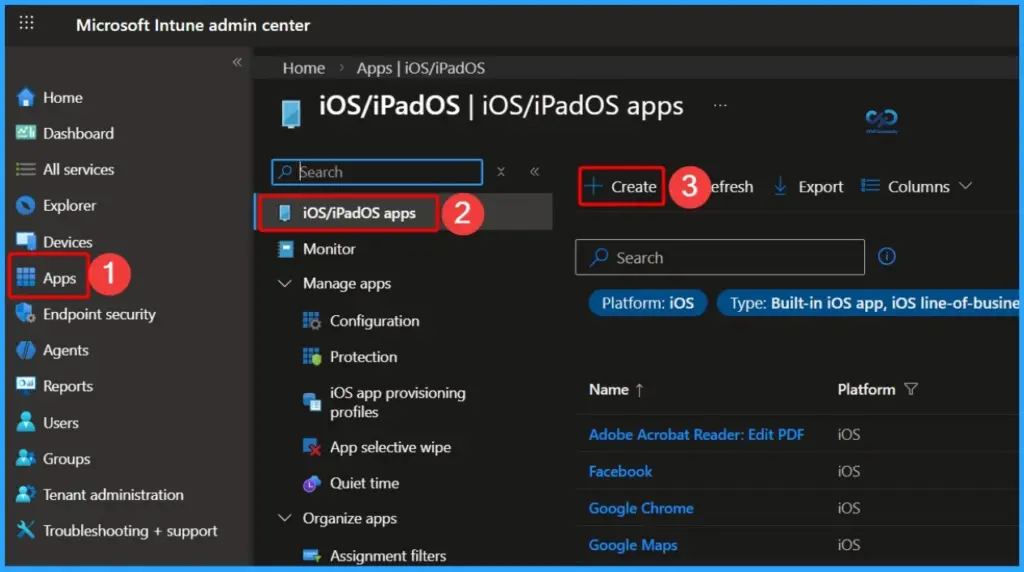
- Go to Apps in the Microsoft Intune admin center.
- Select iOS/iPadOS apps under the Apps section.
- Click + Create to add a new application.
- Intune Google Chrome Deployment using Intune Line of Business Application
- How to Deploy Putty Windows Line-Of-Business app using Intune
- Deploy Private LOB Apps to Android Devices using Intune
- Deploy KeePass Using Intune LOB App Guide
Select Line-of-Business App from Available App Types in Intune
In the Select app type step, you will see multiple app options such as Store app, iOS store app, Built-in app, and Web link app. From this list, choose a line-of-business app to deploy custom or internally developed applications within your organisation.
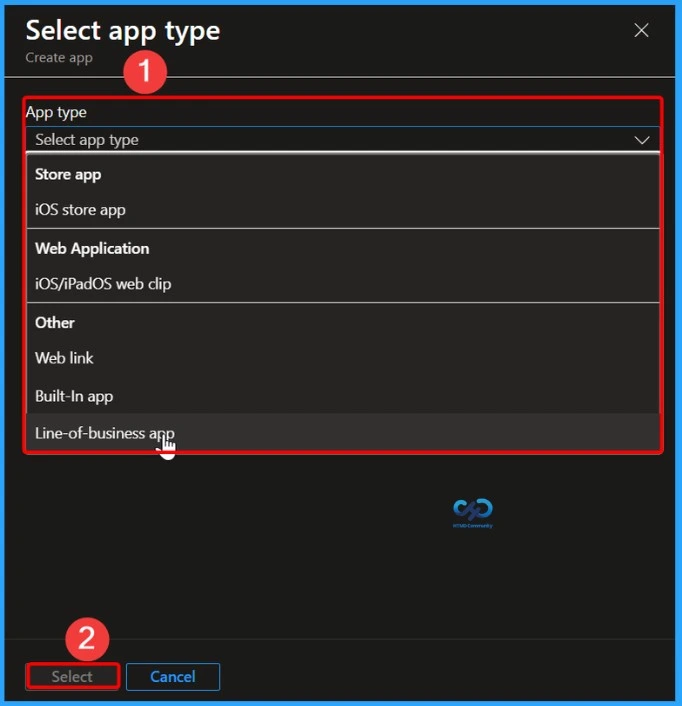
Select Line-of-Business App Type in Microsoft Intune
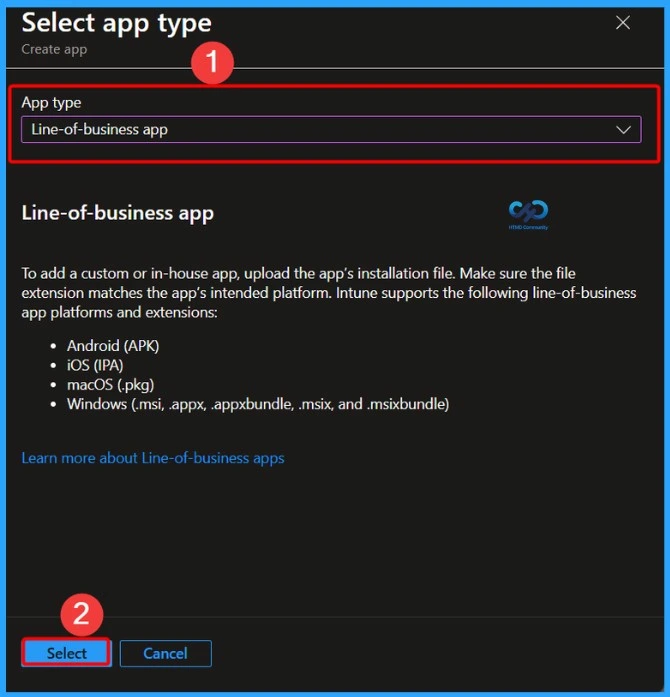
In the Select app type window of the Microsoft Intune admin center, administrators can choose Line-of-business app to upload and deploy custom or in-house applications. This option allows organizations to add apps that are developed internally and are not available in public app stores.

| Line-of-business app |
|---|
| To add a custom or in-house app, upload the app’s installation file. Make sure the file extension matches the app’s intended platform. Intune supports the following line-of-business app platforms and extensions: |
| · Android (APK) · iOS (IPA) · macOS (.pkg) · Windows (.msi, .appx, .appxbundle, .msix, and .msixbundle) |
Upload the iOS/iPadOS Line-of-Business App Package
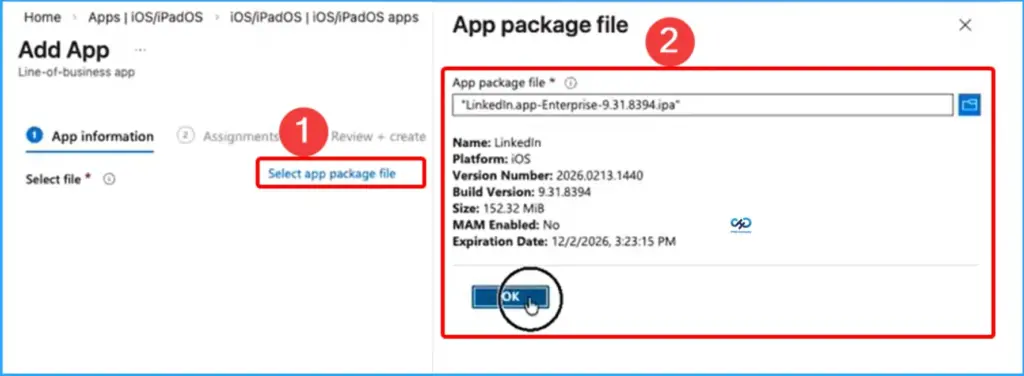
In the Add App wizard in Microsoft Intune, the first step is to upload the app package file for the Line-of-Business app. Click Select app package file and choose the .ipa file from your device. After selecting the file, Intune automatically reads the package details such as the app name, platform, version number, build version, and file size. Once the information is verified, click OK to continue with the app configuration and assignment steps.
Choose the Management Type for the iOS/iPadOS LOB App
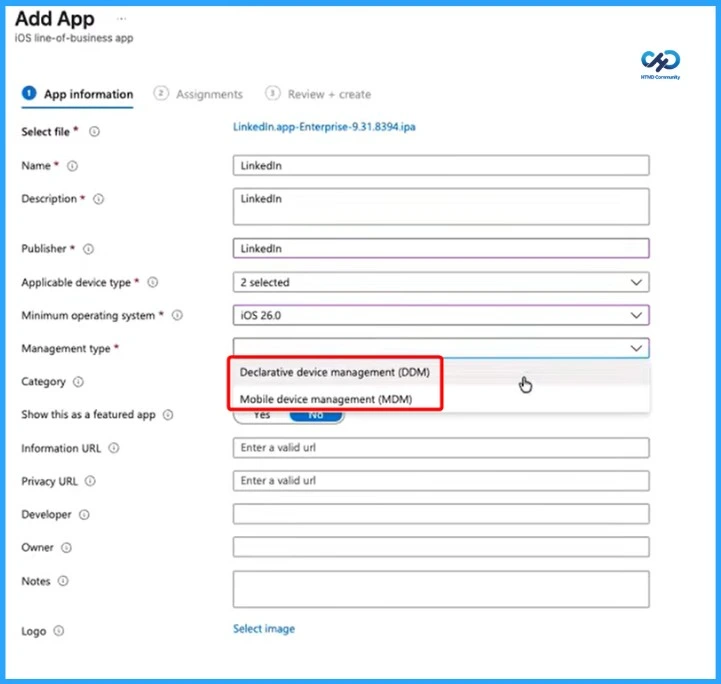
In the App Information section of Microsoft Intune, administrators must select the Management type for the Line-of-Business app deployment. Here, you can choose between Declarative Device Management (DDM) and Mobile Device Management (MDM).
Selecting DDM enables modern, device-driven management where the device automatically evaluates configurations and installs the app. The traditional MDM option continues to use command-based deployment. After selecting the appropriate management type, administrators can continue configuring the remaining app details before assigning the app to devices or users.
Assign the iOS/iPadOS Line-of-Business App to Devices or Users
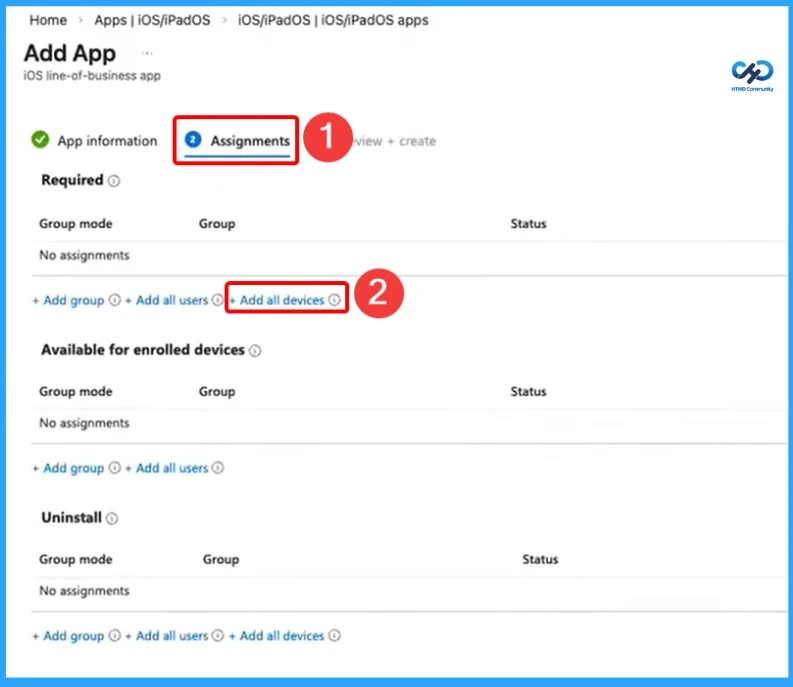
In the Assignments step of the app deployment process in Microsoft Intune, administrators choose how the Line-of-Business app will be deployed to devices or users. Under the Required section, you can assign the app to a specific group, all users, or all devices so that the app installs automatically on targeted devices. This step ensures the app is delivered to the intended audience and helps administrators control how and where the application is deployed within the organization.
Review App Configuration Details in the Review + Create Tab
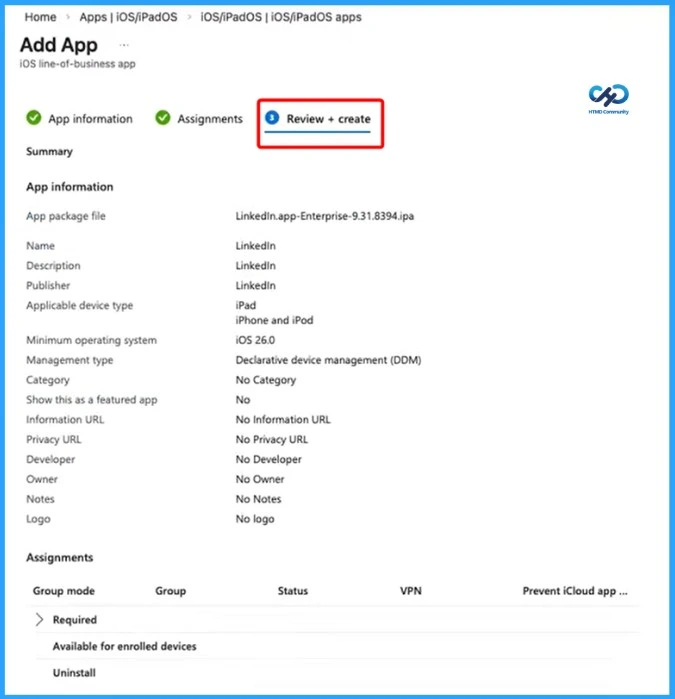
In the Review + Create tab, you can view all the configured details before finalizing the deployment. This includes App information, Assignments, and other selected settings. Carefully review everything to ensure accuracy, then proceed to create the app.
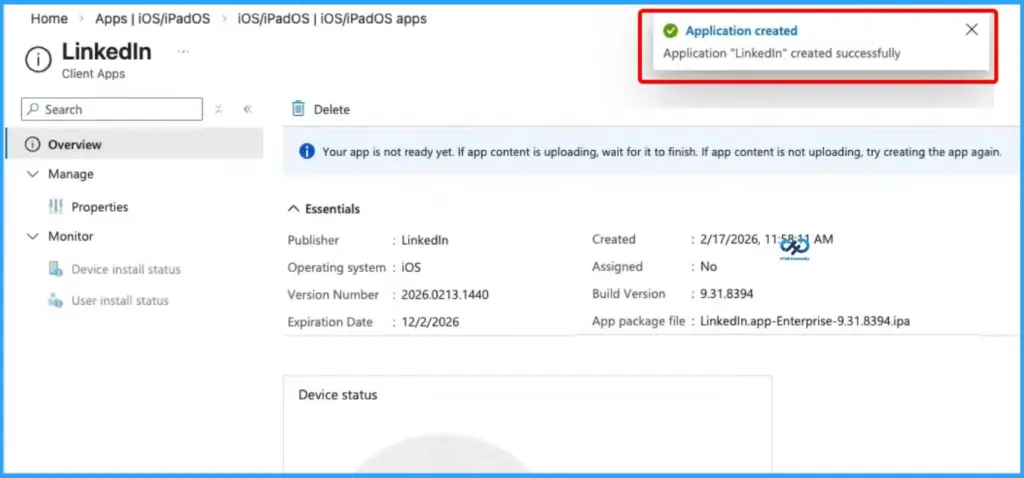
Application Created Successfully Notification in Intune Admin Center
Here, you can see the application created successfully notification message appearing at the top-right corner of the Intune admin center. This confirms that the app has been created and is ready for deployment or further configuration.
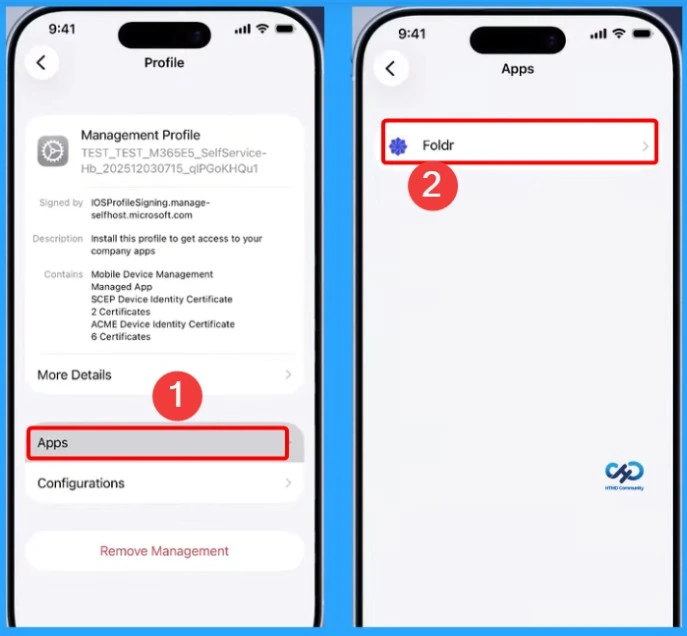
End user Experience – Verify App Installation and Identify MDM-Installed Apps on the Device
Switching to the device, you can see that the app has been successfully installed. Now, open the Settings app to understand how to differentiate between MDM and DDM installed apps. Apps deployed via MDM will appear under the Apps section within the management profile, as shown with the Folder app.
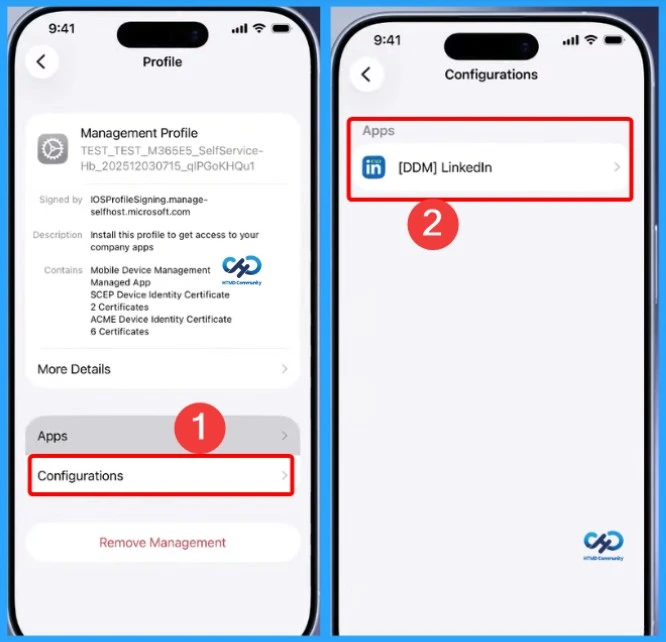
End User Experience – Identify DDM-Installed Apps Under Configurations on the Device
DDM-installed apps appear in the Apps section under the Configurations tab. From here, you can view the app and review the settings that have been applied to the device. The below screenshot helps you to show more details.
Need Further Assistance or Have Technical Questions?
Join the LinkedIn Page and Telegram group to get the latest step-by-step guides and news updates. Join our Meetup Page to participate in User group meetings. Also, join the WhatsApp Community and the Whatsapp channel to get the latest news on Microsoft Technologies. We are there on Reddit as well.
Author
Anoop C Nair is a Workplace Technology solution architect with 25+ years of experience. Microsoft Certified Trainer. Microsoft MVP from 2015 onwards for consecutive 11+ years! He is a blogger, Speaker, and Founder of HTMD Community and HTMD Conference. His main focus is on Device Management technologies like Intune, Windows, and Cloud PC. He writes about technologies like Intune, SCCM, Windows, Cloud PC, Entra, and Microsoft Security.