
Key Takeaways
- Prevents managed Macs from storing local copies of supported Apple content
- Reduces unintended content sharing between devices on the local network
- Strengthens the security posture of managed macOS devices
- Provides centralized control through Microsoft Intune
This post covers the disabled Content Caching on macOS Devices to Control Local Content Storage using Intune. Disabling content caching on macOS helps you reduce usage data and improve the software installation. Content caching is a service in macOS that speeds up the Apple software downloads that are distributed over the internet. Content caching stores local copies of the software on your Mac, so the downloads are faster for connected clients. After you turn on content caching on a Mac, the Mac keeps a copy of all the local network’s content that devices (called clients) can download.
Table of Contents
Table of Contents
Disable Content Caching on macOS Devices to Control Local Content Storage using Intune
Content can also be downloaded from multiple iPhone or iPad devices if they’re tethered to a Mac using a cart or USB hub.You can specify ranges of client IP addresses (for example, one or two subnets) that a content cache is best positioned to serve, and optionally you can make that content exclusive to those clients by choosing the “Devices using custom local networks” option. You can find the Content types supported by the caching service.
By following these steps in the guide, you can use Microsoft Intune to turn off content caching on macOS devices, preventing unintended file sharing through this feature. This approach enhances security posture and ensures that sensitive data remains under strict control.
- Update Intune Company Portal App For MacOS Device
- Intune Cloud PKI To Deliver SSL Code Signing Certificates
- Intune Policy Device Assignment Status Report
- Intune Policy Per Setting Status Report
Turn Off Content Caching on Mac using Intune –Create Profile
Microsoft Intune allows administrators to centrally configure macOS settings through Configuration Profiles. In this guide, we will walk through how to create a macOS Settings Catalog policy to disable Content Caching. Let’s follow the steps to create macOS configuration profiles to turn on or off content caching on macOS. You need to create a restriction policy from the Intune Admin Center.

- Sign in to the Microsoft Intune Admin Center
- Select Devices > macOS > Configuration profiles
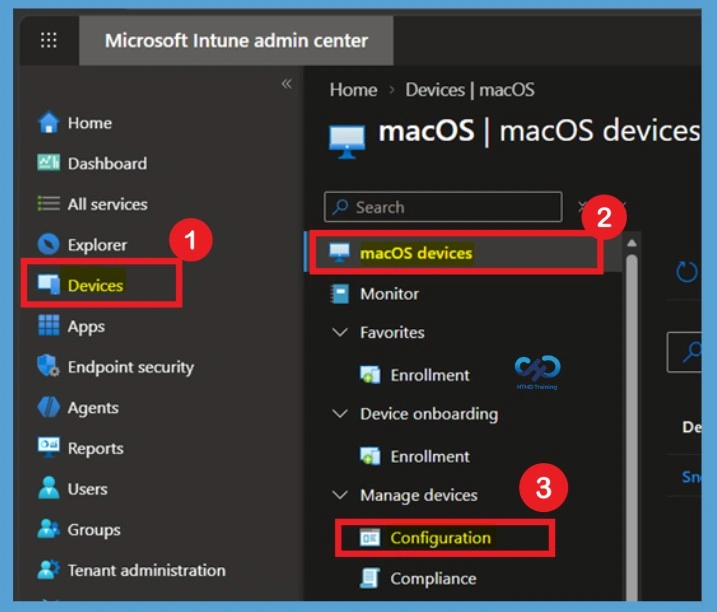
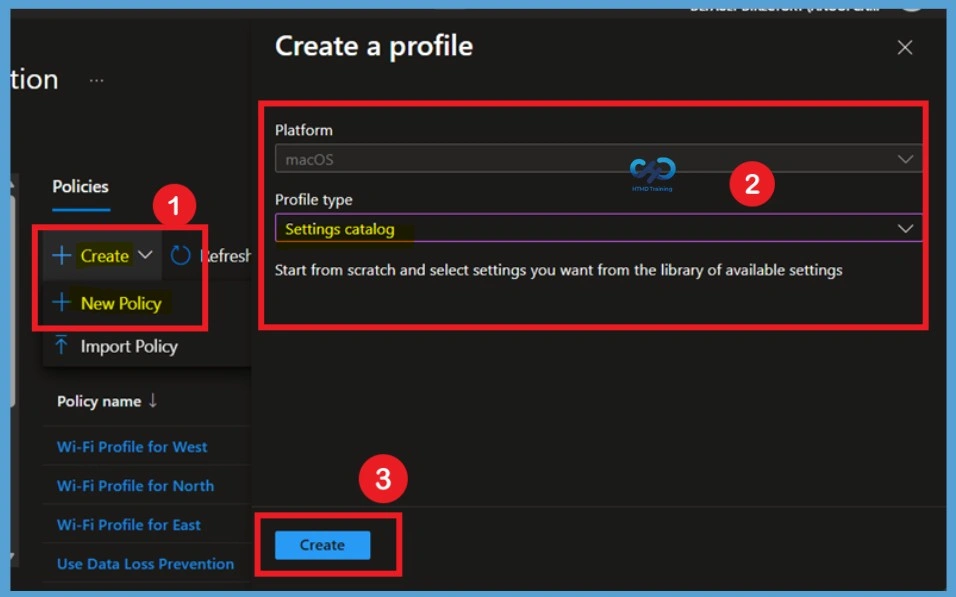
Select + Create, New Policy, depending on the current Intune portal experience. In the Create a profile page, select macOS as the platform and choose Settings catalog as the profile type. The Settings Catalog provides a centralized collection of macOS configuration settings that can be selected and configured without creating a custom configuration profile. Select Create to begin configuring the policy.
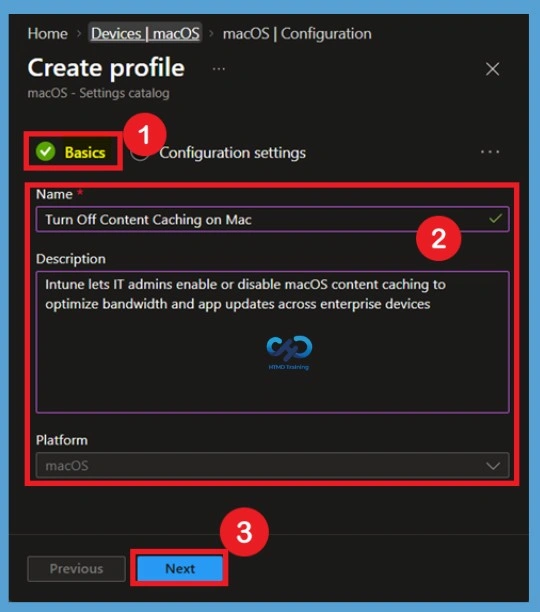
Basic Tab
In Basics, enter a descriptive name for the policy. Name your policies so you can easily identify them later (For Example, Turn off Content Caching on mac). Enter a description for the policy. This setting is optional but recommended. Select Next.
Configuration Settings
On the macOS Configuration settings tab, With the settings catalog, you can choose which settings you want to configure. Click on Add Settings to browse or search the catalog for the settings you want to configure.
Search for “Allow Content Caching” or “Content Caching”. Select the Restrictions settings from Allow Content Caching from the search result. You can also configure the Content Caching payload to configure devices to save a local copy of content, making it easier to be retrieved by other Apple devices without connecting to the Internet.
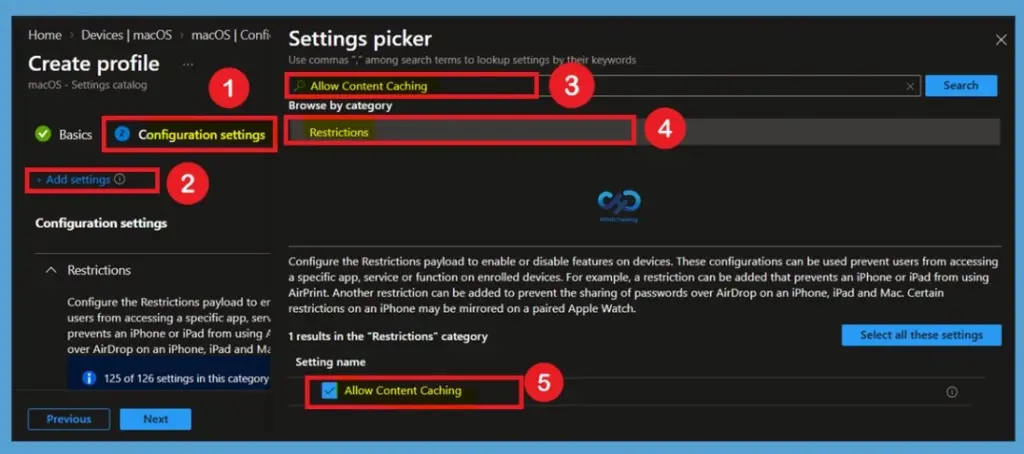
Enabled by Default
When Allow Content Caching is selected in the Settings Catalog, the setting is enabled by default. To prevent Content Caching, administrators must explicitly configure Allow Content Caching to False. This ensures that Intune centrally instructs managed Mac devices to disable Content Caching rather than leaving the configuration under the device’s default behavior.
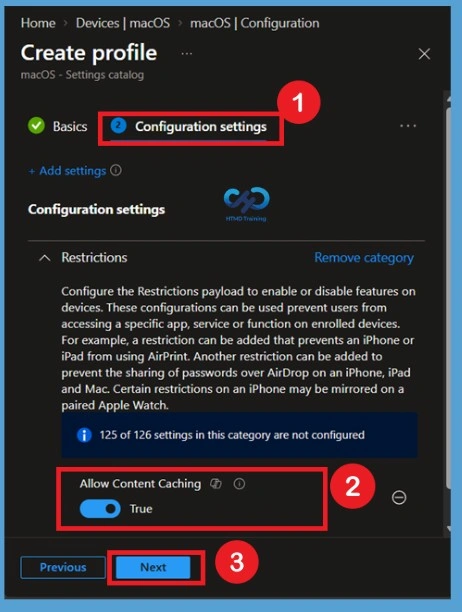
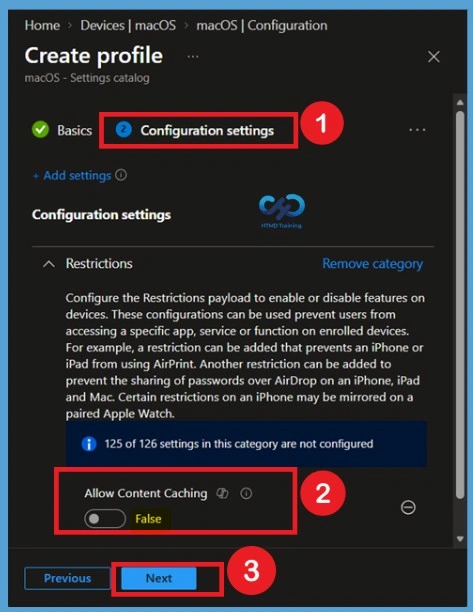
Disable Content Caching
Toggle the switch “Allow Content Caching” to set as False. If false, disables content caching. As of 10.13.4 this is included in the content caching payload. Available in macOS 10.13 and later. Click on Next.
Block content caching: Yes prevents content caching. Content caching stores app data, web browser data, downloads, and more locally on devices. When set to Not configured (default), Intune doesn’t change or update this setting. By default, the OS might enable content caching.
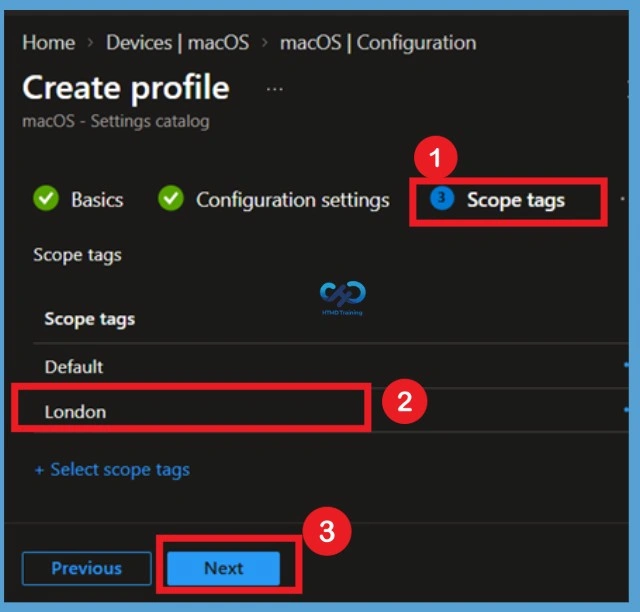
Scope Tag
If your organization does not use scope tags for this configuration, you can leave the default selection and select Next. If scope tags are required, select the appropriate tags for the administrators responsible for managing the macOS configuration profile.
Assignments
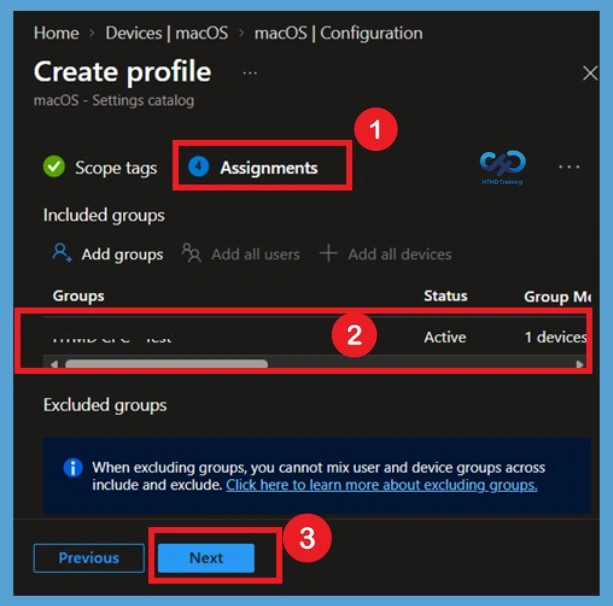
Next, in Assignments, in Included Groups, you need to click on Add Groups, choose Select Groups to include one or more groups to target the macOS restriction policy, and click Next to continue.
Review + Create
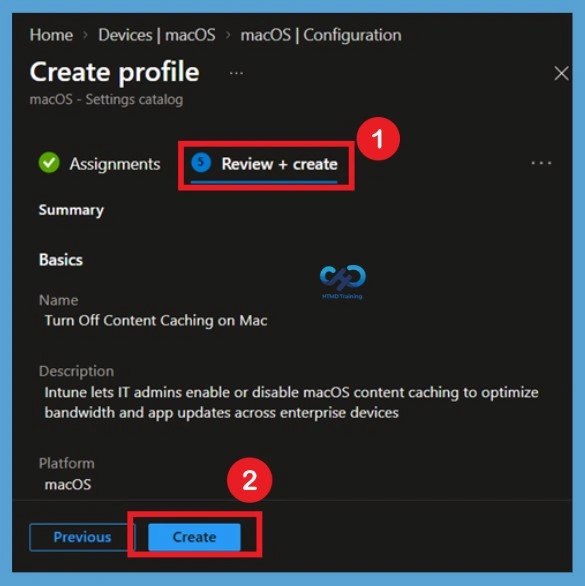
The Review + create page provides an opportunity to verify all the configuration settings before creating the policy. Review the profile name, description, platform, configuration settings, scope tags, and group assignments. Pay particular attention to Allow Content Caching, which should be configured as False for this policy. Once everything is correct, select Create. Intune creates the macOS configuration profile and adds it to the Configuration profiles list.
- A notification will appear automatically if you see it in the top right-hand corner. You can see that the Policy “Turn off Content Caching on mac” was created successfully. The policy is also shown in the Configuration profiles list.
Note! Before deploying profiles in large groups or production, it’s always important to test any configuration changes or scripts in an environment with limited sets of devices before deploying to production devices.
Monitor Intune Policy to Turn off Content Caching on MacOS
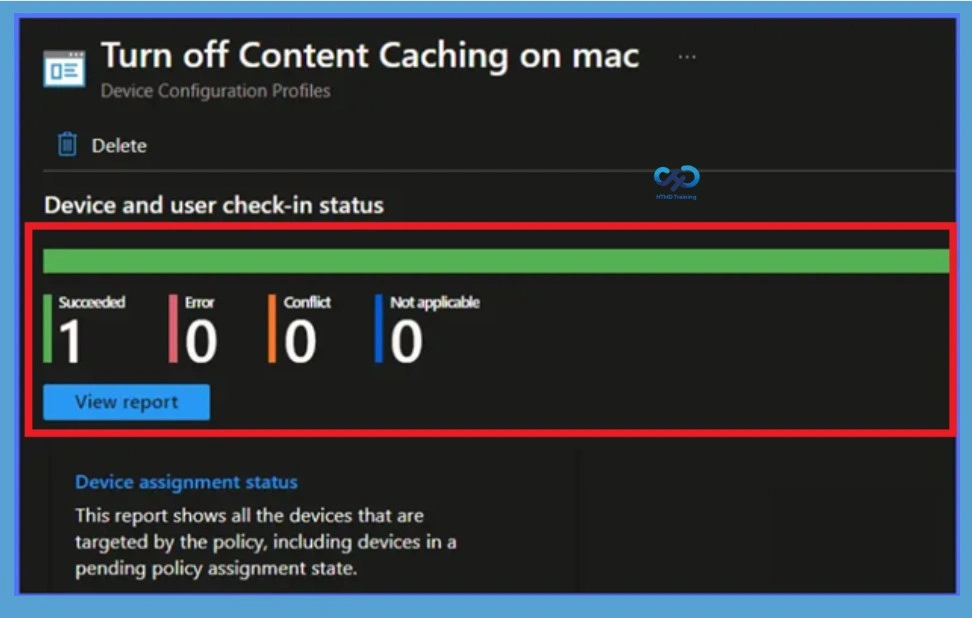
Once the Intune macOS restriction policy is deployed to macOS devices, it will take some time to apply, You can get the deployment status on the list of targeted devices by clicking on profile inside macOS > Configuration profiles. Once you click on the view report button, you can see the list of devices along with their details Device Name, Logged-in User, Check-in Status and Last check-in time.
Also, we can view the two different types of reports, and you can quickly check the update as devices/users check-in status reports.
How to Check on Device
Once the user successfully log in to the macOS device, you can follow the steps below to check the profile status. The specific settings and options might vary based on the version of macOS you are using. You can also initiate the manual sync to speed up if the profile is not received.
- Click on the Apple icon at the top-left corner and select System Settings from the list of options.
- Click General in the sidebar, click Sharing, and then Content Caching should be turned off.
Delete Policy Permanently
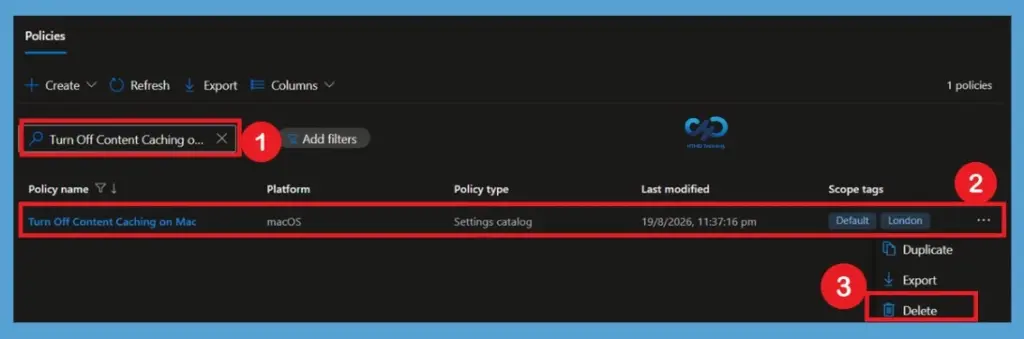
When the Content Caching configuration profile is no longer required, navigate to Devices > macOS > Configuration profiles and select the policy. Open the profile’s Properties or Overview page and choose Delete or click on the 3-dot menu and select Delete option. Confirm the deletion when prompted to permanently remove the configuration profile from Intune.
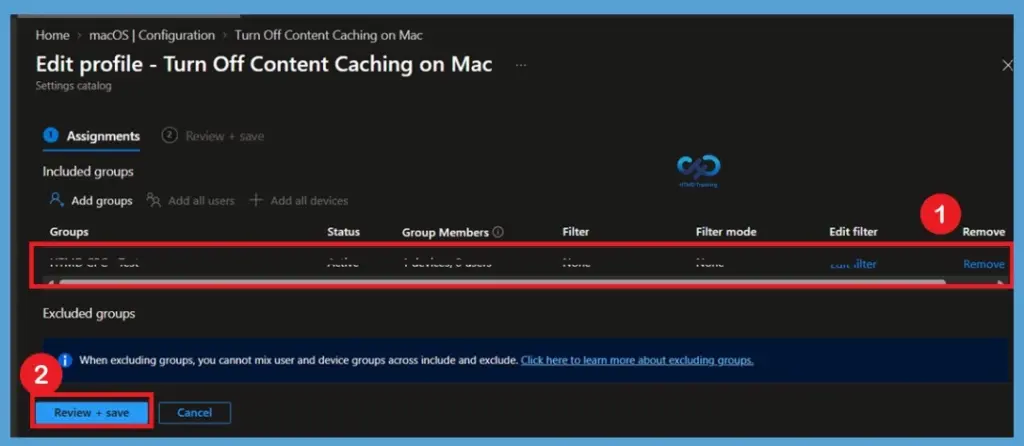
Remove Assigned Groups
If you no longer want the configuration profile to apply to a particular group, open Devices > macOS > Configuration profiles and select the Content Caching policy. Open Assignments and edit the Included groups section. Remove the group that should no longer receive the policy and save the updated assignment.
Need Further Assistance or Have Technical Questions?
Join the LinkedIn Page and Telegram group to get the latest step-by-step guides and news updates. Join our Meetup Page to participate in User group meetings. Also, join the WhatsApp Community and the Whatsapp channel to get the latest news on Microsoft Technologies. We are there on Reddit as well.
Author
About Author – Jitesh, Microsoft MVP, has over six years of working experience in the IT Industry. He writes and shares his experiences related to Microsoft device management technologies and IT Infrastructure management. His primary focus is Windows 10/11 Deployment solution with Configuration Manager, Microsoft Deployment Toolkit (MDT), and Microsoft Intune.