
Key Takeaways
- Separate Entra-joined devices for targeted Intune policies, applications, and security configurations.
- Simplify the management of hybrid-joined virtual machines and cloud-joined physical devices using dynamic membership rules.
- Reduce manual group management and improve policy assignment accuracy.
- Use dynamic device groups to target device configuration profiles, compliance policies, and application deployments.
Microsoft Entra ID dynamic device groups help administrators separate devices based on their join type. Using the device.deviceTrustType attribute, admins can create separate groups for Microsoft Entra hybrid joined devices and Microsoft Entra joined devices. This makes it easier to manage device policies and settings in Microsoft Intune.
Table of Content
Table of Contents
New Microsoft Entra ID Dynamic Device Groups for Hybrid and Entra-Joined Devices
These dynamic groups are useful for managing Azure Virtual Desktop (AVD) and Windows 365 Cloud PCs, especially when an organisation uses both hybrid-joined virtual machines and cloud-joined physical devices. Admins can automatically group devices and assign the right configuration profiles, applications, and security policies without manually adding each device to a group.
- Track All Intune Policy and App Assignments for Users Devices and Entra ID Groups with Assignment Checker
- Best Practices for Creating Entra ID Dynamic Groups for Intune
- How To Manage Windows OS Version-Based Device Groups In Intune Using Entra ID Dynamic Membership
Microsoft Entra ID Dynamic Groups vs. Intune Filters for Domain Join Type Management
Microsoft Intune admins can use both Microsoft Entra ID dynamic device groups and Intune filters to target devices based on their management requirements. Dynamic groups automatically add or remove devices when they meet the membership rules, but membership updates can take time to process. This delay may affect how quickly apps and policies reach newly added devices. Intune filters, on the other hand, evaluate device properties during supported assignment scenarios, helping admins narrow down which devices receive an app or policy without waiting for dynamic group membership to update.
For domain join type targeting, Intune filters now support the device.deviceTrustType property for Windows devices. Admins can filter Microsoft Entra joined and Microsoft Entra hybrid joined devices directly during supported app and policy assignments, without creating separate dynamic groups for every targeting scenario. Dynamic groups remain useful when reusable group membership is needed across services. The best choice depends on the deployment requirement, and admins should test filter behavior and dynamic group processing before using them in production.

How to Create Entra ID Dynamic Groups for Hybrid Joined Devices
You can use the deviceTrustType property in Microsoft Entra ID dynamic membership rules to create a dynamic device group for Microsoft Entra hybrid joined Windows devices. This helps you separate hybrid joined devices from Microsoft Entra joined devices for easier management and targeting of Intune policies.
- Sign in to the Microsoft Entra admin center.
- Navigate to Microsoft Entra ID → Groups → All groups.
- Select New group.
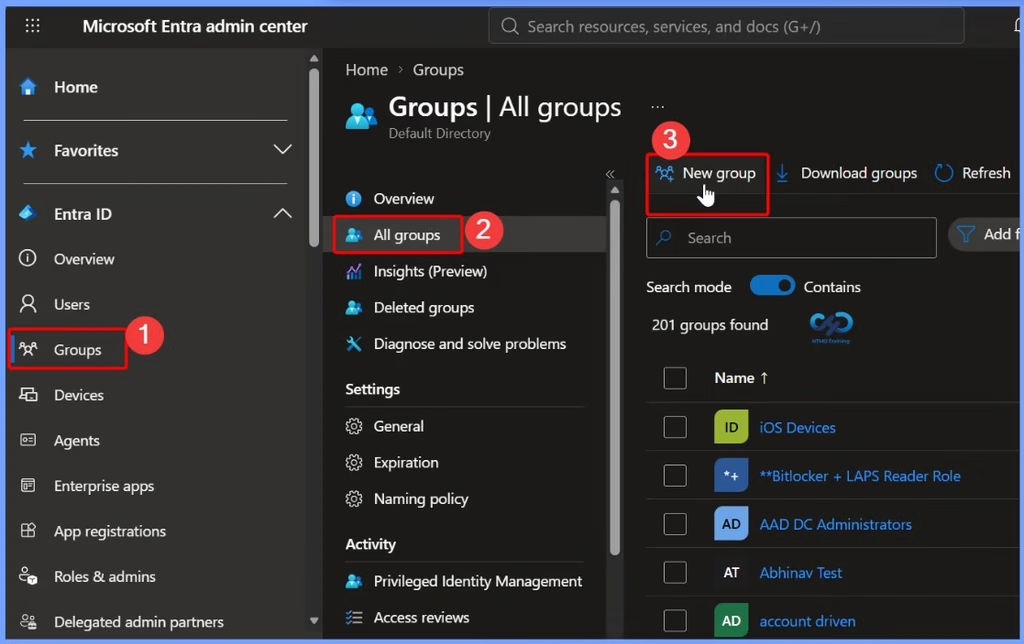
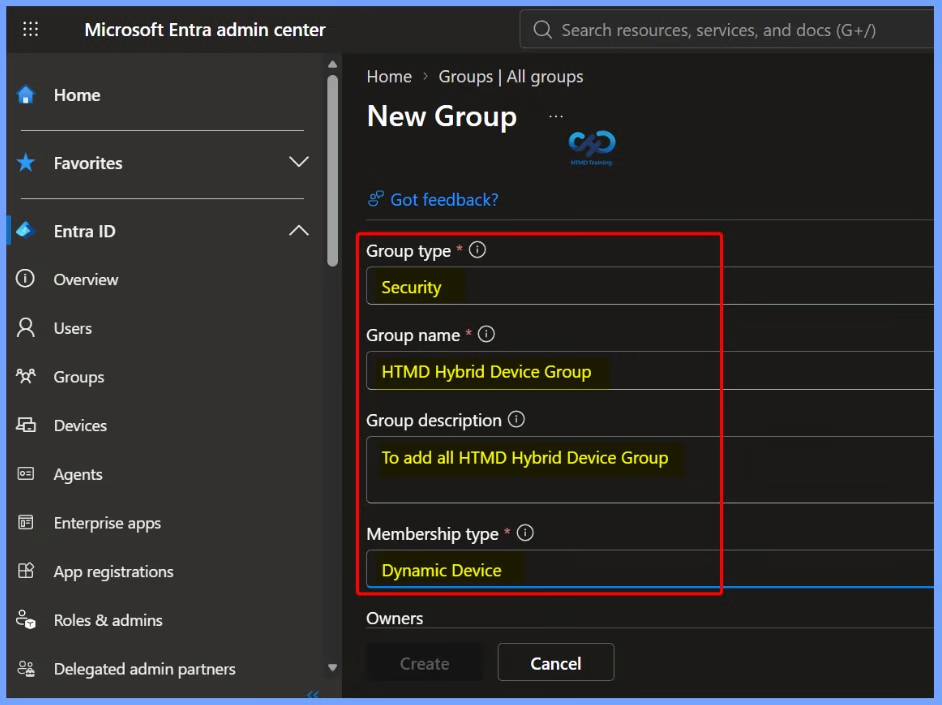
Configure the Dynamic Device Group Settings
Enter the required details to create the HTMD Hybrid Entra ID Device Group. Select Security as the group type and Dynamic Device as the membership type. Add a group description to identify all Microsoft Entra hybrid joined Windows devices.
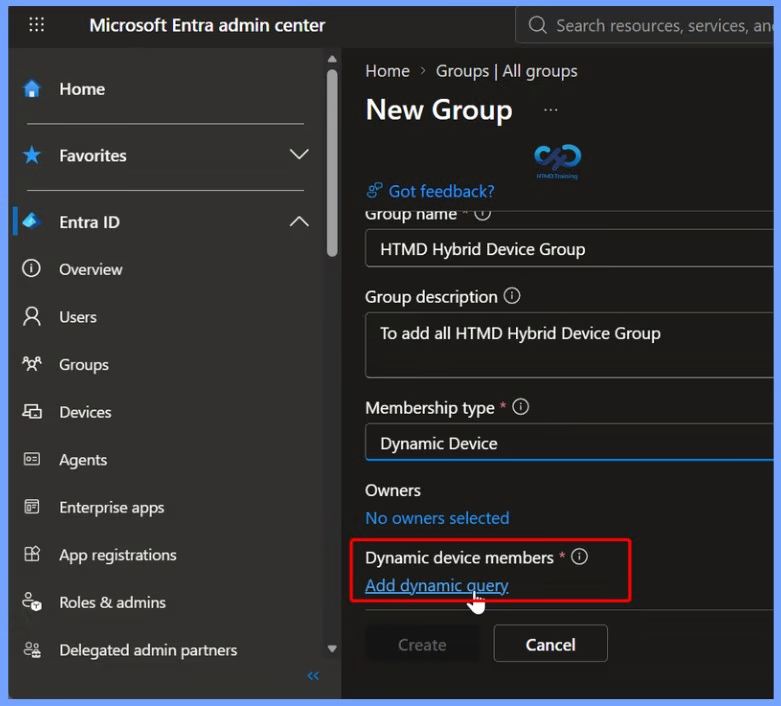
Configure the Dynamic Membership Rule
Select Dynamic device members → Add dynamic query. Create a dynamic membership rule using the deviceTrustType property to automatically add Microsoft Entra hybrid-joined Windows devices to the dynamic device group.
Configure the Dynamic Membership Rule Using Rule Builder
Microsoft Entra ID provides two options to create dynamic device membership rules: Rule Builder and Rule Syntax. Rule Builder offers a graphical interface for creating rules easily, while Rule Syntax allows you to enter advanced membership expressions manually.
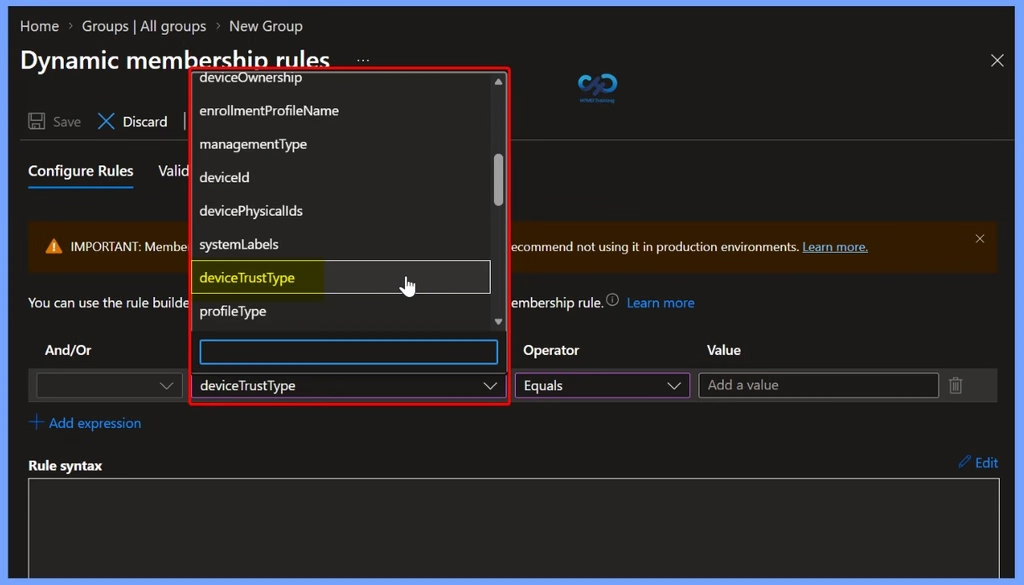
Under Configure Rules, open the Choose Property dropdown and select deviceTrustType to identify Microsoft Entra hybrid-joined Windows devices.
| Property |
|---|
| deviceTrustType |
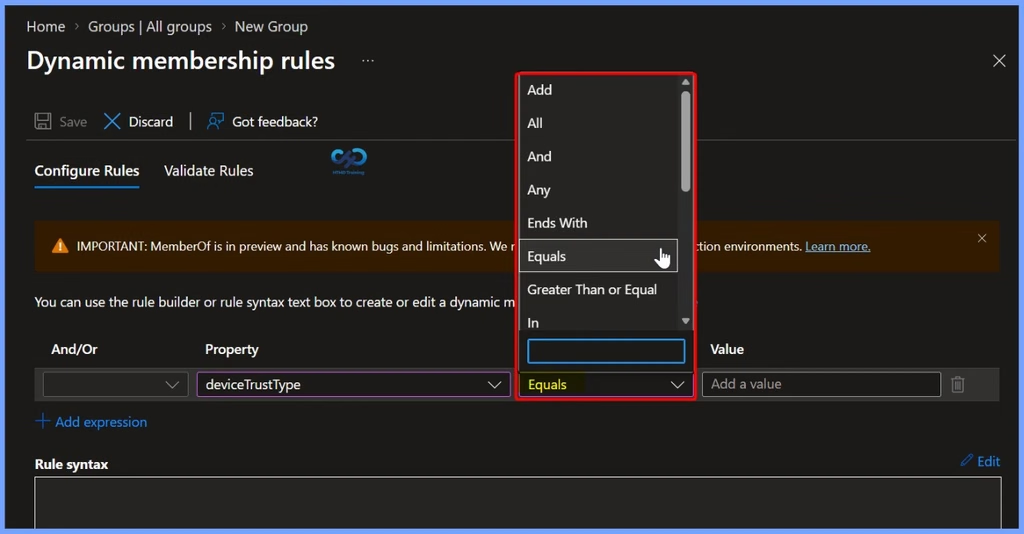
It’s time to choose an operator now for the devicetrustType policy. I have selected Equals from the operator drop-down menu.
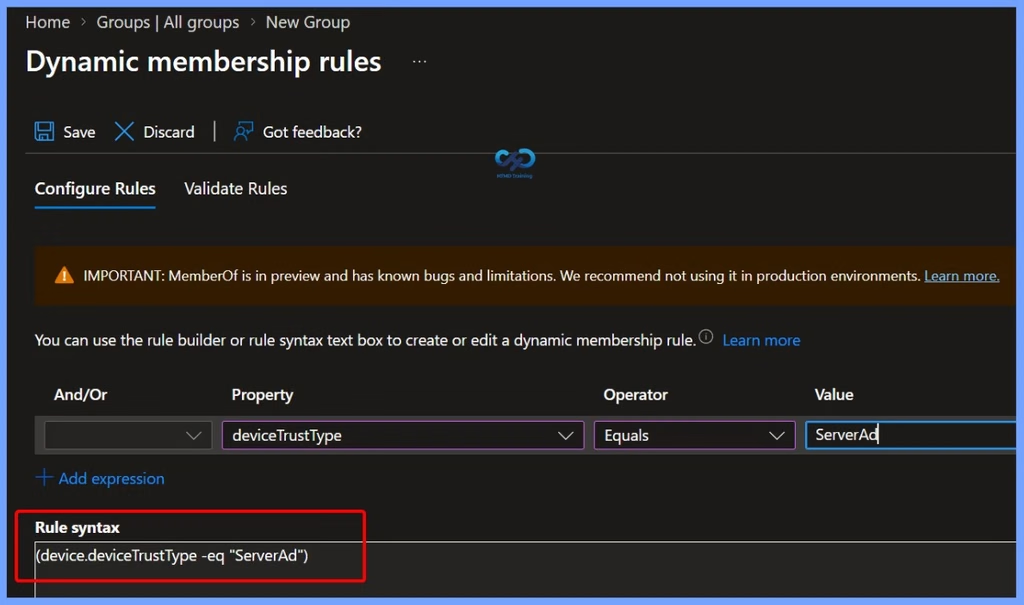
For Microsoft Entra hybrid-joined Windows devices, set the Value of the deviceTrustType property to ServerAD. This value identifies hybrid-joined devices and allows you to create a dynamic device group that automatically includes matching devices.
Validate the Dynamic Membership Rule
After creating the dynamic membership rule, use the Validate Rules option in Microsoft Entra ID to verify whether the rule correctly identifies Microsoft Entra hybrid-joined devices.
Dynamic membership rule for Hybrid Entra ID-joined devices:
(device.deviceTrustType -eq “ServerAD”)
Follow these steps to validate the rule:
- Select the Validate Rules tab after configuring the dynamic membership rule.
- Click Add Devices to select devices for validation.
- Search for Microsoft Entra joined and Microsoft Entra hybrid joined devices.
- Select both types of devices and click Select.
- Review the validation results to confirm that only the hybrid joined devices match the ServerAD rule.
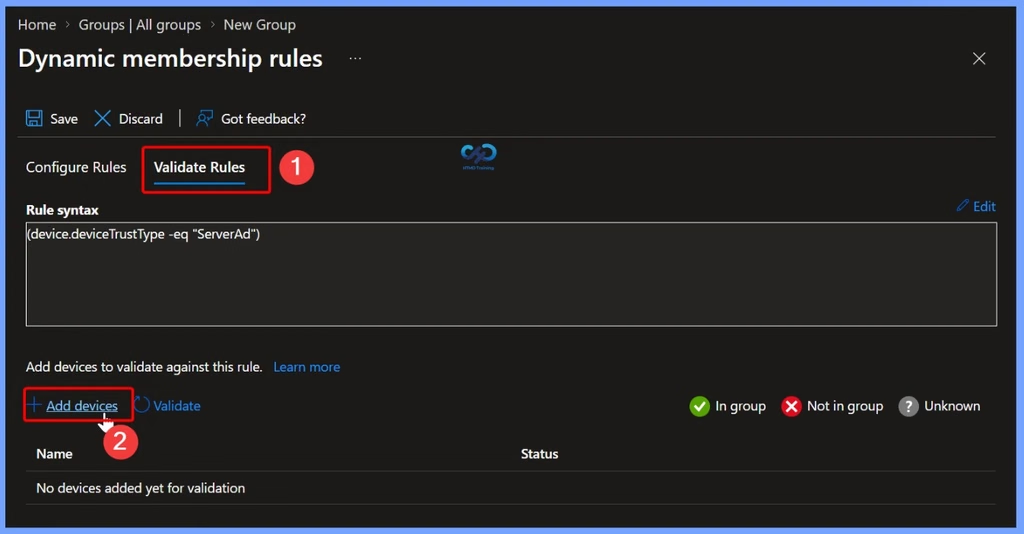
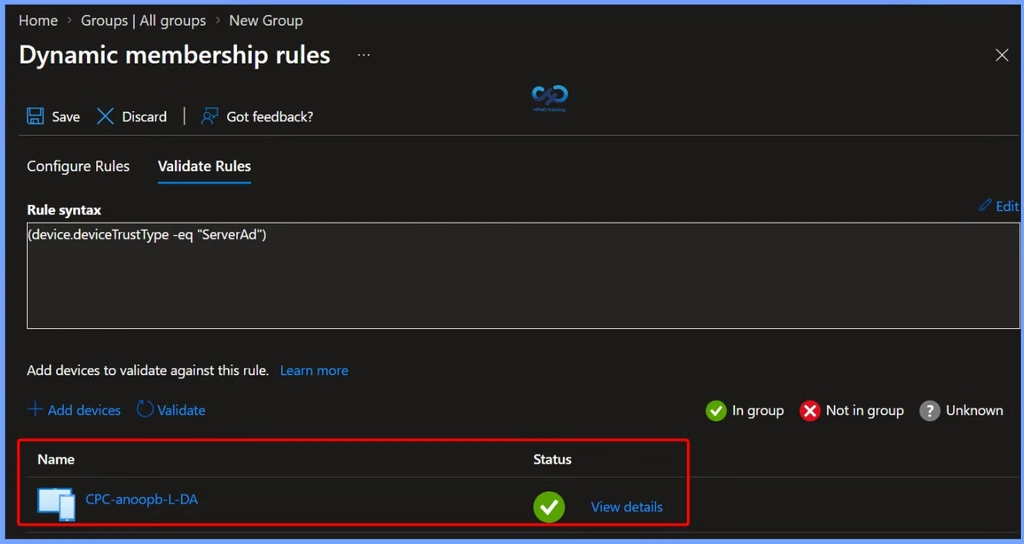
After configuring the dynamic membership rule, select the Validate Rules tab and click Add devices to choose a device for testing. Click Validate to check whether the selected device matches the rule. As shown in the screenshot, the device CPC-anoopb-L-DA displays a green check mark, indicating that it matches the rule and belongs to the expected dynamic group based on the deviceTrustType value ServerAD.
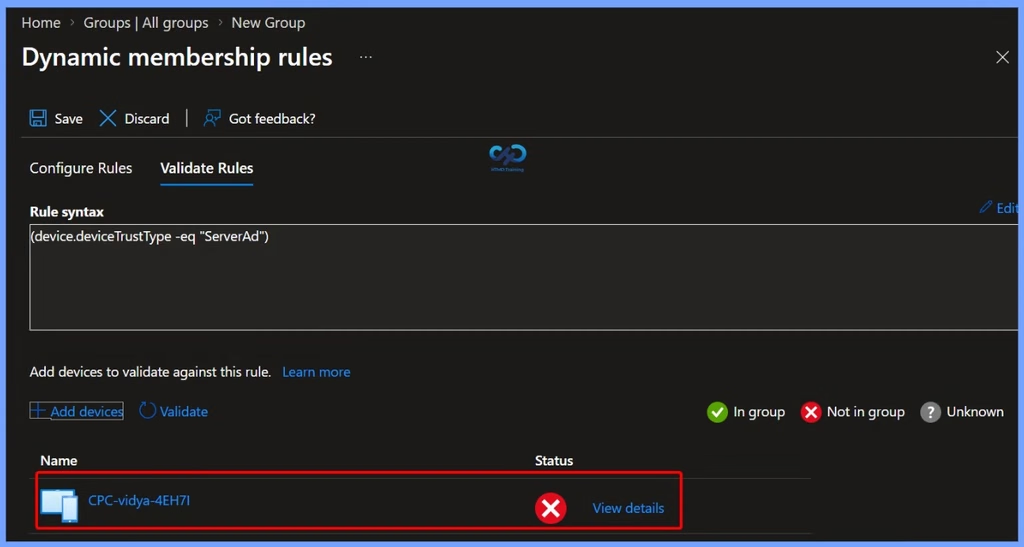
To confirm the rule functions as intended, the user has added a test device, named CPC-vidya-4EH7I, for validation. As shown in the results table, the validation status shows a red ‘X‘ and is labelled Not in group, meaning the device does not meet the “ServerAd” criteria and would not be included in the dynamic group.
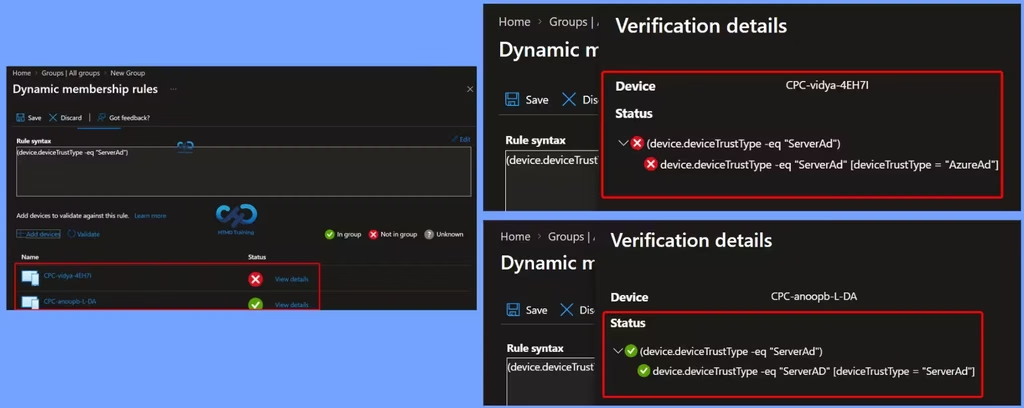
The validation results confirm that the dynamic membership rule is working correctly. I added one Microsoft Entra-joined device and one Microsoft Entra hybrid-joined device to validate the query. The device CPC-vidya-4EH7I is marked as Not in group because it is Microsoft Entra-joined, whereas CPC-anoopb-L-DA is marked as In group. After all, it is Microsoft Entra hybrid-joined.
Click the Save button to save the dynamic membership rules, and then click Create to complete the Hybrid Azure AD dynamic device group creation process.
How to Create an Entra ID Dynamic Group for Microsoft Entra Joined Devices
To create an Entra ID dynamic device group for Entra-joined devices, follow the same steps explained in the previous section. Create a new dynamic device group and add the required membership rule. The only change is the value of the deviceTrustType attribute.
For Entra-joined devices, use the value EntraID in the dynamic membership rule: (device.deviceTrustType -eq ". This rule automatically adds devices that meet the specified condition to the group.EntraID ")
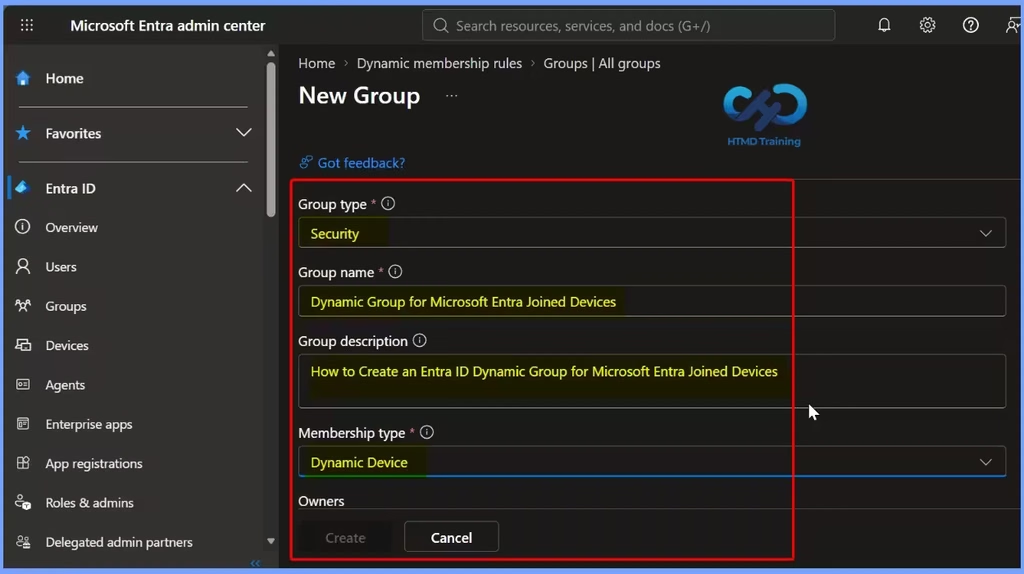
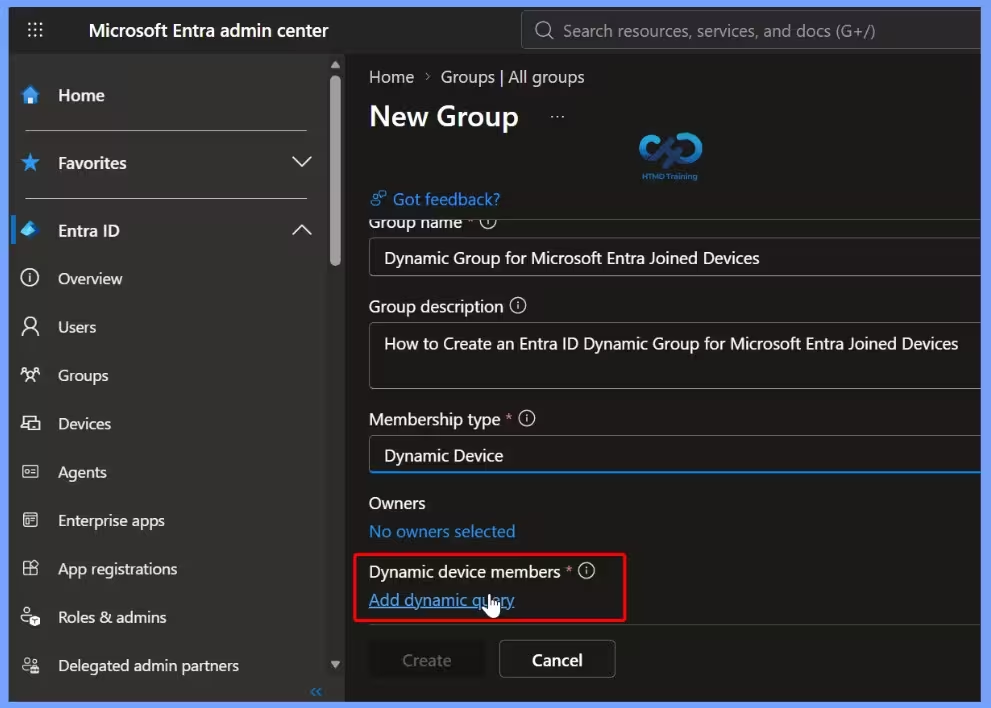
Set the Membership type to Dynamic Device. Under Dynamic device members, click Add dynamic query to configure the membership rule for Microsoft Entra-joined devices. Once you have configured and reviewed the required dynamic membership rule, you can create the group to automatically manage devices based on their join type.
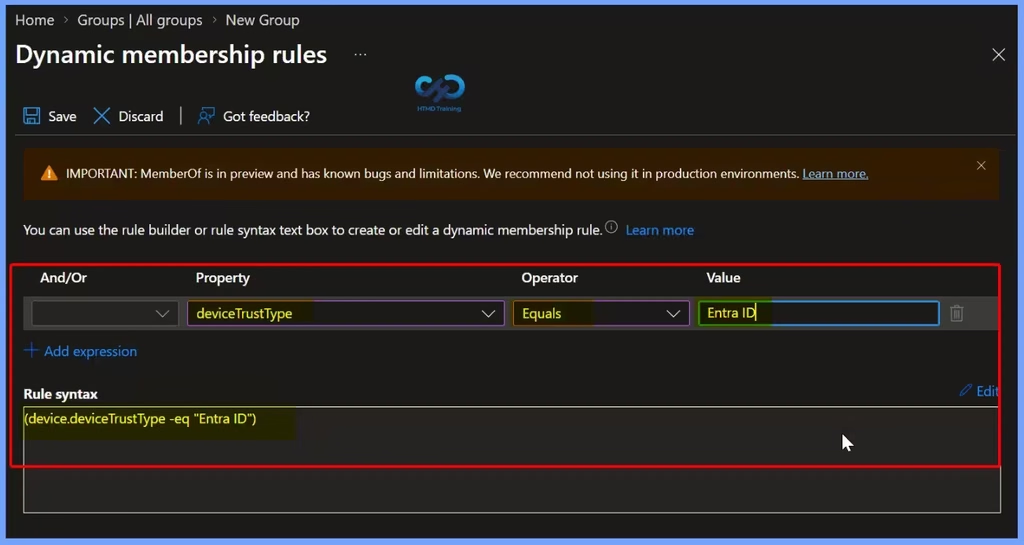
In the Dynamic membership rules window, select deviceTrustType as the property and Equals as the operator. In the Value field, enter EntraID to identify Microsoft Entra joined devices. The rule syntax should be (device.deviceTrustType -eq “AzureAD“). After verifying the rule, click Save to apply it. This ensures that the dynamic group includes devices that match the Microsoft Entra join type.
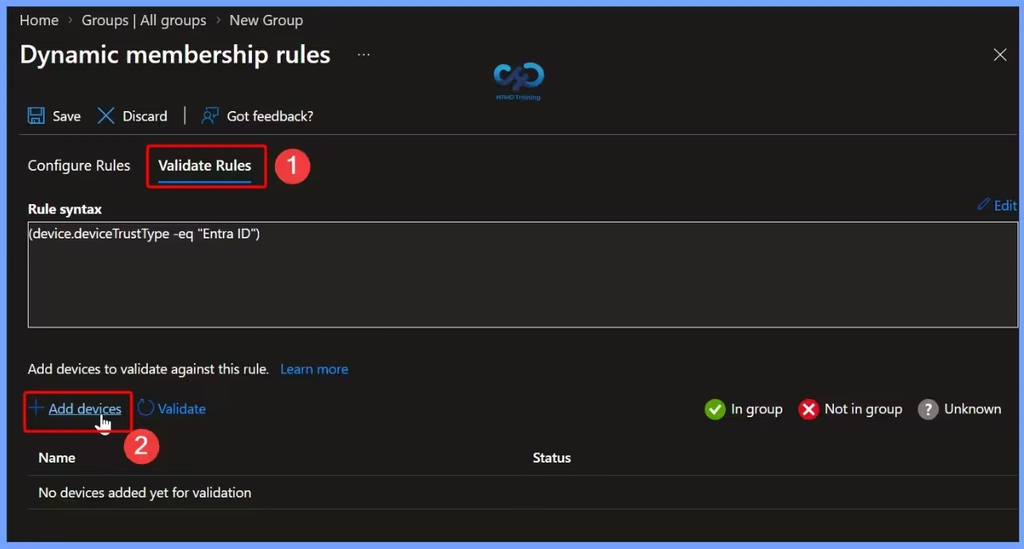
The next step is to perform validation to confirm that the dynamic membership rule for Microsoft Entra-joined devices is configured correctly. Select the appropriate devices and validate the rule to ensure that Entra joined devices are included in the group and hybrid-joined devices are excluded. This helps verify that the dynamic query works as expected before completing the group creation process.
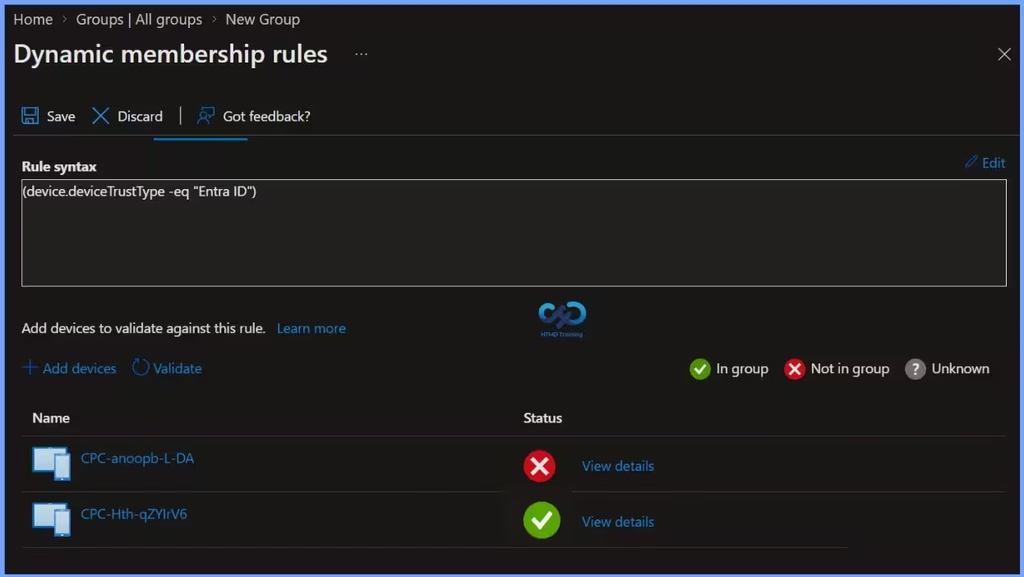
After validating the dynamic membership rule, you can check the results to confirm that the correct devices are included in the group. The device CPC-anoopb-L-DA is not included because it is Microsoft Entra hybrid joined, while CPC-Hth-qZYIrV6– is included because it is Microsoft Entra joined. Once you have verified the results, click Save and then Create to complete the Microsoft Entra ID dynamic device group creation process.
Author
Anoop is Microsoft MVP! He is a Solution Architect in enterprise client management with over 17 years of IT experience (calculation done in 2018). He is Blogger, Speaker, and Local User Group Community leader. His main focus is on Device Management technologies like SCCM 2012, Current Branch, and Intune. He writes about technologies like SCCM, SCOM, Windows 10, Azure AD, Microsoft Intune, RMS, Hyper-V, etc.
Need to do accountenabled = True and possibly managementType = MDM to eliminate Autopilot devices that haven’t been deployed. I just did both since for some reason some of my Autopilot devices got enabled:
(device.deviceTrustType -eq “AzureAD”) and (device.accountEnabled -eq True) and (device.managementType -eq “MDM”)
And if you are dealing with an SCCM co-managed environment and wish to split those up then there are these groups you can use:
NAME: DYN-Devices-AAD-Joined-Win-Intune-Managed-Not-HYB-Or-Autopilot-SN
DESC: Include all Non-Hybrid AAD joined Windows Intune Managed devices except Autopilot Serial Number devices
DYN RULE: (device.accountEnabled -eq True) -and (device.deviceOSType -startsWith “Windows”) -and (device.managementType -eq “MDM”) -and (device.deviceManagementAppId -contains “0000”) -and (device.deviceTrustType -eq “AzureAD”)
NAME: DYN-Devices-AAD-Joined-Win-SCCM-Managed-Not-HYB-Or-Autopilot-SN
DESC: Include all Non-Hybrid AAD joined Windows SCCM Managed devices except Autopilot Serial Number devices
DYN RULE: (device.accountEnabled -eq True) -and (device.deviceOSType -startsWith “Windows”) -and (device.managementType -eq “MDM”) -and (device.deviceManagementAppId -contains “54b9”) -and (device.deviceTrustType -eq “AzureAD”)