

Key Takeaways
- Dynamic device security groups automatically manage Windows devices in Microsoft Entra ID.
- Devices are grouped based on ownership type (Personal for BYOD, Company for CYOD).
- No manual device addition is required – membership is fully automated.
- Device attributes are assigned automatically during Intune enrollment.
Creating an Entra ID Dynamic Device Security Group for Windows BYOD and CYOD devices using Microsoft Intune means that it automatically groups Windows devices based on how they are owned and enrolled, without adding devices manually. BYOD (Bring Your Own Device) refers to personal devices owned by users, while CYOD (Choose Your Own Device) usually means company-approved devices that are controlled by the organization.
Table of Content
Table of Contents
Create Entra ID Dynamic Device Security Group for Windows BYOD and CYOD Devices using Microsoft Intune
In Microsoft Intune, when a Windows device is enrolled, Entra ID automatically assigns device attributes such as ownership type (personal or company). A dynamic device security group uses these attributes to decide which devices belong to the group.
In this grouping personal Windows devices can be automatically added to a BYOD group, and company-owned Windows devices can be added to a CYOD group. These groups are then used in Intune to assign policies, apps, or restrictions, ensuring the right settings are applied to the right type of device without manual effort.
- You can easily create the Create Entra ID Dynamic Device Security Group for Windows BYOD and CYOD Devices by following the below steps.
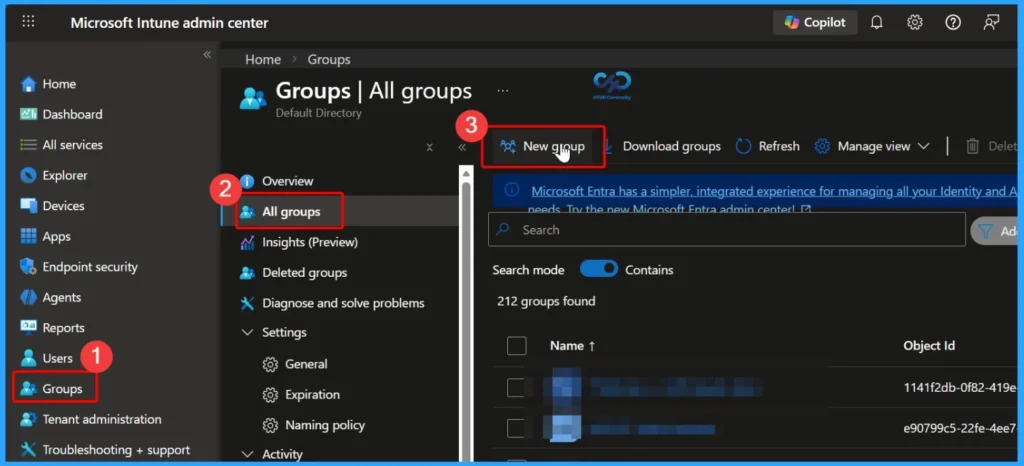
- Sign in to Microsoft Intune admin center. Go to Groups > All groups > New Group
- Create AAD Dynamic Groups based on Domain Join Type Hybrid Azure AD and Azure AD
- Create AAD Dynamic Groups based on MDM (Intune & SCCM Management)
- How To Create Nested Azure AD Dynamic Groups.
- Intune Admins Basic Azure AD Dynamic Device Group Rules | Queries
Configure Basic Details in the New Group Window
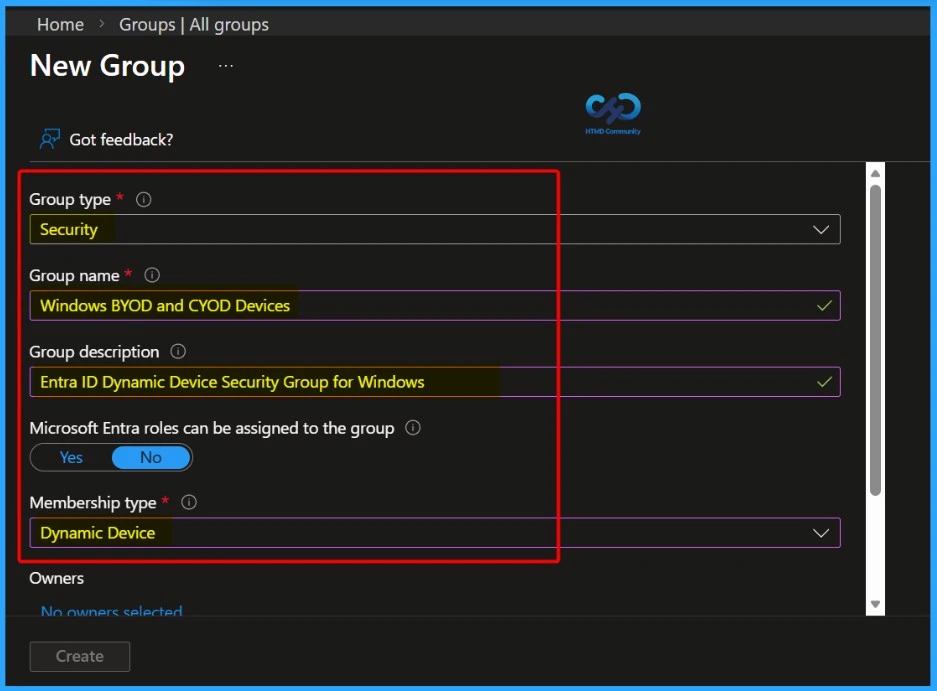
In the New group window, you need to fill in the basic information required to create the group. This includes selecting the Group type, entering a clear Group name, adding a meaningful Group description, and choosing the appropriate Membership type (such as Dynamic device).

| Group Type | Group Name | Group Description | Membership type |
|---|---|---|---|
| Security | Windows BYOD and CYOD Devices | Entra ID Dynamic Device Security Group for Windows | Dynamic Device |
Easily Add a Dynamic Device Query
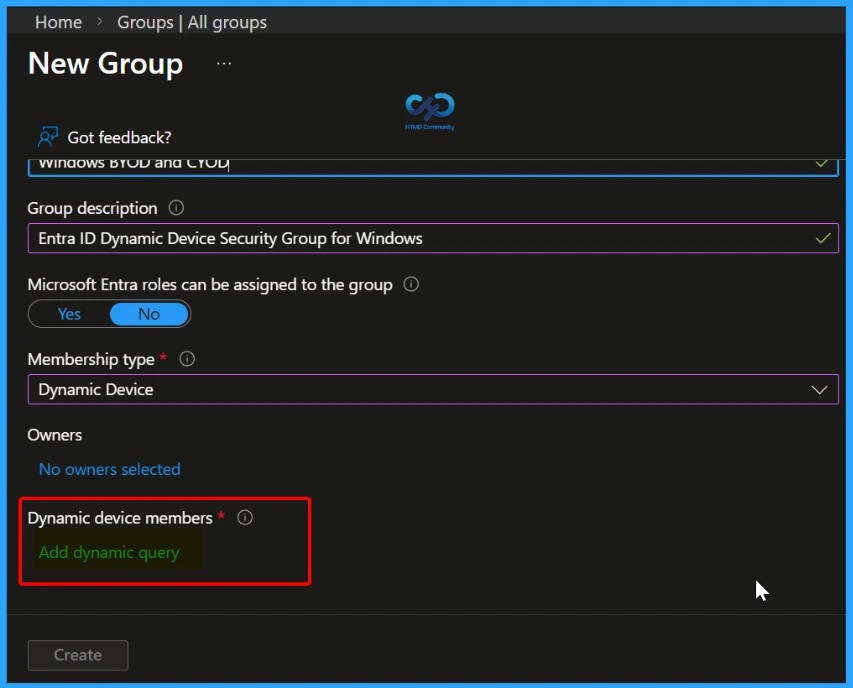
In the New Group window, select Dynamic device as the membership type. Once this is selected, the Add dynamic query option becomes available. Click Add dynamic query to define the rule that determines which devices are automatically added to the group based on their attributes.
Create Dynamic Membership Rules
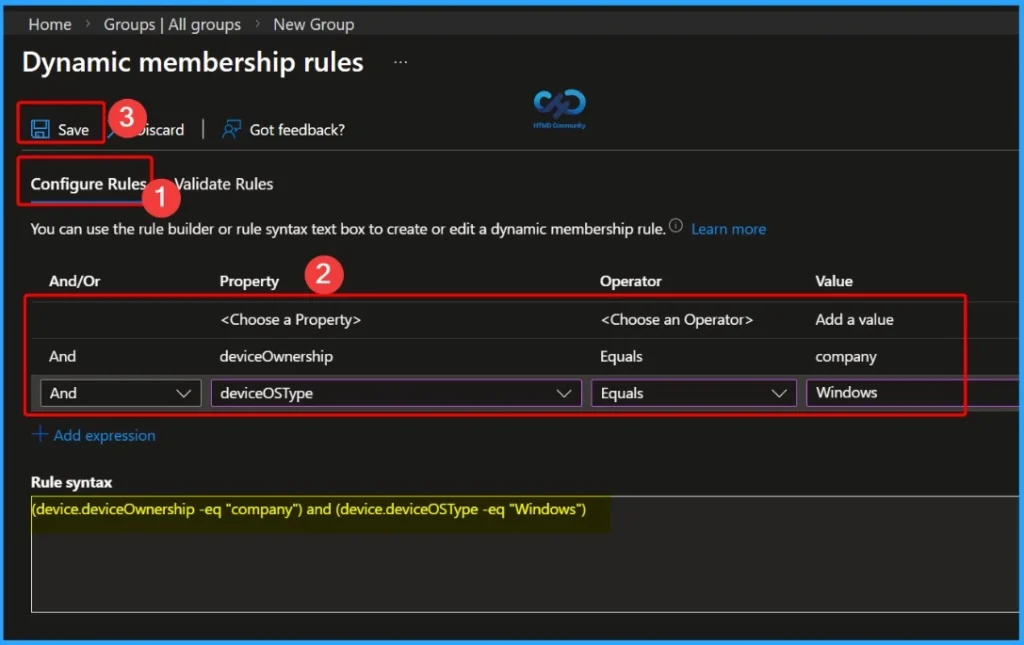
On the Configure Rule tab, add the dynamic membership expressions that define which devices should be included in the group. First, select the Property as deviceOwnership, set the Operator to Equals, and choose the Value as Company. Next, add another expression by selecting the Property DeviceOSType, set the Operator to Equals, and choose Windows as the value.
Rule Syntax – (device.deviceOwnership -eq “Company“) and (device.deviceOSType -eq “Windows”)
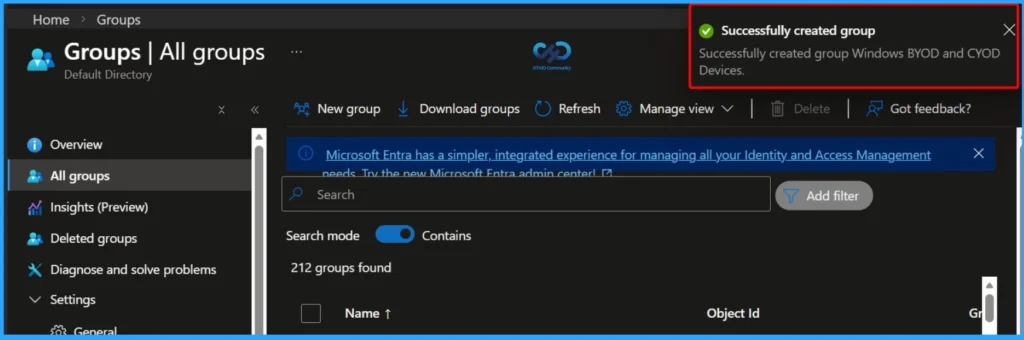
Notification – Dynamic Device Group Created Successfully
After clicking the Create button, a notification appears confirming that the group Windows BYOD and CYOD Devices has been created successfully. This message indicates that the dynamic device security group is now available in Microsoft Entra ID and will start automatically adding eligible Windows devices based on the configured rules.
Verify the Created Dynamic Device Group
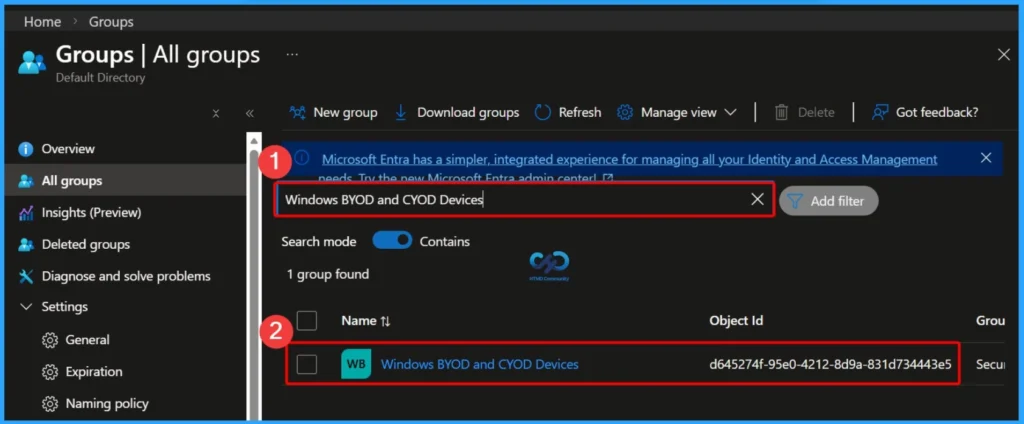
After creating the group, go to Groups > All groups in the Microsoft Entra ID portal. Use the search box to find the newly created group by name. Once you open the group, you can view important details, including the group name, Object ID, group type, membership type (Dynamic device), and related information. This confirms that the group has been created correctly and is ready for use.
| Name | Object ID | Group Type | Membership Type |
|---|---|---|---|
| Windows BYOD and CYOD Devices | d645274f-95e0-4212-8d9a-831d7 | Security | Dynamic |
View Dynamic Group Details and Membership Status
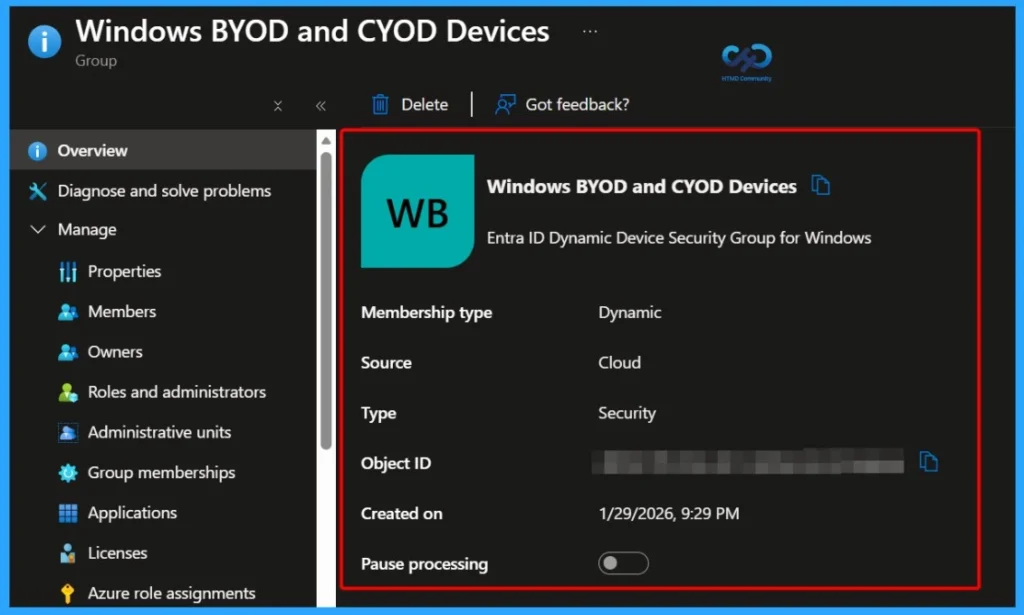
After selecting the group, you can view all the important details on the group overview page. This includes the Membership type, Source, Type, Object ID, Created on date, and the option to Pause processing. These details help you confirm the group configuration and manage how dynamic membership updates are processed.
| Membership type | Type | Object ID | Created on |
|---|---|---|---|
| Dynamic | Security | d645274f-95e0-4212-8d9a-831d7 | 1/29/2026, 9:29 PM |
View End Result and Membership Summary
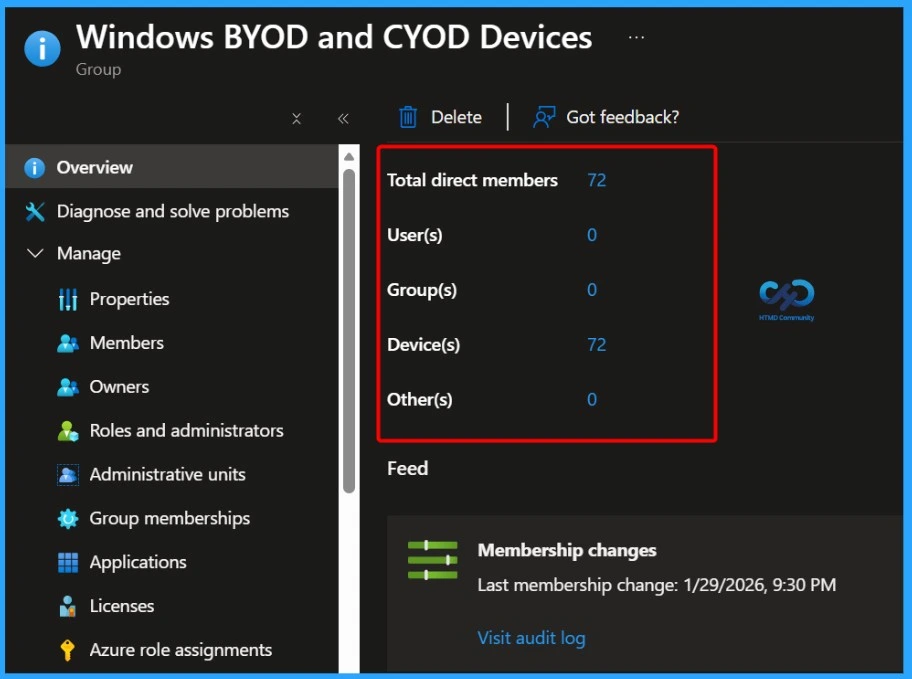
In the end result, you can see other important details about the group, such as the total direct members, users, groups, and devices, along with additional membership-related information. These details help you understand how many objects are currently included in the group and confirm that the dynamic membership rule is working as expected.
Need Further Assistance or Have Technical Questions?
Join the LinkedIn Page and Telegram group to get the latest step-by-step guides and news updates. Join our Meetup Page to participate in User group meetings. Also, join the WhatsApp Community and the Whatsapp channel to get the latest news on Microsoft Technologies. We are there on Reddit as well.
Author
Anoop C Nair has been Microsoft MVP for 10 consecutive years from 2015 onwards. He is a Workplace Solution Architect with more than 22+ years of experience in Workplace technologies. He is a Blogger, Speaker, and Local User Group Community leader. His primary focus is on Device Management technologies like SCCM and Intune. He writes about technologies like Intune, SCCM, Windows, Cloud PC, Windows, Entra, Microsoft Security, Career, etc.
Hi Anoop,
Is there a way to create a dynamic group for newly enrolled devices alone?
I think you can do with managementType attribute as I mentioned in the last section of following post https://www.anoopcnair.com/windows-autopilot-profile-aad-dynamic-device-groups/
Hi Anoop,
I am from an Airwatch background, but want to do below in Intune.
A. I want to enable device ownership or category to appear when user enrolls into intune.
B. Depending on what he chooses, (Personal or corporate), i want different policies to get applied
A. Ownership is based on the Enrollment. When you use Azure AD join or Autopilot and MDM Enrollment for Windows 10, it will be treated as CYOD. Otherwise it will be treated as BYOD.
This is same for iOS and Android. If you use DEP to enroll then the device will be CYOD device otherwise BYOD
Hi Anoop
I am not sure if you are monitoring the replies to this blog still but I hope so 🙂
I am being told by Microsoft and other experts that we cannot offer a BOYD solution on the legacy Android device Administrator platform. See the below reply I received when I queried this.
My question then is similar to the one from ram. Is it possible to set it up in a way that when the user enrolls the device they get the option to choose corporate or personal and then different policies are applied based on which option they choose? According to Microsoft it is not.
There is no BYOD support for Android Device Admin. With Intune you can use MAM-only (without device enrollment), otherwise you need to use Work Profile (Android Enterprise)
Thank you for the reply Dan !! Yes work profile is also treated as BYO scenario isn’t it ?