
Key Takeaways
- Exclude devices from Windows Autopatch without removing them from Intune.
- Windows Autopatch automates updates and reduces IT workload.
- Deregistering a device only removes it from Autopatch, not from Intune or Microsoft Entra ID.
- Supports Windows 11 and Windows 365 Enterprise devices.
- Built-in reports help monitor update status and device health.
Easily Exclude Devices from Windows Autopatch in Microsoft Intune! Windows Autopatch is a cloud service that automates the Windows update process, helping organizations keep devices up to date while reducing the workload for IT administrators. Before Microsoft can manage a device through Windows Autopatch, the device must be registered with the service. Windows Autopatch supports eligible Windows devices without requiring any special hardware.
Table of Content
Table of Contents
Easily Exclude Devices from Windows Autopatch in Microsoft Intune
This post explains how to exclude a device from the Windows Autopatch service. When you exclude (deregister) a device, it is removed only from Windows Autopatch. The device is not removed from Microsoft Intune or Microsoft Entra ID, so you can continue to manage it as usual.
Refer to the step-by-step Windows Autopatch setup guide to implement Windows Autopatch in your environment, Windows Autopatch Implementation Guide.
Exclude Device from Windows Autopatch
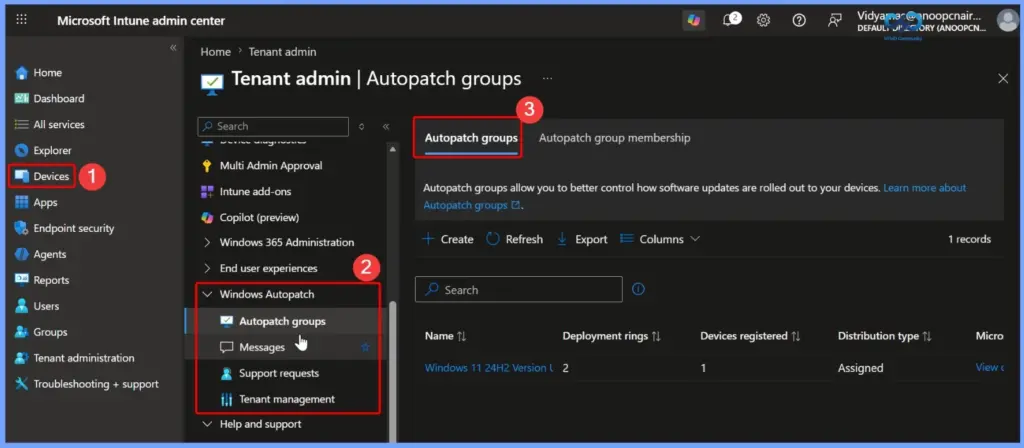
To view Windows Autopatch groups, sign in to the Microsoft Intune admin center. Go to Devices, expand Windows Autopatch, and select Autopatch groups. Here, you can see all your Autopatch groups, the deployment rings assigned to each group, and the number of registered devices. This page helps administrators easily manage and monitor Windows Autopatch deployments.

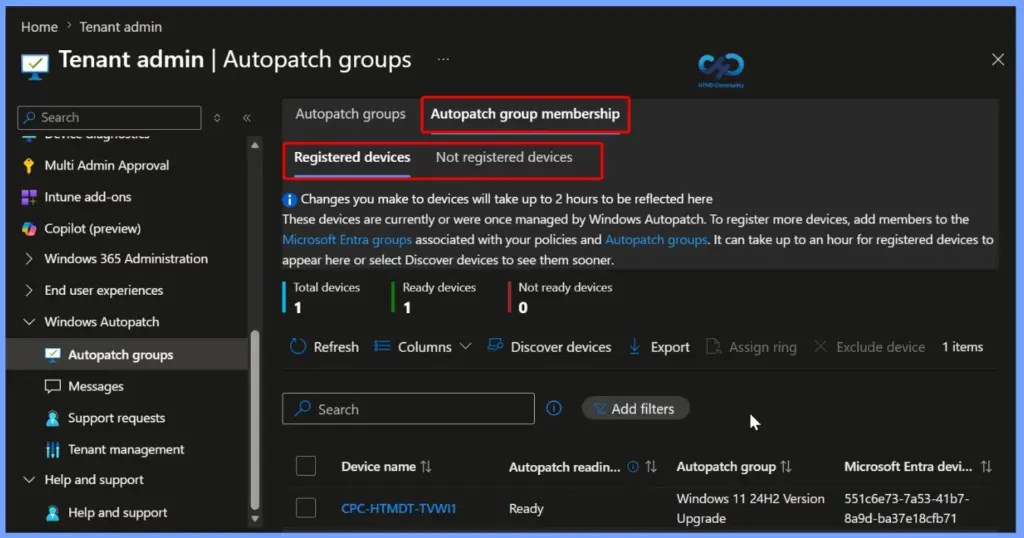
View Registered and Not Registered Devices in Windows Autopatch
The Autopatch group membership page lets you view all devices associated with your Windows Autopatch groups. You can switch between the Registered devices and Not registered devices tabs to check your devices’ registration status. This page also displays the total number of devices, their readiness status, and provides options to refresh the list, discover new devices, assign deployment rings, or exclude devices from Windows Autopatch.
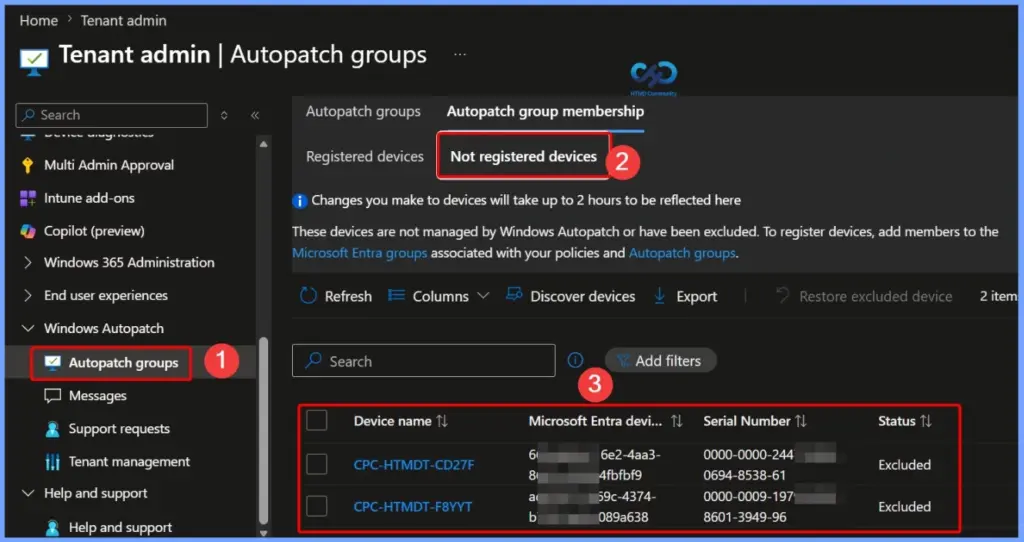
View Excluded Devices in Windows Autopatch
Go to Devices > Windows Autopatch > Autopatch groups, then open the Autopatch group membership tab and select Not registered devices. This page displays devices that are not currently managed by Windows Autopatch, including devices that have been excluded. You can view the device name, Microsoft Entra device ID, serial number, and status. If needed, you can also restore an excluded device to register it with Windows Autopatch again.
What Happens When you Exclude a Device?
Exclude device in Windows Autopatch means removing a registered device from Windows Autopatch management. After a device is excluded, Windows Autopatch no longer manages Windows updates for that device.
- What happens when you exclude a device?
- The device is removed from Windows Autopatch.
- The device remains enrolled in Microsoft Intune.
- The device remains in Microsoft Entra ID.
- Windows Autopatch stops deploying updates to that device.
- You can continue managing the device manually through Intune or another update solution.
- If needed, you can restore the excluded device later to register it with Windows Autopatch again.
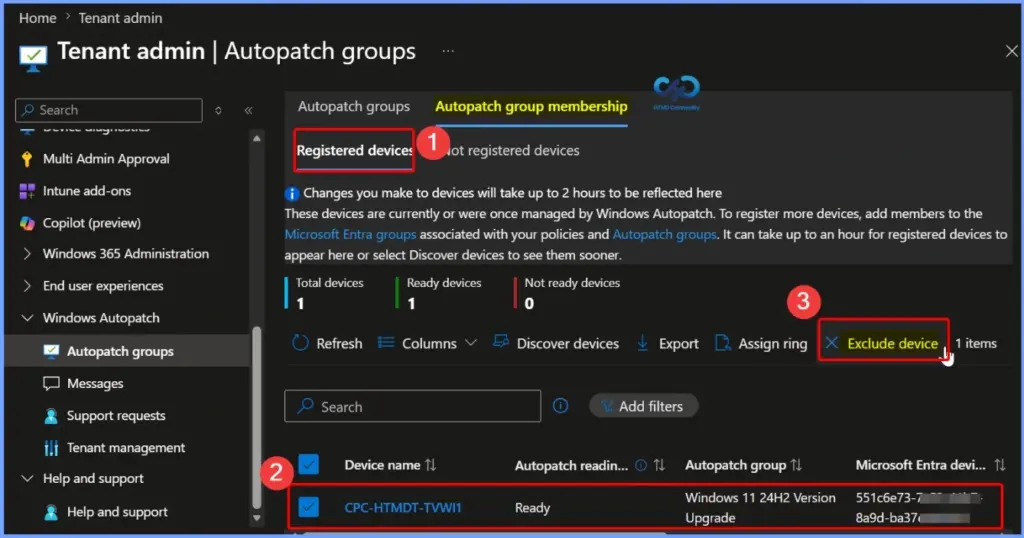
Exclude a Device from Windows Autopatch
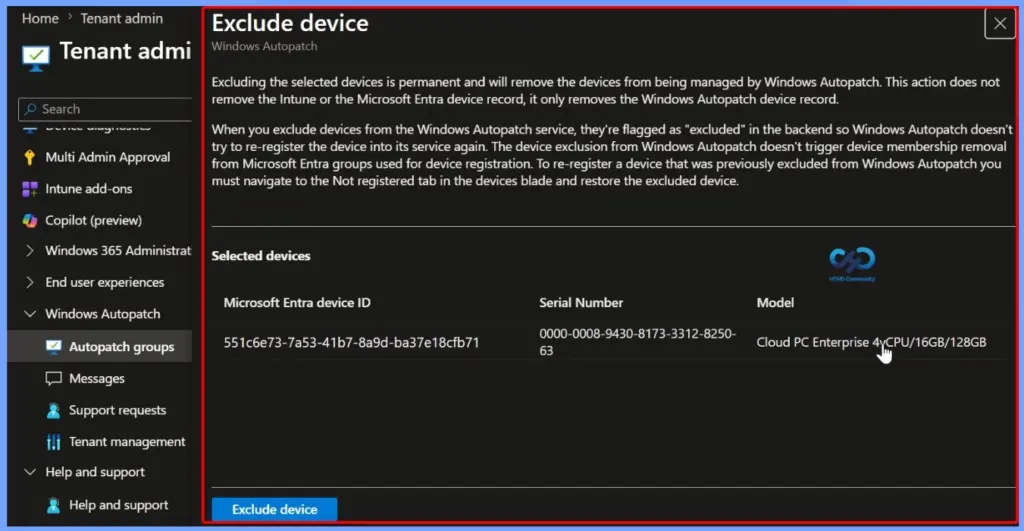
When you exclude a device from Windows Autopatch, it is permanently removed from Windows Autopatch management. This action removes only the Windows Autopatch device record and does not delete the device from Microsoft Intune or Microsoft Entra ID. The excluded device is marked as Excluded, preventing Windows Autopatch from automatically registering it again. It also remains a member of the Microsoft Entra groups used for device registration.
If you want to manage the device with Windows Autopatch again, go to the Not registered devices tab in Autopatch group membership and select Restore excluded device. This re-registers the device with the Windows Autopatch service.
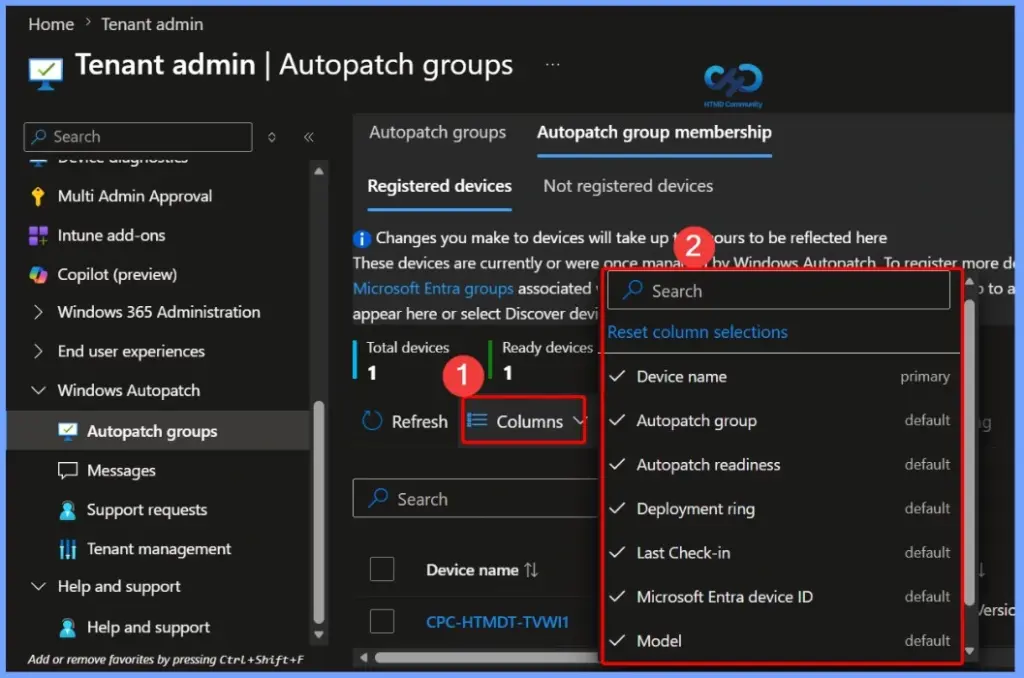
Customize Device View Using the Columns Option
The Columns option lets you customise the information displayed in the Windows Autopatch device list. You can choose which columns to show or hide, making it easier to view the device details that are most important for monitoring and management.
Available columns include:
- Device name
- Autopatch group
- Autopatch readiness
- Deployment ring
- Last check-in
- Microsoft Entra device ID
- Model
- Manufacturer
- Operating system version
- Registration status
- Serial number
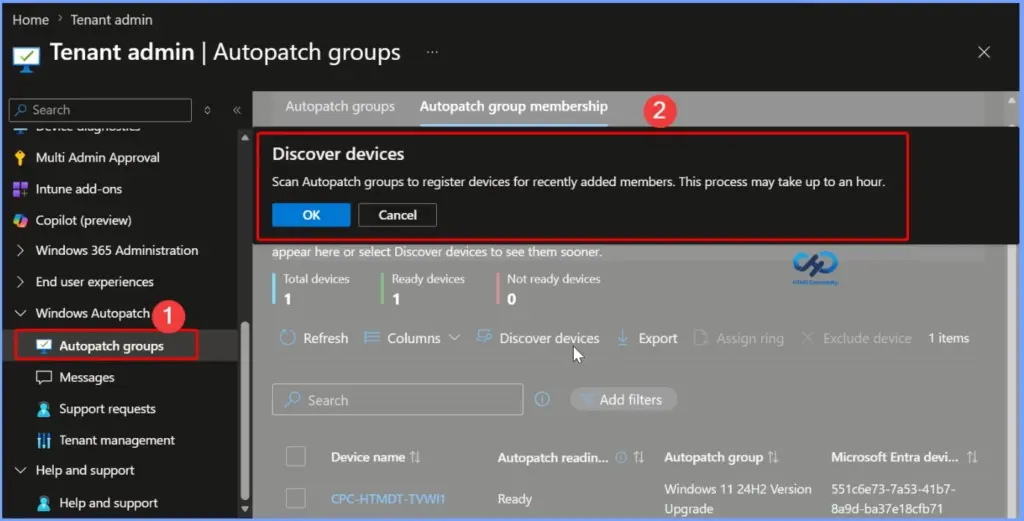
Discover New Devices in Windows Autopatch
The Discover devices option scans your Windows Autopatch groups to find newly added devices and register them with the Windows Autopatch service. After selecting Discover devices, click OK to start the scan. The registration process may take up to one hour, after which the newly discovered devices will appear in the Registered devices list if they meet the Windows Autopatch requirements.
Assign Devices to a Deployment Ring in Windows Autopatch
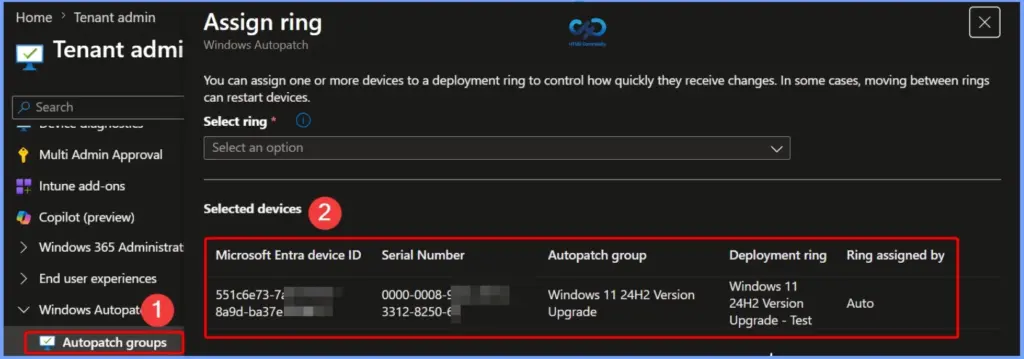
The Assign ring option allows you to assign one or more devices to a Windows Autopatch deployment ring. Deployment rings control how quickly devices receive Windows updates, helping administrators roll out updates in a phased manner. Select the required deployment ring from the drop-down list, review the selected devices, and apply the assignment.
View Windows Autopatch Messages and Service Health
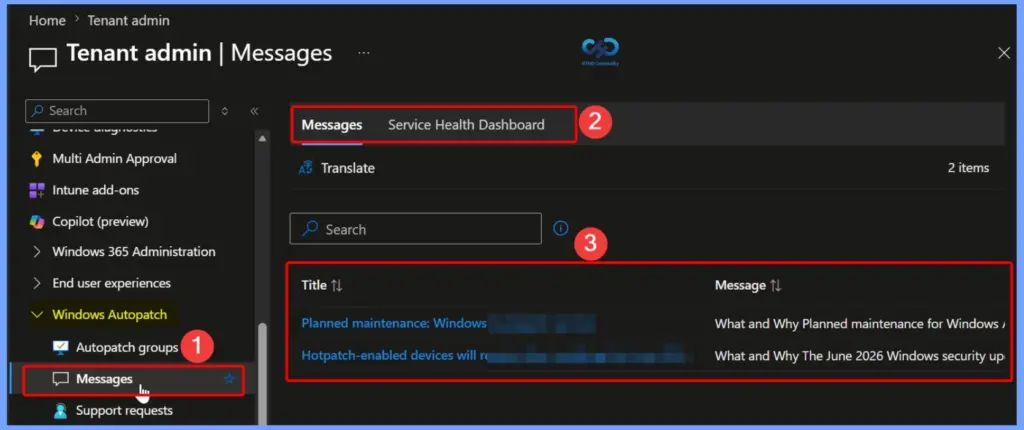
The Messages section in Windows Autopatch provides important notifications and announcements related to the service. Here, you can view updates such as planned maintenance, security updates, and other Windows Autopatch communications.
View Windows Autopatch Support Requests
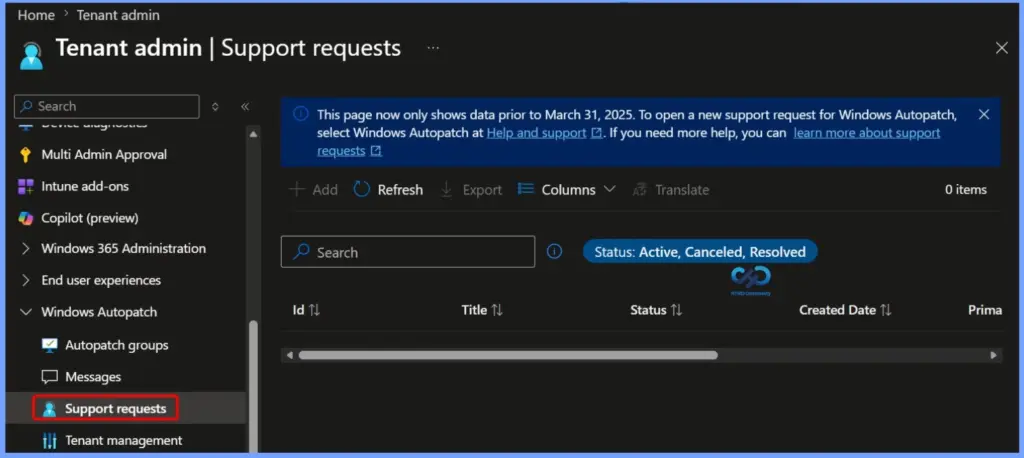
The Support requests page lets administrators view and manage Windows Autopatch support cases. From this page, you can track the status of existing requests, such as Active, Canceled, or Resolved, and review details like the request ID, title, and creation date.
Need Further Assistance or Have Technical Questions?
Join the LinkedIn Page and Telegram group to get the latest step-by-step guides and news updates. Join our Meetup Page to participate in User group meetings. Also, join the WhatsApp Community to get the latest news on Microsoft Technologies. We are there on Reddit as well.
Author
About Author – Jitesh, Microsoft MVP, has over six years of working experience in the IT Industry. He writes and shares his experiences related to Microsoft device management technologies and IT Infrastructure management. His primary focus is Windows 10/11 Deployment solution with Configuration Manager, Microsoft Deployment Toolkit (MDT), and Microsoft Intune.