

Key Takeaways
- Assign Intune apps and policies based on Azure AD device join type (Azure AD, Hybrid, Registered).
- Use deviceTrustType to create filter rules for Windows 10 and later devices.
- Helps IT admins apply policies only to relevant devices, improving control and efficiency.
- Ensures the right policies and security measures are applied using flexible filter-based assignments.
Filter Intune App Policy Assignments based on Domain Join Type! Starting with Microsoft Intune Service Release 2301, admins can filter app and policy assignments based on a device’s Azure AD join type using the deviceTrustType property for Windows 10 and later devices. This feature allows precise targeting of policies by distinguishing between Azure AD Joined, Hybrid Azure AD Joined, and Azure AD Registered devices.
Table of Content
Table of Contents
Filter Intune App Policy Assignments based on Domain Join Type
By using these filters, IT admins can easily apply the right policies and security settings to the correct devices. They can also combine filters with dynamic groups to make targeting even more accurate. This helps ensure better control, improved flexibility, and more efficient policy deployment.
The DeviceTrustType attribute in the Azure AD device property allows the creation of a filter rule based on the device’s Azure AD Join type. Choose between Azure AD Join, Hybrid Azure AD, and Azure AD registered. Here you can check how to create AAD Dynamic groups based on the domain join type.
- Sign in to the Microsoft Intune admin center.
- Select Tenant administration > Assignment Filters.
- Click on + Create button to start the process.
- Select Managed Devices from Create button

- How To Create Windows 11 Filter Rule In Intune
- Intune Filters For Assigning Apps Policies And Profiles In Intune Portal
- Create AAD Dynamic Groups based on MDM (Intune & SCCM Management)
Create Intune Filter – Name and Platform Selection
In the Create filter window, enter a name for the filter (for example, HTMD Hybrid Azure AD Device Group) and add a description if needed. Then, select Windows 10 and later as the platform from the drop-down list and click Next to continue.


Build Intune Filter Rules Using deviceTrustType
You can create Azure AD dynamic group queries using either the Rule Builder or the Rule Syntax option. The Rule Builder provides a simple graphical interface, making it easy to create queries, while Rule Syntax is designed for advanced users who need to build more complex conditions. To create a filter for Hybrid Azure AD joined devices using the Rule Builder, follow these steps:
- Go to Rules and select deviceTrustType from the Choose Property drop-down list
- Select the operator as Equals
- Choose the required value based on the join type
| DeviceTrustType Property Supports the Following Values |
|---|
| Azure AD Joined Azure AD Registered Hybrid Azure AD Joined Unknown |

Configure Hybrid Azure AD Join Filter Using deviceTrustType
To create a filter rule for Hybrid Azure AD joined devices in Intune, you need to define the correct property, operator, and value. Use deviceTrustType as the property, set the operator to Equals, and choose Hybrid Azure AD Joined as the value. This ensures that only Hybrid Azure AD joined devices are targeted.
- You can also use advanced operators like -eq, -ne, -in, and -notIn to build flexible filter rules.
- For example, (device.deviceTrustType -eq “Hybrid Azure AD Joined“) targets only Hybrid devices, while (device.deviceTrustType -ne “Azure AD Registered“) excludes registered devices.
- These options give admins more control to accurately filter and assign policies based on different Azure AD join types.

Preview Devices to Validate Filter Rules
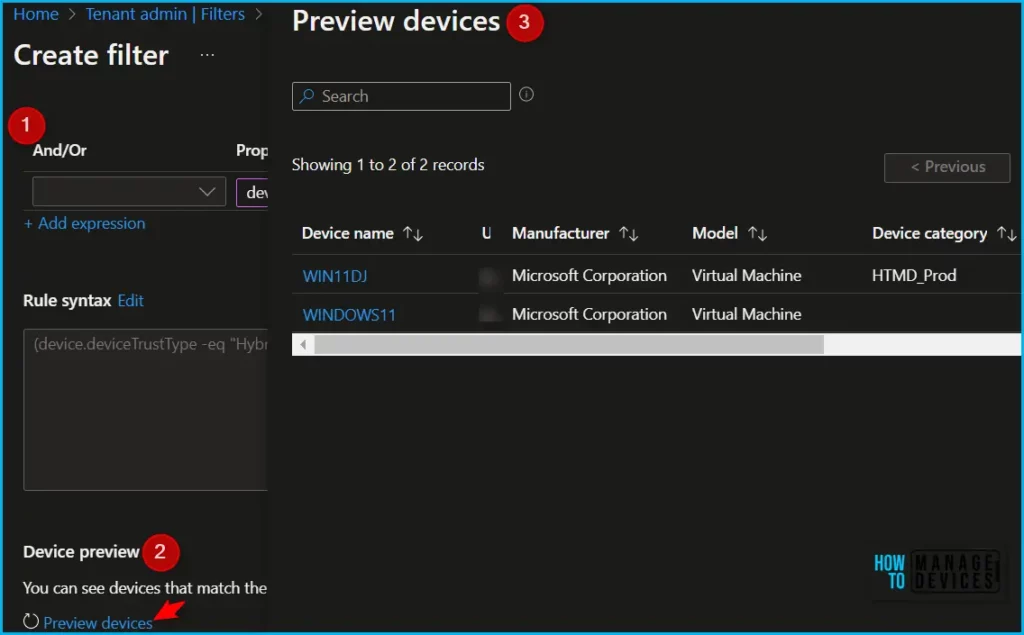
The Preview devices option helps you verify whether your Intune filter rules are configured correctly. By clicking on Preview devices, you can view a sample list of devices that match the defined criteria, such as Hybrid Azure AD Joined devices in this case. This allows you to confirm that the filter is working as expected before applying it to assignments.
Assign Scope Tags to Control Administrative Access
When creating a filter for Hybrid Azure AD joined devices using the deviceTrustType property, you can also assign Scope Tags to control administrative access. Scope tags help limit visibility so that only specific admins can view or manage the filter based on their assigned roles.

Review and Create the Intune Filter
In the Review + create section, carefully check all the configured settings to ensure everything is correct. Once verified, click Create to save the filter and apply your changes.

Filter Created Successfully in Intune
After clicking the Create button, the HTMD Hybrid AAD Device Group Filter is created successfully. A confirmation notification appears in the top-right corner of the Intune portal, indicating that the filter has been created and is ready to use.

Use Device Azure AD Join Type Filter in Intune Assignments
Once the filter is created, you can use it while assigning apps or policies in Intune. This works for both new and existing apps, compliance policies, or configuration profiles, helping you target devices based on their Azure AD join type.
- Go to the Intune Admin Center
- Navigate to Apps, Compliance Policies, or Configuration Profiles
- Select an existing policy or create a new one
- For example: Go to Apps > Windows and choose an app like Amazon Corretto

Apply Filter in Assignments
Click Properties > Assignments > Edit to modify the assignment settings. From there, select and apply the created filter to target the required devices based on their Azure AD join type. The below window shows more details.

Select and Apply Filter for Policy Assignment
To assign your policy to a user or device group, click Edit filter in the assignment settings. You can choose to either include filtered devices or exclude filtered devices based on your requirement. A list of available filters matching the selected platform will be displayed.
Select the required filter and click Select. For example, you can choose Include filtered devices in assignment and apply the Hybrid Azure AD join type filter to ensure the policy targets only the intended devices.
- Here you select the None hyperlink from Filter

Include Filtered Devices in Assignment to Apply the Filter
In the assignment settings, select Include filtered devices in assignment to apply the filter. Then, choose the HTMD Hybrid AAD Device Group filter from the list, which is based on the deviceTrustType = Hybrid Azure AD Joined condition. Finally, click Select to confirm. This ensures that the app or policy is assigned only to devices that are Hybrid Azure AD joined.

Filter Applied in Assignment Successfully
In the assignment section, you can see that the filter is successfully applied with the Filter mode set to Include. The HTMD Hybrid AAD Device Group filter is selected, ensuring that the app or policy is targeted only to Hybrid Azure AD joined devices. This confirms that the assignment is now accurately scoped to the intended devices.

Need Further Assistance or Have Technical Questions?
Join the LinkedIn Page and Telegram group to get the latest step-by-step guides and news updates. Join our Meetup Page to participate in User group meetings. Also, join the WhatsApp Community to get the latest news on Microsoft Technologies. We are there on Reddit as well.
Author
About Author – Jitesh, Microsoft MVP, has over six years of working experience in the IT Industry. He writes and shares his experiences related to Microsoft device management technologies and IT Infrastructure management. His primary focus is Windows 10/11 Deployment solution with Configuration Manager, Microsoft Deployment Toolkit (MDT), and Microsoft Intune.