
How to Fix File Explorer Missing on Kiosk Start Menu in Intune! When configuring multi-app kiosks in Intune, File Explorer may not appear on the Start menu even though apps like Chrome and Edge work correctly. This happens when the Start layout XML or OMA-URI configuration doesn’t include the correct File Explorer reference or when kiosk mode blocks system apps.
File Explorer is essential in a kiosk because it allows users to access, manage, and open their downloaded files. Visitors often download documents or PDFs from the internet, and without File Explorer, they cannot locate or open these files.
This issue impacts IT admins and organizations by increasing support requests, as users struggle to locate downloaded files or print documents. It also adds complexity to kiosk configuration and troubleshooting, reducing productivity and creating a less user-friendly experience.
Without File Explorer access, printing and file management become difficult, especially when using on-premises printers in a cloud-only environment. In this post you will get all the details of the how to fix Explorer Missing on Kiosk Start Menu in Intune.

Table of Contents
How to Fix File Explorer Missing on Kiosk Start Menu in Intune
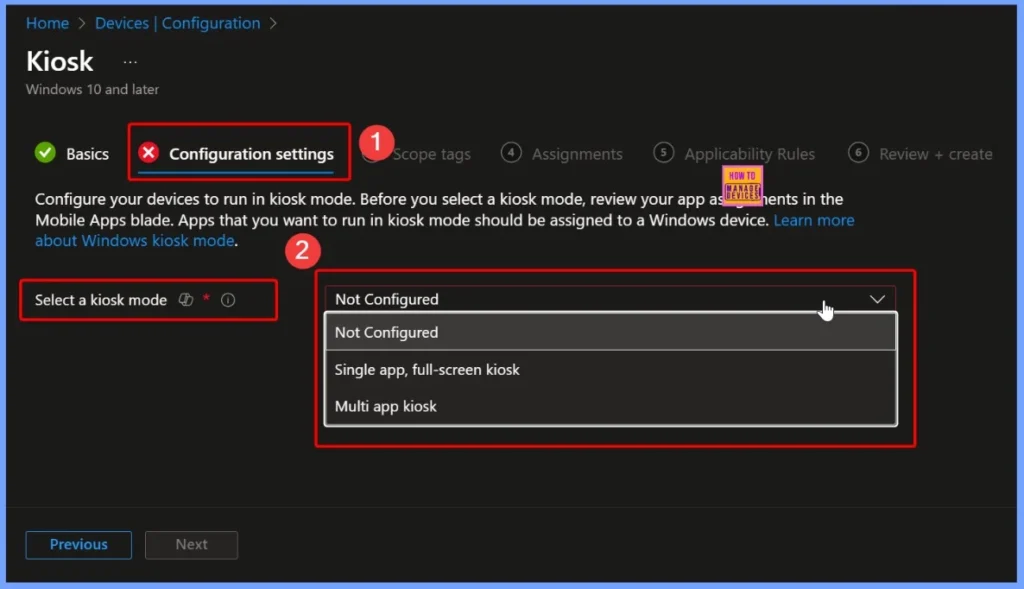
The Kiosk Start Menu in Intune is a customized version of the Windows Start menu that appears on devices configured in kiosk mode. It lets IT admins control exactly which apps, folders, or shortcuts are visible to users, creating a limited, secure environment for public or shared devices.
<AssignedAccessConfiguration
    xmlns="http://schemas.microsoft.com/AssignedAccess/2017/config"
    xmlns:rs5="http://schemas.microsoft.com/AssignedAccess/201810/config"
    xmlns:v5="http://schemas.microsoft.com/AssignedAccess/2022/config">
    <Profiles>
        <Profile Id="{7877df8d78fd7f8d7fdf-a454a45ae45-7sd777}">
            <AllAppsList>
                <AllowedApps>
                    <App DesktopAppPath="%ProgramFiles%\Google\Chrome\Application\chrome.exe"/>
                    <App DesktopAppPath="%SystemRoot%\explorer.exe"/>
                </AllowedApps>
            </AllAppsList>
            <v5:StartPins>
                <![CDATA[
                    {
                        "pinnedList": [
                            { "desktopAppLink": "%ALLUSERSPROFILE%\\Microsoft\\Windows\\Start Menu\\Programs\\Google Chrome.lnk" },
                            { "desktopAppLink": "%SystemRoot%\\explorer.exe" }
                        ]
                    }
                ]]>
            </v5:StartPins>
            <Taskbar ShowTaskbar="true"/>
        </Profile>
    </Profiles>
    <Configs>
        <Config>
            <AutoLogonAccount rs5:DisplayName="kioskläge"/>
            <DefaultProfile Id="{7877df8d78fd7f8d7fdf-a454a45ae45-7sd777}"/>
        </Config>
    </Configs>
</AssignedAccessConfiguration>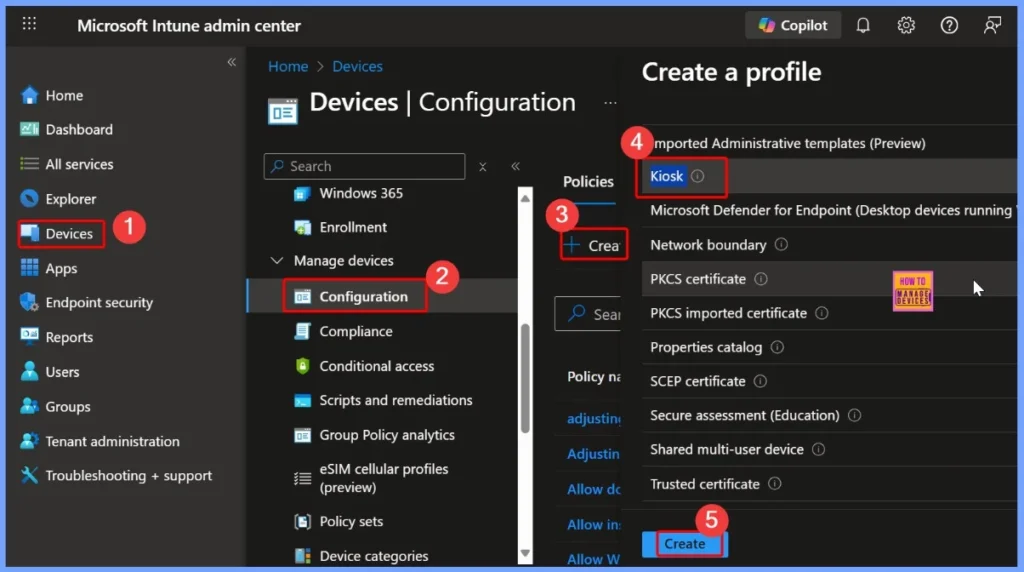
- Block URL Exceptions for Kiosk Browser to Enforce Least Privilege for Web Access using Intune
- How Idle Time Controls Kiosk Browser Session Restart using Intune Policy
- Control Least Privilege App Container Sandbox for Printing Services in Edge Browser using Intune
How to Add File Explorer and Enable Printing on Intune Kiosks
When you set up a kiosk in Intune, the Start menu shows only the apps you specify. If you want File Explorer to appear, you need to point to the correct shortcut, not a program file that doesn’t exist. This makes sure the kiosk can open File Explorer so users can access their downloads.
{ “desktopAppLink”: “%ALLUSERSPROFILE%\\Microsoft\\Windows\\Start Menu\\Programs\\Accessories\\Windows Explorer.lnk” }
For printing, if your organization has Universal Print licenses, it’s the easiest way to let cloud-managed kiosks print to on-premises printers. If you don’t have those licenses, you can still set up printing by creating an Intune deployment package that connects the kiosks to your local printers using their IP addresses.
Fixing File Explorer in Intune Kiosk Start Menu
You are on the right track with your kiosk setup, but to make File Explorer appear on the Start menu, you should update your configuration as follows. Apply these changes and test the kiosk. If File Explorer still doesn’t appear, check your Windows version as some settings may vary depending on the version.
| Line 10 | Line 18: |
|---|---|
| <App AppUserModelId=”Microsoft.Windows.Explorer” /> | {“desktopAppLink”:”%ALLUSERSPROFILE%\\Microsoft\\Windows\\Start Menu\\Programs\\File Explorer.lnk”} |
Need Further Assistance or Have Technical Questions?
Join the LinkedIn Page and Telegram group to get the latest step-by-step guides and news updates. Join our Meetup Page to participate in User group meetings. Also, Join the WhatsApp Community to get the latest news on Microsoft Technologies. We are there on Reddit as well
Author
Anoop C Nair has been Microsoft MVP from 2015 onwards for 10 consecutive years! He is a Workplace Solution Architect with more than 22+ years of experience in Workplace technologies. He is also a Blogger, Speaker, and Local User Group Community leader. His primary focus is on Device Management technologies like SCCM and Intune. He writes about technologies like Intune, SCCM, Windows, Cloud PC, Windows, Entra, Microsoft Security, Career, etc