
Key Takeaways
- An API (Application Programming Interface) is a set of rules and protocols that allows software to communicate with each other and exchange data.
- Microsoft Graph is a RESTful web API that enables you to access Microsoft Cloud service resources.
- A Microsoft 365 license is essentially a subscription that gives you access to Microsoft’s suite of productivity tools.
- It ensures compliance and governance in organisations.
Microsoft Graph API Automation to Reclaim the Microsoft 365 License of Disabled Users! This article explains how to automate the process of reclaiming Microsoft 365 licenses from disabled users. License management is a critical aspect of maintaining cost efficiency and compliance in any organisation.
Table of Contents
Table of Contents
Understanding Microsoft 365 Licensing
A Microsoft 365 license is essentially a subscription that provides access to Microsoft’s suite of productivity applications, cloud services, and enterprise‑grade security features. Unlike traditional one‑time software purchases, Microsoft 365 operates on a monthly or yearly subscription model, ensuring that users always benefit from the latest updates, features, and enhancements.
- How to Change the Region Name and Geography of Microsoft 365 Cloud PCs using Microsoft Graph API
- How to Fix Windows 365 Inactive Azure Network Connection in Intune
- Easy way to enable Windows Backup using Microsoft Intune Configuration
- How to Resolve Windows 365 Provisioning Policy Unsupported Image Status in Intune
There are several types of Microsoft 365 licenses designed to meet different needs. Individual plans, such as Personal and Family, are tailored for students, professionals, and households. Business plans – including Business Basic, Standard, and Premium– support small to medium organisations with collaboration tools and security features.
Enterprise plans such as E3, E5, and F3 are designed for large organisations, offering advanced compliance, analytics, and identity protection. Additionally, Education licenses (A1, A3, A5) provide schools with affordable access to learning tools, while standalone options such as Microsoft 365 Apps for Business focus solely on productivity applications and do not include additional services.

Why Licensing Matters
Licensing plays a critical role in defining the scope of features, security, and compliance available to users. For organisations, effective license management ensures cost efficiency by reclaiming unused subscriptions, prevents compliance risks by aligning with governance standards, and enables scalability by assigning the right tools to the right users.
For individuals, choosing the correct license guarantees access to essential applications and cloud services without unnecessary expense. Without the right license, users may face limitations that hinder their ability to work effectively.
- HTMD Community Free Python Intune Tool | HTMD – Microsoft Intune Reports Export Tool v1.0
- Best way to deploy Shell Scripts using Intune
From an organizational perspective, effective license management directly impacts cost efficiency. Unused or misallocated licenses can lead to unnecessary expenses, while reclaiming and redistributing them ensures that resources are optimised. In short, licensing is the foundation that balances productivity, security, and value across Microsoft 365 environments.
How Automation Transforms Microsoft 365 License Management
Automation plays a vital role in simplifying Microsoft 365 license management by eliminating repetitive manual tasks. Traditionally, administrators had to track disabled or inactive accounts and manually reclaim licenses, which was both time‑consuming and prone to human error.
- Run Remediation Script on-demand for Windows Devices using Intune
- PowerShell Script to Create a Local Admin Account using Intune
By introducing automation, organizations can streamline this process, ensuring that unused licenses are quickly identified and recovered without delay. Scripts or workflows can be designed to follow predefined rules, such as reclaiming licenses from disabled users or reallocating them to new employees. This reduces the risk of oversight, ensures compliance with organisational policies, and provides administrators with reliable reporting.
Most importantly, automation directly impacts cost optimisation. Microsoft 365 licenses represent a significant investment, and unused subscriptions can quickly add up to wasted expenses. Automated reclamation ensures that every license is utilised effectively, preventing unnecessary purchases and enabling organisations to scale resources intelligently. In this way, automation not only improves operational efficiency but also delivers measurable financial benefits
Get Licensed Users from Entra Using PowerShell
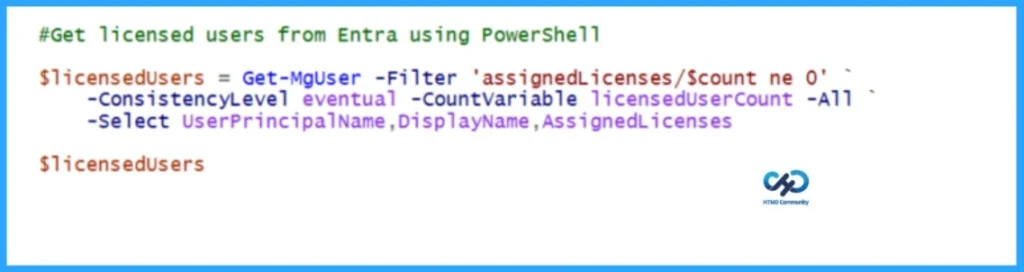
Before reclaiming Microsoft 365 licenses from disabled users, let’s first retrieve all licensed users from Entra using PowerShell. This code is not part of the main project; I’m only using it to identify which users have licenses assigned.
# Connect to Microsoft Graph
Connect-MgGraph -Scopes "User.Read.All"

$licensedUsers = Get-MgUser -Filter 'assignedLicenses/$count ne 0' `
    -ConsistencyLevel eventual -CountVariable licensedUserCount -All `
    -Select UserPrincipalName,DisplayName,AssignedLicenses
$licensedUsers - Automate Microsoft Entra User Offboarding with Microsoft Graph API and PowerShell
- How to Pause Intune Config Refresh Feature on Windows Device using Microsoft Graph API
Permissions Required to Run the Automation
Well, I am all set to automate the process of reclaiming Microsoft 365 licenses from disabled users. Before proceeding with the automation, ensure that you have sufficient permissions to perform it. The table below explains the permissions required for this automation.
| Permission | Type | Level | What it allows | Security Impact |
|---|---|---|---|---|
| User.ReadWrite.All | Application/Delegated | High Privilege | Read and write all user profiles, modify user properties, create, update, and delete users. Manage user licenses. Reset passwords. Update group memberships | HIGH RISK – Full control over all users in the tenant |
| Organization.Read.All | Application/Delegated | Medium Privilege | Read organisation details. View tenant information. Read organisation settings. Access organisation configuration, View subscribed SKUs/licenses | MEDIUM RISK – Read access to organisational data |
Automation to Reclaim the Microsoft 365 License of Disabled Users
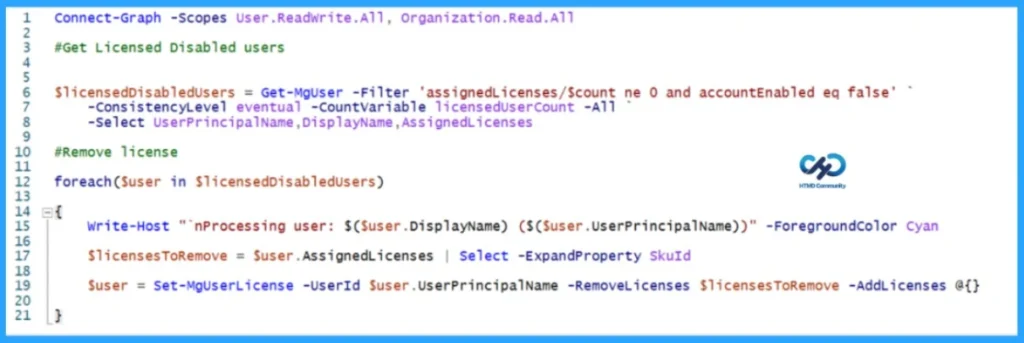
You have learned about the permissions required to automate the process of reclaiming Microsoft 365 licenses from disabled users. Now it’s time to dive into the automation. Remember, you must install the Microsoft Graph module before running this automation, and open PowerShell ISE or Visual Studio Code as an Administrator.
- Best Guide to Install Microsoft Graph PowerShell Modules
- Best Guide to Run Intune Device Query with Microsoft Graph API
Connect-Graph -Scopes User.ReadWrite.All, Organization.Read.All

#Get Licensed Disabled users


$licensedDisabledUsers = Get-MgUser -Filter 'assignedLicenses/$count ne 0 and accountEnabled eq false' `
    -ConsistencyLevel eventual -CountVariable licensedUserCount -All `
    -Select UserPrincipalName,DisplayName,AssignedLicenses

#Remove license

foreach($user in $licensedDisabledUsers)

{
    Write-Host "`nProcessing user: $($user.DisplayName) ($($user.UserPrincipalName))" -ForegroundColor Cyan

    $licensesToRemove = $user.AssignedLicenses | Select -ExpandProperty SkuId

    $user = Set-MgUserLicense -UserId $user.UserPrincipalName -RemoveLicenses $licensesToRemove -AddLicenses @{}

}- Automate Microsoft Intune Device Compliance Report using Graph API
- Complete Guide to Install the New Microsoft Entra PowerShell Module
I trust that this article will significantly benefit you and your organization. I appreciate your patience in reading this post. I look forward to seeing you in the next post. Keep supporting the HTMD Community.
Need Further Assistance or Have Technical Questions?
Join the LinkedIn Page and Telegram group to get the latest step-by-step guides and news updates. Join our Meetup Page to participate in User group meetings. Also, Join the WhatsApp Community to get the latest news on Microsoft Technologies. We are there on Reddit as well.Author
About the Author: Sujin Nelladath, a Microsoft Graph MVP with over 11 years of experience in SCCM device management and Automation solutions, writes and shares his experiences with Microsoft device management technologies, Azure, DevOps and PowerShell automation.