
Key Takeaways
- Notion is a free note-taking app and is helpful to organise and manage tasks.
- You can share pages and work with others.
- It is easy to organise your meeting notes with the help of AI.
- Data will be kept safe and saved online.
Hey, let’s learn how to install and use the Notion app on a Windows 11 PC. Notion is a versatile app to organise data and tasks. It is very good at project and task management. It also acts as an easy note-taking tool. Even using the free version of Notion App, you can easily take notes and organise content using pages, folders and tables. Apart from free, Notion has plus, business and enterprise pricing plans.
Table of Contents
Table of Contents
What are the Advantages of the Notion App?

Notion App is an AI-based workspace App. It is commonly used to take notes, project or task management, and organising knowledge. You can also sync across devices. The following are some advantages of the Notion app. Since this is an all-in-one, free, easy-to-use app, here are some key benefits.
1. Combines notes, tasks, database and planning in a single app.
2. Organise information (using pages, folders, tables, etc).
3. All notes and files are stored securely on Notion’s cloud services.
4. Changes are saved automatically (reduces the risk of data loss).
5.It is completely ad-free.
How to Install and Use Notion App on Windows 11 PC
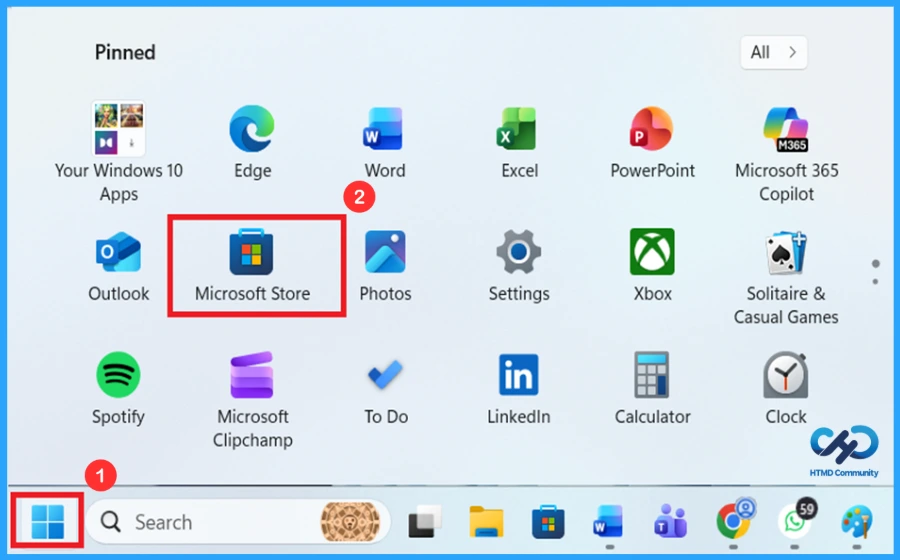
It is very easy to use Notion App on your Windows 11 PC. You can easily install the Notion app either from the Microsoft Store or from their official website. The following are steps to install the Notion App from the Microsoft Store on your Windows 11 PC.

- Select the Microsoft Store from the Start Menu.
- How to Install and Use Notepad++ on Windows 11 PC | Detailed Review
- How to use AI Summarisation and Recent Files Feature in Notepad on Windows 11
- All in One Guide OneNote for Windows 11 Detailed Review OneNote Versions
How to Search and Install Notion App from the Microsoft Store
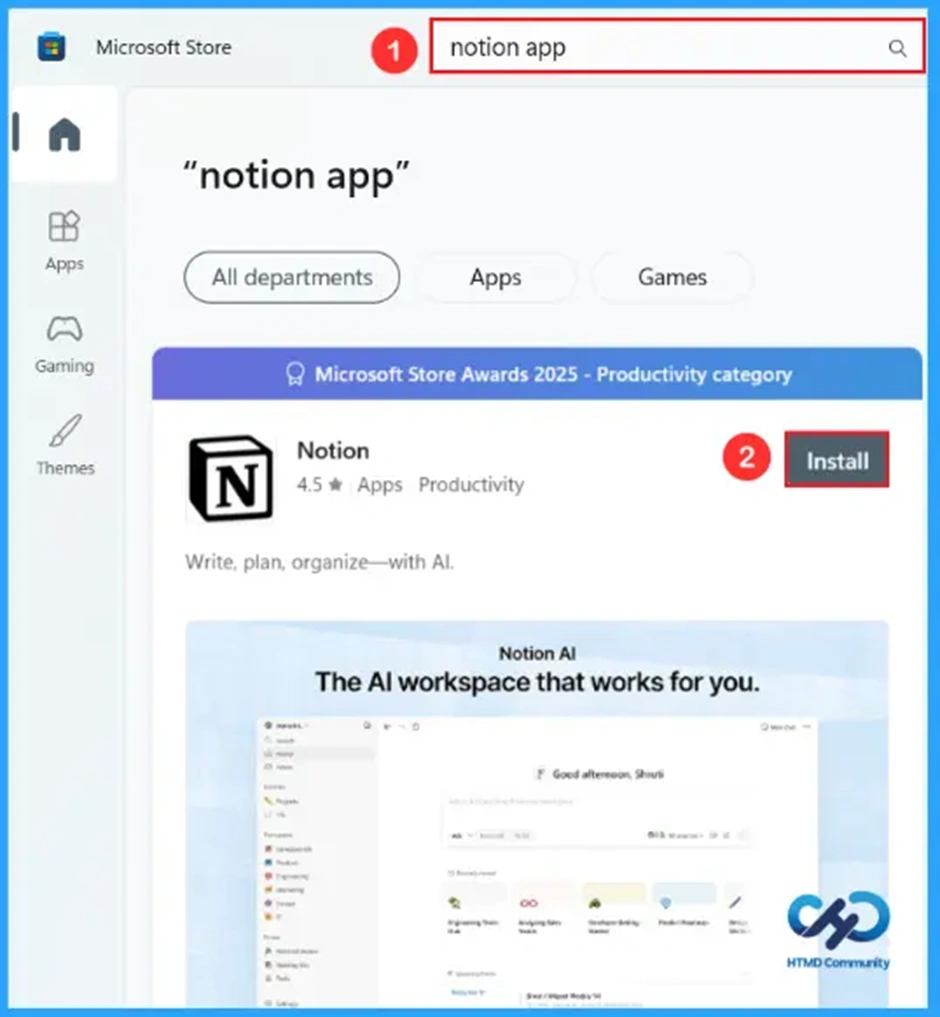
You can easily search and install the Notion App on your PC just by searching for it on the Microsoft Store. Simply tap on the search bar and type Notion App and search it. Click on the install button to install it on your PC. Refer to the screenshot for guidance.
How to Download Notion App
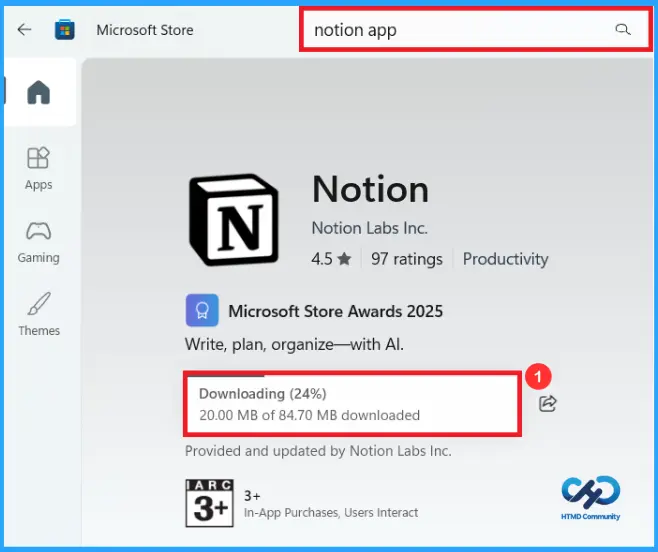
In the screenshot below, the Notion App has started downloading. You can share this app using the icon next to the download option. Here you can see that 20.00 MB of 84.70 MB has been downloaded.
How to Access the Notion App from the Microsoft Store
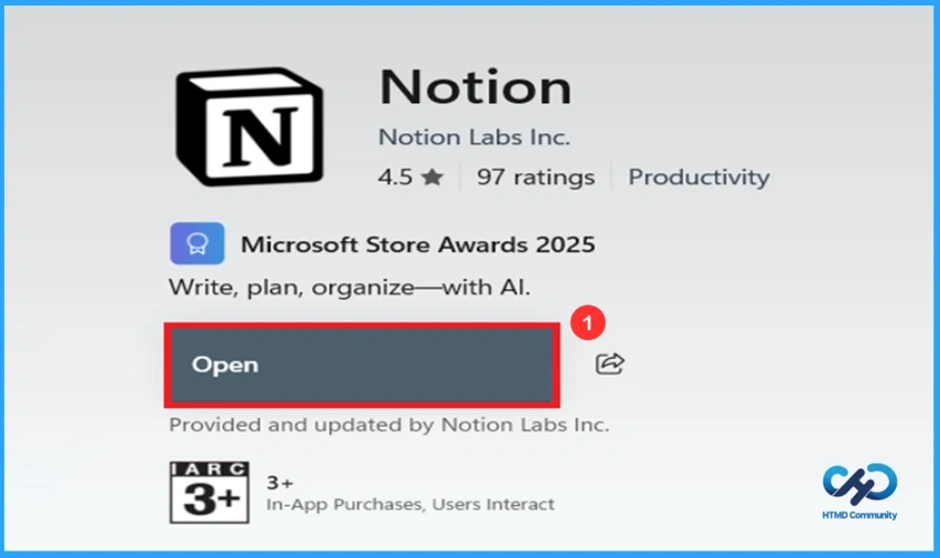
You can easily access and use the Notion app to take notes. It is very easy to write, Plan, and organise with AI. You can enter the app just by clicking the open button shown on the screen.
Logging in to the Notion Account
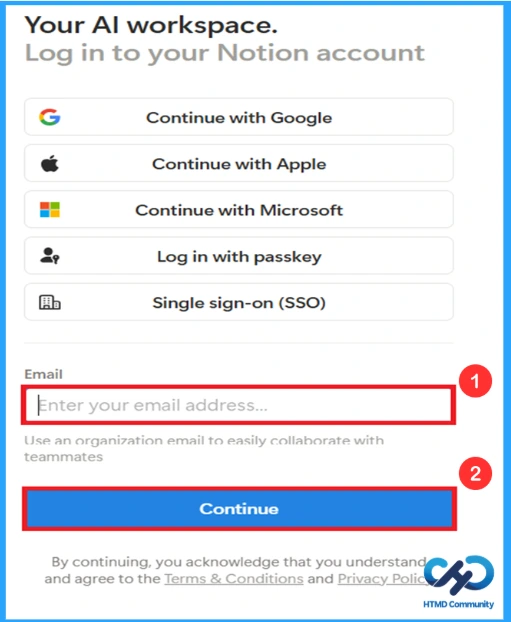
After clicking the open, you can see a login page. It will welcome the user to the login page of the Notion App. It will ask you to enter your email address, enter your email ID, and click continue to get into your App. You can also log in by using your Google account.
Email Confirmation for Notion Account
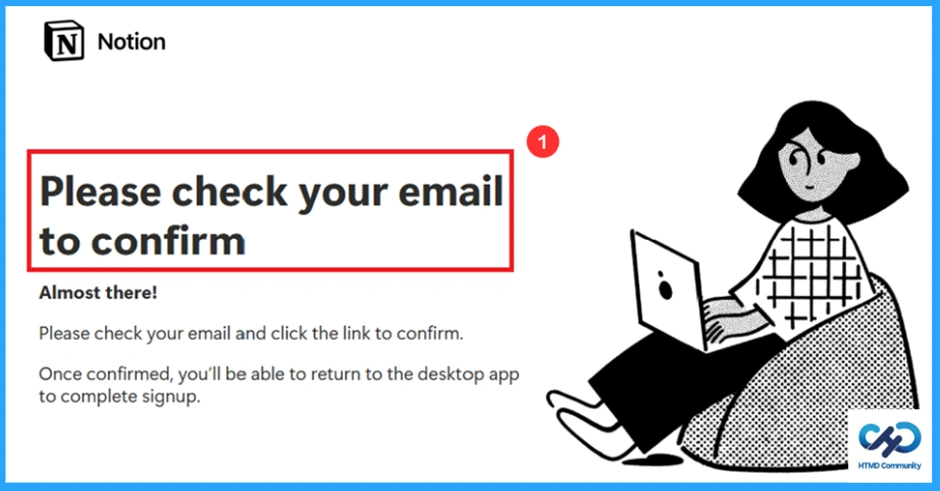
After entering your Email address, a window will pop up showing that please check your email to confirm. Check your email and click the link to confirm. Otherwise, you cannot enter the app. After confirmation, you’ll be able to return to the desktop App to complete signup.
Customising Notion Experience
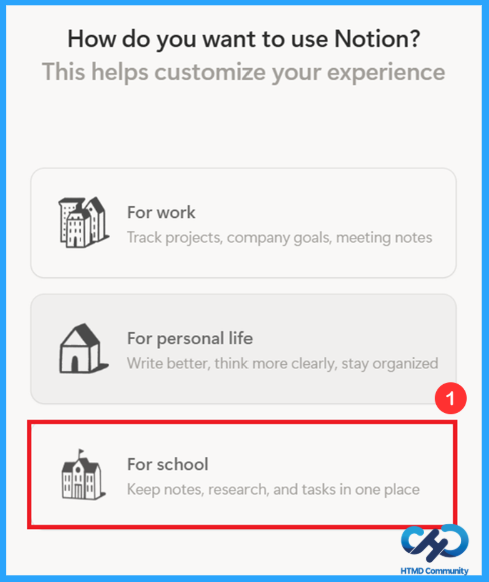
After entering the app, they will ask you what purpose you want to use the app for. You can use it for work to track projects, Company goals and for personal life to write, think and also for organising; otherwise, you can use it for school to keep notes and tasks in one place. Here I used it for school purposes.
Access to Calendar on the Notion App
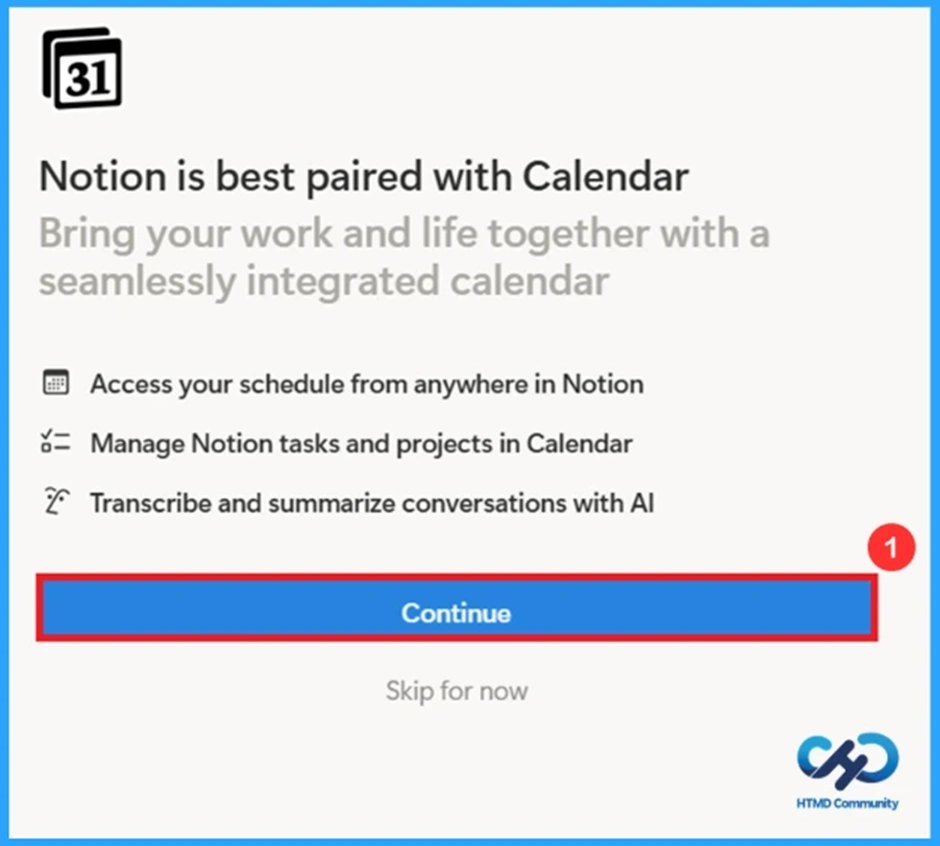
The Notion App also have the feature to use a calendar within the app itself. You can access your schedule from anywhere in Notion. The app also has a feature to manage tasks and projects in a calendar. If you need to use the calendar, click on continue; otherwise, skip it. Here, I clicked continue.
Overview of Home Page
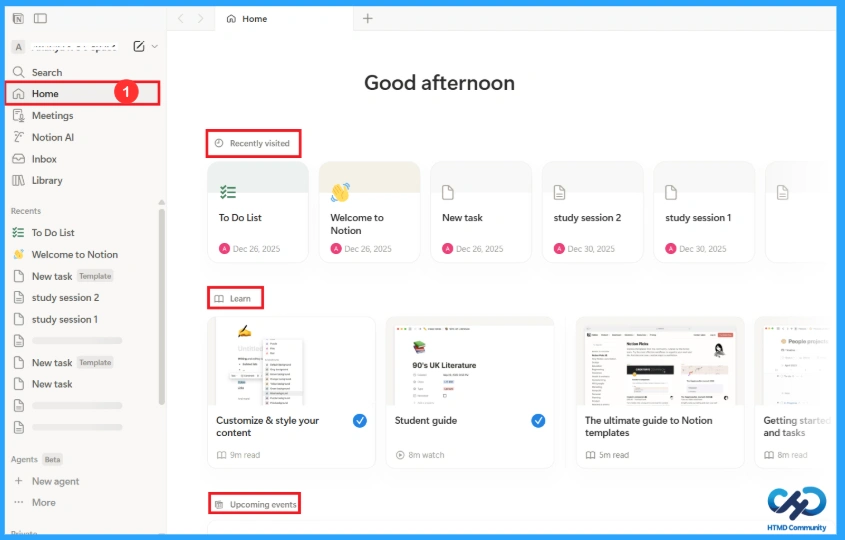
After this, you’ll enter the home page of Notion App, which is given below. Notes can be created from the option new page. There are plenty of options, and you can also learn how to use the app. The app also provides YouTube videos in the learning section on the home page.
| Options | Features |
|---|---|
| Search | To search for any notes or add a new one. |
| Meetings | Schedule meetings after adding the calendar. |
| Notion AI | Search across your workspace or create anything. |
| Inbox | To get notifications for mentions and Page activity. |
| New pages | To write new content. |
| Welcome to Notion | Explains more features of the App |
| To Do List | Task management system with many properties. |
| Add new | To add new notes, Task, Project, etc |
| Settings | To control the account and app behaviour. |
| Templates | Help in organising work easily. |
| Trash | Stores deleted pages. |
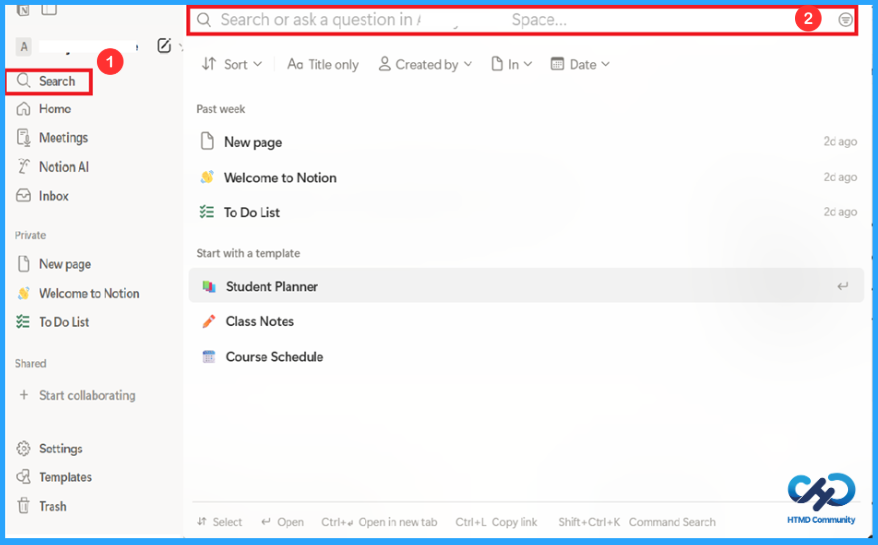
Use of the Search Option
The first option on the home page of the Notion App is Search. You can ask any question related to the app. It also helps you to sort according to your wish, search by date, or search in different pages. This feature also helps to access a new page or to start a new template easily.
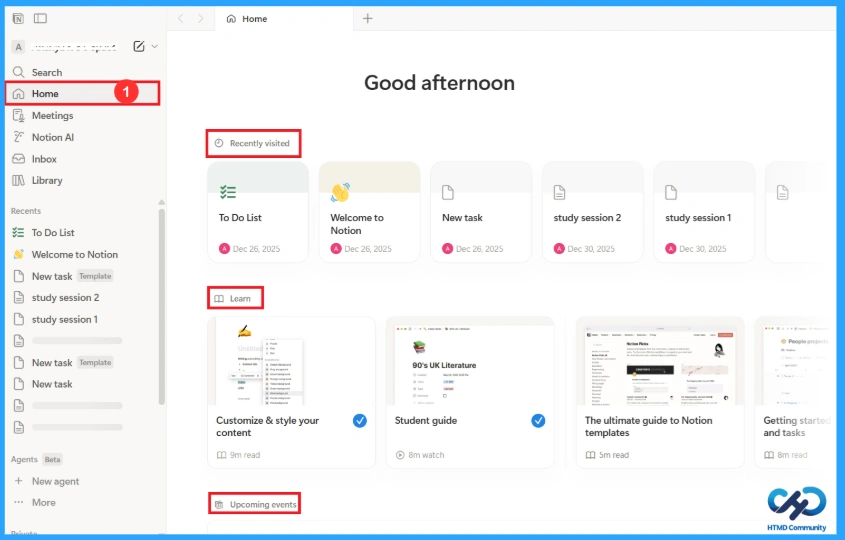
Features of Each Section on the Home Page
On the home page, there are five sections. Recently visited, Learn, Upcoming events, home views, and Featured templates, respectively. You can view your recently visited activity there. The app also provides YouTube videos so that you can easily use the app. You can schedule your events using the calendar in upcoming events.
- Block – Basic building block of content.
- Create your first page – To create new pages.
- Create a sub page – A page within a page.
- Customise your style & content – To make your design look better.
- Database – Helps to organise your page.
- Start with a template – Adopt and customise your own templates.
- Student guidance – Helps to know how Notion helps in your education.
- Upcoming events – Set your event along with the calendar.
- Home views – Helps in organising work easily.
- Featured templates – Ready-made layouts.
How to Set Meetings in the Notion App
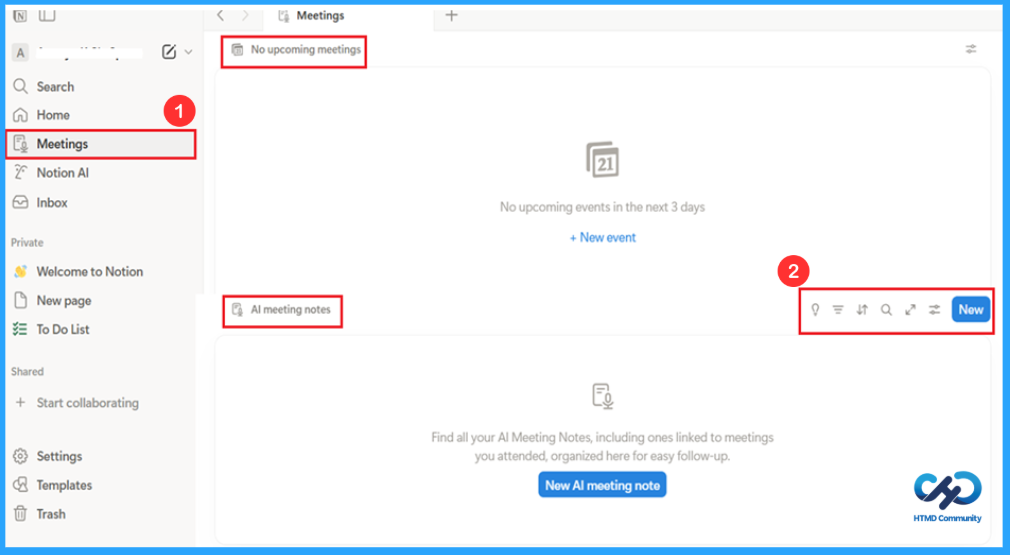
In the meetings option, you can set your upcoming meetings. It also helps you to centralise your notes, transcripts, and decisions. You can connect it to your workspace if you want. This app also enables you to summarise and organise meeting notes using AI. There are several options available in AI meeting notes, which help you:
| Options | Features |
|---|---|
| Learn more | Learn more about AI meeting notes. |
| Filter | To filter your notes based on title, attendees, created by or time, edited by or time |
| Sort | To sort your notes based on title, attendees, created by or time, edited by or time. |
| Search | To search your notes. To open AI meeting notes as a full page |
| add | To add a new meeting. |
Additional Settings in the Meetings Section
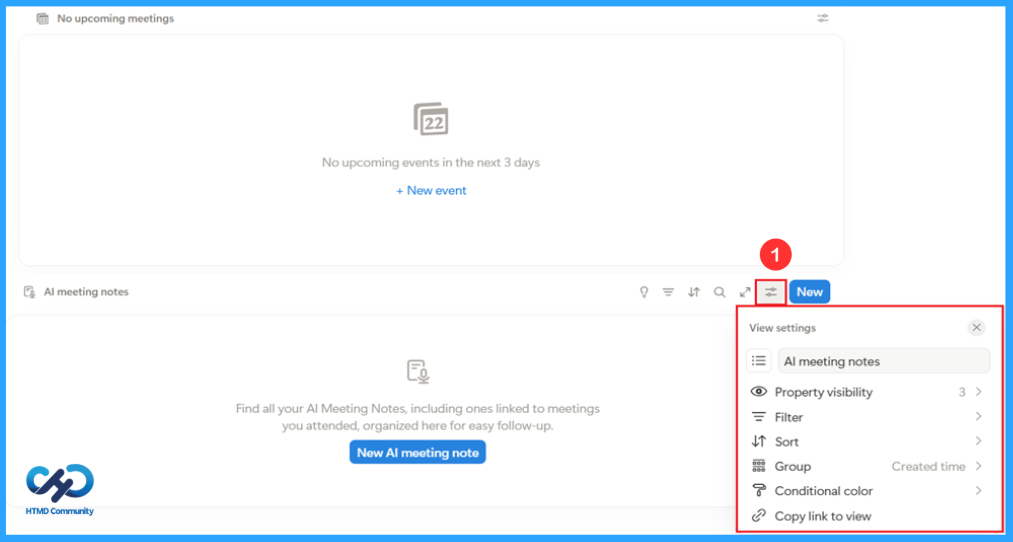
This screenshot shows the view settings of a Notion meeting. It is helpful in many ways, such as choosing which columns you want to hide or show, displaying only specific meetings, arranging them in order, etc. These settings help you filter, organise, colour, and manage meeting notes easily.
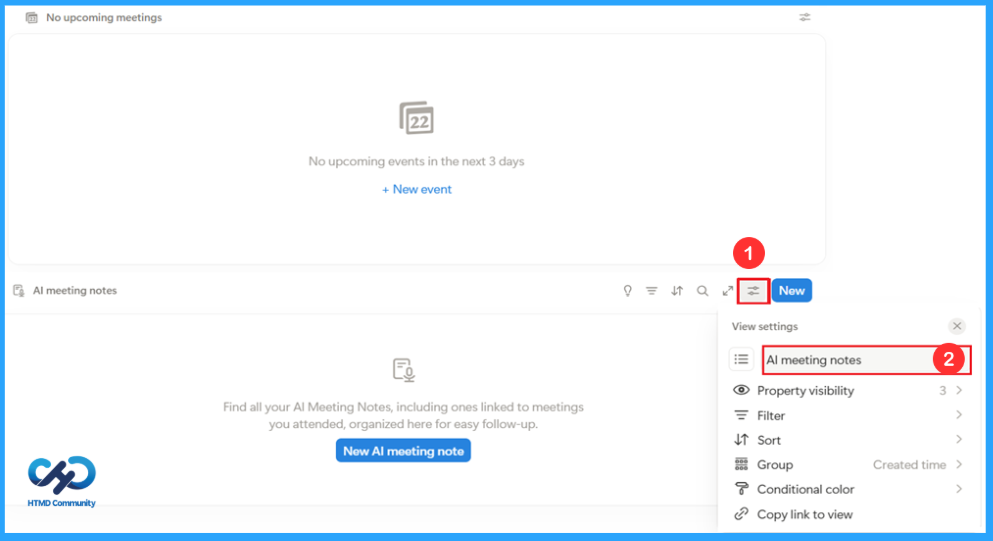
AI Meeting Notes to Summarise Discussion Highlights
AI Meeting notes automatically summarise meeting discussions; it also helps in generating key points. You can save your time using this rather than writing notes by hand. AI reads all the content and prepares an agenda summary.
How to Manage the Visibility of Properties
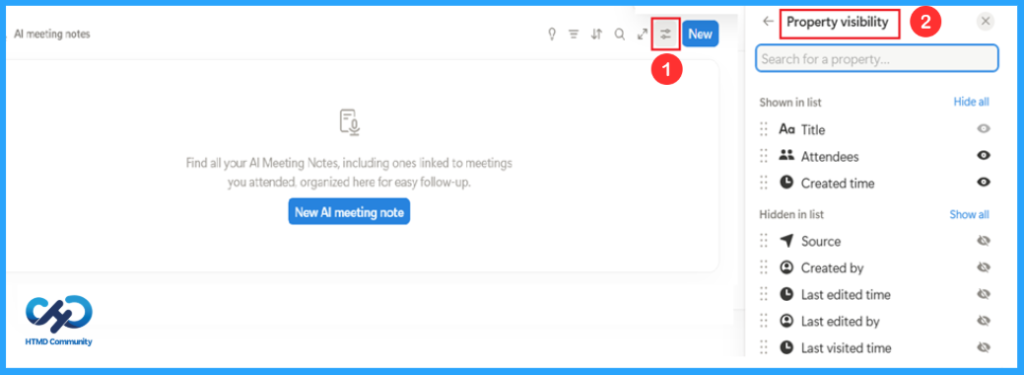
The next option in home view settings is property visibility; it lets you choose whether you need to show or hide the column. Here, they have shown in the list are title, attendees, created time and hidden in the list are source, created by, last visited and last edited time.
How to Organise Items Easily
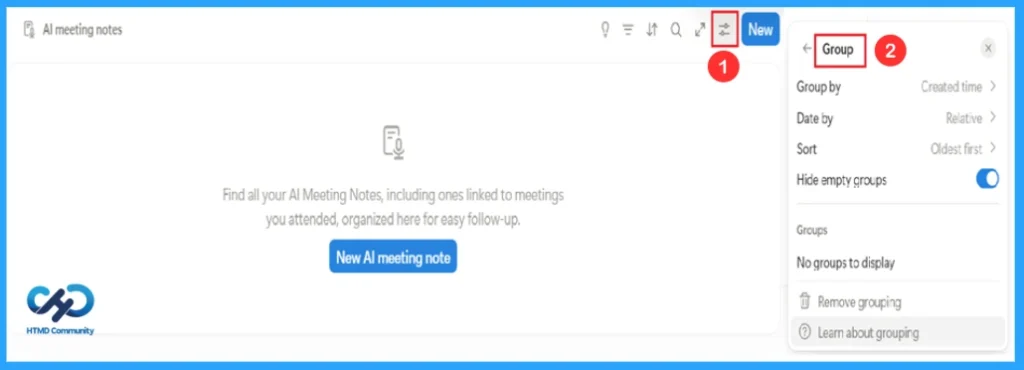
The group in Notion Home is used to organise items into sections. We can group the items based on different properties, which are given below. The main benefit of grouping is that it is easy to find and understand.
- Group by – Group based on several properties.
- Date by – Group item based on Relative, day, month, week, year.
- Sort by – Oldest first or by newest first.
- Hide empty group – You can hide your group if it is empty. Here, I enabled the option.
- Remove grouping – To remove your groups.
How to Customise Items
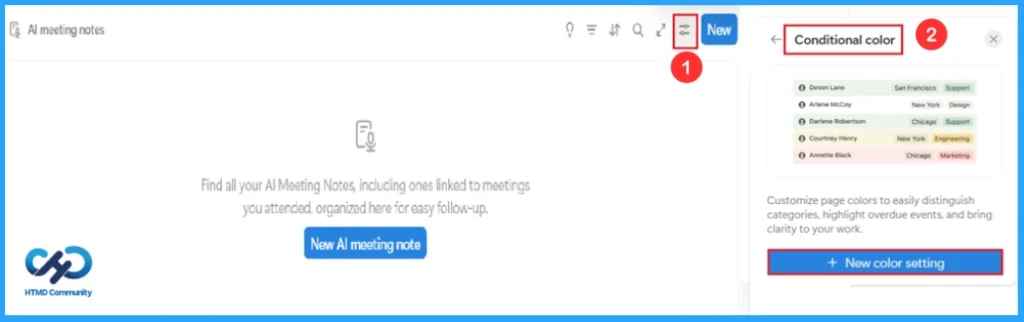
Conditional colours are used to highlight items based on specific conditions. It makes the important items stand out so that you can quickly understand your overdue work. It helps to customise the page colour. New colour settings are used to customise your items.
Features of Notion AI
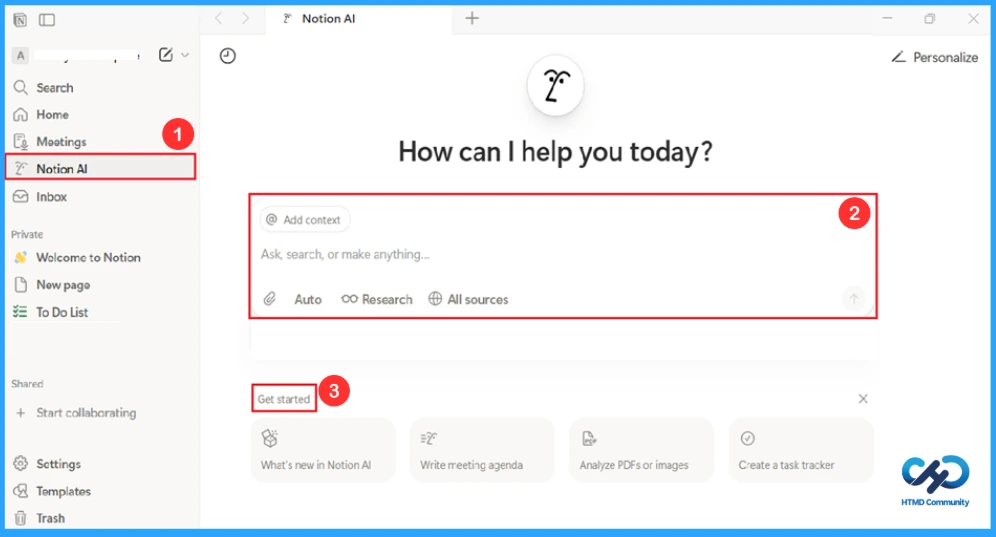
Notion AI is used to increase your productivity. This increases the accuracy of your work and makes it more effective. You can ask anything to AI, for example, you can ask it to make a study timetable, help in summarising your notes, etc. The last few options help to know more about its features.
How to Stay Updated
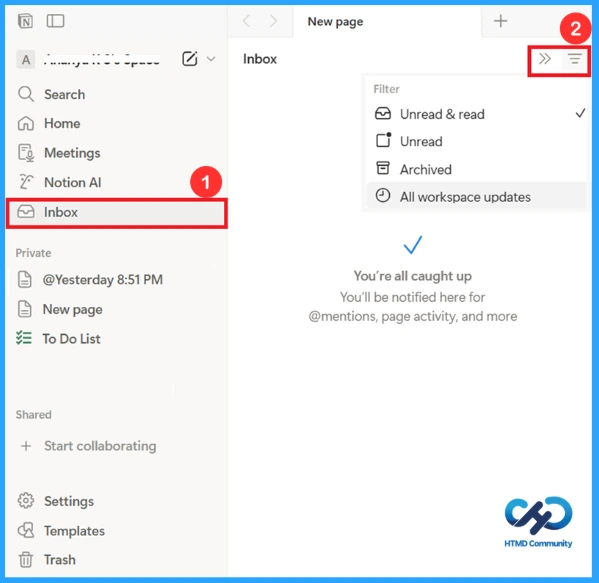
Inbox is where Notion shows all your notifications. You’ll get updated for mentions, comments, page edits, reminders and workspace activity. Filter options help you control what notifications you see, like show all notifications or show only new notifications, etc. The double arrow before the filter is used to hide the left bar to increase the workspace area.
Getting Started with the Notion App
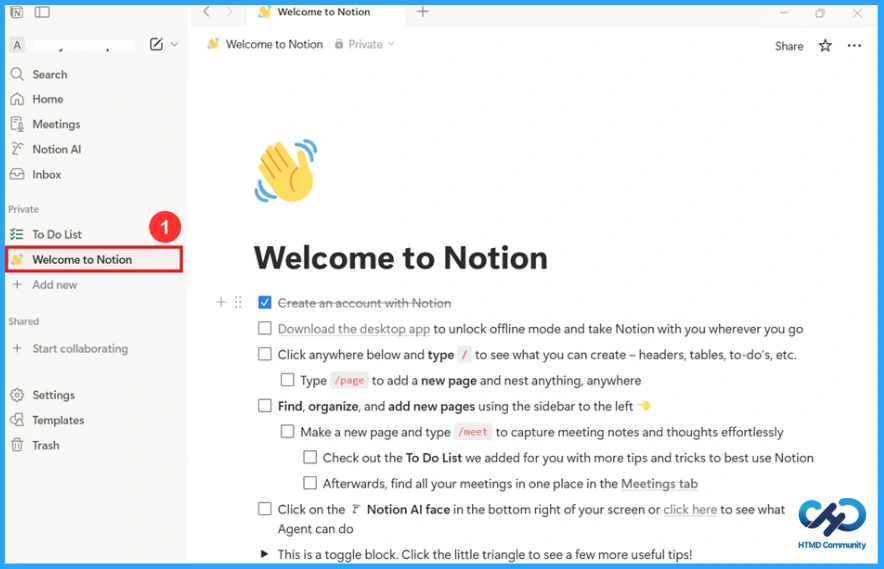
Welcome to Notion, a page created to help users to understand more features of the app. The app shows a checklist of the tasks in the app. You can tick them after completing the task.
More Options to Customise the Notion App
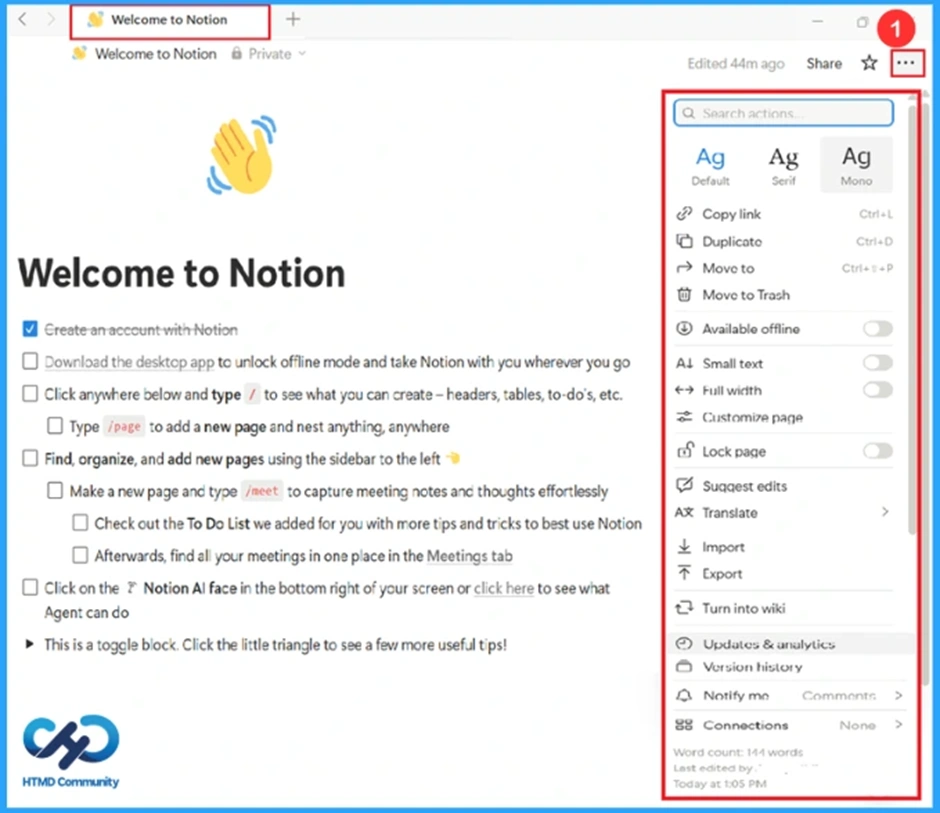
There are many options used to style, export and more. You can share or publish your notes. Three dots in the top most side of your screen can be used to change the style of your writing and can change your language, etc.
| Options | Features |
|---|---|
| Search Action | To find any option quickly. |
| Default/Serif/Mono | To change font style. |
| Copy link | To copy the link so that you can share it with others. |
| Duplicate | Create an exact copy of the page. |
| Move to | Move the page to another location. |
| Move to trash | Delete the page. |
| Available offline | Access the page without the internet. |
| Small text | Reduce the size of the text. |
| Full width | Enable the page to expand to full screen. |
| Customize pages | To add or change the page icon, cover and style. |
| Lock page | To prevent accidental editing. |
| Suggest edits | Allow as suggestions instead of direct changes. |
| Translate | To translate into another language. |
| Import | Add content from other apps or files. |
| Export | Download the pages as PDF, Word, etc |
| Turn into a wiki | Turn this page into a wiki-style page. |
| Update & analytics | View page activity and insight. |
| Version history | to connections |
| Notify me | Get notifications when changes are made |
| connections. | View the linked page and database. |
How to Create a New Page in the Notion App
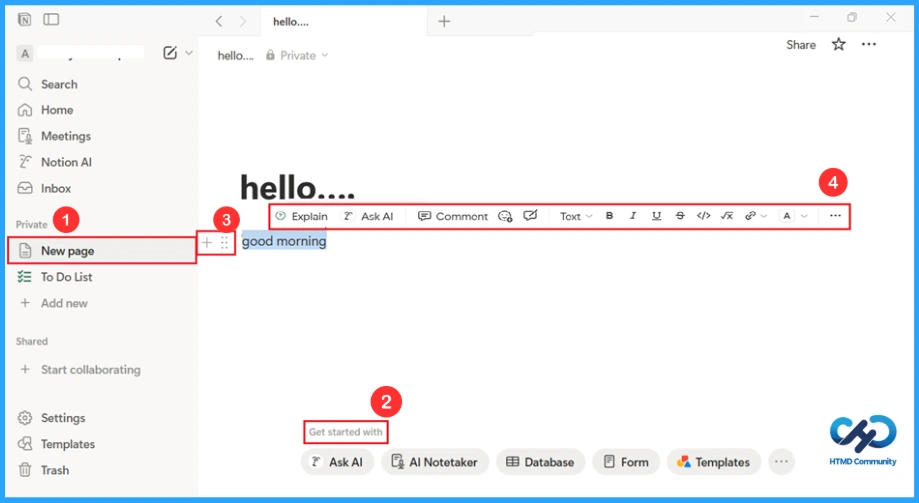
You can start writing your context or thoughts on the new page. Data will be kept private in this app. The app will help you if you don’t know how to get started using the option ‘get started with’. You can also drag your text using the symbol before the text. A plus symbol is used to create a block with several options. In the following screenshot, I used ‘hello’ as a heading and ‘good morning ‘as the start of the content. After selecting the text, you can see various options that help in:
- Explain– Uses Notion AI to explain the text.
- Ask AI– To ask Notion AI questions based on the context.
- Comment– Add a comment for discussion.
- B(bold)– Makes the text bold.
- I(italic)– Slants the text.
- U(underline)– Underlines the text.
- S(strike through)– Draws a line through the text.
- </>(code)– Formats texts as code.
- A(colour)– Changes text or background colour.
- Link icon– Add a text link.
- More options– Shows additional block settings.
How to Create a To-Do List
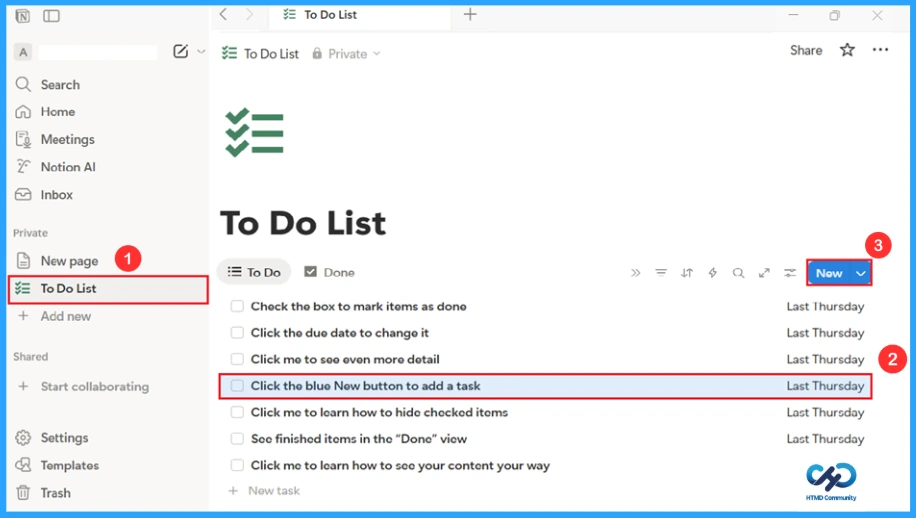
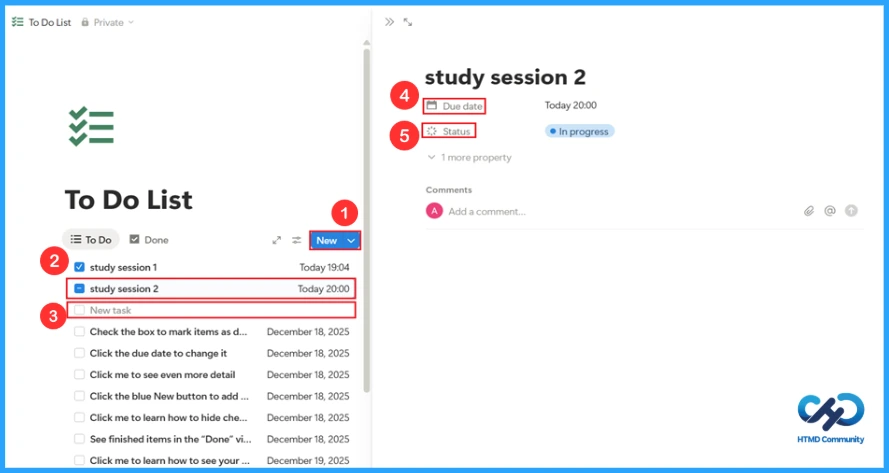
A to-do list helps in many ways. You can bring all your work, like notes, projects, and ideas, to one place along with due dates. You can hide the checked items so that you won’t make any mistakes. Click the blue ” New ” button to add a task. The following screenshot shows different options in the to-do list.
How to Add a New Task
To add a new task, click on the new icon. There, you can add your new task along with due date, time and status. The due date and time help you to complete your task properly. Status is the option that you can mark your task progress; it has three options: not started, in progress and done. Mark your completed task in the checkbox. New task is the option used to add a new task to your list.
Why is the Add New Option is Used
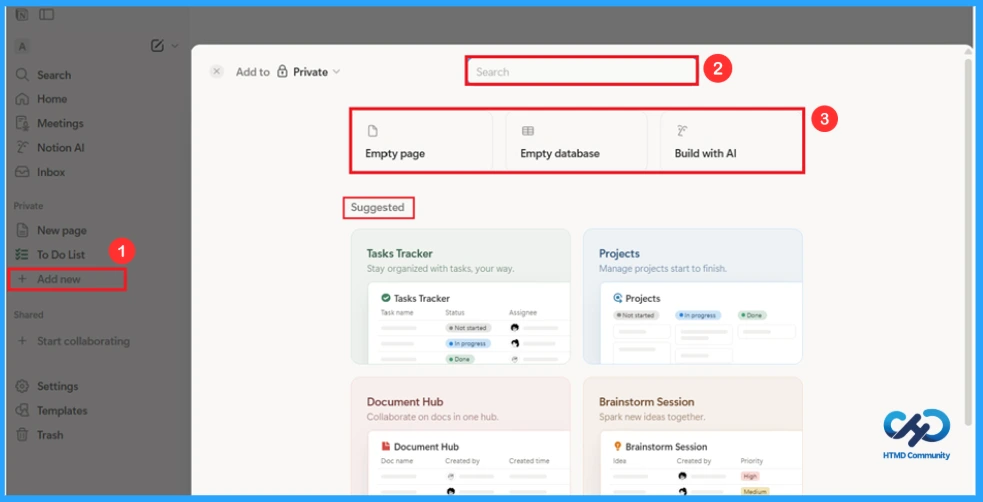
The Add new option is used to add a new task to your tab, like adding new pages, adding a new database, or building anything with the help of AI. Using the search option, it is easy to find templates. There are plenty of suggested templates, such as Task Tracker, projects, document hub, etc., which make it easy to organise tasks and manage projects.
How to Connect the Notion App with your Team
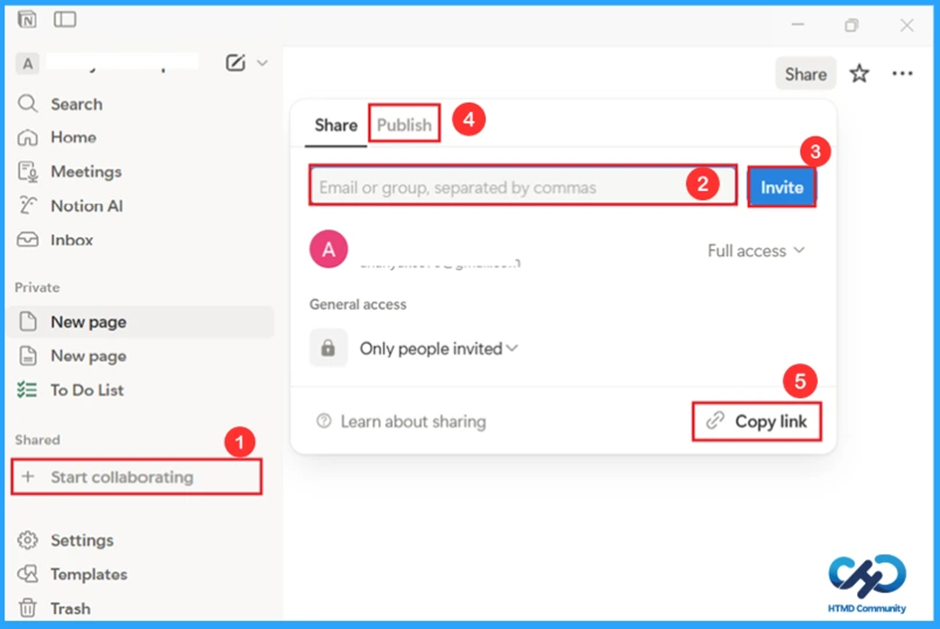
Start collaborations is used to connect with your team. Helps in managing teamwork in a single shared workspace. After entering the email of the person that you need to connect with, click on the invite so that they will receive your invitation. You can also publish your work using the publish option. The option copy link helps you to copy the link of your page to your clipboard.
Managing Settings in the Notion App
Settings are used to manage your account. Appearance of this app and notifications or comments, privacy & security also lie in settings. Apart from managing your account, you can customise and control your app in settings.
| Options | Features |
|---|---|
| Preference | Customise the looks and behaviour of the Notion app |
| Notifications | Control alerts for reminders, mentions and updates. |
| Connections | Import content from apps like Google Docs and Evernote. |
| Offline | See and manage offline access to your pages. |
| General | manage overall workspace settings like name, icon and permissions. |
| People | Add, remove or manage members in your app. |
| Team Space | Organise work into separate team areas for better collaborations |
| Notion AI | Control AI features and permissions in your workspace. |
| Public pages | manage pages that are shared publicly on the web. |
| Emoji | Choose or manage the emoji style used across Notion. |
| Connections | Workspace-level integrations with external tools |
| Import | Import content from apps like Google Docs and Evernote. |
| Upgrade plan | View plans and upgrade to get more features. |
Customising Appearance Language and Time in Preferences
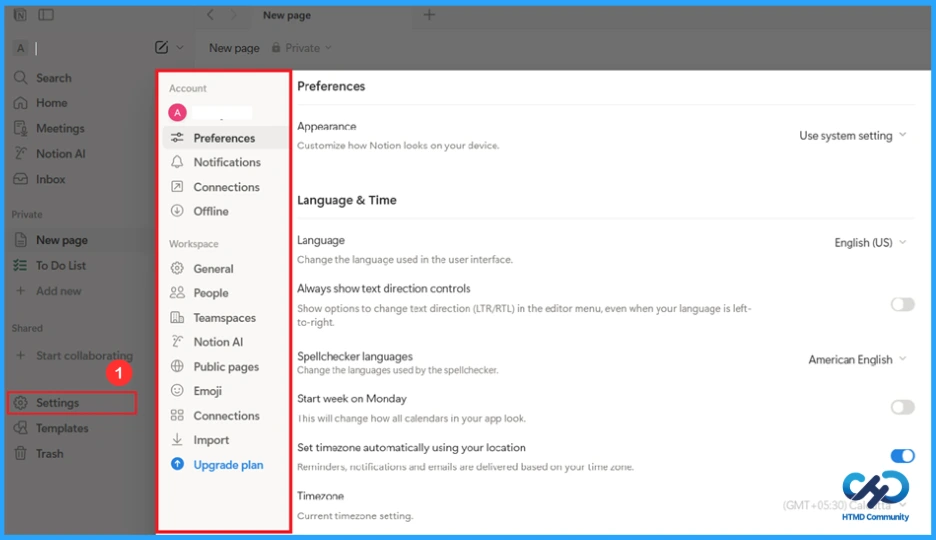
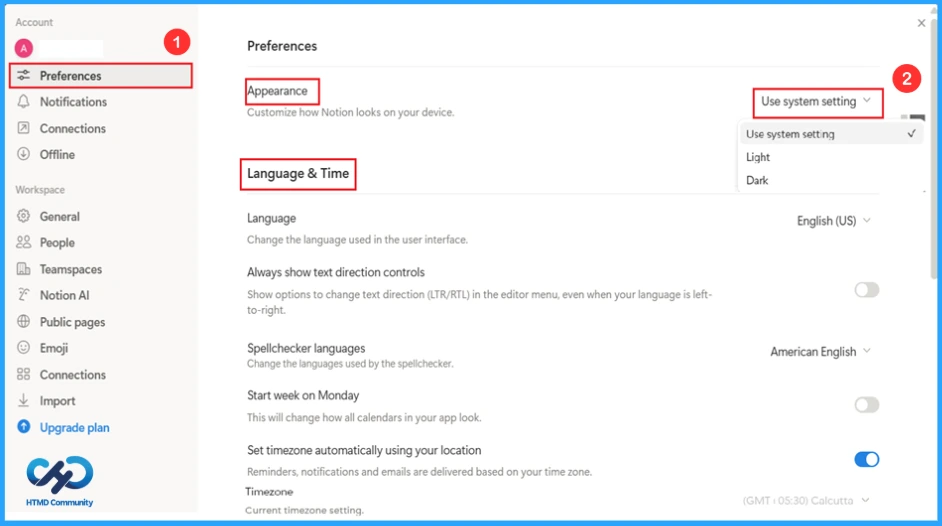
The first option in the settings is preferences. There are four sections: Appearance, language and time, desktop app and privacy. The screenshot below shows and explains Appearance, Language, and time.
- Appearance – To customise the notion look (light, dark).
- Languages – Change language according to your wish.
- Text direction control – Controls the flow of text.
- Spellchecker languages – To change the language of the spellchecker.
- Start week – The week starting from Monday will change the calendar in your app.
- Set time zone – To change or set the time zone so that emails or reminders will be sent as per it.
Desktop App Settings in the Preferences
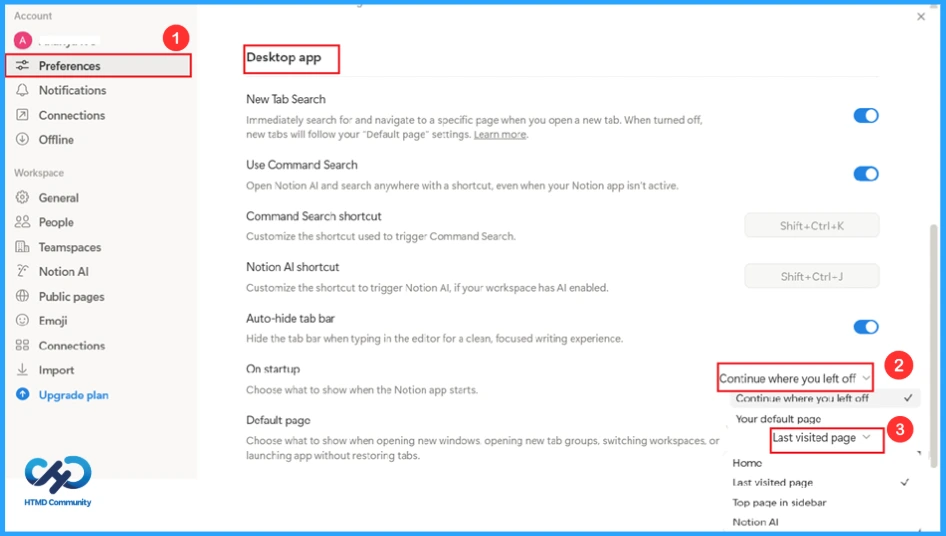
The next option in the preference is the desktop app. The option desktop app is used to manage and access the Notion app. It supports keyboard shortcuts for quicker work. This provides a faster and smoother experience than the browser. Also, this auto-saves changes without a refresh.
| Option | Features |
|---|---|
| New tab search | Immediate search for a new page. |
| Command search | To open Notion AI with a shortcut. |
| Command search shortcut | Shift+ ctrl+ K |
| Notion AI shortcut | Customise the shortcut to trigger Notion AI. Shift+ ctrl+ j |
| Auto-hide tab bar | To hide the tab bar when typing in the editor. |
| On startup | To choose what to show after opening the app. |
| Default page | Choose what to show after opening a new window, new tab group or workspace, etc |
Privacy Settings to Control the Profile
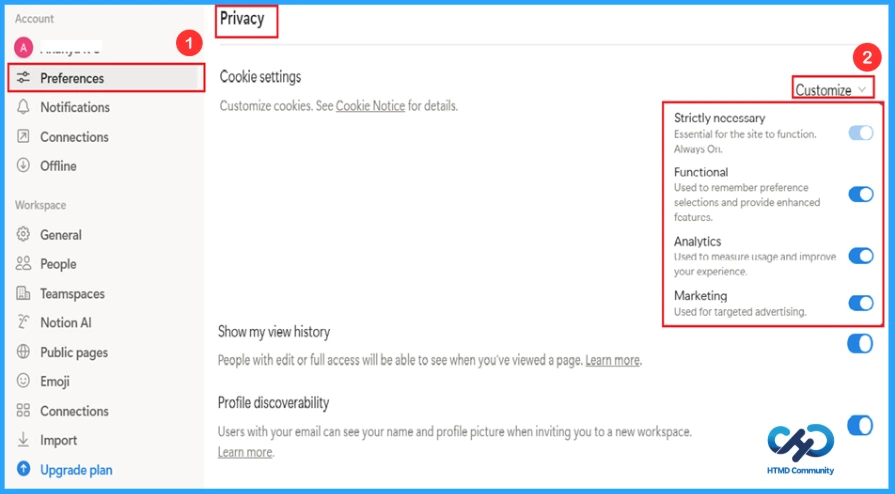
The last option in the preference is privacy. It primarily shows the basic essential privacy settings. It also lets you control your profile and activity. Basically, this option helps you to control privacy, visibility and how Notion uses your data and cookies.
- Cookie settings – Used to manage how cookies are stored and used by Notion.
- Customise – This option allows you to choose the type of cookie. There are four cookie types:
- Strictly necessary – Essential cookie required for basic app Functionality. Cannot be turned off.
- Functional – Provides enhanced features like how data is handled.
- Analytics – Used to improve performance and features.
- Marketing – Used to show relevant promotions or updates.
- Show my view history – Help quickly to revisit your opened pages.
- Profile visibility – Control whether others can find your profile.
Managing Notification Settings in the Notion App
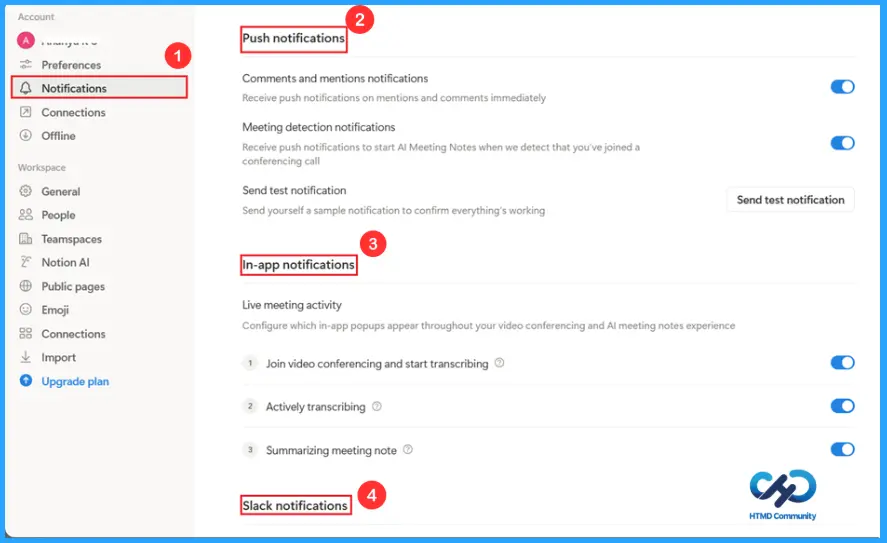
The notification section in the settings is used to control when and how you receive alerts from Notion. You can turn on and off every single notification. This helps you stay informed without being disturbed. The table below shows the features of each notification:
| Notifications | Features |
|---|---|
| Comments and mentions | Helps you to respond quickly without opening the app. |
| Meeting detection | Notifies you when you join a meeting and starts automatically AI meeting notes for that call. |
| Send test | Sample notification to check whether notifications are working properly |
| Live meeting activity | Helps you track what’s happening with transcribing and notes. |
| Join the video conference and start transcribing | Send notifications to your Discord when you are mentioned in a page, database or comment. |
| Actively transcribing | Display notifications when Notion is converting speech to text. |
| Summarising meeting notes | Shows messages when Notion is creating an AI summary after the meeting. |
| Slack notifications | Sends notifications directly to Slack (if connected). |
| Discord notifications | Opens a page to customise marketing and update emails. |
| Activity in your workspace | Send emails when you receive comments, mentions, page invites, etc |
| Always send email notifications | Send email notifications when you are active in the Notion app. |
| Page update | Helps track edits and updates on important pages. |
| Workspace digest | Useful to get a regular overview of activities. |
| Announcement and update emails | Opens a page to customise marketing and update emails. |
| Manage settings | Opens a page to customise marketing and update emails. |
| Learn about notifications | Useful if you want more detailed information about notifications. |
Connections and Integration in Notion
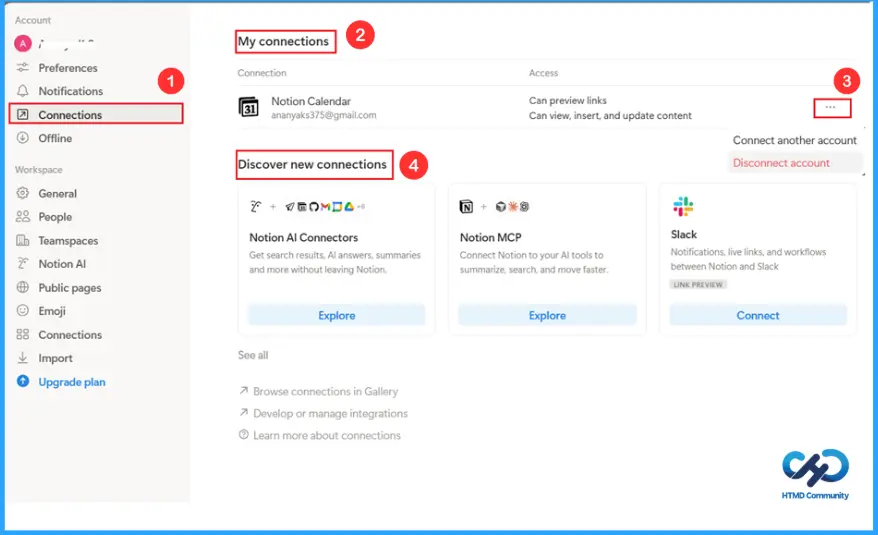
Connection shows all the apps and services already connected to your Notion account. This also helps you see which tools have access to your workspace. You can also add or remove a connected account.
- Notion calendar – Connect Notion with Notion/Google Calendar.
- Notion AI connectors – Helps you get information without leaving Notion.
- Notion MCP – Connects Notion to your AI tools.
- Slack – Connects notion with slack.
- Browse connections in gallery – Helps to discover tools like Google Drive, GitHub, etc
- Develop or manage integrations – Used by developers to create, manage or control custom integrations.
- Learn more about connections – Open Notion help page explaining how connections work.
How to Access the Notion App Without Internet
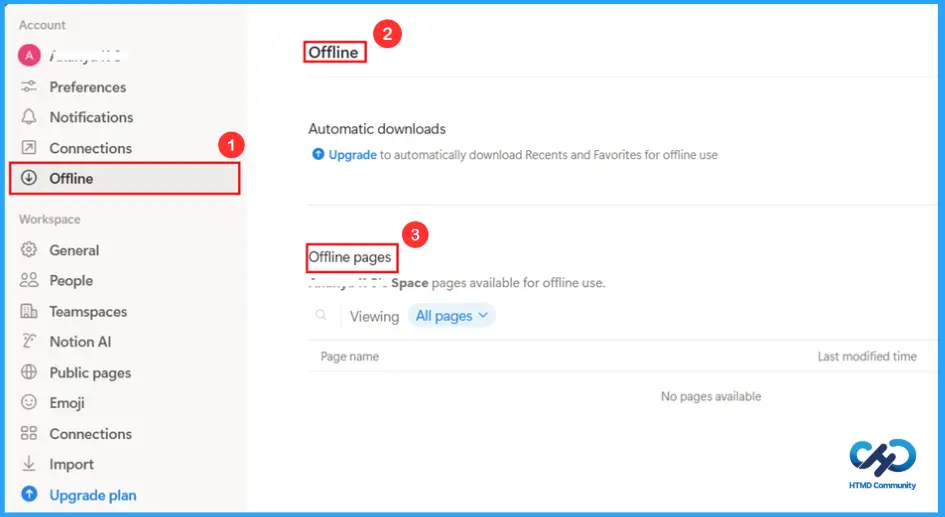
The offline section controls how Notion works without internet. It allows you to access and edit saved pages while disconnected.
| Options | Features |
|---|---|
| Automatic download | Automatically download recent pages to your device. |
| Offline pages | Help you know which pages are saved locally. |
| Viewing-all pages | Filters which pages are shown in the offline list. |
| Page name | Display the name of each offline page. |
How to Control the Basic Behaviour of the App
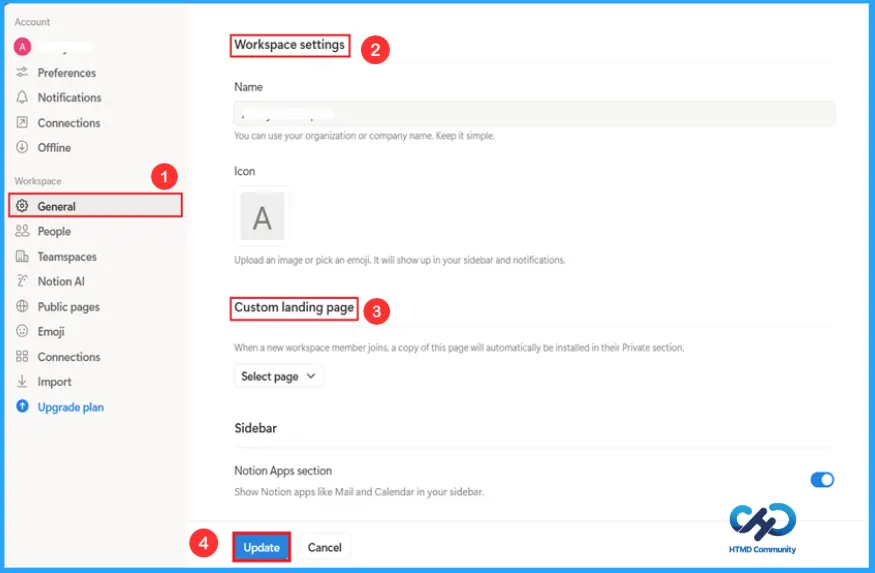
General is the next section in the settings. It controls the basics, overall behaviour of the workspace and app. It manages core workspace information (name, icon, landing page). You can also update the app using the update option. The following list explains each option in general:
- Name – You can change the name of your workspace.
- Icon – Upload an image or emoji that will be shown in the sidebar.
- Custom landing page – Let you choose the default page for new members.
- Sidebar – Shows or hides notion apps like mail and calendar in the sidebar.
- Trusted domain access – Anyone with an email from the domain can automatically join the workspace.
- Export workspace content – Allows exporting all workspace pages.
- Export members – Exports the list of workspace members as a CSV file.
- Save and display page view analytics – Tracks how many pages are viewed.
- People directory – Displays a directory of all workspace members.
- Recent activity on profile – Shows recently edited, created or commented pages.
- Hover cards – Show quick user info when hovering over a name.
- Delete entire workspace – Permanently deletes the whole Workspace.
- Workspace ID – Helps Notion identify the workspace accurately.
Managing User Access
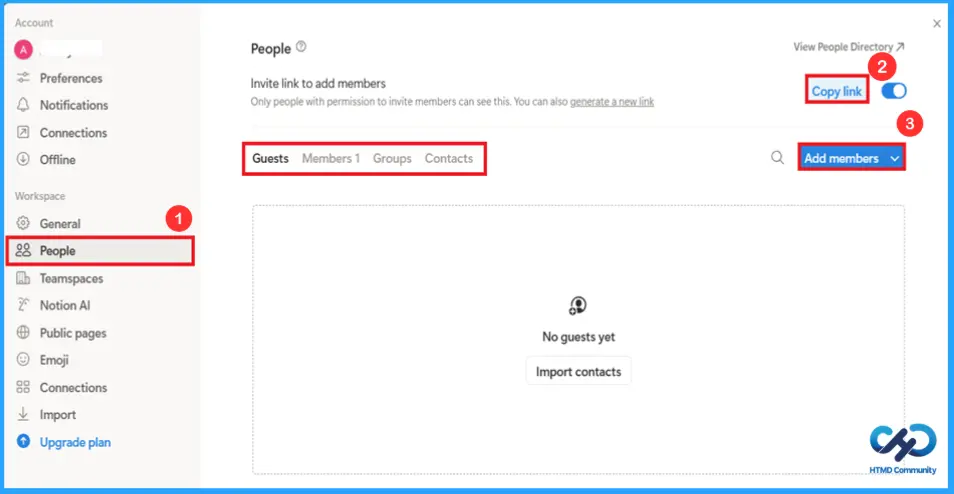
The People section may sometimes be marked as Members. It is the central hub for managing user access, roles and permissions with your workspace. You can invite members by copying the link. Here I enabled that option; you can turn it off if you want. Members can be imported from Slack, Google and Microsoft. You can also view and add your guests, members, group and contacts.
How to Organise Work and Collaboration in Team Space
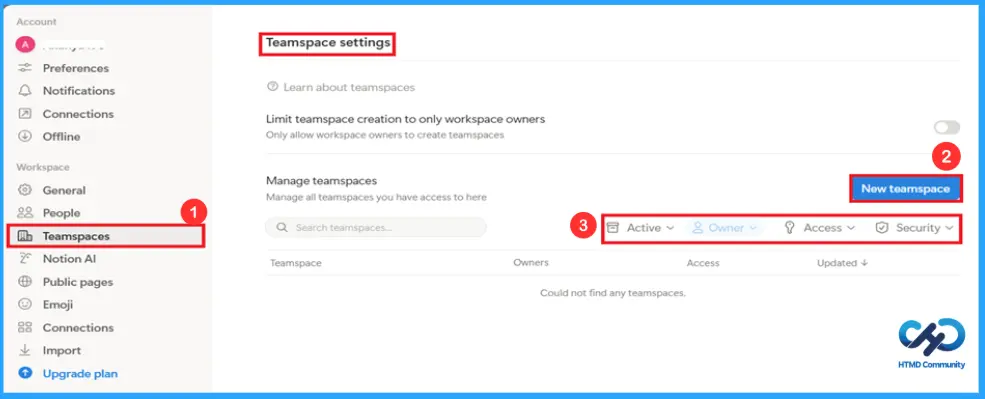
Team Space is used as a collaborative workspace application, likely Notion or similar tools. The current settings restrict Team Space creation to workspace owners only. A list of Team Space would appear on the screen if you have any. Here, I have no Team Space, so none were present. A button is present in the new Team Space, with options to manage access and security ownership of the Team Space.
Control and Manage Notion AI
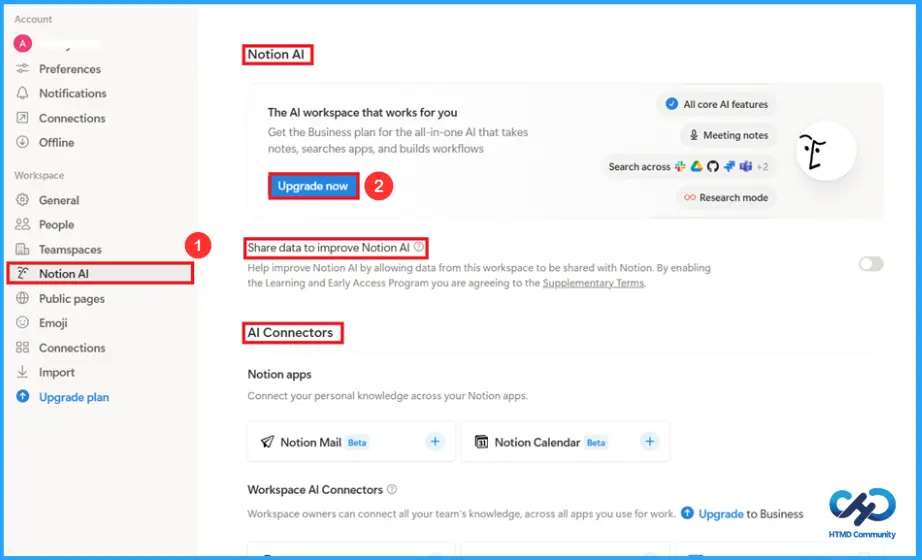
Notion AI in the settings is used to control and manage all AI-related features. Enabling the option to share data improves Notion AI, which helps in sharing data from this workspace to Notion, thereby improving the AI feature. AI connectors are used to connect your knowledge across the Notion app. Workspace AI connectors are used to connect with all apps you use for work, such as Google Drive, email, Slack, Microsoft Teams, etc.
How to Manage Published Sites and Domains
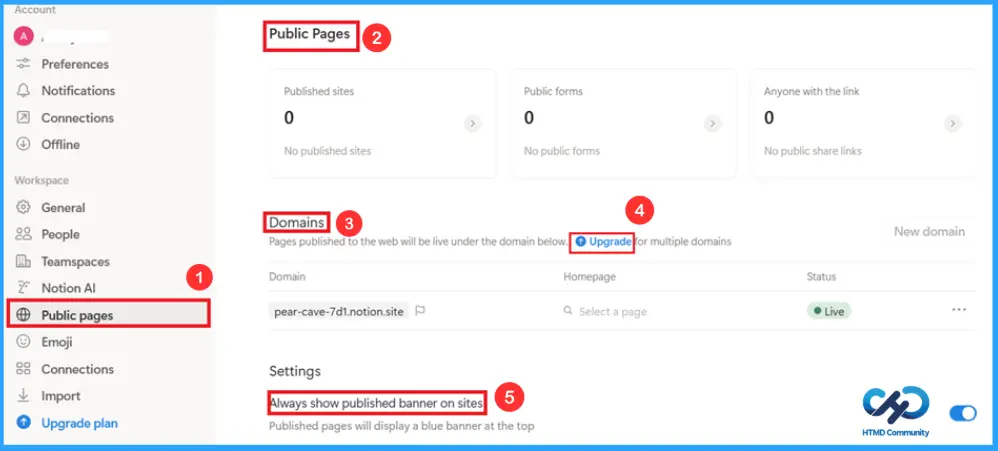
Public pages manage publishing sites and domains. You can view your published pages, public forms, and public share link. In the screenshot below, there is no published site or link. Here, the default domain for published pages is pear-cave-7d1.notion. site. You need to upgrade it for more domains. Also, there is an option to show the published banner on sites.
Customising Emoji for Workspace Owners
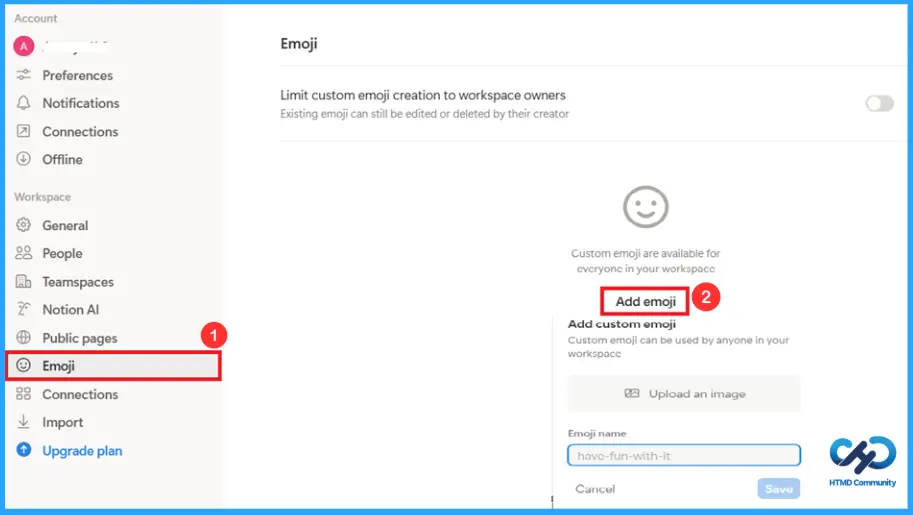
Emojis in the settings are mainly used for visual clarity, identification and a better user experience. Limiting custom emoji creation to workspace owners controls who can create custom emojis. Custom emojis are available for everyone in your workspace. You can add the emojis by using add emoji option.
How to Connect with External Apps
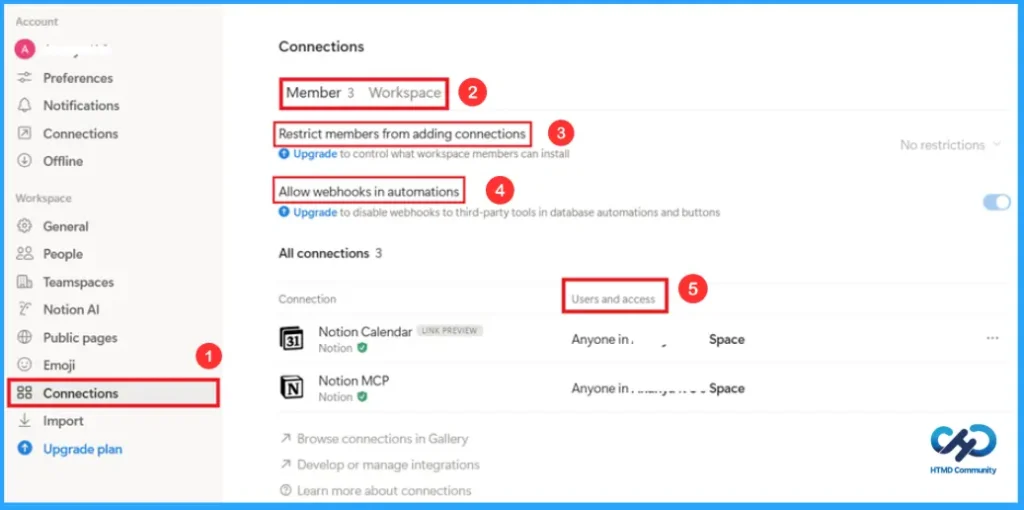
Members in connection are that individual members can use a workspace that shows connections available to the entire workspace. You can restrict members from adding connections. Notion lets you connect with external apps using webhooks. All connections show all integrations connected to the workspace. Users and access show who can use each connection.
How to Import and Convert Datas
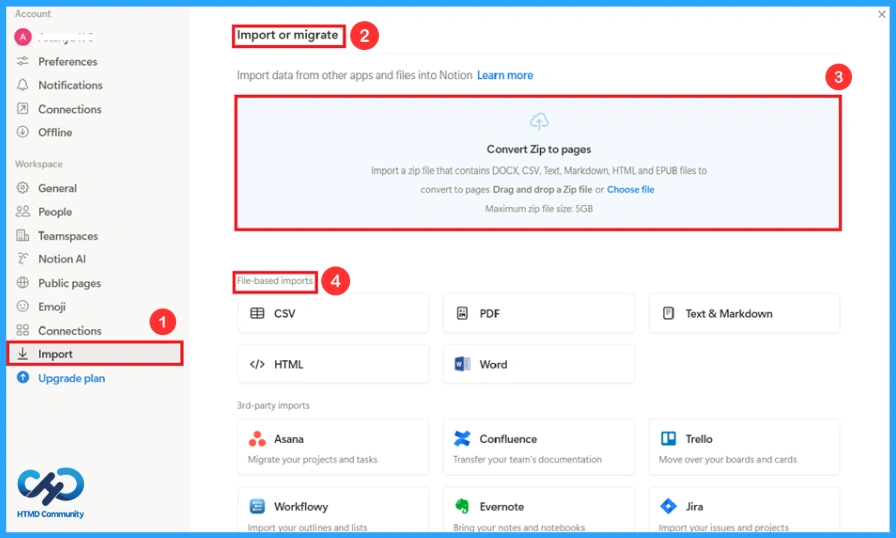
Import helps to bring data from other apps or files to the Notion app. The option to convert a zip to pages helps in uploading a zip file that contains documents. It only supports file types such as DOCX, CSV, TXT, Markdown, HTML, and EPUB. File-based imports are used when you already have files on your device.
Advanced Plans in the Notion App
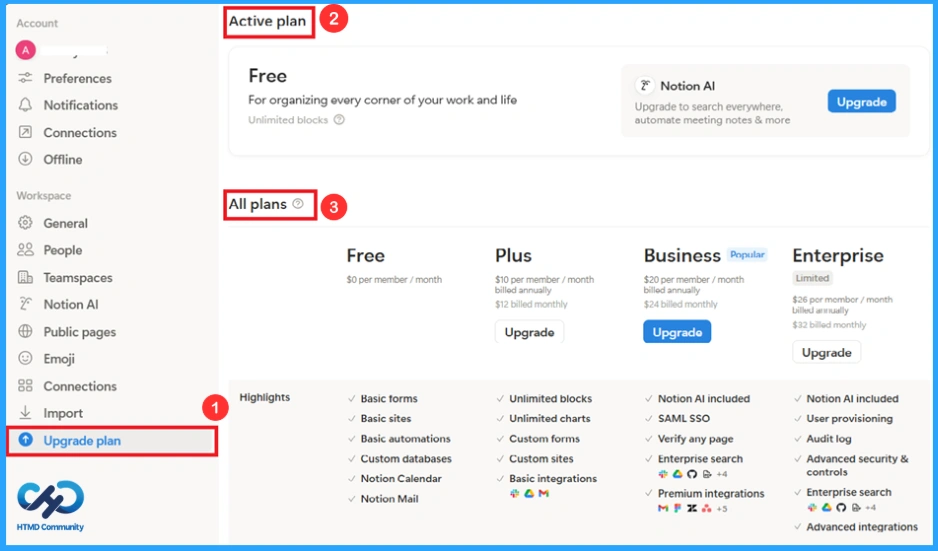
The upgrade plan is used to unlock advanced features. You can view various plans and features when you click on the upgrade plan. There is a plan with 0 cost with basic features. Also, there are plans like Plus, Business, and Enterprise at different costs.
Using Templates in the Notion App
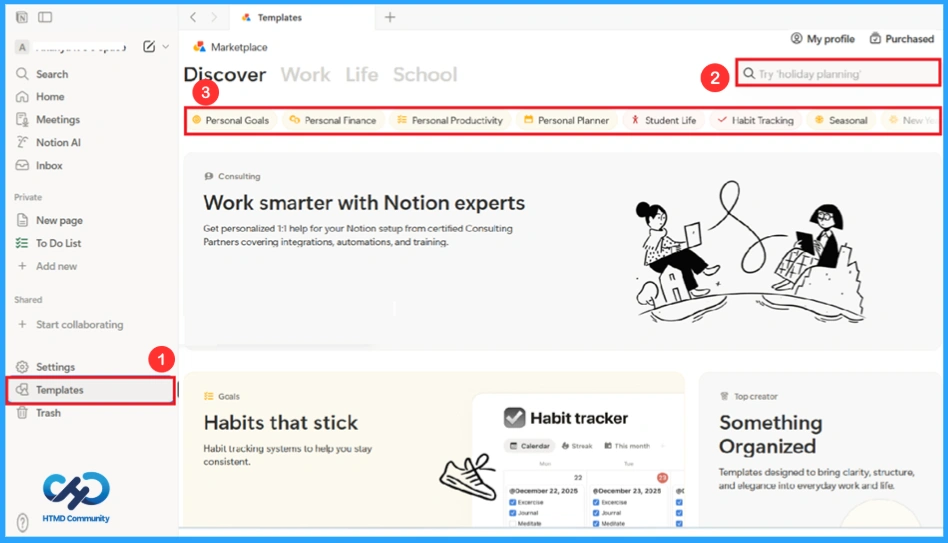
The templates are useful for advanced needs like workspace setup, automation, integration and training. You can discover work/life/school categories to explore templates based on your needs. You can search or choose various templates like personal goals, personal finance, student life, habit tracking, etc.
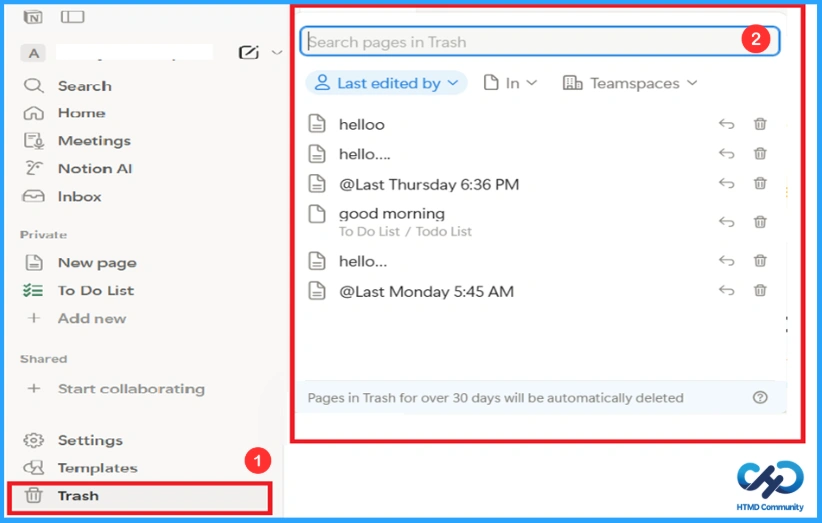
How to Restore a Deleted Page
The deleted task will be placed in the trash. You can search for its name and restore or delete it from the trash. Pages in Trash for over 30 days will be automatically deleted.
Accessing Help Resources
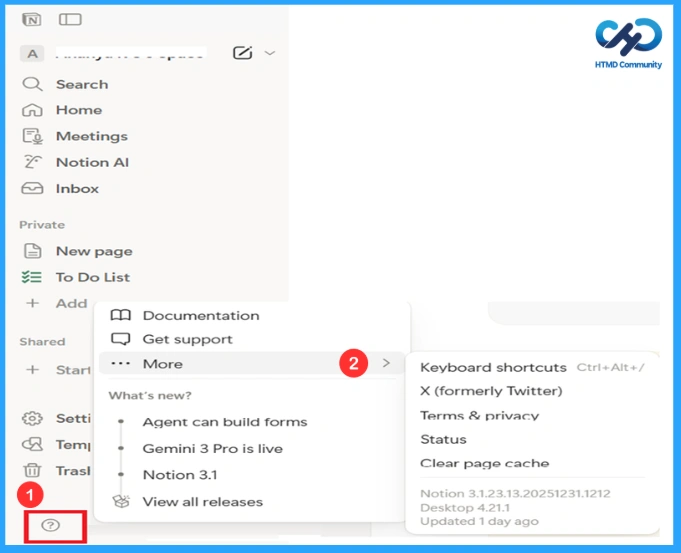
Help is used to learn how to use Notion effectively. It provides tutorial guides. It helps users discover new updates and best practices. Shortcut keys are also available in this option.
| Options | Features |
|---|---|
| documentation | Useful for learning features and how to use Notion properly. |
| Get support | Let you contact Notion support. |
| Keyboard shortcuts | Shows all shortcut keys to work faster in Notion. |
| X (formerly Twitter) | Used to check updates, announcements, and tips. |
| Terms & privacy | Explains how your data is protected. |
| Status | Shows whether Notion servers are working properly. |
| Clear page cache | Clears locally stored data for pages. |
| Agent can build forms | New AI features for creating forms. |
| Gemini 3 pro is live | Updated AI model integrations. |
| Notion 3.1 | Latest version update. |
| View all releases | Shows full update history. |
End Results – How to Create Notes in Notion App
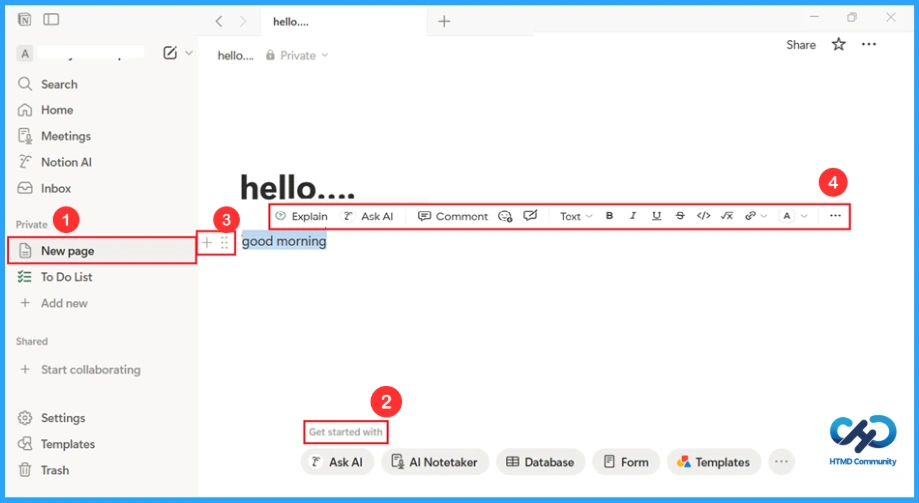
To create notes on the Notion App, click on the add new option from the private section. Then, you can choose the template. In the screenshot below, I chose an empty page. You can also build your template with the help of AI. If you don’t know how to get started, you can seek the help of the option ‘get started with’. You can also drag your text. A plus symbol is used to create a block with several options. Several other options helps to:
- Explain– Uses Notion AI to explain the text.
- Ask AI– To ask Notion AI questions based on the context.
- Comment– Add a comment for discussion.
- B(bold)– Makes the text bold.
- I(italic)– Slants the text.
- U(underline)– Underlines the text.
- S(strike through)– Draws a line through the text.
- </>(code)– Formats texts as code.
- A(colour)– Changes text or background colour.
- Link icon– Add a text link.
- More options– Shows additional block settings.
How to Set Meetings in Notion Calendar
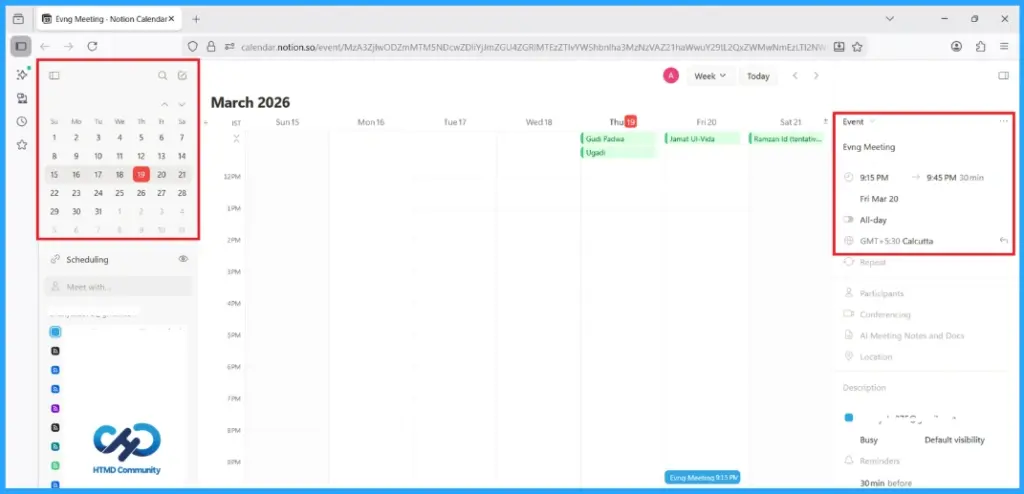
To set Meetings on the Notion App. Click on the Meetings section and click on the ” Set Upcoming Meetings “, and then mark your date. You can give your event a title as shown in the screenshot. On the left side, set your event date, and on the right side, set the event name and time.
Need Further Assistance or Have Technical Questions?
Join the LinkedIn Page and Telegram group to get the latest step-by-step guides and news updates. Join our Meetup Page to participate in User group meetings. Also, Join the WhatsApp Community and WhatsApp Channel to get the latest news on Microsoft Technologies. We are there on Reddit as well.
Author
Anoop C Nair has been Microsoft MVP from 2015 onwards for 10 consecutive years! He is a Workplace Solution Architect with more than 22+ years of experience in Workplace technologies. He is also a Blogger, Speaker, and Local User Group Community leader. His primary focus is on Device Management technologies like SCCM and Intune. He writes about technologies like Intune, SCCM, Windows, Cloud PC, Windows, Entra, Microsoft Security, Career, etc.