
Key Takeaways:
- Enable Hypervisor Enforced Code Integrity
- Strengthens Windows security by ensuring only trusted, signed code runs in kernel mode
- Reducing risks from malicious drivers
- Protections to isolate sensitive processes
Let’s discuss about Enable Hypervisor Enforced Code Integrity for Virtualization-Based Security in Intune. This setting enables virtualization based protection of Kernel Mode Code Integrity. When this is enabled, kernel mode memory protections are enforced and the Code Integrity validation path is protected by the Virtualization Based Security feature.
Table of Contents
Table of Contents
Enable Hypervisor Enforced Code Integrity for Virtualization-Based Security using Intune
Virtualization Based Security requires a 64-bit version of Windows with Secure Boot enabled, which in turn requires that Windows was installed with a UEFI BIOS configuration, not a Legacy BIOS configuration. In addition, if running Windows on a virtual machine, the hardware-assisted CPU virtualization feature (Intel VT-x or AMD-V) must be exposed by the host to the guest VM.
- How to Prevent Mapping of Client Printers in Remote Desktop Services Sessions using Intune
- Control Least Privilege App Container Sandbox for Printing Services in Edge Browser using Intune
- Enable Restrict Background Graphics Printing Mode for MS Edge using Intune Policy
Start Policy Creation in Intune Portal
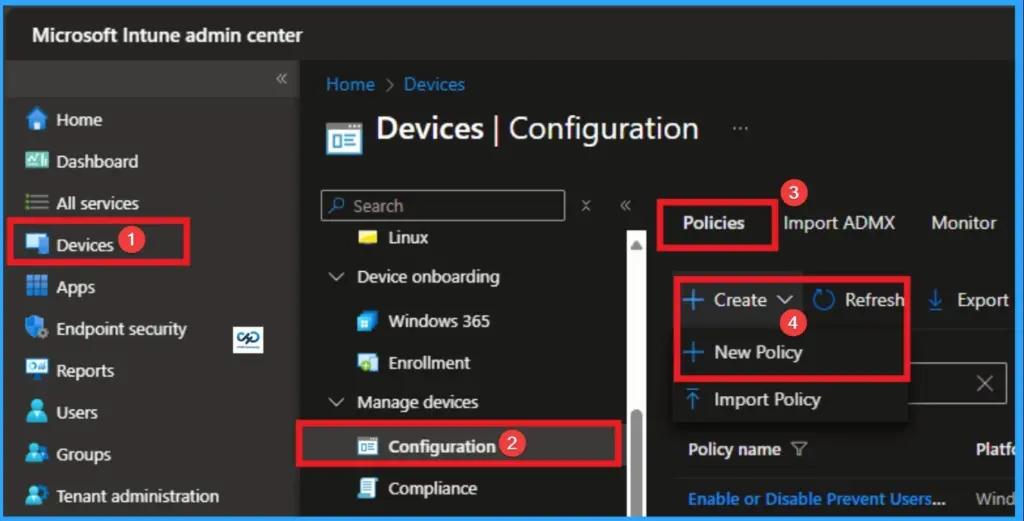
With your credential you can easily sign in Intune Portal. Then you can configure Hypervisor Enforced Code Integrity policy for your managed devices. For this go to Devices > Configuration >+ Create > +New Policy.
Policy Profile Creation
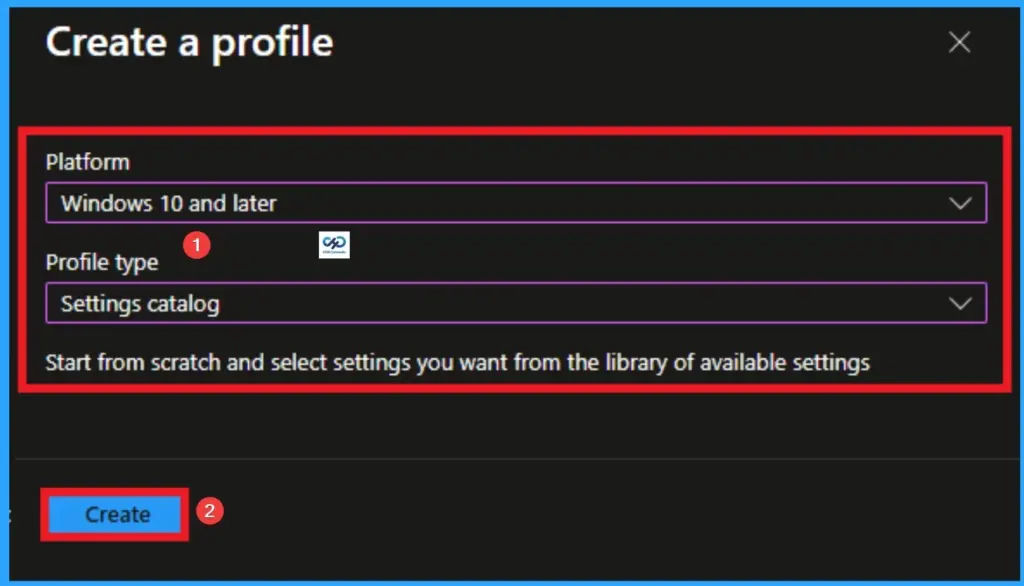
It is the next step step you have to do for policy Creation. In profile creation you must select platform and profile type. Here I would like to configure the policy to Windows 10 and later platform and settings catalog profile. Then click on the Create button.

Give Name and Description for Policy
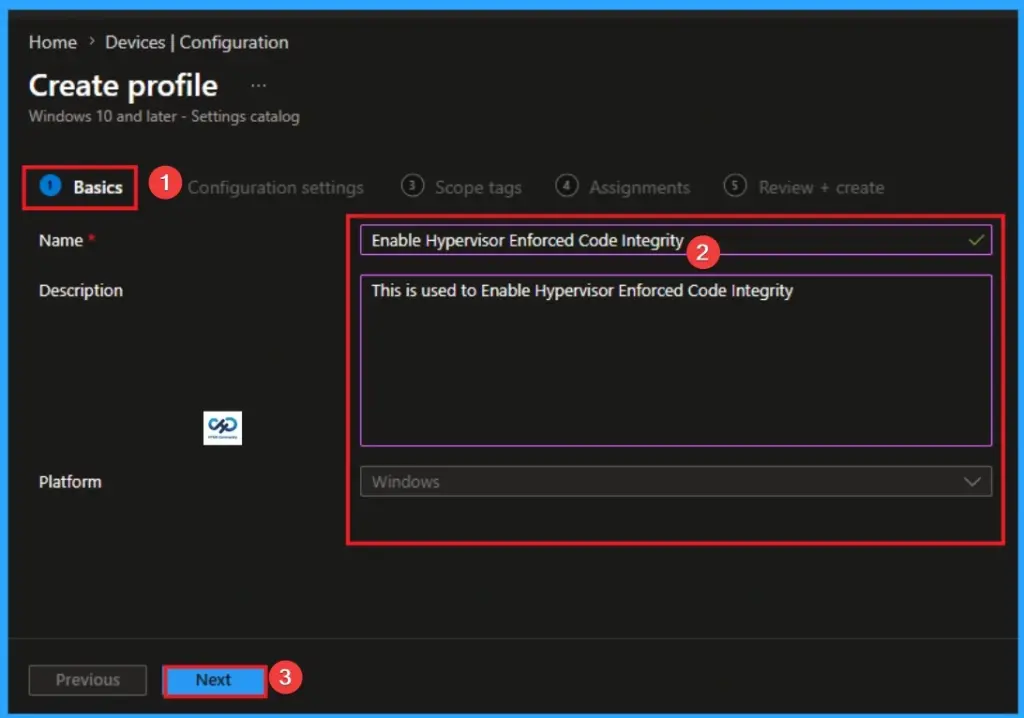
Naming the policy is the primary step that help admins to identify the policy later. This is important and necessary step that allows you to know the purpose of the policy. Here is Name is mandatory and description is optional. After adding this click on the Next button.
Select Hypervisor Enforced Code Integrity Settings
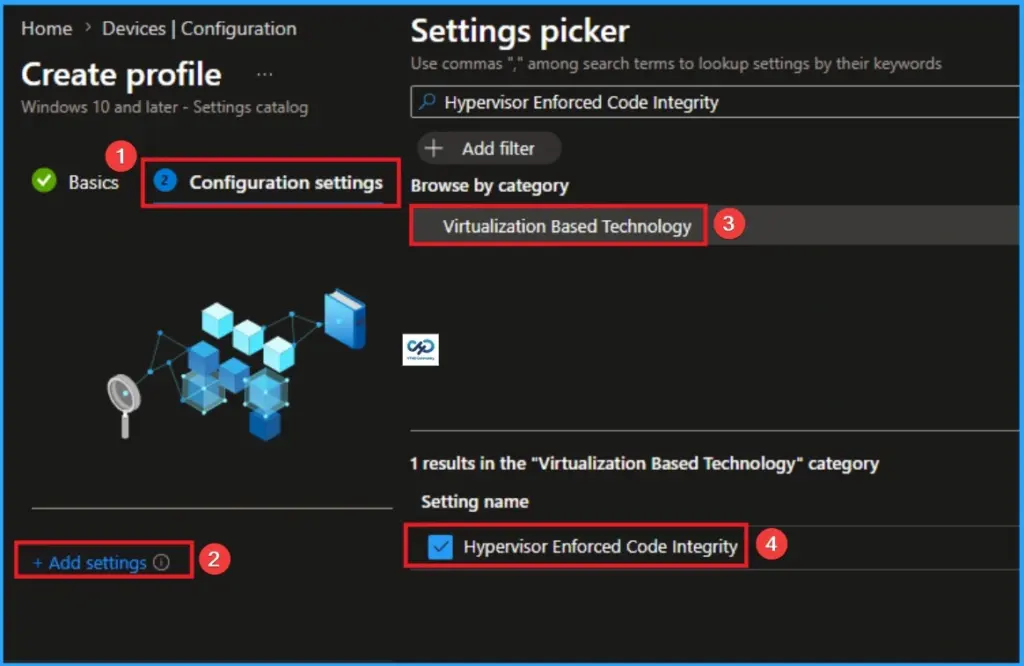
With Settings Picker, you can use the Configuration Settings Tab. On this tab, you can click on the +Add Settings hyperlink to get the Settings Picker. The settings picker shows huge number of settings. Here, I would like to select the settings by browsing by Category. I choose Virtualization Based Technology\Hypervisor Enforced Code Integrity.
Select Value
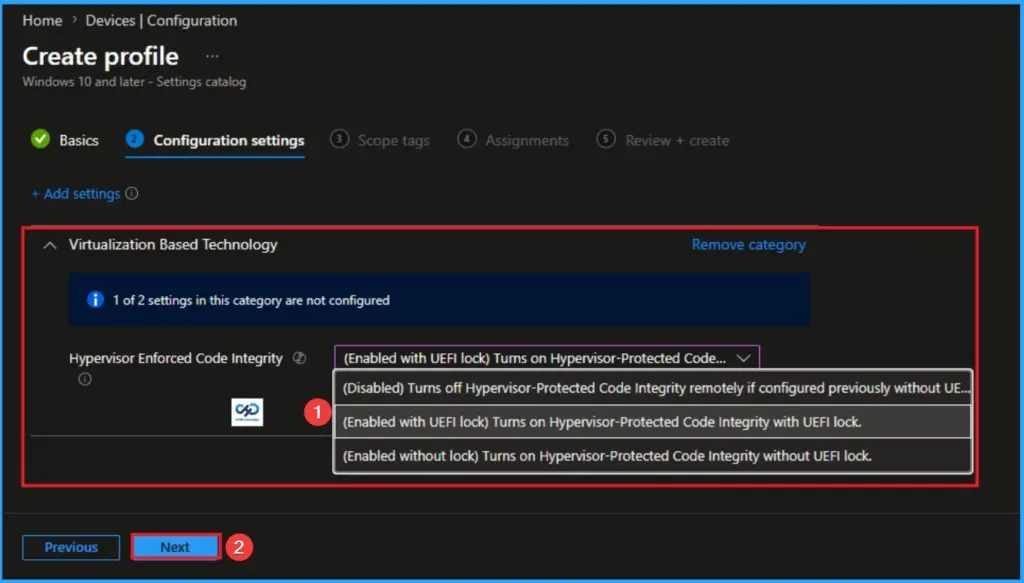
There are 3 values available for this policy. They are (Disabled) Turns off Hypervisor-Protected Code Integrity remotely if configured previously without UEFI Lock, (Enabled with UEFI lock) Turns on Hypervisor-Protected Code Integrity with UEFI lock and (Enabled without lock) Turns on Hypervisor-Protected Code Integrity without UEFI lock. The more details are below.
| Disabled | Enabled with UEFI lock | Enabled without lock |
|---|---|---|
| It sends a command to the device to explicitly shut down the virtualization-based security features. This option is highly effective only if the previous policy was set to “Enabled without lock.” | Once this policy is applied and the device restarts, the setting is written into the device’s NVRAM (Non-Volatile RAM) within the UEFI firmware. ecause the setting is locked at the hardware level, it cannot be disabled by simply changing a registry key or deleting the Intune profile from within Windows. | HVCI is turned on, and the kernel is protected. However, the instruction to keep it on exists only at the Operating System level. If a user or a piece of malware gains administrative access, they could potentially modify the registry or use a command-line tool to disable the service. The change would take effect after a reboot. |
| It is best for Decommissioning the security feature or troubleshooting widespread performance/compatibility issues on devices that were not “Hardware Locked.” | It is best for High-security environments where you want to ensure that even if an attacker gains “SYSTEM” or “Admin” privileges, they cannot turn off your memory protections to load a malicious driver. | It is best for Organizations that are still testing HVCI compatibility. It allows IT teams to quickly “undo” the setting remotely if a critical driver starts causing Blue Screens (BSODs) across the fleet without needing to physically touch every machine. |
Add Scope Tags
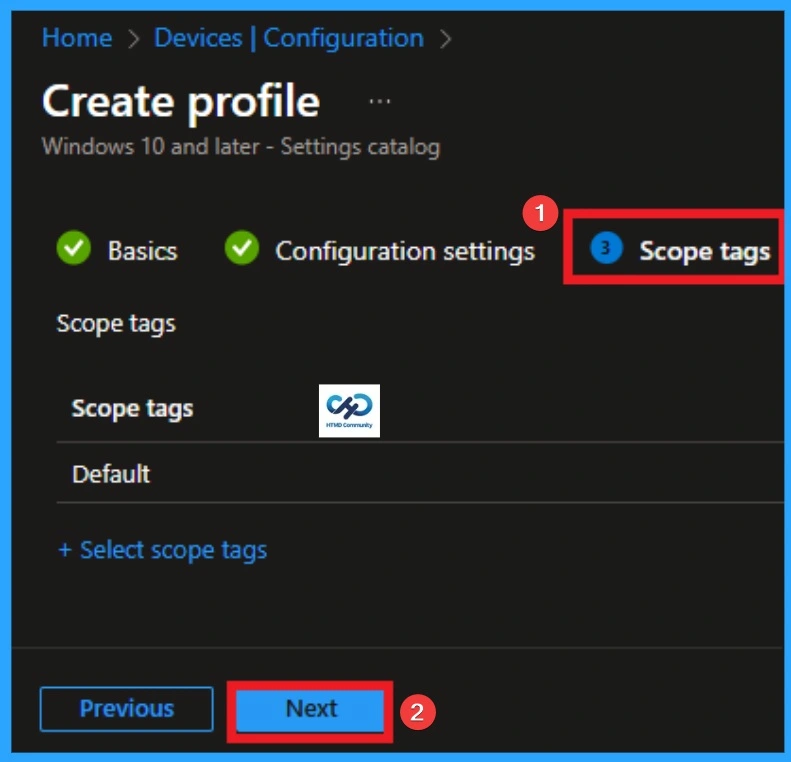
With scope tags, you create a restriction to the visibility of the Hypervisor Enforced Code Integrity in Windows Defender Firewall. It helps to organise resources as well. Here, I would like to skip this section, because it is not mandatory. Click on the Next button.
Assignments Tab for Selecting Group
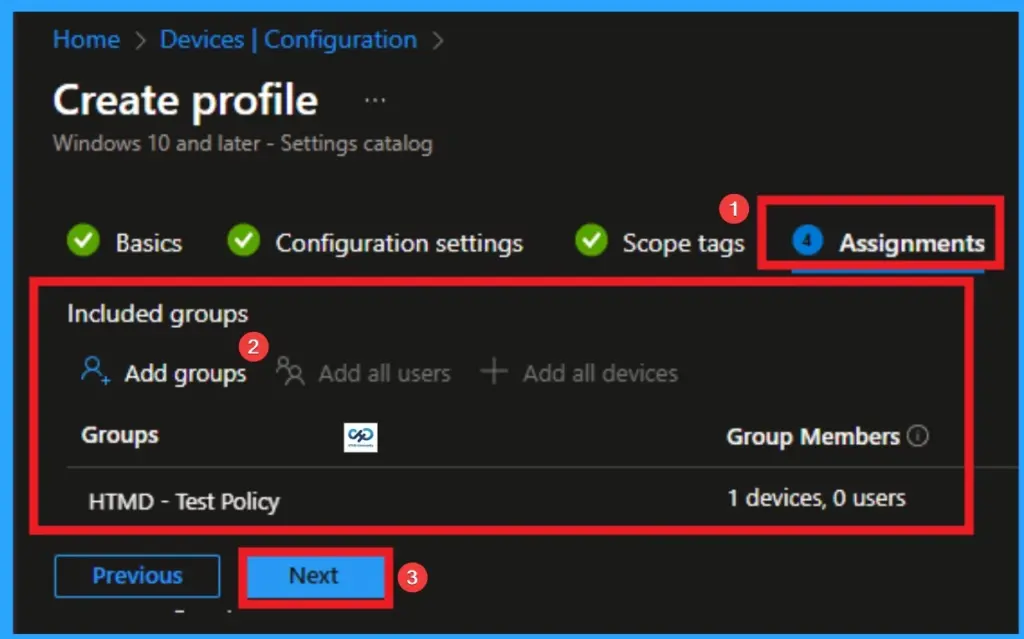
To assign the policy to specific groups, you can use the Assignment Tab. Here I click, +Add groups option under Included groups. I choose a group from the list of groups and click on the Select button. Again, I click on the Select button to continue.
Review + Create Tab
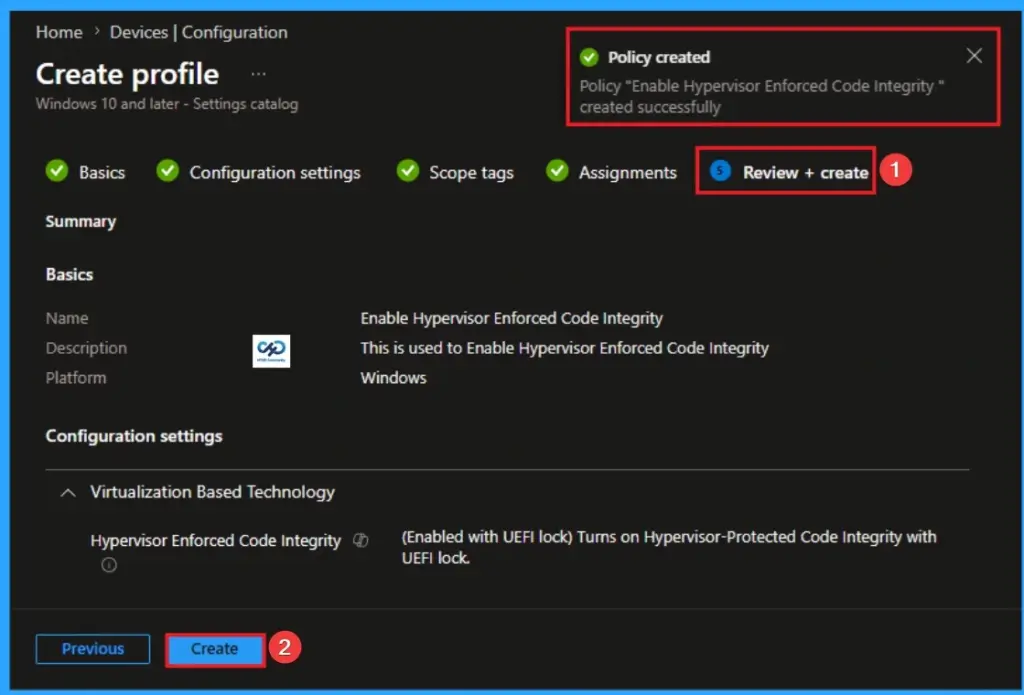
Before completing the policy creation, you can review each tab to avoid misconfiguration or policy failure. After verifying all the details, click on the Create Button. After creating the policy, you will get a success message.
Monitoring Status
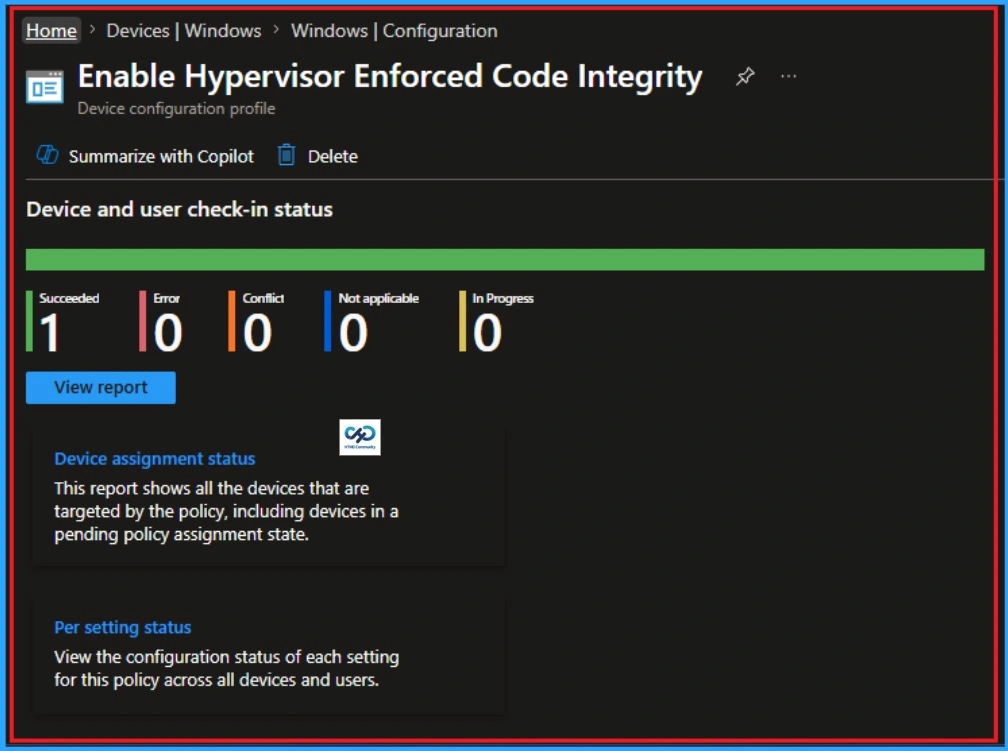
The Monitoring Status page shows whether the policy has succeeded or not. To quickly configure the policy and take advantage of the policy sync the assigned device on Company Portal. Open the Intune Portal. Go to Devices > Configuration > Search for the Policy. Here, the policy shows as successful.
Removing the Assigned Group from How to Block Log Success Connections in Windows Defender Firewall
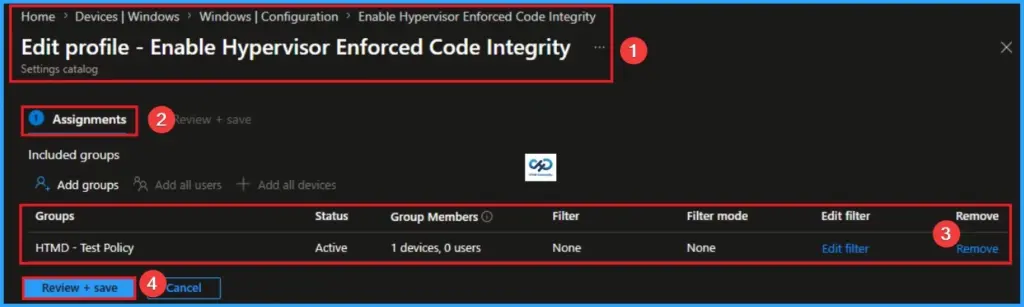
If you want to remove the Assigned group from the policy, it is possible from the Intune Portal. To do this, open the Policy on Intune Portal and edit the Assignments tab and the Remove Policy.
To get more detailed information, you can refer to our previous post – Learn How to Delete or Remove App Assignment from Intune using by Step-by-Step Guide.
How to Delete How to Delete Log Success Connections in Windows Defender Firewall
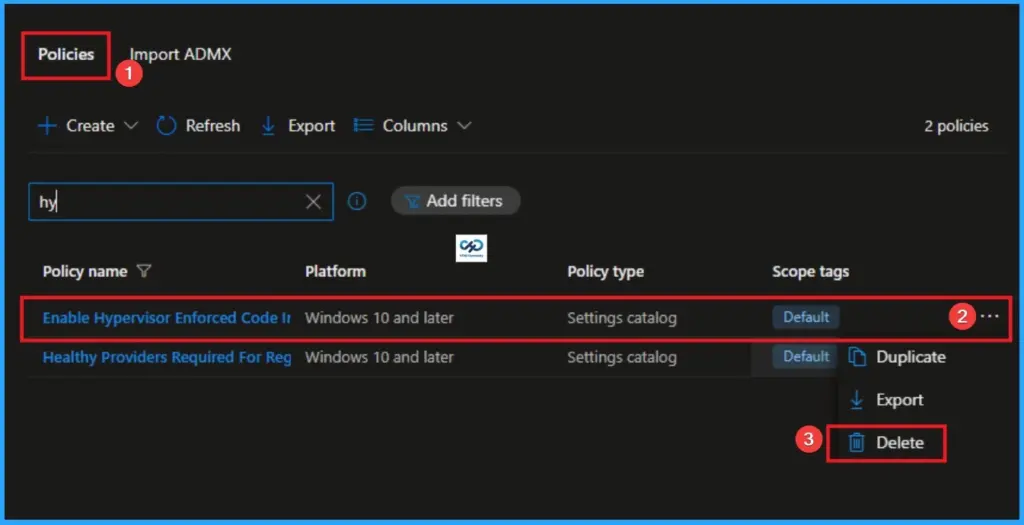
You can easily delete the Policy from the Intune Portal. From the Configuration section, you can delete the policy. It will completely remove it from the client devices.
For detailed information, you can refer to our previous post – How to Delete Allow Clipboard History Policy in Intune Step by Step Guide.
CSP Details
Hypervisor-Protected Code Integrity: 0 – Turns off Hypervisor-Protected Code Integrity remotely if configured previously without UEFI Lock, 1 – Turns on Hypervisor-Protected Code Integrity with UEFI lock, 2 – Turns on Hypervisor-Protected Code Integrity without UEFI lock.
Need Further Assistance or Have Technical Questions?
Join the LinkedIn Page and Telegram group to get the latest step-by-step guides and news updates. Join our Meetup Page to participate in User group meetings. Also, join the WhatsApp Community and the WhatsApp channel to get the latest news on Microsoft Technologies. We are there on Reddit as well.
Author
Anoop C Nair is a Workplace Technology solution architect with 25+ years of experience. Microsoft Certified Trainer. Microsoft MVP from 2015 onwards for consecutive 11+ years! He is a blogger, Speaker, and Founder of HTMD Community and HTMD Conference. His main focus is on Device Management technologies like Intune, Windows, and Cloud PC. He writes about technologies like Intune, SCCM, Windows, Cloud PC, Entra, and Microsoft Security.