
Key Takeaways
- Cloud PCs are getting cheaper starting May 1st, making them more cost-effective.
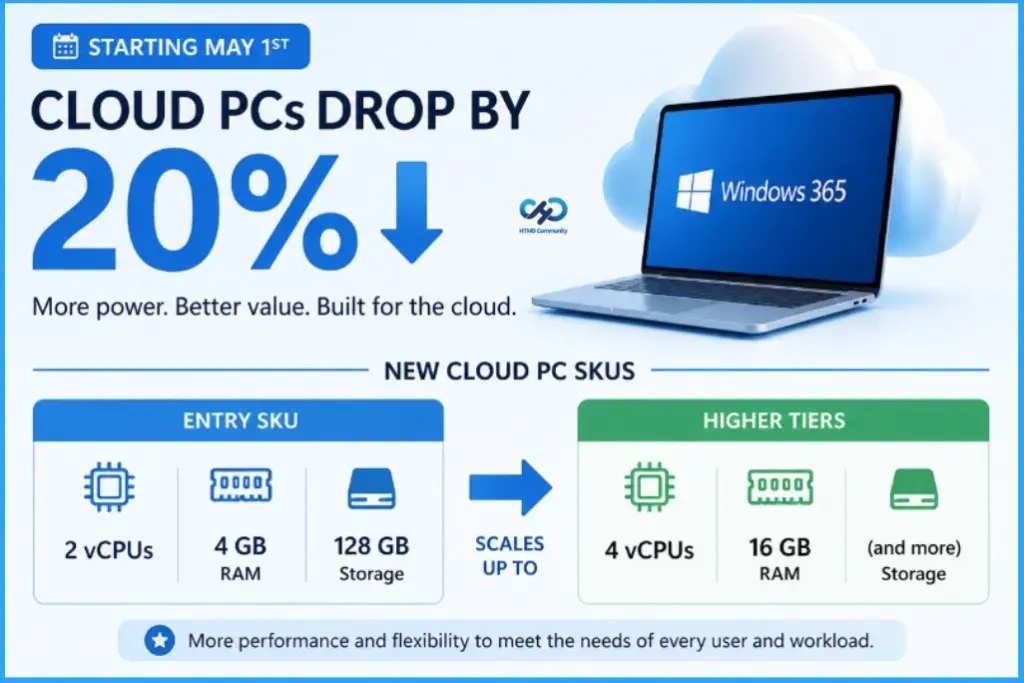
- Entry-level starts at 2 vCPU, 4 GB RAM, 128 GB storage, with higher tiers up to 4 vCPU and 16 GB RAM.
- Traditional PC hardware is becoming more expensive due to memory shortages and supply chain issues.
- Cloud PCs stay active for 1 hour after disconnect, then move to hibernate to optimize resources.
- With lower pricing and new features, it’s a good time to reassess your Cloud PC business case.
Cloud PCs Get 20% Cheaper Starting May 1st with Improved Entry and Scalable Performance Options! Starting May 1st, Cloud PCs are becoming more affordable with a 20% price reduction. Entry-level SKUs now offer 2 vCPUs, 4 GB RAM, and 128 GB storage, while higher tiers scale up to 4 vCPUs and 16 GB RAM, making them more flexible for different workloads.
Table of Content
Table of Contents
Cloud PCs Get 20% Cheaper Starting May 1st with Improved Entry and Scalable Performance Options
At the same time, physical PCs are becoming more expensive because of memory shortages and supply chain issues. Because of this, Cloud PCs are now a more affordable and flexible option for many organisations.
| Feature | Details |
|---|---|
| New Capability | On-demand start experience |
| Active Time After Disconnect | Stays active for 1 hour after user disconnects |
| After 1 Hour | Moves to hibernate mode |
| Reconnection Experience | May take slightly longer to reconnect |
| Benefit | Improves resource efficiency and cost optimization |
| Recommendation | Inform users in advance to avoid confusion or unexpected delays |
- How to Simplify Shift Work with Windows 365 Frontline Cloud PCs
- How to Add Windows 365 Partner Connectors in Microsoft Intune
- How to Create Remote Connection Experience Settings for Windows 365 Cloud PCs
Cloud PCs Drop By 20%
The 20% price reduction helps reduce overall IT costs. Admins can now deploy more Cloud PCs within the same budget or reallocate savings to other projects. Finally, Cloud PCs simplify device management and scalability. Admins can quickly provision, update, or replace systems without dealing with physical hardware, making operations faster and more consistent.
- How to Configure AI-Enabled Features for Windows 365 Cloud PCs
- How to Configure New Windows App Settings for Windows 365 using Intune
- Easy Method to Deploy Windows App Mob for iOS and iPadOS using Intune
- How to Create Remote Connection Experience Settings for Windows 365 Cloud PCs
Need Further Assistance or Have Technical Questions?
Join the LinkedIn Page and Telegram group to get the latest step-by-step guides and news updates. Join our Meetup Page to participate in User group meetings. Also, join the WhatsApp Community and the Whatsapp channel to get the latest news on Microsoft Technologies. We are there on Reddit as well.

Author
Anoop C Nair is a Workplace Technology solution architect with 25+ years of experience. Microsoft Certified Trainer. Microsoft MVP from 2015 onwards for consecutive 11+ years! He is a blogger, Speaker, and Founder of HTMD Community and HTMD Conference. His main focus is on Device Management technologies like Intune, Windows, and Cloud PC. He writes about technologies like Intune, SCCM, Windows, Cloud PC, Entra, and Microsoft Security.