
Key Takeaways
- Quick Reset & Reassignment: Reprovisioning wipes the Cloud PC and reinstalls a clean image, making it ready for the next user in shift-based roles.
- Flexible Options: Admins can reprovision immediately or schedule it, aligning with operational needs.
- Policy-Driven Management: Each reprovisioning action is tied to a provisioning policy that defines network, geography, and image settings.
- Streamlined Lifecycle Control: Alongside reprovisioning, admins can delete Cloud PCs, simplifying management in dynamic frontline environments.
In this article, I’ll explain how to Perform Easy Reprovisioning for Windows 365 Frontline Shared Cloud PCs. Reprovisioning for Windows 365 Frontline Shared Cloud PCs allows organizations to reset and reassign cloud-based desktops quickly and efficiently, ensuring that frontline workers always have access to a fresh, secure, and ready-to-use environment. This process wipes the existing state of a shared Cloud PC and reinstalls a clean image, making it ideal for shift-based roles where multiple employees use the same device. By streamlining reprovisioning, IT teams can reduce downtime, maintain compliance, and deliver a consistent user experience across the workforce, while also simplifying management and scaling operations in dynamic frontline scenarios.
Table of Contents
Configure the Reprovision Now Option for Windows 365 Frontline Shared Cloud PC
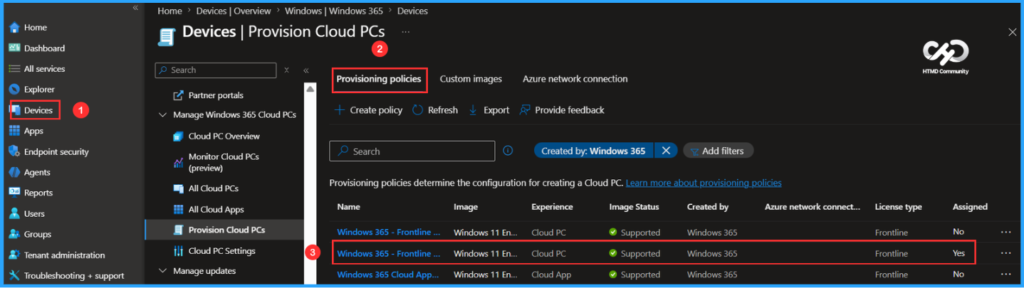
To configure Reprovision of Windows 365 Frontline Shared Cloud PCs, login to the Microsoft Intune Admin Center using your administrator credentials.
- Navigate to > Devices > Manage Windows 365 Cloud PCs > Provision Cloud PCs
- Click on Provisioning policies > Select Windows 365 – Frontline Shared Provisioning Policy (Any Windows 365 Frontline Shared Mode Provisioning Policy that already has Cloud PCs provisioned.)
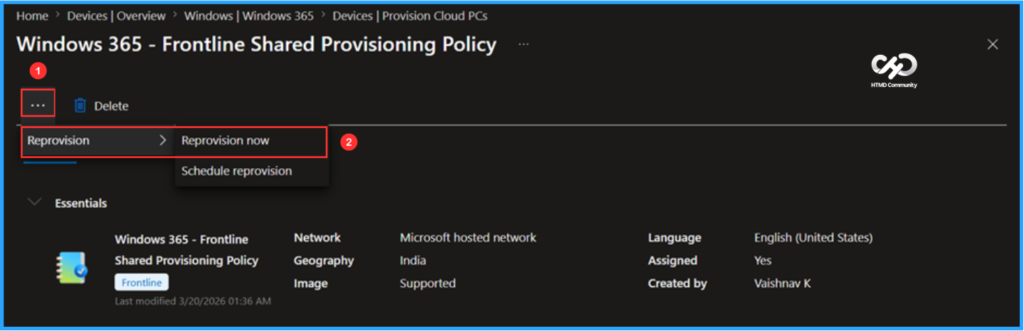
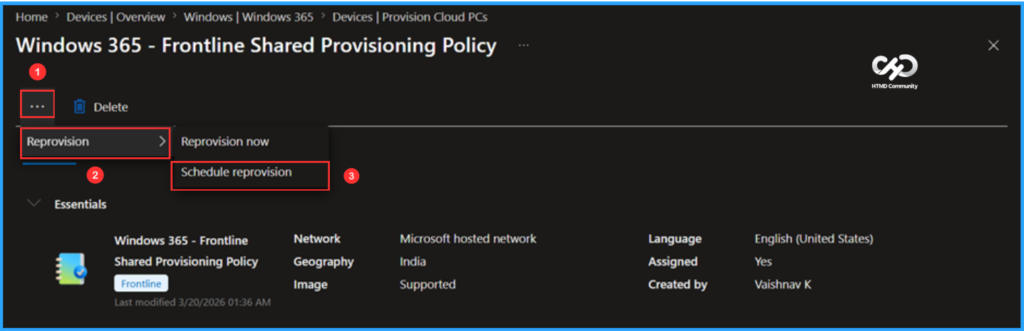
On the Overview screen, click the three dots in the top left corner. Select Reprovision and then choose Reprovision now.
- How to Simplify Shift Work with Windows 365 Frontline Cloud PCs
- How to Add Windows 365 Partner Connectors in Microsoft Intune
- How to Create Remote Connection Experience Settings for Windows 365 Cloud PCs
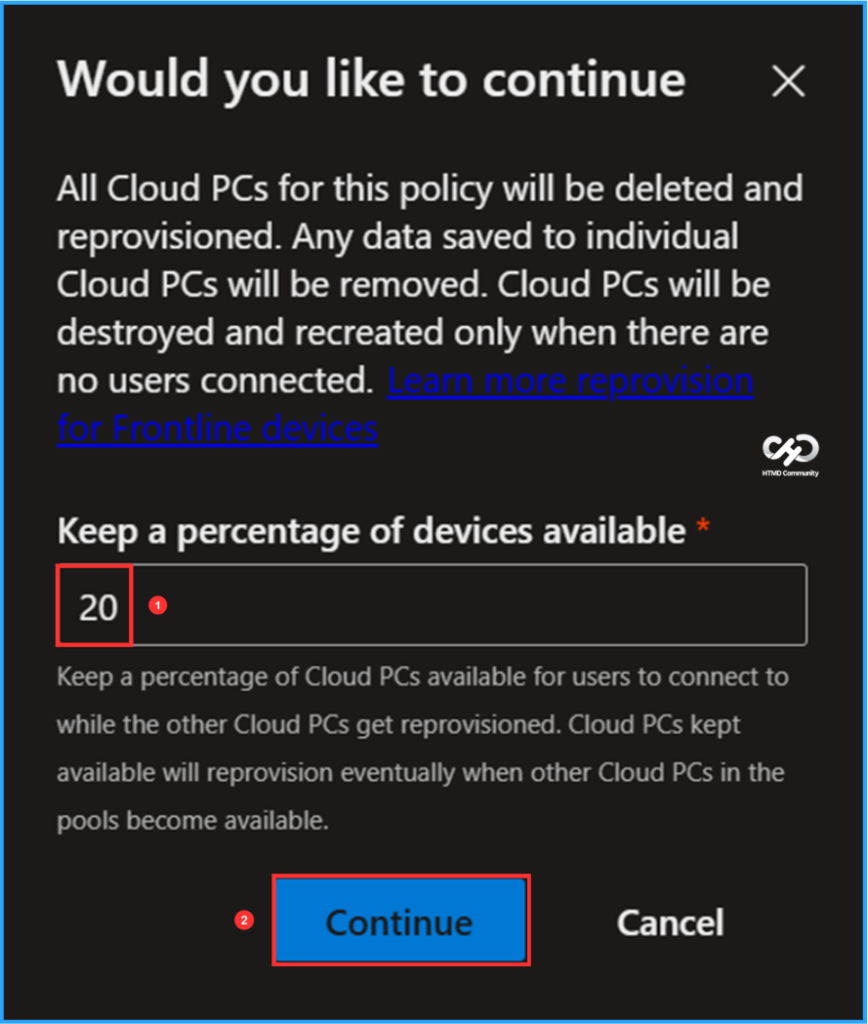
A pop-up screen will appear with the question: “Would you like to continue?” Please note that all Cloud PCs associated with this policy will be deleted and reprovisioned. Any data stored on individual Cloud PCs will be lost. Cloud PCs will only be destroyed and recreated when there are no users connected. You should maintain a percentage of available devices; here, I set this to 20%. The value must be a positive integer between 0 and 99. Click on Continue to proceed.

Note: Keep a percentage of Cloud PCs available for users to connect to while the other Cloud PCs get reprovisioned. Cloud PCs kept available will be reprovisioned eventually when other Cloud PCs in the pools become available.
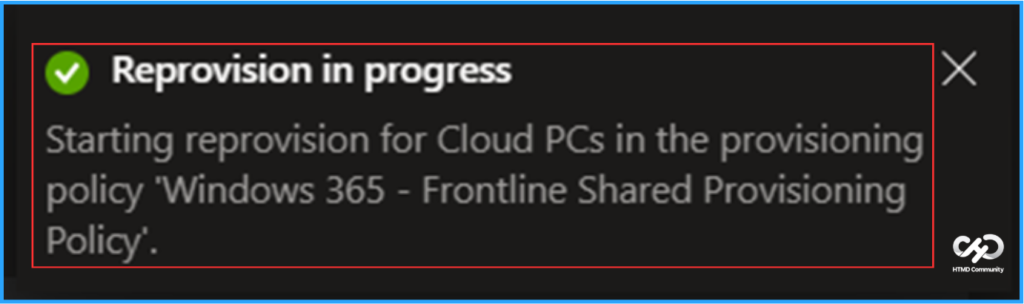
The moment you choose to continue, reprovisioning will begin, and you will receive a notification stating, “Reprovision in progress. Starting reprovision for Cloud PCs in the provisioning policy ‘Windows 365 – Frontline Shared Provisioning Policy.’”
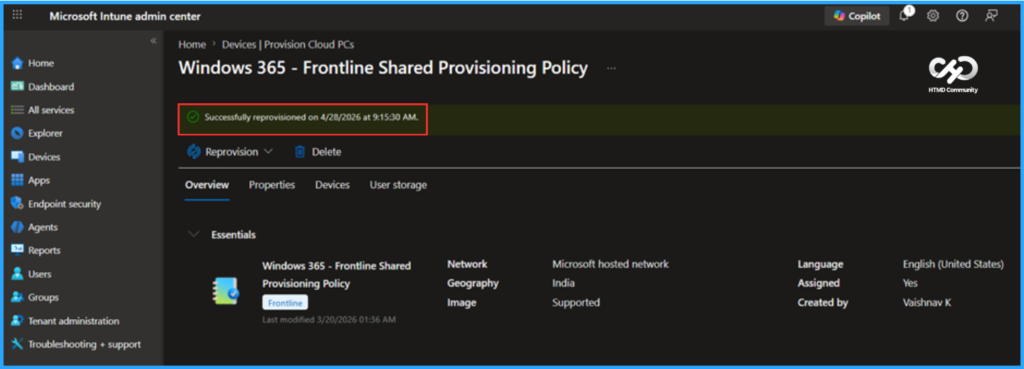
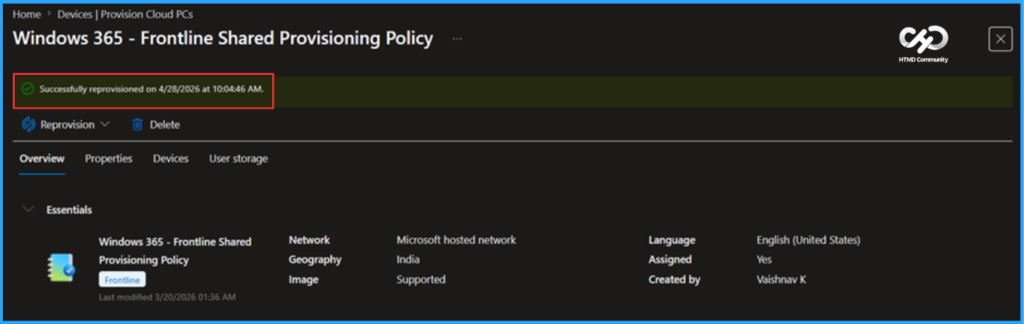
Completing the entire reprovisioning process will take some time. Once it is finished, you will see a ribbon message in the same node: Successfully reprovisioned on date and time (for example, 4/28/2026 at 09:15:30 AM).
Configure the Schedule Reprovision Option for Windows 365 Frontline Shared Cloud PC
To set a Schedule reprovision, navigate to the following path: Devices > Manage Windows 365 Cloud PCs > Provision Cloud PCs. Click Provisioning policies, then select “Windows 365 – Frontline Shared Provisioning Policy.” On the Overview screen, click the three dots located on the left-hand side. From the menu, choose Reprovision, and then select Schedule reprovision.
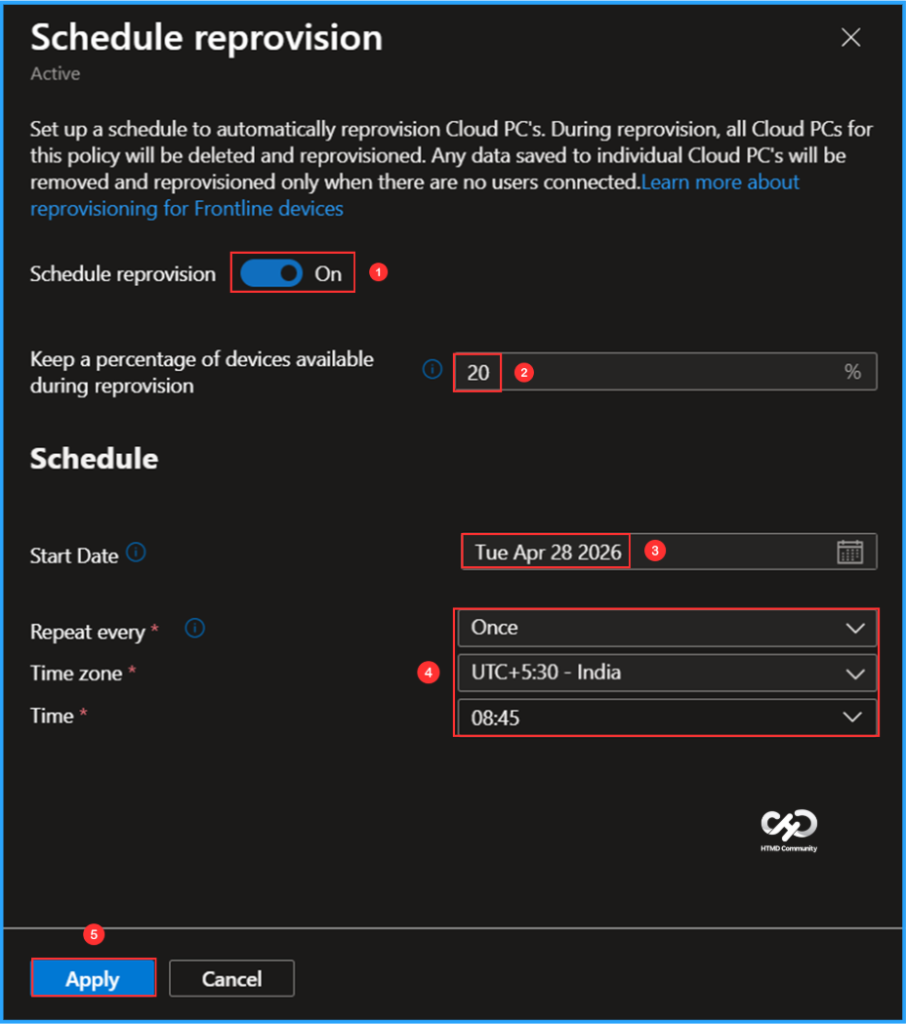
On the Schedule reprovision pop-up screen, you can set up a schedule to automatically reprovision Cloud PCs. During the reprovisioning process, all Cloud PCs associated with this policy will be deleted and then reprovisioned. Please note that any data saved to individual Cloud PCs will be removed during this process, and reprovisioning will only occur when no users are connected. Select the options below, then click Apply.
- Schedule reprovision – Toggle On
- Keep a percentage of devices available during reprovision: 20
- Start Date: Tue Apr 28 2026
- Repeat every: Once
- Time zone: UTC +5:30 – India
- Time: 8:45
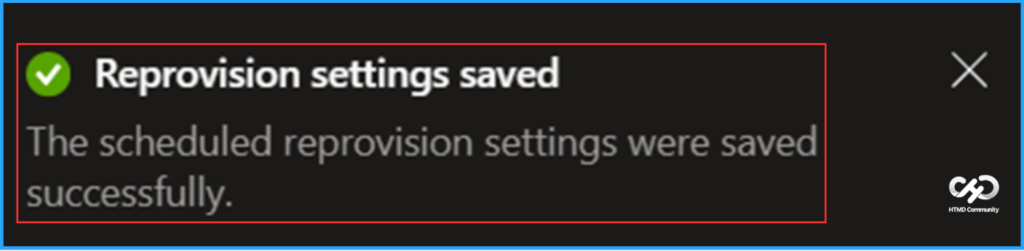
The moment you choose Apply, you will receive an Intune Admin Center notification stating that the Reprovision settings have been saved successfully.
- How to Setup Windows 365 Cloud PCs with Autopilot Device Preparation
- Microsoft Cuts Windows 365 Prices by 20% for SMBs Starting May 2026
- New Windows 365 Navigation in Intune Improves Admin Efficiency and Visibility
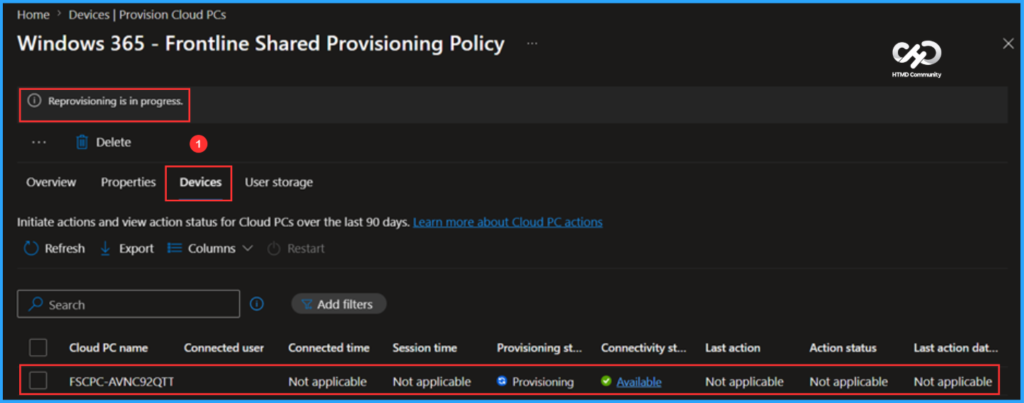
Once the reprovisioning process begins, you will notice that the status indicates “Reprovision in progress.” During this time, if you navigate to the Devices section within the same node, you will see that the Cloud PC status is set to Provisioning. Most of the other options will be in an unavailable state.
Completing the reprovisioning process will take some time. Once it is finished, you will receive a ribbon message in the same node: Successfully reprovisioned on 4/28/2026 at 09:15:30 AM. Remember that each time you reprovision Cloud PCs, the device name will also change.
Need Further Assistance or Have Technical Questions?
Join the LinkedIn Page and Telegram group to get the latest step-by-step guides and news updates. Join our Meetup Page to participate in User group meetings. Also, join the WhatsApp Community to get the latest news on Microsoft Technologies. We are there on Reddit as well.
Author
Vaishnav K has over 12 years of experience in SCCM, Intune, Modern Device Management, and Automation Solutions. He writes and shares knowledge about Microsoft Intune, Windows 365, Azure, Entra, PowerShell Scripting, and Automation. Check out his profile on LinkedIn.