
Key Takeaways
- Microsoft is renaming the User settings tab to User settings (legacy).
- Creating new policies under User settings (legacy) will be disabled.
- The change is rolling out during the week of November 2, 2026.
- Existing legacy policies can still be edited for a limited time.
In this post we are discussing Microsoft Intune Disables Legacy User Settings Policy Creation in Cloud PC Settings. Microsoft Intune is introducing changes to the Cloud PC Settings experience to improve policy management for Windows 365 Cloud PCs. This update focuses on the existing user settings configuration experience available in the Intune admin center. Cloud PC Settings provides administrators with options to manage and configure settings for Cloud PCs. These configurations help organizations manage user experiences and maintain consistent settings.
Table of Contents
Table of Contents
Microsoft Intune Disables Legacy User Settings Policy Creation in Cloud PC Settings
Starting the week of November 2, 2026, Microsoft will disable the ability to create new policies under the User settings (legacy) tab in Cloud PC Settings. The existing User settings tab will also be renamed to User settings (legacy). Existing User settings policies will continue to work and can still be edited for a limited time.
- Bulk Reprovisioning of Windows 365 Cloud PCs in Grace Period using Intune
- Build a Windows 11 Developer Ready Cloud PC using Intune
- Publish Microsoft Teams Windows 365 Cloud App using Intune
What’s New in Cloud PC Settings
Microsoft is introducing changes to the Cloud PC Settings experience in the Microsoft Intune admin center. As part of this update, the existing User settings tab will be renamed to User settings (legacy), and administrators will no longer be able to create new policies under this section. However, existing policies can still be edited for a limited time and will continue to apply until migration is complete.
Accessing Cloud PC Settings in Microsoft Intune
To access Cloud PC Settings, sign in to the Microsoft Intune admin center using your administrator account. From the left navigation pane, select Devices to open the device management section. This section provides access to different device management options, including Windows 365 Cloud PC management. Under the Manage Windows 365 Cloud PCs section, locate and select Cloud PC Settings to open the settings management page.

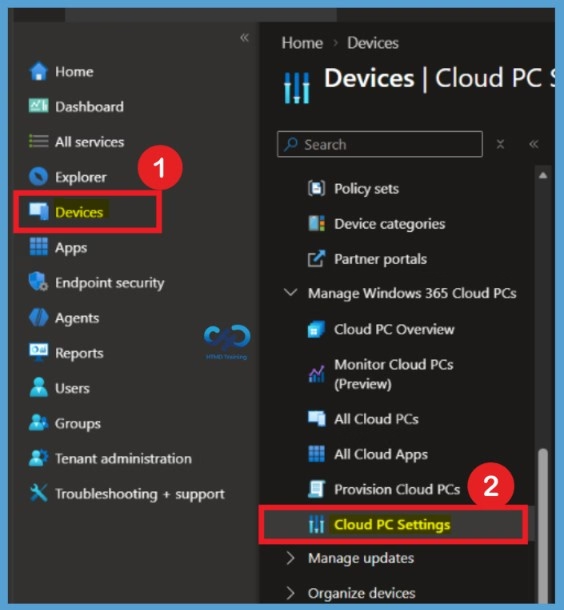
Cloud PC Settings
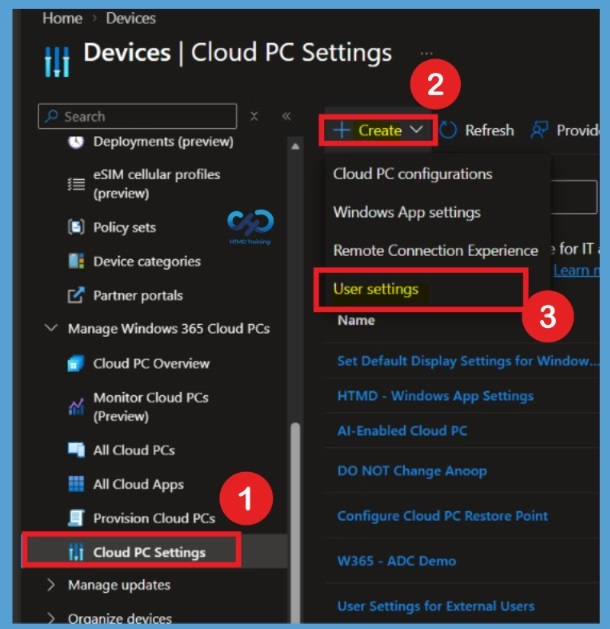
Once you open the Cloud PC Settings page, you can view the available configuration options for managing Windows 365 Cloud PCs. Administrators can use this page to access existing settings and manage the configurations applied to their Cloud PC environment. The page also provides the Create option for creating supported Cloud PC settings policies. This is the main area where administrators can review and manage their Cloud PC settings in Microsoft Intune.
| Cloud PC Settings Policy |
|---|
| Cloud PC configurations |
| Windows App settings |
| Remote Connection Experience |
| User settings |
Need Further Assistance or Have Technical Questions?
Join the LinkedIn Page and Telegram group to get the latest step-by-step guides and news updates. Join our Meetup Page to participate in User group meetings. Also, join the WhatsApp Community and the Whatsapp channel to get the latest news on Microsoft Technologies. We are there on Reddit as well.
Author
Anoop C Nair is Workplace Technology solution architect with 25+ years of experience in global enterprise organizations such as JP Morgan, Capgemini, etc. He is Microsoft Certified Trainer. Microsoft MVP from 2015 onwards for consecutive 11 years! He also conducts Intune and modern workplace tech training for enterprise organizations. He is Blogger, Speaker, and Founder of HTMD Community and HTMD Conference. His focus is on Device Management technologies such as Intune, Windows, Cloud PC. He writes about technologies like Intune, SCCM, Windows, Cloud PC, Windows, Entra, Microsoft Security.