
Key Takeaways
- Seamless Integration: Microsoft Intune now supports Windows 365 partner connectors such as HP Anywhere, Omnissa, and Citrix to enhance Windows 365 management.
- Centralized Management: Configure and manage partner solutions directly within Intune; there is no need to switch between multiple portals.
- Improved End-User Experience: Gain deeper insights into Cloud PC performance and proactively resolve issues.
- Flexibility & Choice: Organizations can choose the partner ecosystem that best fits their environment and operational needs.
- Better Troubleshooting: Enhanced visibility into connection health, latency, and session performance across Windows 365 Cloud PCs.
In this article. Let’s check how to add Windows 365 Partner Connectors in Microsoft Intune. Windows 365 Partner Connectors in Intune enable seamless integration with leading partner solutions like HP Anywhere, Omnissa, and Citrix. These connectors allow organizations to extend their Cloud PC experience by leveraging advanced capabilities such as enhanced remote access, performance optimization, and unified management across different platforms. By bringing these integrations into Intune, IT admins can manage Windows 365 environments more efficiently while maintaining flexibility to use familiar partner tools and ecosystems.
Table of Contents
Windows 365 Partner Connectors Available in Intune
Windows 365 Partner Connectors in Microsoft Intune bring together solutions like HP Anywhere, Omnissa, and Citrix to deliver a more flexible and enhanced Cloud PC experience. Here is the Partner Connectors Overview table.
| Partner | Description | Key Benefit |
|---|---|---|
| Citrix | Virtual apps and desktops delivery platform | Advanced app/desktop virtualization |
| Omnissa | Digital workspace platform (formerly VMware EUC) | Unified endpoint and app management |
| HP Anyware | Cloud-based solution for secure remote workstation access | High-performance remote experience |
- Cloud PCs Get 20% Cheaper Starting May 1st With Improved Entry And Scalable Performance Options
- How to Create Remote Connection Experience Settings for Windows 365 Cloud PCs
- How to Setup Windows 365 Cloud PCs with Autopilot Device Preparation
- How to Set Alert for Windows 365 Cloud PCs in Grace Period using Intune
- How to Create Screen Capture App Protection Policy for Windows 365 App using Intune
Add Windows 365 Partner Connectors in Intune
To add Windows 365 Partner Connectors in Intune, login to the Microsoft Intune Admin Center using your administrator credentials.
- Navigate to > Tenant administration > Windows 365 Administration > Partner Connectors > Click on +Add
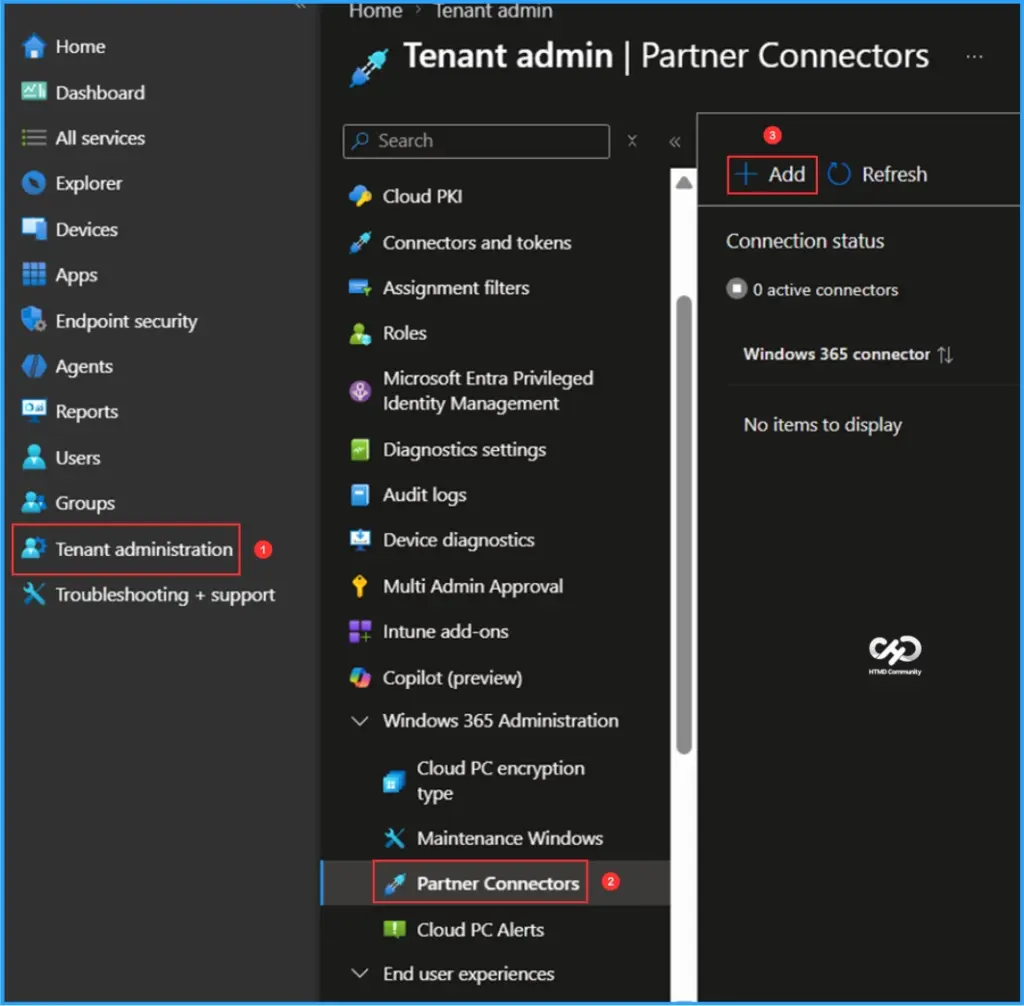
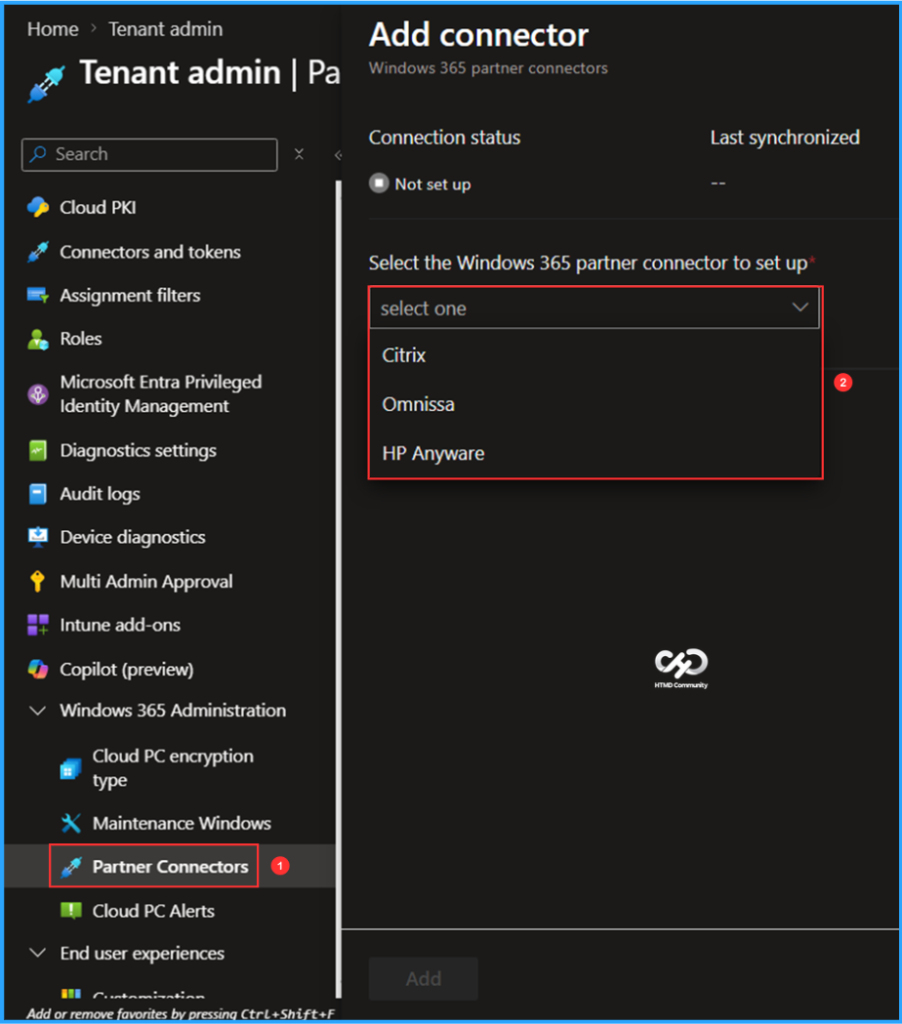
On the Add Connector page, the current status shows that the connection has not been set up, and the last synchronized data is unavailable. Click on Select the Windows 365 Partner Connector to proceed with the setup. Here, you will be able to view the available connectors.

- Citrix
- Omnissa
- HP Anyware
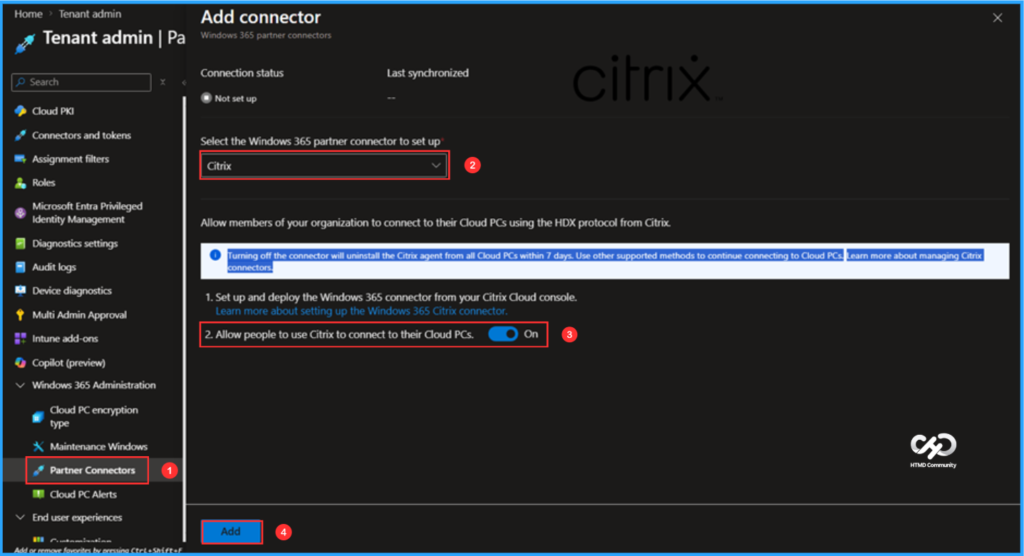
To set up each Partner Connector, start by selecting Citrix from the Windows 365 partner connector options. This will enable your organization members to connect to their Cloud PCs using the HDX protocol from Citrix. Please note that if you disable the connector, the Citrix agent will be uninstalled from all Cloud PCs within 7 days. Be sure to use other supported methods to continue connecting to the Cloud PCs.
- Set up and deploy the Windows 365 connector from your Citrix Cloud console
- Allow people to use Citrix to connect to their Cloud PCs: Toggle ON
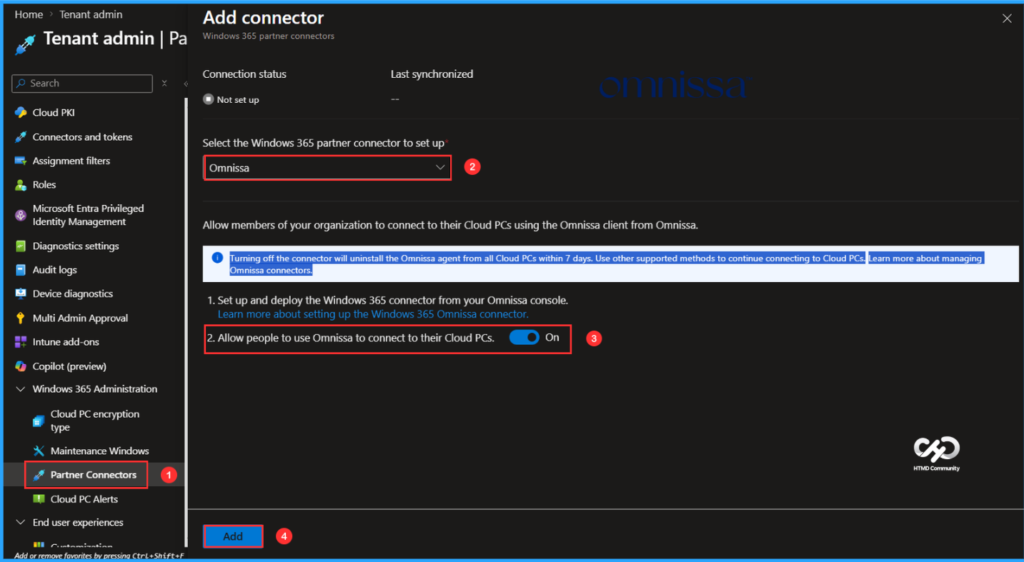
To set up the option, select Omnissa from the Windows 365 partner connector. This will allow members of your organization to connect to their Cloud PCs using the Omnissa client. If you turn off the connector, the Omnissa agent will be uninstalled from all Cloud PCs within seven days. Please use other supported methods to continue connecting to your Cloud PCs.
- Set up and deploy the Windows 365 connector from your Omnissa console.
- Allow people to use Omnissa to connect to their Cloud PCs: Toggle ON
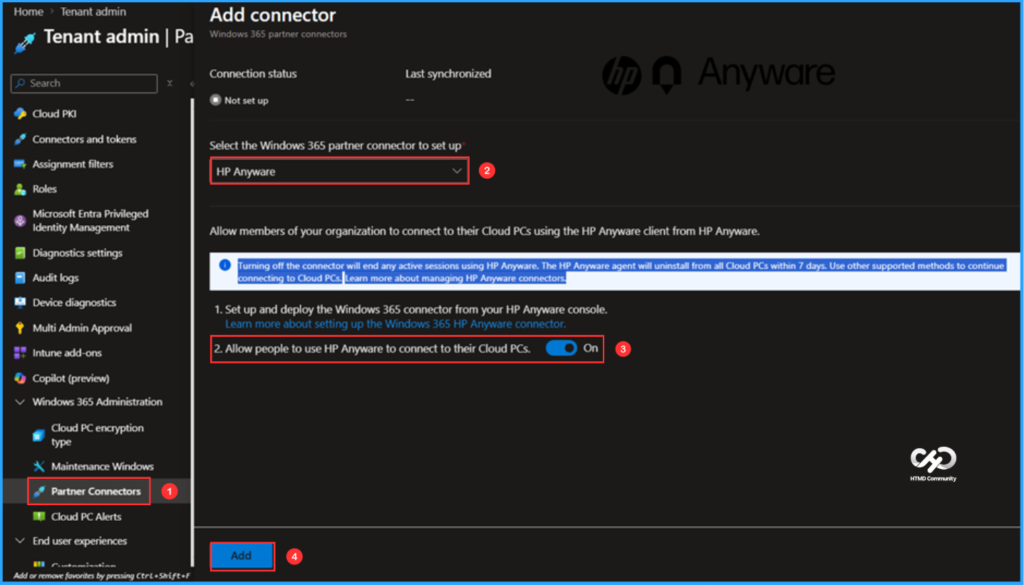
To set up the option, select HP Anyware from the Windows 365 partner connector. This will allow members of your organization to connect to their Cloud PCs using the HP Anyware client. Please note that if you disable the connector, it will terminate any active sessions using HP Anyware. Additionally, the HP Anyware agent will be uninstalled from all Cloud PCs within 7 days. To maintain access to Cloud PCs, please use other supported methods.
- Set up and deploy the Windows 365 connector from your HP Anyware console.
- Allow people to use HP Anyware to connect to their Cloud PCs: Toggle ON
Monitor Windows 365 Partner Connectors Set Up
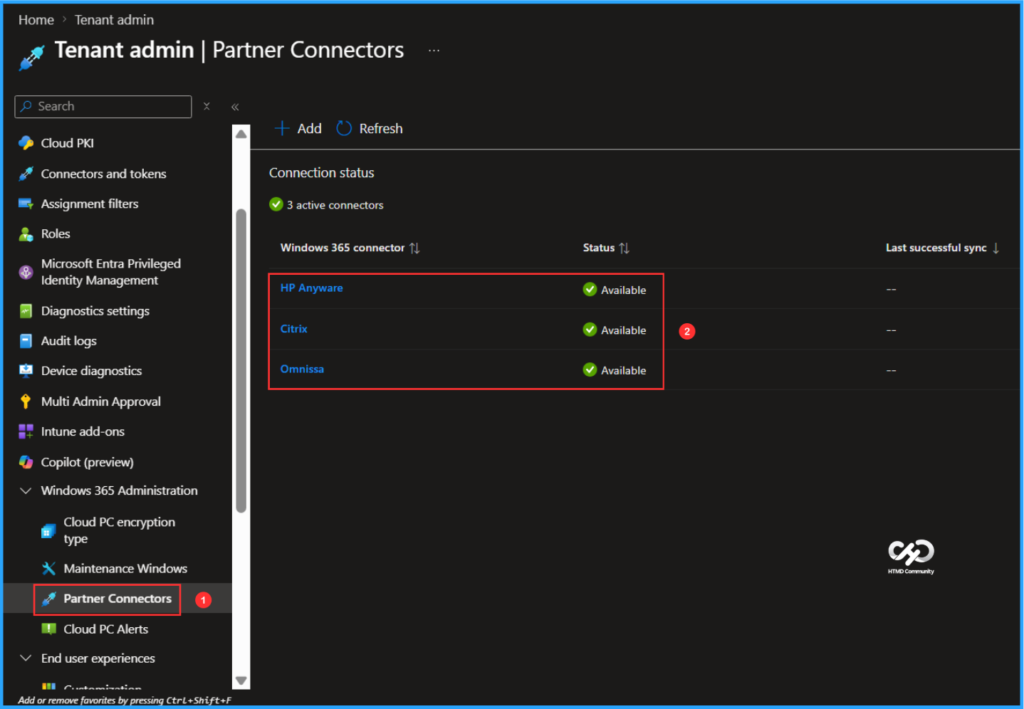
We will now verify if the connectors have been added successfully. To do this, please follow the path listed below in the Intune Portal.
- Navigate to > Tenant administration > Windows 365 Administration > Partner Connectors
Three active Windows 365 connectors, HP Anyware, Citrix, and Omnissa, have been successfully added, and their status is available.
Need Further Assistance or Have Technical Questions?
Join the LinkedIn Page and Telegram group to get the latest step-by-step guides and news updates. Join our Meetup Page to participate in User group meetings. Also, join the WhatsApp Community to get the latest news on Microsoft Technologies. We are there on Reddit as well.
Author
Vaishnav K has over 12 years of experience in SCCM, Intune, Modern Device Management, and Automation Solutions. He writes and shares knowledge about Microsoft Intune, Windows 365, Azure, Entra, PowerShell Scripting, and Automation. Check out his profile on LinkedIn.
Block outbound network connections from Microsoft HTML Application Host (mshta.exe)
Creates a procedure for how to apply this via Intune.