
Let’s discuss Prevent Internet Explorer Security Prompt for Windows Installer Scripts using Intune. Prevent Internet Explorer Security Prompt for Windows Installer Scripts one of the important policy available on Microsoft Intune.
For Example, A large Manufacturing Company has an aging, critical, internal web portal hosted on their intranet that uses a Windows Installer script to deploy custom productivity tools and necessary ActiveX controls.
This Intune policy setting, “Prevent Internet Explorer security prompt for Windows Installer scripts,” is designed to control a security warning that appears when a web-based program attempts to install software on a user’s computer using a Windows Installer script.
Organizations typically manage this policy based on their security posture, environment complexity, and deployment methods. By enabling this policy, The organization relies on internal, trusted web applications to deploy software (e.g., a corporate intranet deployment portal) and wants to eliminate unnecessary user prompts for a smoother, faster deployment experience.

Table of Contents
Prevent Internet Explorer Security Prompt for Windows Installer Scripts using Intune
This policy setting’s importance stems from its role in mitigating or facilitating script-based software installations, especially in environments where legacy web applications or internal distribution methods are used.
- Microsoft Warns Stop using PowerShell Scripts for Intune Endpoint IPs and FQDNs
- Best Guide to use PowerShell Scripts in Intune Enterprise Catalog App
- Step-by-Step Guide to Export Intune Platform PowerShell Scripts via Graph API
Configure Policy from Intune Portal
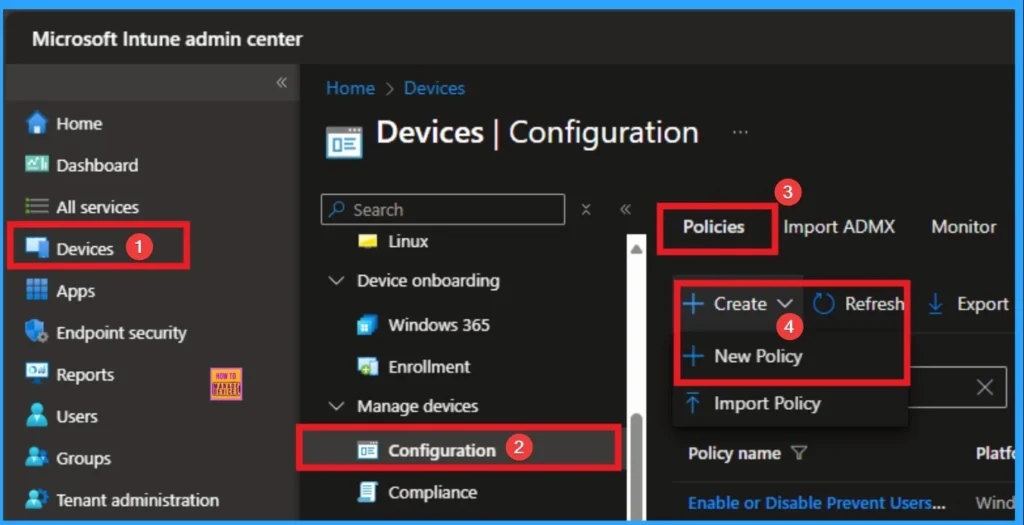
This is an ADMX-backed policy and requires SyncML format for configuration.. Sign in to the Microsoft Intune Portal with Credentials. Navigate to Devices > Configuration > + Create > New Policy.
Profile Creation Step
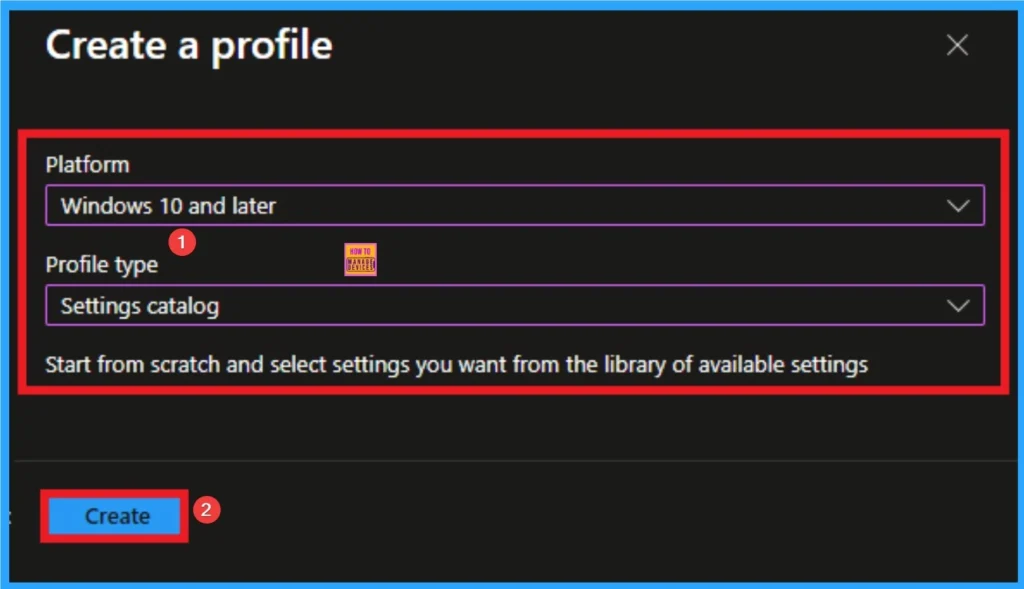
After that you can choose appropriate platform and profile type. This is necessary step for policy creation and you cannot change profile and platform after creating profile. Here I would like to configure the policy to Windows 10 and later platform and settings catalog profile. Then click on the Create button.
Basic Tab
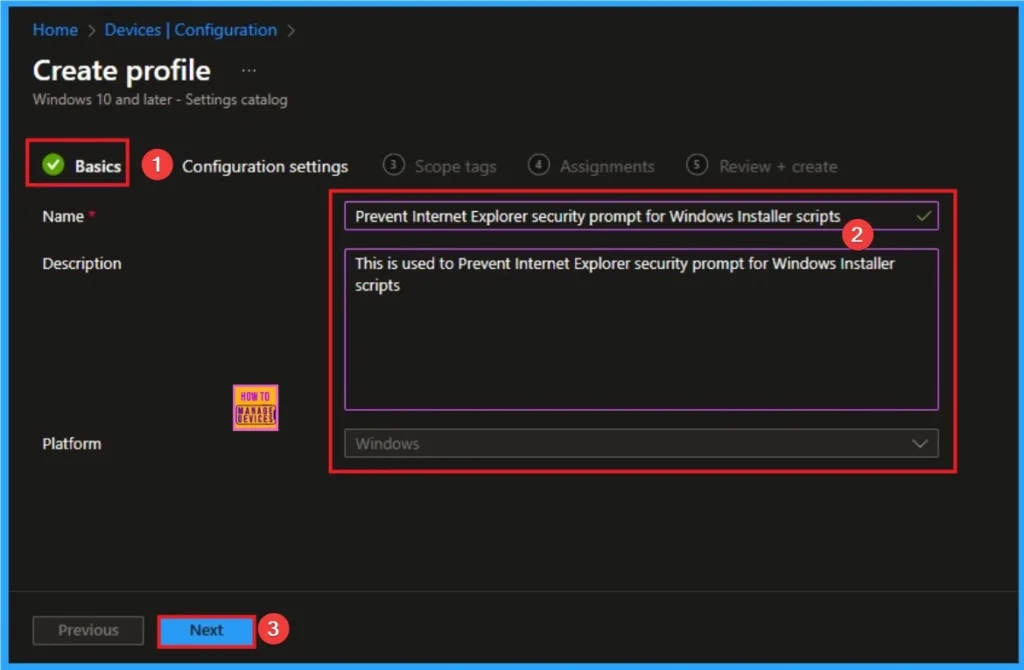
Basic Tab is the first tab that helps users to give identity for policy. For this you can add Name and description for the settings you want to select for policy creation. Here is Name is mandatory and description is optional. After adding this click on the Next button.
Configure Cross Device Participation Policy
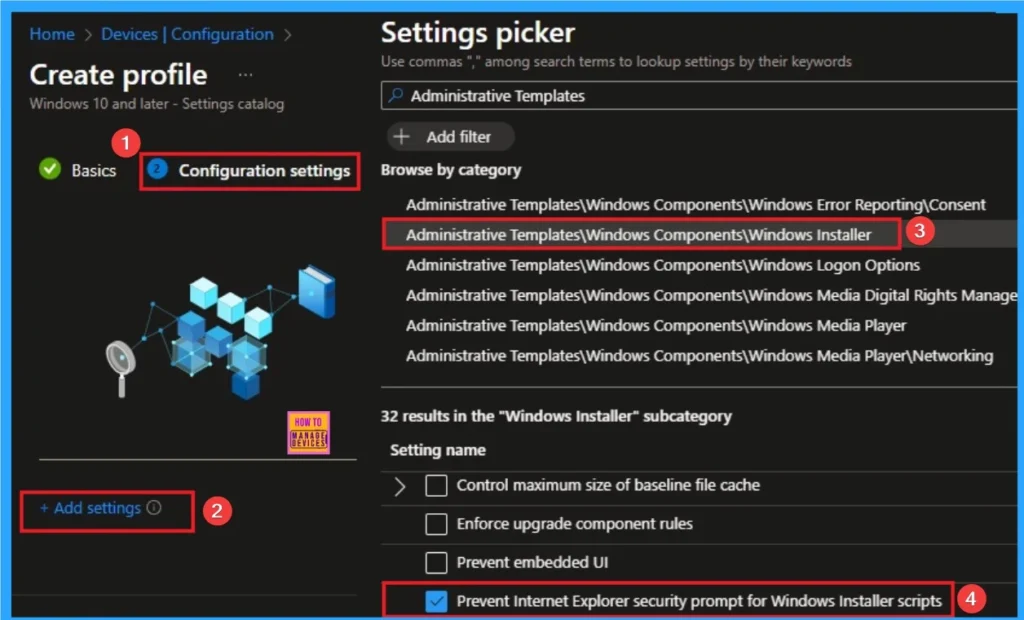
After that you will get Configuration settings tab which helps you to access specific settings. To get the settings click on the +Add settings hyperlink and select specific settings from Settings Picker. Here, I would like to select the settings by browsing by Category. I choose Administrative Templates\Windows Components\Windows Installer\Prevent Internet Explorer security prompt for Windows Installer scripts.
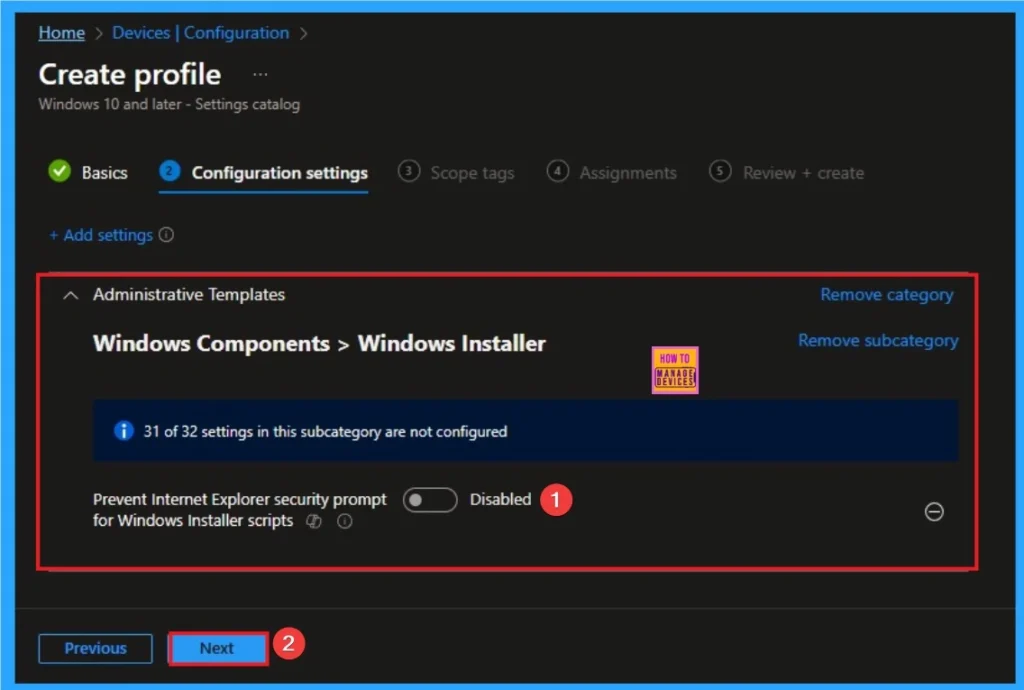
Disable Internet Explorer Security Prompt
If you disable or don’t configure this policy setting, by default, when a script hosted by an Internet browser tries to install a program on the system, the system warns users and allows them to select or refuse the installation.
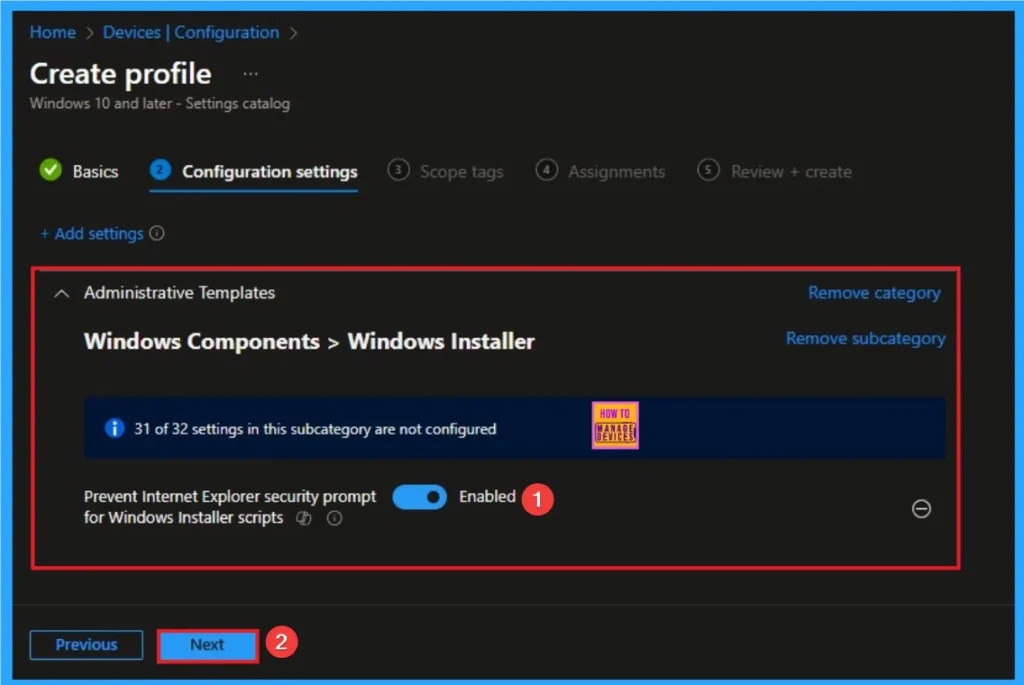
Enable Internet Explorer Security Prompt
If you enable this policy setting, the warning is suppressed and allows the installation to proceed. Click on the Next button.
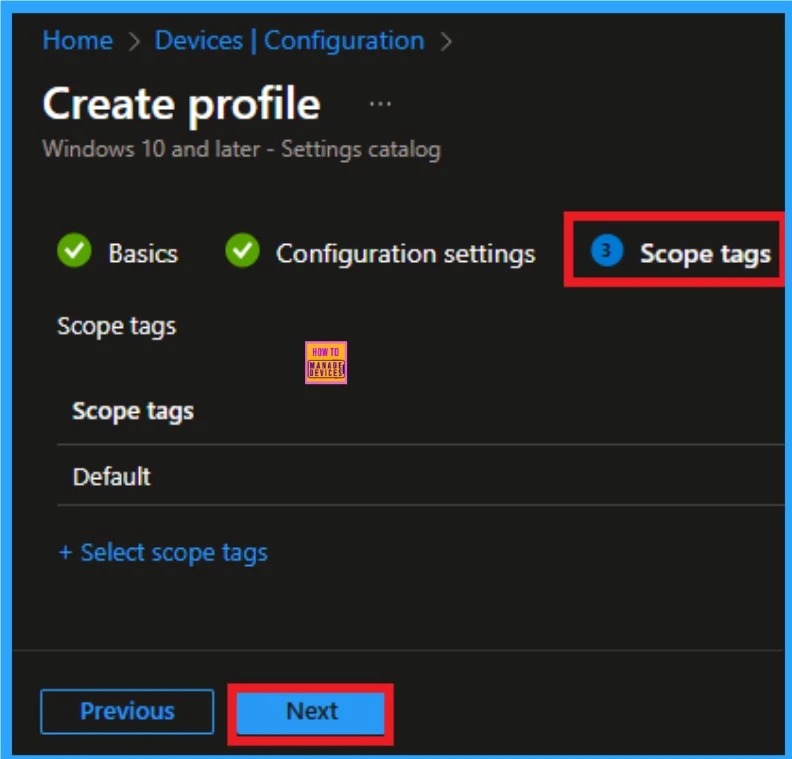
Adding Scope Tags
Scope Tag is not a mandatory step for policy creation. But you can add Scope tags for visibility restrictions. Here, I don’t add scope tags for Enterprise IP Range Policy. Click on the Next button.
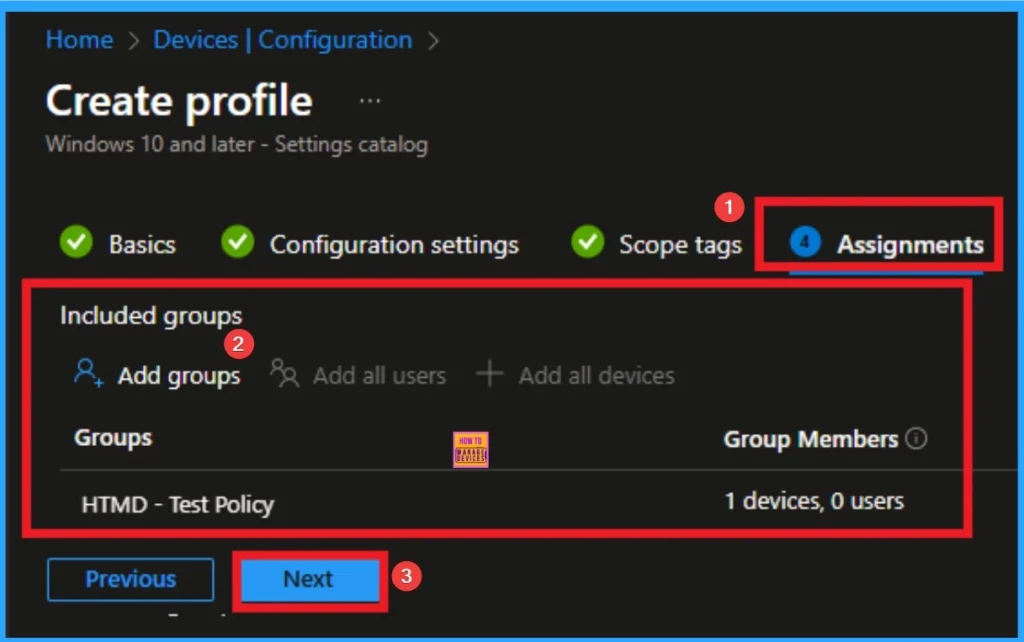
Selecting Group from the Assignment Tab
To assign the policy to specific groups, you can use the Assignment Tab. Here I click, +Add groups option under Included groups. I choose a group from the list of groups and click on the Select button. Again, I click on the Select button to continue.
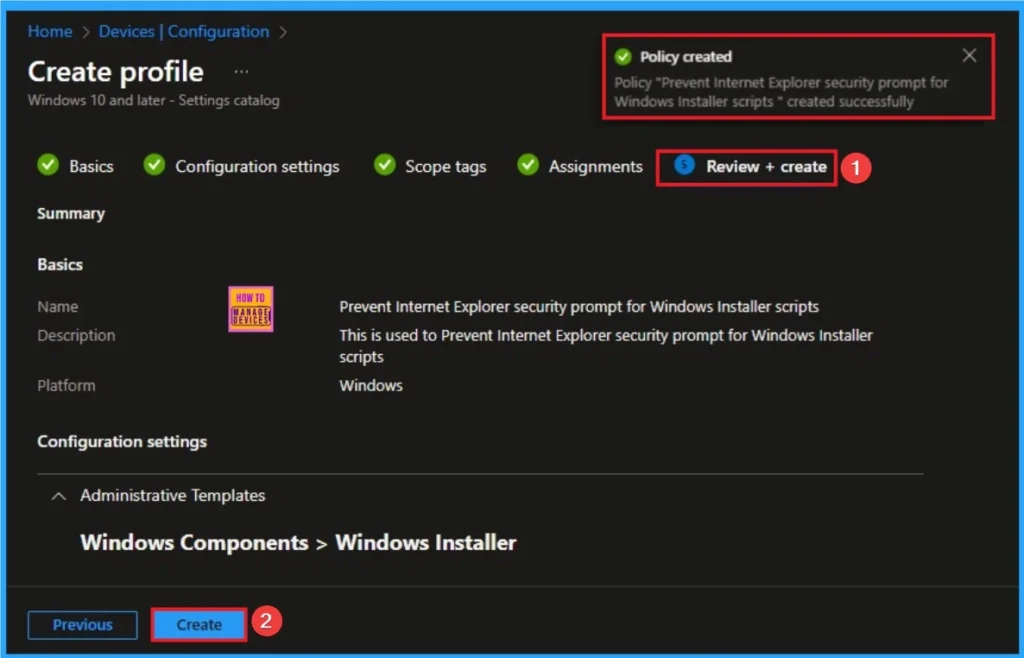
Finalize Policy
This is the Fina step for policy creation. You can review all the details on this tab and avoid misconfiguration. After verifying all the details, click on the Create Button. After creating the policy, you will get a success message.
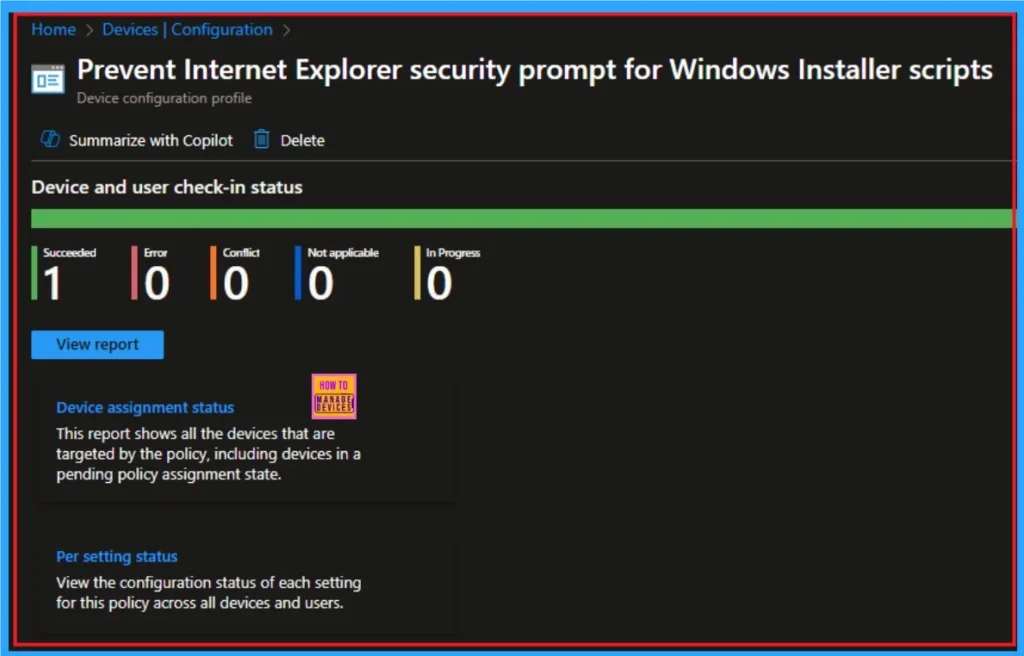
Device Check-in Status
Device Check-in Status Page shows if the Policy is succeeded or Not. Before checking this, you can sync the device on Company Portal for Faster policy deployment. Then Go to Devices > Configuration > Search for the Policy. Here, the policy shows as successful.
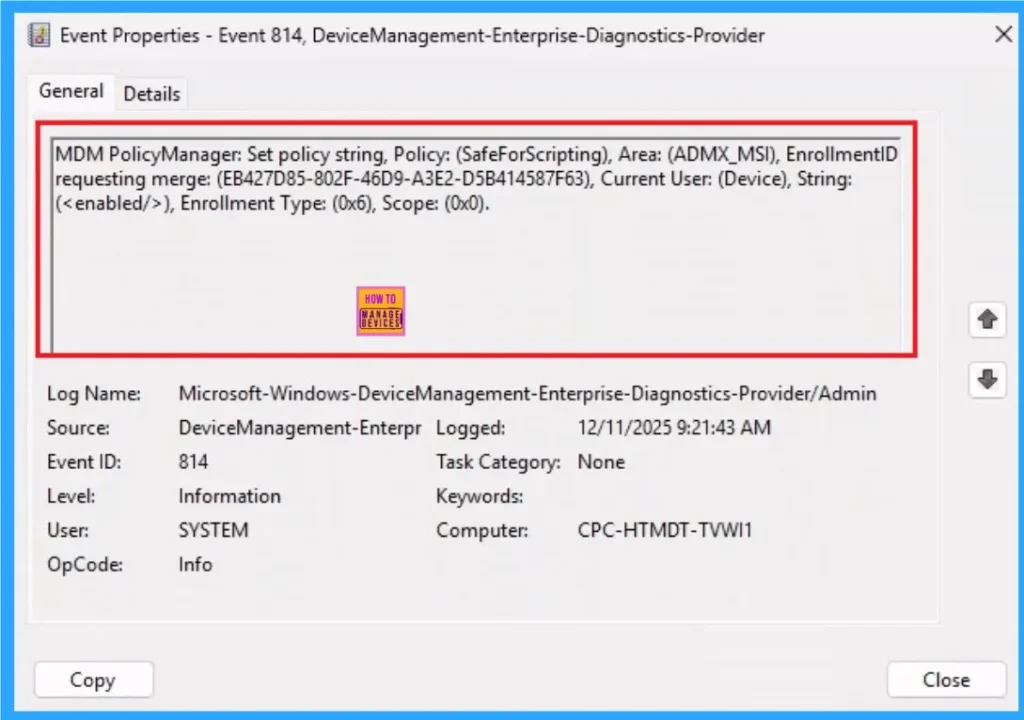
Client Side Verification
It helps you check the client side and verify the policy status. Open the Client device and open the Event Viewer. Go to Start > Event Viewer. Navigate to Logs: In the left pane, go to Application and Services Logs > Microsoft > Windows > DeviceManagement-Enterprise-Diagnostics-Provider > Admin.
Removing the Assigned Group from Windows Cross Device Participations Policy Settings
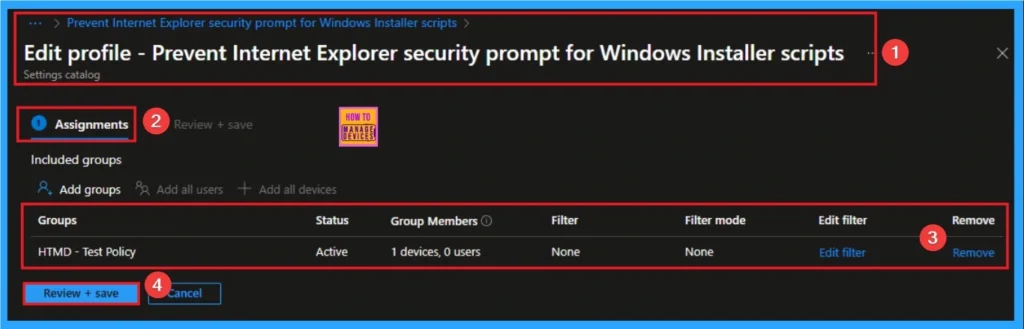
If you want to remove the Assigned group from the policy, it is possible from the Intune Portal. To do this, open the Policy on Intune Portal and edit the Assignments tab and the Remove Policy.
To get more detailed information, you can refer to our previous post – Learn How to Delete or Remove App Assignment from Intune using by Step-by-Step Guide.
How to Windows Cross Device Participation Policy
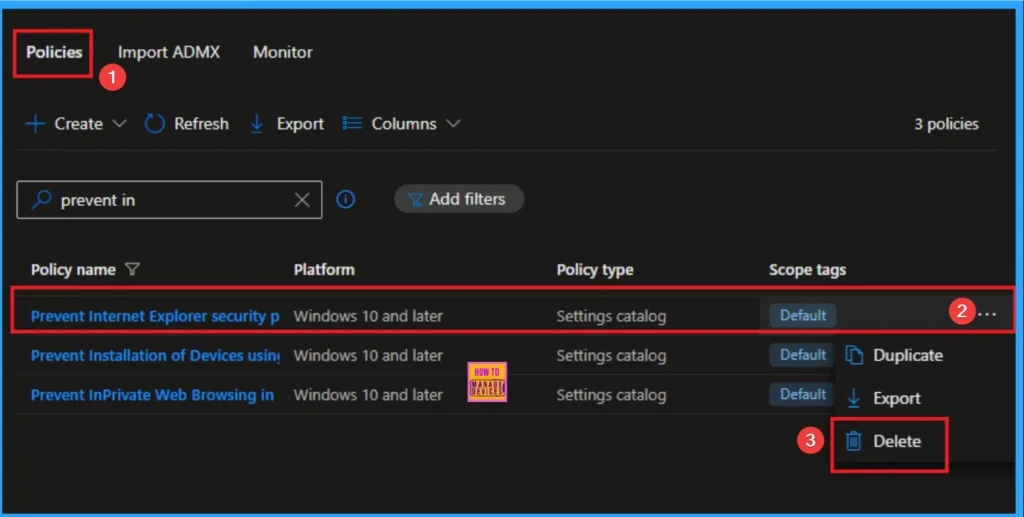
You can easily delete the Policy from the Intune Portal. From the Configuration section, you can delete the policy. It will completely remove it from the client devices.
For detailed information, you can refer to our previous post – How to Delete Allow Clipboard History Policy in Intune Step by Step Guide.
CSP Details
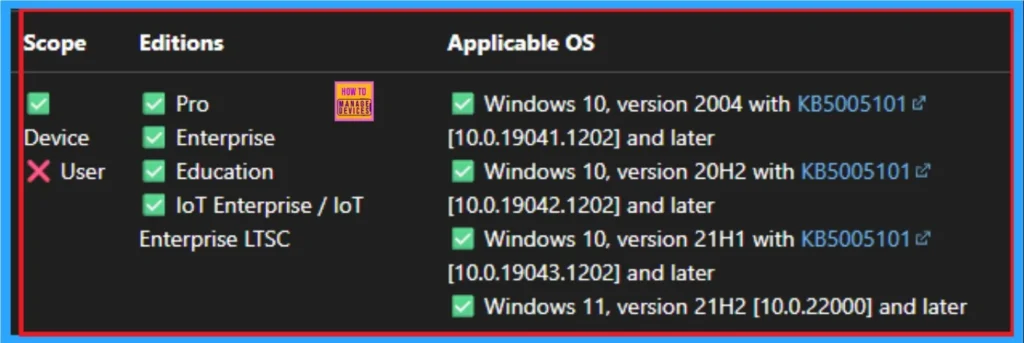
This policy setting allows Web-based programs to install software on the computer without notifying the user. This policy setting is designed for enterprises that use Web-based tools to distribute programs to their employees. However, because this policy setting can pose a security risk, it should be applied cautiously.
Need Further Assistance or Have Technical Questions?
Join the LinkedIn Page and Telegram group to get the step-by-step guides and news updates. Join our Meetup Page to participate in User group meetings. Also, Join the WhatsApp Community to get the latest news on Microsoft Technologies. We are there on Reddit as well.
Author
Anoop C Nair has been Microsoft MVP for 10 consecutive years from 2015 onwards. He is a Workplace Solution Architect with more than 22+ years of experience in Workplace technologies. He is a Blogger, Speaker, and Local User Group Community leader. His primary focus is on Device Management technologies like SCCM and Intune. He writes about technologies like Intune, SCCM, Windows, Cloud PC, Windows, Entra, Microsoft Security, Career, etc