
Key Takeaways
- New Apple Settings Catalog options are available in Microsoft Intune.
- The new settings support both iOS/iPadOS and macOS devices.
- Apple Intelligence settings provide additional controls for supported Apple Intelligence features.
- App settings provide additional configuration options for applications on managed Apple devices.
In this post, we are discussing, Microsoft Intune Adds New Apple Settings Catalog Options for iOS iPadOS and macOS. Microsoft has added new configuration options to the Apple Settings Catalog in Microsoft Intune. These additions give administrators more ways to control Apple devices from the Intune admin center. The new options are available for both iOS/iPadOS and macOS. They include settings for Apple Intelligence, applications, network filtering, and web content filtering. These options are available through Apple’s Declarative Device Management settings in the Settings Catalog.
Table of Contents
Table of Contents
New Apple Settings in the Settings Catalog for iOS/iPadOS and macOS
Administrators can configure these settings by creating or editing a Settings Catalog policy in Microsoft Intune. After selecting the required Apple platform, they can use Add settings to find the available configuration options, set the required values, and assign the policy to users or device groups. This provides a central way to manage these Apple settings without requiring administrators to configure each device individually.
| Applied Platform |
|---|
| iOS/iPadOS |
| macOS |
- Best way to Add Mac Devices to Apple Business Manager ABM or ASM and to Intune
- Deploy DDM-Based Line of Business Apps in Microsoft Intune for iOS and iPadOS Devices
- Enforce DDM Software Updates on macOS Device using Intune Settings Catalog
How to Configure Apple Settings
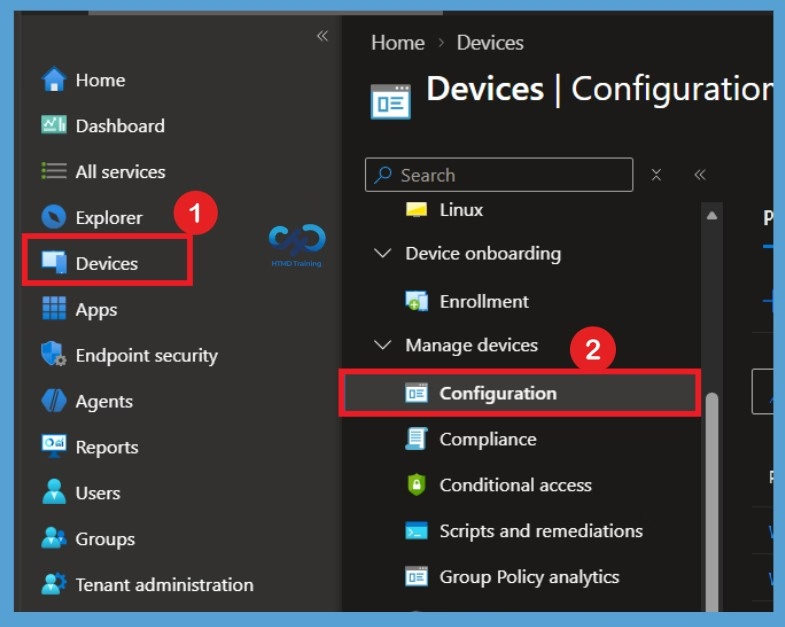
To configure the new Apple settings, sign in to the Microsoft Intune admin center using your administrator credentials. From the left navigation pane, select Devices and then go to Configuration. On the Configuration page, select Create and then choose New policy to start creating a new device configuration policy.
Create a Profile
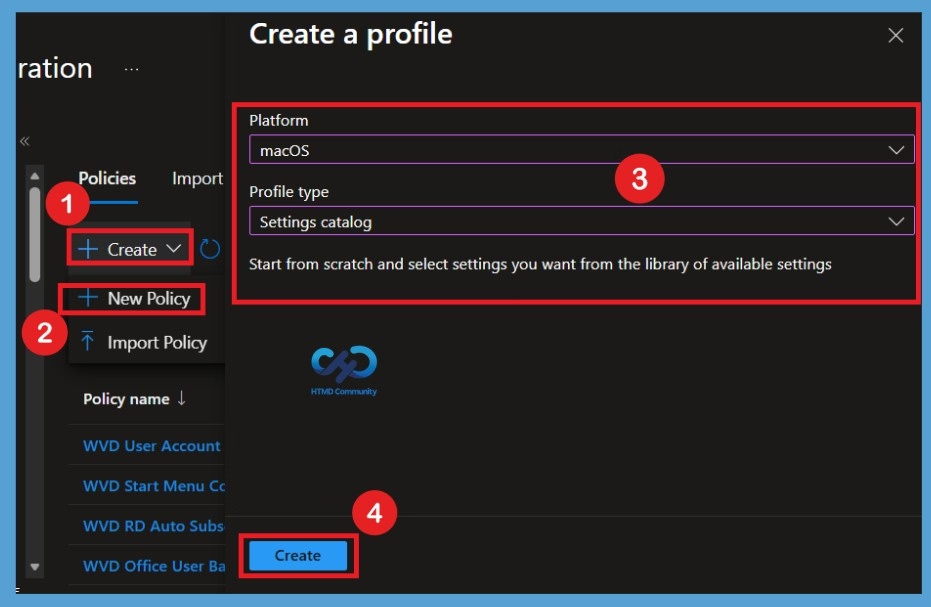
In the policy creation window, select the appropriate Apple platform, such as iOS/iPadOS or macOS. For the profile type, select Settings catalog and continue with the policy creation process. After providing a suitable name and description for the policy, select Next to move to the configuration settings. Here I selected macOS.

Apple Intelligence Setting
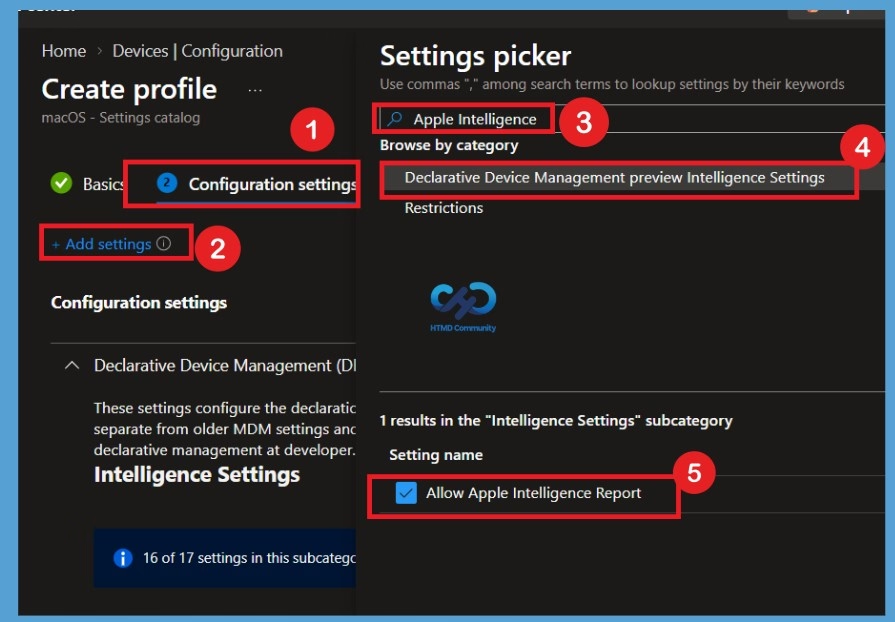
On the Configuration settings page, select Add settings. You can then search for and select the required Apple settings, configure their values, and continue through the policy creation steps. Here I search for the policy Apple Intelligence, and I get it from the Declarative Device Management Preview Intelligence Settings. If false, disables Apple Intelligence Report.
Configure App Settings
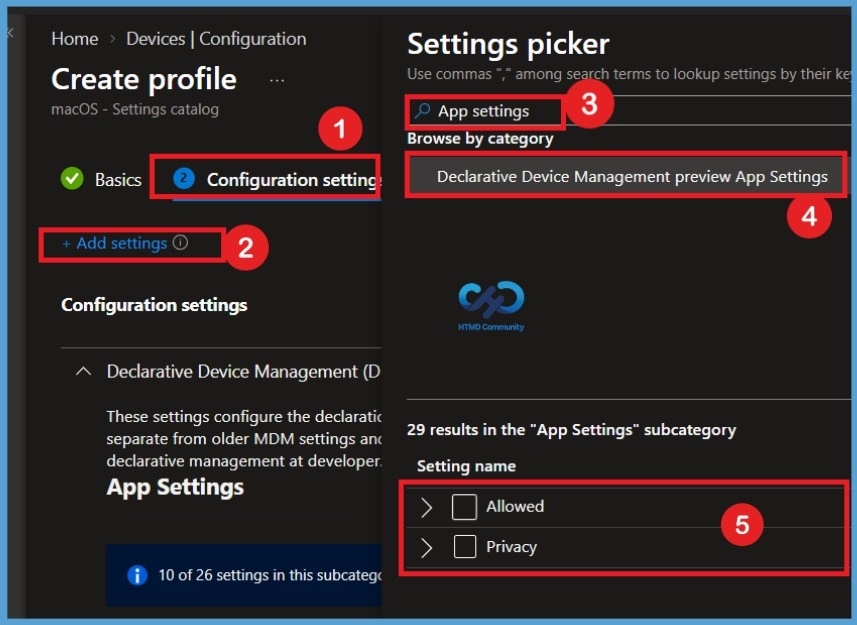
To configure the App Settings, open the Configuration settings section of the Settings Catalog policy and select Add settings. In the Settings picker, search for App Settings. The search results will show a category named Declarative Device Management Preview App Settings.
Select Declarative Device Management Preview App Settings to view the available configuration options. You will find two settings named Allowed and Privacy. Select the required settings and configure their values according to your organization’s requirements.
Configure Web Content Filter
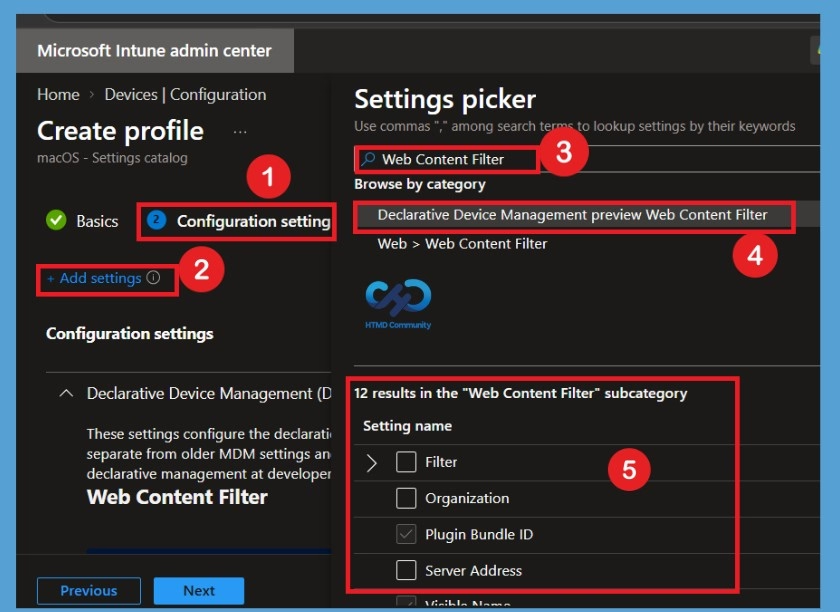
To configure the Web Content Filter, open Configuration settings and select Add settings for the Settings picker. In the search box, enter Web Content Filter. The search results will display a category named Declarative Device Management Preview Web Content Filter.
Select this category to view the available Web Content Filter options. The related settings will appear under the Settings section, where administrators can select and configure the required options based on their organization’s web access requirements. After configuring the settings, continue with the policy creation process and assign the policy to the required devices.
Configure macOS Login Window Settings
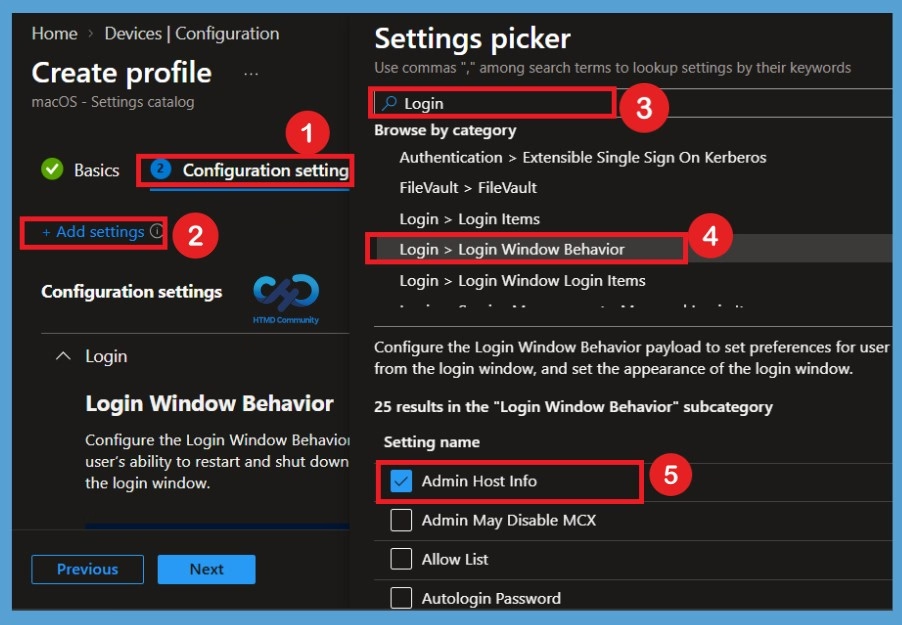
The next configuration available in the Settings Catalog is macOS Login Window. To find these settings, open Configuration settings and select Add settings to launch the Settings picker. In the search box, enter Login to find the available login-related options.
From the search results, select the Login > Login Window Behavior category. This opens the available Login Window settings for macOS. Administrators can select the appropriate settings and configure them according to their organization’s requirements. Once the required options are configured, continue with the policy setup and assign it to the required Mac devices.
Need Further Assistance or Have Technical Questions?
Join the LinkedIn Page and Telegram group to get the latest step-by-step guides and news updates. Join our Meetup Page to participate in User group meetings. Also, join the WhatsApp Community and the Whatsapp channel to get the latest news on Microsoft Technologies. We are there on Reddit as well.
Author
Anoop C Nair is Workplace Technology solution architect with 25+ years of experience in global enterprise organizations such as JP Morgan, Capgemini, etc. He is Microsoft Certified Trainer. Microsoft MVP from 2015 onwards for consecutive 11 years! He also conducts Intune and modern workplace tech training for enterprise organizations. He is Blogger, Speaker, and Founder of HTMD Community and HTMD Conference. His focus is on Device Management technologies such as Intune, Windows, Cloud PC. He writes about technologies like Intune, SCCM, Windows, Cloud PC, Windows, Entra, Microsoft Security.