
Key Takeaways
- Enrollment Restrictions control whether a device can enroll into Intune.
- Device Restriction Profiles manage settings on devices after enrollment.
- Enrollment Restrictions help control device platforms, ownership types, OS versions, and device limits.
- Device Restriction Profiles configure security, hardware, browser, privacy, and user experience settings.
Let’s discuss the Differences Between the Intune Enrollment Restriction and Device Restriction. These policies manage device settings and user experiences by enabling, disabling, or configuring features such as browsers, security settings, data sharing, and system functionality. Understanding the differences between these policy types helps administrators implement effective device management and security controls. Enrollment Restrictions control whether a device is allowed to enroll into Intune.
Table of Contents
Table of Contents
Differences Between Intune Enrollment Restriction Device Restriction
If a device does not meet the enrollment requirements, it is prevented from joining the Intune management environment. Device Restriction Profiles, on the other hand, are configuration policies applied after enrollment. How to Restrict Personal Android Devices from Enrolling into Intune post helps you to provide detailed instructions on restricting personal Android devices from enrolling into Intune using Endpoint Manager (MEM).
It covers the steps necessary to configure enrollment restrictions, ensuring that only corporate-owned devices can be enrolled and managed through Intune. Device restrictions are entirely different from Enrollment restrictions. Both options have different use cases, which will be explained in this post.
- Microsoft Introduces New Windows Enrollment Attestation Feature in Intune
- Troubleshoot MDM Enrollment Error Code 80180004
- Windows 10 Intune Enrollment Process BYOD Scenario
- How to Restrict Personal Android Devices from Enrolling on Intune
Differences Between Intune Enrollment Restriction Device Restriction– Enrollment Device Platform Restrictions
Intune Device restriction profiles (Enrollment Device Platform Restrictions) are policies similar to GPO from the traditional device management world. Most enterprise organizations use GPO to restrict corporate-owned devices. These are security policies that need to be applied to devices. Intune Device restriction policies control various mobile device settings and features (iOS, Android, macOS, and Windows 10).

Enrollment device platform restrictions make more sense. Navigate to Devices – Enrollment – Device Platform Restrictions.
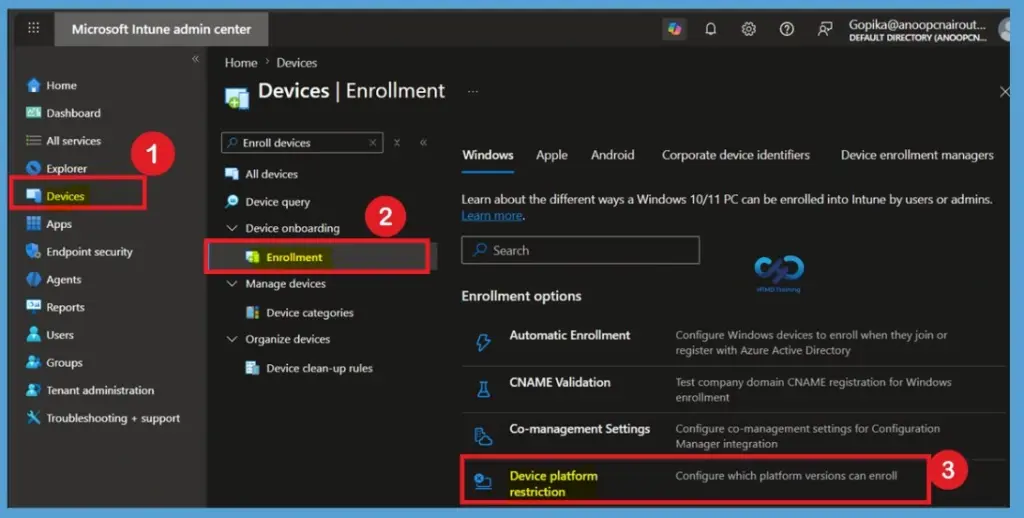
This type of policy could apply to different categories, including security, browser, hardware, and data-sharing settings. For example, you could create a device restriction profile policy that prevents Windows users from sharing the internet or using Cortana, etc. Intune Device Restriction profiles can be deployed to specific users/devices in AAD groups, whereas Intune Enrolment restriction policies can’t be deployed to specific user/device groups in Azure AD. The following section of this post provides more details.
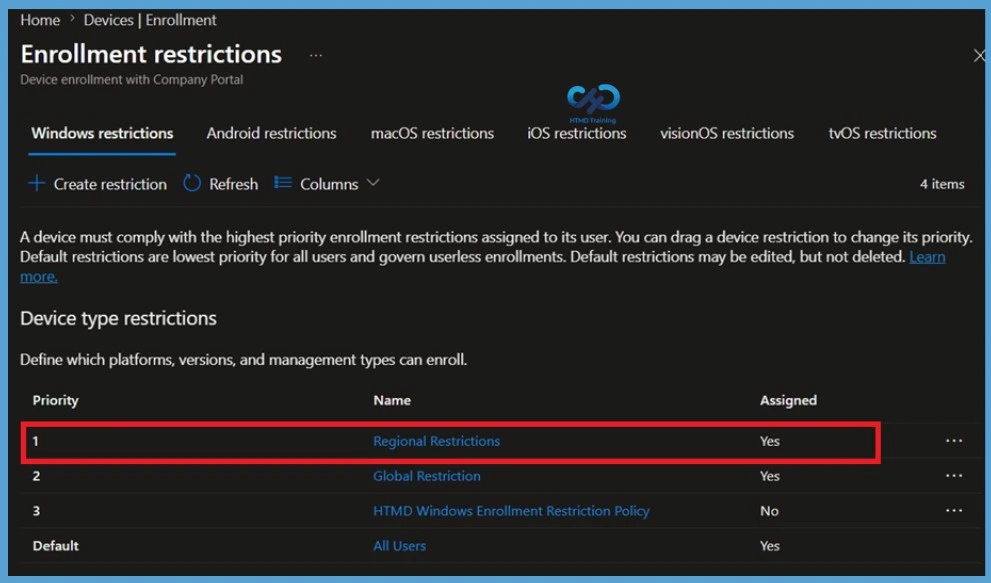
- From the Enrollment page, select Device platform restriction to configure which platforms, ownership types, and operating system versions are allowed to enroll into Intune.
- These restrictions are evaluated during the enrollment process and can help organizations block unsupported devices or restrict enrollment to corporate-owned devices only.
| The Device Platform Restrictions policy allows administrators to |
|---|
| Allow or block specific device platforms. |
| Restrict personal device enrollment. |
| Configure minimum and maximum OS versions. |
| Control enrollment based on device ownership. |
Intune Device Limit Restrictions
Enrollment is the first part of Mobile Device Management. Why do we need to enroll a mobile device into Intune? Enrollment is the first step for management. When a device is enrolled in Intune, they have issued an MDM certificate, which that device then uses to communicate with the Intune service.
In several scenarios, we need to block employees from enrolling their devices in the corporate management platform. You want to block devices not secured enough to enroll in Intune, such as personal devices. Also, we could block devices with lower OS versions. How is this possible from Intune? Difference Between Intune Enrollment Restriction Device Restriction Profile | Configuration Manager ConfigMgr.
- Navigate to Microsoft Intune >Enroll Devices>Enrollment device limit restrictions. You will see two Intune enrollment restriction policies.
| Intune Enrollment Restriction Policies |
|---|
| Device Type Restrictions |
| Device Limit Restrictions |
Device Type restriction is where we can define which platforms, versions, and management types can enroll. So, all other devices are blocked from Intune enrollment. The only problem with Intune enrollment restrictions I can think of is that device type restrictions in Intune are deployed to “All Users, ” we can’t deploy or assign Intune enrollment restriction policies to “specific user group.” At the moment, the device type restrictions policies are tenant-wide configurations.
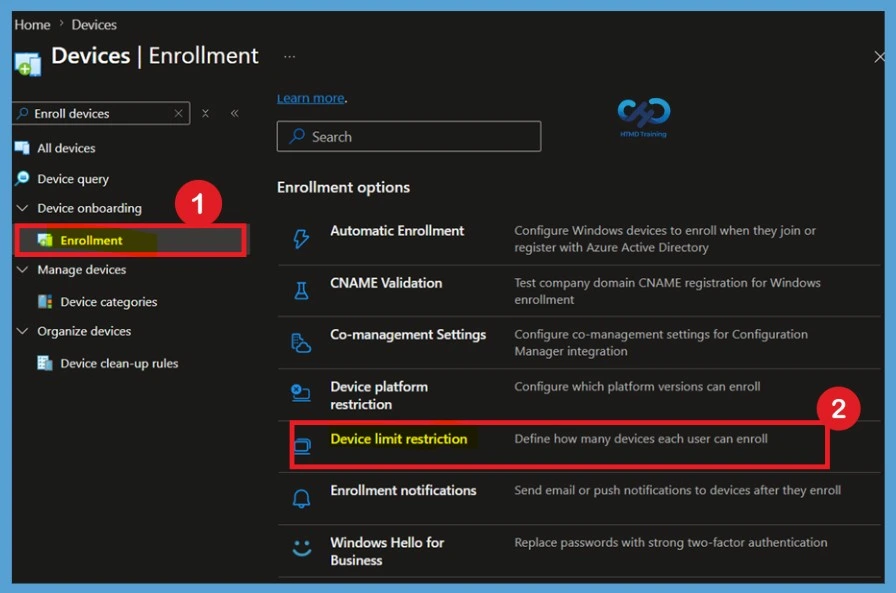
- This policy is useful for preventing excessive device enrollments and maintaining better control over managed devices within the organization.
- From the Enrollment page, select Device limit restriction to view or create enrollment limit policies.
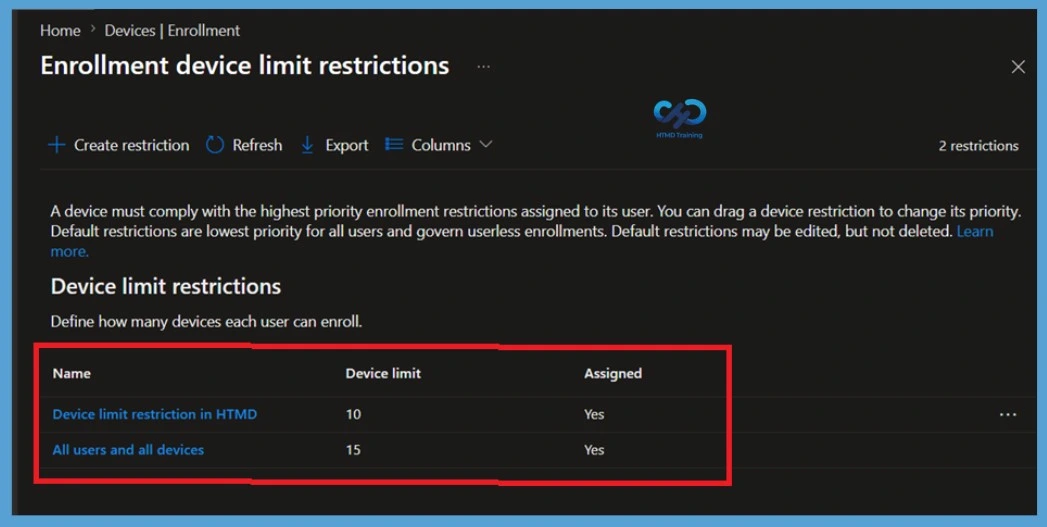
- The Device Limit Restrictions page displays all configured policies along with their assigned device limits. Administrators can create multiple policies and assign them to different user groups based on organizational requirements.
Need Further Assistance or Have Technical Questions?
Join the LinkedIn Page and Telegram group to get the latest step-by-step guides and news updates. Join our Meetup Page to participate in User group meetings. Also, join the WhatsApp Community and the Whatsapp channel to get the latest news on Microsoft Technologies. We are there on Reddit as well.
Author
Anoop C Nair is a Workplace Technology solution architect with 25+ years of experience. Microsoft Certified Trainer. Microsoft MVP from 2015 onwards for consecutive 11+ years! He is a blogger, Speaker, and Founder of HTMD Community and HTMD Conference. His main focus is on Device Management technologies like Intune, Windows, and Cloud PC. He writes about technologies like Intune, SCCM, Windows, Cloud PC, Entra, and Microsoft Security.
Anoop C Nair is Workplace Technology solution architect with 25+ years of experience in global enterprise organizations such as JP Morgan, Capgemini, etc. He is Microsoft Certified Trainer. Microsoft MVP from 2015 onwards for consecutive 11 years! He also conducts Intune and modern workplace tech training for enterprise organizations. He is Blogger, Speaker, and Founder of HTMD Community and HTMD Conference. His focus is on Device Management technologies such as Intune, Windows, Cloud PC. He writes about technologies like Intune, SCCM, Windows, Cloud PC, Windows, Entra, Microsoft Security.
Hi Anoop,
I have setup a POC lab for SCCM and Intune Integration. Everything is working great up to the point where I want to enroll devices.
I have setup everything that needs to be done from SCCM and Intune perspective. When I view the Platforms Configuration under the default Device Type Restriction Policy located here:
Home > Microsoft Intune > Device enrollment – Enrollment restrictions > All Users – Platforms Configuration
It tells me:
All device platforms are blocked. Allow platform enrollment to enable platform configuration.
So I go to edit the platforms section to edit the default Device Type Restrictions, allow android enrollment and then save the configuration I get an error and the policy wont save. How can I enable Android enrollment if the policy wont save?
An error occurred.
14:55
An error occurred while saving. Request ID: 59ea85b9-c6a2-4f71-b1ea-879dfb8d1d73
Thanks in advance.
Tom.