
Hey, let’s discuss about How to Manage and Secure AI Agents using Microsoft Agent 365. Agent 365 helps companies control and secure all their AI agents in one place. It supports both helpful assistants and fully autonomous digital workers. The main goal is to use AI safely and responsibly. It ensures organizations follow important security and compliance rules.
Agent 365 gives key tools like a registry, access control, and monitoring. It helps track all agents and their activities. It protects sensitive information while agents work. It also works smoothly with Microsoft 365 tools already used by the organization.
With Microsoft Entra, Agent 365 creates special identities for AI agents. Admins can decide what information each agent is allowed to access. They can control the full life of an agent from creation to removal. This makes sure humans are always in charge.
Microsoft Purview helps protect data used by AI agents. It checks for risky behavior or mistakes that could leak information. It makes sure agents follow company and legal rules. This keeps data safe and used in the right way.

Table of Contents
How to Manage and Secure AI Agents using Microsoft Agent 365
Microsoft Defender provides security for AI agents against digital threats. It can detect attacks like harmful prompts or attempts to misuse models. It shows security risks clearly so they can be fixed quickly. All this is organized in an AI Security Dashboard for a complete view of safety.
- Update Security Baselines for Microsoft 365 Apps from Intune
- Secure Microsoft 365 Office Apps using Intune Security Policies
- How Microsoft Entra ID Account Recovery Supports Users Who Lose All Authentication Methods
| Feature | Explanation |
|---|---|
| Agent Identity & Governance | Gives each AI agent a secure identity and controlled access through Entra. Ensures humans stay in control and agents only access the right data. |
| Data Protection with Purview | Protects sensitive information and checks for risky behavior. Prevents data leaks and keeps agents compliant with rules and laws. |
| Threat Detection with Defender | Monitors agents and detects attacks like harmful prompts. Helps stop security threats early and keeps the AI safe and trustworthy. |
Overview
This Screenshot shows a dashboard of all AI agents in the organization. It tells how many agents exist, how many are active, and what types they are. It also shows templates used to create agents and groups they are part of. It helps admins quickly check and manage all agents.

Finanace Optimizer
It shows what the agent does, its status, who owns or sponsors it, when it was created, and the blueprint used. It also displays what permissions and access the agent has, helping admins manage it safely and easily.

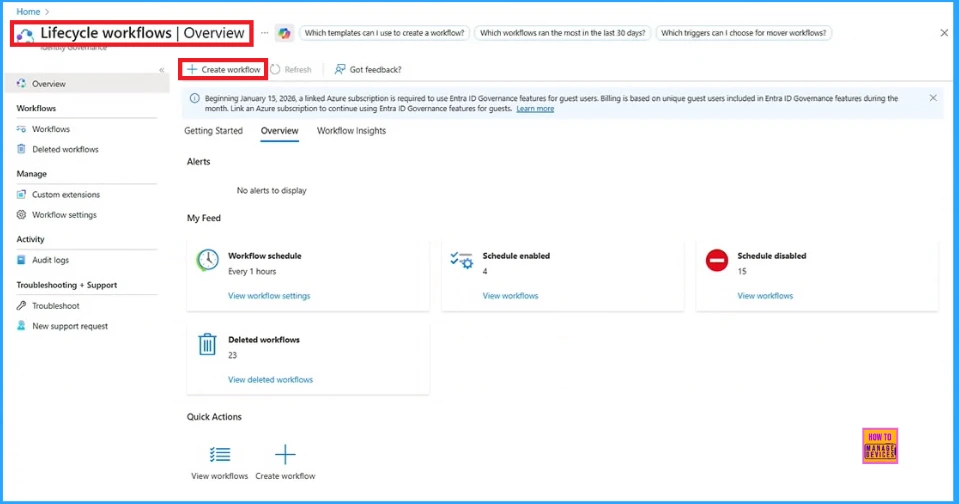
Workflows
It gives a quick view of existing workflows, their status (enabled or disabled), deleted workflows, scheduling details, and allows you to create new workflows.
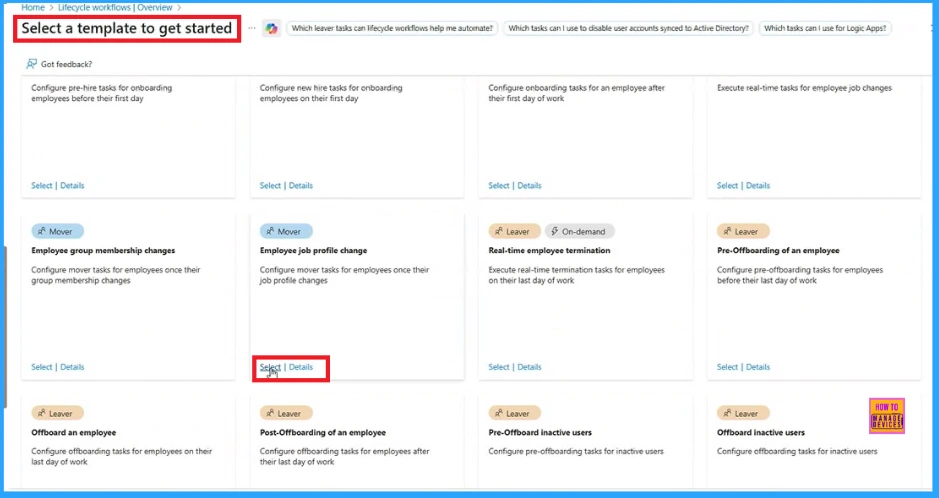
This screenshot shows workflow templates in Microsoft Agent 365. It asks you to select a template to get started with creating a workflow. One of the templates highlighted is Employee job profile change, which helps automate tasks when an employee’s job role changes.
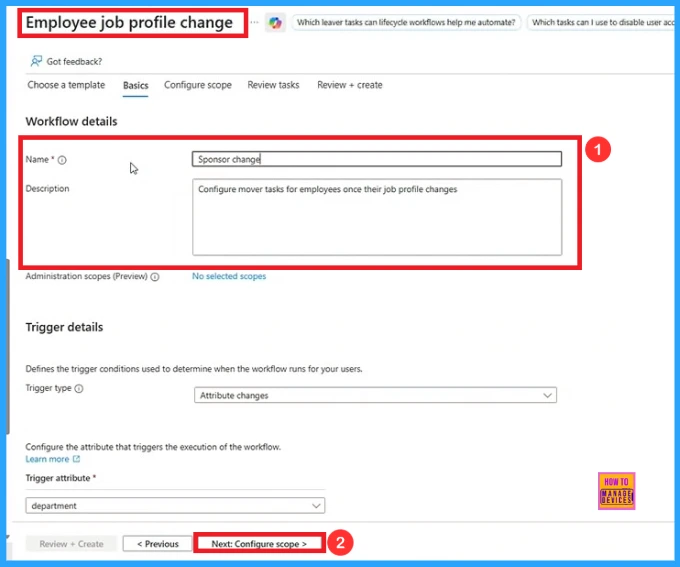
Basics
It shows the Employee job profile change workflow details where you enter the workflow name, description and then click Next: Configure Actions to continue.
Review Tasks
The given screenshot highlights three task names. Remove the tasks Remove user from selected groups, Remove user from selected teams and Request user access packages assignment.
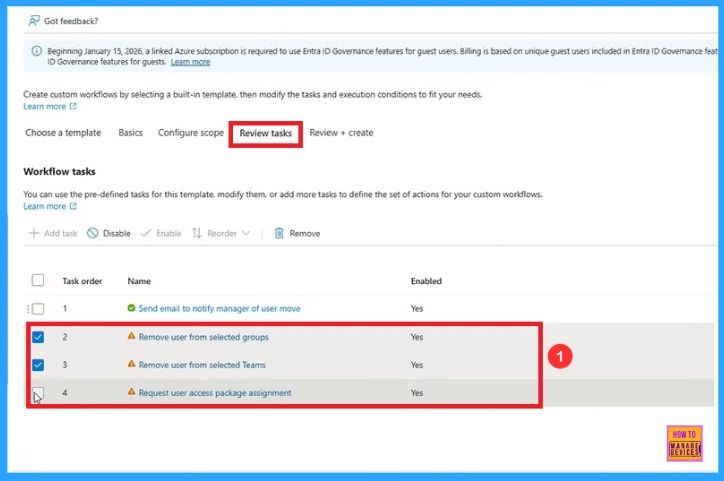
After removing the three tasks, click the Add task button and select Send email to manage about sponsorship change(preview). Click the Add button and Review+ create.
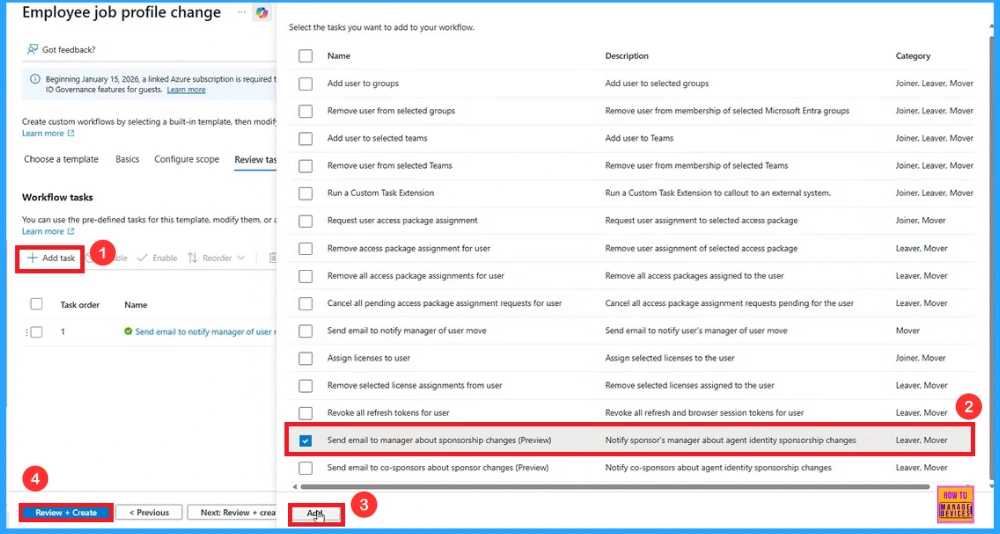
Review + Create
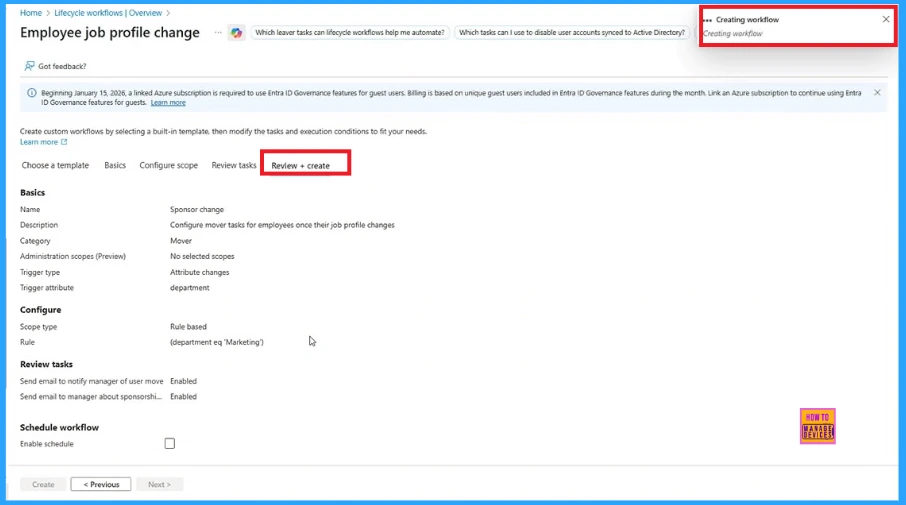
Here, the screenshot displays a step in the process of creating an Employee job profile change workflow within Microsoft Entra ID Governance. After clicking the create button, you can see a notification “creating workflow” .
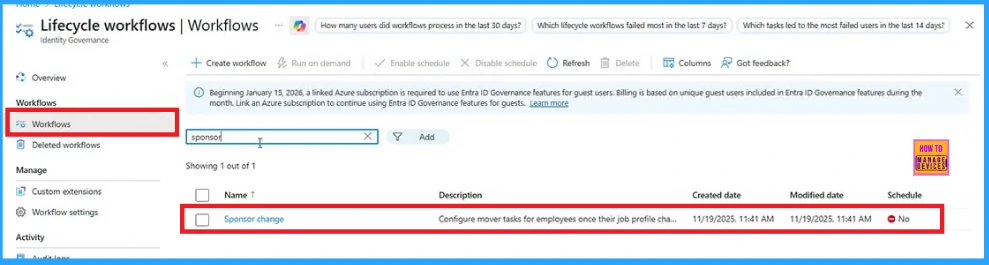
When you click on Workflow and search for “Sponsor change” you will be able to see the one that was created(Sponsor change). Here, you can see workflow name, description, created date and modified date.
Sponsor Change
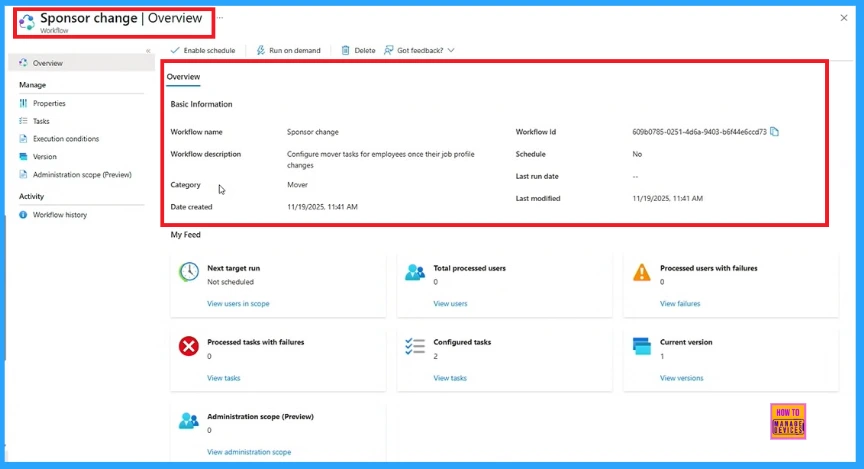
The given screenshot shows the Sponsor change workflow overview. The highlighted area displays the workflow name, description, category, creation date, last edited date, and workflow ID. It helps users quickly review the basic details and status of the workflow.
Need Further Assistance or Have Technical Questions?
Join the LinkedIn Page and Telegram group to get the latest step-by-step guides and news updates. Join our Meetup Page to participate in User group meetings. Also, Join the WhatsApp Community to get the latest news on Microsoft Technologies. We are there on Reddit as well.
Author
Anoop C Nair has been Microsoft MVP for 10 consecutive years from 2015 onwards. He is a Workplace Solution Architect with more than 22+ years of experience in Workplace technologies. He is a Blogger, Speaker, and Local User Group Community leader. His primary focus is on Device Management technologies like SCCM and Intune. He writes about technologies like Intune, SCCM, Windows, Cloud PC, Windows, Entra, Microsoft Security, Career, etc.