
Today we are discussing Max Failed Password Attempts Configuration using Intune Policy. This policy decides how many wrong passwords tries someone can make before the device locks automatically. It helps protect the device so that nobody can keep guessing the password again and again. If this limit is set the right way, your data stays safe even if someone tries to open the device without permission.
If someone steals a device, they will not be able to open it easily. The moment they reach five wrong attempts, the screen locks, and the data stays protected. This includes confidential emails, stored passwords, financial data, and any sensitive files. This reduces the risk of accidental data leaks and protects company identity.
If a device repeatedly reaches the limit, it could point to suspicious activity. IT can investigate early and find whether someone is trying to break into the system. This early alert helps prevent cyber threats, and it allows IT security teams to respond before any issues happens. If there was no limit, a person could try unlimited passwords until they find the correct one.
At the same time, the user gets enough chances to remember their password without getting blocked too early. This rule also encourages users to remember their passwords properly. Since they know the device will lock after repeated wrong attempts, they try to be careful. This matters more in offices because devices contain email, documents, and apps that are sensitive.

Table of Contents
Max Failed Password Attempts Configuration using Intune Policy
Applying this policy through Intune gives uniform protection across all users, whether they work from the office, home. It builds trust, prevents unauthorized access, and ensures that devices will be safe even if they are lost or at risk.
Policy Creation
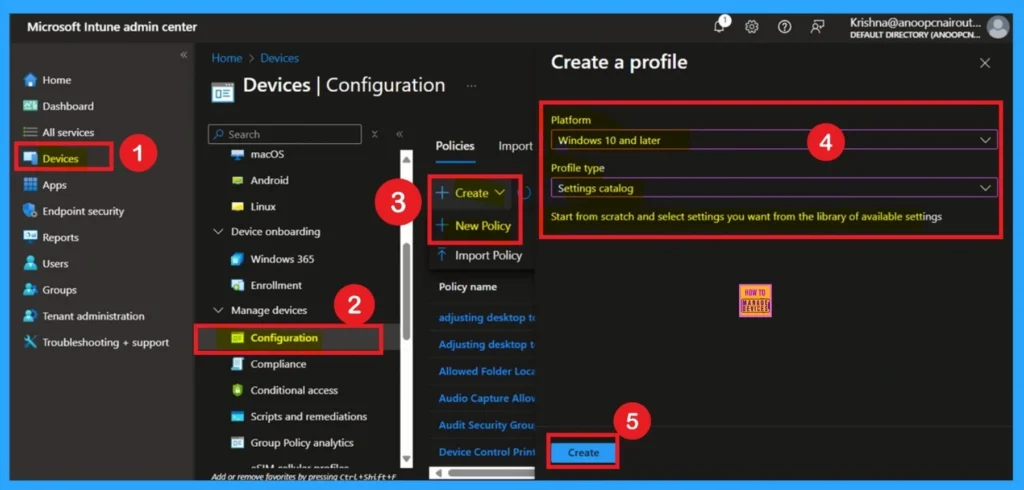
To start creating the policy, open Intune Admin Center and go to Devices > Configuration Profiles. Click Create Profile, choose Windows 10 and later as the platform, and pick Settings Catalog. After that, click Create to begin the setup. This starts the policy creation.
Basics
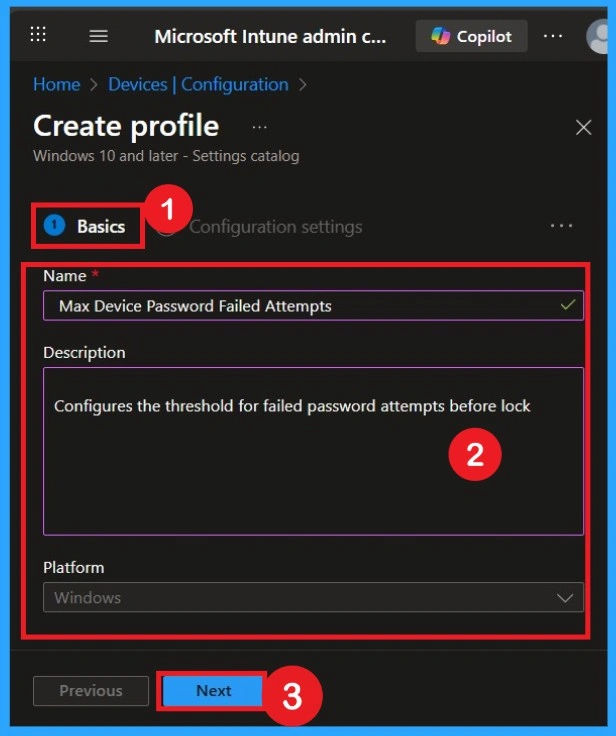
In the Basics page, you type the policy name and a short description. The name explains what the policy is for, and the description helps others understand it clearly in the future. After completing this, you click Next and move forward.
This step is small but important because good naming helps avoid mistakes later. When policies are clearly labelled, any admin who checks them later immediately understands what the setting is meant for without opening everything again.
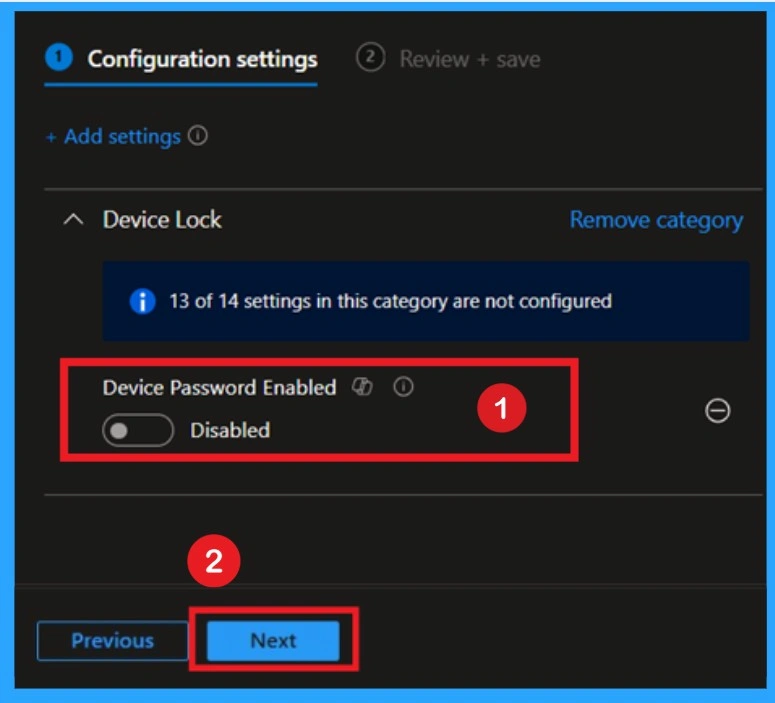
Configuration Settings Disabled
After exiting the settings picker, the policy will appear on the main configuration settings page. Here, you can see that the policy is disabled by default. If you want to proceed with this configuration, click Next.
Configuration Settings Enabled
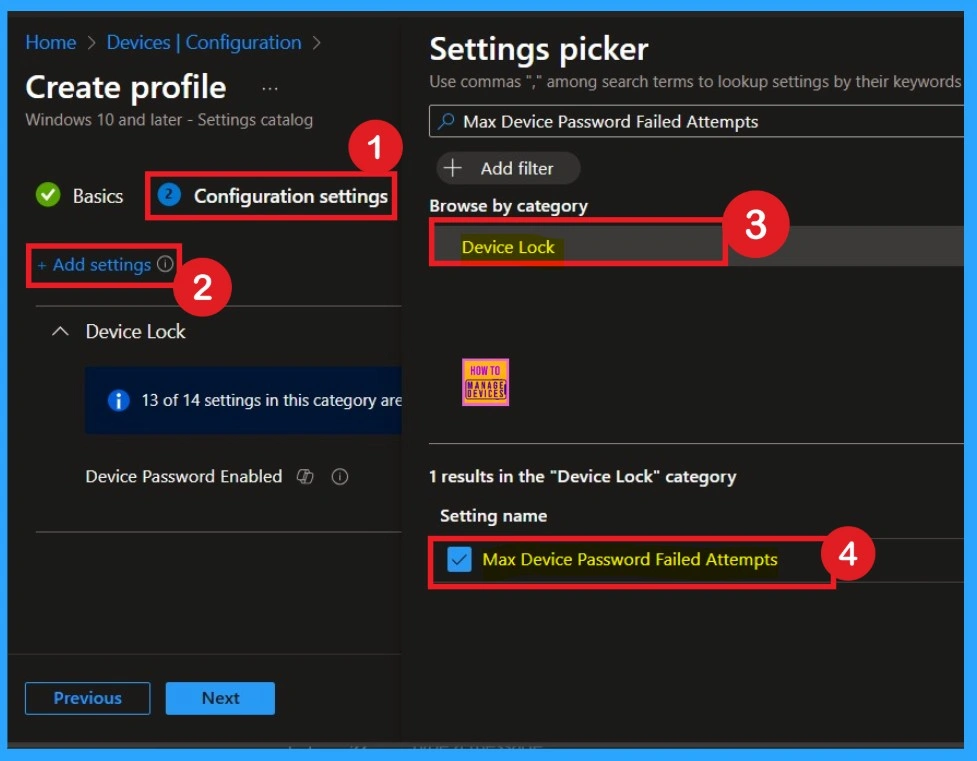
In this step, you search for the specific setting you want to apply by clicking on the Add settings. Here I search for Max Device Password Failed Attempts in Device Lock. Once you set it correctly, you click Next to confirm the changes. This is the main step because this is where you actually tell the device what to do.
Enable Configuration
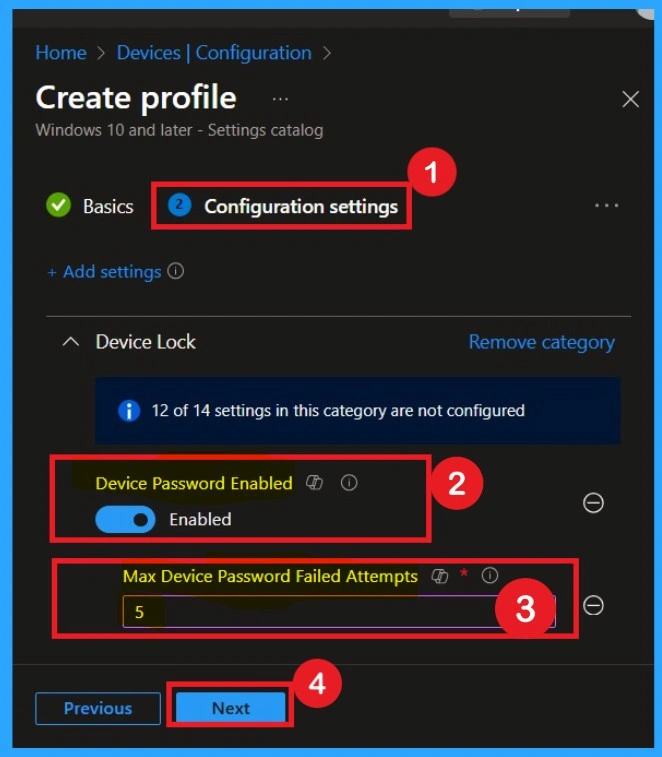
Here in this step, you have to enable the Device password toggle button to enable. When it enabled you will get one text box, there you have to enter the value. Here i Added the value as 5. That means the Minimum password attempts to be 5.
Scope Tags
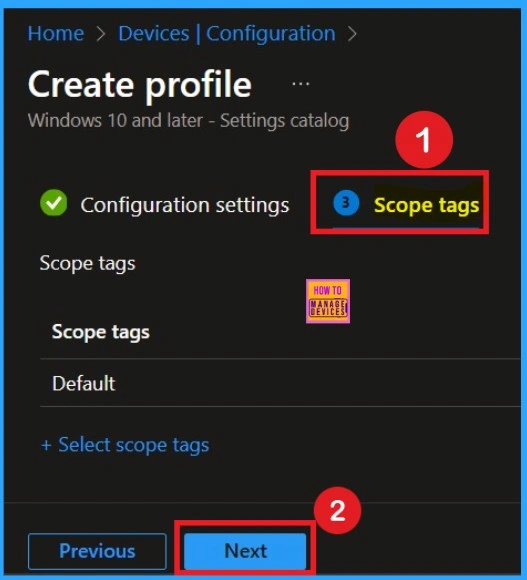
Scope Tags help you to give restrictions for the policy. Here, you can easily create restrictions by clicking on the +Add scope tags hyperlink. Here, I would like to skip this section, because it is not mandatory. Click on the Next button.
Assignments
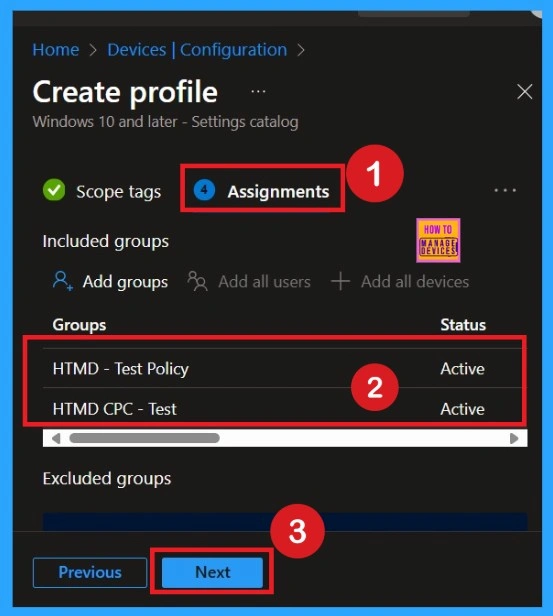
Here you choose the device groups that will receive the policy. You click Add Groups and select the required group. Without assigning, no device will get the policy, so this step is important. After selecting, you click Next. Assignments decide who gets the rule and who doesn’t. It helps you target only the devices that need this policy. It also prevents accidental application on devices that don’t require this policy.
Review + Create
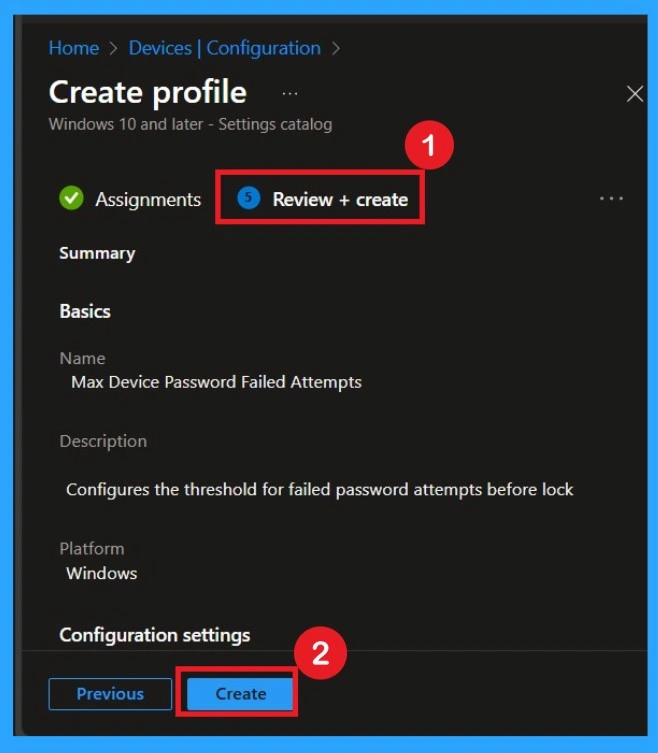
This page gives you a final summary of everything you set earlier. You read it once to confirm everything is correct. If everything looks good, you click Create, and the policy becomes active. Reviewing helps catch small mistakes before deployment. Even if everything was set correctly, this last check gives peace of mind. Once you click Create, the policy begins applying automatically.
Monitoring Status
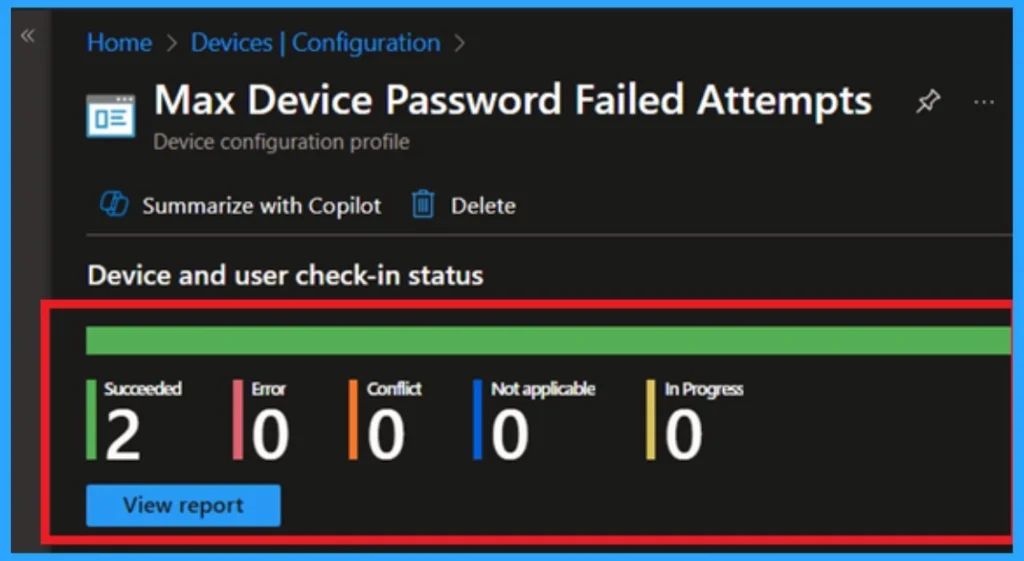
The Monitoring Status page shows if the policy is succeeded or not. o quickly configures the policy and takes advantage of the policy sync the assigned device on Company Portal. Open the Intune Portal. Go to Devices > Configuration > Search for the Policy. Here, the policy shows as successful.
Client-Side Verification
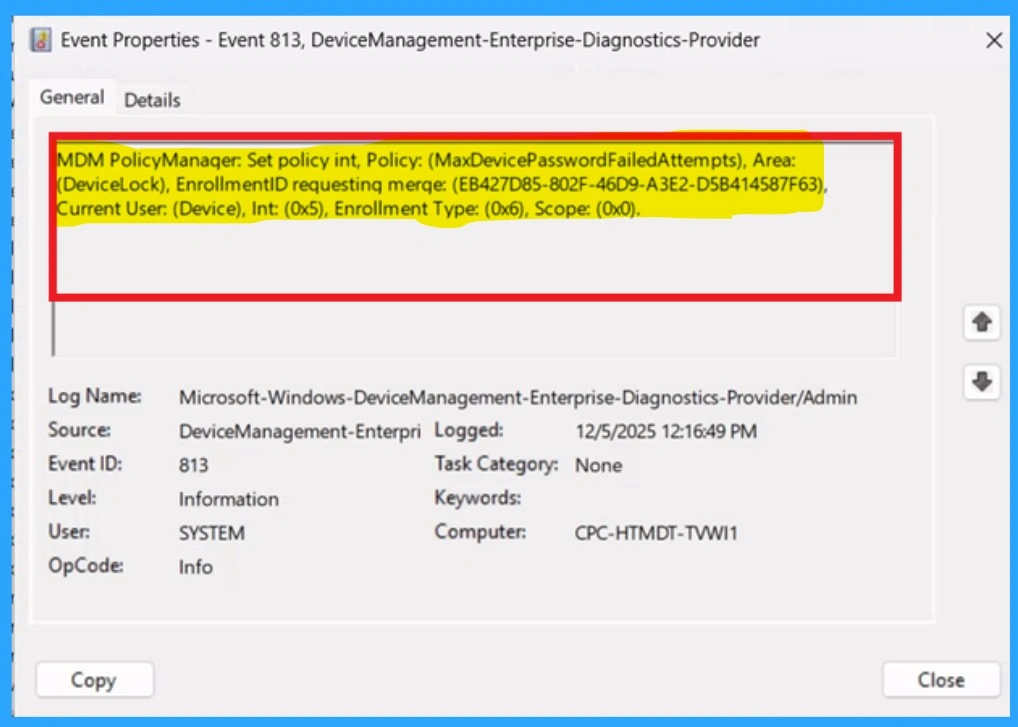
To confirm the policy is successful or not, you can use the Event Viewer. First, open Event Viewer and navigate to Applications and Services Logs > Microsoft > Windows > Device Management > Enterprise Diagnostic Provider > Admin. Look for Event IDs 813 or 814, as these typically contain policy-related information.
| Policy In |
|---|
| MDM PolicyManager: Set policy int, Policy: (MaxDevicePasswordFailedAttempts), Area: (DeviceLock), EnrollmentID requesting merqe: (EB427D85-802F-46D9-A3E2-D5B414587F63), Current User: (Device), Int: (0x5), Enrollment Type: (0x6), Scope: (0x0). |
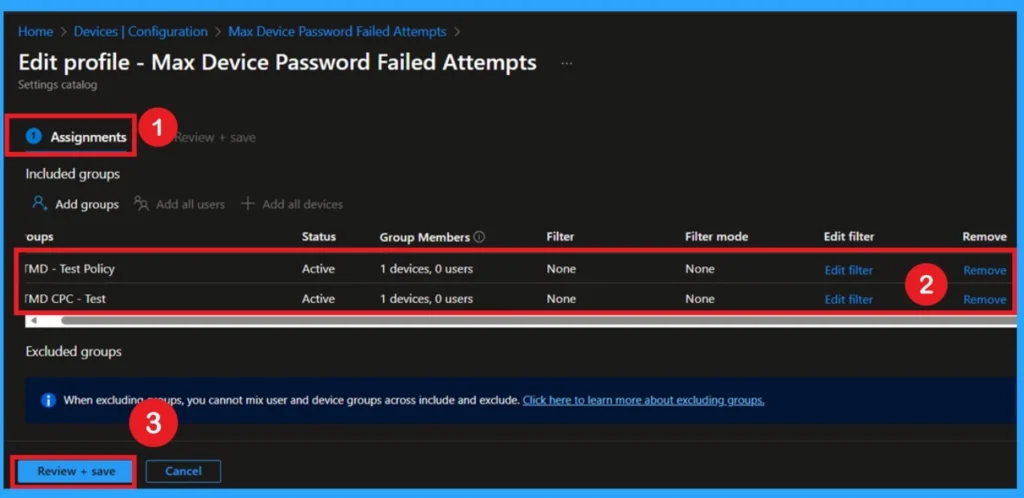
Remove Assigned Groups
To remove the assigned groups from a policy, you open Intune and search for the policy. Once you open it, scroll to the Assignments section. Here you will see which groups are currently assigned. Click Edit and remove the selected groups. After removing them, click Save.
To get more detailed information, you can refer to our previous post – Learn How to Delete or Remove App Assignment from Intune using by Step-by-Step Guide.
Delete Policy Permanently
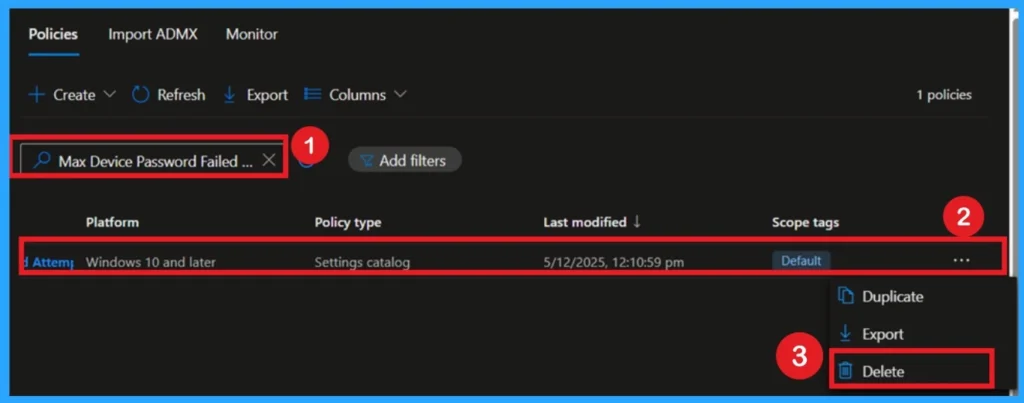
To delete a policy permanently, go to Devices > Configuration Profiles and search for the policy name. Click on the policy and you will see a Delete option at the top. Click Delete and confirm the deletion. The policy will be removed from Intune. Once deleted, the policy will fully disappear from your tenant.
For detailed information, you can refer to our previous post – How to Delete Allow Clipboard History Policy in Intune Step by Step Guide.
End User Result
For end users, everything is automatic. They don’t have to press anything, install anything, or change settings. The policy quietly applies in the background while the user continues normal work. Users only notice it when the rule is triggered, like entering wrong passwords too many times. Otherwise, they won’t even know something changed. This makes the policy friendly and smooth from the user side.
Need Further Assistance or Have Technical Questions?
Join the LinkedIn Page and Telegram group to get the step-by-step guides and news updates. Join our Meetup Page to participate in User group meetings. Also, Join the WhatsApp Community to get the latest news on Microsoft Technologies. We are there on Reddit as well.
Author
Anoop C Nair has been Microsoft MVP for 10 consecutive years from 2015 onwards. He is a Workplace Solution Architect with more than 22+ years of experience in Workplace technologies. He is a Blogger, Speaker, and Local User Group Community leader. His primary focus is on Device Management technologies like SCCM and Intune. He writes about technologies like Intune, SCCM, Windows, Cloud PC, Windows, Entra, Microsoft Security, Career, etc