

Key Takeaways
- The Intune Device Encryption Status Report helps administrators monitor encryption status from a central location.
- The report shows whether managed devices are encrypted and provides recovery key details.
- It supports Windows version 1607 or later and macOS 10.13 or later devices.
- Intune may take up to 24 hours to display updated encryption status information.
In this post, we are discussing Microsoft Intune Device Encryption Report for Windows and macOS Devices. Microsoft Intune continues to improve device security management by providing administrators with better visibility into encryption and compliance status across managed devices. One of the important reporting capabilities available in the Microsoft Intune admin center. The Device Encryption Status Report helps organisations monitor encryption health from a centralised location.
Table of Contents
Table of Contents
Microsoft Intune Device Encryption Report for Windows and macOS Devices
The Encryption Status Report displays a list of managed devices along with high-level details about their encryption state. Administrators can quickly identify whether devices are encrypted, view recovery key information, and detect systems that may require attention. The report supports Windows devices running version 1607 or later and macOS devices running version 10.13 or later.
- Intune Silent Encryption – A Deeper Dive to Explore the Internal
- Managing Windows Bitlocker Compliance Policy Using Intune | MS Graph | Grace Period
- Enable Bitlocker on HyperV and Handle Error Device Cannot Use a Trusted Platform Module
Intune Device Encryption Status Report
These reports provide timely, targeted data that helps you focus and take action. You can view the Encryption Status report using the following steps
- Sign in to the Endpoint Manager Intune portal https://endpoint.microsoft.com/
- Navigate to Devices ->Monitor.
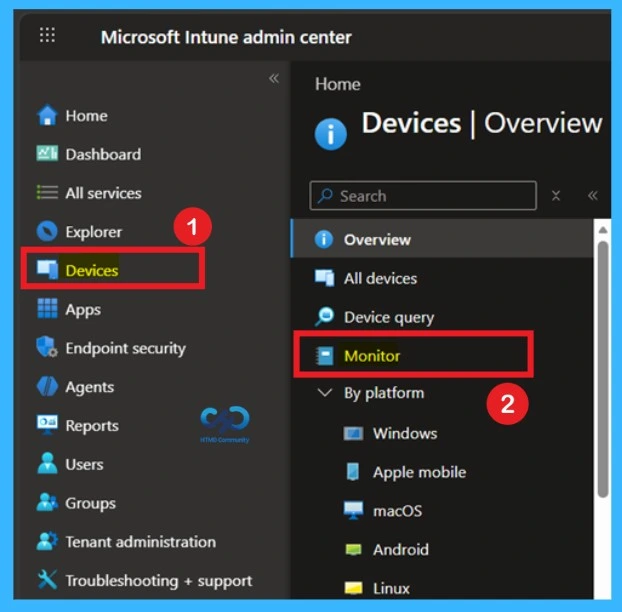
When you select the Monitor option, you will get a window where you can search for the Device Encryption Status to view detailed insights on encryption readiness and compliance across managed devices. The report, categorised under Configuration, provides visibility into encryption details, helping IT teams ensure data protection is consistently met across Windows and macOS endpoints.

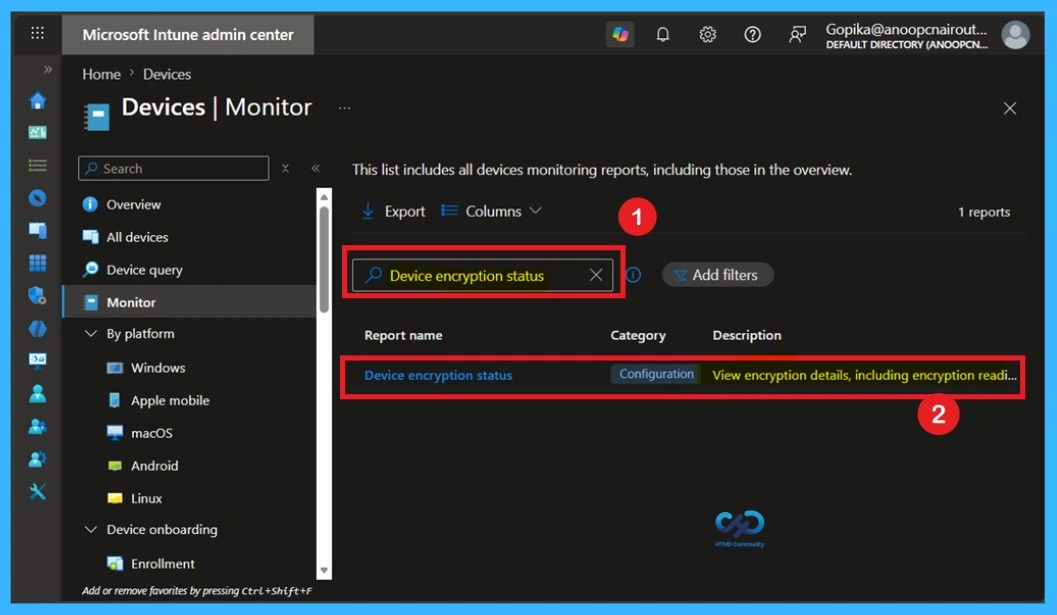
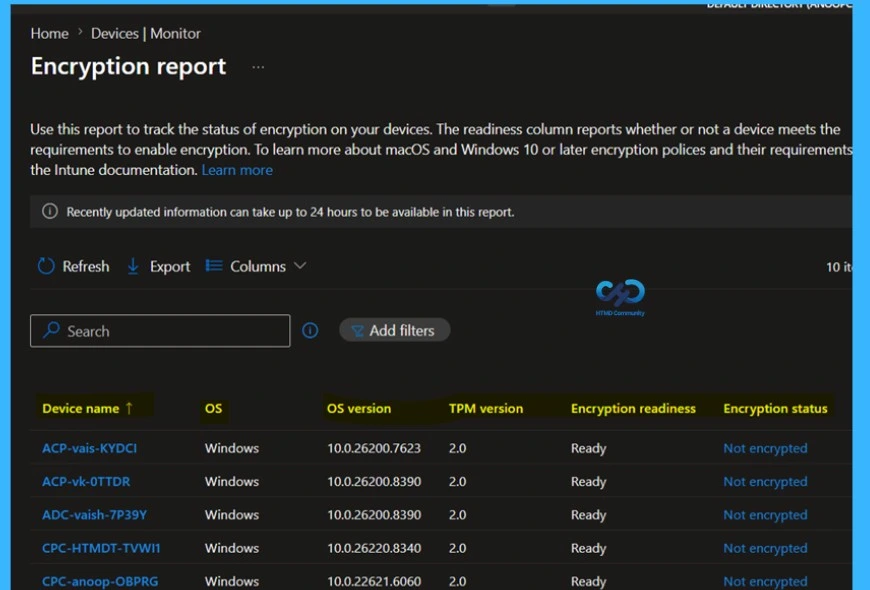
The Encryption report pane displays a list of the devices you manage with high-level details about those devices. You can select a device from the list to drill in and view additional details from the Device encryption status pane.
- Device name – The name of the device.
- OS – The device platform, such as Windows or macOS.
- OS version – The version of Windows or macOS on the device.
- TPM version (applies to Windows 10/11 only) – The version of the Trusted Platform Module (TPM) chip detected on the Windows device.
Note – When you select a device from the Encryption report, Intune displays the Device encryption status pane to get you the more detailed information.
| Encryption Report function | Info |
|---|---|
| Encryption readiness | An evaluation of the devices readiness to support applicable encryption technology, like BitLocker or FileVault encryption. Devices are identified as: |
| Ready | : The device can be encrypted by using MDM policy, which requires the device to meet the requirements For macOS devices: macOS version 10.13 or later, For Windows |
| devices | Windows 10 version 1709 or later of Business, Enterprise, Education, Windows 10 version 1809 or later of Pro, and Windows 11. The device must have a TPM chip. |
| Not ready | The device doesn’t have full encryption capabilities, but may still support encryption. |
| Not applicable | There isn’t enough information to classify this device. |
| Encryption status | Whether the OS drive is encrypted. |
| User Principal Name | The primary user of the device. |
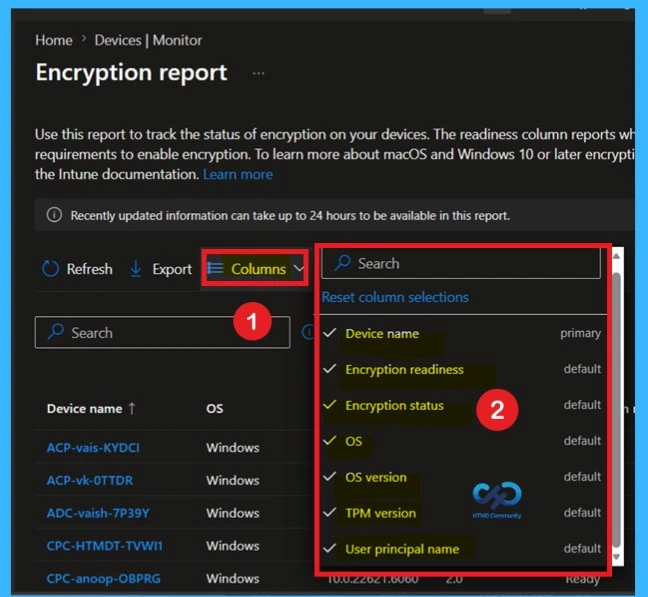
Columns Option
Use the Columns property to add or remove columns from the generated report. Click on the Columns, and A flyout displays. Here you can check or uncheck the columns you want to include. The following columns are available in this report:
- Device name
- OS
- OS version
- TPM version
- Encryption readiness
- Encryption status
- User principal name
Export Intune Encryption Report
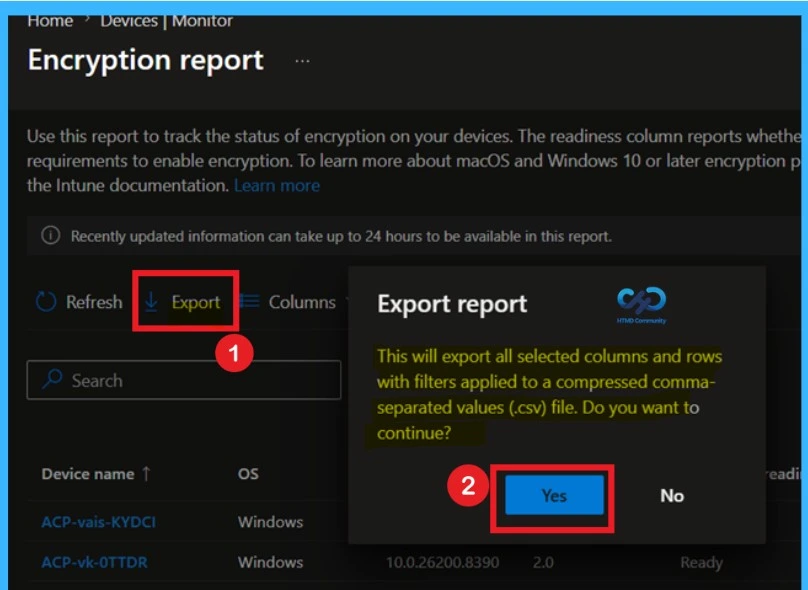
While viewing the Encryption Report pane in the Microsoft Intune admin center, administrators can select the Export option to download the report details as a .csv file. The exported report includes both the high-level information shown in the Encryption Report pane and detailed device encryption status information for all managed devices.
After clicking Export, a pop-up message appears asking you to confirm the export action, like This will export all selected columns and rows with filters applied to a compressed comma-separated values (.csv) file. Do you want to continue? Click on yes if you want it.
- This will export data to a comma-separated values (.csv) file. The report file is added to your download tray and automatically saved to your computer, and a notification message will appear: Export completed. Open the downloaded file to view the details.
Need Further Assistance or Have Technical Questions?
Join the LinkedIn Page and Telegram group to get the latest step-by-step guides and news updates. Join our Meetup Page to participate in User group meetings. Also, join the WhatsApp Community and the WhatsApp channel to get the latest news on Microsoft Technologies. We are there on Reddit as well
Author
About Author – Jitesh, Microsoft MVP, has over six years of working experience in the IT Industry. He writes and shares his experiences related to Microsoft device management technologies and IT Infrastructure management. His primary focus is Windows 10/11 Deployment solution with Configuration Manager, Microsoft Deployment Toolkit (MDT), and Microsoft Intune.