

Key Takeaways
- This policy controls how Windows disconnects a device from a network.
- When enabled or not configured, Windows uses a soft disconnect instead of disconnecting immediately.
- Soft disconnect allows active network traffic and downloads to continue without interruption.
- Windows monitors network traffic and disconnects only when activity drops to a safe level.
Today we are discussing Maintaining Network Stability During Connection Changes using Intune policy. This policy setting controls how Windows manages the process of disconnecting a computer from a network when it determines that the connection is no longer needed. All disconnections as immediate events, the policy introduces intelligence into the decision-making process.
It allows Windows to consider current network activity and system behavior before terminating a connection, which helps maintain stability and continuity for users and applications. In computing environments, devices often connect to multiple networks such as Wi-Fi or mobile data. Windows continuously evaluates which network connections are required and which are no longer optimal.
Without proper handling, disconnections can interrupt user tasks, background services, or system communications. This policy exists to ensure that network transitions happen in a controlled and predictable manner. When the policy is enabled or left not configured, Windows uses a soft disconnect approach.
This means the operating system does not immediately drop the network connection when it believes the connection should end. Instead, it takes into account active traffic and ongoing sessions, allowing a smoother transition that reduces the risk of data loss or user disruption. The soft disconnect behavior is particularly important because it allows existing TCP sessions to continue without interruption

Table of Contents
Maintaining Network Stability During Connection Changes using Intune policy
The policy also helps organizations optimize network usage by ensuring devices disconnect only when it is truly appropriate. This is especially useful in environments where bandwidth management and network prioritization are important. Devices are not constantly switching networks unnecessarily, which reduces overhead and improves the efficiency of network resources across the organization.
- How to Show or Hide Switch Account Option in Windows Start Menu using Intune Policy
- Enable or Disable Microsoft Account Connection Policy using Intune
- Intune Allow Microsoft Accounts to be Optional Policy
Create Policy
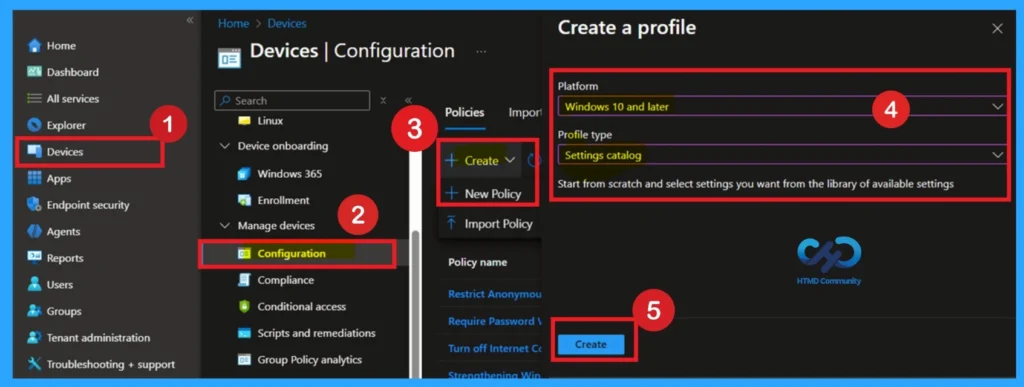
To begin, open the Intune admin center and go to Devices. Then select Configuration profiles and click Create profile. Choose Windows 10and later as the platform and select Settings catalog as the profile type. This step is basically the starting point of configuration. Then click on the Create.
Basics
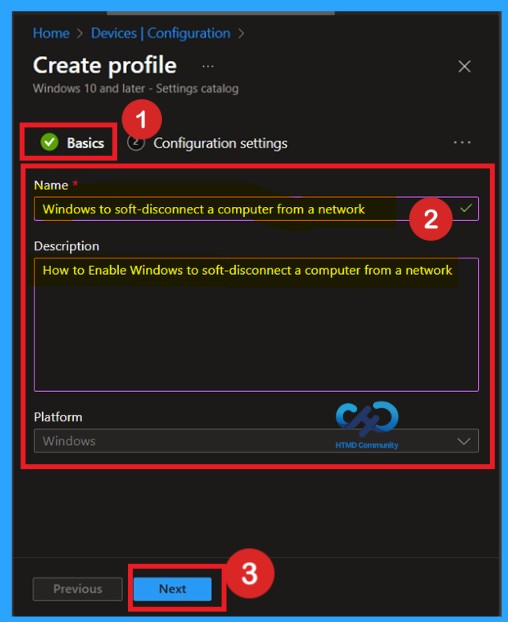
On the Basics page, you give the profile a clear name and description, so it is easy to identify later. In the Name box, the policy name Windows to soft-disconnect a computer from a networking the Description box to explain the purpose of the profile. This helps administrators quickly understand what the policy does when viewing it in the Intune console.
- The platform is automatically set to Windows, and once the details are confirmed, you can click Next to move to the configuration settings.
Configuration Settings
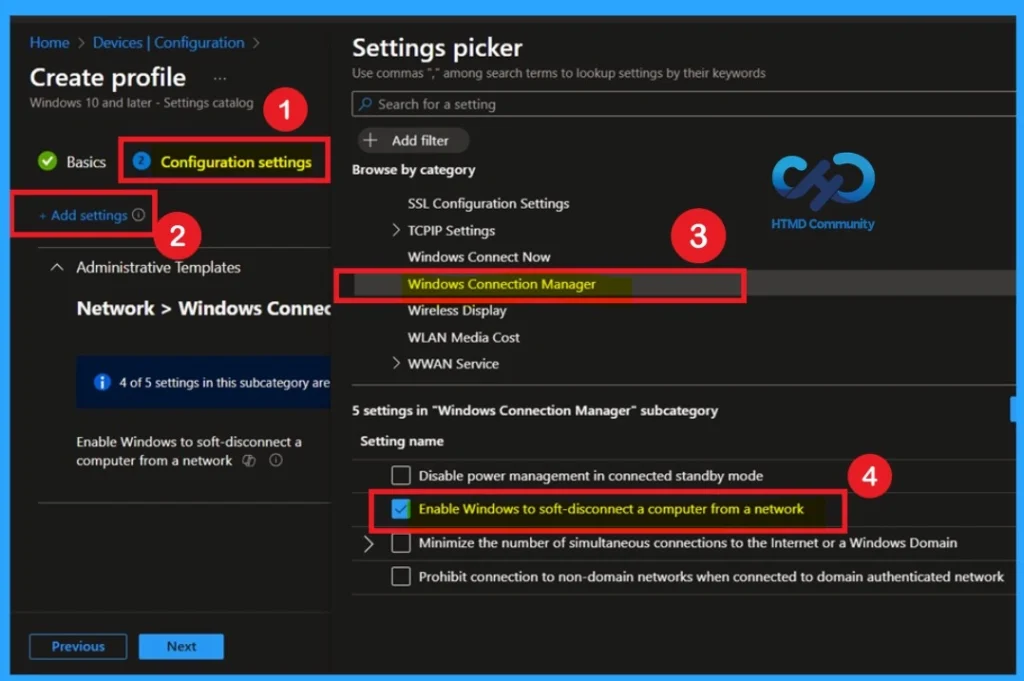
In the Configuration settings you can see that the +Add Settings. Once you click this option, the Settings picker screen will open. From the list, select Administrative Templates. Next, choose Network, and then click on Windows Connection Manager. In the Windows Connection Manager settings, find the option Enable Windows to soft-disconnect a computer from a network by Select this option.
Disable Settings
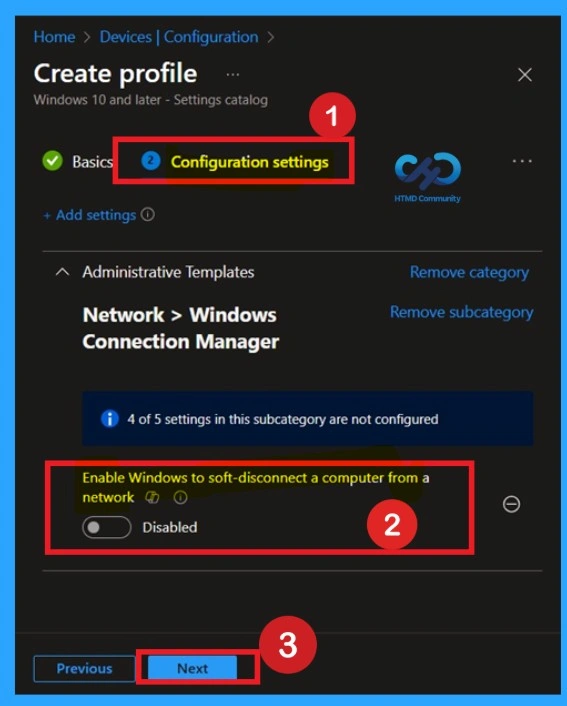
This policy is disabled by default in Windows. If you choose to keep the default configuration, the setting can remain disabled without causing any issues. However, according to CIS security recommendations, this policy should be enabled. Enabling this setting helps the system manage network disconnections more safely and efficiently.
Enable the Settings
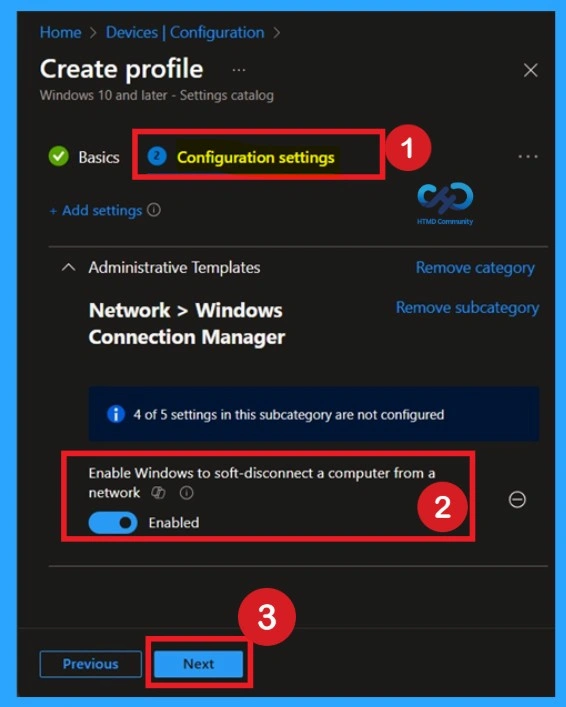
To enable this setting, toggle the option Enable Windows to soft-disconnect a computer from a network. Move the toggle button from left to right to turn it on. Once the toggle is switched, the setting status changes to Enabled, confirming that the policy is now active. With this policy enabled, Windows can safely and smoothly disconnect the device from a network when required, helping to improve network stability and ensuring compliance with CIS security recommendations.
Scope Tags
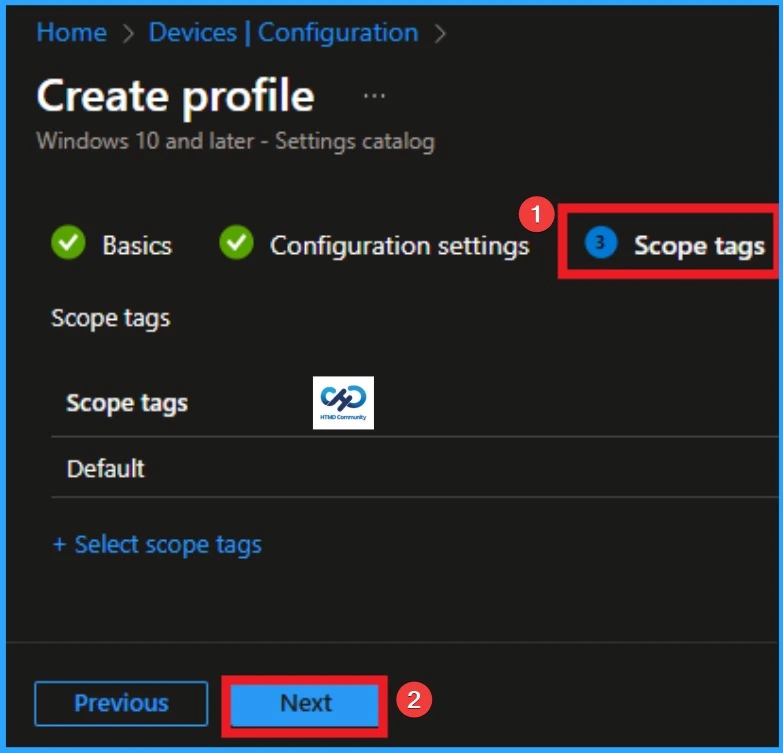
In Intune, Scope Tags are used to control who can view and modify a policy. The scope tag is not mandatory, so you can skip this section. It functions as a tool for organisation and access management but assigning it is optional. Click Next if they’re not required for your setup In the Windows to soft-disconnect a computer from a network Policy.
What are Assignments
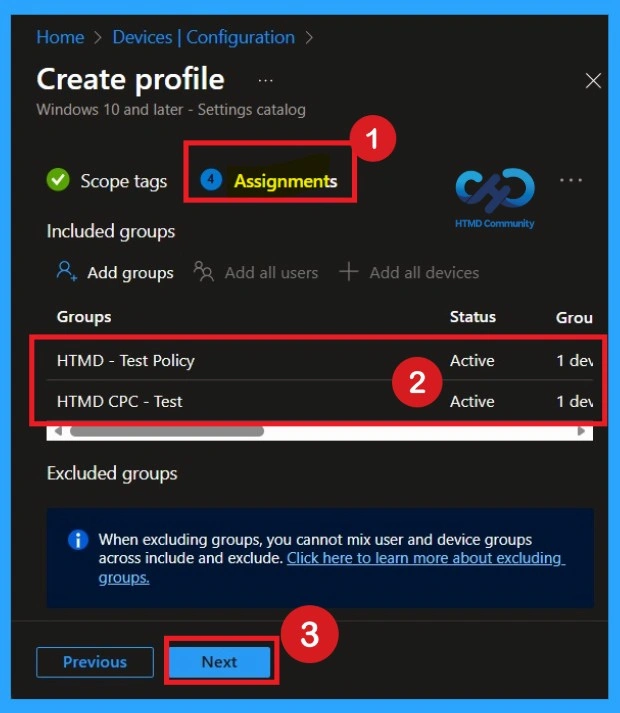
To assign the policy to specific groups, you can use the Assignment Tab. Here I click, +Add groups option under Included groups. I choose a group from the list of groups and click on the Select button. Again, I click on the Select button to continue.
Review + Create
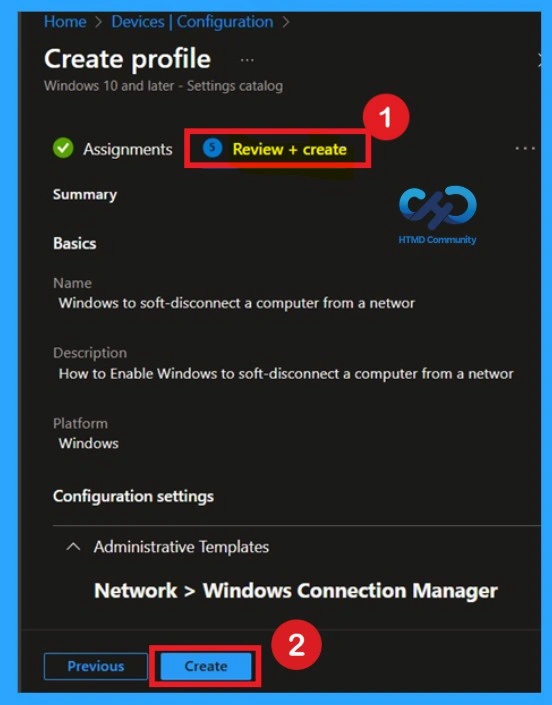
On the Review and create page, you can see all the details of the policy you set up. It shows the name, description, and the platform you selected. This page is only for checking that everything is correct before you apply the policy. If the information looks right, you can click Create to finish and lead the policy to the assigned devices. If something needs to be changed, you can go back and edit it before creating the profile.
Monitoring Status
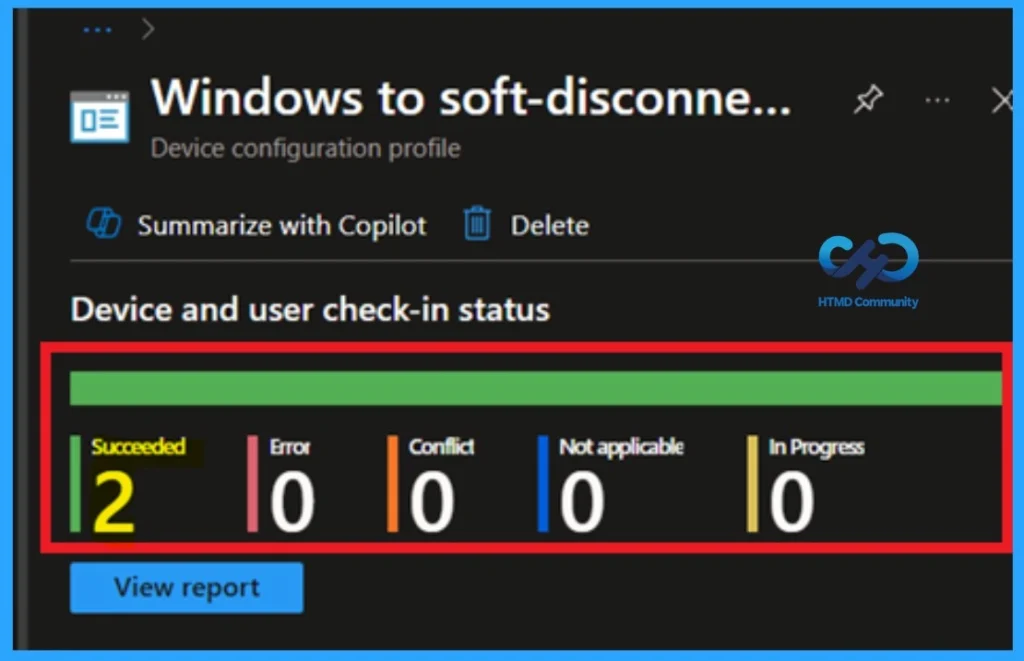
After the policy is live, open the profile again and check the Device status and User status sections. These pages show which devices successfully applied the policy and which ones did not. We can verify the policy’s status directly in the Intune Portal. Policy deployment usually takes about 8 hours. To avoid the time consumption, try a manual sync from the Company Portal app on the device, then recheck the status.
- We can see its status as succeeded (2).
- Navigate to Devices, then Configuration and Select the policy name from that.
- We can see its status as succeeded
Client-Side Verification
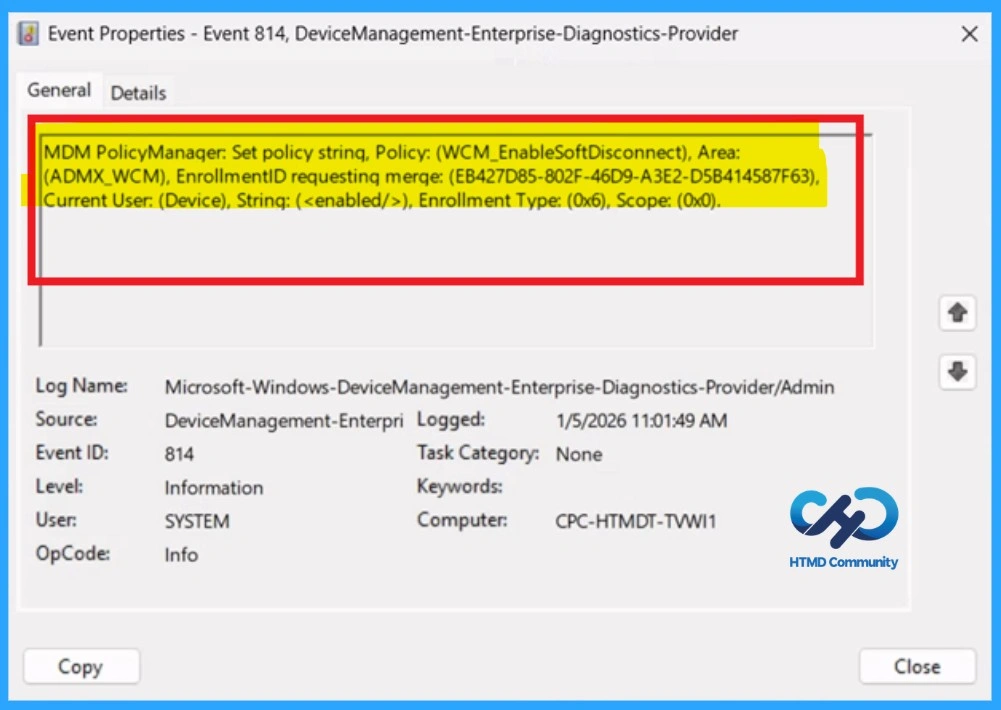
To confirm if a policy has been applied, use the Event Viewer on the client device. Go to Applications and Services Logs > Microsoft > Windows > Device Management > Enterprise Diagnostic Provider > Admin. From the list of policies, use the Filter Current Log option and search for Intune event 814.
| CSP Details |
|---|
| MDM PolicyManager: Set policy strinq, Policy: (WCM_EnableSoftDisconnect), Area: (ADMX_WCM), EnrollmentID requestinq merqe: (EB427D85-802F-46D9-A3E2-D5B414587F63) Current User: (Device), Strinq: (), Enrollment Type: (0x6), Scope: (0x0). |
Remove the Policy
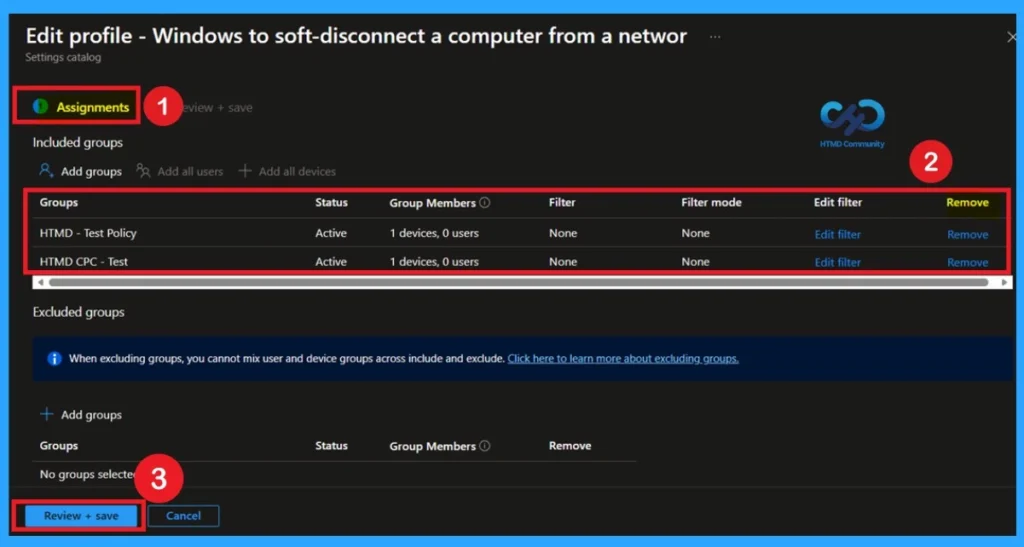
We can easily remove groups from a policy. Just open the policy from the Configuration section, then click the Edit button on the Assignments. From there, click the Remove button to unassign the policy from the desired groups.
To get more detailed information, you can refer to our previous post – Learn How to Delete or Remove App Assignment from Intune using by Step-by-Step Guide.
Delete the Policy Permanently
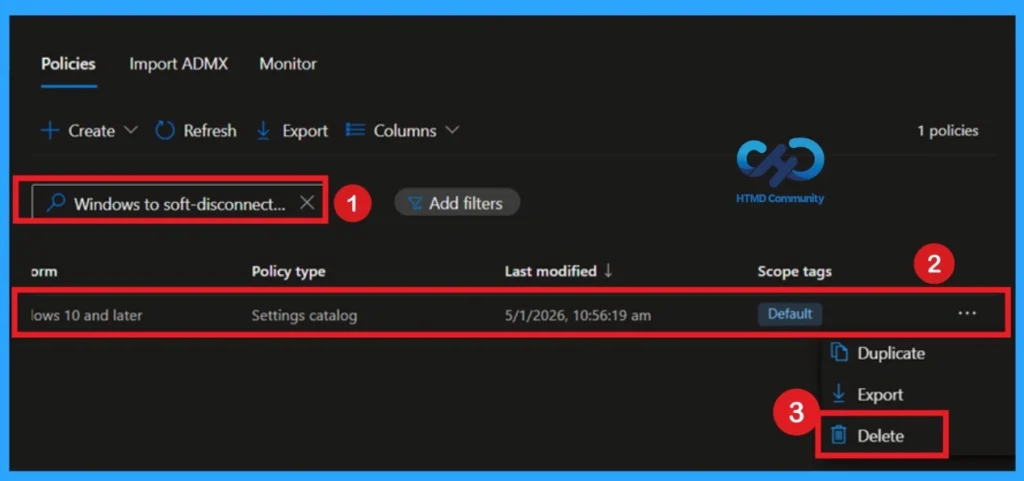
To delete a policy in Microsoft Intune, first sign in to the Microsoft Intune Admin Center. Navigate to Devices and then select Configuration. Locate and select the specific policy you want to remove. Once you’re on the policy details page, click the 3 -dot menu in the top right corner and choose Delete from the available options. This makes the intention of the policy easy to understand.
For detailed information, you can refer to our previous post – How to Delete Allow Clipboard History Policy in Intune Step by Step Guide.
Need Further Assistance or Have Technical Questions?
Join the LinkedIn Page and Telegram group to get the step-by-step guides and news updates. Join our Meetup Page to participate in User group meetings. Also, Join the WhatsApp Community to get the latest news on Microsoft Technologies. We are there on Reddit as well.
Author
Anoop C Nair has been Microsoft MVP for 10 consecutive years from 2015 onwards. He is a Workplace Solution Architect with more than 22+ years of experience in Workplace technologies. He is a Blogger, Speaker, and Local User Group Community leader. His primary focus is on Device Management technologies like SCCM and Intune. He writes about technologies like Intune, SCCM, Windows, Cloud PC, Windows, Entra, Microsoft Security, Career, etc