
Key Takeaways
- This policy controls how Offline Files are synchronized when a user logs off from Windows.
- Enabling the policy forces a full synchronization, ensuring offline files are complete and fully up to date.
- Full synchronization helps prevent data loss, outdated files, and version conflicts, especially for remote and mobile users.
- When enforced, users cannot modify the “Synchronize all offline files before logging off” option manually.
Let’s discuss How to Control Offline Files Synchronization When Users Log Off using Intune Policy. Offline Files is a Windows feature that allows users to access network files even when they are not connected to the corporate network. This is especially useful for laptops and remote users who frequently work offline. To ensure data consistency and prevent file conflicts, Windows provides a policy that controls how offline files are synchronized when a user logs off.
Table of Contents
Table of Contents
How to Control Offline Files Synchronization When Users Log Off using Intune Policy
By default, Windows performs a quick synchronization during logoff. While this ensures files are complete, it does not guarantee that they are fully up to date. Users can manually change this behavior unless the setting is controlled by an administrator.
When this setting is enforced, the option “Synchronize all offline files before logging off” is disabled for users in the Offline Files tab. This prevents users from changing the synchronization behavior and ensures that the organization’s policy is consistently applied.
- Managing Network Visibility by Disabling User Access to Connection Status using Intune Policy
- Enable or Disable Microsoft Account Connection Policy using Intune
- Intune Allow Microsoft Accounts to be Optional Policy
Create Profile
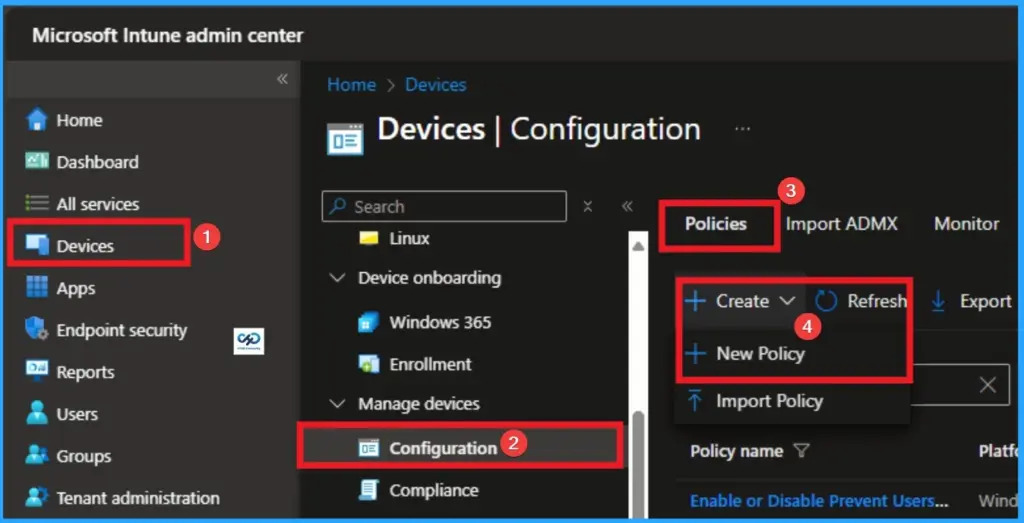
To start policy creation, sign in to the Microsoft Intune admin center. Then go to Devices > Configuration > +Create >+ New Policy. Choosing Platform and Profile is the next step after selecting New policy. It is a very necessary step to effectively configure the policy to appropriate platform.

What is a Basic Tab
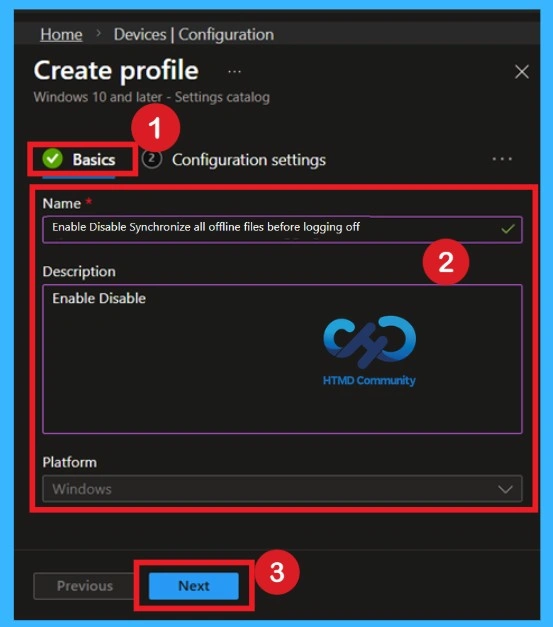
The Basics tab is the quickest step. Here, you need to enter the basic details such as the Name, Description, and Platform information. Since the platform is already set to, Windows you only need to provide a specific name and description for the policy, then click Next.
| Basic Details | Info |
|---|---|
| Name | Enable Disable Synchronize all offline files before logging off |
| Description | Enable Synchronize all offline files before logging off |
Configuration Settings through Settings Picker
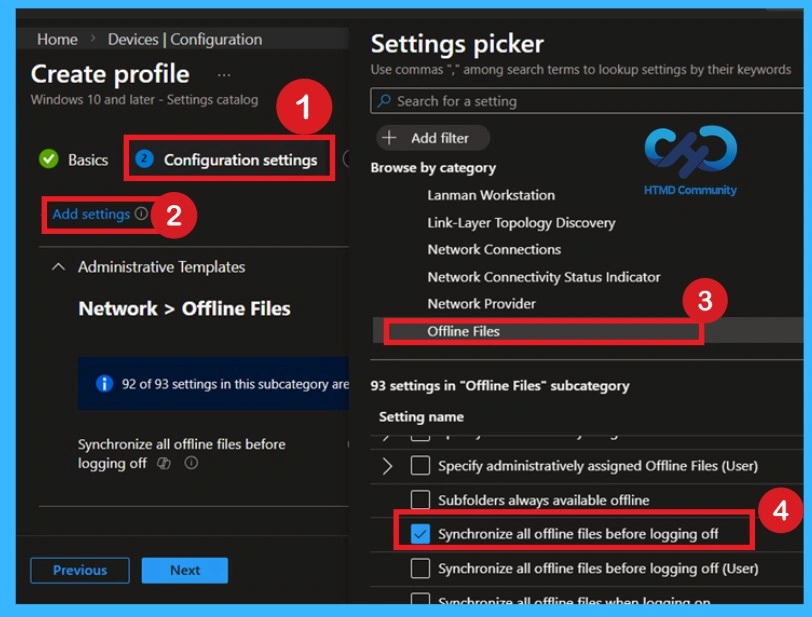
After creating the profile, move to the configuration settings section and use the Settings Picker to locate the required policy. Search for “Offline Files” and select the setting named “Synchronize all offline files before logging off.” Add this setting to your configuration profile. This step is important because it defines how the system handles file synchronization during user logoff and ensures centralized control through Intune.
Disabled State of Policy
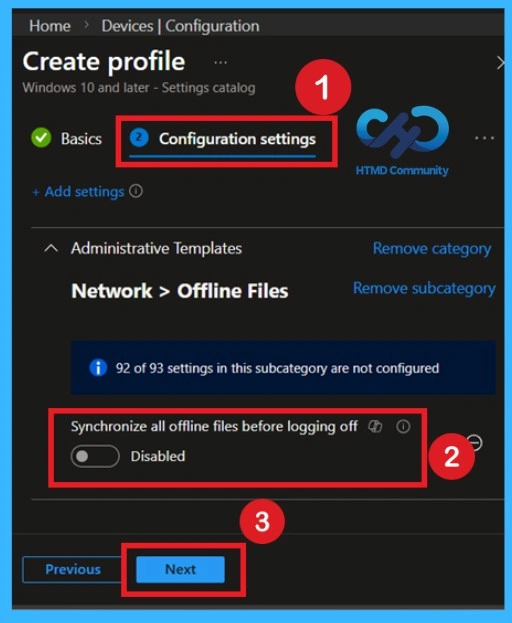
When the policy is set to Disabled, the system performs only a quick synchronization during logoff. This means files will remain accessible and complete, but they may not reflect the most recent updates. This option is useful in environments where faster logoff is preferred over data freshness. Additionally, users will not be able to change this setting manually because it is controlled by the policy.
Activate the Policy
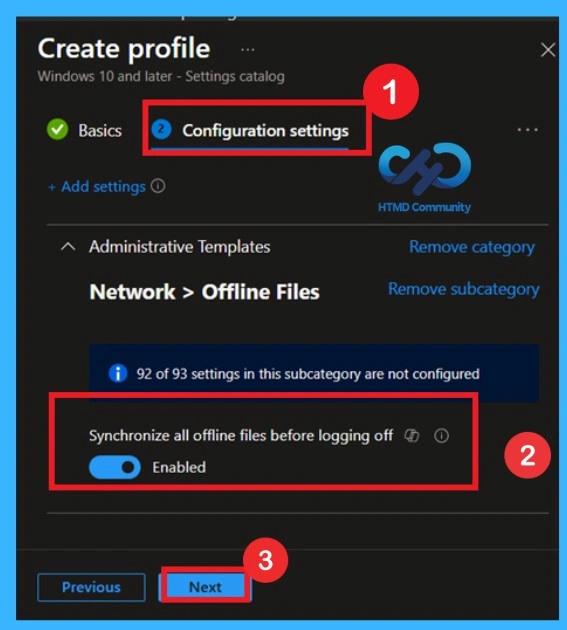
When the policy is Enabled, the system performs a full synchronization of offline files during logoff. This ensures that all files are completely updated and consistent with the network versions. It is especially beneficial in environments where data accuracy and integrity are critical. However, this may increase the time it takes for users to log off. Like the disabled state, users cannot override this setting.
Scope Tag
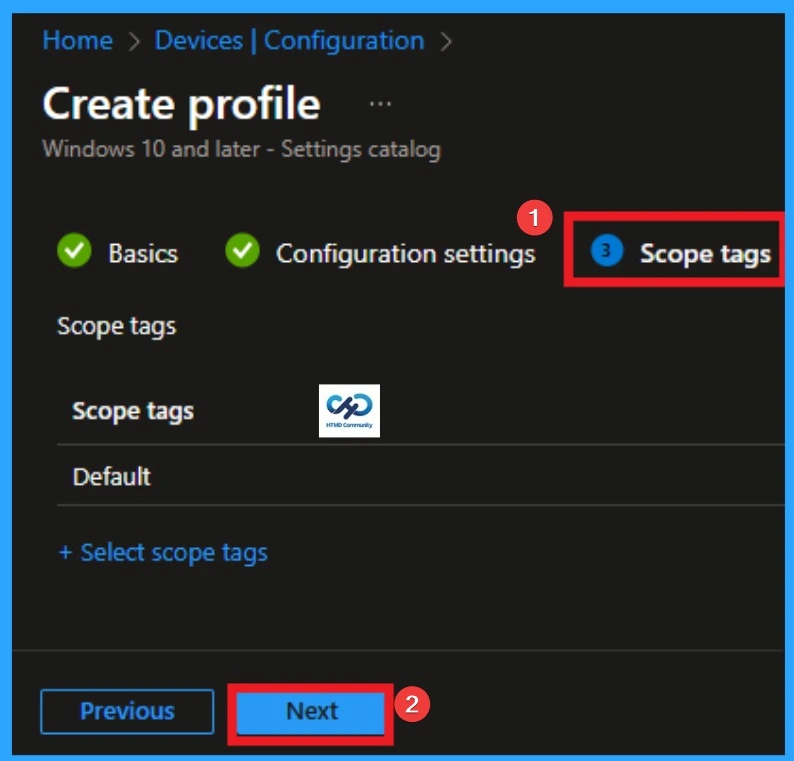
Scope tags are used to define which administrators can view or manage this policy within Intune. During this step, you can assign appropriate scope tags such as Default or any custom tags based on your organization’s structure. This helps in implementing role-based access control, ensuring that only authorized personnel can manage or modify the policy.
Assignments
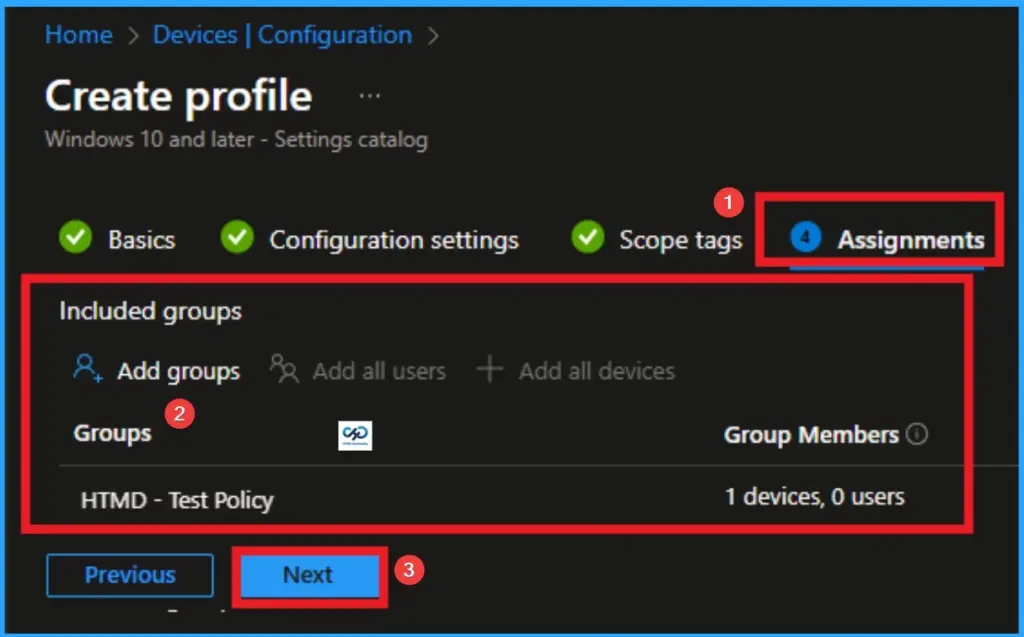
Assignments decide which devices receive the policy. Choose Included groups and select a test device group first to avoid issues. If you are assigning a policy to a specified group, the policy should be applied to the ad specific devices. So here I selected 2 groups that I needed If you want to add more it will possible. After the You can click on the next for the next step.
Final Step of Policy Creation
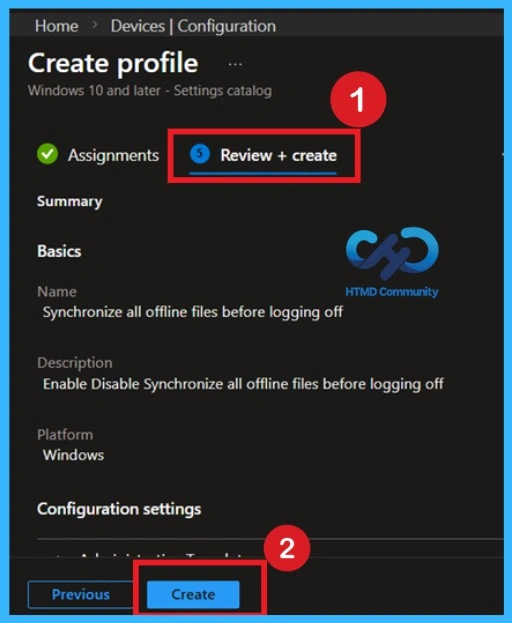
To complete the policy creation you can review all the policy details on the Review + create tab. It helps to avoid mistakes and successfully configure the policy. After verifying all the details click on the Create Button. After creating the policy you will get success message.
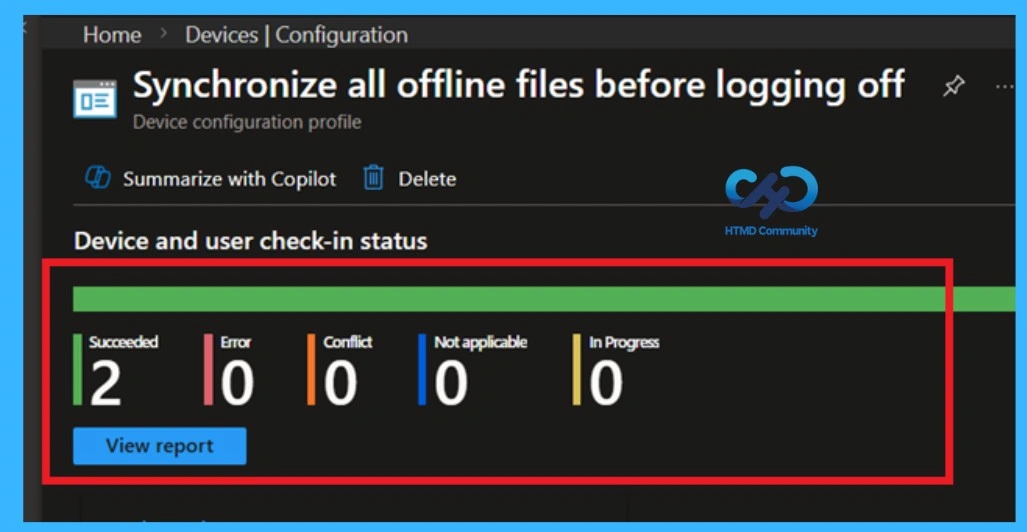
Conforming to the Policy Successfully or Not Through the Monitoring Status
After deployment, go to Devices > Configuration profiles and select this policy. Check Device status and User status to see whether it applied successfully. Devices should show a Succeeded status once the policy is active. Monitoring helps quickly identify any failed or pending devices. This step is important for compliance and troubleshooting.
Event Viewer Results
To enable client-side verification, open Event Viewer and navigate to Applications and Services Logs > Microsoft > Windows > Device Management > Enterprise Diagnostic Provider > Admin. Once there, you can search for specific policy results by using the Filter Current Log feature located in the right pane. This helps quickly get the relevant results within the log.
Removing the Assigned Group
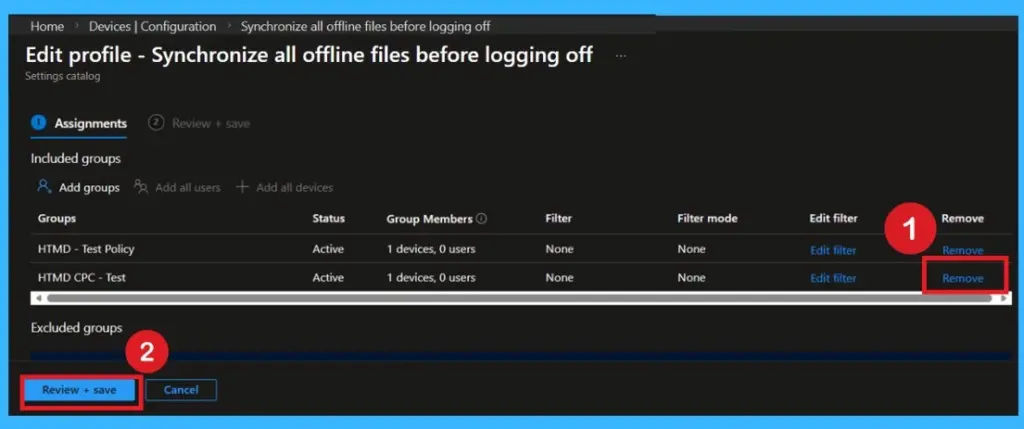
If you want to remove the Assigned group from the policy, it is possible from Intune Portal. To do this, open the Policy in the Intune Portal, edit the Assignments tab, and Remove the Policy.
To get more detailed information, you can refer to our previous post – Learn How to Delete or Remove App Assignment from Intune using by Step-by-Step Guide.
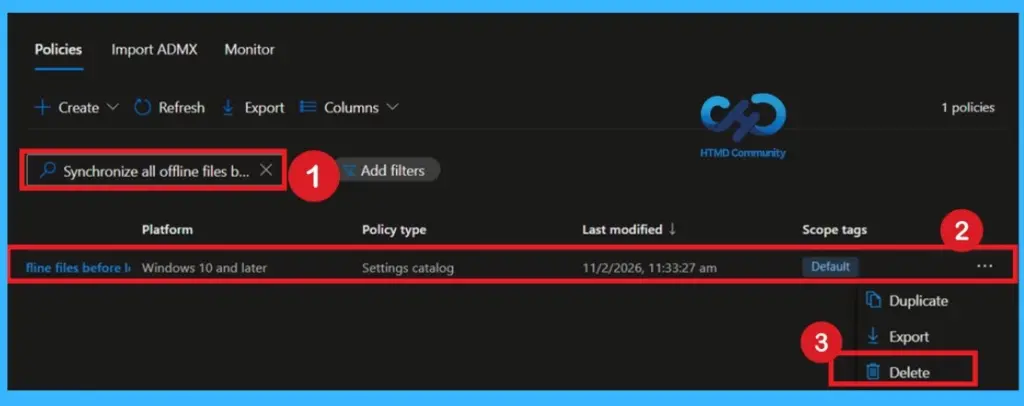
Delete the Policy Permanantly from your Tenant
If you want to permanently delete a policy from deployment, you can do so easily. First, go to Device Configuration Profiles in Intune and search for the policy by its name. Once you locate the policy, click on the 3 dots (More options) next to it. You will see a list of options and select Delete.
For detailed information, you can refer to our previous post – How to Delete Allow Clipboard History Policy in Intune Step by Step Guide.
Need Further Assistance or Have Technical Questions?
Join the LinkedIn Page and Telegram group to get the latest step-by-step guides and news updates. Join our Meetup Page to participate in User group meetings. Also, join the WhatsApp Community and the Whatsapp channel to get the latest news on Microsoft Technologies. We are there on Reddit as well.
Author
Anoop C Nair is a Workplace Technology solution architect with 25+ years of experience. Microsoft Certified Trainer. Microsoft MVP from 2015 onwards for consecutive 11+ years! He is a blogger, Speaker, and Founder of HTMD Community and HTMD Conference. His main focus is on Device Management technologies like Intune, Windows, and Cloud PC. He writes about technologies like Intune, SCCM, Windows, Cloud PC, Entra, and Microsoft Security.