
Key Takeaways
- Silently move Windows known folders to OneDrive automatically moves the Desktop, Documents, and Pictures folders to OneDrive.
- OneDrive Files On-Demand helps save local storage by keeping files online until they are needed.
- Silent OneDrive sign-in allows users to be automatically signed in to the OneDrive sync app using their Windows credentials.
- Prompt users to move Windows known folders to OneDrive gives users the option to move their folders when silent movement is not completed.
In this post, we are discussing Configure OneDrive Known Folder Move using Intune to Automatically Protect User Files OneDrive Files On-Demand allows users to access their OneDrive files without storing every file locally on the Windows device. Files can remain available online and are downloaded to the device when users open or need them. This helps reduce the amount of local storage consumed by OneDrive content.
Table of Contents
Table of Contents
Configure OneDrive Known Folder Move Using Intune to Automatically Protect User Files
The Use OneDrive Files On-Demand policy can be configured through the Microsoft Intune Settings Catalog. Administrators can enable this policy centrally and apply it to managed Windows devices, providing a consistent OneDrive storage experience for users.
When Files On-Demand is enabled, users can see their OneDrive files in File Explorer while files that are not currently needed can remain online-only. This can help optimize device storage while still allowing users to access their OneDrive content when required.
- Prevent Users To Save Files On Local Drives Desktop Using Intune
- Easily Duplicate Settings Catalog Policy In Intune
- Intune User Policy Troubleshooting Tips For Prevent Changing Theme
- Intune Logs Event IDs IME Logs Details For Windows Client Side Troubleshooting
On-Demand Feature
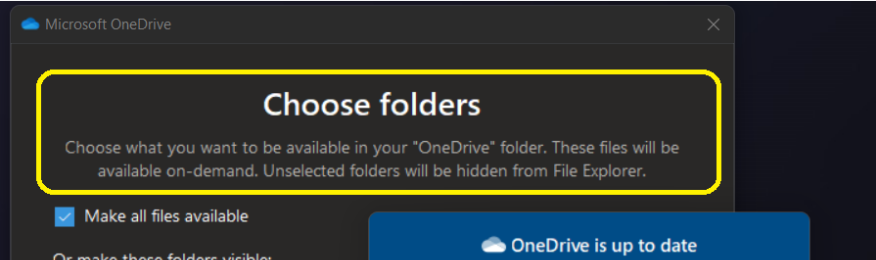
OneDrive caching feature should be enabled by default for all the OneDrive configurations. You can check this caching configuration from the white or blue OneDrive cloud icon in the Windows notification area. You can check the configuration from the settings option from there.

The OneDrive caching policy can be configured using Intune for Windows 11 devices. A blue cloud icon next to a OneDrive file or folder indicates that the file is only available online. The Online-only files don’t take up space on your Windows 11 PC.
Intune Policy to Silently Move Known Folders to OneDrive
This setting lets you control whether OneDrive Files On-Demand is enabled for your organization. If you enable this setting, OneDrive Files On-Demand will be turned on by default. If you disable this setting, OneDrive Files On-Demand will be explicitly disabled and users can’t turn it on. If you do not configure this setting, users can turn OneDrive Files On-Demand on or off.
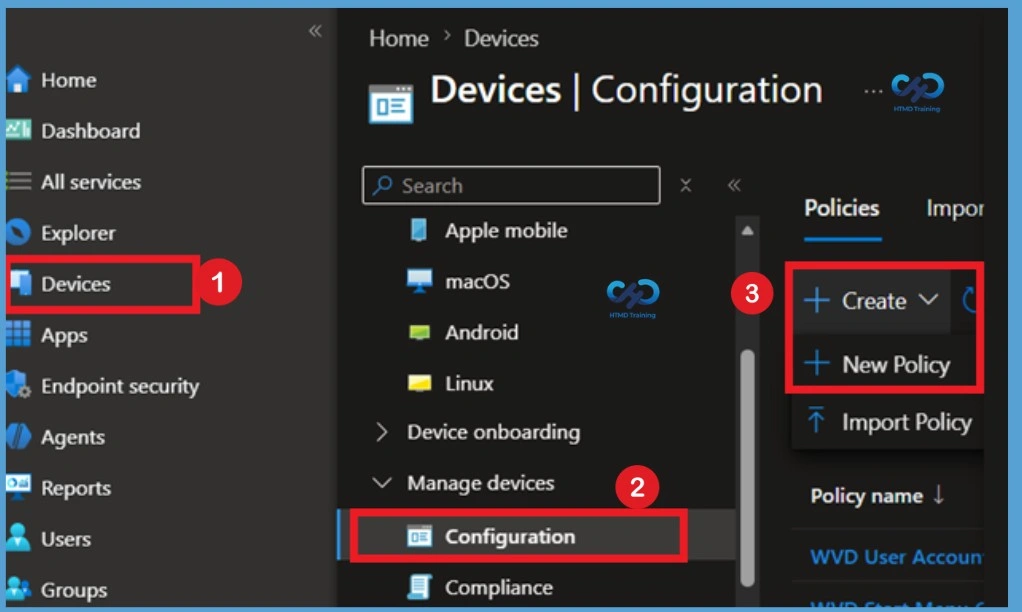
- Login to Microsoft Intune Admin Center
- Navigate to Devices > Windows > Configuration profiles.
- Click on +Create Profile.
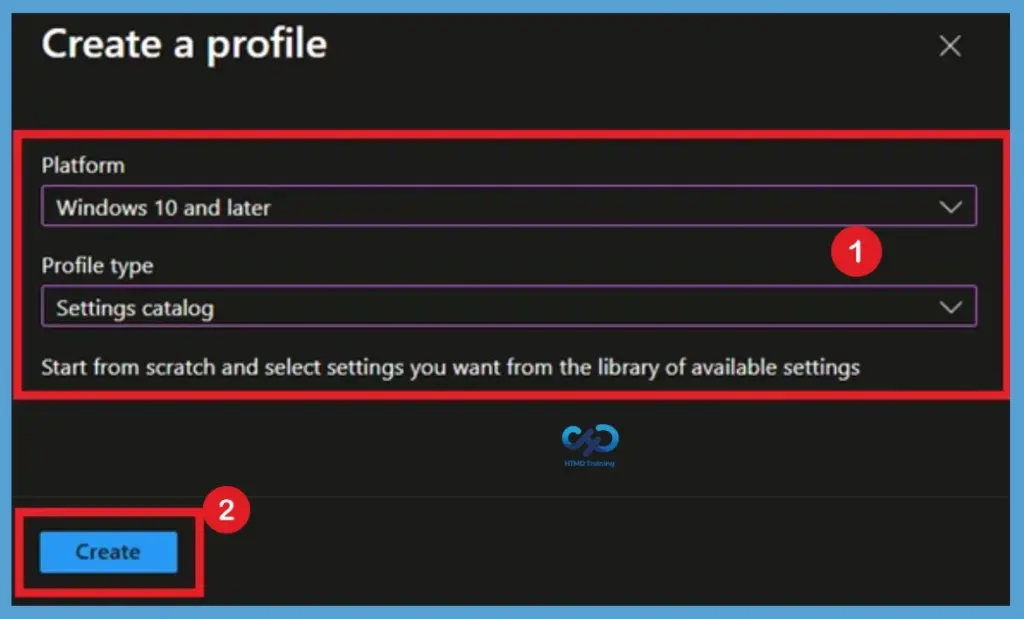
Click on the Create button. For Example – You have to select the platform Windows 10 and later. You can enter the details such as the name of the Policy and settings in the next screens.
- Select Platform: Select Windows 10 and later.
- Profile: Select Settings catalog.
Basic Tab Importantce
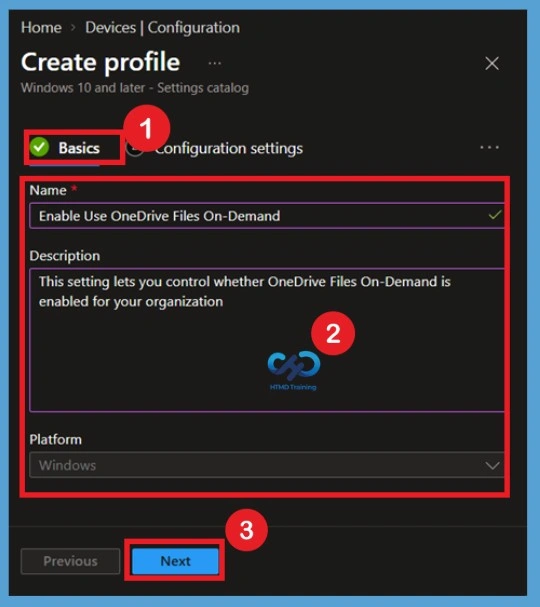
Enter a suitable name such as OneDrive Files On-Demand Policy. Add a description explaining that the policy enables OneDrive Files On-Demand to help reduce local storage usage by allowing files to remain online until they are needed. Select Next to continue.
- Name – Enable OneDrive Files On-Demand Policy
- Description – This setting lets you control whether OneDrive Files On-Demand is enabled for your organization.
- Click on the Next button to continue.
Configuration Settings
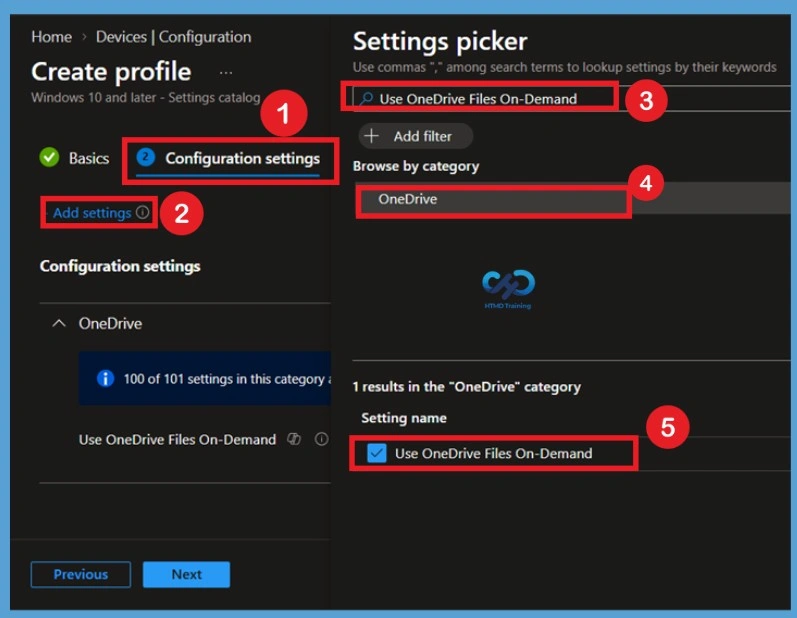
In Configuration Settings you can click on the +Add Settings link to bring up the new blade of the policy configuration wizard. This link will help with a new blade called the Settings Picker with a search box. In Settings catalog you can choose which settings you want to configure with the settings catalog. Click on Add settings to browse or search the catalog for the settings you want to configure.
Search for Use OneDrive Files On-Demand in the search field. Select OneDrive from the available category and choose Use OneDrive Files On-Demand. Add the setting to the policy and configure it according to your organization’s requirements.
NOTE! – Settings picker – Use commas “,” among search terms to lookup settings by their keywords – In this scenario, I used OneDrive as a keyword.
Disabled by Default
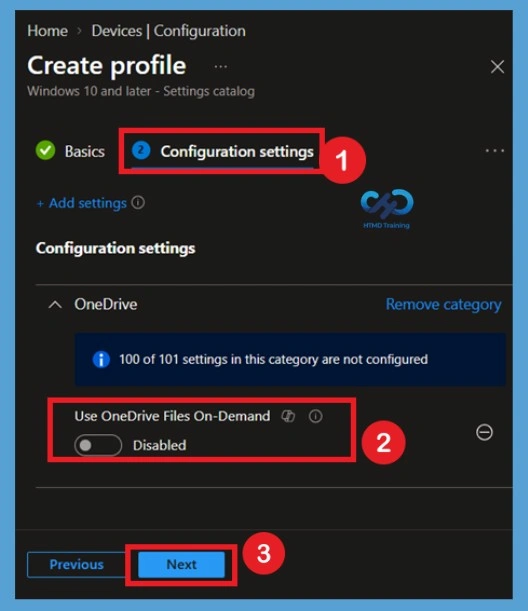
The Use OneDrive Files On-Demand policy is not enforced when the setting is left unconfigured. In this state, Intune does not centrally control the Files On-Demand setting for the targeted devices. To enforce Files On-Demand through Intune, the setting must be added to the Settings Catalog profile and enabled.
Enable the Policy
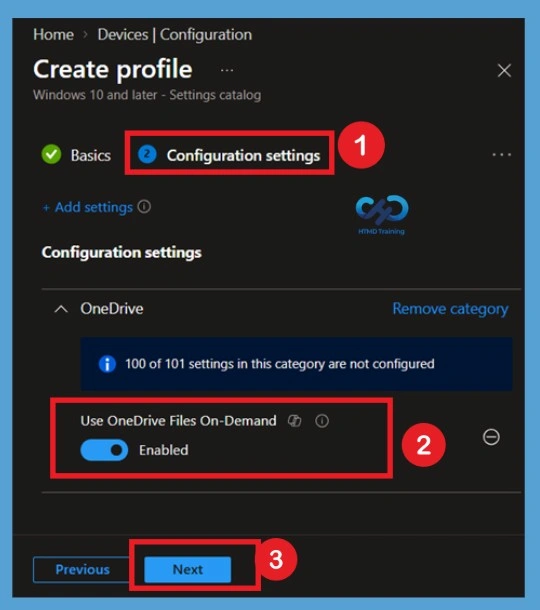
Enable Use OneDrive Files On-Demand in the configuration profile. When enabled, OneDrive Files On-Demand is turned on for the targeted Windows devices. This allows files to remain online when they are not required locally, helping reduce the amount of storage consumed by OneDrive files on the device. This setting policy lets you control whether OneDrive Files On-Demand is enabled for your organization. Files On-Demand helps you save storage space on your users’ computers and minimize the network impact of sync.
- You can now click on the slide bar to Enable the Use OneDrive Files On-Demand policy “Use OneDrive Files On-Demand.
NOTE! – Recommend you test these policies thoroughly in a staging environment and confirm the behavior before production implementation. It helps to prevent saving OneDrive files into a local drive/device. To make this policy work properly, you might need to adjust some of your other OneDrive policies, such as Known Folder Redirection.
Scope Tags
On the Scope tags page, configure the appropriate scope tags for the policy if your organization uses them. Scope tags determine which Intune administrators can view and manage the policy. If scope tags are not required, keep the default configuration and select Next.
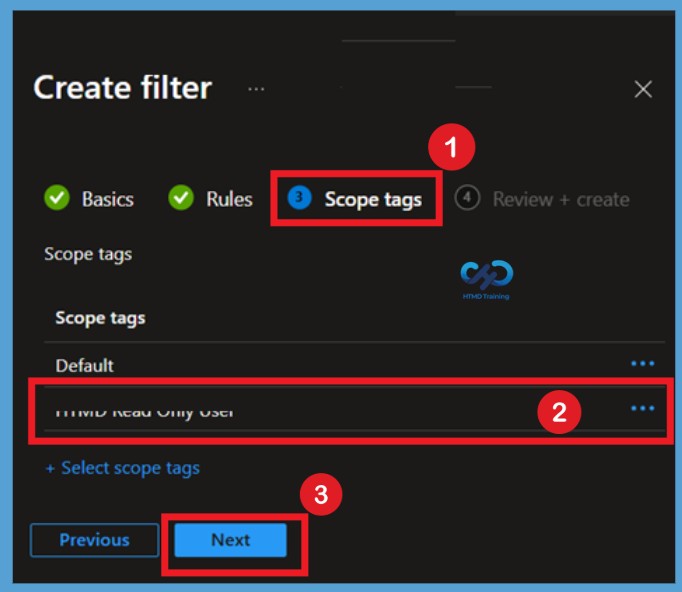
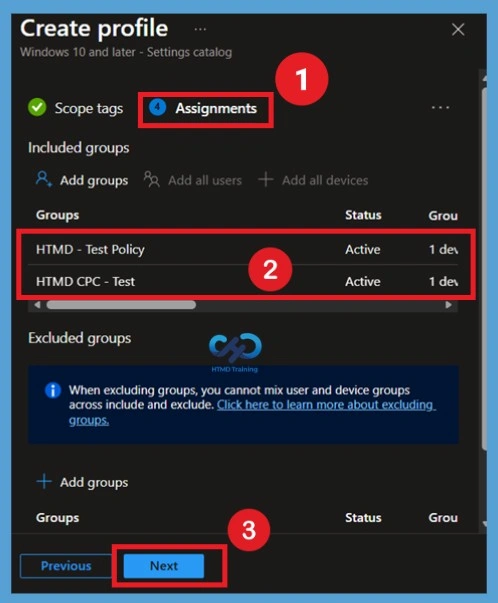
Assignments for Files OneDrive Files On-Demand
In the Assignments section, click Add groups under Included groups and select the required user or device groups for Files OneDrive Files On-Demand policy. Assigning the policy ensures it is applied only to the intended users or devices, such as test groups or production environments. Then click on the Next.
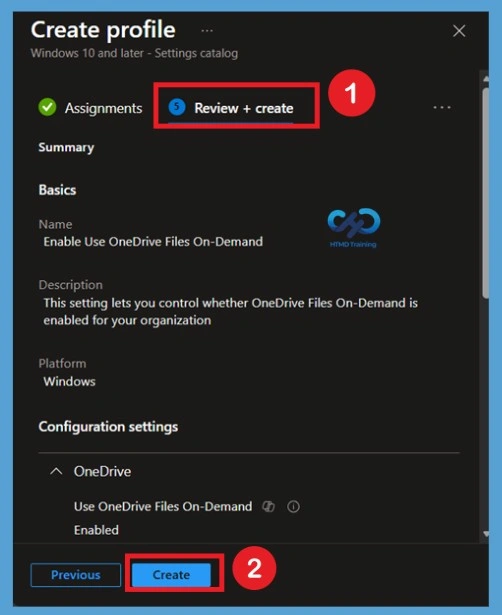
Review + Create for the Files OneDrive Files On-Demand Policy
On the Review + create page, verify the profile name, platform, configuration settings, scope tags, and assignments. Confirm that Use OneDrive Files On-Demand is configured correctly. Select Create to complete the policy creation. Intune will then deploy the configuration to the assigned groups.
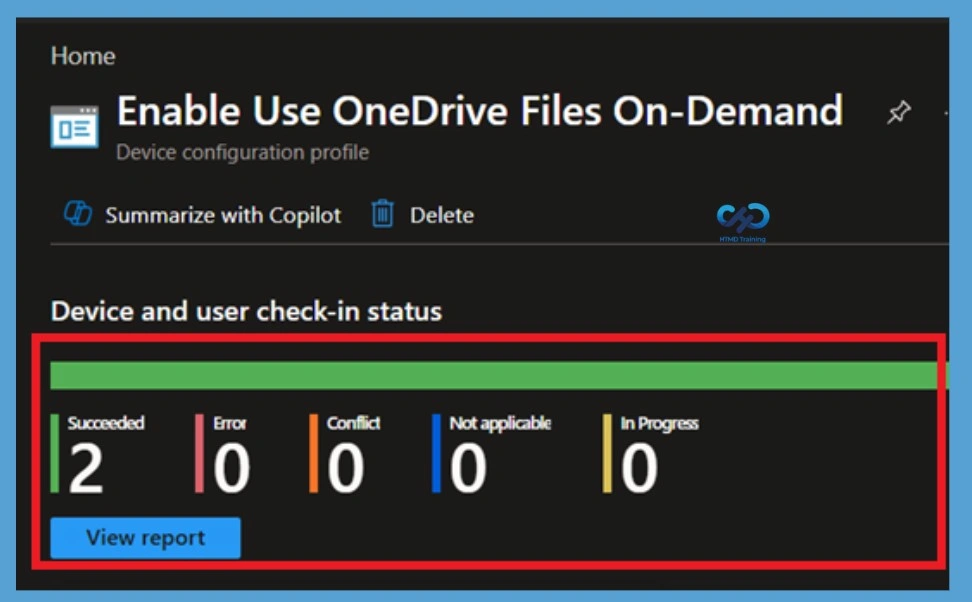
Monitoring Status
After the policy is created, administrators can monitor its deployment status directly from the Microsoft Intune admin center. Monitoring the deployment helps verify whether the Exclude Specific Kinds of Files from Being Uploaded policy has been successfully applied to the targeted devices and identifies any deployment errors.
- Navigate to Devices > Configuration > Policies and open the policy. Review the Overview, Device status, User status, to confirm successful deployment.
Client Side Verification
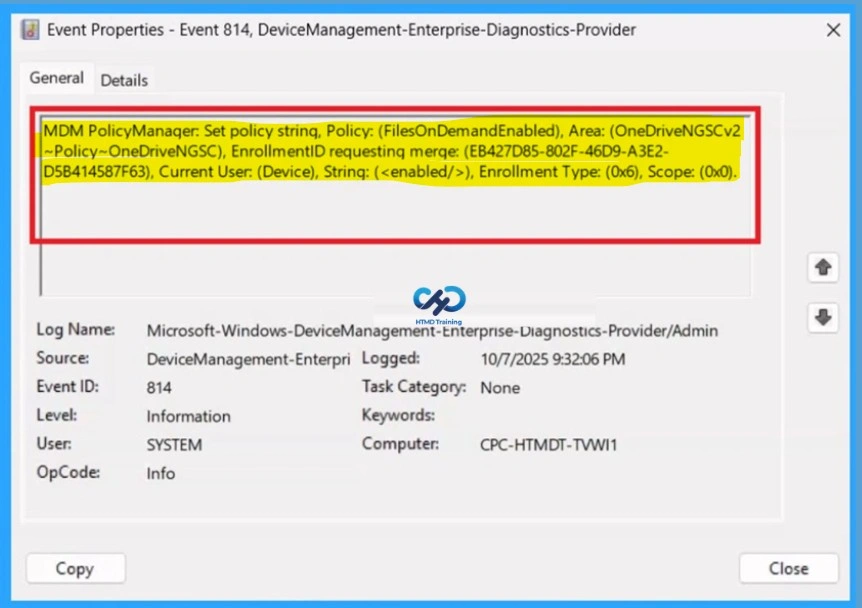
To verify policy application, open Event Viewer and navigate to Applications and Services Logs > Microsoft > Windows > DeviceManagement-Enterprise-Diagnostics-Provider > Admin. Select Filter Current Log from the Actions pane and search for Event ID 814, which indicates that the Intune policy has been processed successfully.
| Policy Details |
|---|
| MDM PolicyManager: Set policy strinq, Policy: (FilesOnDemandEnabled), Area: (OneDriveNGSCv2 ~Policy~OneDriveNGSC), EnrollmentID requesting merqe: (EB427D85-802F-46D9-A3E2- D5B414587F63), Current User: (Device), String: (), Enrollment Type: (0x6), Scope: (0x0). |
Remove Assigned Groups
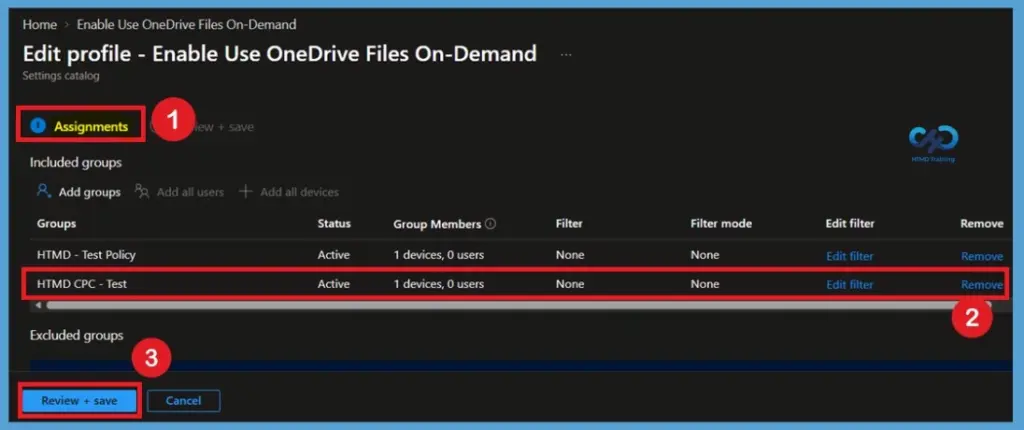
Navigate to Devices > Windows > Configuration profiles in the Microsoft Intune admin center and select the OneDrive Files On-Demand Policy. Open Properties, locate the Assignments section, and select Edit. Under the assigned groups, remove the Microsoft Entra ID group that should no longer receive the Use OneDrive Files On-Demand policy. Review the assignment list to make sure the intended group has been removed while any required groups remain assigned.
- Select Review + save to apply the assignment change
For detailed information, you can refer to our previous post – Learn How to Delete or Remove App Assignment from Intune using by Step-by-Step Guide.
How to Delete this Policy from Intune
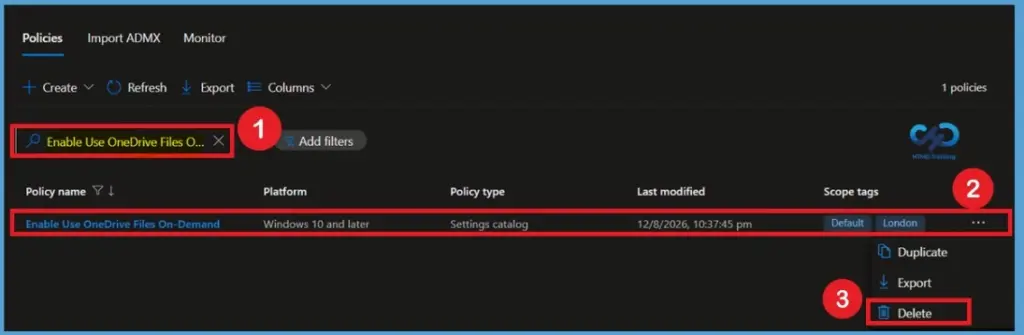
Navigate to Devices > Windows > Configuration profiles and locate the OneDrive Files On-Demand Policy. Open the policy and review the Assignments, Configuration settings, and deployment status before deleting it. If the policy is still assigned, remove the assigned groups first so the profile is no longer targeted to users or devices.
- After confirming that the policy is no longer required, return to the Configuration profiles list, select the OneDrive Files On-Demand Policy, and choose Delete.
For detailed information, you can refer to our previous post – How to Delete Allow Clipboard History Policy in Intune Step by Step Guide.
Need Further Assistance or Have Technical Questions?
Join the LinkedIn Page and Telegram group to get the latest step-by-step guides and news updates. Join our Meetup Page to participate in User group meetings. Also, join the WhatsApp Community and the Whatsapp channel to get the latest news on Microsoft Technologies. We are there on Reddit as well.
Author
Anoop C Nair is Workplace Technology solution architect with 25+ years of experience in global enterprise organizations such as JP Morgan, Capgemini, etc. He is Microsoft Certified Trainer. Microsoft MVP from 2015 onwards for consecutive 11 years! He also conducts Intune and modern workplace tech training for enterprise organizations. He is Blogger, Speaker, and Founder of HTMD Community and HTMD Conference. His focus is on Device Management technologies such as Intune, Windows, Cloud PC. He writes about technologies like Intune, SCCM, Windows, Cloud PC, Windows, Entra, Microsoft Security.
Nice post Anoop, is there an reason why choosing the service catalog above admx policies. For custom oma-uri it is an no brainer.
I think the settings catalog is the recommended way from Microsoft. Isn’t so?