
Key Takeaways
- Restricts user access to both Control Panel and the Windows Settings app.
- Prevents users from changing system, privacy, network, and account configurations.
- Helps maintain a consistent and secure Windows desktop experience.
- Removes Control Panel and Settings access points from multiple Windows UI locations.
Let’s check how to Prohibit Access to Control Panel and PC Settings to Prevent Users from Modifying System Settings using Intune Policy. Windows devices provide users with access to the Control Panel and Settings app, allowing them to modify system, network, privacy, and account configurations. The Prohibit Access to Control Panel and PC Settings policy prevents users from launching Control Panel and the Windows Settings app by blocking the associated executable files, including Control .exe and SystemSettings.exe.
Table of Contents
Table of Contents
Prohibit Access to Control Panel and PC Settings to Prevent Users from Modifying System Settings using Intune Policy
This policy also removes Control Panel and PC Settings from various Windows user interface locations, reducing the possibility of unauthorized changes. Using the Intune Settings Catalog simplifies the deployment of this administrative template policy without requiring registry modifications or custom scripts.
By assigning the policy to appropriate user groups, administrators can deliver a secure and consistent user experience across Intune-managed Windows 11 devices while reducing configuration-related support issues.
- Remove Search Link from Start Menu to Restrict Search UI Elements in Windows using Intune Policy
- Intune User Policy Troubleshooting Tips for Prevent Changing Theme MEM
- Disable PST Access to Outlook Profile using Intune MEM
- Intune Logs Event IDs IME Logs Details for Windows Client Side Troubleshooting
- Fix Azure AD PRT Primary Refresh Token Issue with Windows 10 21H2 or KB5006738
Disable Control Panel PC Settings Using Intune – Create Profile
Let’s try to Disable Control Panel PC Settings using Microsoft Intune Admin Center. This Policy will help the admins to deliver a consistent experience with all the end-user devices. This Policy will help to prohibit access to Control Panel and PC Settings using Intune.

Let’s start creating the policy straightaway. You can perform registry changes to achieve the same results, but I won’t recommend doing the registry hack when a better option is available for you.
- Login to Microsoft Intune Admin Center
- Navigate to Devices > Windows > Configuration profiles.
- Click on +Create Profile.
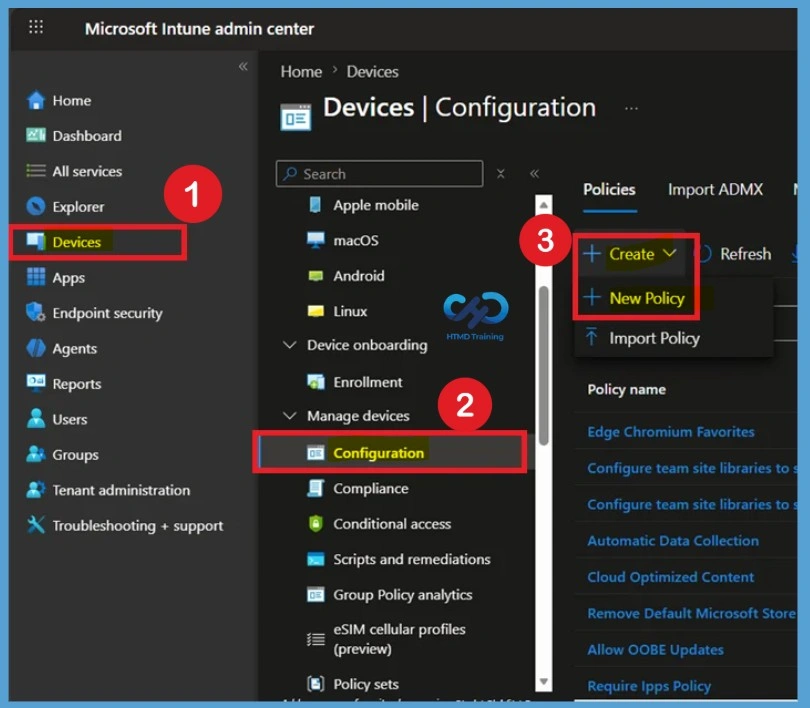
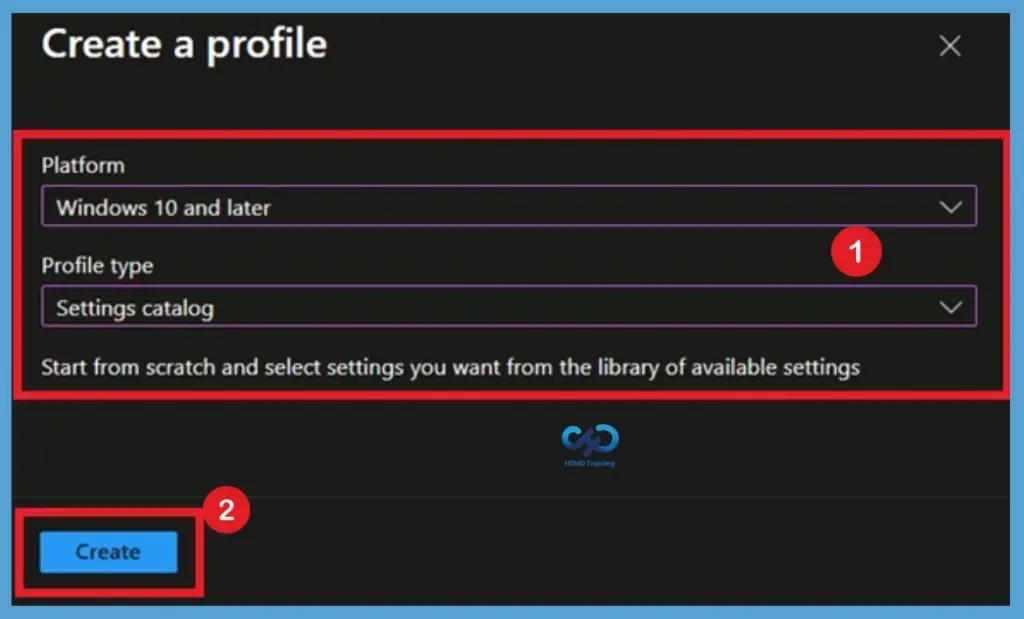
In Create Profile blade, You can select Platform: Select Windows 10 and later and Profile: Select Settings catalog. Click on the Create button. For Example – You have to select the platform Windows 10 and later. You can enter the details such as the name of the Policy and settings in the next screens.
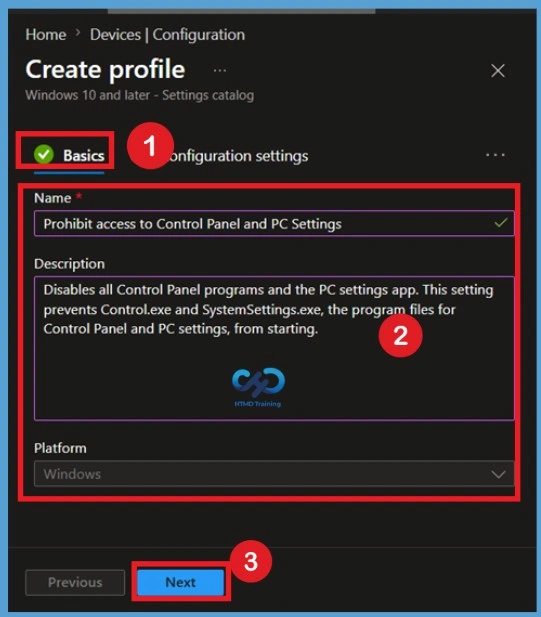
Basic Tab for Prohibit access to Control Panel and PC Settings
Once you click on Create button from the above page, you will need to enter the Name and Description of the setting catalog policy. Enter the name of the policy Name such as Prohibit access to Control Panel and PC Settings and click on the next button to continue. I recommend using detailed descriptions so that colleagues can easily understand the details.
- For this example, the policy name is set to Prohibit Access to Control Panel and PC Settings, and the description explains that the policy disables all Control Panel programs and the windows Settings app by preventing their associated executable files from launching.
Configuration Settings for Prohibit Access to Control Panel and PC Settings
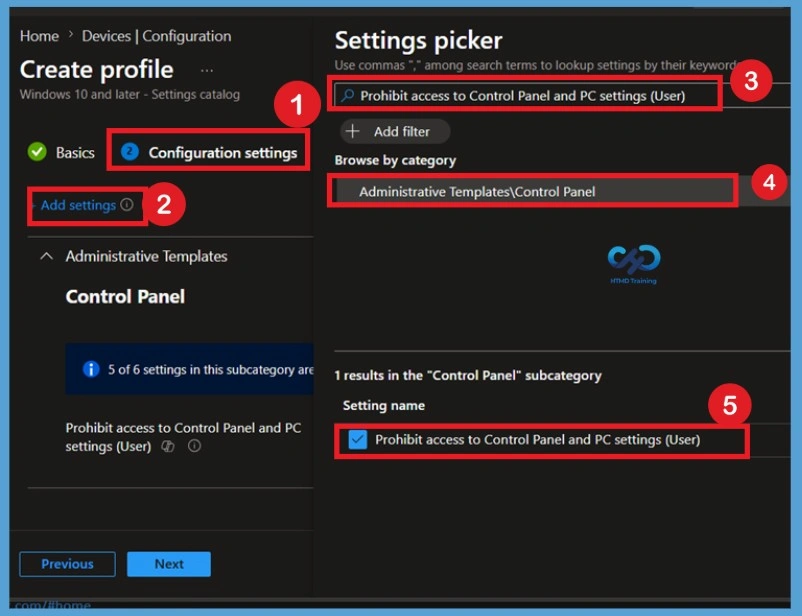
You can click on the +Add Settings link to bring up the new blade of the policy configuration wizard. This link will help with a new blade called the Settings Picker with a search box.
Search for Prohibit access to Control Panel and PC settings (User) and select the policy setting available under Administrative Templates > Control Panel. After selecting the setting, add it to the configuration profile and proceed with the policy configuration.
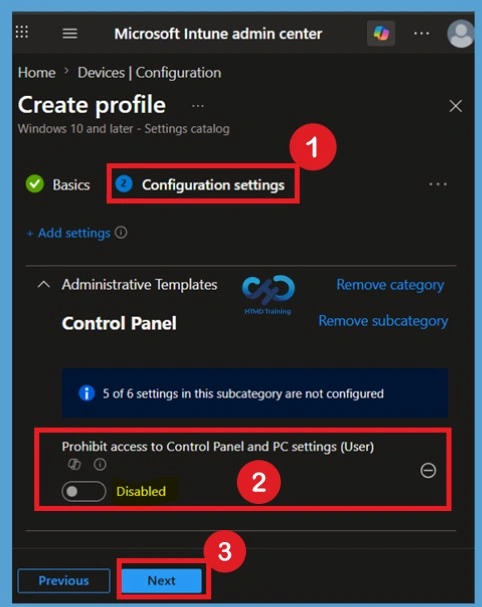
Defaulted State of Prohibit Access to the Control panel and PC Settings Policy
By default, the Prohibit Access to Control Panel and PC Settings policy is configured as Disabled when it is added to the configuration profile. In this state, Windows does not enforce any restrictions, allowing users to continue accessing both the Control Panel and Windows Settings. Keeping the Prohibit Access to Control Panel and PC Settings policy disabled means users can modify system, account, network, and personalization settings according to their permissions without any administrative restrictions applied through Intune.
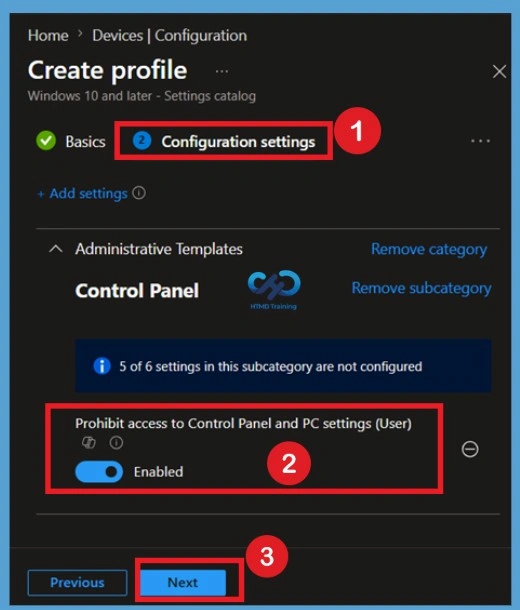
Enable the Prohibit Access to the Control panel and PC Settings
To restrict access, enable the Prohibit Access to Control Panel and PC Settings policy by turning on the policy toggle in the Configuration Settings page. Enabling the policy prevents users from launching the Control Panel and Windows Settings application. Once the Prohibit Access to Control Panel and PC Settings policy is enabled, Windows blocks access to the associated executable files and removes several entry points to these configuration tools.
- This helps administrators enforce device settings and improve configuration management across managed Windows devices.
- After Enabling Click on the Next.
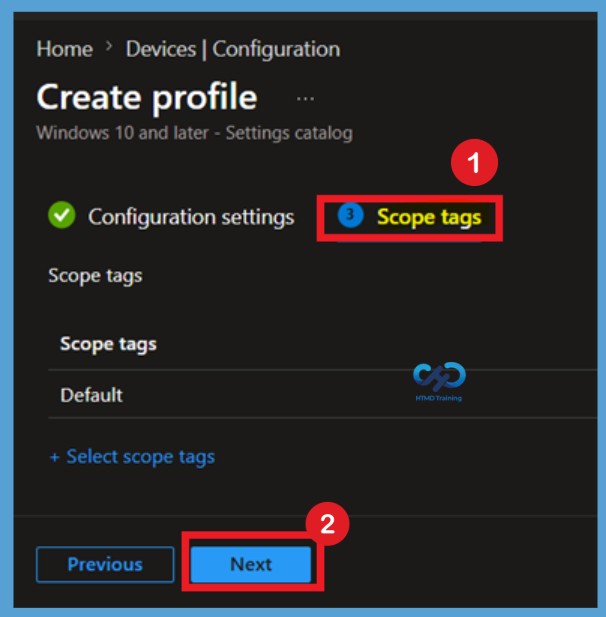
Know the Scope Tags
Scope Tags can be configured for the Prohibit Access to Control Panel and PC Settings policy to control which administrators can view and manage the policy within the Intune environment. If delegated administration is implemented in your organization, assigning appropriate Scope Tags to the Prohibit Access to Control Panel and PC Settings policy can improve administrative management and access control.
- Here I choose to Skip this section by Click on the Next.
Assignment Tab
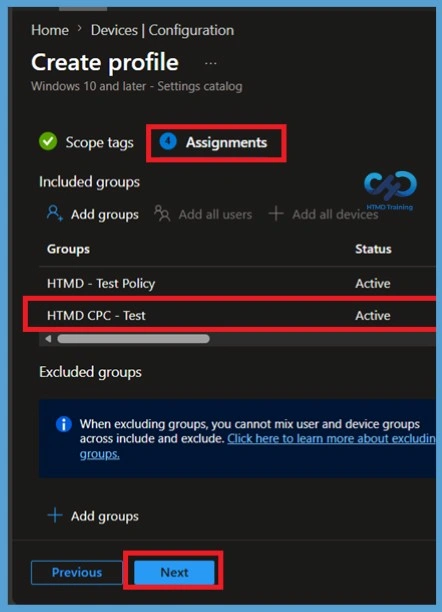
Assigning the Prohibit Access to Control Panel and PC Settings policy to appropriate user groups ensures that only the intended users receive the restriction when their devices synchronize with Microsoft Intune. Here I Include 2 groups such as HTMD Test policy groups and HTMD – CPC -Test groups then click on the Next.
Review + Create Tab
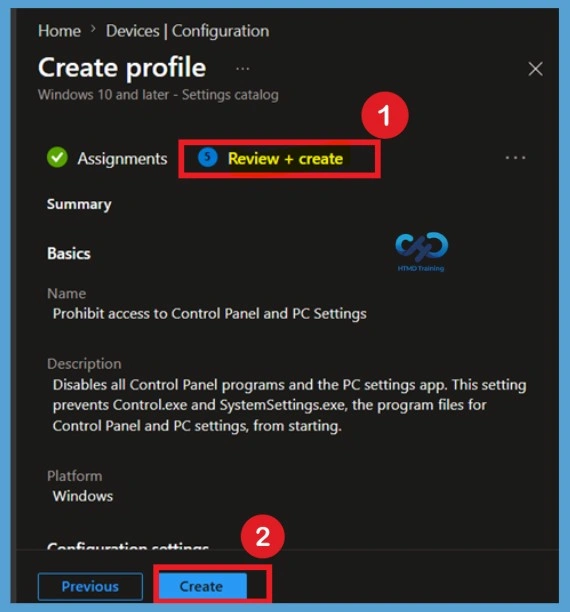
Before deployment, review all configuration settings associated with the Prohibit Access to Control Panel and PC Settings policy, including assignments and policy configurations. This helps ensure that the correct restrictions are being applied. After reviewing the policy settings, click Create to deploy the Prohibit Access to Control Panel and PC Settings policy to the assigned users and managed Windows devices.
Monitoring Status
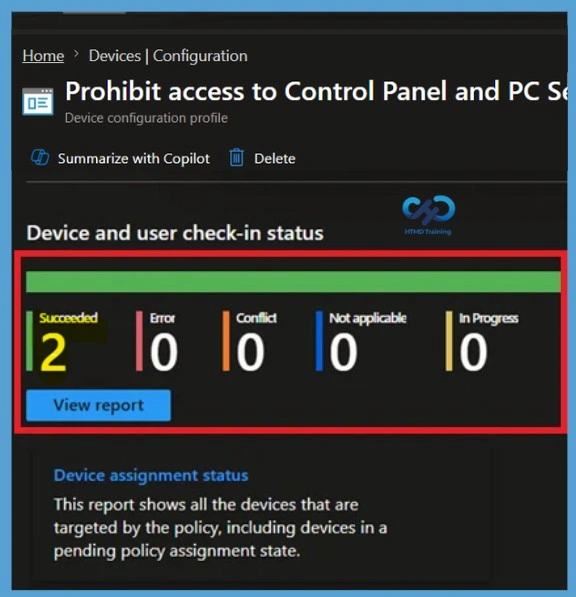
Administrators can monitor the deployment status of the Prohibit Access to Control Panel and PC Settings policy from the Microsoft Intune admin center. The monitoring section displays whether the policy deployment was successful, pending, or failed. Here you can see that the Policy is Succeeded.
- You can check this through Device>Configuration Profile>Search the Policy Name (Prohibit Access to the Control panel and PC Settings)
Client Side Verification
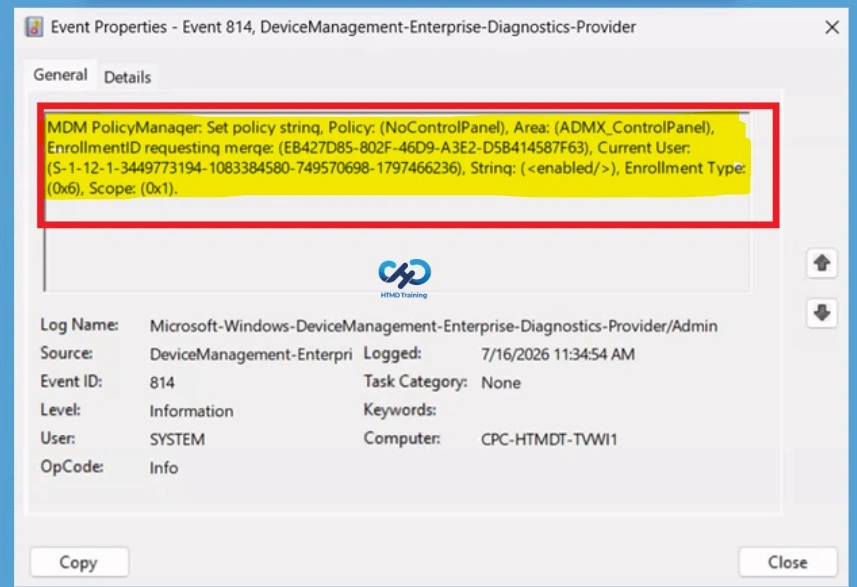
The Intune event ID indicates a string policy is applied on the Windows 11 devices. You can also see the exact value of the policy applied to those users. In the target device, you can check the Event log path to confirm – Applications and Services Logs – Microsoft – Windows – Device management-Enterprise-Diagnostics-Provider – Admin.
| Policy Info |
|---|
| MDM PolicyManager: Set policy strinq, Policy: (NoControlPanel), Area: (ADMX_ControlPanel), EnrollmentID requesting merqe: (EB427D85-802F-46D9-A3E2-D5B414587F63), Current User: (S-1-12-1-3449773194-1083384580-749570698-1797466236), String: (), Enrollment Type: (0x6), Scope: (0x1). |
Remove Assigned Groups
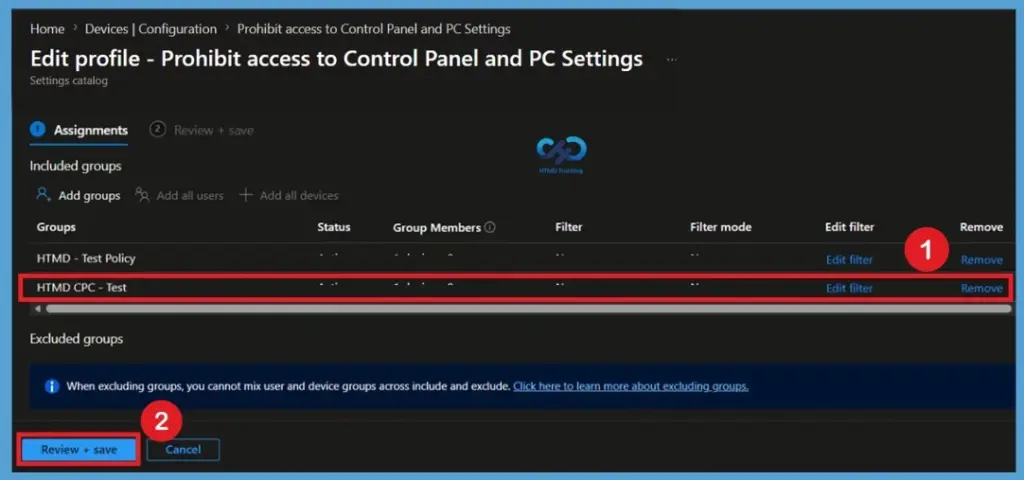
If the Prohibit Access to Control Panel and PC Settings policy is no longer required for certain users, administrators can remove the assigned groups from the policy assignment section in Intune. Once the assigned groups are removed and devices complete their next synchronization cycle, the restrictions enforced by the Prohibit Access to Control Panel and PC Settings policy will no longer apply to those users.
- To remove the assignments, navigate to the policy profile in the Intune admin center and select Properties > Assignments > Edit.
For detailed information, you can refer to our previous post – Learn How to Delete or Remove App Assignment from Intune using by Step-by-Step Guide.
Delete Policy Permanently
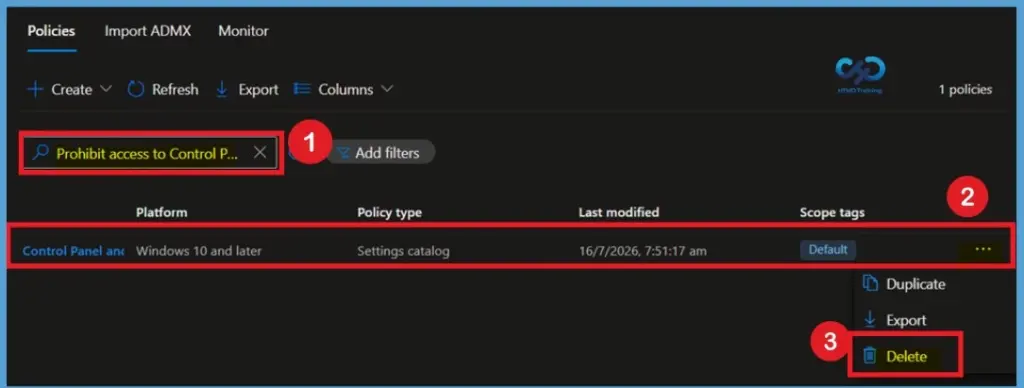
Administrators can permanently delete the Prohibit Access to Control Panel and PC Settings policy from Microsoft Intune when it is no longer required in the organization. Before deleting the Prohibit Access to Control Panel and PC Settings policy, it is recommended to remove all assignments and verify that affected users have received updated configurations to avoid unintended policy behavior.
- To delete the Remove Search link from Start Menu policy, go to Devices > Windows > Configuration Profiles, select the Remove Search Link from Start Menu profile, and choose Delete.
For detailed information, you can refer to our previous post – How to Delete Allow Clipboard History Policy in Intune Step by Step Guide.
Conclusion Control Panel Restrictions
The implementation of the prohibit access to the control panel and PC settings policy was easy. Intune setting catalog workflow makes admin life easier.
The end-user experience can still see the settings app icon in the start menu (before and after logging off and restarting the PC). When I tried to open the control panel, a restrictions popup with the following message appeared.
Restrictions – When Control Panel is launched –The operation has been canceled due to restrictions in effect on this computer. Please contact your system administrator.
Settings App – No specific error or popups; the settings app didn’t get launched.
Need Further Assistance or Have Technical Questions?
Join the LinkedIn Page and Telegram group to get the latest step-by-step guides and news updates. Join our Meetup Page to participate in User group meetings. Also, join the WhatsApp Community and the Whatsapp channel to get the latest news on Microsoft Technologies. We are there on Reddit as well.
Author
Anoop C Nair has been Microsoft MVP for 10 consecutive years from 2015 onwards. He is a Workplace Solution Architect with more than 22+ years of experience in Workplace technologies. He is a Blogger, Speaker, and Local User Group Community leader. His primary focus is on Device Management technologies like SCCM and Intune. He writes about technologies like Intune, SCCM, Windows, Cloud PC, Windows, Entra, Microsoft Security, Career, etc.
Hi, wouldn’t this block access to sign in options as well though, what if a user needs to change their PIN, Windows Hello ?