
Key Takeaways
- Every user starts with a fresh and clean Cloud PC environment.
- Signing out or even disconnecting will trigger an automatic reset after timeout.
- Without UES, no personal files, settings, or app changes are saved between sessions.
- Cloud PCs reset quickly, so they are always ready for the next user to connect.
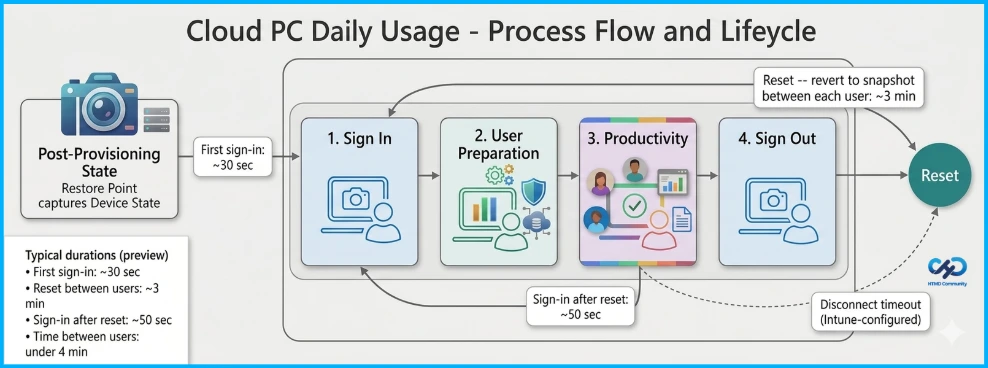
Hey,let’s discuss about Snapshot-Based Reset for Windows 365 Frontline in Shared Mode. The snapshot-based reset feature for Windows 365 Frontline shared Cloud PCs restores the system after each user session by automatically resetting it to a clean state when a user signs out. This ensures that no personal data or changes persist across sessions, helping organizations guarantee that every user starts with a fresh Cloud PC while preventing any data carryover between users.
Table of Contents
Table of Contents
Snapshot-Based Reset for Windows 365 Frontline in Shared Mode
If a user disconnects instead of signing out such as by closing the Windows App the session will eventually time out and trigger the same reset process. Without User Experience Settings (UES) enabled, any personal settings, files, or app configurations are not retained, ensuring no data persists between sessions.
| User Experience Sync Enabled |
|---|
| Selected user files and app configurations can be retained and restored. |
| The Cloud PC itself continues to reset and revert to a clean state between sessions. |
- How Tenant Configuration Management TCM Helps IT Admins Manage Configuration with Greater Control
- Microsoft Enables Faster Recovery with User-Initiated Provisioning in Windows 365 Reserve
- Zero-Touch Deployment and Instant Cloud PC Access with Windows 365 Boot and Reserve using Intune
Connectivity and Device Availability
After a user signs out, the Cloud PC automatically begins the reset process, during which it is temporarily unavailable for new connections and may appear as Unavailable (Servicing) in admin views. This status indicates that the system is being reverted to a clean state between user sessions. Once the reset is complete, the Cloud PC returns to a ready state and becomes available again in the shared pool for the next user.
For more information – Connectivity health checks in Windows 365.

Snapshot Update
The snapshot system for Cloud PCs ensures that each reset returns the device to a fully configured and policy-compliant state. An initial snapshot is taken after provisioning and first sync, and it is automatically updated over time to reflect the latest configurations, without requiring admin intervention.
- Initial snapshot – Captured after provisioning, once Intune sync and Device Provisioning Policy (DPP) workloads are applied.
- Refresh cadence – Updates daily on a rolling 24-hour cycle per Cloud PC.
- Intune alignment – Includes the latest synced policies and app deployments before each capture.
- Admin visibility – Snapshots are system-managed and can’t be viewed or controlled directly by admins.
Deploying Updated Apps to Snapshot-Based Reset Cloud PCs
To deploy an updated app version to Cloud PCs using snapshot-based reset, avoid relying only on runtime Intune deployments since those changes are removed after a reset. Instead, assign the updated app to the device group in Intune and reprovision the Cloud PCs. During reprovisioning, the app is installed as part of the device setup and included in the snapshot, ensuring it remains available after every reset.
Deploy an Updated App Version to Cloud PCs using Snapshot-Based Reset
To deploy an updated app version to Cloud PCs that use snapshot-based reset, you should not depend on runtime Intune deployments alone, as those changes are removed after each reset. Instead, assign the updated app version to the Cloud PC device group in Intune and reprovision the Cloud PCs so the update becomes part of the base image and is included in the next snapshot.
- Target the updated app version to the Cloud PC device group in Intune.
- Reprovision the Cloud PCs in the pool.
- Allow the app to install during reprovisioning as part of the device build.
- Ensure the updated version is captured in the next snapshot.
- Future resets will restore the Cloud PC with the updated app already installed.
Manage Windows Updates on Cloud PCs
Do not apply Windows quality updates directly to individual Cloud PCs because these updates are not permanent and will be reverted when the device is reset. Instead, disable Windows Update on the Cloud PCs using a policy such as Intune and manage updates centrally.
- Disable Windows Update on individual Cloud PCs using Intune or similar policy
- Avoid applying quality updates at runtime since they are not persistent
- Reprovision Cloud PCs when updates are needed
- Use the latest Windows 365 gallery image or a custom image for reprovisioning
- Reprovisioning rebuilds Cloud PCs with the updated OS version
- Ensures all Cloud PCs remain consistent and on the same Windows version
Need Further Assistance or Have Technical Questions?
Join the LinkedIn Page and Telegram group to get the latest step-by-step guides and news updates. Join our Meetup Page to participate in User group meetings. Also, join the WhatsApp Community and the Whatsapp channel to get the latest news on Microsoft Technologies. We are there on Reddit as well.
Author
Anoop C Nair is a Workplace Technology solution architect with 25+ years of experience. Microsoft Certified Trainer. Microsoft MVP from 2015 onwards for consecutive 11+ years! He is a blogger, Speaker, and Founder of HTMD Community and HTMD Conference. His main focus is on Device Management technologies like Intune, Windows, and Cloud PC. He writes about technologies like Intune, SCCM, Windows, Cloud PC, Entra, and Microsoft Security.