
- Device enrollment success does not equal rollout readiness.
- App delivery delays are the primary cause of stalled Intune migrations.
- Autopilot prioritizes stability over complex dependency handling.
- Repackaging and dual-library management increase operational load.
Let’s discuss why App Delivery is Slowing Down in Microsoft Intune During or After Migration. Device enrollment in Microsoft Intune can look successful most of the time. The migration looks successful in the beginning. Devices enrol properly, policies apply, and reports show everything is fine.
Table of Contents
Table of Contents
Why App Delivery is Slowing Down in Microsoft Intune During or After Migration
The device reaches the desktop without much effort from IT admins. But when the user tries to start working, they may notice important apps are missing or still installing. That is when the real issue appears. The device is enrolled, but it is not fully ready to use.
A device can be managed, secure, and compliant in Microsoft Intune. But if the required applications are not installed, the employee still cannot start their work. If apps are missing or still installing, users must wait or contact experts. That delay is why many Intune migrations feel slower than expected.
- Top 4 Pillars of SCCM to Intune Migration Workloads Identity Applications Policies
- Easy Method to Install Speech Pack using Microsoft Intune
- Top 75 Latest Intune Interview Questions and Answers
Why Enrollment is Not a Prime Goal
During migration, IT usually checks if devices are enrolling, if policies are applied, and if compliance is green (Succeeded). These things are important. But they do not answer the simple question, “Can the user start working on the first day“?

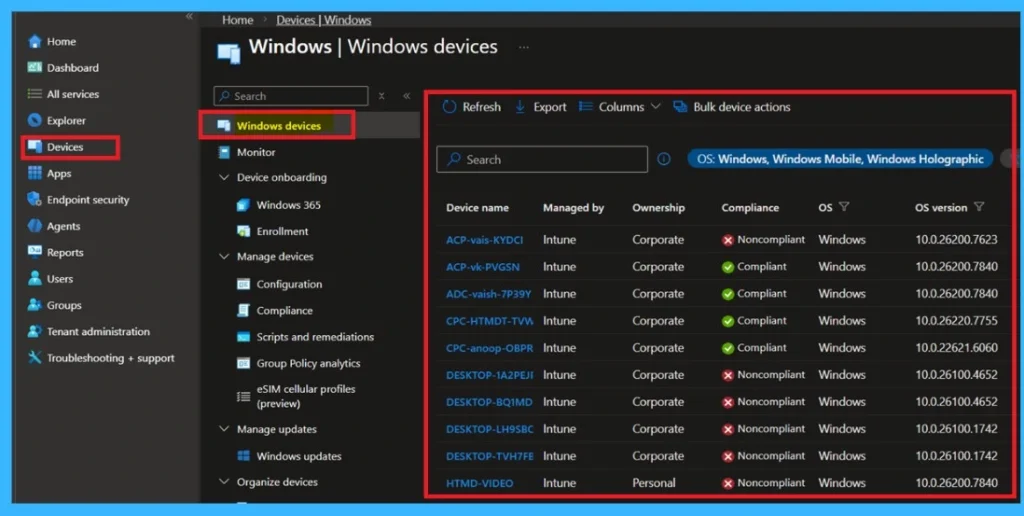
A device is only prepared when all needed apps are installed, and If apps are missing or delayed, users cannot work and so, that is why rollout slows down. To view device compliance, you can follow the path Devices> Windows Devices.
Stop Repackaging – Start Delivering
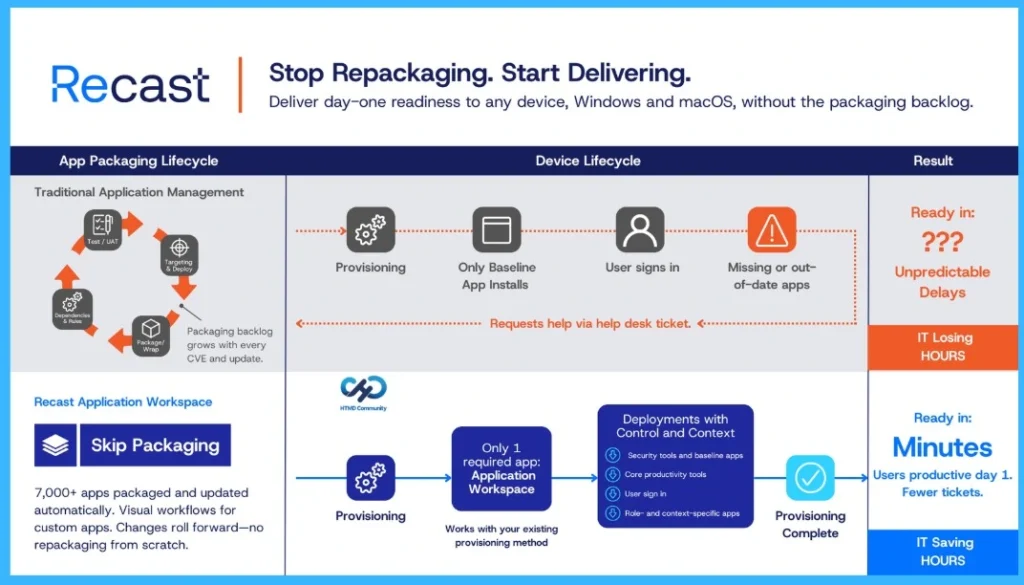
In the below image, shows a better way to speed up migrations perceptive. Here you can see the difference between the traditional way of handling applications and how simple it is now (Recast Application Workspace). In the traditional method, IT teams spend a lot of time repackaging apps and managing updates. During device setup, only basic apps are installed. After the user signs in, they may notice missing or outdated apps, and this creates delays.
In Recast Application Workspace, instead of repackaging every app, experts can use a platform that already has many apps prepared and ready. Skip Packaging with 7,000+ apps packaged and updated automatically, using visual workflows for custom apps where changes roll forward with no repackaging from scratch, working with your existing provisioning method through only 1 required app called Application Workspace.
- During setup, only one required app connects the device to the system. From there, apps are delivered in a controlled and organized way based on user needs.
- It will help to devices ready faster, and users are productive day 1, fewer tickets are raised, and IT is saving hours.
| Section | Traditional Method | Recast Application Workspace |
|---|---|---|
| Application Lifecycle | Continuous repackaging. Updates and fixes increase packaging work and backlog. | Skip packaging and 7,000+ apps are packaged and updated automatically. Visual workflows for custom apps. Changes roll forward-no repackaging from scratch. |
| Device lifecycle | Provisioning installs basic apps. After login, some apps may be missing or outdated. | Only 1 required app during setup. Other apps install properly based on user needs. |
| Result | Delays, more helpdesk tickets, IT takes lot of time. | Ready in minutes and productive day 1and fewer tickets needed. Saving lot of time |
Why App Delivery Becomes the Main Problem
Many apps must be repackaged. Some apps depend on others. Some need to be installed in a certain order. Sometimes apps fail if policies are not ready first. Fixing these issues takes time. Because of this, IT teams install only a few apps during setup to avoid problems. The device reaches the desktop faster, but full readiness happens later and this creates delays.
Using Application Workspace to Improve App Delivery
Here we have to discuss Application Workspace and its role in improving application delivery. Here in the demo (Image) how the Application Workspace makes app delivery simple by giving users the same experience on Windows, VDI/Cloud PC, and Apple devices. It uses a 7k+ App Catalog, built‑in Packaging Logic, and Automation Triggers, while working with tools like Microsoft Intune, ConfigMgr, Jamf, and VDI/Virtualization.
- In the demo Describes that the packages are one and deliver across everywhere and the app installed in the whole platform like Microsoft Intune, ConfigMgr, Jamf, and VDI/Virtualization.
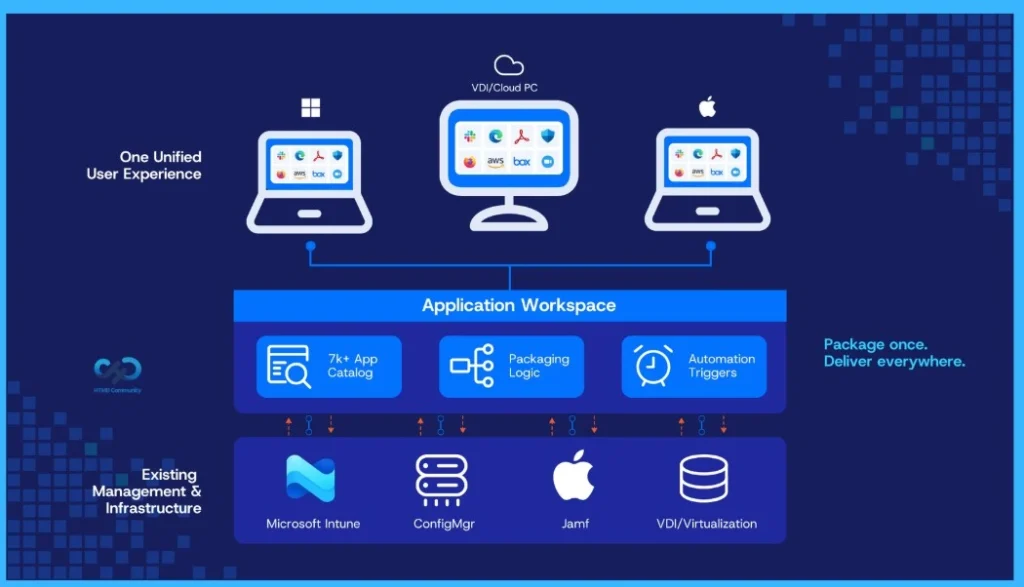
How Application Workspace Helps
Application Workspace helps make application delivery easier and more organized. It allows IT teams to manage applications in one place instead of constantly repackaging and updating apps manually. Many common Windows and macOS apps are already available in its library, which saves time and reduces repeated work.
Need Further Assistance or Have Technical Questions?
Join the LinkedIn Page and Telegram group to get the latest step-by-step guides and news updates. Join our Meetup Page to participate in User group meetings. Also, Join the WhatsApp Community to get the latest news on Microsoft Technologies. We are there on Reddit as well.
Author
Anoop C Nair has been Microsoft MVP for 10 consecutive years from 2015 onwards. He is a Workplace Solution Architect with more than 22+ years of experience in Workplace technologies. He is a Blogger, Speaker, and Local User Group Community leader. His primary focus is on Device Management technologies like SCCM and Intune. He writes about technologies like Intune, SCCM, Windows, Cloud PC, Windows, Entra, Microsoft Security, Career, etc.