
Key Takeaways
- Windows build 26200.8457 is triggering Company Portal detection failures during Autopilot.
- Error 0x87D1041C appears even though installation succeeds.
- Devices fail mainly when Company Portal is configured as a blocking ESP application.
- Temporary mitigation includes removing Company Portal from ESP blocking apps or deploying it later in user context.
In this post, we are discussing the Windows Autopilot Failing With 0x87D1041C After Company Portal Installation Issues. Recently, many IT administrators have reported issues with Windows Autopilot deployments failing after installing the May 2026 Windows update. The problem mainly affects devices where Company Portal from the Microsoft Store is configured as a required app during the Enrollment Status Page (ESP) process.
Table of Contents
Table of Contents
Windows Autopilot Failing With 0x87D1041C After Company Portal Installation Issues
Several admins noticed that Autopilot provisioning started failing with the error code 0x87D1041C, even though the Company Portal app appears to install successfully. Reports suggest the issue is mostly impacting devices running Windows build 10.0.26200.8457, while older builds continue to work normally.
- Intune Enrollment Status Page Troubleshooting
- Benefits Of Enabling Windows Autopilot Diagnostics Page
- Troubleshoot and Fix Company Portal Enrollment Your Device Is Already Connected Error
What Is Causing the Problem?
The issue appears to be directly connected to the May 2026 Windows cumulative update, specifically build 10.0.26200.8457. IT administrators across multiple organizations observed that Autopilot deployments started failing immediately after devices installed this update. Systems running older builds such as 26100.8457 continue to complete provisioning successfully,
- Reports indicate that the Company Portal application actually installs successfully during Enrollment Status Page (ESP) processing, but Intune fails to validate.
- This triggers the error 0x87D1041C, causing Autopilot to stop because ESP interprets the application as failed even though it is present on the device.
| The Problem Impacts |
|---|
| Windows Autopilot pre-provisioning |
| Enrollment Status Page (ESP) |
| Company Portal from Microsoft Store (New) |
| Required or blocking app installations |
| Devices running Windows build 26200.8457 |
Temporary Workarounds
According to MS community discussions and support cases, Microsoft is aware of the issue and investigating a fix. Until then, many organizations are using temporary workarounds such as removing Company Portal from blocking ESP apps or deploying it later during user sign-in.

Remove Company Portal From Blocking ESP Apps
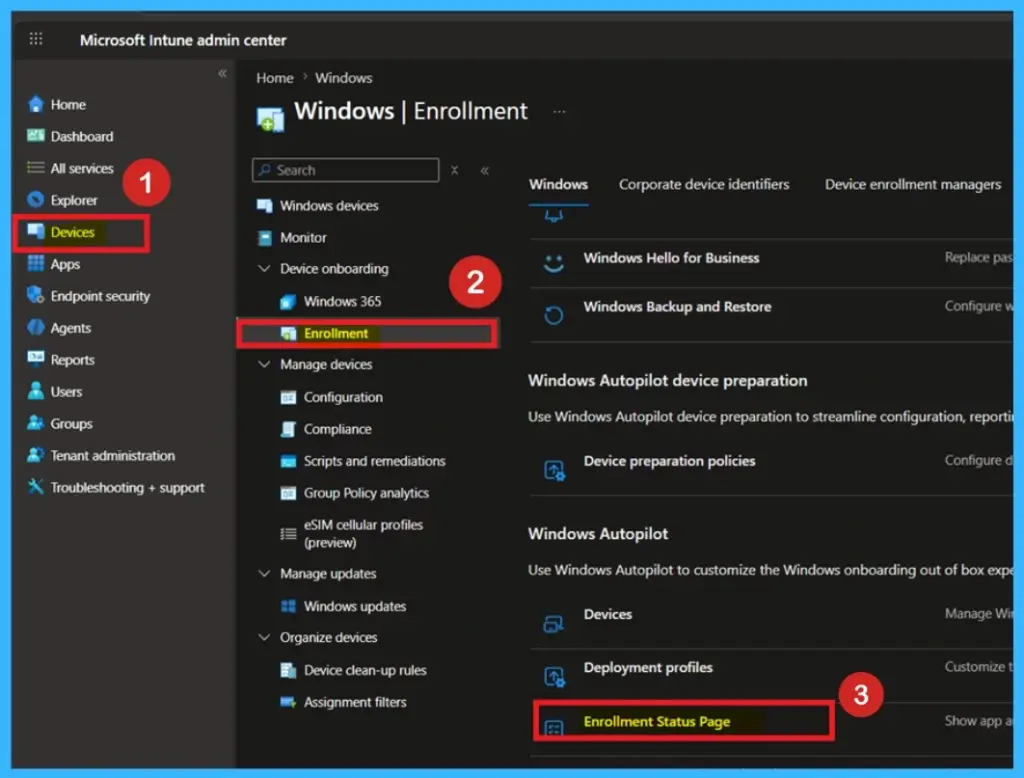
One of the most common workarounds is removing Company Portal from the list of blocking ESP applications. Administrators are changing ESP settings to allow device usage even if application installation errors occur. This helps devices complete Autopilot enrollment while still allowing Company Portal to install later in the process. Since the app installs successfully but fails detection, making it a blocking app causes the entire Autopilot provisioning process to fail.
- Many administrators are temporarily changing the ESP configuration to allow users to continue setup even if app installation errors occur.
- This helps devices complete Autopilot enrollment while Microsoft works on a permanent fix for the detection issue.
Company Portal as a Win32 App
Another workaround being used is manually downloading Company Portal and packaging it as a Win32 application for deployment through Intune. Some administrators used Winget to download the application and its dependencies before converting it into a deployable package.
This method bypasses the Microsoft Store (NEW) app deployment process, which currently appears to be causing the detection issue on Windows build 26200.8457. Although it requires additional administrative effort, it helps maintain stable Autopilot deployments.
- Manually package and deploy Company Portal via winget instead of relying on the Microsoft Store version.
Use Registry-Based Recovery Methods
Some administrators shared registry-based recovery steps to manually clear failed installation states during Autopilot provisioning. This involves editing Autopilot Enrollment Status Tracking registry entries and removing the recorded error state for Company Portal. After modifying the registry and retrying ESP, some devices were able to continue provisioning successfully. However, this method is mostly suitable for testing or temporary troubleshooting because it requires manual intervention and should not be used as a long-term enterprise solution. Work around was the following:
- Opening Registry:
- Go to – Computer > HKEY_LOCAL_MACHINE > SOFTWARE > Microsoft > Windows > Autopilot > EnrollmentStatusTracking > Device > Setup > Apps > Tracking > Sidecar > Win32App
- Find the app listed in their Updated the InstallationState from 4 to 3 and deleted the ErrorHresult Key.
- And deleted the key –DeviceSetupCategory.Status
- Then clicked re-try and it then allowed us to progress further.
- And any where CP was missing it re-tried most cases the app was their though.
Need Further Assistance or Have Technical Questions?
Join the LinkedIn Page and Telegram group to get the latest step-by-step guides and news updates. Join our Meetup Page to participate in User group meetings. Also, join the WhatsApp Community and the WhatsApp channel to get the latest news on Microsoft Technologies. We are there on Reddit as well
Author
Anoop C Nair has been Microsoft MVP for 10 consecutive years from 2015 onwards. He is a Workplace Solution Architect with more than 22+ years of experience in Workplace technologies. He is a Blogger, Speaker, and Local User Group Community leader. His primary focus is on Device Management technologies like SCCM and Intune. He writes about technologies like Intune, SCCM, Windows, Cloud PC, Windows, Entra, Microsoft Security, Career, etc.