
Key Takeaways
- Configure Intune RBAC for Windows Driver Management to control who can create, assign, update, and delete Windows driver update policies.
- Create a Custom Intune Role to provide only the required permissions to users responsible for Windows driver update management.
- Configure the Required Permissions by enabling Assign, Create, Delete, Read, View Reports, and Update permissions.
- Use the Built-in Policy and Profile Manager Role if users require the existing permissions for managing device configuration profiles and related settings.
Let’s learn how to Intune RBAC for Windows Driver Updates to Control Administrative Access. By creating RBAC Role for Windows Drivers using the step-by-step process, you can assign roles with appropriate permissions, restricting access to sensitive settings and actions. Configuring Intune Role-Based Access Control (RBAC) for Windows driver management is essential for effective and secure device management in modern organizations. RBAC allows administrators to grant specific permissions to individuals or groups, ensuring that only authorized personnel can create and manage policies for Windows driver updates.
Intune RBAC for Windows Driver Updates to Control Administrative Access
Windows driver and firmware update management policies and reports in Intune allow you to efficiently keep your Windows drivers up to date without needing manual or scripted tasks. This robust RBAC setup ensures smoother operations, reduces the risk of unauthorized changes, and enhances overall security. You can take a look to examine New Driver & Firmware Servicing Architecture for a better understanding of the flow involved in the updated driver and firmware management process.
Intune provides integrated reports that allow you to view comprehensive status information for Windows driver updates on devices assigned to Windows Driver update policies, By reviewing this detailed report, you can gain insights into the driver update status, Detailed Review Windows Driver Update Report From Intune
- Duplicate Built-in Intune RBAC Roles to Create Custom Admin Roles
- Microsoft Intune Introduces Permission Level RBAC Visibility for Admins
- Microsoft Introduces Platform Level Device Cleanup Rules in Intune with Scoped RBAC Permissions
- Intune Architecture And Sample Architecture Diagram Explained
Intune RBAC Role for Windows Drivers Update Management
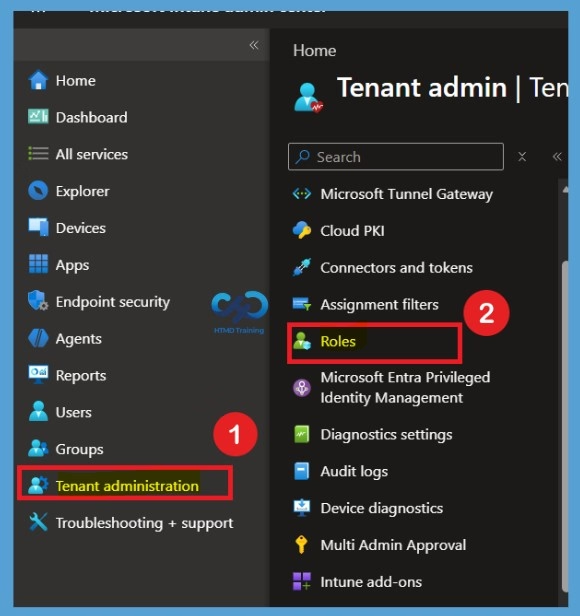
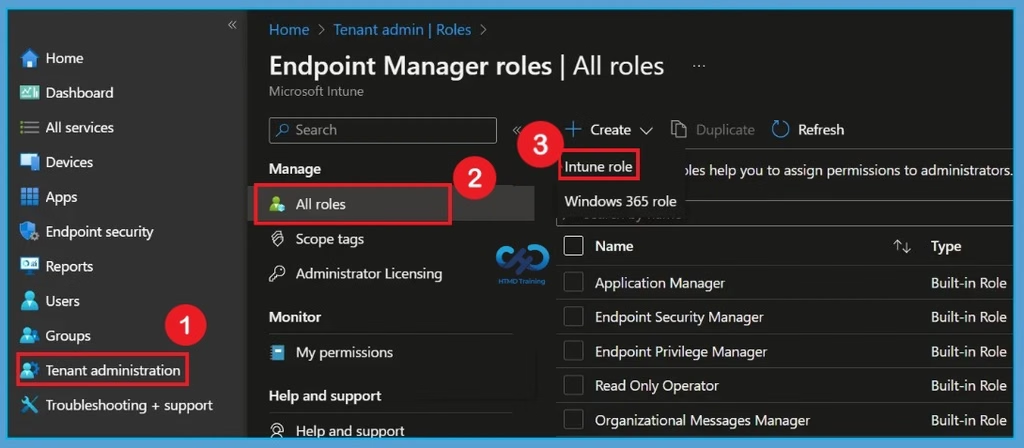
To use Windows Driver Update management, you must have privileges for setup policy and configurations for driver update. The following steps will help you to configure RBAC for Intune Driver Management. Sign in to the Microsoft Intune admin center. Then navigate to Tenant administration > Roles.

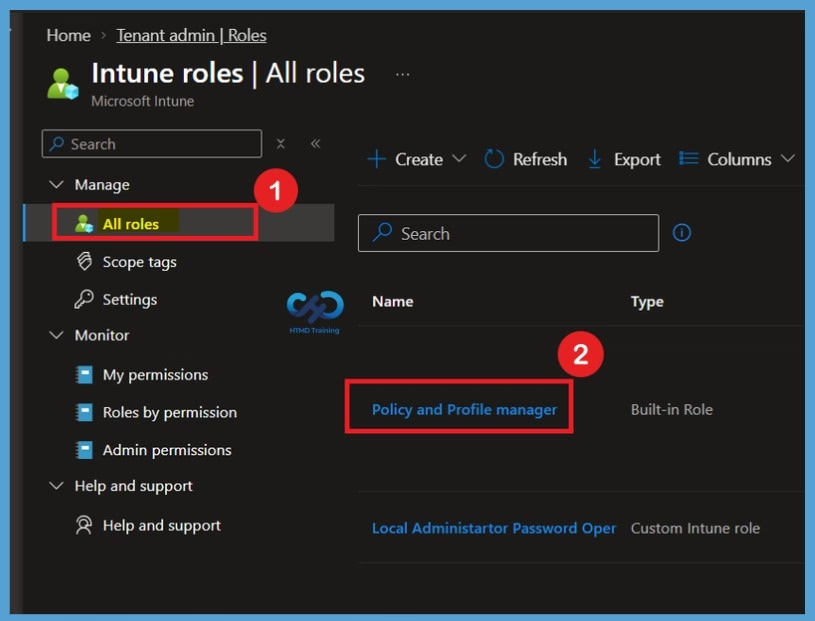
In the All roles, you will find all the built-in roles and created custom roles available in the tenant. There is a set of twelve (12) predefined Intune roles available. The Policy and Profile manager built-in role has permission to create or assign device configuration profiles.
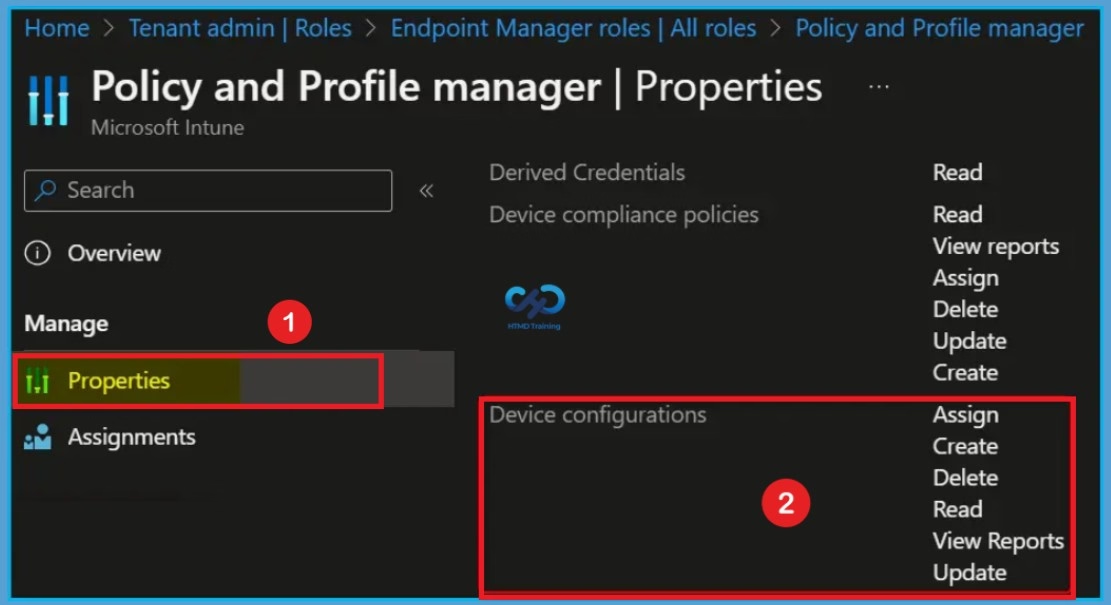
Policy and Profile Manager Properties
When you click on the Policy and profile manager you will get into the properties window. By default, the built-in Policy and Profile manager role sets all of these permissions to Yes. You can use the built-in role or create custom roles to grant permissions only for managing driver updates that you want different groups of users to have.
Creating a Custom Intune RBAC Role for Windows Driver Management
Here, you can view the built-in roles and custom roles available in your tenant. Select Create and then choose Intune role to start creating a custom role. In the next step, you can enter the role name and description and configure the required permissions for managing Windows driver update policies.
Basic Tab
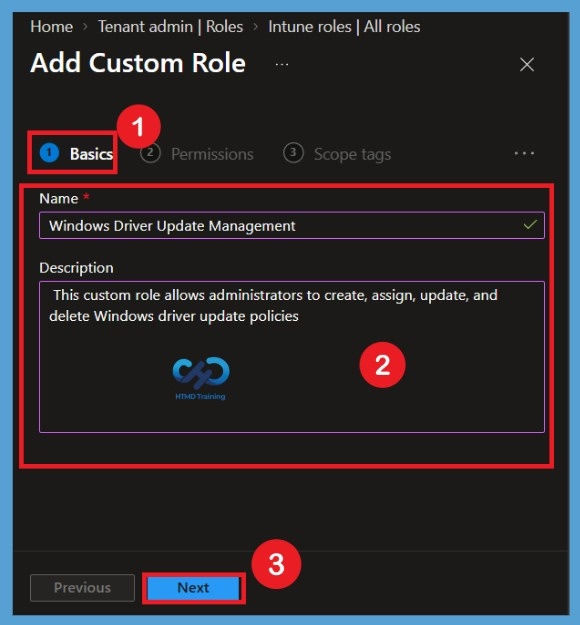
After selecting Intune role, you will be directed to the Basics tab. Enter a name and description for the custom role. Here, I entered Windows Driver Update Management as the role name and added a description explaining that the role allows administrators to create, assign, update, and delete Windows driver update policies. Once you have entered the details, click Next to continue to the Permissions tab.
Configure Permissions
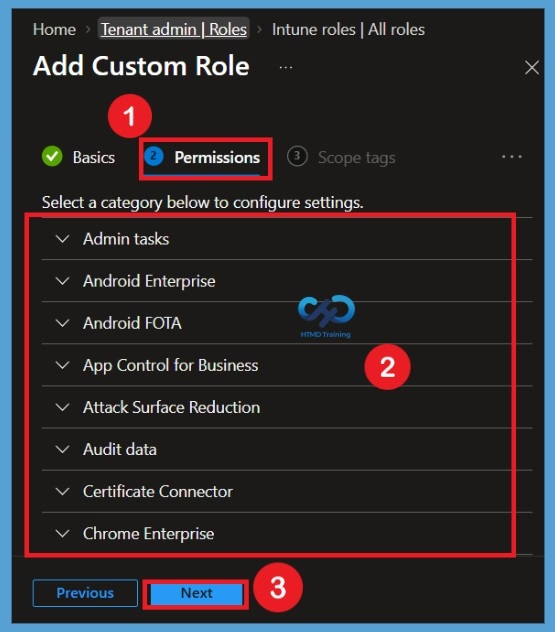
To modify the roles associated with a particular category, navigate to the “Permissions” page. When creating custom roles, you can enable the relevant permissions by selecting appropriate roles. To manage Windows driver updates in Microsoft Intune, your account must be assigned an Intune Role-Based Access Control (RBAC) role with the appropriate permissions. These permissions determine which actions you can perform, such as creating new driver update policies, assigning policies to device groups, modifying existing policies, and deleting policies when they are no longer required.
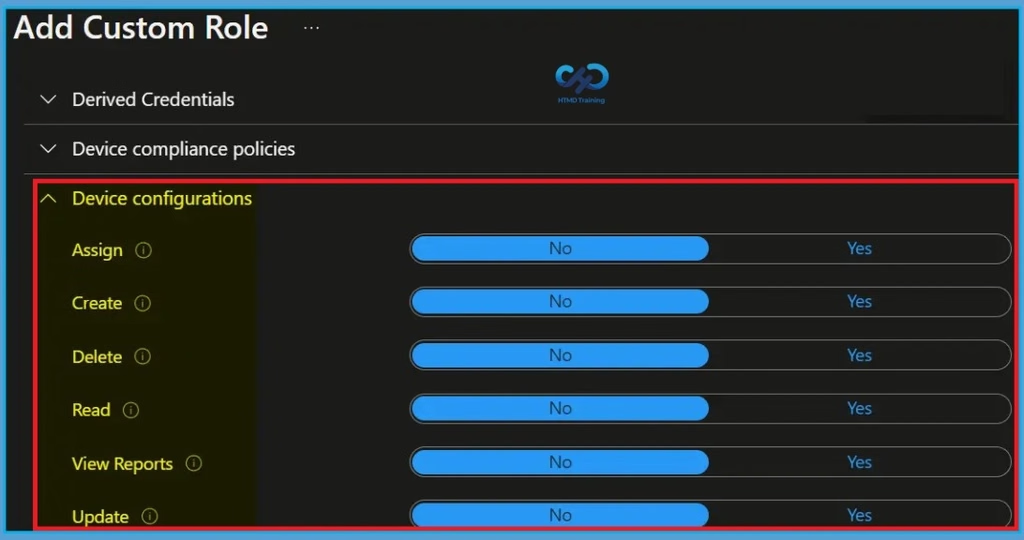
The Read permission allows you to view policy configurations, while View Reports lets you access, generate, and export device configuration reports. By enabling the required permissions, administrators can manage Windows driver updates efficiently while ensuring that access is limited to authorized users. To manage Windows Driver updates, your account must be assigned an Intune role-based access control (RBAC) role that includes the following permissions:
| Permission | Configure | Descriptions |
| Assign | Yes | Assign device configuration profiles or assign device enrollment restrictions to Azure AD security groups. |
| Create | Yes | Create new device configuration profiles, or create new device enrollment restrictions. |
| Delete | Yes | Delete device configuration profiles, or delete device enrollment restrictions. |
| Read | Yes | View device configuration profiles, or view device enrollment restrictions. |
| View Reports | Yes | View, generate, and export device configuration reports. |
| Update | Yes | Change device configuration profiles, or change device enrollment restrictions. |
Configure Scope Tags
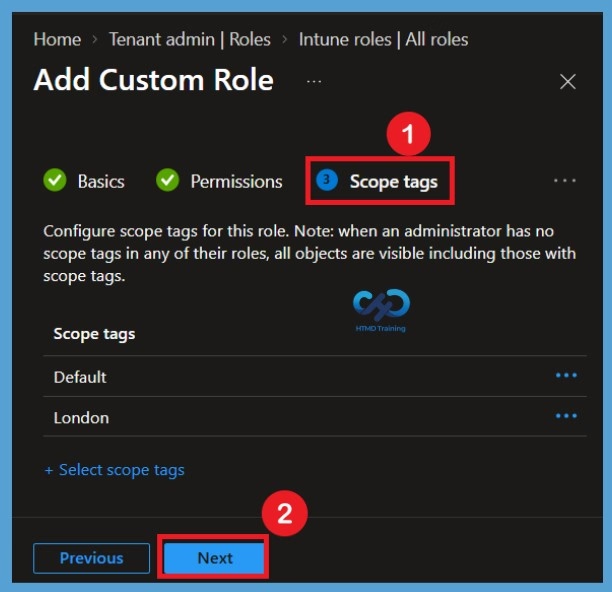
On the Scope tags page, select the required scope tags to determine which Intune resources the role can access. Scope tags help administrators limit access to resources based on their assigned administrative responsibilities.
Review and Create the Custom Role
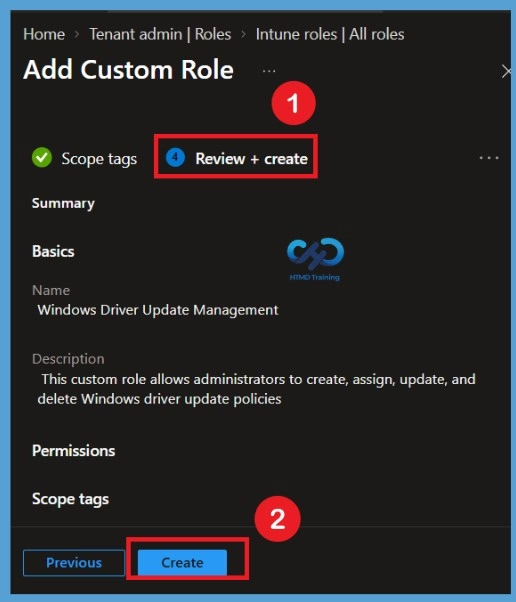
On the Review + Create page, review the role details and configured permissions. If you need to make any changes, go back to the previous tabs and update the settings. Once everything is correct, click Create to create the custom Intune RBAC role successfully.
Need Further Assistance or Have Technical Questions?
Join the LinkedIn Page and Telegram group to get the latest step-by-step guides and news updates. Join our Meetup Page to participate in User group meetings. Also, join the WhatsApp Community and the Whatsapp channel to get the latest news on Microsoft Technologies. We are there on Reddit as well.
Author
About Author – Jitesh, Microsoft MVP, has over six years of working experience in the IT Industry. He writes and shares his experiences related to Microsoft device management technologies and IT Infrastructure management. His primary focus is Windows 10/11 Deployment solution with Configuration Manager, Microsoft Deployment Toolkit (MDT), and Microsoft Intune.