

Key Takeaways
- Entra ID Dynamic Membership rules automatically add devices to groups based on defined conditions.
- The deviceOSVersion property is used to identify devices by their Windows OS build number.
- Using the Starts With operator allows targeting a specific Windows version range (for example, 10.0.26100).
- The rule syntax is auto-generated by Entra ID, reducing errors and simplifying configuration.
- Devices matching the specified OS version are added to the group automatically.
- This approach makes it easier to assign Intune policies, apps, and compliance settings to specific Windows OS versions.
How to Create and Pause Entra ID Dynamic Groups for Device Management in Intune. Using a dynamic membership rule based on the Windows OS version provides better control and automation in Microsoft Intune. Devices are added or removed from the group automatically as their OS version changes, ensuring that policies and apps are always targeted accurately. This approach reduces manual effort, helps avoid configuration mistakes, and makes it easier to test, troubleshoot, or roll out settings for specific Windows builds.
Table of Content
Table of Contents
How to Create and Pause Entra ID Dynamic Groups for Device Management in Intune
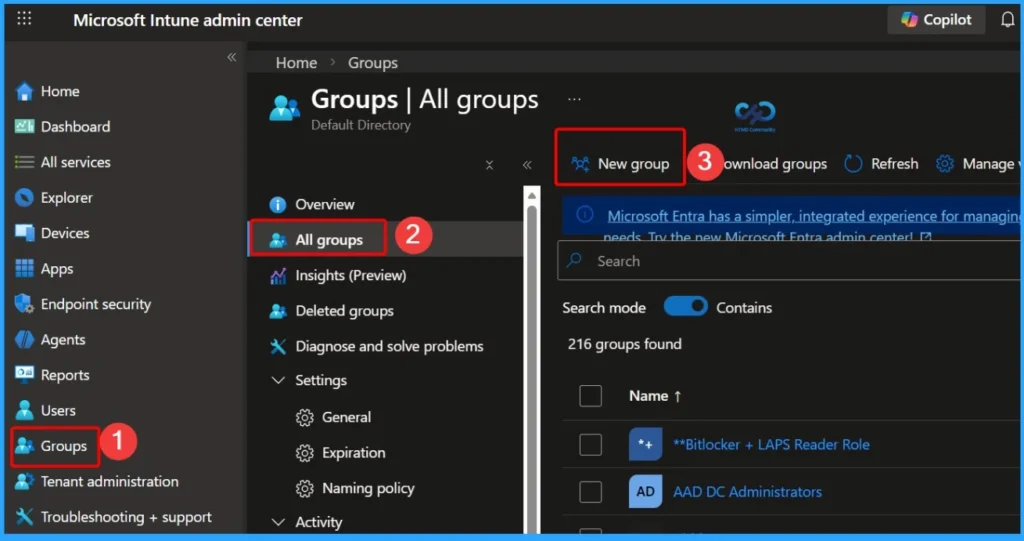
You can easily create and pause Entra ID dynamic groups for device management in Microsoft Intune. First, sign in to the Intune admin center and navigate to Groups > All groups > New group. The below window helps you to show more details.
- Create AAD Dynamic Groups based on Domain Join Type Hybrid Azure AD and Azure AD
- Create AAD Dynamic Groups based on MDM (Intune & SCCM Management)
Create a Dynamic Device Security Group for Windows 11 24H2
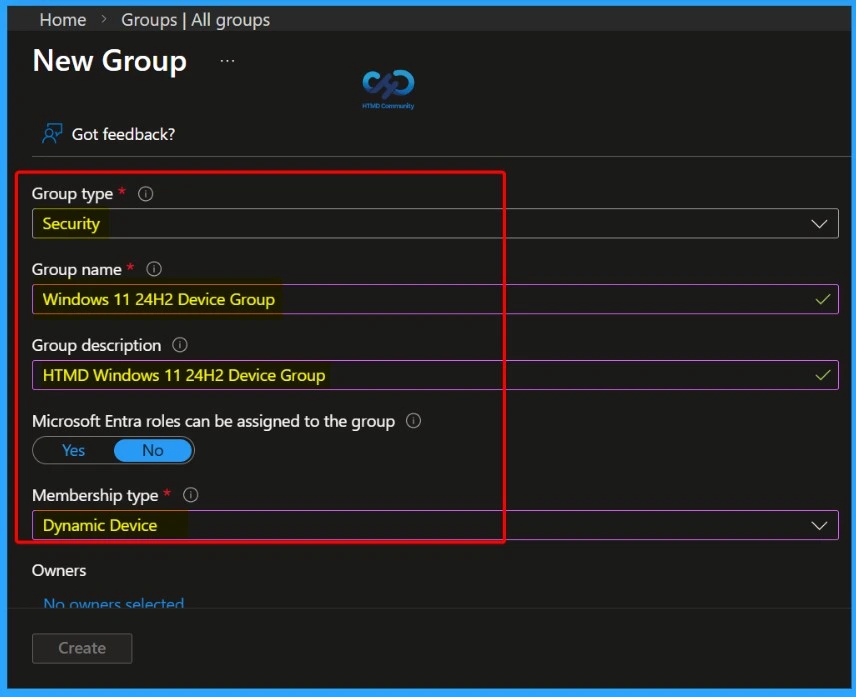
In the New Group window, select Security as the group type and enter the group name as Windows 11 24H2 Device Group. Provide a clear description such as HTMD Windows 11 24H2 Device Group to identify the purpose of the group. Next, choose Dynamic device as the membership type so that devices running the specified Windows version are added automatically based on the configured dynamic membership rule.
Configure the Dynamic Device Membership Rule
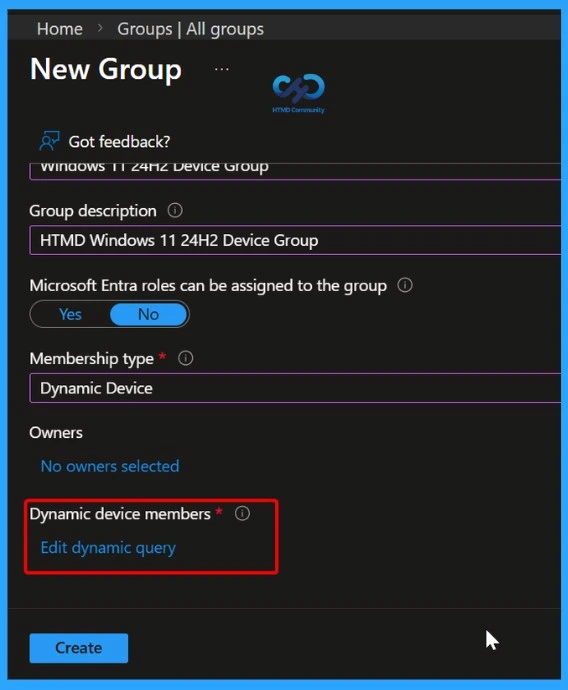
At the end of the New Group window, you will see the Dynamic device members section. Under this setting, an Edit dynamic query hyperlink is available. Click this link to define and add the dynamic membership rule that determines which devices are automatically included in the group based on the specified criteria.

- Create AAD Dynamic Groups based on Domain Join Type Hybrid Azure AD and Azure AD
- Create AAD Dynamic Groups based on MDM (Intune & SCCM Management)
- How To Create Nested Azure AD Dynamic Groups.
- Intune Admins Basic Azure AD Dynamic Device Group Rules | Queries
Configure the Dynamic Membership Rule
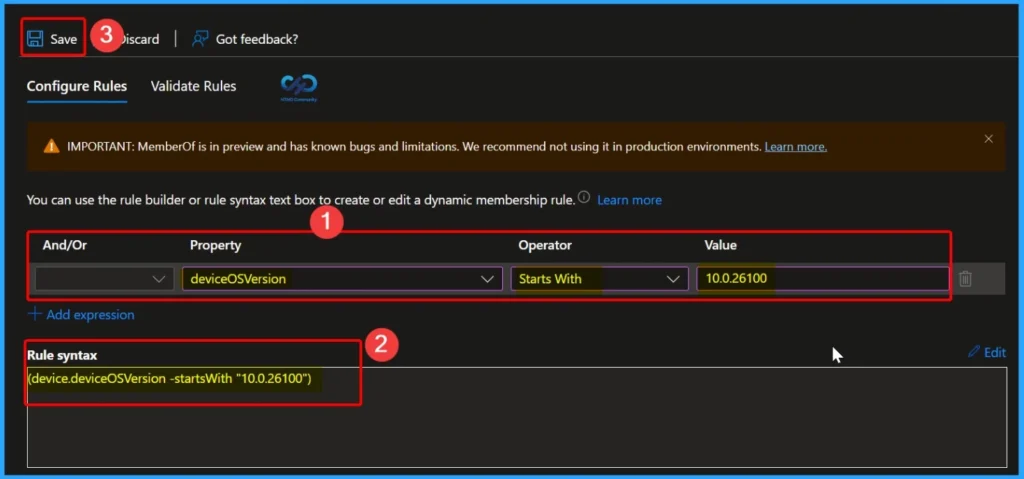
In the Configure Rules window, set the Property to deviceOSVersion, select Starts With as the operator, and enter 10.0.26100 as the value. Based on these selections, Entra ID automatically generates the rule syntax as
(device.deviceOSVersion -startsWith “10.0.26100”). This rule ensures that all devices running a Windows OS version starting with this build number are automatically added to the dynamic group.
| Dynamic Membership Rules | Details |
|---|---|
| Property | deviceOSVersion |
| Operator | Starts With |
| Value | 10.0.26100 |
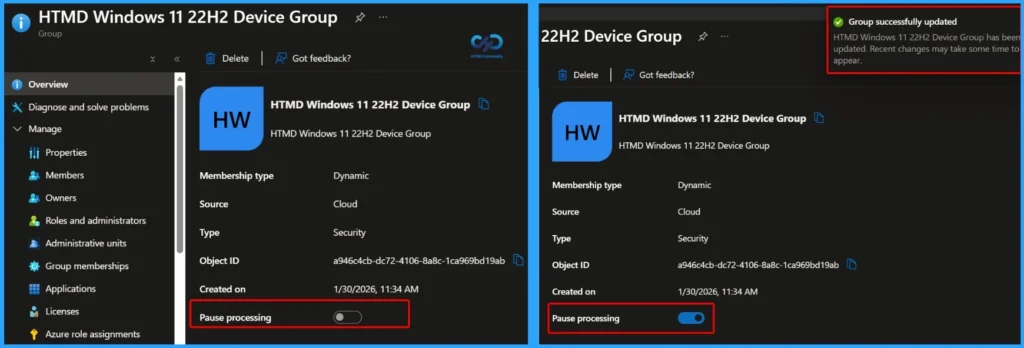
Pause Entra ID Dynamic Group Updates
Pausing an Entra ID Dynamic Group update allows administrators to temporarily stop automatic membership changes without deleting the group or its rules. This is useful when testing new dynamic queries, troubleshooting issues, or preventing unintended device additions or removals. While the update is paused, the existing group members remain unchanged.
How to Create Entra ID Dynamic Groups for Windows Device in Intune
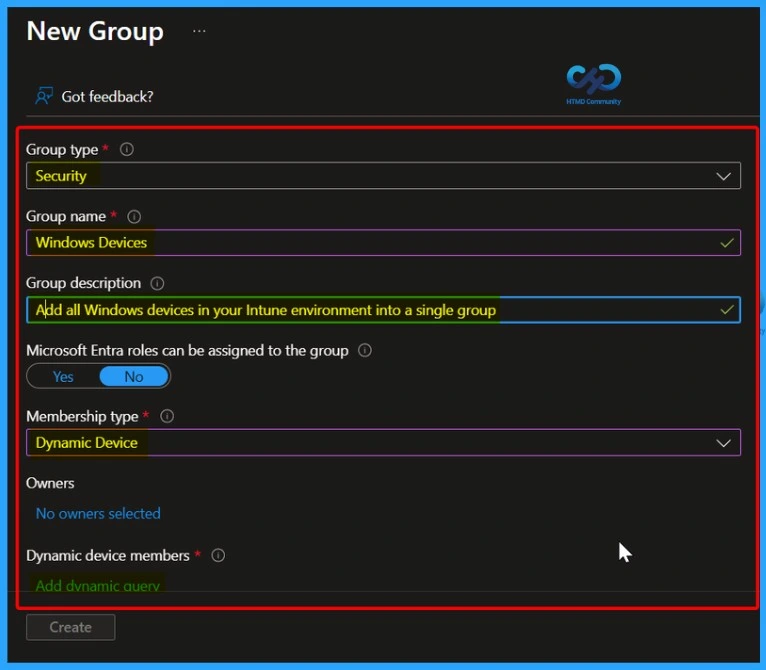
You can easily create an Entra ID dynamic group for Windows devices in Microsoft Intune. Start by selecting Security as the group type, then provide the group name as Windows Devices and add a description such as Add all Windows devices in your Intune environment into a single group. Next, select Dynamic device as the membership type. Finally, click the Add dynamic query hyperlink to define the rule that automatically includes all Windows devices in the group.
Create an Entra ID Dynamic Group for iPhone and iPad Devices
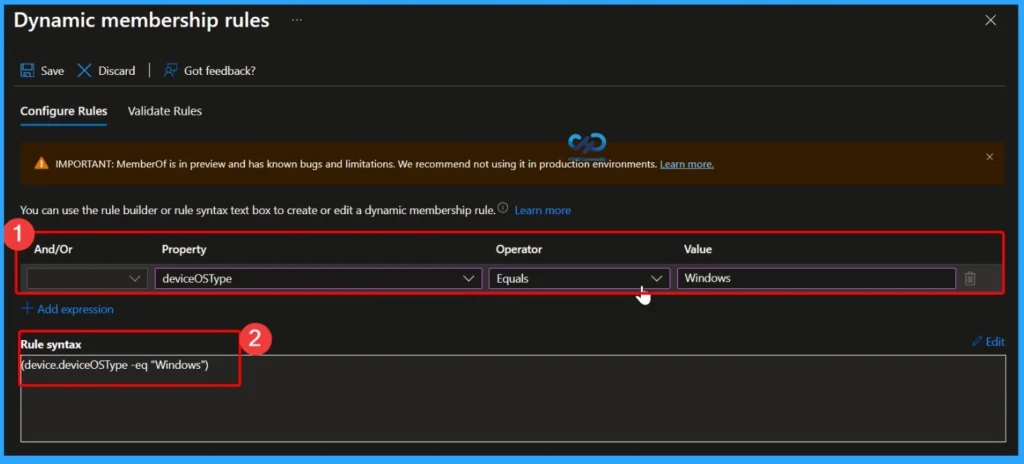
You can easily create an Entra ID Dynamic Group for Windows devices by adding a dynamic membership rule. Set the Property to deviceOSType, choose Equals as the operator, and enter Windows as the value. Based on these selections, Entra ID automatically generates the rule syntax as (device.deviceOSType -eq “Windows”). This rule ensures that all Windows devices are automatically added to the group, making it easier to manage and target them with Microsoft Intune policies and apps.
Create an Entra ID Dynamic Group for iPhone and iPad Devices
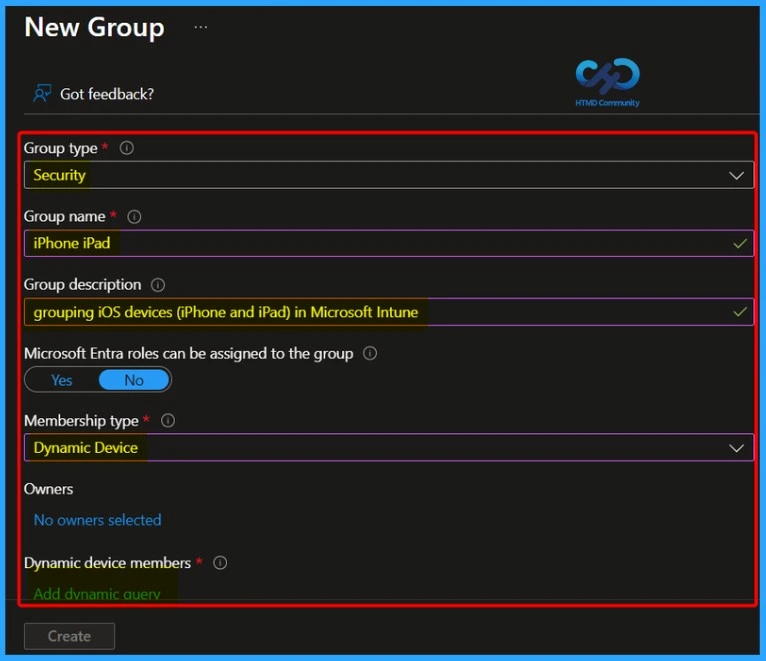
You can easily create an Entra ID dynamic group for iPhone and iPad devices in Microsoft Intune. Start by selecting Security as the group type, then enter the group name as iPhone and iPad Devices and add a description such as Grouping iOS devices in Microsoft Intune. Next, choose Dynamic device as the membership type. Finally, select the Add dynamic query hyperlink to define the rule that automatically includes iPhone and iPad devices in the group.
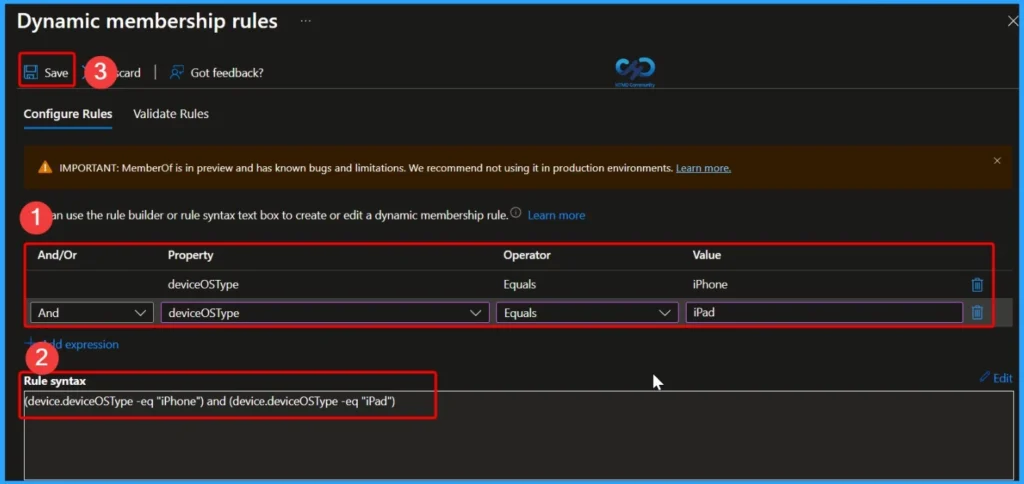
Create an Entra ID Dynamic Group Rule for iPhone and iPad Devices
You can easily create an Entra ID Dynamic Group for iPhone and iPad devices by adding a dynamic membership rule. Set the Property to deviceOSType, choose Equals as the operator, and use iPhone and iPad as the values. Based on these selections, Entra ID automatically generates the rule syntax as (device.deviceOSType -eq “iPhone”) or (device.deviceOSType -eq “iPad”). This rule ensures that all iPhone and iPad devices are automatically added to the group, making it easier to manage and target iOS devices with Microsoft Intune policies and apps.
Create an Entra ID Dynamic Group for Android Devices
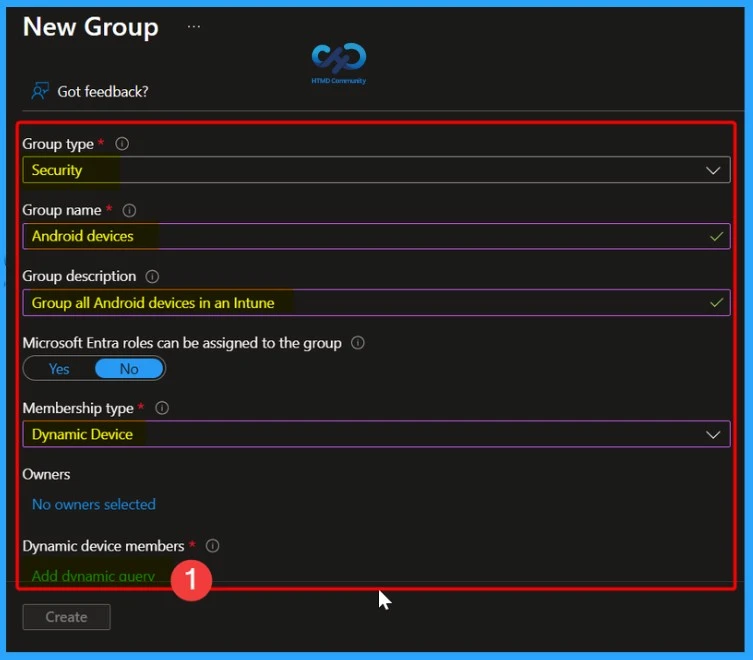
You can easily create an Entra ID dynamic group for Android devices in Microsoft Intune. Start by selecting Security as the group type, then enter the group name as Android Devices and add a description such as Group all Android devices in Intune. Next, select Dynamic device as the membership type. Finally, click the Add dynamic query hyperlink to define the rule that automatically includes all Android devices in the group.
Create an Entra ID Dynamic Group Rule forAndroid Devices
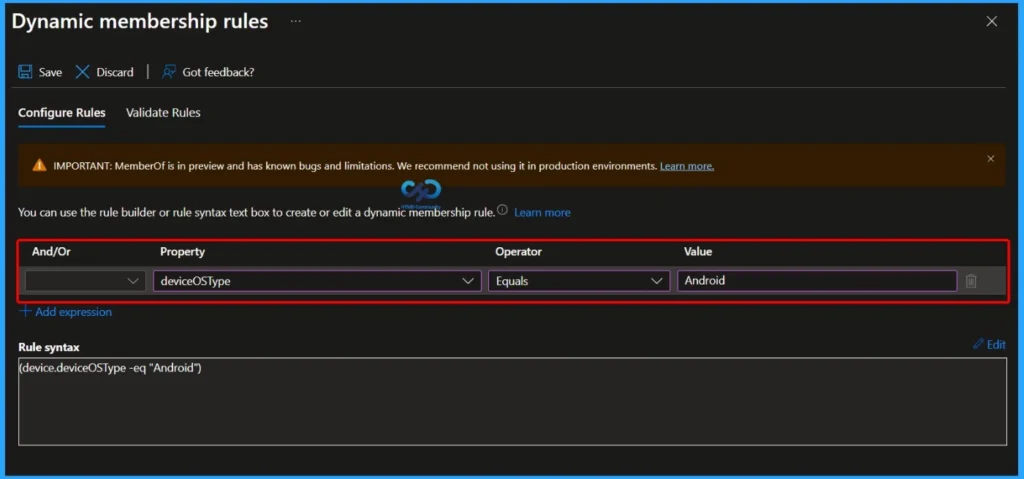
You can create an Entra ID Dynamic Group rule for Android devices by configuring a dynamic membership query based on the device operating system type. Set the Property to deviceOSType, choose Equals as the operator, and enter Android as the value. Entra ID automatically generates the rule syntax as (device.deviceOSType -eq “Android”), ensuring that all Android devices are automatically added to the group.
Need Further Assistance or Have Technical Questions?
Join the LinkedIn Page and Telegram group to get the latest step-by-step guides and news updates. Join our Meetup Page to participate in User group meetings. Also, join the WhatsApp Community and the Whatsapp channel to get the latest news on Microsoft Technologies. We are there on Reddit as well.
Author
Anoop C Nair has been Microsoft MVP for 10 consecutive years from 2015 onwards. He is a Workplace Solution Architect with more than 22+ years of experience in Workplace technologies. He is a Blogger, Speaker, and Local User Group Community leader. His primary focus is on Device Management technologies like SCCM and Intune. He writes about technologies like Intune, SCCM, Windows, Cloud PC, Windows, Entra, Microsoft Security, Career, etc.
Anoop -this post is really helpful, thanks very much for taking the time to write it up.
I wondered however if you could let me know how you found that you should use ‘deviceOSType’ – when I created dynamic groups for users it it is easy to get a list of attributes…not sure how to do the same for devices.
Many thanks!
Carl
Carl – Good question and answer to that is in the following post https://www.anoopcnair.com/fetch-azure-ad-details-microsoft-graph-api-via-web-browsers/
Awesome thanks – I managed to create a dynamic group that contained devices whilst waiting for your update, from this group I could get an object in this group and | fl to get full details. I will read your post now also as Graph is another area of interest to me.
Thanks again
Also MS updated their Dynamic Groups page to include devices:
https://docs.microsoft.com/en-us/azure/active-directory/active-directory-groups-dynamic-membership-azure-portal
I tired this for iOS devices. Initially, the device show up in the group, but then disappear. Any ideas?
Is there a way to create dynamic group base on AutoPilot?
Yes, I think there is an option to create AAD dynamic group for each Auto Pilot Profiles
How?
When you add devices, you need to add them to an Autopilot deployment group. Use these groups to apply Autopilot deployment profiles to a group of devices. The first time you add devices to a group, you’ll need to create an Autopilot deployment group. https://docs.microsoft.com/en-us/microsoft-store/add-profile-to-devices#device-information-file-format
Not sure if this is helpful, but I created a dynamic device security group for AutoPilot with the advanced rule below:
(device.devicePhysicalIDs -any _ -contains “[ZTDId]”)
This will automatically add any device you enroll into AutoPilot this dynamic group.
Hi Anoop,
Any way we can create AAD Device groups based on AD OU, Programs Installed, basically like more granular queries like we can with SCCM collections?
Thanks
Is there any option to create a user Group based on the Device Type they are using? For e.g. create a user group for all MacOS users.
I think you are trying to replicate the sccm collection logic to azure ad dynamic groups. If so, I don’t think that is possible …. you might need to use requirements rules or custom script for that … I suppose
Would you know of a way to create a dynamic device group based on the primary user for the device? I’m trying to create one that includes devices with a specific group tag and primary users whose userprincipalname doesn’t include a certain string.
I’m not sure whether we can mix device properties with user properties in Azure AD.
Is there any option to create a dynamic user Group based on the OS Version they are using? For e.g. create a dynamic user group for all Win 11 devices.