
Key Takeaways
- Windows Cloud IO Protection is currently available in public preview.
- To ensure protection, endpoints must have the Windows Cloud IO Protect MSI installed
- In hybrid environments, you can enable this feature through Group Policy.
- Windows Cloud Input Protection on Cloud PC/Azure Virtual Desktop will target session hosts
- This feature is available only on the latest version of the Windows app (Version 2.0.704.0 or later)
In this blog post, am going to discuss how to configure Windows Cloud Keyboard Input Protection on Entra Joined Devices using Microsoft Intune. Windows 365 Cloud PCs already secure sessions with encryption and identity-based authentication, such as MFA, reducing the risk of hijacking and man-in-the-middle attacks. However, endpoint-resident threats like keyloggers can still target Windows cloud sessions and expose sensitive data, creating compliance and financial risks.
Table of content
Table of Contents
Create Scripts in Intune to Configure Windows Cloud Keyboard Input Protection
Windows Cloud IO Protection closes this gap by using a kernel-level driver and system-level encryption to route keystrokes directly to the Cloud PC, bypassing OS layers that malware typically exploits. When enabled on a Cloud PC or Azure Virtual Desktop session host, it enforces a zero-trust-style model, only approved physical endpoints can connect, and the Windows Cloud IO Protect MSI must be installed on the device. If the MSI is missing, the connection is blocked with an error, ensuring a secure, uncompromised input channel between the Windows app and the Cloud PC or AVD environment.
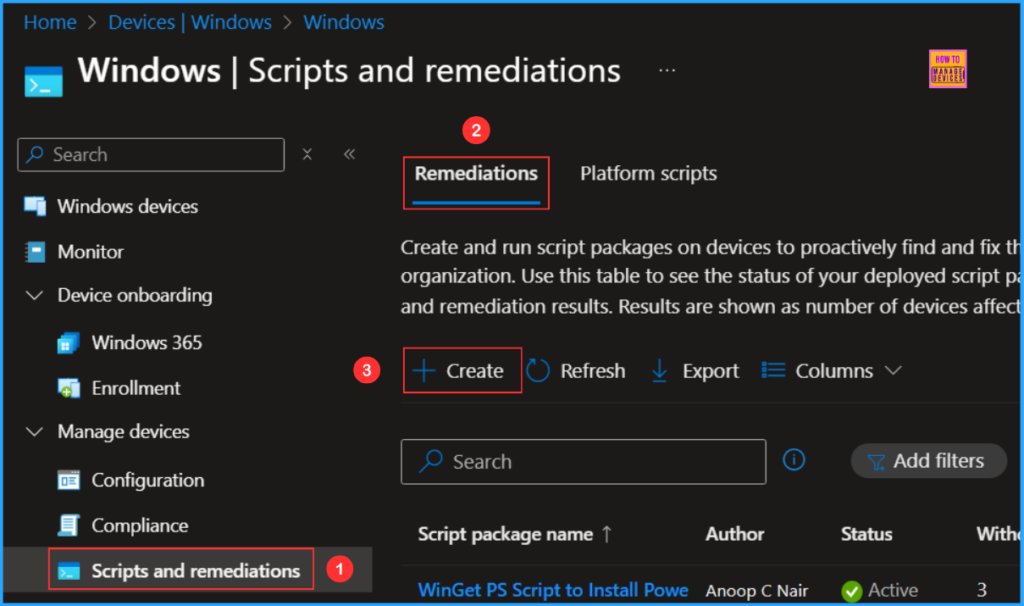
Follow these steps to configure Windows Cloud Keyboard Input Protection on Entra Joined Devices using the Intune PowerShell Script. I will be using the Remediations script to configure it. Log in to the Microsoft Intune Admin Center using your admin credentials.
- Navigate to Devices > Windows > Scripts and remediations
- Click on Remediations > +Create
- How to Setup Windows 365 Cloud PCs with Autopilot Device Preparation
- How to Configure New Windows App Settings for Windows 365 using Intune
- Easy Way to Update New Multi-Region Selection in Windows 365
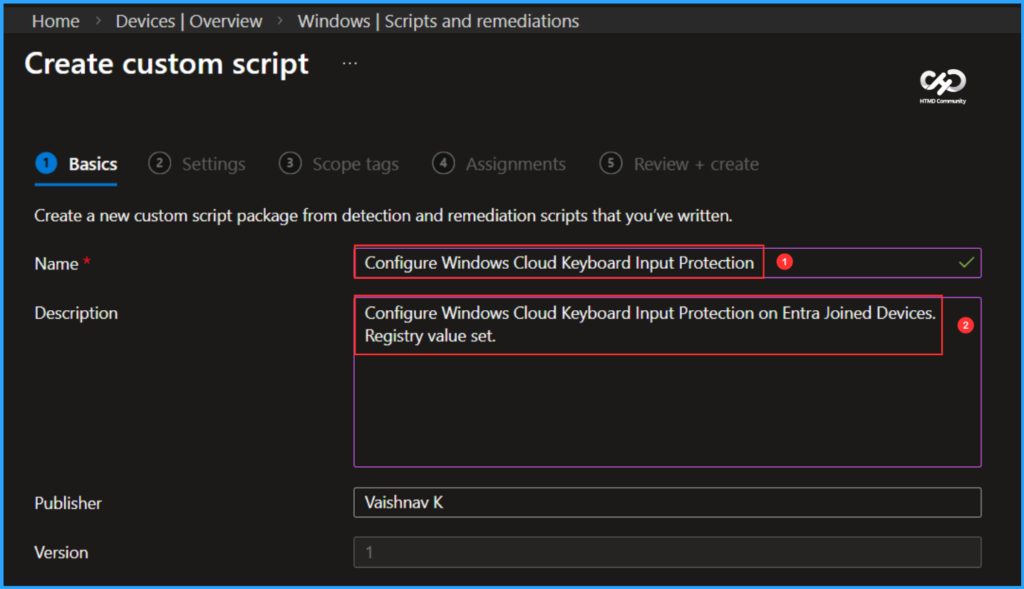
In the Basics details pane, we can name the PowerShell script as “Configure Windows Cloud Keyboard Input Protection” If necessary, provide a brief description of the script here am giving “Configure Windows Cloud Keyboard Input Protection on Entra Joined Devices. Registry value set.” and click Next.

Write PowerShell Detection and Remediation Scripts to Configure Windows Cloud Keyboard Input Protection
Let’s write two PowerShell scripts from scratch to Configure Windows Cloud Keyboard Input Protection, which we deploy in bulk. Save the scripts in a .ps1 file format.
Detection PowerShell Script
# =====================================================
# Detection Script
# Windows Cloud Keyboard Input Protection
# Author : Vaishnav K
# LinkedIn : https://www.linkedin.com/in/vaishnav-k-957b0589/
# Website: https://www.anoopcnair.com/author/vaishnavkuruvaikandy
# =====================================================

$RegPath = "HKLM:\SOFTWARE\Policies\Microsoft\Windows NT\Terminal Services"
$RegName = "fWCIOKeyboardInputProtection"
$ExpectedValue = 1

try {
    if (Test-Path $RegPath) {
        $CurrentValue = Get-ItemProperty -Path $RegPath -Name $RegName -ErrorAction SilentlyContinue

        if ($null -ne $CurrentValue -and $CurrentValue.$RegName -eq $ExpectedValue) {
            Write-Output "Compliant: Keyboard Input Protection is enabled."
            exit 0
        }
    }

    Write-Output "Non-compliant: Keyboard Input Protection is not enabled."
    exit 1
}
catch {
    Write-Output "Detection error: $_"
    exit 1
}
Remediation PowerShell Script
# =====================================================
# Remediation Script
# Enable Windows Cloud Keyboard Input Protection
# Author : Vaishnav K
# LinkedIn : https://www.linkedin.com/in/vaishnav-k-957b0589/
# Website: https://www.anoopcnair.com/author/vaishnavkuruvaikandy
# =====================================================

$RegPath = "HKLM:\SOFTWARE\Policies\Microsoft\Windows NT\Terminal Services"
$RegName = "fWCIOKeyboardInputProtection"
$RegValue = 1

try {
    if (-not (Test-Path $RegPath)) {
        New-Item -Path $RegPath -Force | Out-Null
    }

    New-ItemProperty `
        -Path $RegPath `
        -Name $RegName `
        -Value $RegValue `
        -PropertyType DWORD `
        -Force | Out-Null

    Write-Output "Remediation successful: Keyboard Input Protection enabled."
    exit 0
}
catch {
    Write-Error "Remediation failed: $_"
    exit 1
}Note: I’ve uploaded the PowerShell Script to my GitHub Repo, so feel free to check it out for your needs. Download from here: WindowsCloudKeyboardInputProtection_DetectionScript & WindowsCloudKeyboardInputProtection_RemediationScript
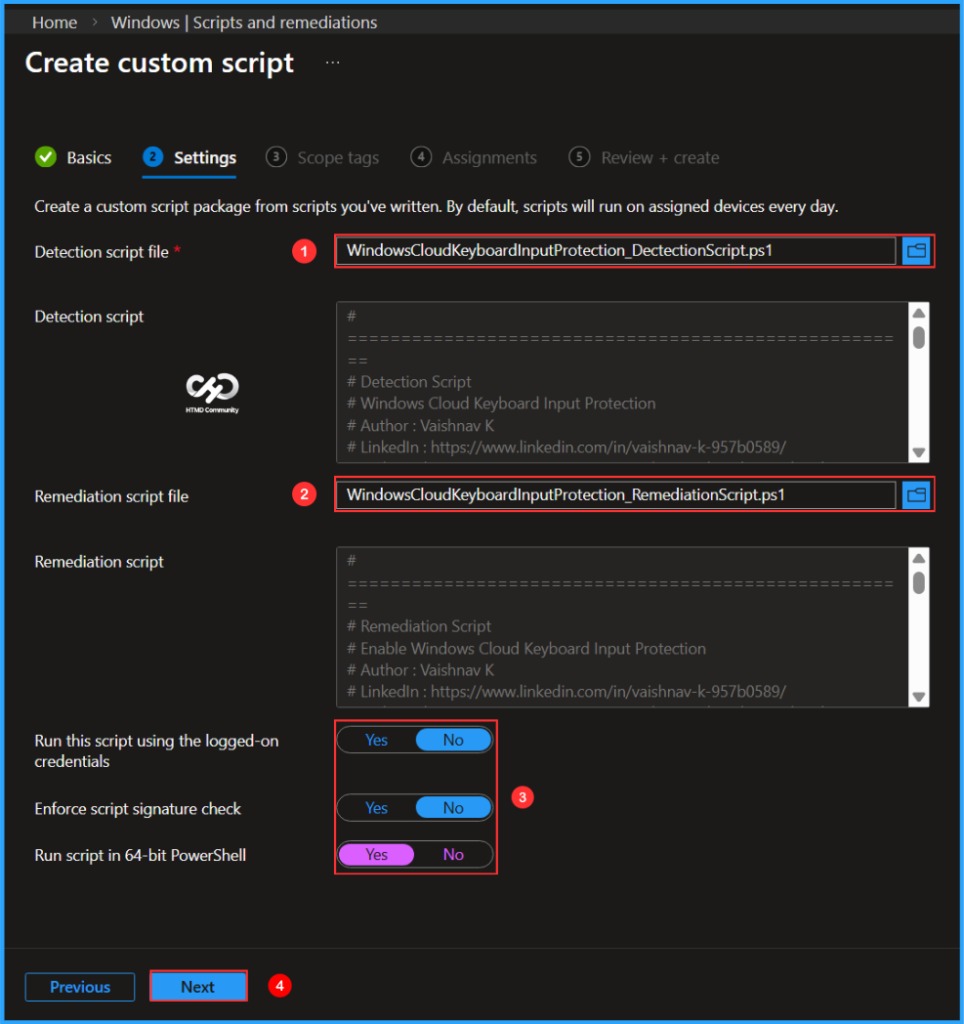
In the Script settings pane, we can set the configurations according to our requirements. The Detection script file and Remediation script file are mandatory; we must browse and select our saved PS Script here.
- Detection script file – Browse and select the saved script WindowsCloudKeyboardInputProtection_DetectionScript.ps1
- Remediation script file – Browse and select the saved script WindowsCloudKeyboardInputProtection_RemediationScript.ps1
- Run this script using the logged on credentials – No
- Enforce script signature check – No
- Run script in 64 bit PowerShell Host – Yes
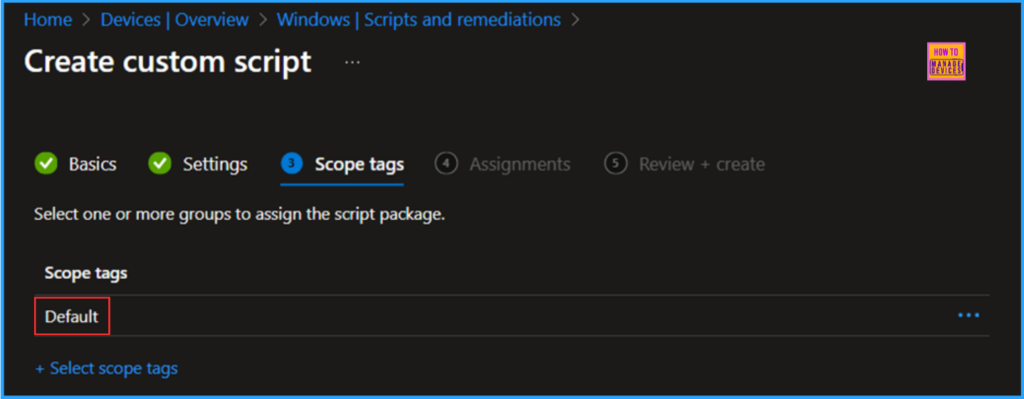
On the next page, keep the default scope tags. If any custom scope tags are available based on your requirements, you can select them for this script deployment.
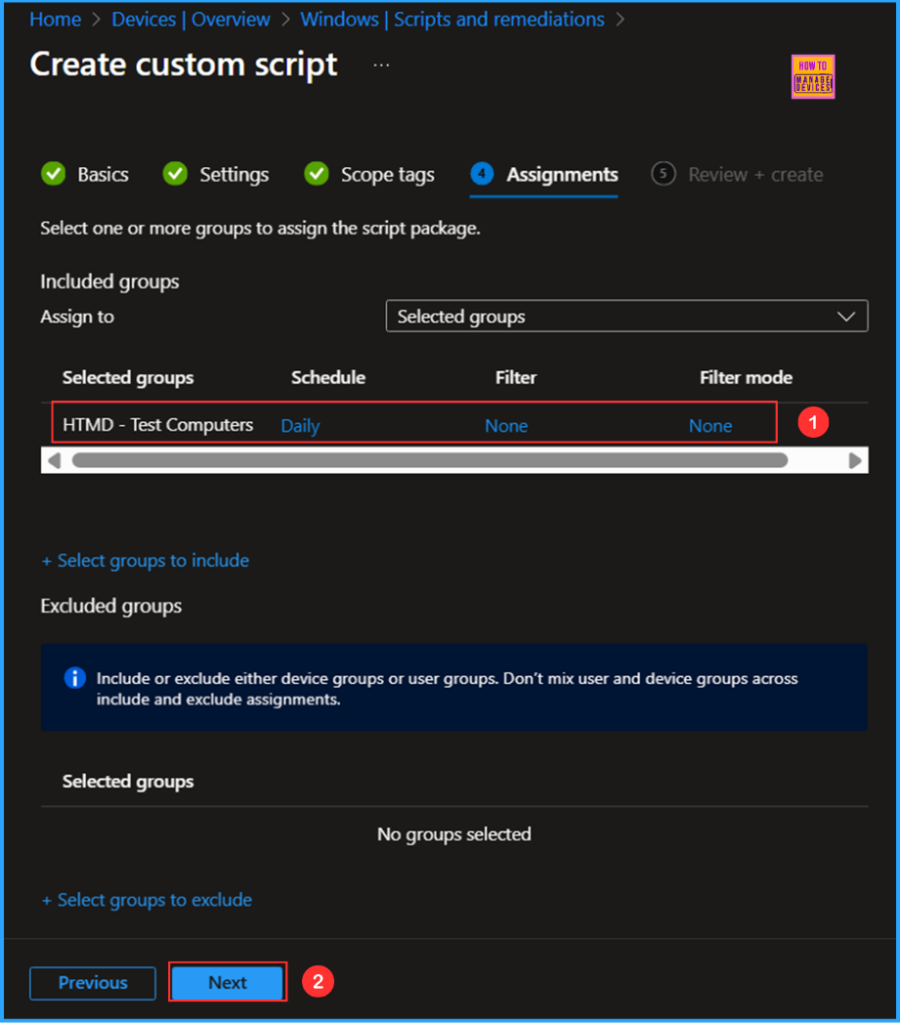
Click Next, then assign the script to HTMD – Test Computers. You can click Assign to and select the desired device group in the Selected groups section.
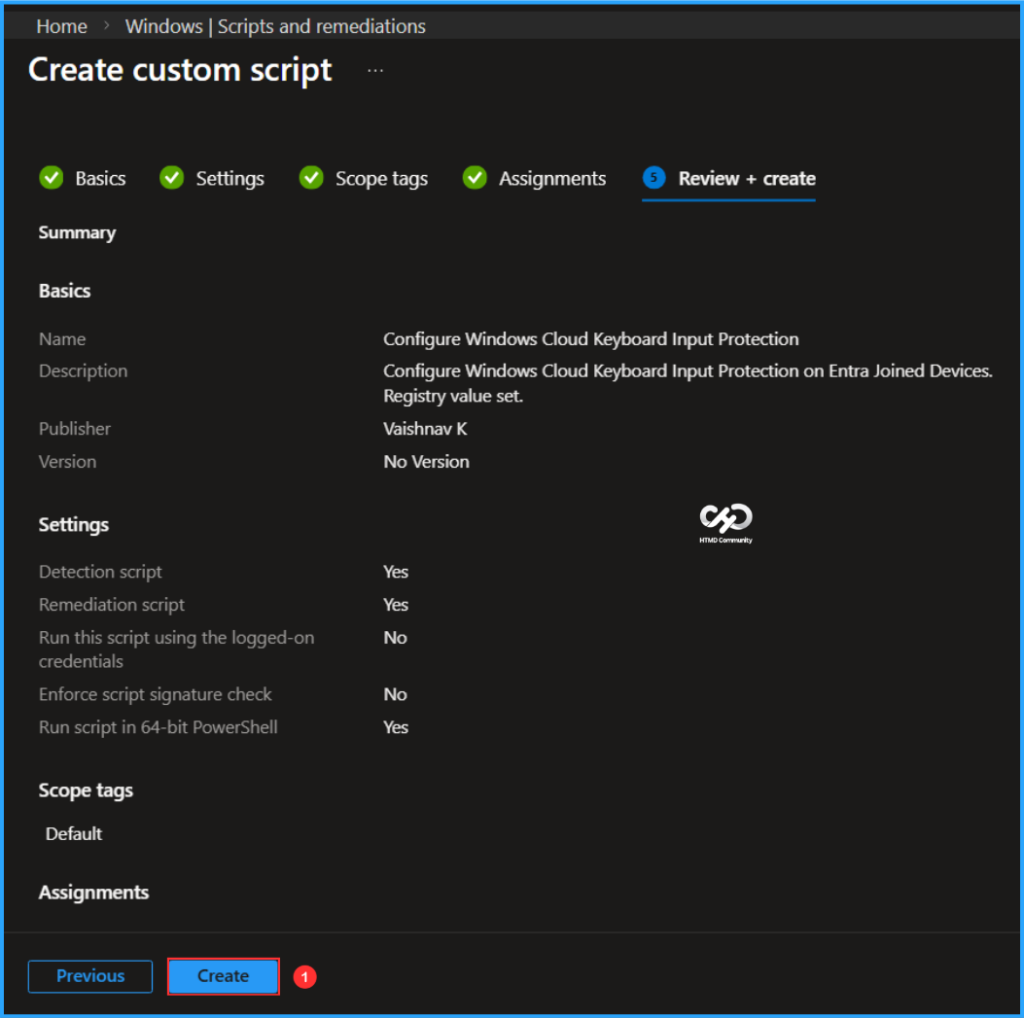
On the Review + create pane, thoroughly check all the settings you have defined for Configure Windows Cloud Keyboard Input Protection on Entra Joined Devices. Once you confirm everything is correct, select Create to implement the changes.
- Quick Fix to your Windows OS Issues with Detection and Remediation Scripts with Intune
- Microsoft Now Allows Up to 25 Apps in Intune Autopilot Deployment Profile Policy Including Windows 365
- Seamless Provisioning of Windows 365 Cloud PCs for External Identities with Intune
Monitor the Configure Windows Cloud Keyboard Input Protection Script Deployment
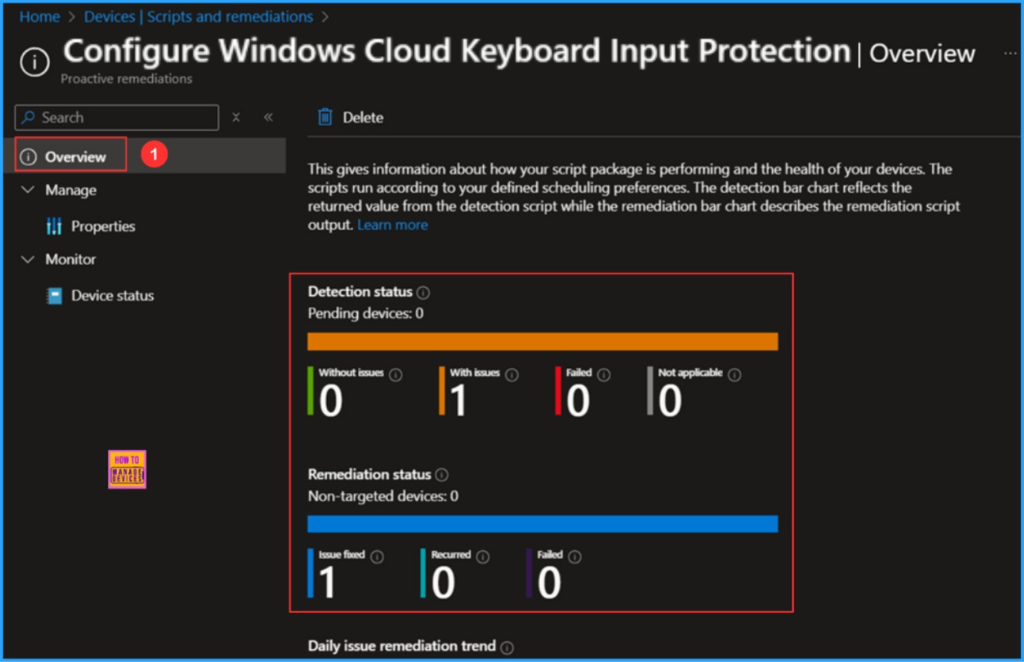
This Intune PowerShell Script has been deployed to the Microsoft Entra ID group (HTMD – Test Computers). The policy will take effect based on our configured Schedule. To monitor the policy deployment status from the Intune Portal, follow the steps below.
- Navigate to Devices >Windows > Scripts and remediations > Remediations
Search for the “Configure Windows Cloud Keyboard Input Protection” Script. The deployment status for this script is shown under Overview. We can see that both the Detection status and the Remediation status are working as expected!
End Result
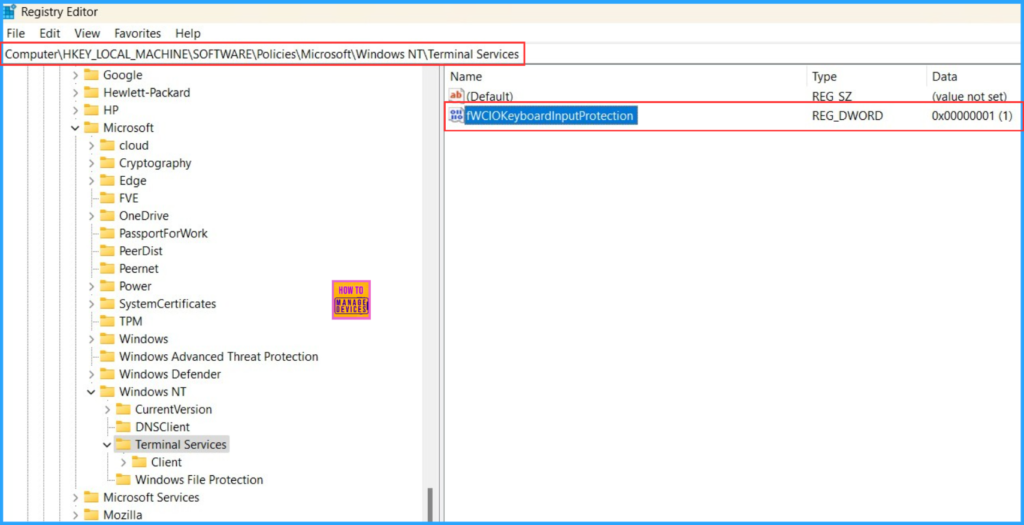
We need to verify whether the Intune PowerShell script has configured Windows Cloud Keyboard Input Protection on Entra Joined devices. Log in to one of the targeted devices for the script, then open the Registry Editor and follow the path below.
- HKEY_LOCAL_MACHINE\SOFTWARE\Microsoft\Windows NT\Terminal Services
We can confirm that the DWORD named fWCIOKeyboardInputProtection with a value of 1 has been successfully created, and our PowerShell remediation script deployment is functioning as expected!
Important Note: Ensure that you are installing the Windows Cloud Input Protect MSI. If the MSI is missing, the connection will be blocked, and an error message will appear. In my next blog post, I will explain how to easily deploy the wcio_protection_driver_installer_x64 using Intune. Stay tuned for that!
Need Further Assistance or Have Technical Questions?
Join the LinkedIn Page and Telegram group to get the latest step-by-step guides and news updates. Join our Meetup Page to participate in User group meetings. Also, join the WhatsApp Community to get the latest news on Microsoft Technologies. We are there on Reddit as well.
Author
Vaishnav K has over 12 years of experience in SCCM, Intune, Modern Device Management, and Automation Solutions. He writes and shares knowledge about Microsoft Intune, Windows 365, Azure, Entra, PowerShell Scripting, and Automation. Check out his profile on LinkedIn.