

Key Takeaways
- Easily target Cloud PCs based on specific hardware or configuration settings
- Use Intune Filters to simplify policy and app assignments for Windows 365 devices
- Improve management efficiency by dynamically grouping Cloud PCs without manual effort
- Ideal for applying tailored configurations, compliance policies, and app deployments
In this article, let’s check how to create a filter for all Windows 365 Cloud PCs with a specific configuration using Microsoft Intune. In this example, I used the 4 vCPU and 16 GB RAM configuration for creating the filter. You can easily replace “4vCPU/16GB” with any Cloud PC configuration that matches your environment requirements. If needed, you can further narrow down the filter by including the OS storage size as part of the configuration. Following the same approach, you can create filters for different Windows 365 Cloud PC sizes in Intune.
Table of Contents
Property and Operator Values Available in Windows Filters
The following table lists the available Properties, Operators, and supported Values that can be used while creating Windows device filters in Intune. These filter attributes help administrators target devices more precisely based on hardware, OS, ownership, and Windows 365 Cloud PC configurations.
| Property | Operator |
|---|---|
| deviceName (Device name) | Equals |
| manufacturer (Manufacturer) | NotEquals |
| model (Model) | StartsWith |
| deviceCategory (Device category) | Contains |
| osVersion (OS version) | NotContains |
| operatingSystemVersion (Operating System version) | In |
| deviceOwnership (Ownership) | NotIn |
| enrollmentProfileName (Enrollment profile name) | |
| deviceTrustType (Microsoft Entra Join Type) | |
| operatingSystemSKU (Operating System SKU) | |
| cpuArchitecture (CPU Architecture) |
- Provisioning Windows 365 FLEX / Frontline Shared Cloud PCs with Intune
- How to Set Time Limit for Disconnected Sessions on Windows 365 Flex Shared Cloud PCs using Intune
- Microsoft Cuts Windows 365 Prices by 20% for SMBs Starting May 2026
Create a Filter for all Cloud PCs with a Specific Configuration in Intune
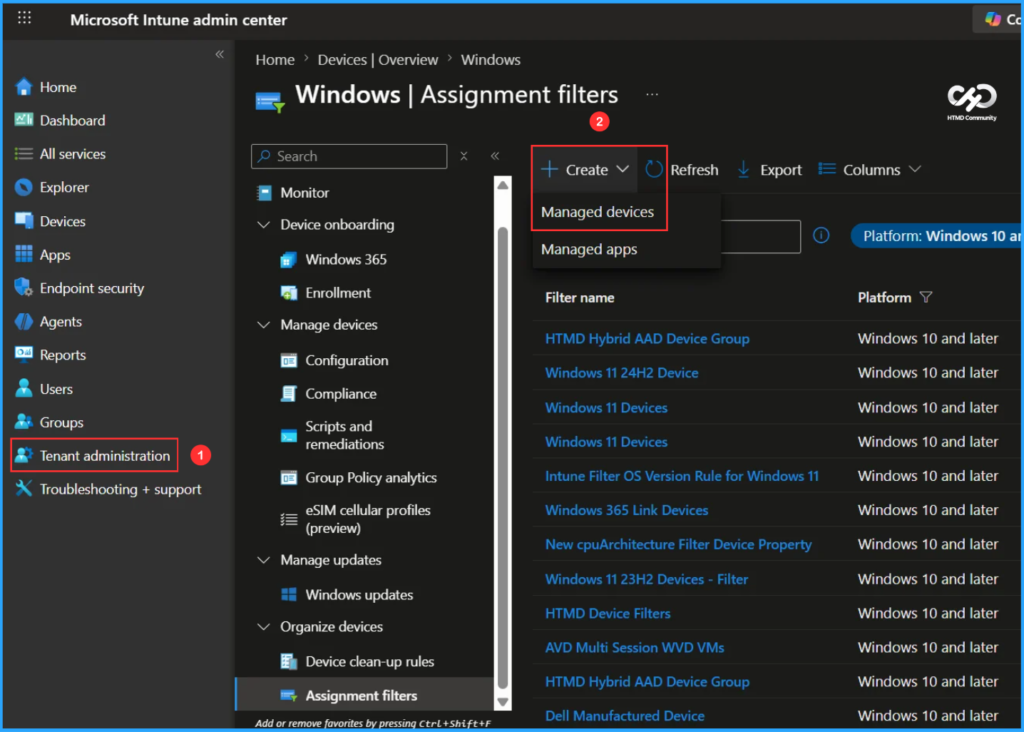
To create a Filter for all Cloud PCs with a specific Configuration in Intune, follow these steps. First, sign in to the Microsoft Intune Admin Center with your administrator credentials.
- Navigate to Tenant administration > Assignment filters
- Click on +Create > Managed devices
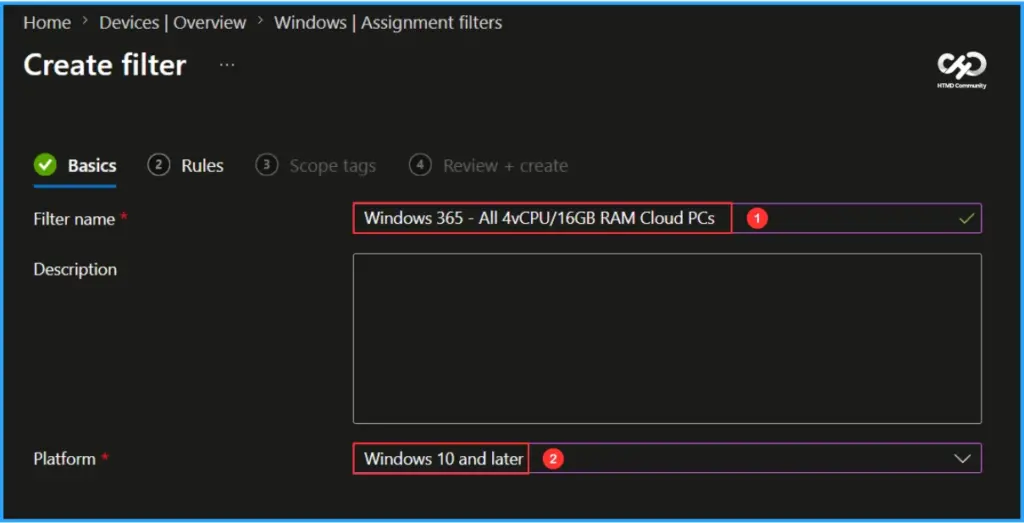
In the Basics details pane, name the filter as “Windows 365 – All 4vCPU/16GB RAM Cloud PCs” It is also helpful to provide a brief description of the filter’s purpose. Select the Platform as Windows 10 and later in the drop-down. After that, click Next.

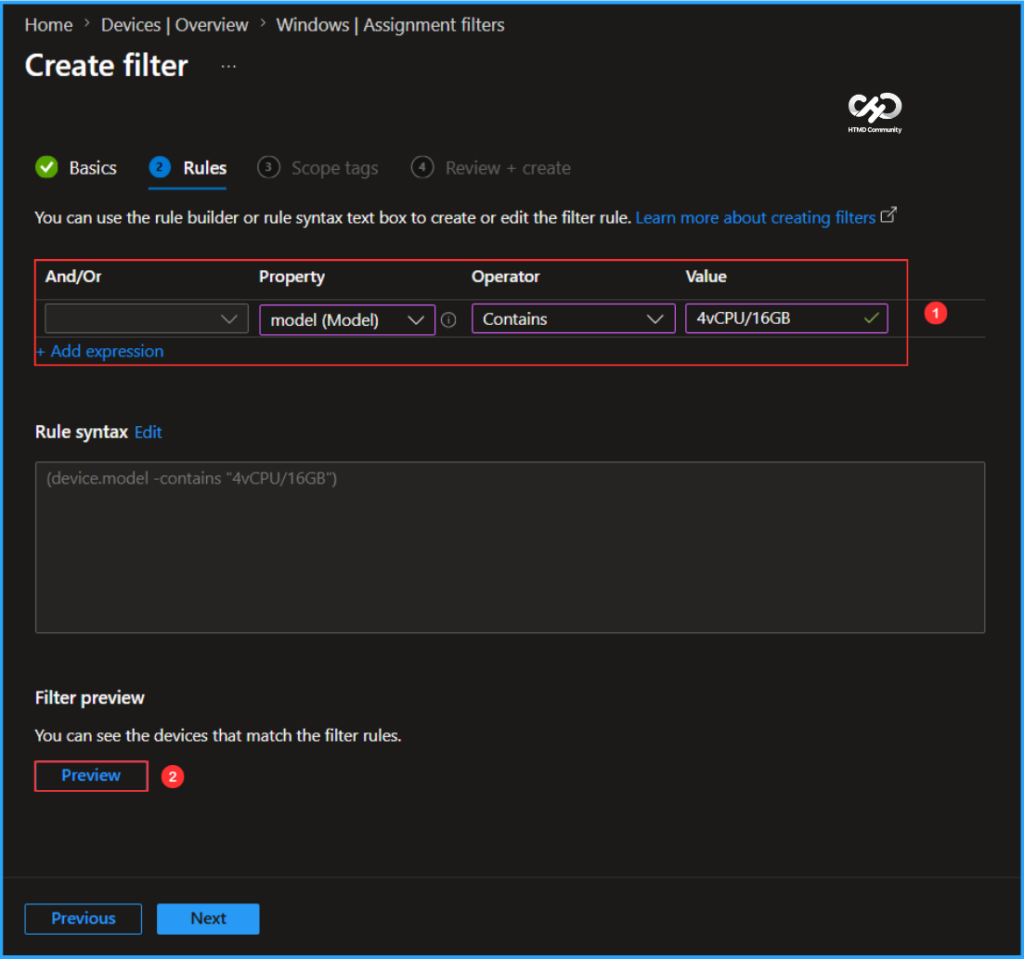
Now we can establish the necessary rules in the Rules tab. You can either use the rule builder or the text box for the rule syntax to create or modify the filter rule. Below, I am providing the combination mentioned. Based on your selection, the rule syntax will update to: (device.model -contains “4vCPU/16GB”).
- And/Or – NA
- Property – model (Model)
- Operator – Contains
- Value – 4vCPU/16GB
Note: You can create or edit rules directly by editing the syntax in the box below. Note that changes made here may not be reflected in the rule builder.
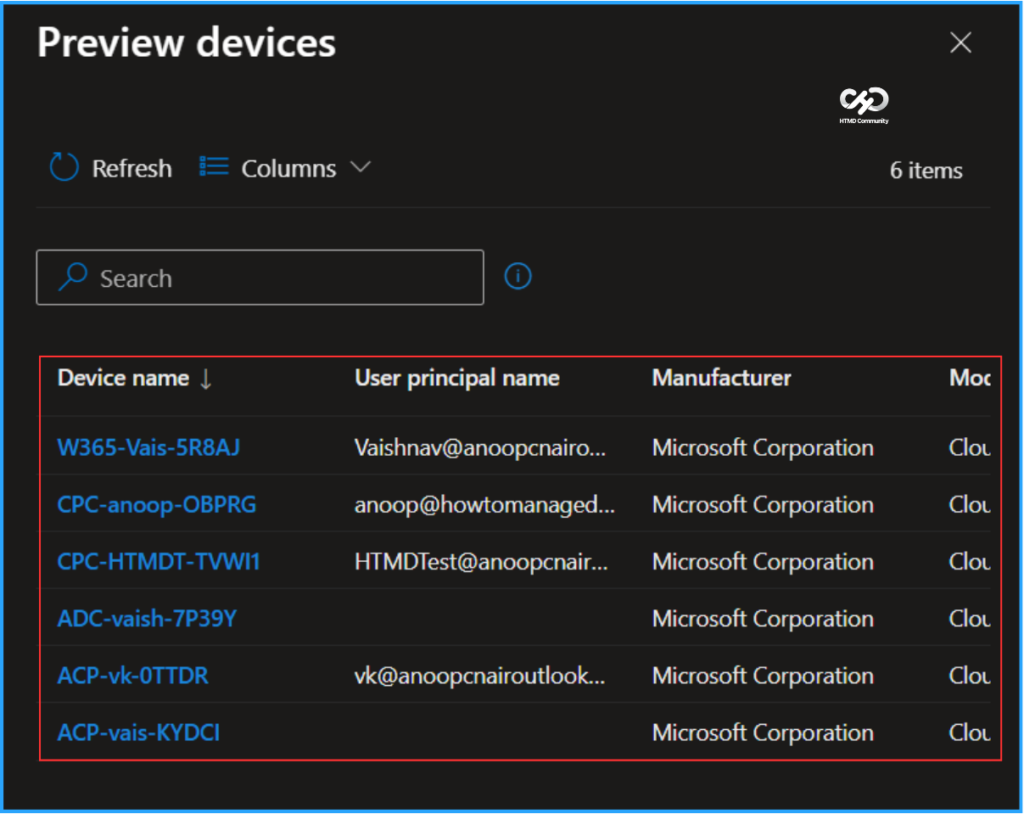
Once you click on Preview, you will see the devices that match the filter rules. If your rule meets the criteria you provided, the matching devices will appear in the Preview section. Here, you can see that six Cloud PCs in my tenant match the filter criteria.
Note: Create a filter rule based on the Intune device model property. Specify a string value with either a model full name (using -eq, -ne, -in, -notIn operators) or a partial value (using -startswith, -contains, -notcontains operators). Example 1: (device.model -eq “Surface Book 3”), Example 2: (device.model -in [“Surface Book 3”, “Surface Book 2”]), Example 3: (device.model -startsWith “Surface Book”).
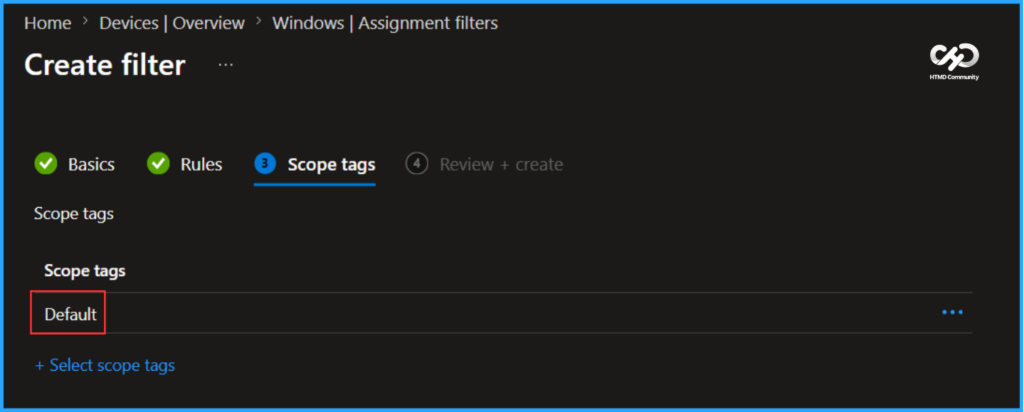
On the next page, leave the Scope tags as Default. If your tenant has custom scope tags, you can select them based on your policy needs, then click on Next.
- Automated Email Notification for Windows 365 Cloud PC Provisioning using Power Automate and Azure Logic Apps
- How to Set Alert for Windows 365 Cloud PCs in Grace Period using Intune
- Easy Way to Update New Multi-Region Selection in Windows 365
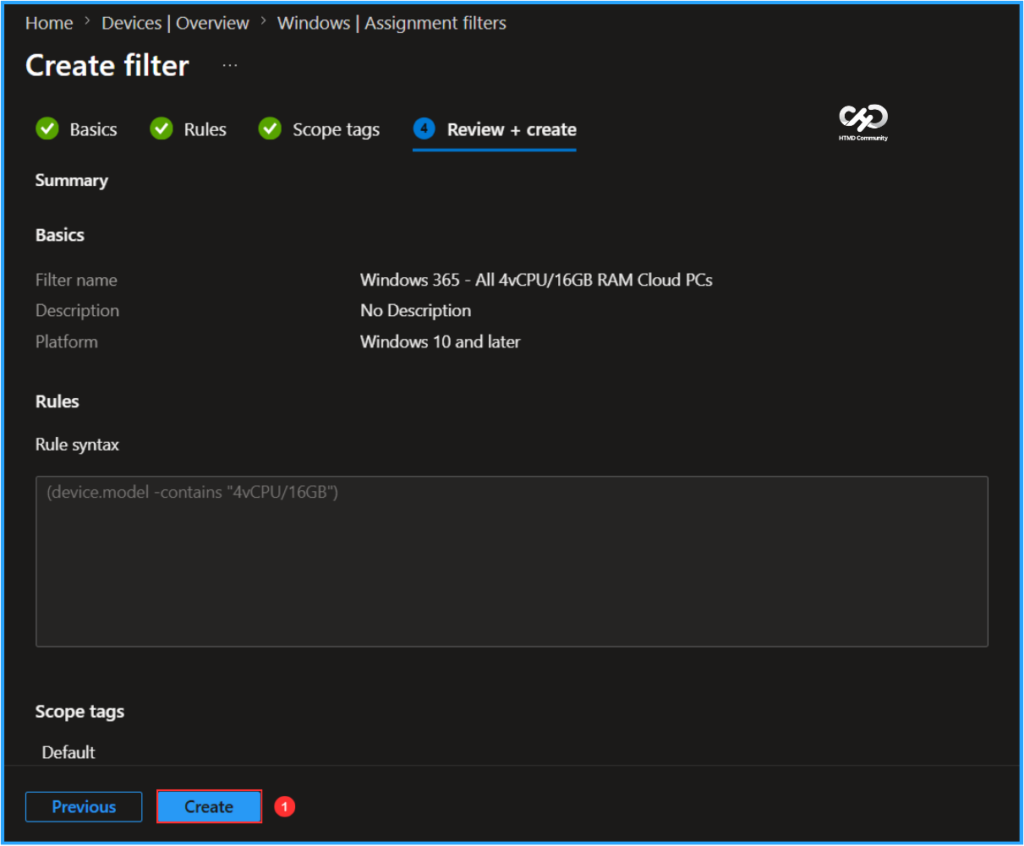
On the Review + create page, carefully review the settings you’ve defined for the Windows 365 – All 4vCPU/16GB RAM Cloud PCs filter. Once you’ve confirmed everything is correct, select Create.
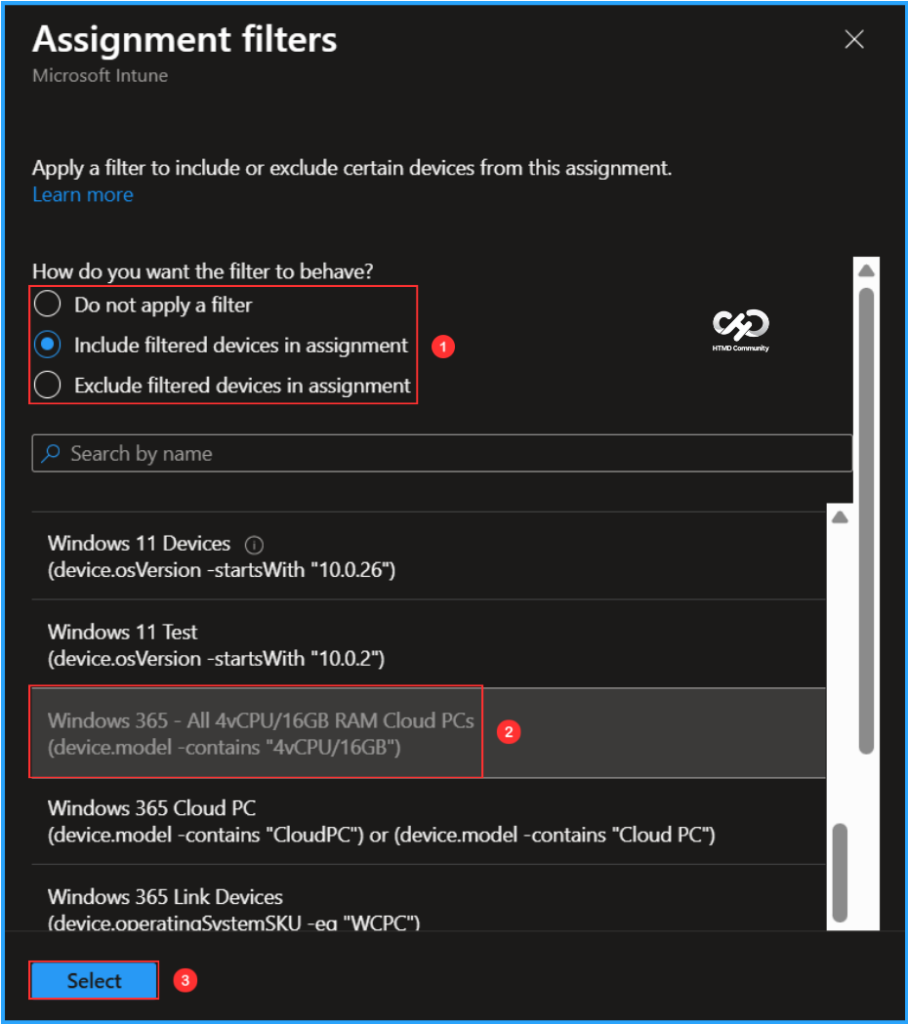
Apply the Windows 365 – All 4vCPU/16GB RAM Cloud PCs Filter
To apply the “Windows 365 – All 4vCPU/16GB RAM Cloud PCs” filter, follow these steps:
- Choose an existing or new deployment under the Assignment tab.
- Select a target group.
- Click on “Edit filter.”
- Choose the option “Include filtered devices in assignment” and then select “Windows 365 – All 4vCPU/16GB RAM Cloud PCs.”
This process allows you to specify how you want the filter to function. The other available options are “Do not apply a filter” and “Exclude filtered devices in assignment.”
Need Further Assistance or Have Technical Questions?
Join the LinkedIn Page and Telegram group to get the latest step-by-step guides and news updates. Join our Meetup Page to participate in User Group meetings. Also, join the WhatsApp Community and the WhatsApp channel to get the latest news on Microsoft Technologies. We are there on Reddit as well.
Author
Vaishnav K has 12 years of experience in SCCM, Intune, Modern Device Management, and Automation Solutions. He writes and shares knowledge about Microsoft Intune, Windows 365, Azure, Entra, PowerShell Scripting, and Automation. Check out his profile on LinkedIn.