
Key Takeaways:
- Windows 11 25H2 Device Readiness Report in Intune
- Helps IT admins plan smarter upgrades
- Reduces risk by providing visibility into hardware and compatibility issues
- Enables proactive remediation of non‑compliant endpoints.
Let’s discuss Windows 11 25H2 Device Readiness Report in Intune for Clear Status Hardware Insights and Smarter Upgrade Planning for IT Admins. The Device Readiness Report of Windows 11 25H2 is now available on Feature Update. It is easy to access with Microsoft Intune Portal.
Table of Contents
Table of Contents
Windows 11 25H2 Device Readiness Report in Intune for Clear Status Hardware Insights and Smarter Upgrade Planning for IT Admins
As we know that Device Readiness Report provides a device-level view of compatibility risks associated with an upgrade or update to a chosen version of Window. Here you can access the Windows 11 25H2 Device Readiness report to support your endpoints.
| Features of Windows 11 25H2 Device Readiness Report |
|---|
| Clear readiness status (Low risk / Replace device / Upgraded) |
| Hardware & compatibility insights before deployment |
| Better decision-making for phased rollouts |
- Easy Way to Deploy KB5077744 OOB Update for Windows 11 24H2 and 25H2 using Intune
- How to Create a Windows 11 25H2 Feature Update Policy using Intune
- Update to Windows 11 Version 25H2 using Normal Cumulative Update
How Windows Feature Update Device Readiness Report Helps Admins?
By getting the actual device status admins can see which devices are ready, low risk, or need replacement before pushing Windows 11 25H2. By flagging hardware or compatibility issues early, admins avoid failed upgrades and user downtime. It is Aligns with Windows Update for Business (WUfB) to streamline enterprise upgrade cycles.
How to Access Device Readiness Report
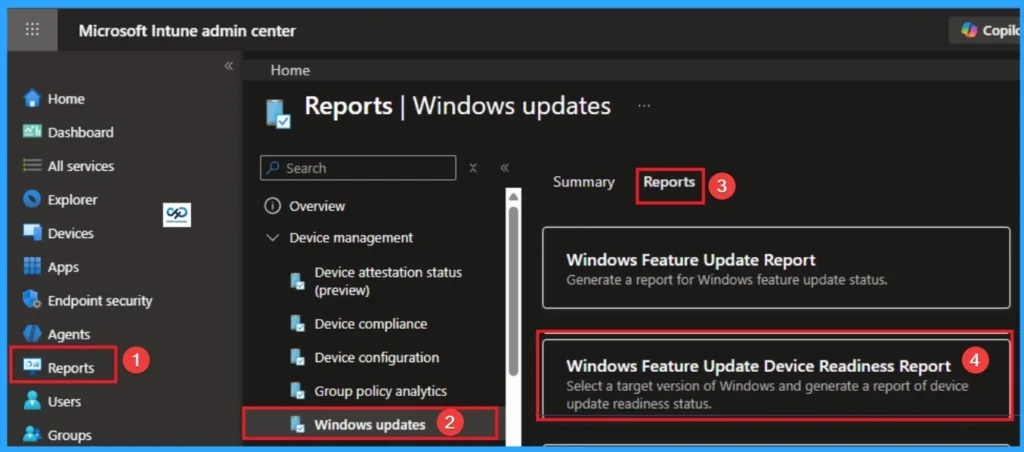
You can easily access Device Readiness Report via Intune. For this Sign in with your credentials on Intune Portal. Go to Reports > Windows Update > Reports > Windows Feature Update Device Readiness Report.

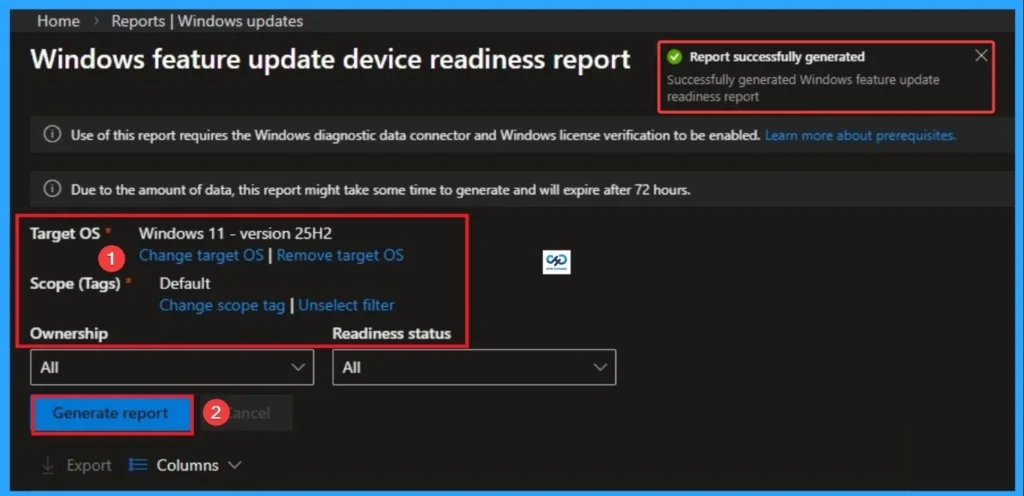
On the Windows Feature Update Device Readiness Report you can select target os as Windows 11 – version 25H2. Then choose Scope tags. These 2 field are mandtory. After selecting these click on the Generate Report button. Then you will get the success notification.
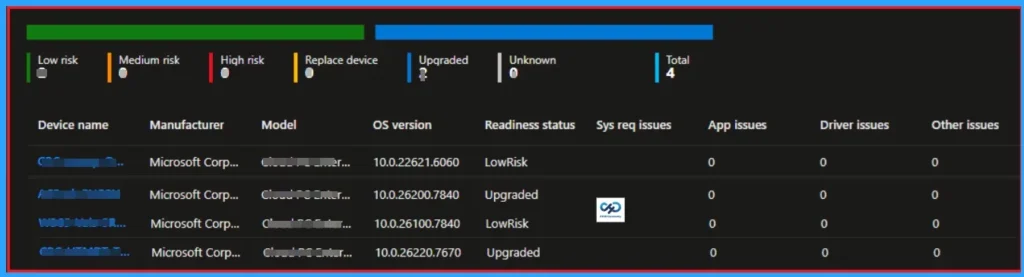
The Report shows the device status as Low risk / Replace device / Upgraded. Here you can see 4 devices status, and 2 devices are in LowRisk status and 2 devices are in Upgrade status.
Need Further Assistance or Have Technical Questions?
Join the LinkedIn Page and Telegram group to get the step-by-step guides and news updates. Join our Meetup Page to participate in User group meetings. Also, Join the WhatsApp Community and WhatsApp Channel to get the latest news on Microsoft Technologies. We are there on Reddit as well.
Author
Anoop C Nair has been Microsoft MVP for 10 consecutive years from 2015 onwards. He is a Workplace Solution Architect with more than 22+ years of experience in Workplace technologies. He is a Blogger, Speaker, and Local User Group Community leader. His primary focus is on Device Management technologies like SCCM and Intune. He writes about technologies like Intune, SCCM, Windows, Cloud PC, Windows, Entra, Microsoft Security, Career, etc.