
Key Takeaways
- To enable screen capture protection for Windows App on iOS/iPadOS devices, you must configure an app protection policy in Intune.
- Secure Windows 365 Access: Ensures data accessed via Windows 365 stays protected on iOS/iPadOS devices.
- Policy-Based Control: Admins can easily configure and enforce restrictions through Intune app protection policies.
- App-Level Security (MAM): Applies protection without requiring full device enrollment in Microsoft Intune.
- Seamless User Experience: Security runs in the background without disrupting end-user productivity.
In this blog post, let’s discuss how to create a MAM screen capture App protection policy for the Windows 365 App using Microsoft Intune. A Screen Capture App Protection Policy for the Windows App used with Windows 365 helps protect sensitive corporate data accessed from Cloud PCs. By configuring this policy in Intune, organizations can block or restrict screen capture actions, such as screenshots, screen recording, or external capture tools, when users access their Cloud PCs through the Windows App. This ensures that confidential business information remains protected even when users connect from personal or unmanaged devices.
Table of Contents
Screen Capture App Protection Applicable Platforms for Windows App
Secure your Cloud PC apps and data by applying strong protection policies. Use Microsoft Intune mobile application management (MAM) to enforce minimum app and device compliance. Strengthen data security further by enabling screen capture protection to prevent sensitive information from being captured or shared. The following table shows supported scenarios for Windows App.
| Platform | Minimum version | Desktop session | RemoteApp session |
|---|---|---|---|
| Windows App on Windows | Any | Yes | Yes. Local device OS must be Windows 11, version 22H2 or later. |
| Windows App on macOS | Any | Yes | Yes |
| Windows App on iOS/iPadOS | 11.0.8 | Yes | Yes |
| Windows App on Android (preview) | 1.0.145 | Yes | Yes |
- Easy Method to Deploy Windows App Mob for iOS and iPadOS using Intune
- Windows App on iOS now Supports Surface Mouse for Enhanced Productivity
- Explore the Windows 365 Cloud PC Overview Reports in Intune
Create Screen Capture App Protection Policy for Windows 365 App in Intune
To create a screen capture app protection policy for the Windows 365 App in Intune, follow these steps. First, sign in to the Microsoft Intune Admin Center with your administrator credentials.
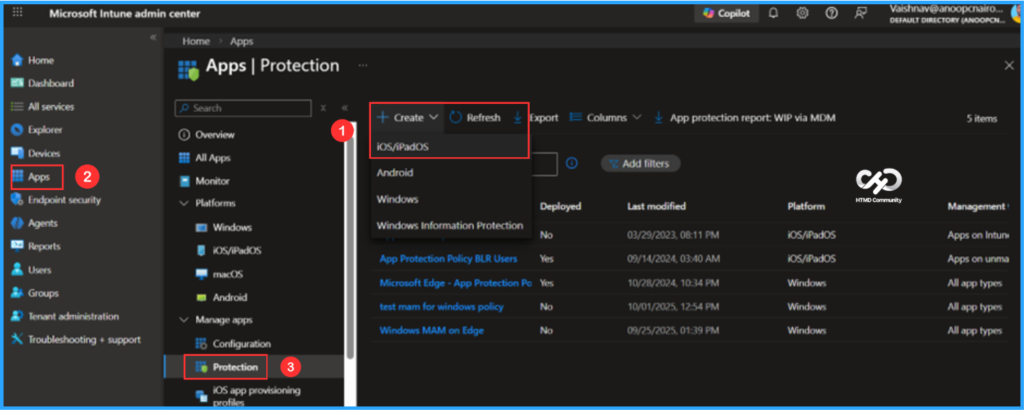
- Navigate to Apps > Protection
- Click on +Create > iOS/iPadOS
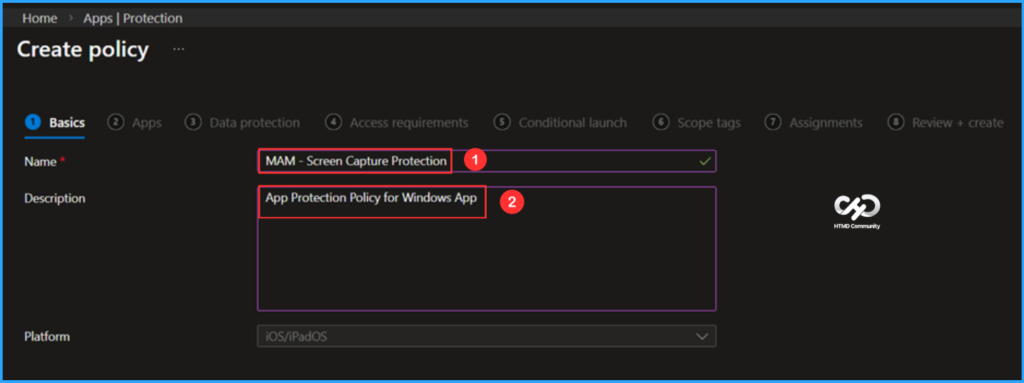
In the Basics details pane, name the App Protection Policy “MAM – Screen Capture Protection”. It is also beneficial to include a brief description outlining the purpose of the policy. This policy is intended for Windows applications. After providing the necessary details, click Next.

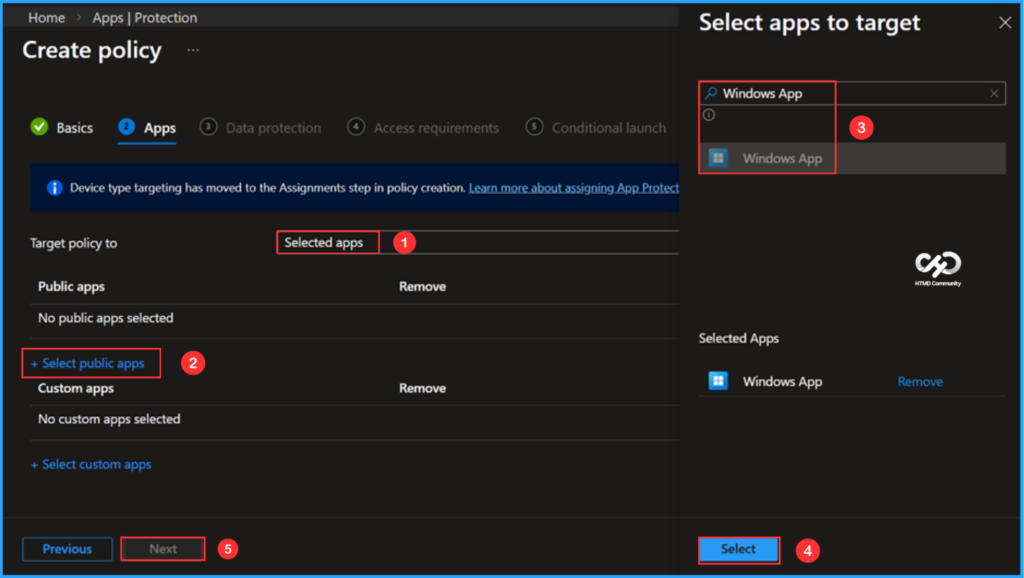
In the Apps pane, first select the Target policy option, then choose Selected apps. Under the Public apps section, click on +Selected public apps. A pop-up will appear with the Select app to target screen, where you can search for the app by either its Name or Bundle ID. I am currently searching for the name of the Windows app. Once you locate it, select the app. Please note that device type targeting has now moved to the Assignments step during policy creation. Learn more about assigning App Protection Policies
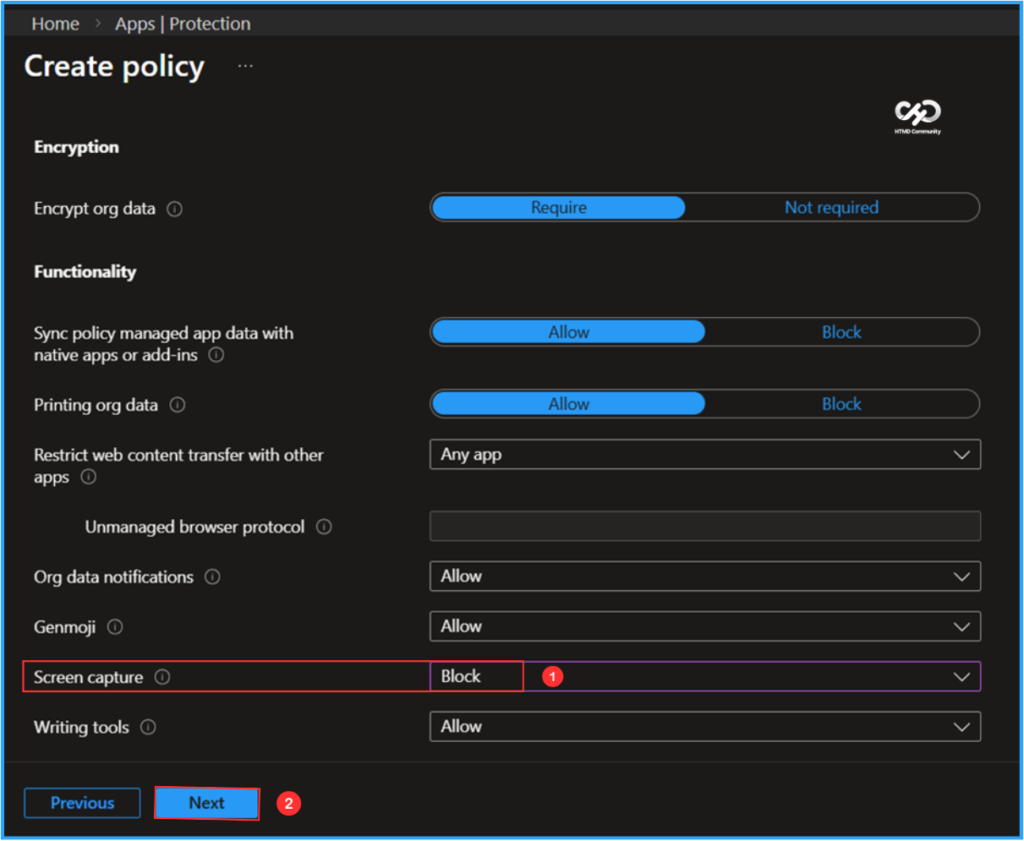
In the Data Protection pane, this group includes Data Loss Prevention (DLP) controls, which impose restrictions on actions such as cut, copy, paste, and save-as. These settings determine how users can manage and interact with data within applications, assisting in the protection of sensitive information from unauthorized sharing or transfer. I am keeping all settings as default except for the Screen Capture option. Then, I will click Next.
- Screen capture – Block
Note: On iOS/iPadOS, ensure users are running the latest Windows App 11.2.4. In some environments, users may need to manually update the app to receive the newest fixes.
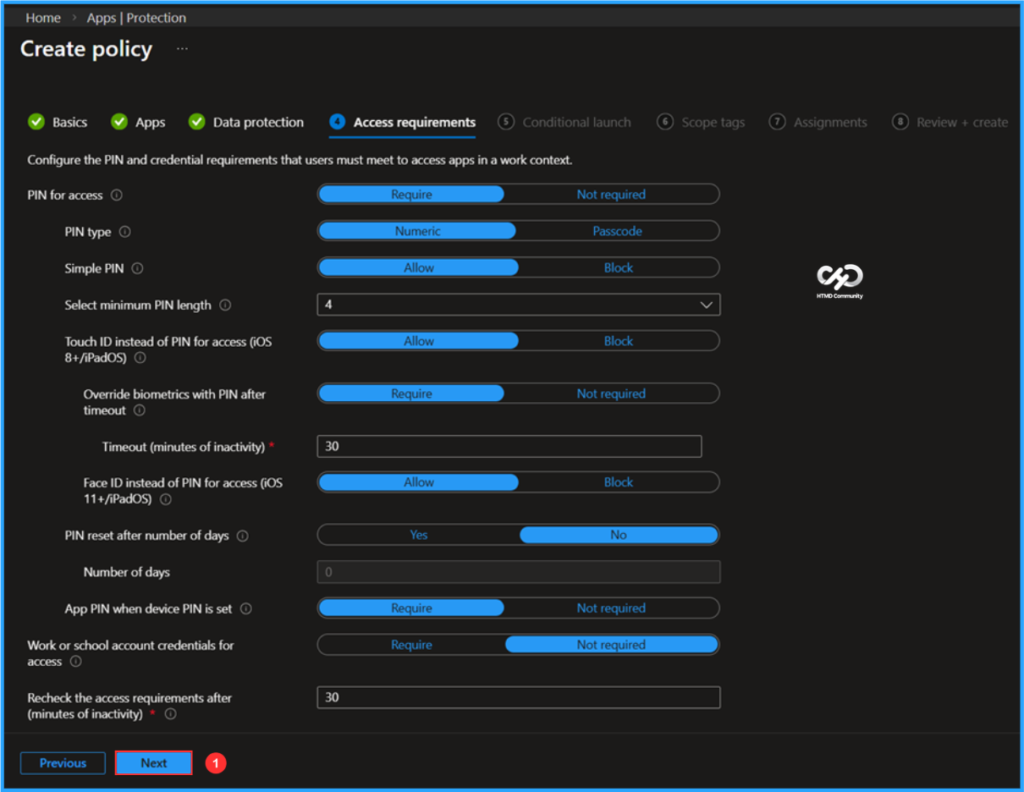
In the Access requirements tab, I will keep the default settings. Here, you can configure the PIN and credential requirements that users must meet in order to securely access applications in a work context. These settings ensure that only authenticated users can open and use organizational apps and data. Click Next to proceed.
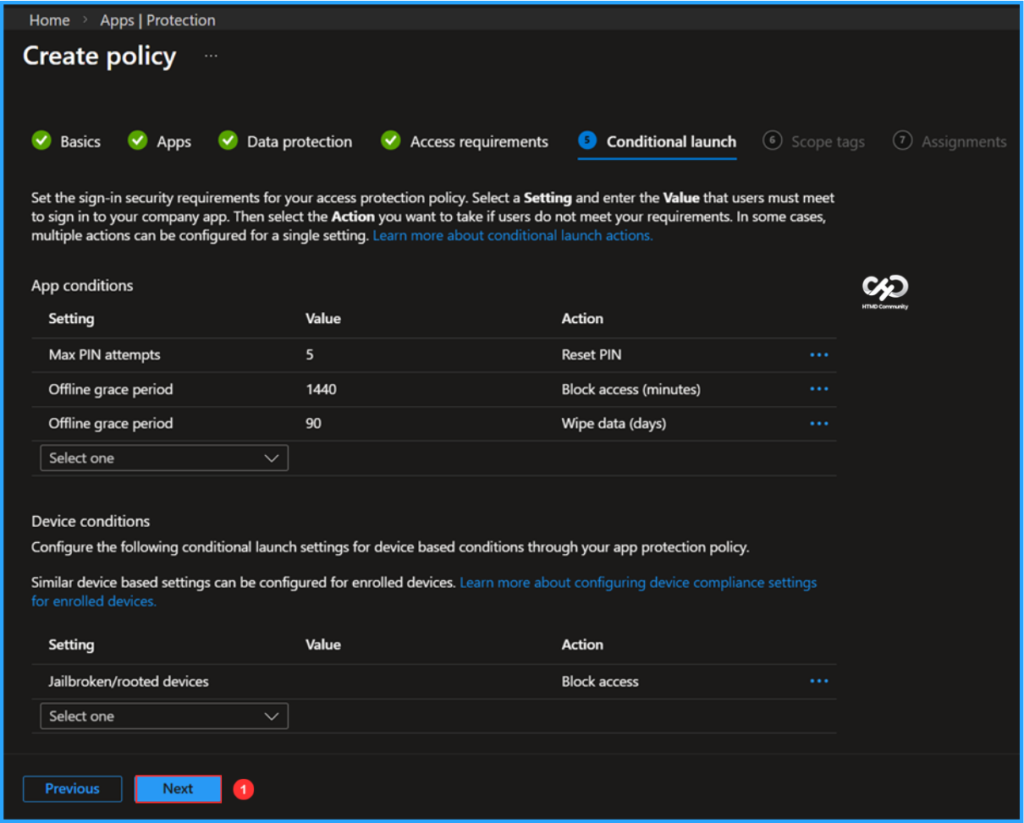
In a conditional launch, you can change default values for app conditions or device conditions with fewer clicks on Next.
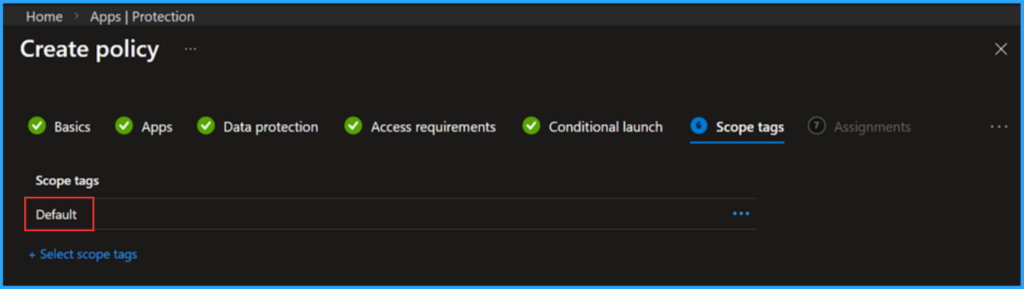
On the next page, keep the Scope tags set to Default. If your tenant has custom scope tags, select them based on your policy needs, and then click Next.
- How to Set Up Windows 365 Cloud PCs with Autopilot Device Preparation
- How to Set Up Windows 365 Cloud Apps Using Microsoft Intune
- Simple way to Enable Boot To Cloud PC Enhanced Mode using Intune
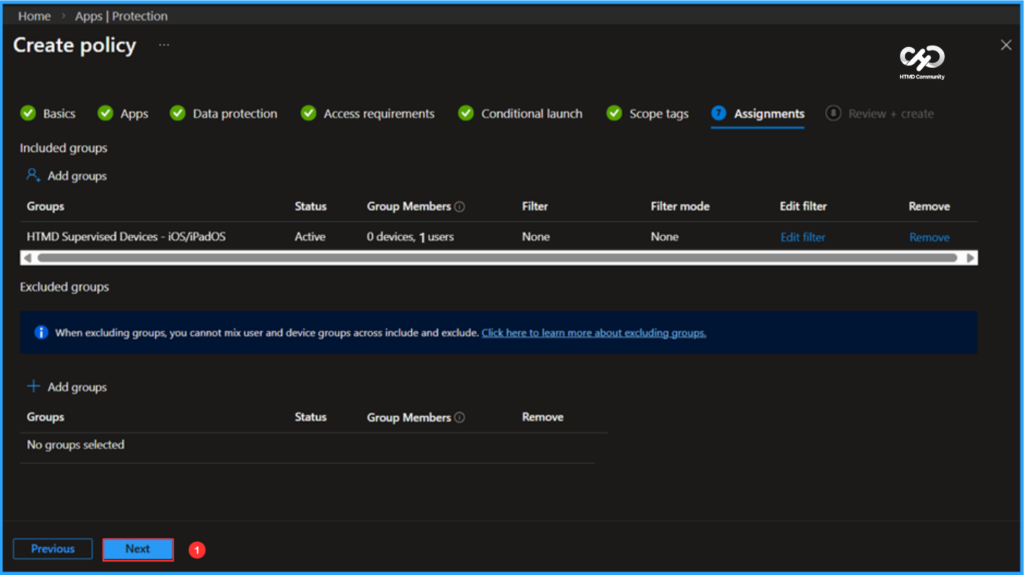
I am assigning the configuration policy to the HTMD Supervised Devices – iOS/iPadOS user group. To do this, click on Add groups and select the desired user or device groups under the Included groups option. In this example, I am not using any filters, and I have left the Excluded groups option blank.
Note: When excluding groups, you cannot mix user and device groups across include and exclude. Click here to learn more about excluding groups.
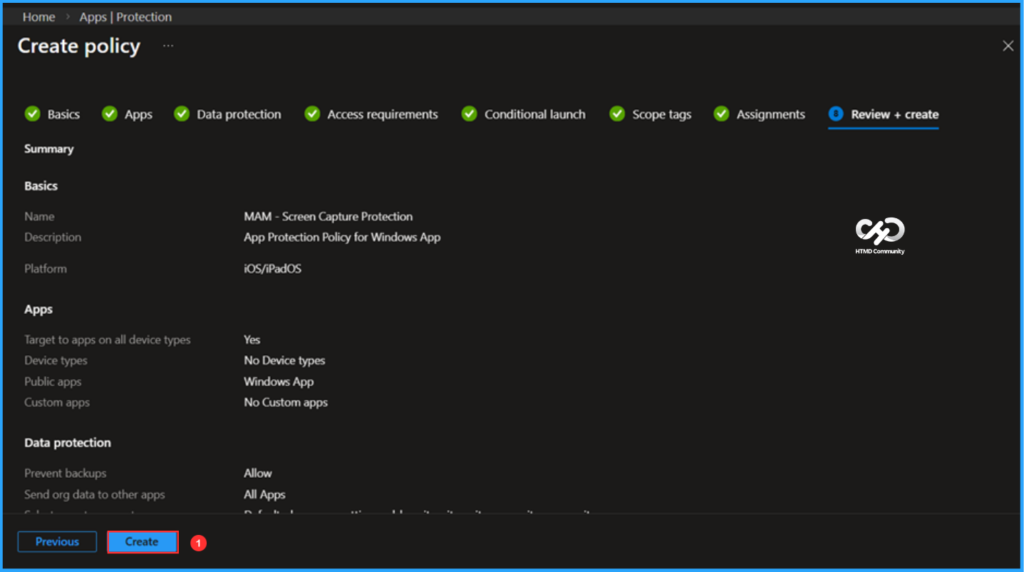
On the Review + create page, carefully review all the settings you’ve defined for the MAM – Screen Capture Protection policy. Once you’ve confirmed everything is correct, select Create to implement the changes.
Monitor the Screen Capture App Protection Policy for Windows 365 App Deployment
The Screen Capture App Protection Policy for the Windows 365 App has been deployed to the Microsoft Entra ID HTMD Supervised Devices user group for iOS/iPadOS. Our goal is to complete the installation as soon as possible. Once users check in and their devices sync, the App Protection Policy will take effect immediately. To monitor the deployment status, please follow the steps below in the Intune Portal.
- Navigate to Apps > iOS/iPadOS > Protection > Search by name. Am searching for “MAM – Screen Capture Protection”
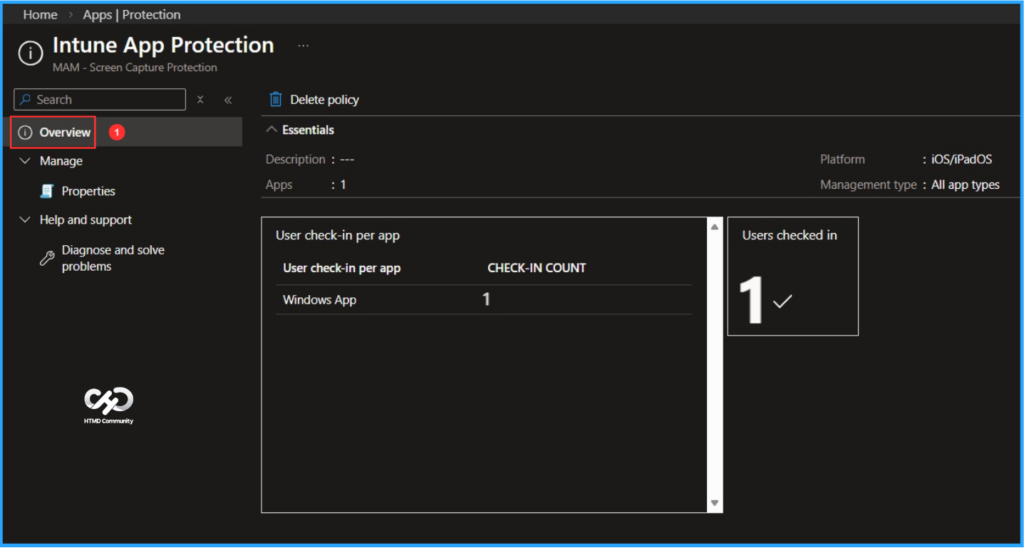
Click on the App protection policy under Overview to find the User check-in count for the Windows App. The check-in count is showing as 1 based on our assignment, indicating that it worked as expected!
Need Further Assistance or Have Technical Questions?
Join the LinkedIn Page and Telegram group to get the latest step-by-step guides and news updates. Join our Meetup Page to participate in User group meetings. Also, join the WhatsApp Community to get the latest news on Microsoft Technologies. We are there on Reddit as well.
Author
Vaishnav K has over 12 years of experience in SCCM, Intune, Modern Device Management, and Automation Solutions. He writes and shares knowledge about Microsoft Intune, Windows 365, Azure, Entra, PowerShell Scripting, and Automation. Check out his profile on LinkedIn.