
Key Takeaways
- The Windows App can be deployed directly to iOS and iPadOS devices via Apple Inc. App Store using Microsoft Intune.
- The app can be assigned to Entra ID users or device groups, allowing flexible deployment across managed Apple devices.
- When assigned as Required, the app installs automatically; when Available, users can install it from the Intune Company Portal.
- The biggest advantage of iOS Store apps is that they are automatically updated through the App Store
In this article, I am going to talk about how to deploy Windows App Mob for iOS and iPadOS using Microsoft Intune. It allows organizations to provide secure access to services like Windows 365, Azure Virtual Desktop, and Microsoft Dev Box directly from iPhones and iPads. Administrators can add the Windows App from the iOS App Store as an iOS Store App in Intune and assign it to users or device groups.
Table of Content
Table of Contents
Windows App Available Platforms
Once deployed, the application installs automatically on managed devices, enabling users to sign in with their organizational credentials and securely connect to their cloud desktops or remote resources. This centralized deployment through Intune simplifies app management, ensures consistent configuration, and enhances productivity by enabling seamless remote work from iOS and iPadOS devices.
The Windows App from Microsoft is available across multiple platforms to provide seamless access to services like Windows 365, Azure Virtual Desktop, and Microsoft Dev Box. This cross-platform availability enables users to securely connect to cloud PCs and remote desktops from desktops, tablets, and mobile devices.
| Platform | Availability | Notes |
|---|---|---|
| Windows | Available | Install from the Microsoft Store |
| macOS | Available | Available via Mac App Store |
| iOS / iPadOS | Available | Install from Apple App Store |
| Android | Available | Install from Google Play Store |
| Web Browser | Available | Access via browser without installing an app |
- Understanding Windows Deployment Services Hardening Phase 2 And Its Impact On Hands-Free Deployment
- How to Create Windows 365 Frontline Dedicated Cloud PCs using Intune
- How to Set Up Windows 365 Cloud PCs with Autopilot Device Preparation
- Best Guide to Install Windows App from New Microsoft Store in Intune
- How to Set Up Windows 365 Cloud Apps Using Microsoft Intune
Create a Windows App Mob for iOS Store App
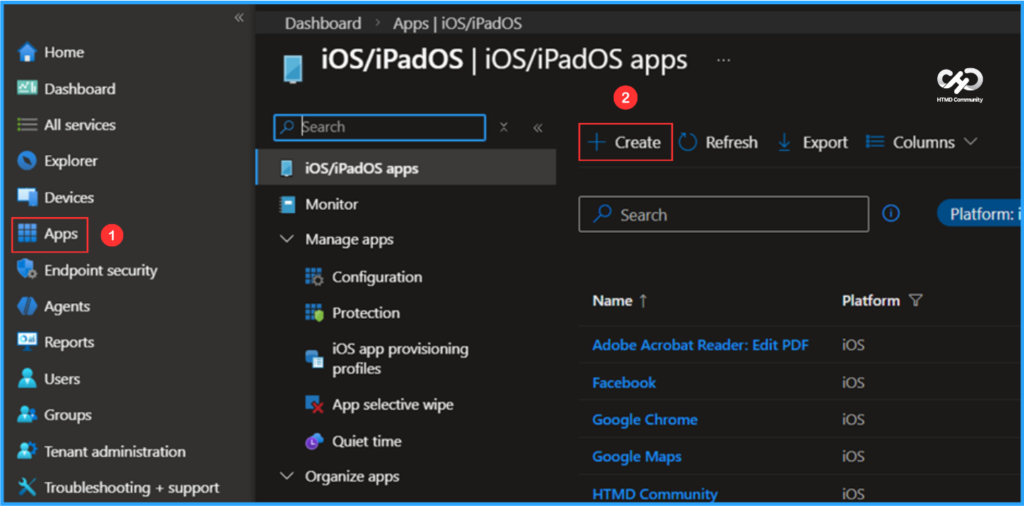
Follow the steps below to create a Windows App Mob iOS store app with Microsoft Intune. Login to the Microsoft Intune Admin Center using your administrator credentials.

- Navigate to Apps > By platform > iOS/iPadOS
- Click on +Create
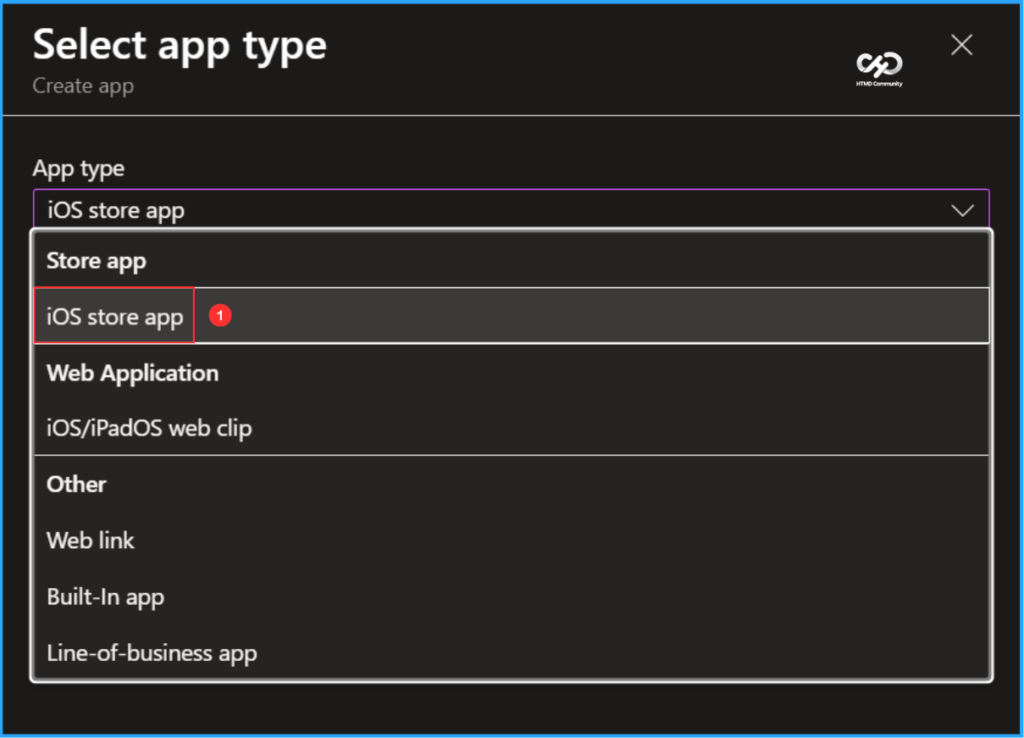
To create the App, select the app type. Once you click the App type, Intune will list the available App categories. In that, under the Store app, choose the iOS store app from the drop-down menu.
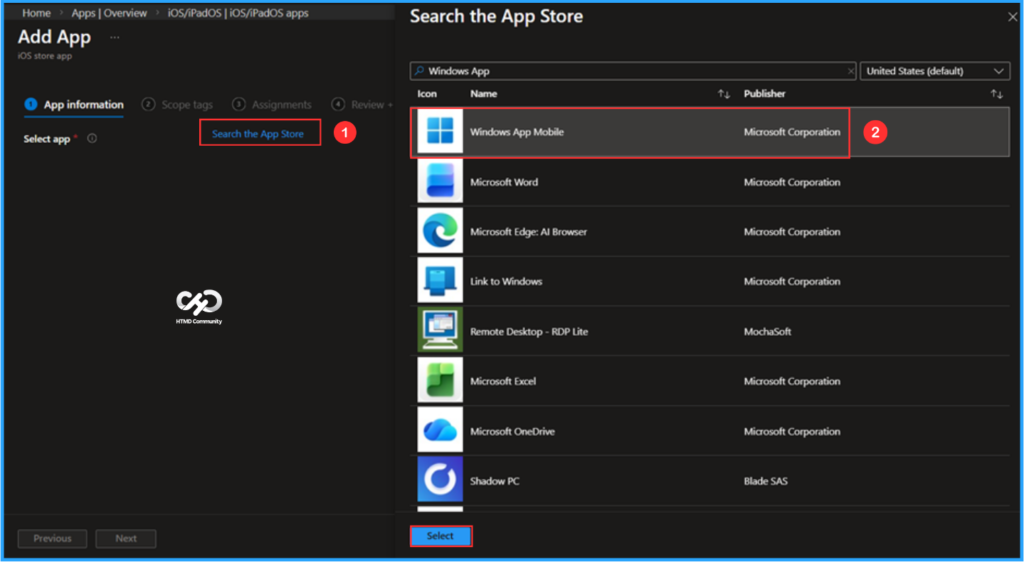
On the App Information page, you will find an option to select an app. Click on Search the App Store. This feature allows you to search the built-in iOS App Store for free apps compatible with iOS devices. In the search field, type Windows App and select Windows App Mobile from the results.
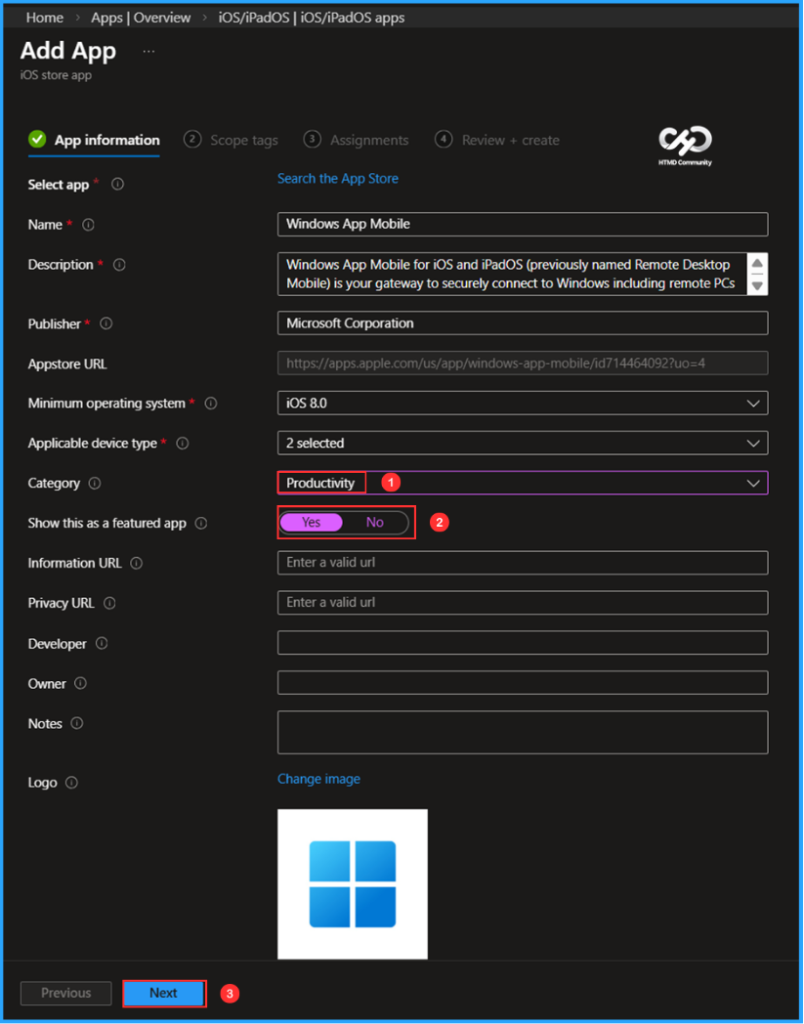
On the App information page, most fields will be auto-populated. Here, I am changing a few values listed below and clicking Next.
- Category: Productivity
- Show this as a featured app: Yes
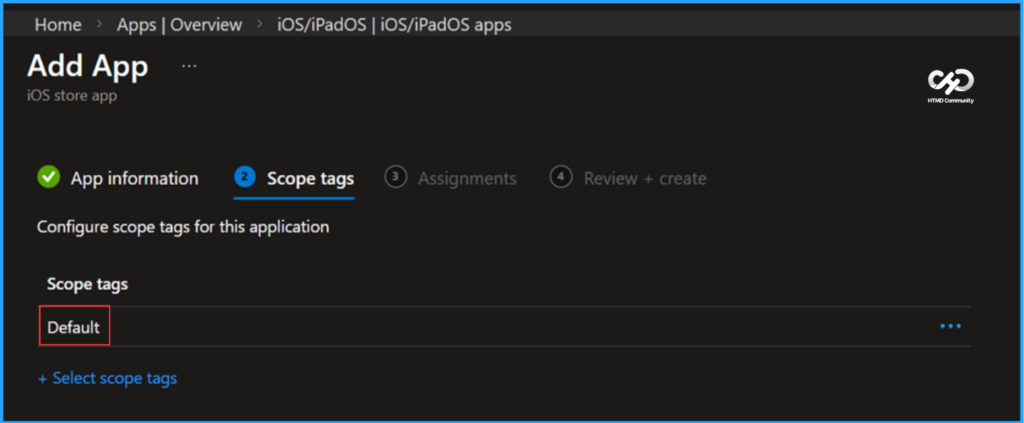
On the next page, set scope tags for this application. For that, click on +Select scope tags and choose the Default one. If you have any custom scope tags available, you can also select them based on your requirements.
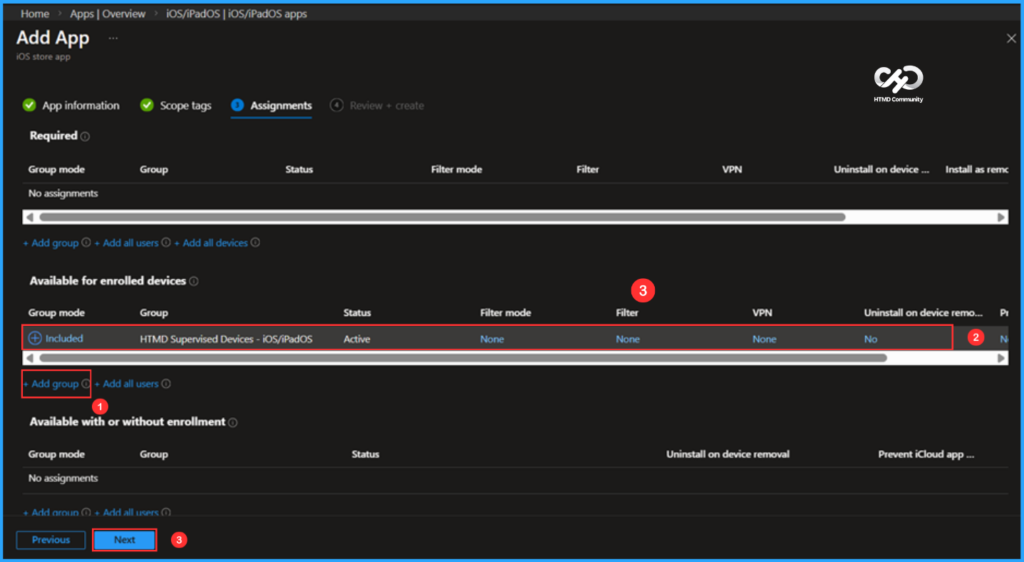
Click on Next. I am assigning the app deployment to HTMD Supervised Devices – iOS/iPadOS. To do this, under Available for enrolled devices, click on Add group and select the required user group in the Select groups section. Required and Available with or without enrollment are the other two options.
Note: Select the groups for which you want to make this app available. Available for enrolled devices apps are displayed in the Company Portal app and website for users to optionally install. Available assignments are only valid for User Groups, not device groups.
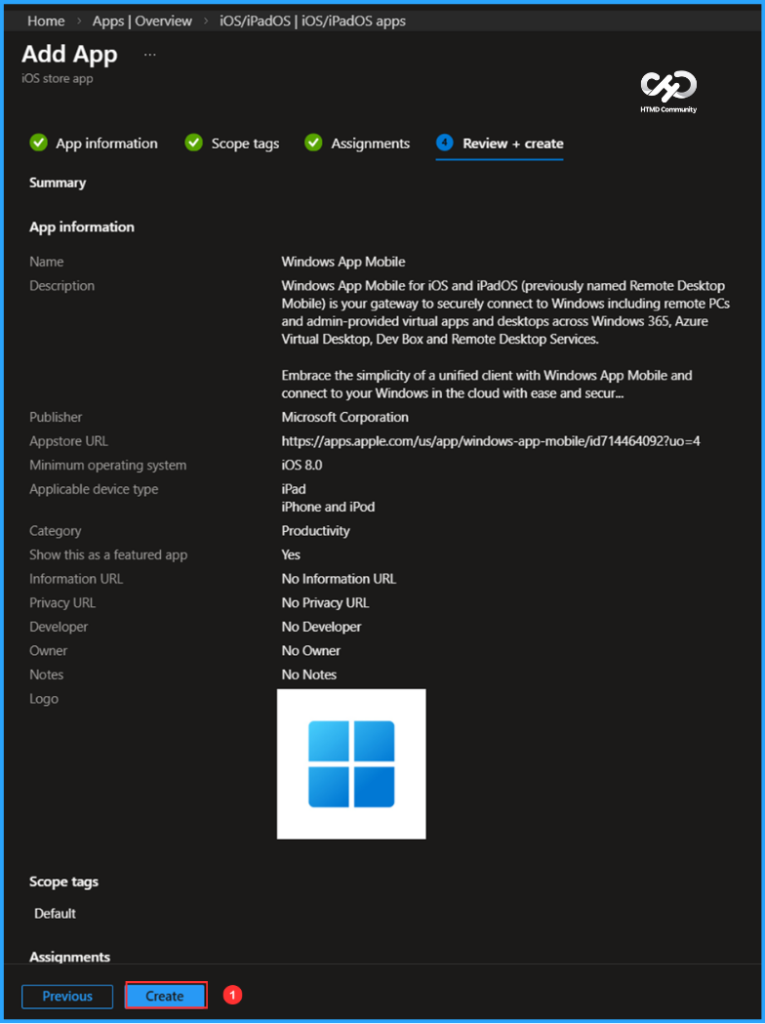
On the Review + create page, review all the settings for the Windows App Mob iOS store app. Once you confirm everything is correct, select Create to deploy it.
- How to Provision Windows 365 Cloud PC for an External Identity using Intune
- How to Configure New Windows App Settings for Windows 365 using Intune
- How to Configure AI-Enabled Features for Windows 365 Cloud PCs
Monitor the Windows App Mob iOS Store App Deployment
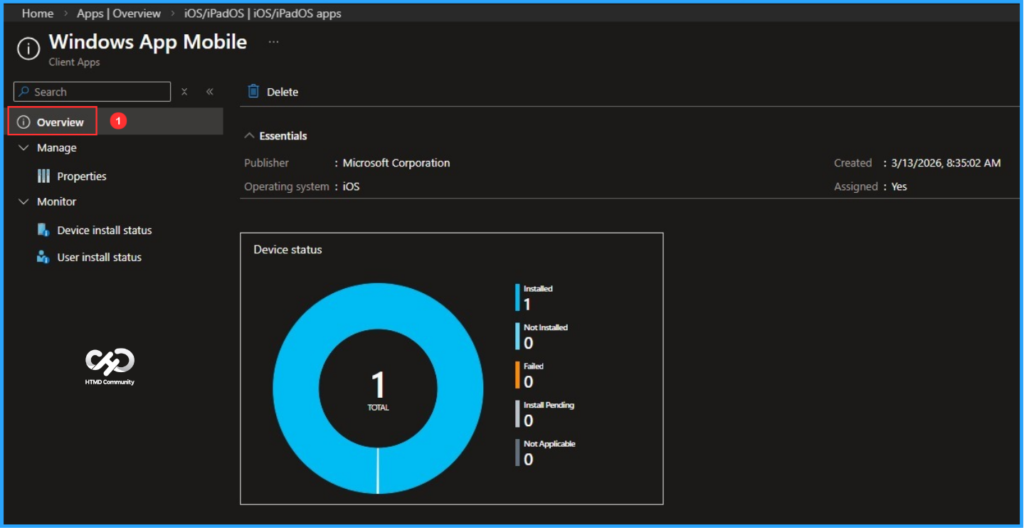
Windows App Mob iOS Store App is deployed to the Microsoft Entra ID group (HTMD Supervised Devices – iOS/iPadOS). which is a User Group. Our app will be available as soon as possible. So, once the user is checked, the App deployment will take effect immediately. To monitor the deployment status from the Intune Portal, follow the steps below.
- Navigate to Apps > By platform> iOS/iPadOS > Search by name Windows App Mob
Click the App under Overview, and you can find the Device and User installation status of the App.
End User Experience – Windows App Mob Deployment
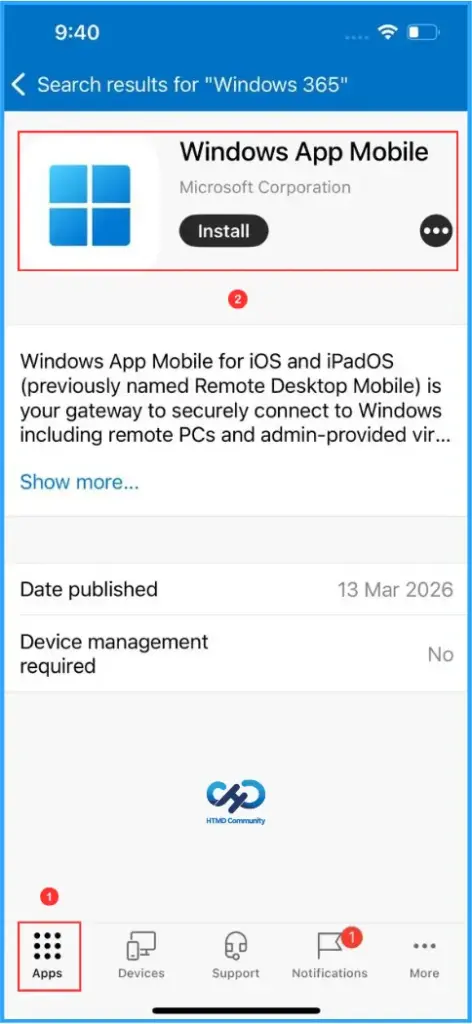
Our task now is to check if the Windows App Mobile is available. To do this, first check your deployed device. In this case, I am using an iPhone 13. Open the Company Portal, navigate to the Apps section, and search for “Windows 365”. You should see the Windows App Mobile available for installation. Click on Install to proceed. This confirms that our deployment has worked as expected!
Need Further Assistance or Have Technical Questions?
Join the LinkedIn Page and Telegram group to get the latest step-by-step guides and news updates. Join our Meetup Page to participate in User group meetings. Also, join the WhatsApp Community to get the latest news on Microsoft Technologies. We are there on Reddit as well.
Author
Vaishnav K has over 12 years of experience in SCCM, Intune, Modern Device Management, and Automation Solutions. He writes and shares knowledge about Microsoft Intune, Windows 365, Azure, Entra, PowerShell Scripting, and Automation. Check out his profile on LinkedIn.