
Key Takeaways
- Microsoft introduced a feature to install Windows quality updates during OOBE.
- The feature can be enabled using ESP profiles in Intune.
- Users can reach the desktop with latest updates already installed.
- It helps reduce the update workload after device deployment.
In this post we are discussing Microsoft Adds Windows Quality Updates During OOBE for Faster Device Deployment. Microsoft has newly introduced a feature that allows Windows quality updates to be installed during the Out-of-Box Experience (OOBE). This feature helps organizations ensure that new devices receive the latest updates while they are still being set up, instead of installing them after the user reaches the desktop.
Table of Contents
Table of Contents
Microsoft Adds Windows Quality Updates During OOBE for Faster Device Deployment
With this improvement, users can land on their desktop with the latest Windows updates already installed. This reduces the time spent installing updates after deployment and helps provide a smoother and faster device setup experience for employees. The feature can be enabled using Enrollment Status Page (ESP) profiles in Microsoft Intune. It is mainly designed to reduce common deployment pain points and ensure devices start with the latest security updates from day one.
What This Feature Does
This feature allows organizations to install Windows quality updates during the device setup process. Instead of waiting until the user signs in and then running updates, the system installs them during the OOBE setup stage.
As a result, users do not need to spend extra time installing updates after reaching the desktop. This improves productivity and makes the first-time device experience smoother.
- How to Set Up Multi Admin Approval for Three New Device Actions in Intune
- Best Method to Create Windows 11 System Image Backup
- New Windows 11 OOBE Restore Feature Helps Users Recover Apps and Settings Quickly
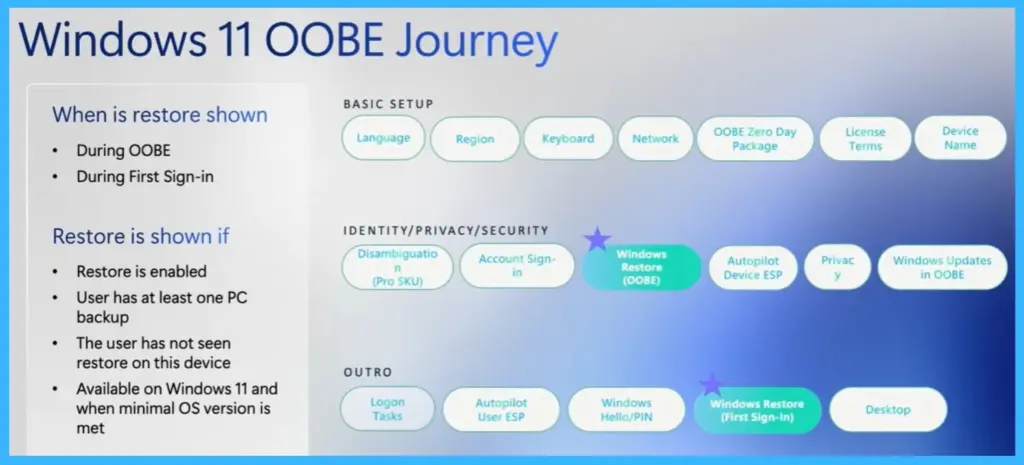
Windows 11 OOBE journey
Windows 11 OOBE journey the steps a user goes through while setting up a new Windows device. The process starts with basic setup steps such as choosing the language, region, keyboard layout, and connecting the device to a network. After that, the device may install the OOBE Zero Day Package, accept license terms, and complete device naming.

The next part of the journey focuses on identity, privacy, and security. During this stage, users sign in to their account, and the device begins applying organization policies through Microsoft Intune Autopilot and the Enrollment Status Page (ESP). Privacy settings are also configured as part of this process.
| When is restore shown | Restore is shown if |
|---|---|
| During OOBE | Restore is enabled |
| During First Sign-in | User has at least one PC backup |
| The user has not seen restore on this device | |
| Available on Windows 11 and when minimal OS version is met |
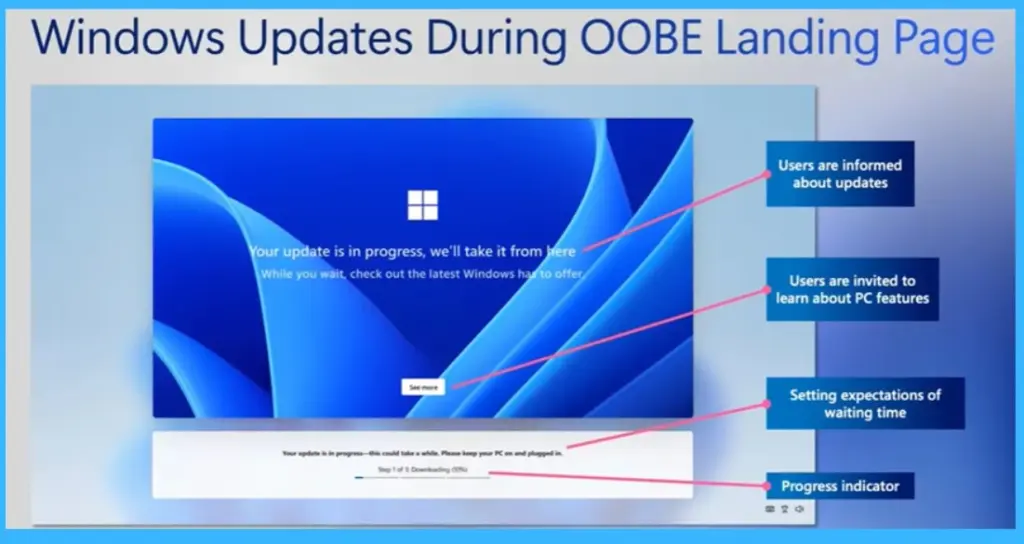
Windows Updates During OOBE Landing Page
During the OOBE setup, users may see a landing page that appears when Windows updates are being installed. This page informs users that their update is in progress and that the system is handling the process automatically. While waiting, users can also explore information about new PC features through the “See more” option.
- The page sets expectations by indicating that the update may take some time and asks users to keep the device turned on and plugged in.
- A progress bar is displayed to show the current stage of the update, such as downloading or installing updates, helping users understand what is happening while the device prepares the latest updates before they reach their first sign-in experience.
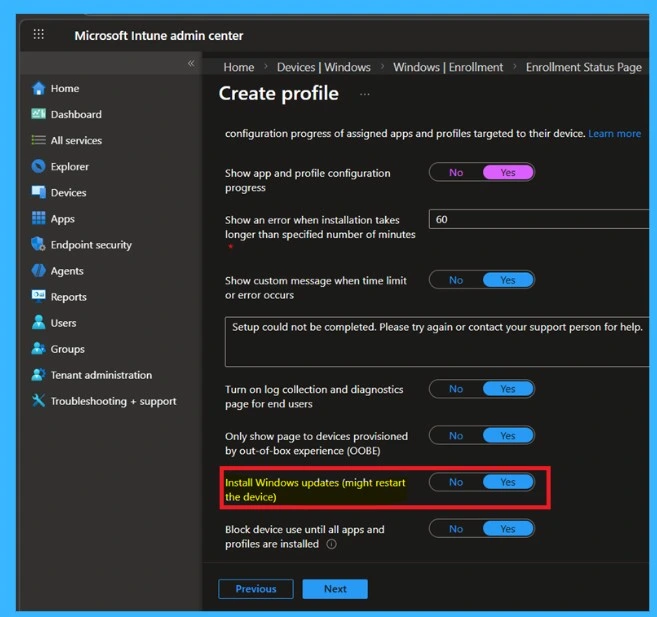
Admin Control for Enabling Quality Updates in OOBE
Administrators can control whether Windows quality updates are installed during the OOBE by configuring settings in the Enrollment Status Page profile within Microsoft Intune. In the ESP profile settings, admins can enable the Install Windows quality updates option so that devices receive the latest approved updates during the setup process, even if it requires a restart.
By default, existing ESP profiles keep this feature disabled, while new ESP profiles have it enabled by default and can be adjusted during profile creation. If an organization does not use ESP profiles, the policy remains disabled unless configured.
- Additionally, the same configuration can be managed through Group Policy under Computer Configuration > Administrative Templates > Windows Components > OOBE > Allow Updates in OOBE.
- This ensures that devices are updated and ready for users when they complete the setup process.
Need Further Assistance or Have Technical Questions?
Join the LinkedIn Page and Telegram group to get the latest step-by-step guides and news updates. Join our Meetup Page to participate in User group meetings. Also, join the WhatsApp Community and the Whatsapp channel to get the latest news on Microsoft Technologies. We are there on Reddit as well.
Author
Anoop C Nair is a Workplace Technology solution architect with 25+ years of experience. Microsoft Certified Trainer. Microsoft MVP from 2015 onwards for consecutive 11+ years! He is a blogger, Speaker, and Founder of HTMD Community and HTMD Conference. His main focus is on Device Management technologies like Intune, Windows, and Cloud PC. He writes about technologies like Intune, SCCM, Windows, Cloud PC, Entra, and Microsoft Security