
Key Takeaways
- Alerts help admins proactively monitor Cloud PC health, status, and lifecycle events.
- The Cloud PCs in grace period alert notifies when devices are at risk of deprovisioning due to license issues.
- Admins can now configure alert rules to get timely notifications before Cloud PCs are deprovisioned.
- Alerts improve visibility into provisioning, connectivity, and service-related failures.
- Customizable thresholds and conditions provide greater control over alerting to meet organizational needs.
In this blog post, I will discuss how to set new Windows 365 Cloud PCs in grace period alert in Microsoft Intune. Recovery for Windows 365 Enterprise Cloud PCs that were deprovisioned due to license expiration is now generally available, moving out of preview. In addition, the Cloud PCs grace period alert has been enhanced, allowing administrators to configure alerts for devices nearing deprovisioning, enabling timely action and better management of Cloud PC lifecycles.
Table of Contents
What are the Available Windows 365 Cloud PC Alerts in Intune
Here’s a clean and easy-to-read table of available Windows 365 Cloud PC alerts in Intune with brief explanations.
| Alert Name | Description |
|---|---|
| Cloud PCs in grace period | Alerts when Cloud PCs enter the grace period due to license issues. Helps admins take action before automatic deprovisioning occurs. |
| Azure network connection failure | Triggered when there are issues with the Azure Network Connection (ANC) used for Cloud PCs. This can impact provisioning and connectivity to Cloud PCs. |
| Cloud PCs that aren’t available (preview) | Notifies when Cloud PCs become inaccessible or unavailable to users. Useful for quickly identifying service disruptions. |
| Deprovisioning failure impacting Reserve Cloud PCs | Raised when reserve Cloud PCs fail to deprovision properly. This may affect the availability of replacement or standby Cloud PCs. |
| Frontline Cloud PC User Experience Sync Storage Limits | Alerts when storage limits related to user experience sync are nearing or exceeded. Helps maintain a smooth Frontline Cloud PC experience. |
| Frontline Cloud PC concurrency buffer usage (preview) | Indicates usage of the concurrency buffer for Frontline Cloud PCs. Helps track how buffer capacity is being consumed. |
| Frontline Cloud PCs near concurrency limit (preview) | Triggered when Frontline Cloud PCs are close to their allowed concurrent session limit. Enables proactive scaling or license adjustments. |
| Provisioning failure impacting Cloud PCs | Alerts when Cloud PC provisioning fails. Helps admins quickly troubleshoot and resolve deployment issues. |
| Upload failure for custom images | Raised when custom image uploads fail in Windows 365. Ensures admins can fix issues before using images for provisioning. |
- Easy Method to Deploy Windows App Mob for iOS and iPadOS using Intune
- How to Set Up Windows 365 Cloud PCs with Autopilot Device Preparation
- How to Fix End of Support Warning of Windows 365 Provisioning Policy in Intune
Create Alert for Cloud PCs in Grace Period
To set an alert for Windows 365 Cloud PCs in Grace Period, login to the Microsoft Intune Admin Center using your administrator credentials.
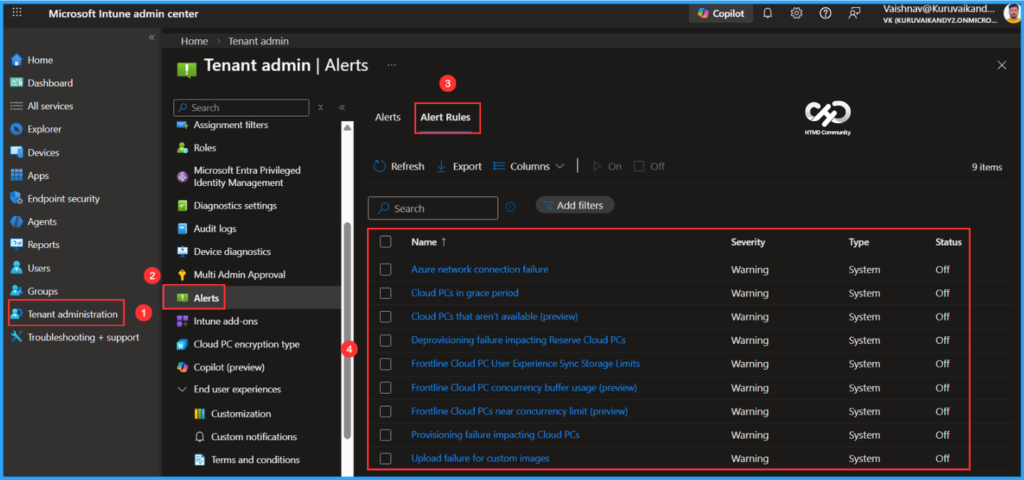
- Navigate to > Tenant administration > Alerts > Alert Rules
- Click on Cloud PCs in the grace period Alert Rule
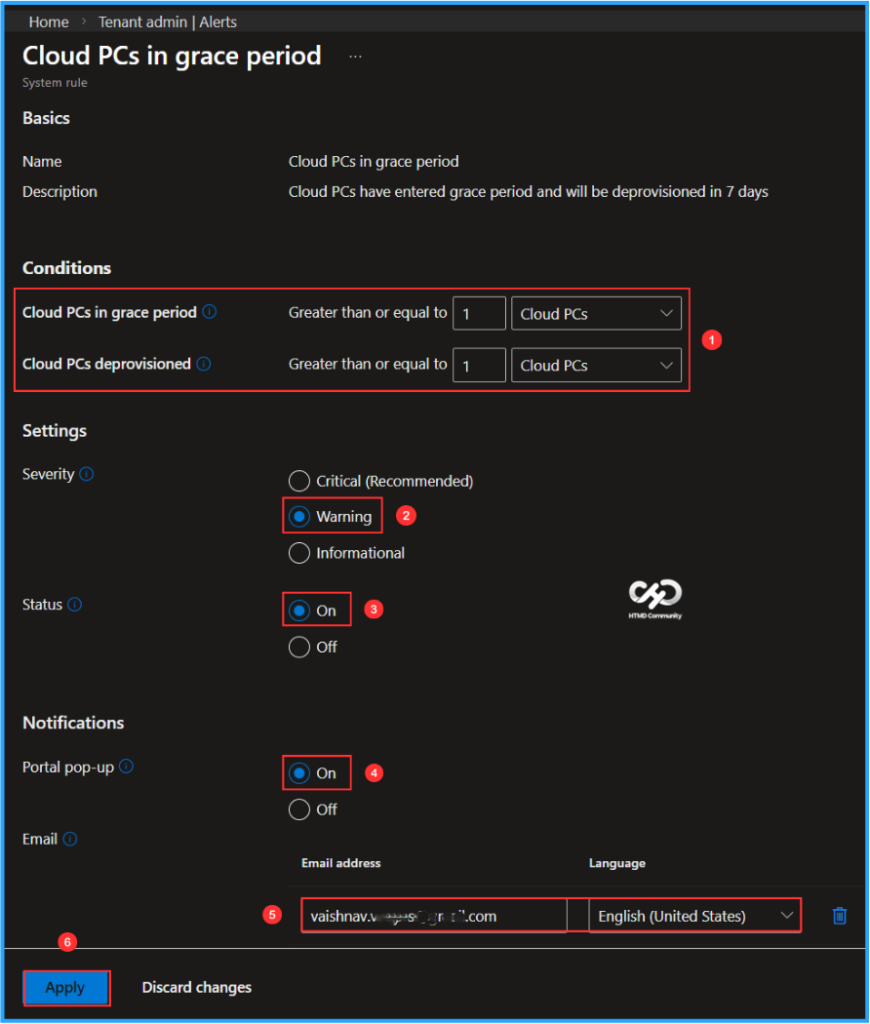
We can configure the System rule for Cloud PCs that are in the grace period. This indicates that these Cloud PCs will be deprovisioned in 7 days. The alert consists of four sections: Basics, Conditions, Settings, and Notifications. Detailed configurations can be found within these sections. Please adjust the settings below and click on “Apply” to finalize your changes.

Note: Cloud PCs in a grace period are those that have entered the grace period and will be deprovisioned within 7 days. Cloud PCs marked as deprovisioned are those that were deprovisioned within the past 24 hours.
- Cloud PCs in grace period – Greater than or equal to 1 Cloud PCs
- Cloud PCs deprovisioned – Greater than or equal to 1 Cloud PCs
- Severity – Warning
- Status – On
- Portal pop-up – On
- Email – (Email address) Vaishnav.xxxx.com & Language (English (United States))
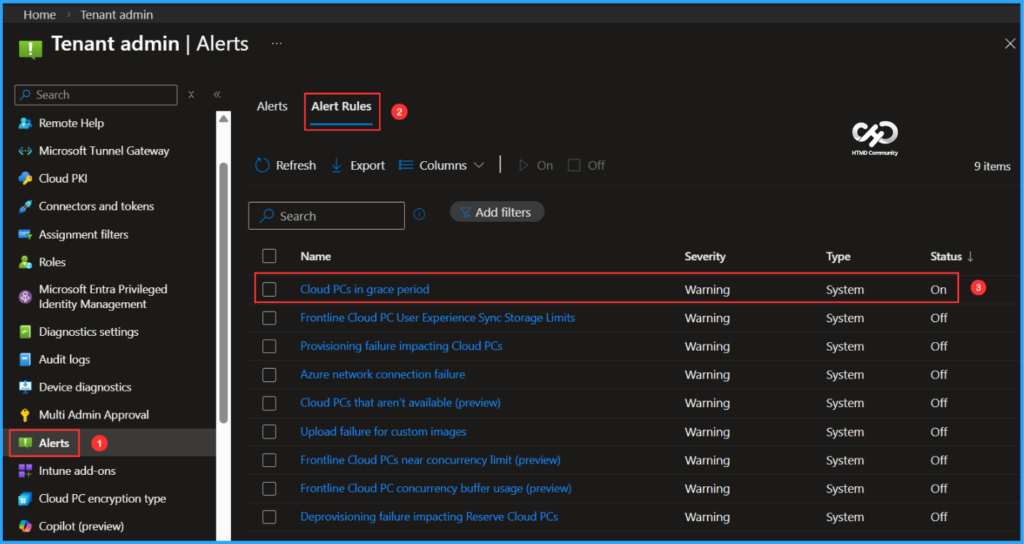
Cloud PCs in the Grace Period Alert Rules status have changed from Off to On, with a severity level of Warning and a type categorized as System.
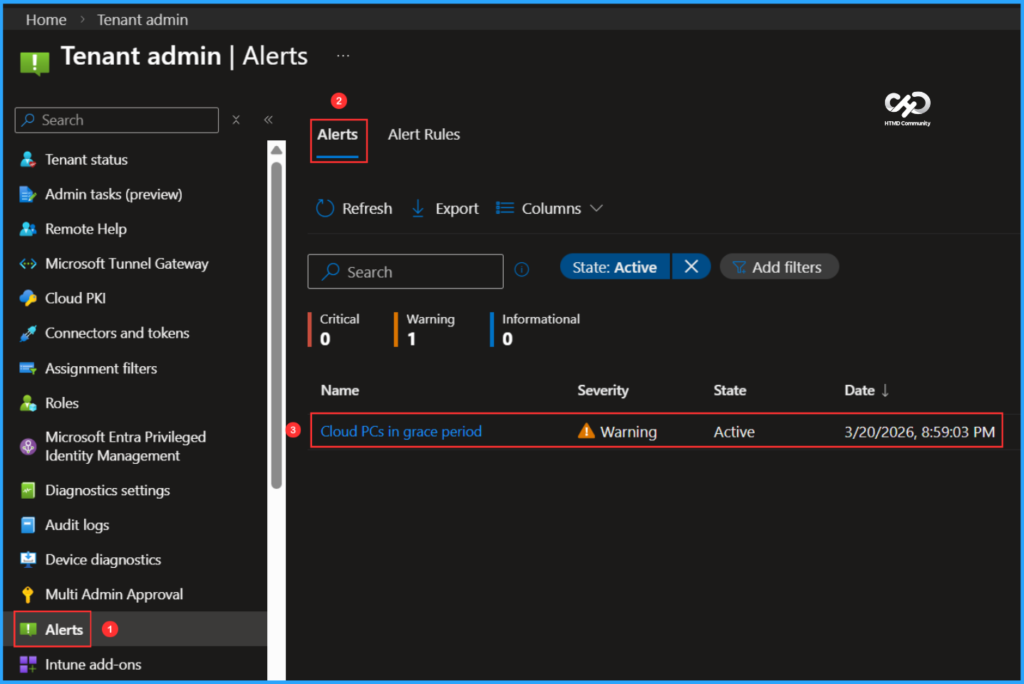
Any Cloud PCs in my tenant that meet the configured conditions for Windows 365 Cloud PCs in the Grace Period will be displayed under Alerts. To verify this, follow the path below.
- Navigate to > Tenant administration > Alerts > Alerts
You can find a Warning for Cloud PCs in the grace period. To check the warning in detail, click on the hyperlink for Cloud PCs in the grace period.
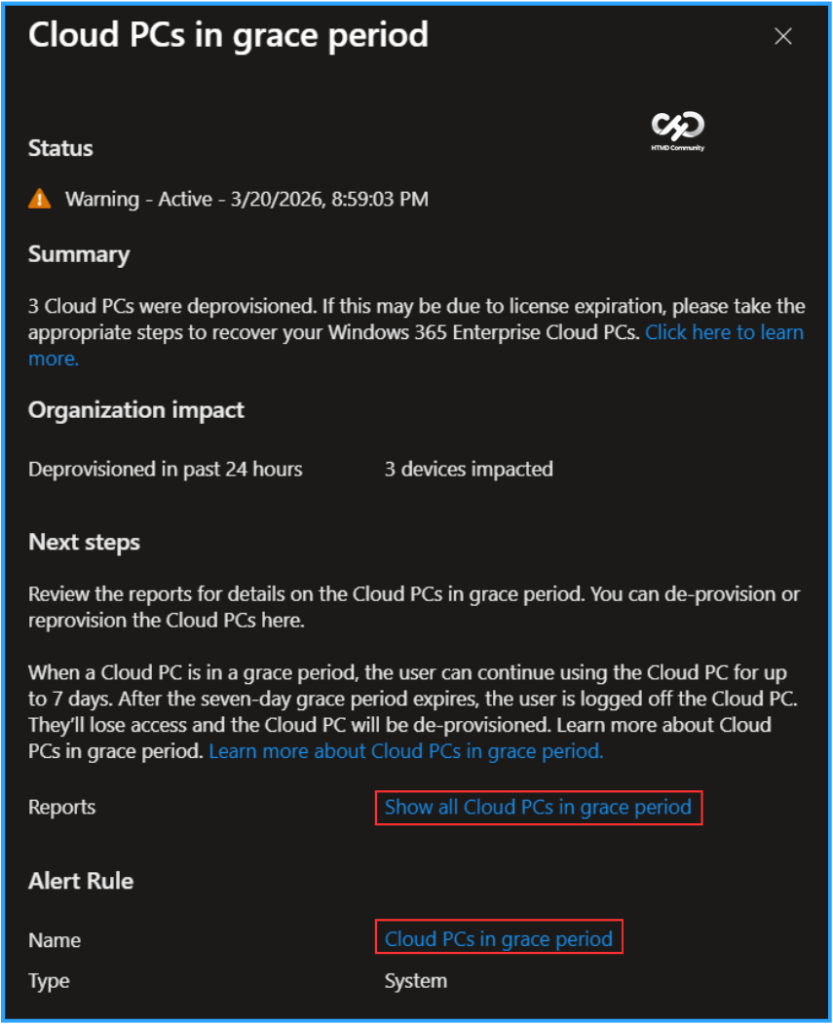
In the pop-up screen, you can view the complete details of the Cloud PCs under the Grace Period Alert. This includes Status, Summary, Organization Impact, Next Steps, Reports, and Alert Rule. If you need more details about this report and alert rule, click on “Show all Cloud PCs in the grace period” and “Cloud PCs in grace period” options, respectively.
- What’s New in Windows 365 Boot for a Smarter and More Resilient Cloud PC Experience
- 6 AI Agentic Features within Windows 365 Cloud PC
- Built-In Resilience and Reliable Architecture Highlights for Windows 365 and Azure Virtual Desktop
Monitor the Email Tigger
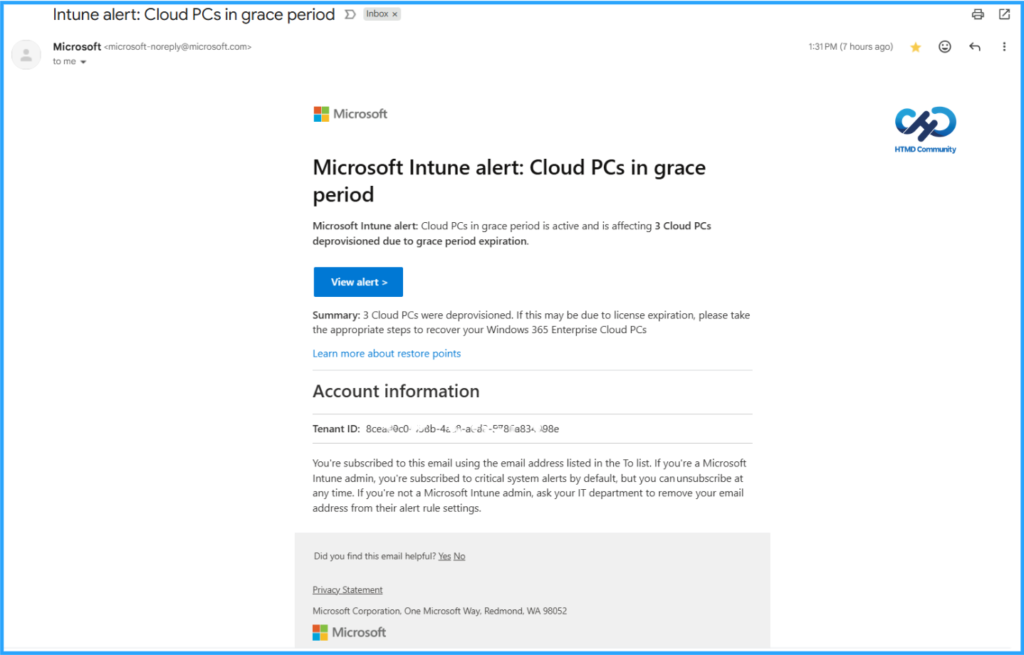
According to your configuration, we have added an email address to receive alerts regarding the impact, summary, and next steps. We can now check the email since we’ve set up alerts for Windows 365 Cloud PCs that are in the grace period/Cloud PCs deprovisioned. Look for the email with the subject line “Intune alert: Cloud PCs in grace period“. Below is a screenshot of how the email trigger appears. This confirms that our alert configuration is working correctly.
Need Further Assistance or Have Technical Questions?
Join the LinkedIn Page and Telegram group to get the latest step-by-step guides and news updates. Join our Meetup Page to participate in User group meetings. Also, join the WhatsApp Community to get the latest news on Microsoft Technologies. We are there on Reddit as well.
Author
Vaishnav K has over 12 years of experience in SCCM, Intune, Modern Device Management, and Automation Solutions. He writes and shares knowledge about Microsoft Intune, Windows 365, Azure, Entra, PowerShell Scripting, and Automation. Check out his profile on LinkedIn.