
Key Takeaways
- This policy is used to manage the Windows taskbar search experience.
- Useful for centralised desktop and taskbar customisation.
- Supports enterprise device management and UI consistency.
- Configured using the settings catalog in Microsoft Intune.
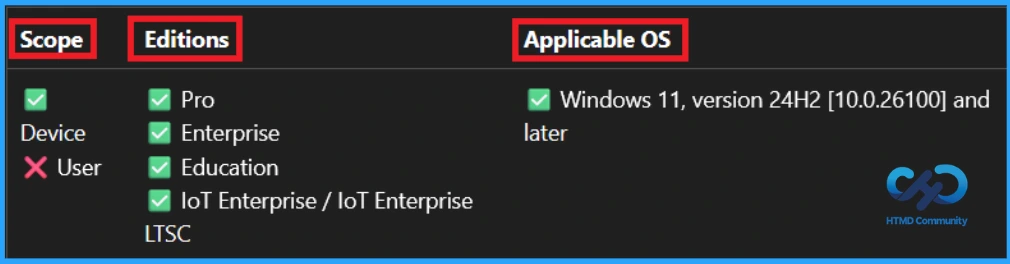
- This policy supports device scope configuration.
How to Control Search Settings on Windows Taskbar using Intune Policy! Let’s learn how to control search settings on the Windows taskbar using Intune policy. This policy helps to configure search on the taskbar. If you disable this policy setting or do not configure it, users can see and change this setting. This means search on the taskbar will be configured according to the default settings of your Windows edition.
Table of Contents
Table of Contents
What are the Advantages of this Policy
The ability to customise the Windows taskbar using policy settings enables organisations to create a more controlled, efficient, and user-friendly computing environment tailored to the specific needs of different user groups.
1. Reduces user confusion with a standardised layout
2. Keeps the taskbar clean and less cluttered
3. Helps to improve the appearance of the taskbar
How to Control Search Settings on Windows Taskbar using Intune Policy
This policy helps to configure search on the taskbar. If you disable this policy setting or do not configure it, users can see and change this setting. In this policy, you can change the appearance of the taskbar using three different options.

- Configure Pinning Programs to the Taskbar using Intune Policy
- Add or Remove All Program Lists from the Start Menu in Windows 11
- How to Control Multi Monitor Taskbar Settings using Intune Policy
How to Create a Policy
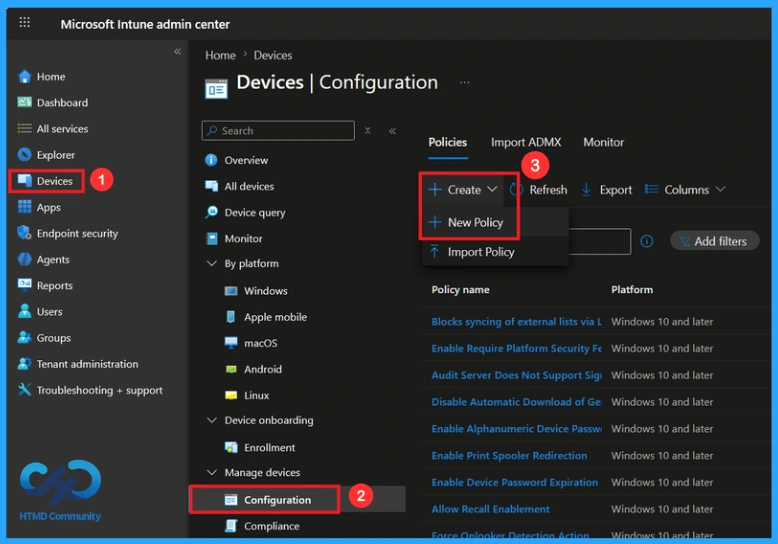
First, sign in to the Microsoft Intune Admin Centre. Go to the Devices and select Configuration. Then click on the Create down arrow, and after that, click on New Policy.
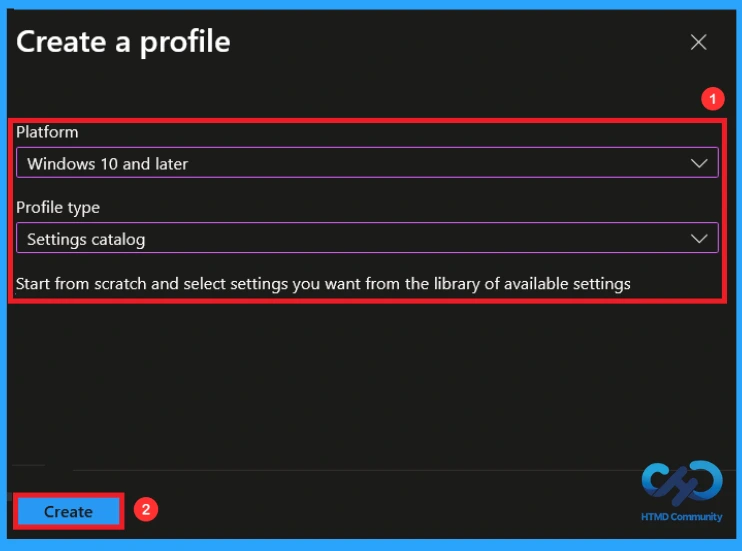
This is the next step you need to take for policy Creation. In profile creation, you must select the platform and profile type. Here, I would like to configure the policy for Windows 10 and later platforms and the settings catalog profile. Then click on the Create button
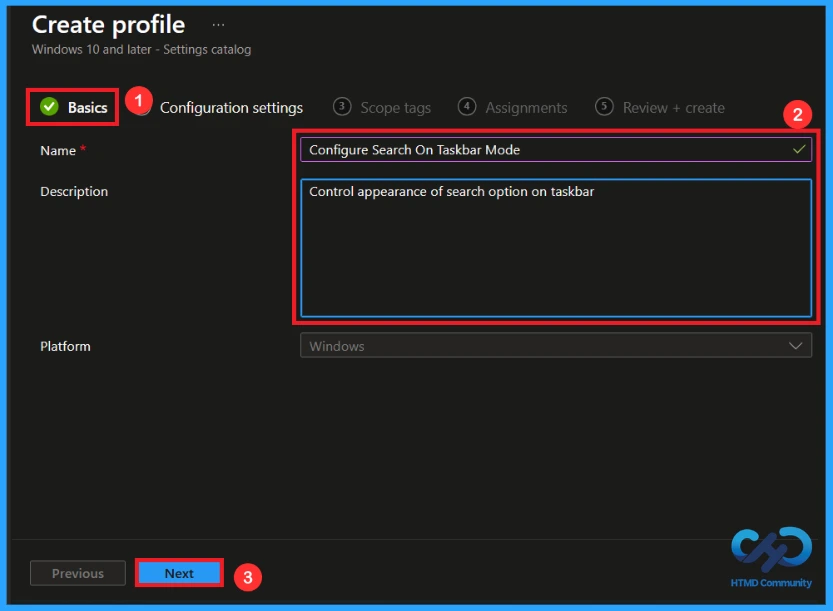
Basics Tab for Name and Description
On the Basics tab, give an appropriate name and description so that it is easy to identify later. In the name box, give the policy name, configure search on taskbar mode, and description controls the appearance of the search option on the taskbar. Then click Next to continue.
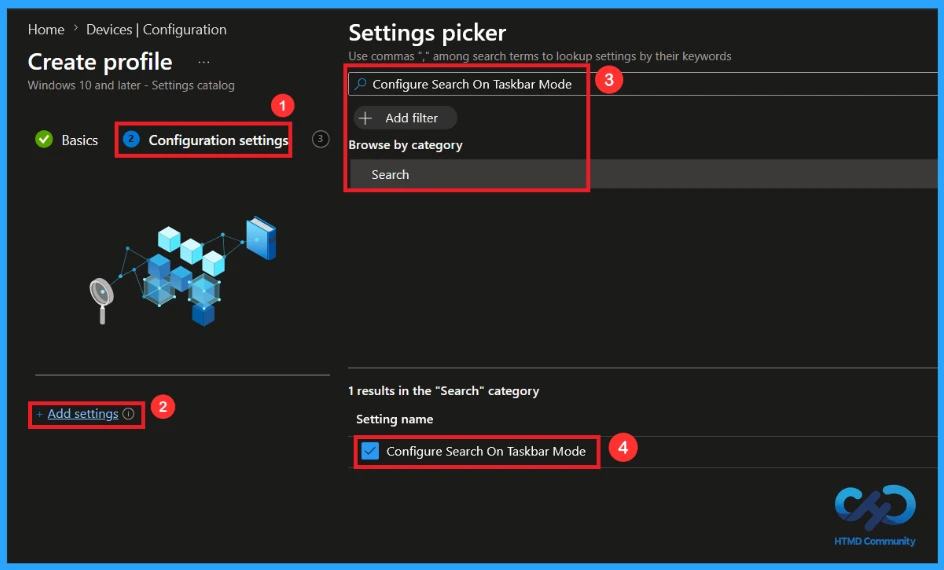
Configuration Settings in this Policy
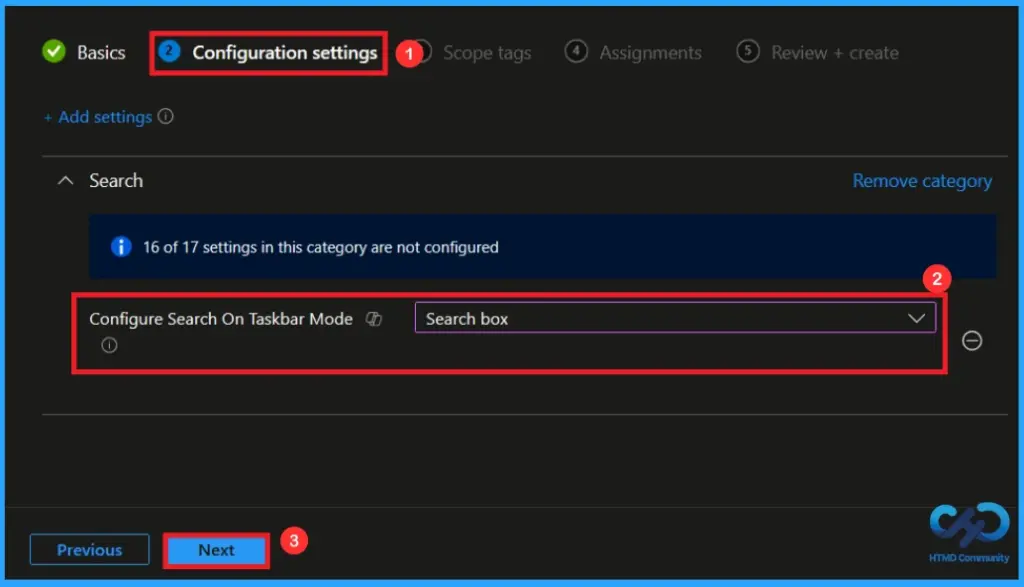
On the configuration settings tab, after clicking on the add settings, you can search for the name of the policy from the settings picker. In the search bar, enter the policy name and select the category as search and the setting name as configure search on taskbar mode.
Disabling or Not Configuring this Policy
If you disable or don’t configure these policy settings, search on the taskbar will be configured according to the defaults for your Windows edition. Users will be able to change the search on the taskbar in settings.
Enabling this Policy
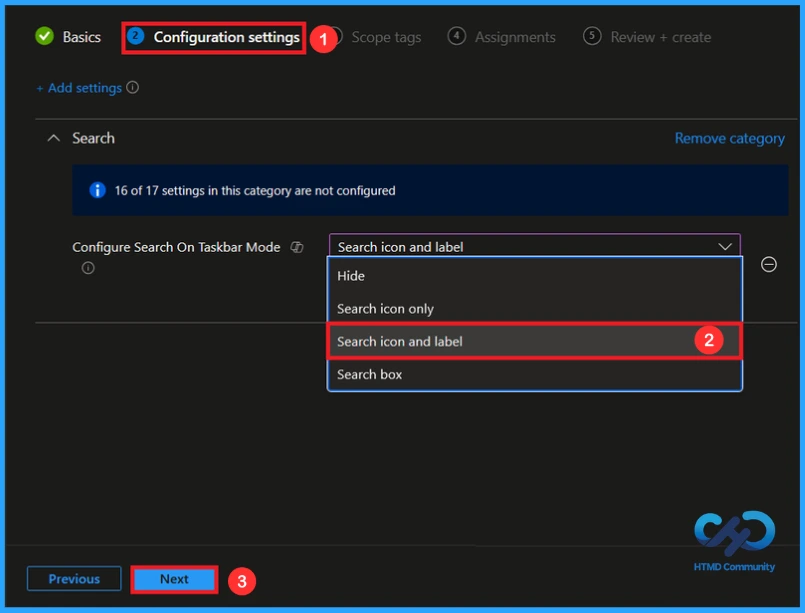
There are 4 different options that you can enable, such as hide, search icon only, search icon and label, and search box. By default, the search box option will be selected, which means the search box will be displayed on the taskbar by default. User can’t change it in settings. Here, I selected the search icon and label, which means the search icon and label will be displayed on the taskbar by default, user can’t change it in settings. The properties of the remaining two options are in the following list:
- Set to hide means the search on the taskbar will be hidden by default, and the user can’t change it in settings
- Setting the search icon only means the search icon will be displayed on the taskbar by default; the user can’t change it in settings
Purpose of Scope Tags
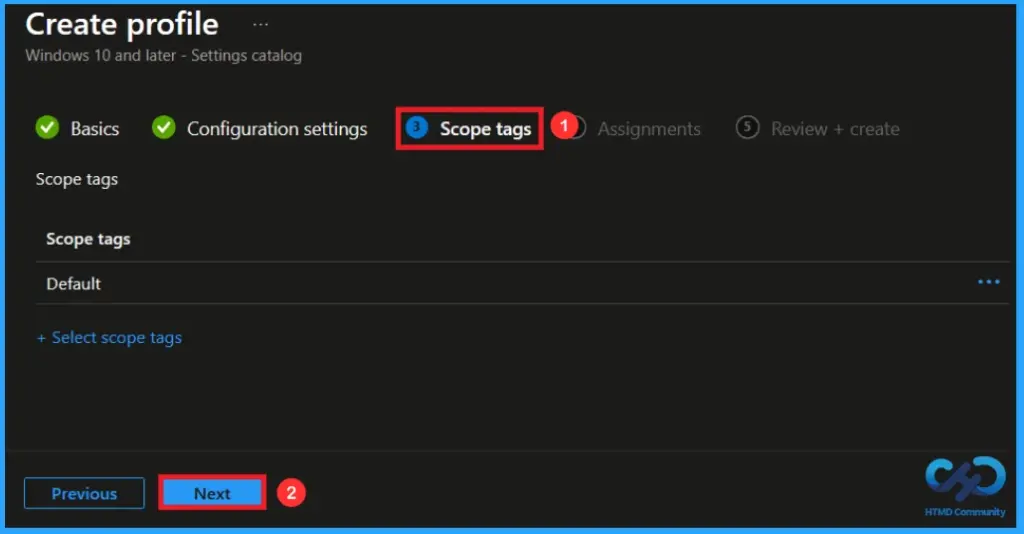
A scope tag in Intune is used to control visibility and access to Intune resources based on administrative roles. Scope tags are not mandatory. You can add the scope tag using the select scope tags button. Click Next to continue.
Assignments Tab to Add Group
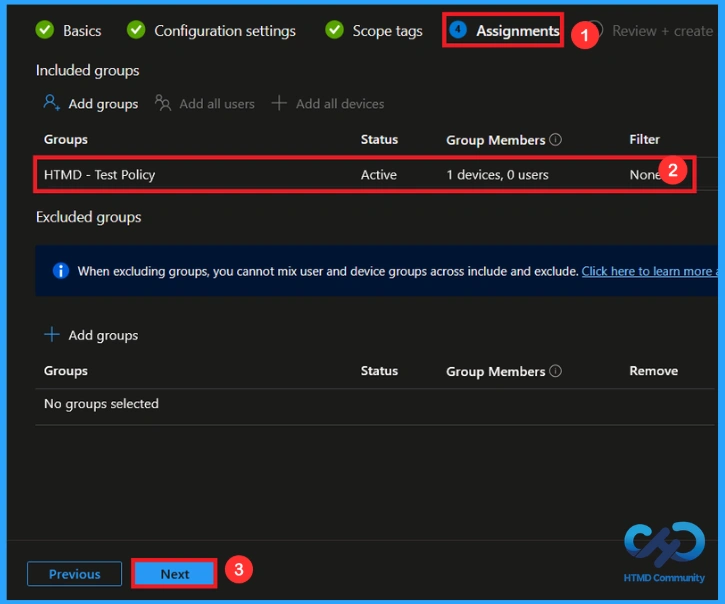
On the assignments tab, you can select which users or devices get this policy. Under Include Groups, click Add Groups. From the list, select the group that you want to target (HTMD – Test Policy). Then click the Next button to continue.
Review + Create
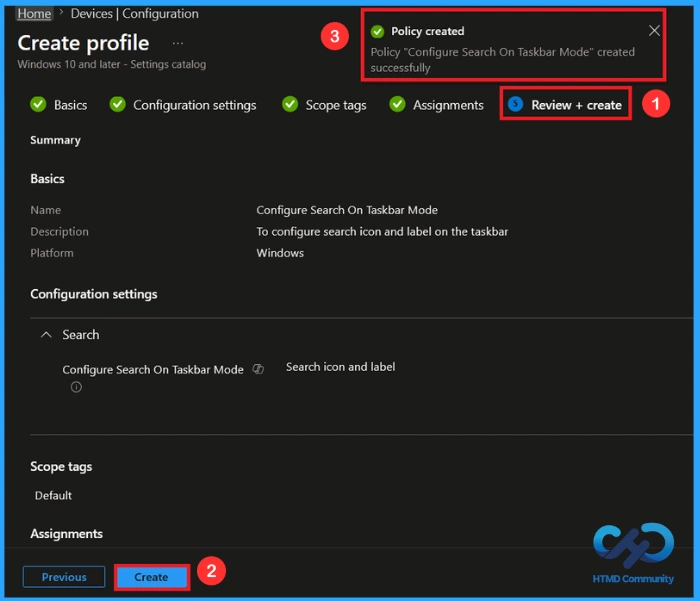
At the review + create step, you can review each tab to avoid misconfiguration or policy failure. After reviewing the details and making any necessary changes by clicking Previous. We click Create to finish, and a notification confirms that the “configure search on taskbar mode ” was created successfully.
Monitoring Status of the Policy
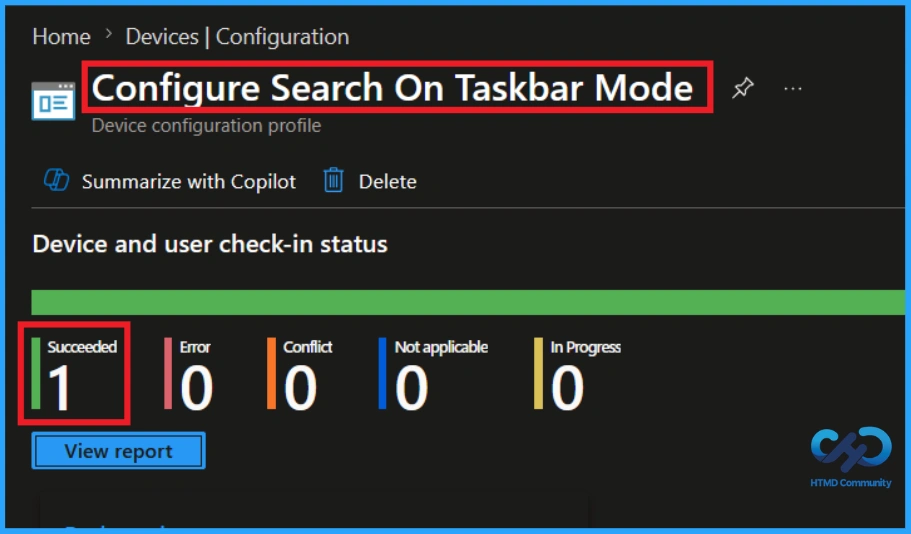
You can check a policy’s status in the Intune portal. Generally, it takes 8 hours for policies to be created. By using the manual sync option, you can reduce the configuration delay in the company portal app on the device, then check the status again. Navigate to Devices>Configuration. Click on the specific policy to see its details.
Client-side verification
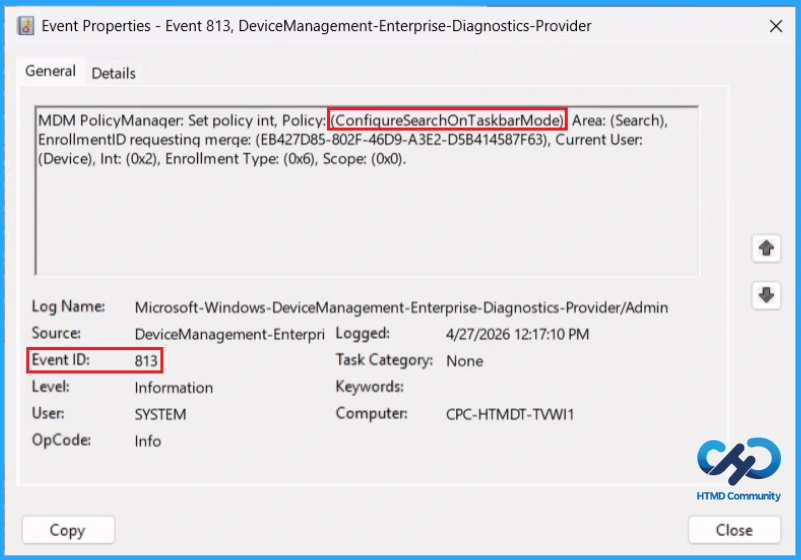
To confirm if a policy has been applied, use the Event Viewer on the client device. Go to Applications and Services Logs > Microsoft >Windows >Device Management > Enterprise Diagnostic Provider > Admin. From the list of policies, use the Filter Current Log option and search for Intune event 813.
MDM PolicyManager: Set policy int, Policy: (ConfiqureSearchOnTaskbarMode), Area: (Search),
EnrollmentID requesting merge: (EB427D85-802F-46D9-A3E2-D5B414587F63), Current User:
(Device), Int: (0x2), Enrollment Type: (0x6), Scope: (0x0).
Windows Configuration Service Provider (CSP)
The Policy Configuration Service Provider (CSP) is a feature used by organisations to manage and control settings on Windows 10 and 11 devices. It explains what each policy does, what settings or values can be used, and how it connects to older Group Policy settings (Group Policy Mapping details).
| Property Name | Property Value |
|---|---|
| Format | int |
| Access Type | Add, Delete, Get, Replace |
| Default Value | 3 |
Allowed values
- 0 – Hide
- 1 – Search icon only
- 2 – Search icon and label
- 3(default) – Search Box
Group policy mapping:
| Name | Value |
|---|---|
| Name | ConfigureSearchOnTaskbarMode |
| Friendly Name | Configures search on the taskbar |
| Element Name | Search on the taskbar. |
| Location | Computer Configuration |
| Path | Windows Components > Search |
| Registry Key Name | Software\Policies\Microsoft\Windows\Windows Search |
| ADMX File Name | Search.admx |
How to Remove an Assigned Group from this Policy
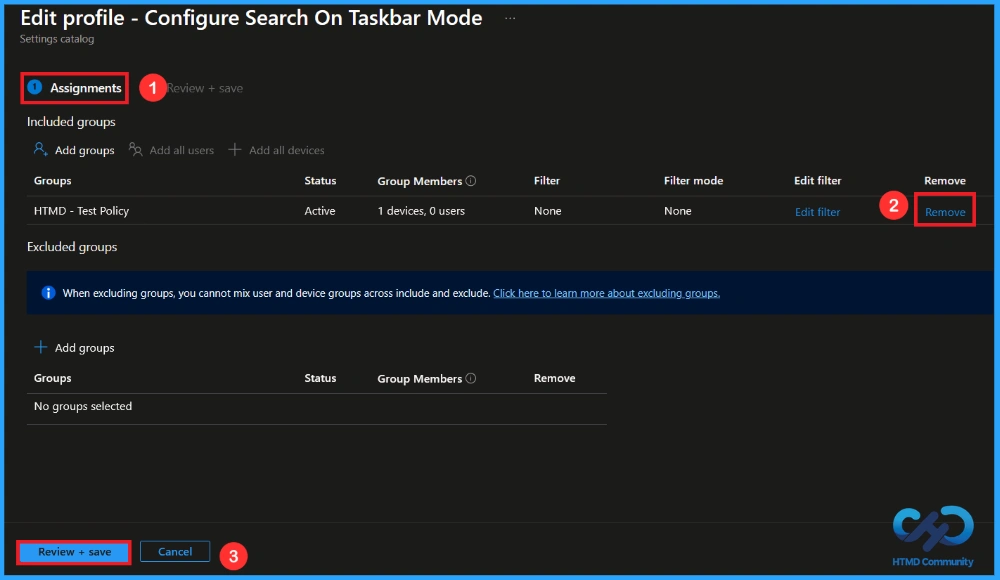
If you need to remove a group from a policy assignment for security updates. Open the policy from the configuration tab and click on the edit button. Then, click on the Remove button. Click Review + Save after making the changes.
For detailed information, you can refer to our previous post – Learn How to Delete or Remove App Assignment from Intune using by Step-by-Step Guide.
How to Delete this Policy from Intune Portal
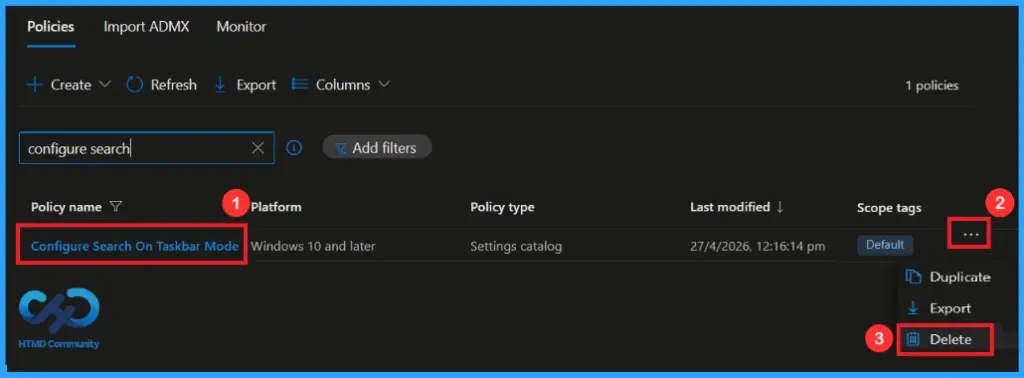
If you want to delete this policy for any reason, you can do it easily. First, search the name of the policy in the configuration section. When you find the policy name, click on the 3-dot menu next to it and tap the Delete option.
For detailed information, you can refer to our previous post – How to Delete Allow Clipboard History Policy in Intune Step by Step Guide.
Need Further Assistance or Have Technical Questions?
Join the LinkedIn Page and Telegram group to get the latest step-by-step guides and news updates. Join our Meetup Page to participate in User group meetings. Also, Join the WhatsApp Community and WhatsApp Channel to get the latest news on Microsoft Technologies. We are there on Reddit as well.
Author
Anoop C Nair has been Microsoft MVP from 2015 onwards for 10 consecutive years! He is a Workplace Solution Architect with more than 22+ years of experience in Workplace technologies. He is also a Blogger, Speaker, and Local User Group Community leader. His primary focus is on Device Management technologies like SCCM and Intune. He writes about technologies like Intune, SCCM, Windows, Cloud PC, Windows, Entra, Microsoft Security, Career, etc