
Key Takeaways:
- Windows 11 Start Menu and Taskbar with New Personalization Features
- Users can now move the taskbar to any edge of the screen (top, bottom, left, right)
- Icon alignment options allow centered or edge-aligned layouts.
- Vertical layouts support “never combine” buttons with labels for multitasking.
Let’s discuss about, Microsoft Improves Windows 11 Start Menu and Taskbar with New Personalization Features and Quality Enhancements. Microsoft bring new enhancements and quality on features in Start Menu and Taskbar on Windows 11 devices. Microsoft is focuses to bring flexibility and personalization on most visible and frequently used experiences in Windows. As a result, Microsoft rebuild the taskbar positions and More control over start menu layout.
Table of Contents
Table of Contents
Microsoft Improves Windows 11 Start Menu and Taskbar with New Personalization Features and Quality Enhancements
The new enhancements and features on Taskbar and Start Menu is beginning to roll out to Windows Insiders in the Experimental channel over the coming weeks, including several rolling out today. These features are in experimental purpose which is brought due to the huge requests of Windows 11 users.
- Disable or Enable Taskbar Context Menus in Windows 11
- Disable or Enable Windows 11 Context Menu How to Guide
- How to Show Hide Virtual Touchpad Icon on Taskbar in Windows 11
Taskbar Personalization
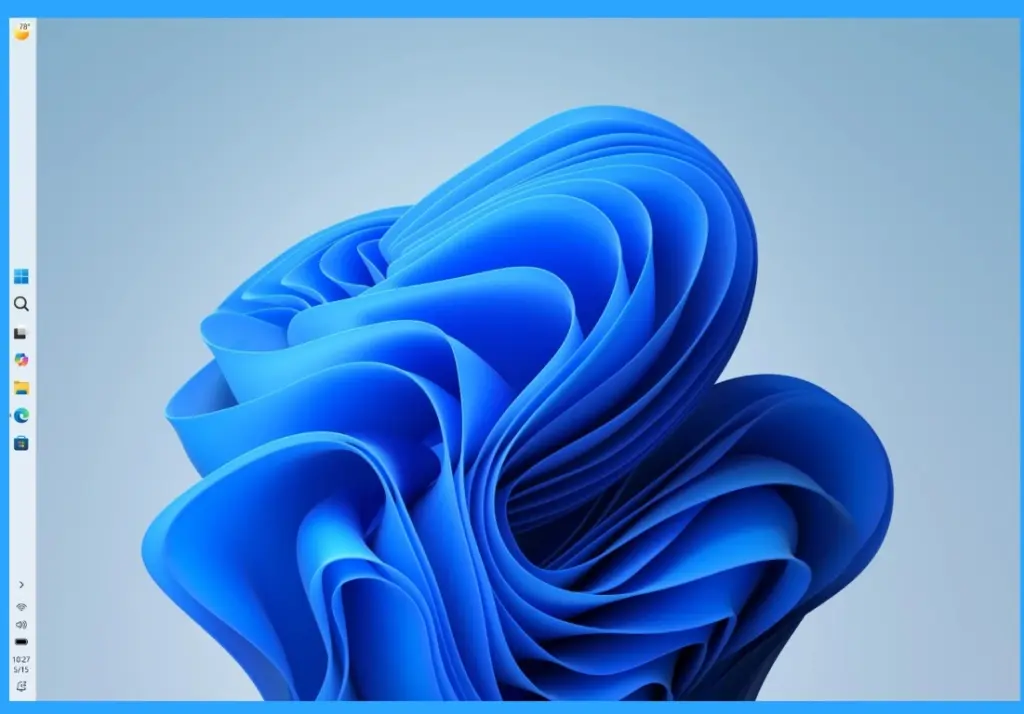
To improve the personalization experience in Taskbar, Microsoft bring 4 features. The features are Flexible positioning, Icon alignment options, Flyouts adapt to position, Vertical layouts. But some limitations are still in progress which is Auto-hide, tablet-optimized taskbar, touch gestures, and search boxes aren’t fully supported yet.
| Taskbar Personalization | Details |
|---|---|
| Flexible positioning | Taskbar can now be placed on any edge of the screen (top, bottom, left, right) |
| Icon alignment options | Choose between centered or edge-aligned icons depending on taskbar position |
| Flyouts adapt to position | Start, Search, and other menus open relative to taskbar location |
| Vertical layouts: | “Never combine” buttons with labels make multitasking easier |
Compact Taskbar
Windows 11 introduced a roomier taskbar to support more states and features while also improving touch targets. Option to enable a smaller taskbar with reduced height and icon size, reclaiming vertical space on smaller screens. Can be toggled in Settings > Personalization > Taskbar behaviors without restart.

Start Menu Enhancements
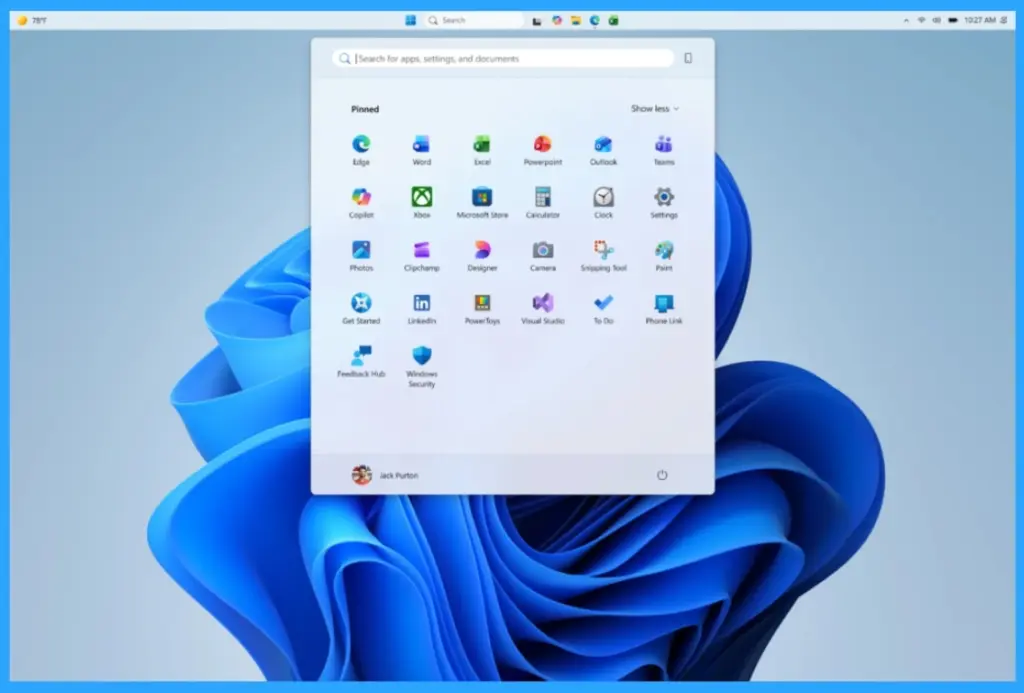
- Simplified customization: Section-level toggles to show/hide Pinned, Recommended, and All apps independently.
- Separate control for file recommendations: Disabling them in Start won’t affect File Explorer.
- Size options: Choose Small or Large Start menu for consistency across displays.
- Privacy option: Hide your name and profile picture when sharing or presenting.
Recommendation Quality
Renaming “Recommended” to “Recent” for clarity. Improved relevancy: Better ordering of files and apps to reduce clutter. Recently installed apps remain visible to aid discovery
Need Further Assistance or Have Technical Questions?
Join the LinkedIn Page and Telegram group to get the latest step-by-step guides and news updates. Join our Meetup Page to participate in User group meetings. Also, Join the WhatsApp Community to get the latest news on Microsoft Technologies. We are there on Reddit as well.
Author
Anoop C Nair has been Microsoft MVP from 2015 onwards for 10 consecutive years! He is a Workplace Solution Architect with more than 22+ years of experience in Workplace technologies. He is also a Blogger, Speaker, and Local User Group Community leader. His primary focus is on Device Management technologies like SCCM and Intune. He writes about technologies like Intune, SCCM, Windows, Cloud PC, Windows, Entra, Microsoft Security, Career, etc.