
Key Takeaways
- Faster Updates: App inventory refreshes multiple times per day instead of every 7 days
- Incremental Sync: Only changes are uploaded, helping reduce network usage
- Richer App Details: Includes install path, date, uninstall command, size, architecture, and more
- All-User Visibility: Captures apps across all users on a device, not just the logged-in user
- Centralized & Configurable: Available in the “All Apps” tab and enabled via Properties Catalog policy on Windows 11 devices
How to Enable Enhanced App Inventory in MS Intune for Faster Updates Richer Insights and Complete App Visibility! The enhanced App Inventory feature in Microsoft Intune helps IT admins easily track apps on devices. It improves the old Discovered Apps feature by showing more accurate and frequently updated data in the “All Apps” tab. Instead of waiting for days, admins can now see app details much faster, almost in real time.
Table of Content
Table of Contents
How to Enable Enhanced App Inventory in MS Intune for Faster Updates Richer Insights and Complete App Visibility
One of the biggest improvements is how fast the data updates. Earlier, app inventory could take up to seven days to refresh. Now, it updates multiple times a day on active and healthy Windows devices. It also uses incremental syncing, which means only the changes are sent after each update. This helps reduce extra network usage and makes the process more efficient.
| What Is the New Feature? |
|---|
| Enhanced App Inventory in Microsoft Intune |
- Microsoft Intune Device Inventory for Apple and Android Devices coming in April 2025
- How to use Intune Inventory to View Graphics Model Video RAM and Display Settings on Windows Devices
Richer App Details and Complete User Visibility
The feature provides more detailed information about each application, including install path, install date, uninstall command, app size, architecture, and supported languages. It also collects data from all users who have used the device, not just the currently logged-in user. This helps improve accuracy and ensures more consistent and reliable app inventory reporting.
How to Enable Enhanced App Inventory
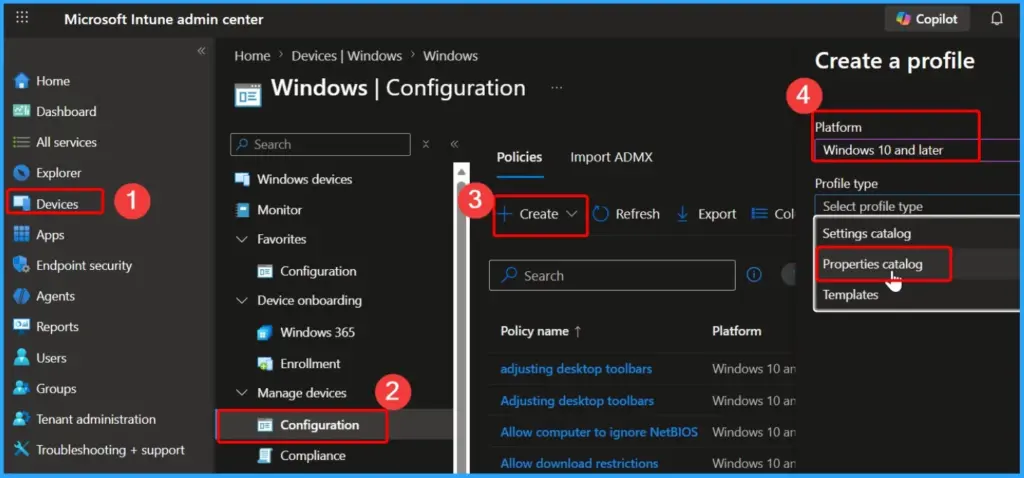
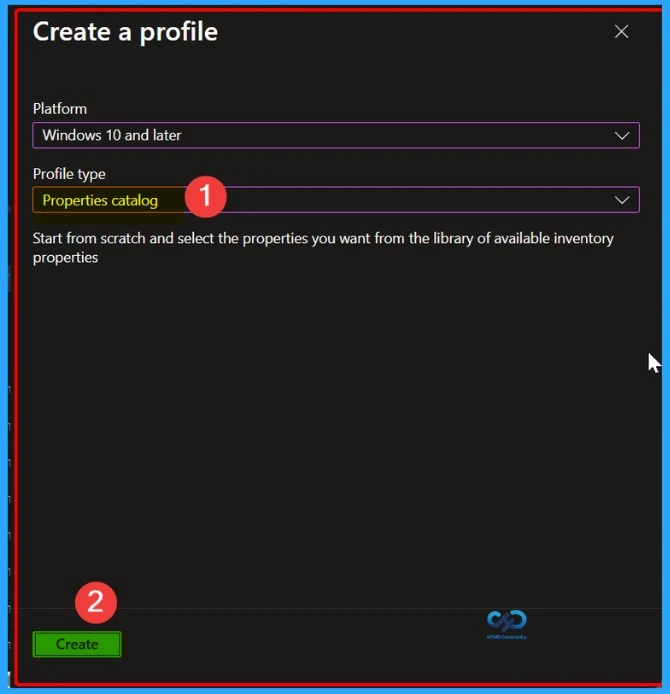
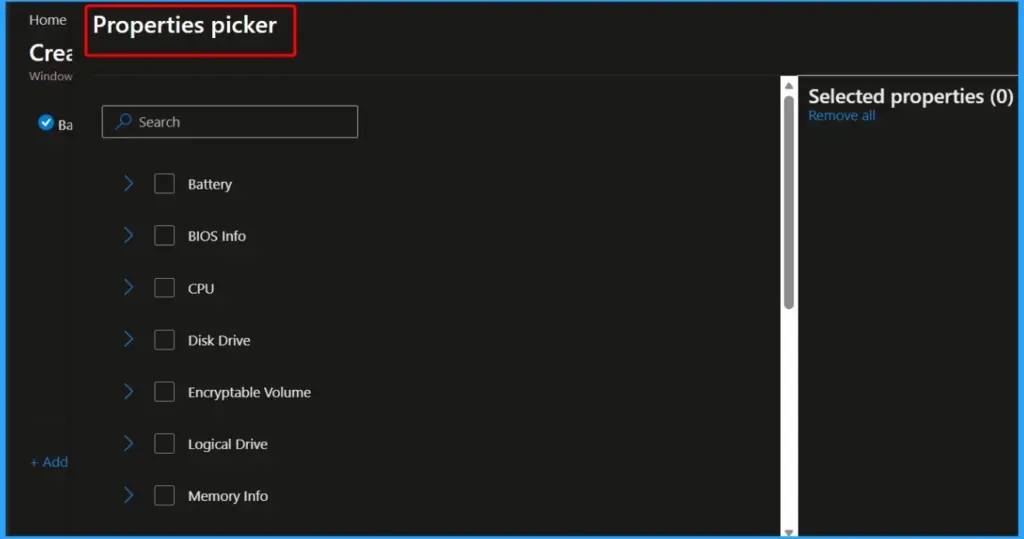
To use this feature, IT admins need to create a device configuration policy using the Properties Catalog in Microsoft Intune and assign it to corporate-owned Windows 11 devices enrolled in Microsoft Entra ID. Once the policy is applied and devices complete their next check-in, the updated app inventory data will start appearing automatically.

Need Further Assistance or Have Technical Questions?
Join the LinkedIn Page and Telegram group to get the latest step-by-step guides and news updates. Join our Meetup Page to participate in User group meetings. Also, join the WhatsApp Community and the Whatsapp channel to get the latest news on Microsoft Technologies. We are there on Reddit as well.
Resources
Microsoft single sign-on for Linux – Microsoft Entra ID | Microsoft Learn
Author
Anoop C Nair is a Workplace Technology solution architect with 25+ years of experience. Microsoft Certified Trainer. Microsoft MVP from 2015 onwards for consecutive 11+ years! He is a blogger, Speaker, and Founder of HTMD Community and HTMD Conference. His main focus is on Device Management technologies like Intune, Windows, and Cloud PC. He writes about technologies like Intune, SCCM, Windows, Cloud PC, Entra, and Microsoft Security.