

Key Takeaways
- See all apps in one place – Check installed, pending, and failed apps directly in the device view.
- Quick troubleshooting – Easily find and fix app issues for a specific device.
- Device-focused view – Get a clear app status for each device.
- Saves time – No need to switch between different sections in the portal.
- Better support – Helps IT admins resolve user issues faster.
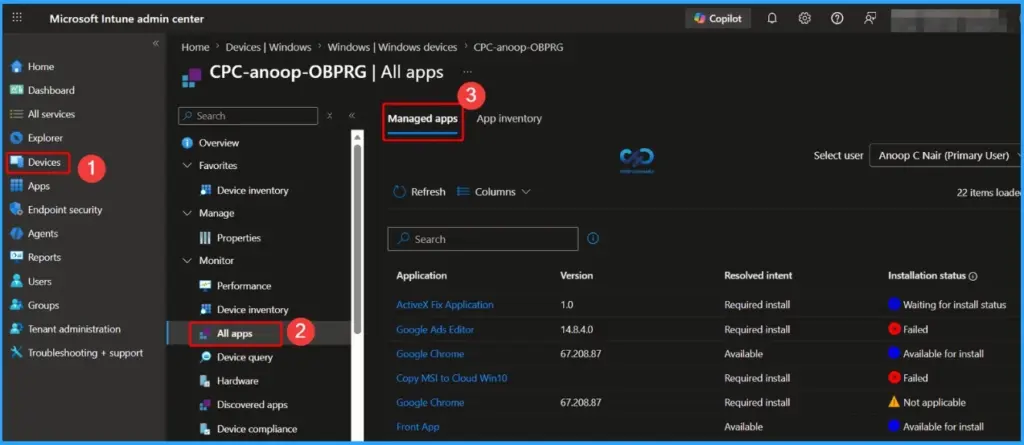
Microsoft Intune All Apps Now in Device View Simplifies App Troubleshooting for IT Admins! The “All Apps” view in Microsoft Intune gives a complete snapshot of every app related to a specific device. You can easily see whether an app is installed, failed, pending, or not installed, all in one place. Along with that, it shows the app name and type, helping admins quickly understand what kind of application is being managed on that device. It also clearly indicates how the app was assigned, whether it is Available for users to install or required by the organisation.
Table of Content
Table of Contents
Microsoft Intune All Apps Now in Device View Simplifies App Troubleshooting for IT Admins
In addition, this view provides important details like the installation status, the current app version, and timestamps such as the last install attempt and last updated time. These details make troubleshooting much easier, as IT admins can quickly identify issues, track deployment progress, and take action without switching between multiple sections in the portal.
| All Apps |
|---|
| Managed Apps |
| App Inventory |
- How To Disable Promotional Apps In Windows Share Sheet Using Intune
- Microsoft Now Allows Up to 25 Apps in Intune Autopilot Deployment Profile Policy Including Windows 365
- Intune Win32 App Supersedence and Auto App Update Explained
- Best Guide to Deploy New Intune Company Portal App on Windows using Intune
Application Inventory in Microsoft Intune: Overview and Status
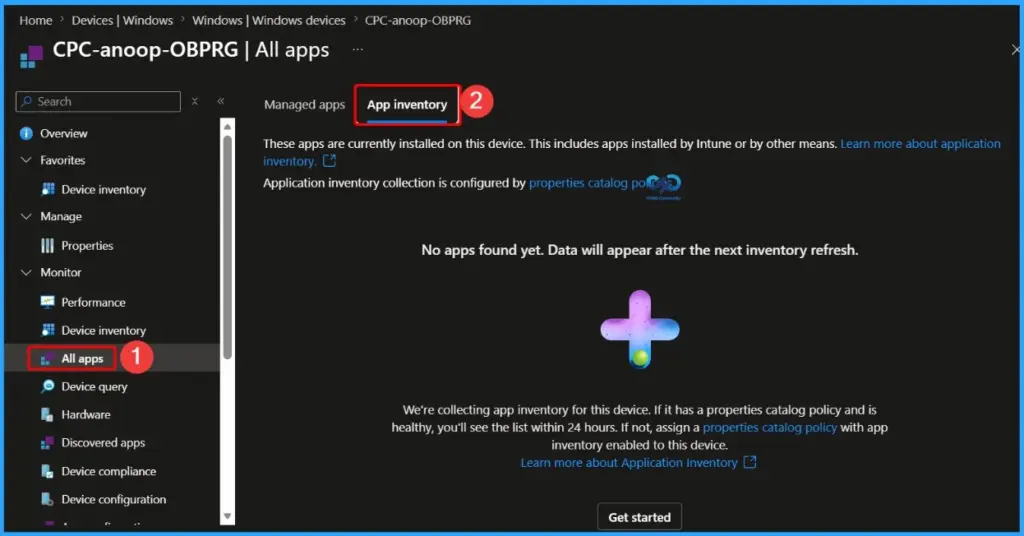
Application inventory shows all apps installed on a device, whether they were deployed through Microsoft Intune or installed by other methods. This feature helps IT admins get a complete view of applications present on a device for better management, reporting, and troubleshooting. The inventory collection is configured using Properties Catalog policies, and data may take some time to appear after setup.
- Displays all installed apps on the device (Intune + manual installs)
- Requires a Properties Catalog policy with app inventory enabled
- Data may take up to 24 hours to appear after the next refresh
- The device must be healthy and properly synced with Intune
- Shows status messages like “No apps found yet” until data is collected
Need Further Assistance or Have Technical Questions?
Join the LinkedIn Page and Telegram group to get the latest step-by-step guides and news updates. Join our Meetup Page to participate in User group meetings. Also, join the WhatsApp Community and the Whatsapp channel to get the latest news on Microsoft Technologies. We are there on Reddit as well.

Author
Anoop C Nair is a Workplace Technology solution architect with 25+ years of experience. Microsoft Certified Trainer. Microsoft MVP from 2015 onwards for consecutive 11+ years! He is a blogger, Speaker, and Founder of HTMD Community and HTMD Conference. His main focus is on Device Management technologies like Intune, Windows, and Cloud PC. He writes about technologies like Intune, SCCM, Windows, Cloud PC, Entra, and Microsoft Security.