
Key Takeaways
- Fix Windows Update Connection Issues by Configuring Firewalls and Proxies
- Practical troubleshooting steps for admins to resolve update-related connectivity problems
- Check the Windows Update audit log through a PowerShell script
- Different Error codes occurred during Windows Update
Let’s discuss about How to Fix Windows Update Connection Issues by Configuring Firewalls and Proxies. During connecting Windows Update many users facing trouble. Configuration of your network endpoints for firewalls and proxies is the key. This blog post go through on how to identify the cause of the issue and remedy the situation.
Table of Contents
Table of Contents
How to Fix Windows Update Connection Issues by Configuring Firewalls and Proxies
Windows Update Connection Issues are common. Updates are distributed via Internet-hosted services, requiring TLS (Transport Layer Security) to ensure authenticity and protection from tampering. Windows only trusts TLS certificates issued by genuine Windows Update authorities. If intercepted or replaced by proxies/firewalls, updates fail.
- FIX Windows Update issues for Windows 11 Errors Troubleshooting Tips
- How to Enable Private Network Firewall to Filter Network Traffic using Intune
- Step-by-Step Guide to Enforce Proxies for UWP Apps and Stop Data Leaks using Intune Policy
TLS Security Checks
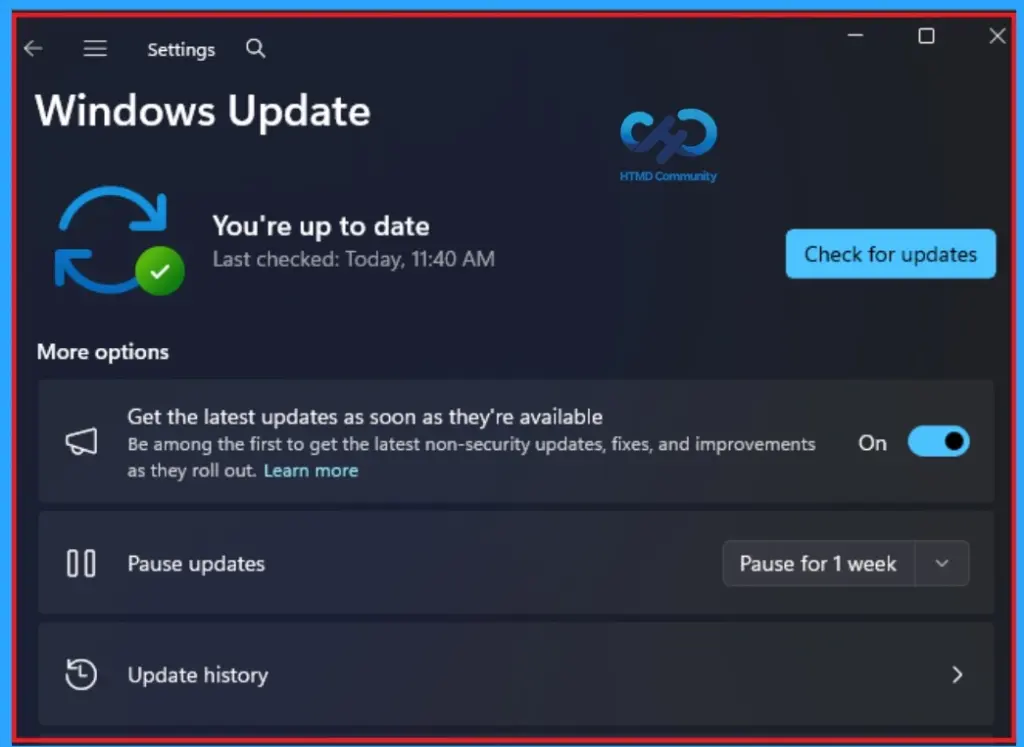
Windows Update relies on Transport Layer Security (TLS) certificates issued by trusted Windows Update authorities. If intercepted or replaced by proxy/firewall certificates, updates fail. TLS inspection by proxies/firewalls can cause certificate mismatches, leading to blocked updates. Some VPN providers block DNS lookups or traffic, which can disrupt Windows Update.
Error Codes to Watch
If your Windows device is not receiving Windows updates as you expect, check if your connections are being blocked. Whether the source of the issue is a proxy server, firewall, or VPN, you can use the following steps to troubleshoot and move forward.

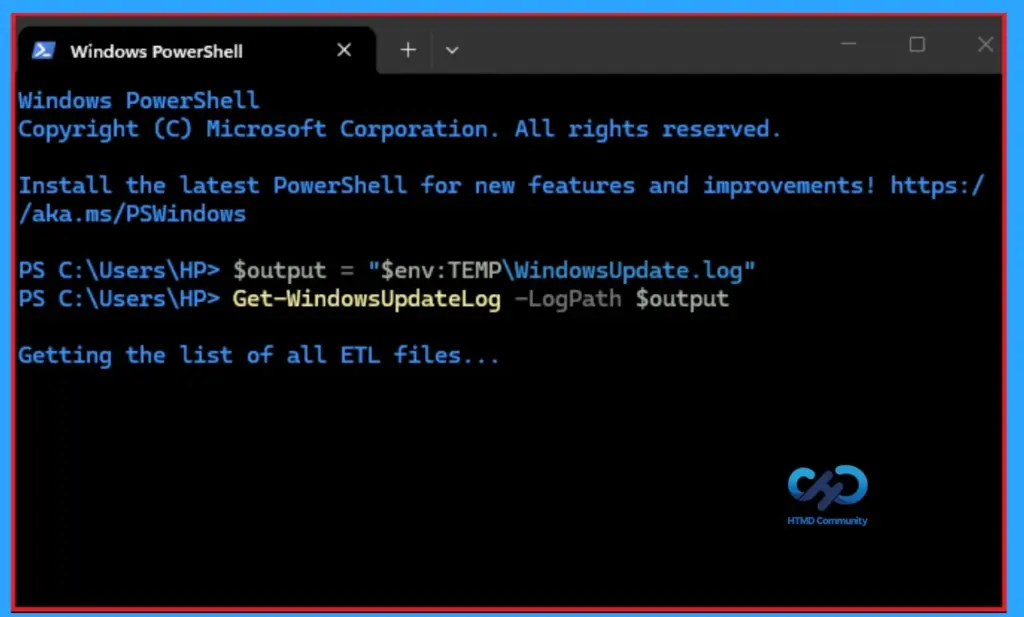
You must check is the Windows Update audit log. Generate it from PowerShell, running the Get-WindowsUpdateLogs command:
$output = "$env:TEMP\WindowsUpdate.log"
Get-WindowsUpdateLog -LogPath $output
Write-Host "Windows Update log written to $output"
Once you have the log file, look for any of the following error codes. The following are table error codes due to Windows Update Connection Issues.
| Error Codes | Details |
|---|---|
| 0x8024402c (decimal: -2145107924) | This is the WU_E_PT_WINHTTP_NAME_NOT_RESOLVED error. It means that the Windows device was unable to resolve the Windows Update server DNS name to an IP address. Your organization might be blocking Fully Qualified Domain Name (FQDN) to IP address resolution. |
| 0x80240438 (decimal -2145123272) | This is the WU_E_PT_ENDPOINT_UNREACHABLE error. You receive this if the FQDN has been properly resolved to an IP address, but the Windows device is unable to connect to the server. This is probably due to a firewall or proxy blocking acces |
| 0x80245006 (decimal: -2145103866) | This is the WU_E_REDIRECTOR_INVALID_RESPONSE error. This can show up for several reasons. For the sake of this discussion, it typically means one of the following. Your connection with the Windows Update service was unable to procure data it needs. For example, your connection might have dropped during the client-server interaction. In this case, check that your connection to the Internet is stable and not dropping. Your device was unable to validate the server’s TLS certificate via trust anchor certificate pinning. This is most likely the case if your firewall or proxy is performing TLS inspection. |
| 0x80240437 (decimal: -2145123273) | This is the WU_E_PT_SECURITY_VERIFICATION_FAILURE error. Your device was unable to prove that the connected server is legitimate and genuine Windows Update. Similar to the WU_E_REDIRECTOR_INVALID_RESPONSE error, your device couldn’t validate the server’s TLS certificate via trust anchor certificate pinning. Again, check if your firewall or proxy is performing TLS inspection. |
Recommended configuration
Allow-list Windows Update DNS hostnames and subdomains (e.g., *.update.microsoft.com) to ensure trusted connections. Create “pass-through” exceptions so proxies/firewalls don’t generate their own TLS certificates.
If using Windows Server Update Services (WSUS), devices connect to the internal server instead of Microsoft’s update service, so FQDN exceptions aren’t required. TLS certificate pinning can be applied to WSUS servers.
Easy Fix
Most issues can be resolved by updating firewall/proxy configurations to trust the correct Windows Update subdomains.
Need Further Assistance or Have Technical Questions?
Join the LinkedIn Page and Telegram group to get the latest step-by-step guides and news updates. Join our Meetup Page to participate in User group meetings. Also, join the WhatsApp Community and the WhatsApp channel to get the latest news on Microsoft Technologies. We are there on Reddit as well.
Author
Anoop C Nair is a Workplace Technology solution architect with 25+ years of experience. Microsoft Certified Trainer. Microsoft MVP from 2015 onwards for consecutive 11+ years! He is a blogger, Speaker, and Founder of HTMD Community and HTMD Conference. His main focus is on Device Management technologies like Intune, Windows, and Cloud PC. He writes about technologies like Intune, SCCM, Windows, Cloud PC, Entra, and Microsoft Security.