
Key Takeaways
- Always keep backup codes in a safe place
- Add multiple MFA methods like SMS and phone calls
- Enable cloud backup for authenticator apps
- Keep another trusted device signed in
- Without recovery options, MFA can lock out even the real user
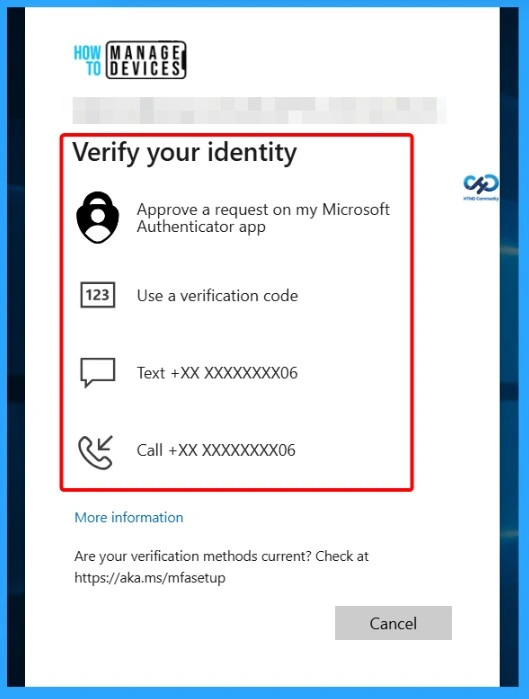
Why Setting Up Backup MFA Methods Is Important to Avoid Getting Locked Out of Your Own Account! Multi-Factor Authentication (MFA) adds extra security to accounts, but sometimes it can create a frustrating login problem. This usually happens when a user tries to sign in and the account asks for approval from an authenticator app on their phone.
Table of Content
Table of Contents
Why Setting Up Backup MFA Methods Is Important to Avoid Getting Locked Out of Your Own Account
The problem starts when the phone is lost, broken, reset, replaced, or the authenticator app is removed. To access the account again, the user needs the authenticator app. But to restore or sign back into the authenticator app, the user is often asked to verify the same account again. This creates an authentication loop where both systems depend on each other.
- Enable Microsoft MFA For Admins Using Azure AD Conditional Access
- Entra External ID Now Supports SMS as an MFA Option
- MFA Authentication now Added to WhatsApp
- Quick Guide To Enforce Multifactor Authentication MFA For Users
Why Users Get Stuck in MFA Authentication Loops
Many people call this issue a “deadlock” or “infinite loop” because the login process keeps repeating without success. This usually happens when users do not set up backup codes, SMS verification, secondary MFA methods, cloud backup, or another trusted device before losing access to their authenticator app or phone.
How to Prevent MFA Authentication Lockouts
The best way to avoid this issue is to set up recovery options before a problem happens. Users should securely save backup codes, enable multiple MFA methods like SMS or phone calls, keep another trusted device signed in, and enable cloud backup for authenticator apps. Without these recovery options, even the real account owner can get locked out of their own account

MFA Recovery Options to Prevent Account Lockouts
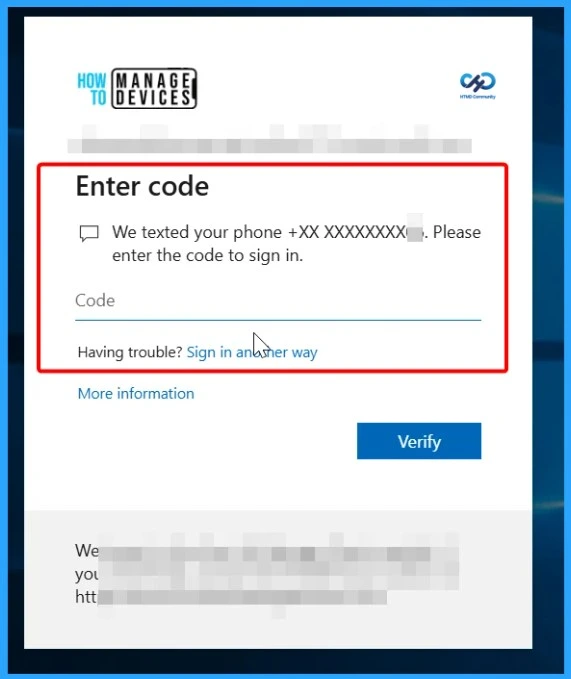
Using only one MFA method can become a problem if the device is lost, broken, or unavailable. Adding extra verification methods like SMS, phone calls, email verification, or another authenticator app gives users alternative ways to sign in during emergencies. It is also helpful to keep another trusted device already signed in, such as a laptop, tablet, or secondary phone. These backup options can prevent users from getting stuck in an authentication loop and help recover account access quickly.
| Recovery Option | How It Helps |
|---|---|
| SMS Verification | Allows users to receive a verification code through text message if the authenticator app is unavailable. |
| Phone Call Verification | Users can approve sign-in or receive a code through a phone call during login issues. |
| Email Verification | Provides another recovery method to verify identity and regain account access. |
| Secondary Authenticator App | A second authenticator app or device can generate MFA codes if the primary device is lost. |
| Trusted Signed-In Device | A laptop, tablet, or secondary phone already signed in can help users recover accounts quickly. |
| Backup Codes | One-time recovery codes can be used when all other MFA methods fail. |
| Cloud Backup for Authenticator Apps | Helps restore MFA accounts after reinstalling or changing devices. |
Need Further Assistance or Have Technical Questions?
Join the LinkedIn Page and Telegram group to get the latest step-by-step guides and news updates. Join our Meetup Page to participate in User group meetings. Also, join the WhatsApp Community and the Whatsapp channel to get the latest news on Microsoft Technologies. We are there on Reddit as well
Author
Anoop C Nair has been Microsoft MVP for 10 consecutive years from 2015 onwards. He is a Workplace Solution Architect with more than 22+ years of experience in Workplace technologies. He is a Blogger, Speaker, and Local User Group Community leader. His primary focus is on Device Management technologies like SCCM and Intune. He writes about technologies like Intune, SCCM, Windows, Cloud PC, Windows, Entra, Microsoft Security, Career, etc.