
Key Takeaways
- RPC over TCP is the default connection method.
- You can choose RPC over TCP or RPC over named pipes.
- Authentication can be enabled or disabled for named pipe connections.
- If the policy is not configured, default settings are used.
Hey, let’s discuss about Configuring Remote Print Spooler RPC Connection Settings in Microsoft Intune.
This policy setting determines which protocol is used for outgoing RPC connections to a remote print spooler. By default, RPC over TCP is used and authentication is always enabled. You can choose either RPC over TCP or RPC over named pipes for these connections.
Table of Contents
Table of Contents
Configuring Remote Print Spooler RPC Connection Settings in Microsoft Intune
For RPC over named pipes, authentication settings can be configured separately. The default behavior is that domain-joined computers enable authentication, while non-domain-joined computers disable it. You can also explicitly choose Authentication enabled or Authentication disabled. If this policy is disabled or not configured, the default settings are applied.
- RPC Endpoint Mapper Client Authentication Policy using Intune
- Restrict Unauthenticated RPC Clients Policy using Intune
- Disable Client Computer Printing Over both HTTP and HTTPS using Intune
How to Create a Profile
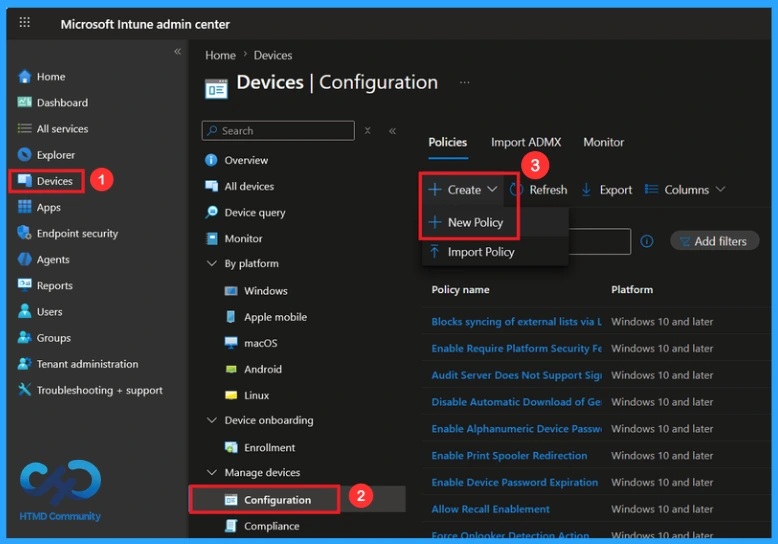
First, sign in to the Microsoft Intune Admin Center. Go to the Devices and select Configuration. Then click on the create down arrow, and after that, click on New Policy.
Profile Creation in a Policy
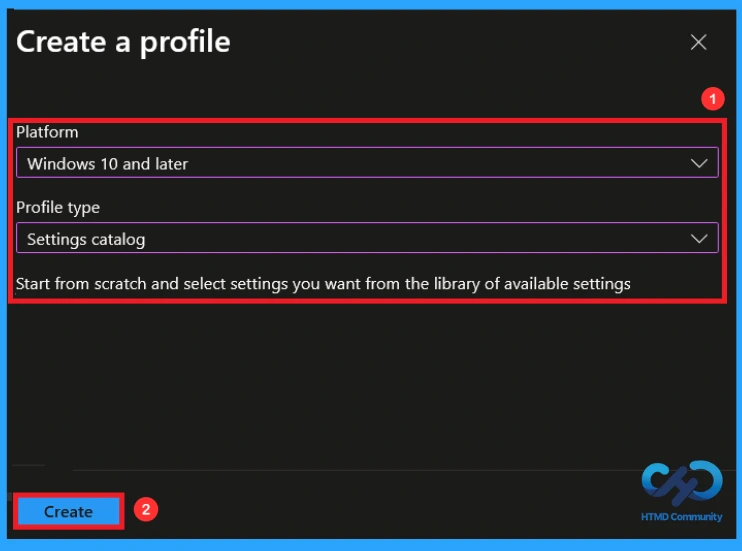
This is the next step you need to take for policy Creation. In profile creation, you must select the platform and profile type. Here, I would like to configure the policy for Windows 10 and later platforms and the settings catalog profile. Then click on the Create button.

Basic Tab for Name and Description
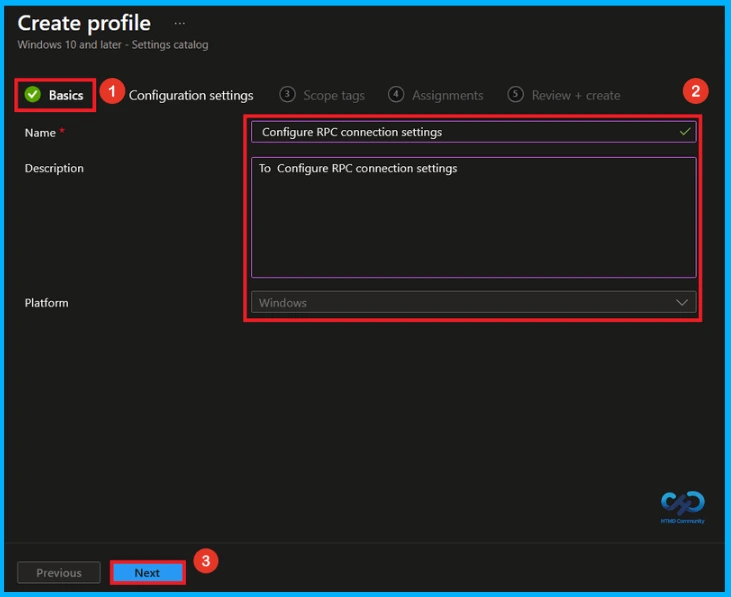
On this tab, you have to give a name (Configure RPC connection settings) for the policy that you want to create. The name field is mandatory. Without giving a name, you can’t create a policy on the basic tab. You can also describe the policy, which description is not mandatory. Click on the next button.
Configuration Settings
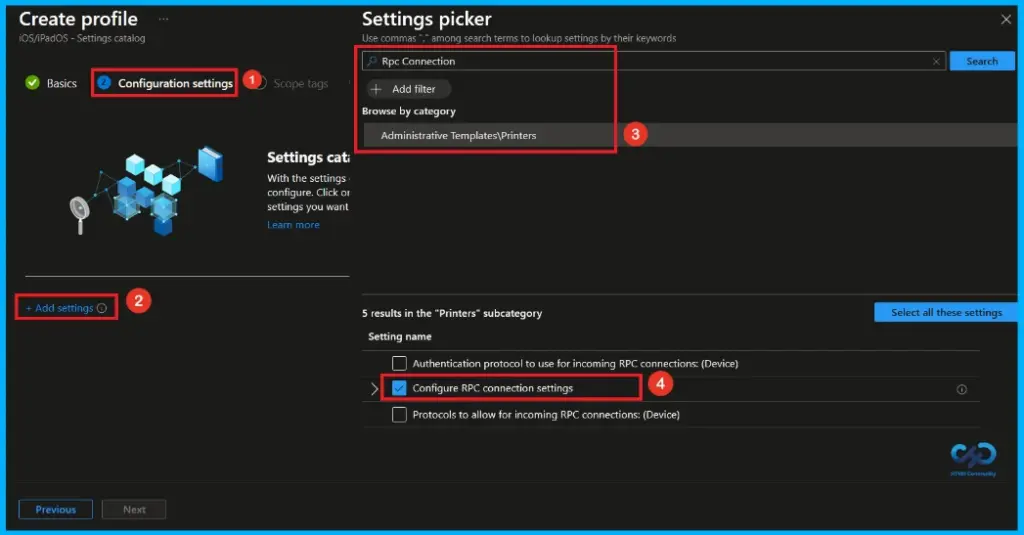
The configuration tab allows you to select specific policy settings to manage your organisation’s devices. On this page, we click on the + Add Settings hyperlink. Then you will get a settings picker that will show different types of categories to select specific settings. Here, I choose to Administrative Templates\Printers the category and select the Configure RPC connection settings.
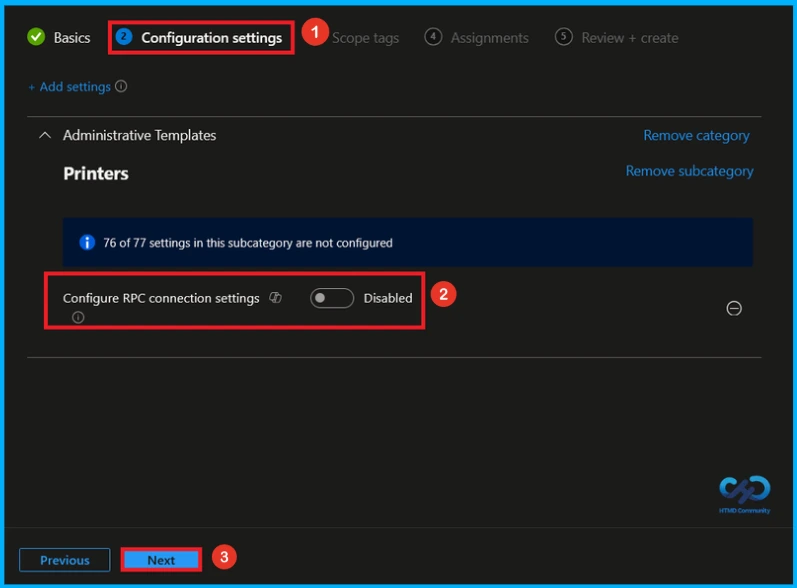
Disable this Policy
Once you have selected this policy, and closed the Settings picker. You will see it on the Configuration page. Here we have only two settings: Enable or Disable. By default, RPC connection settings policy will be set to Disable.
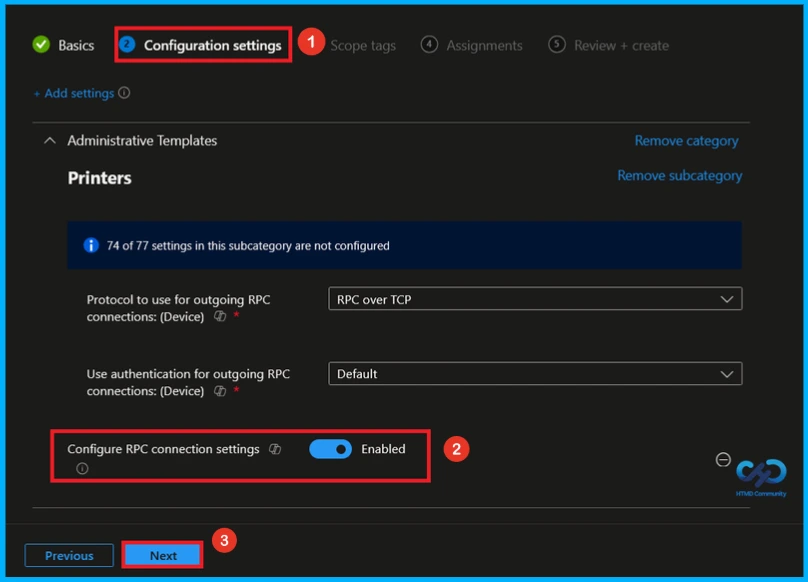
Enable this Policy
If we enable or configure this policy, you can enable the RPC connection settings by toggling the switch from left to right. Then, you can click the Next button to continue.
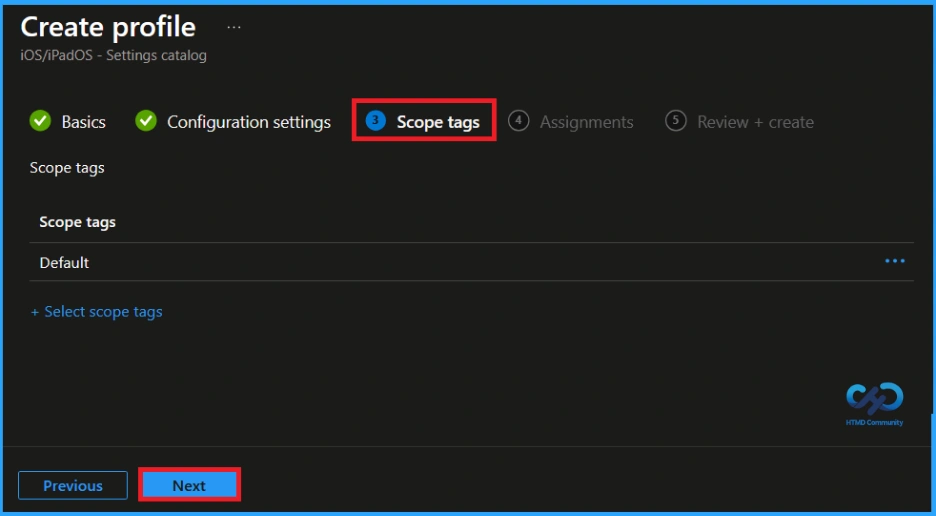
What is Scope Tag
In Intune, Scope Tags are used to control who can view and modify a policy. The scope tag is not mandatory, so you can skip this section. It functions as a tool for organisation and access management, but assigning it is optional. Click Next if they’re not required for your setup.
Assignments Tab
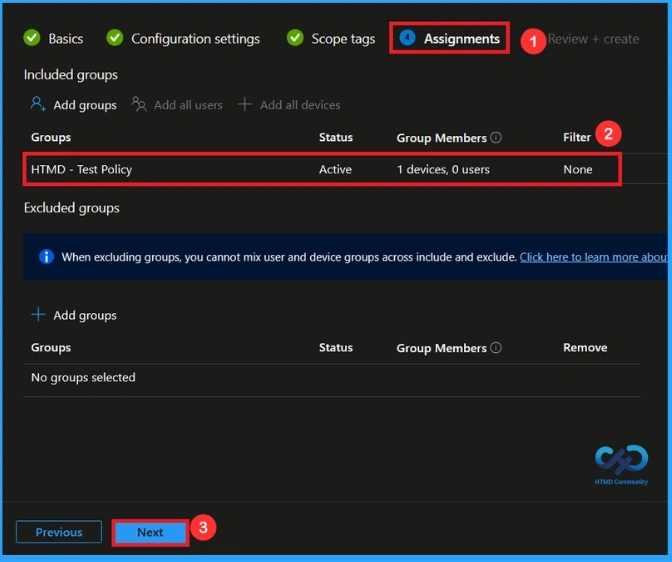
In the Assignments tab, you choose the users or devices that will receive the policy by clicking Add Group under Include Group, select the group that you want to target (HTMD – Test Policy) and then click Next to continue.
Last step for Policy Creation
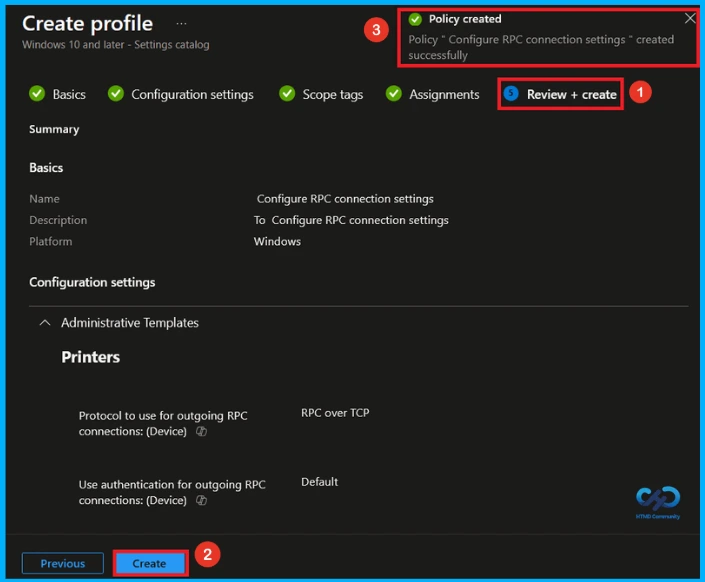
At the final Review + Create step, we see a summary of all configured settings for the new profile; after reviewing the details and making any necessary changes by clicking Previous. We click Create to finish, and a notification confirms that the “Configure RPC connection settings created successfully”.
Device and User Check-in Status
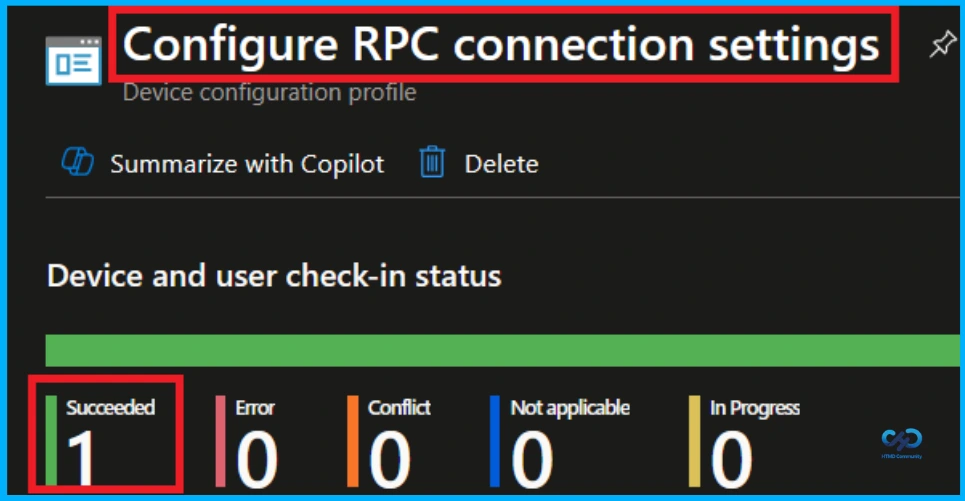
To view a policy’s status, go to Devices > Configuration in the Intune portal, select the policy(Configure RPC connection settings) and check that the status shows Succeeded. Use manual sync in the Company Portal to speed up the process.
Client Side Verification
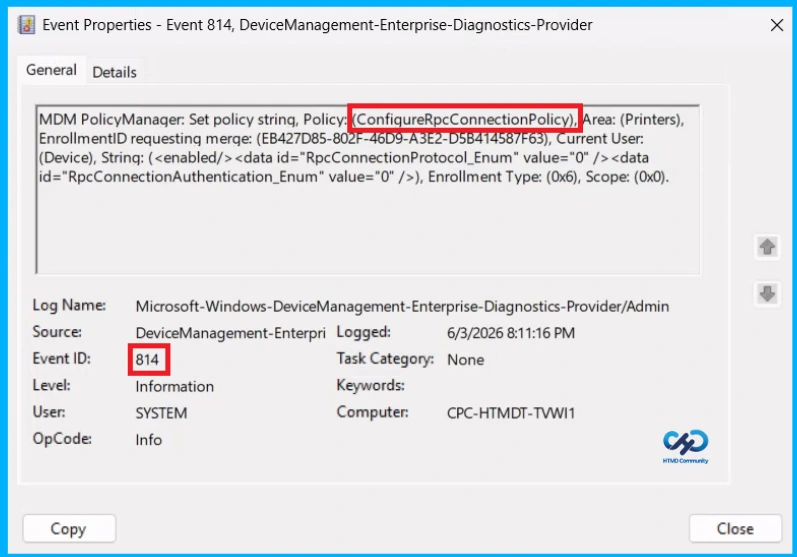
To confirm if a policy has been applied, use the Event Viewer on the client device. Go to Applications and Services Logs > Microsoft > Windows > Device Management > Enterprise Diagnostic Provider > Admin. From the list of policies, use the Filter Current Log option and search for Intune event 814.
MDM PolicyManager: Set policy strinq, Policy:ConfiqureRpcConnectionPolicy), Area: (Printers),
EnrollmentID requesting merge: (EB427D85-802F-46D9-A3E2-D5B414587F63), Current User:
(Device), String: (), Enrollment Type: (0x6), Scope: (0x0).
Windows Configuration Service Provider (CSP)
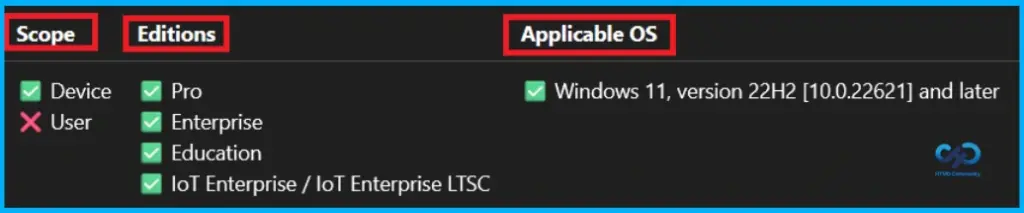
The Policy Configuration Service Provider (CSP) is a feature used by organisations to manage and control settings on Windows 10 and 11 devices.
Description framework properties
- Format –
chr(string) - Access type – Add, Delete, Get, Replace
ADMX mapping:
| Name | Value |
|---|---|
| Name | ConfigureRpcConnectionPolicy |
| Friendly Name | Configure Rpc Connection Policy |
| Location | Computer Configuration |
| Path | Printers |
| Registry Key Name | Software\Policies\Microsoft\Windows NT\Printers\RPC |
| ADMX File Name | Printing.admx |
How to Remove Assigned Group from this Policy
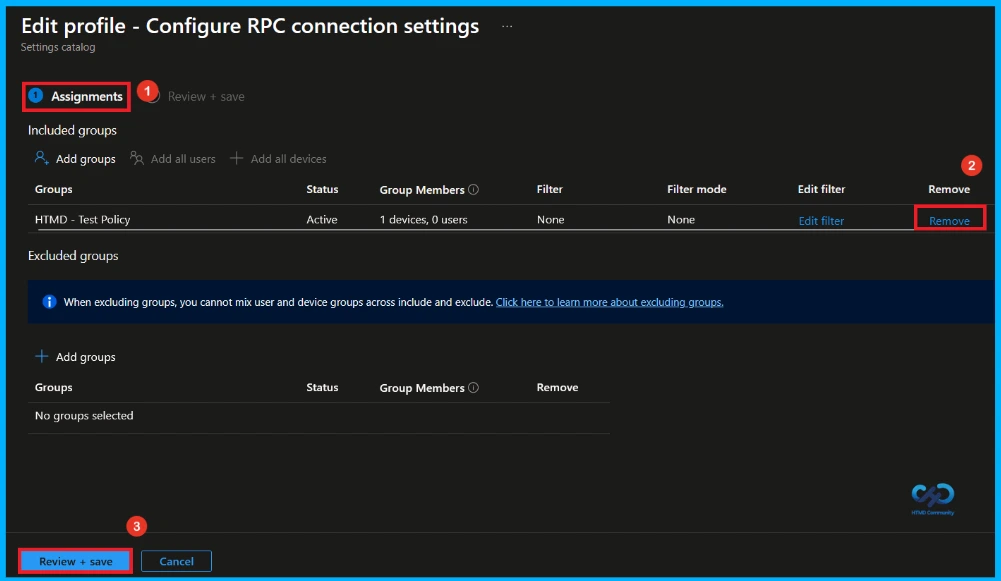
Sometimes, we need to remove a group from a policy assignment for security updates. Open the policy from the Configuration tab and click on the Edit button on the Assignment tab. Click on the Remove button on this section to remove the policy. Click Review + Save after making the change.
For detailed information, you can refer to our previous post – Learn How to Delete or Remove App Assignment from Intune using by Step-by-Step Guide.
How to Delete Widgets Board Policy from Intune
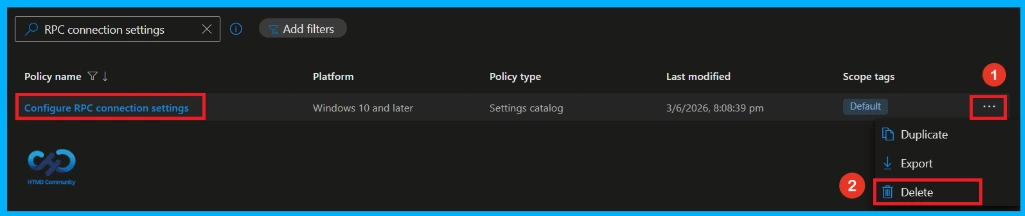
To delete an Intune policy for security or operational reasons. It is simple to do. I will demonstrate how to delete an Intune policy through the Configure RPC connecction settings. Click the three dots, then click the Delete option.
For detailed information, you can refer to our previous post – Learn How to Delete or Remove App Assignment from Intune using by Step-by-Step Guide.
Need Further Assistance or Have Technical Questions?
Join the LinkedIn Page and Telegram group to get the latest step-by-step guides and news updates. Join our Meetup Page to participate in User group meetings. Also, Join the WhatsApp Community and WhatsApp Channel to get the latest news on Microsoft Technologies. We are there on Reddit as well.
Author
Anoop C Nair has been Microsoft MVP from 2015 onwards for 10 consecutive years! He is a Workplace Solution Architect with more than 22+ years of experience in Workplace technologies. He is also a Blogger, Speaker, and Local User Group Community leader. His primary focus is on Device Management technologies like SCCM and Intune. He writes about technologies like Intune, SCCM, Windows, Cloud PC, Windows, Entra, Microsoft Security, Career, etc