
Key Takeaways
- A new update view helps identify Enterprise App Catalog apps with newer versions.
- Administrators can compare the provisioned version with the latest available version.
- Administrators can quickly compare the currently installed version with the latest version available in the catalog.
- Administrators can replace the existing app with the latest version through the update experience.
In this post we are discussing Microsoft Intune Remote Help Client Upgrade with Enterprise App Catalog Apps. Microsoft recently introduced an easier way to manage updates for applications available through the Enterprise App Catalog in Intune. The new experience helps administrators identify applications that have newer versions available and start the update process directly from the Intune admin center. With this update, administrators can view the current version of an application with the latest version available in the Enterprise App Catalog.
Table of Contents
Table of Contents
Microsoft Intune Remote Help Client Upgrade with Enterprise App Catalog Apps
Instead of manually setting up the updated application, Intune uses the application details available from the Enterprise App Catalog to simplify the process. Administrators can then review the updated application, configure the required assignments, and deploy it to the appropriate users or devices.
- Best Guide to Enable WinSCP Win32 App Supersedence and Auto-Update with Intune
- Complete List of Managed Applications in Intune Enterprise App Catalog
- Best Method to Update Box Drive using Intune Enterprise App Catalog App
What’s New
Microsoft Intune now makes it easier to find Enterprise App Catalog apps that have a newer version available. Administrators can see the current version and the latest available version in one place. Admins can select the Update option to start the update process and use the latest version to replace the existing app. This helps simplify app updates and reduces the manual work involved in managing different application versions.
How to Update Enterprise App Catalog Apps using Intune
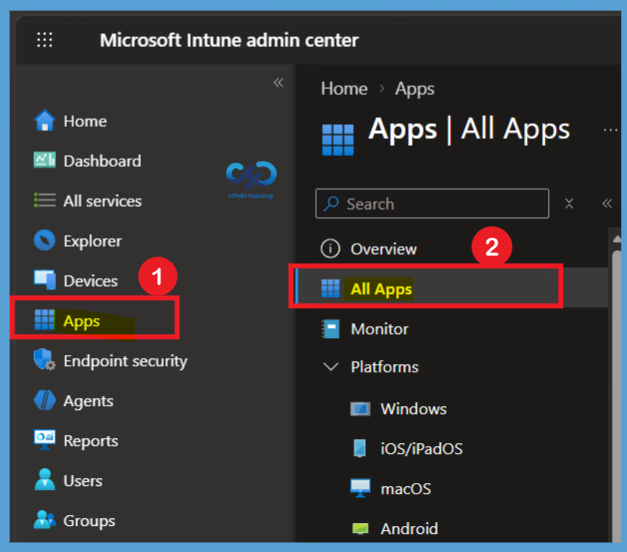
Sign in to the Microsoft Intune admin center and navigate to Apps > All Apps. The All Apps page provides a central view of the applications available in your Intune environment and allows you to manage applications across different platforms.

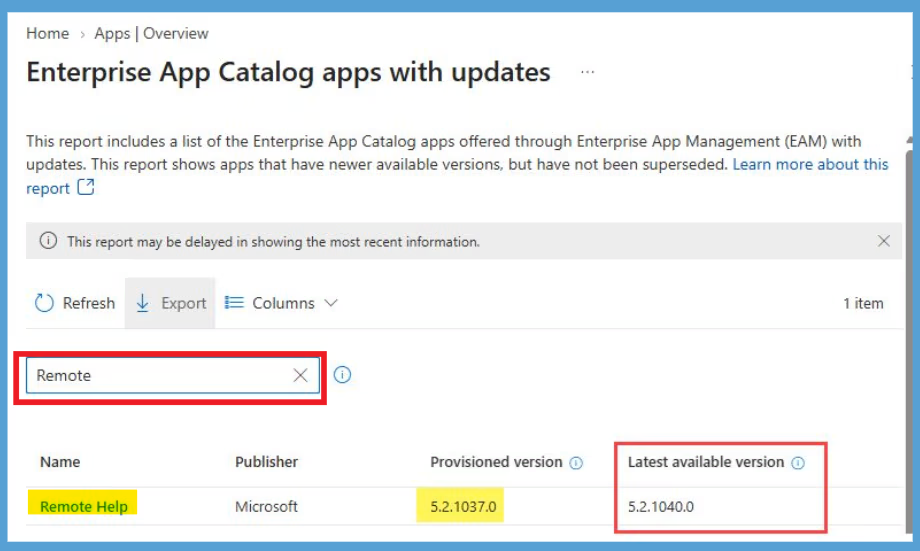
From All Apps, you can search for and select the application you want to manage. For this configuration, we are working with the Remote Help application available through the Enterprise App Catalog. This view helps you identify Enterprise App Catalog applications for which a newer version is available. You can search for Remote Help and review the version information displayed for the application. Here you can see the Latest available version shows the newer version available through the catalog.
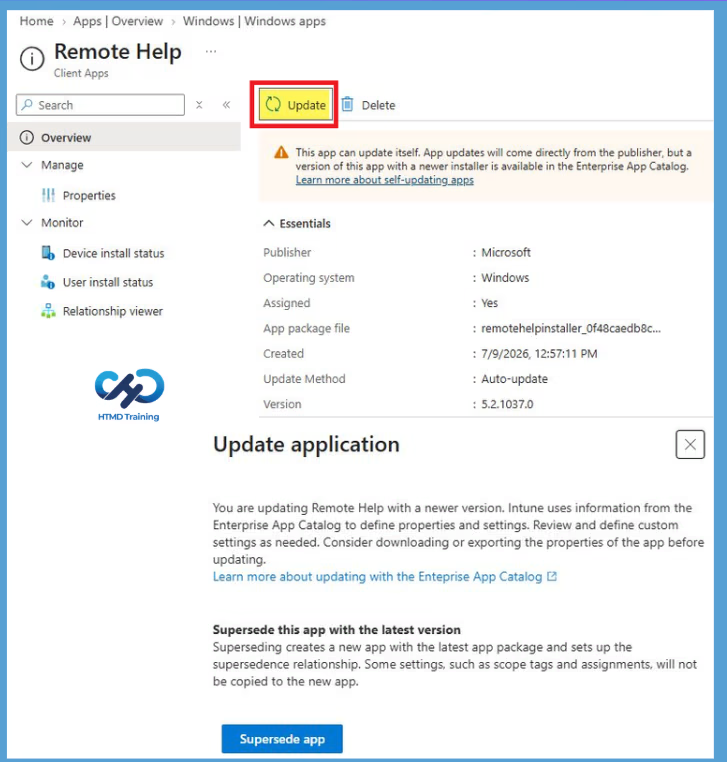
After confirming that an update is available, select Remote Help to open its application details and continue with the update process. On the Remote Help application page, select Update to open the application update experience. Intune provides the latest application information from the Enterprise App Catalog and displays the Update application section, where you can review the available update before proceeding.
- Under Supersede this app with the latest version, select Supersede app.
- Intune creates a new application using the latest available package and establishes a relationship with the existing application.
| Update Info | Details |
|---|---|
| Update application | You are updating Remote Help with a newer version. Intune uses information from the Enterprise App Catalog to define properties and settings. Review and define custom settings as needed. Consider downloading or exporting the properties of the app before updating. |
| Supersede this app with the latest version | Superseding creates a new app with the latest app package and sets up the supersedence relationship. Some settings, such as scope tags and assignments, will not be copied to the new app. |
Need Further Assistance or Have Technical Questions?
Join the LinkedIn Page and Telegram group to get the latest step-by-step guides and news updates. Join our Meetup Page to participate in User group meetings. Also, join the WhatsApp Community and the Whatsapp channel to get the latest news on Microsoft Technologies. We are there on Reddit as well.
Author
Anoop C Nair is Workplace Technology solution architect with 25+ years of experience in global enterprise organizations such as JP Morgan, Capgemini, etc. He is Microsoft Certified Trainer. Microsoft MVP from 2015 onwards for consecutive 11 years! He also conducts Intune and modern workplace tech training for enterprise organizations. He is Blogger, Speaker, and Founder of HTMD Community and HTMD Conference. His focus is on Device Management technologies such as Intune, Windows, Cloud PC. He writes about technologies like Intune, SCCM, Windows, Cloud PC, Windows, Entra, Microsoft Security.