
Key Takeaways
- Manage which Apple software update is recommended to users through Intune.
- Use Recommendation Cadence to control the update recommendation on managed devices.
- Select Oldest when you want devices to use the earlier available update.
- Support a more controlled and phased approach to major Apple OS upgrades.
In this post, Configure Apple Software Update Recommendation Cadence to Support Controlled OS Rollouts using Intune. Microsoft Intune gives organizations more control over how software updates are managed on Apple devices. The Recommendation Cadence setting provides another way to control which available software update is recommended to users. By configuring this setting as Oldest, administrators can direct supported devices toward the older available update rather than automatically recommending the newest option.
Table of Contents
Table of Contents
Configure Apple Software Update Recommendation Cadence to Support Controlled OS Rollouts using Intune
Instead of requiring every managed device to move to the newest major release as soon as it becomes available, administrators can use the Apple Software Update Recommendation Cadence policy to maintain a more controlled update experience while they complete their testing and deployment planning. The Recommendation Cadence setting gives IT administrators an additional option for managing Apple software updates through Intune.
- Best way to Add Mac Devices to Apple Business Manager ABM or ASM and to Intune
- Simple Way to Add iOS to Apple Business Manager and Manage in Intune – Part 2
- Simple Way to Add iOS to Apple Business Manager and Manage in Intune – Part 1
What’s New
When Apple releases a new major OS version, such as iOS 27, IT administrators may want to give users more time before moving to it. By setting DDM Recommendation Cadence to Oldest in Microsoft Intune, administrators can recommend the latest available update from the previous OS version, such as iOS 26.7, instead of the new major release. This helps organizations maintain device stability while still keeping devices updated with the latest available security updates for the earlier OS.
How to Configure Recommendation Cadence Policy
This policy can help IT teams follow a phased update approach, allowing them to complete application testing and compatibility checks before moving devices to a newer major OS version. Start by signing in to the Microsoft Intune admin center and opening Devices. Go to Manage devices > Configuration.

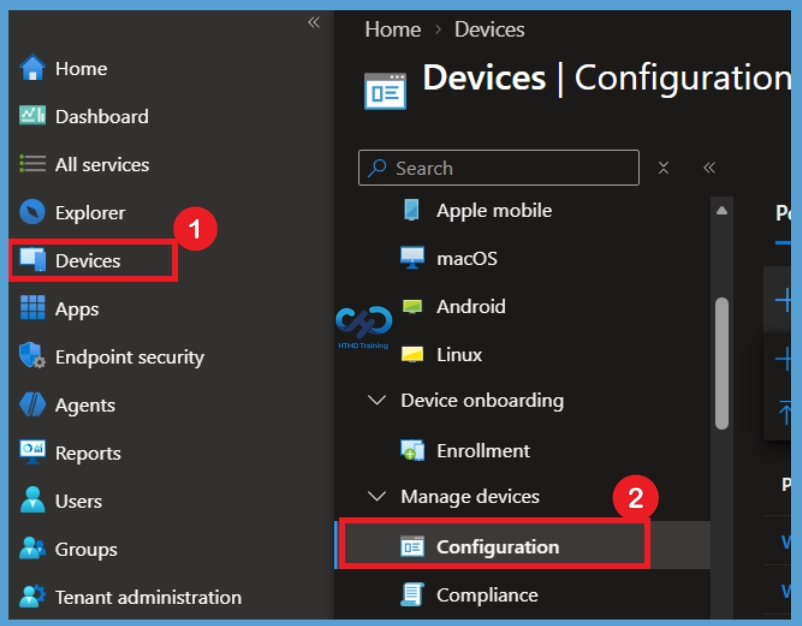
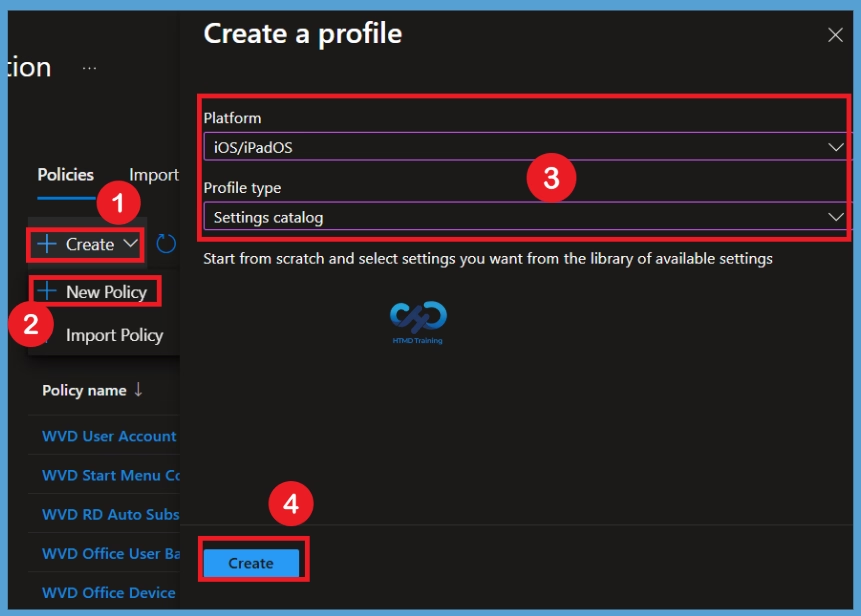
After selecting Configuration, you will be taken to the policy creation page. Select the Create dropdown arrow and choose New policy. The Create a profile window will then appear. Under Platform, select iOS/iPadOS, and for Profile type, choose Settings catalog. Once these options are selected, click Create to continue with the policy configuration.
Configure the Basic Details
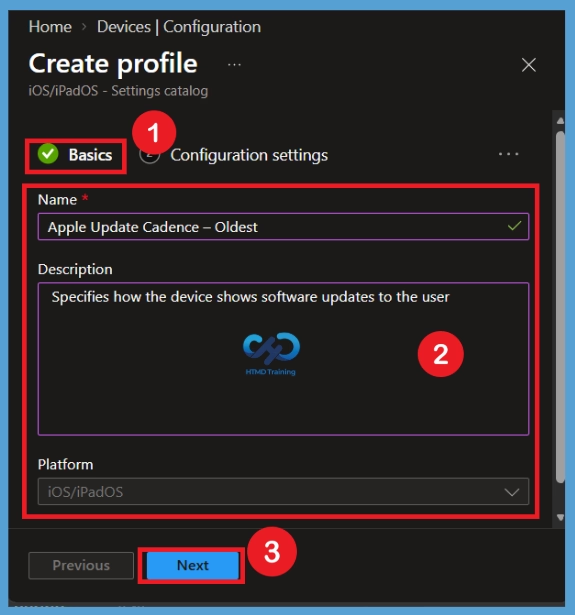
In the Basics tab, you can provide the essential information for the policy, including the policy name, platform, and description. The Platform is already selected as iOS/iPadOS based on the profile created in the previous step. Enter a suitable policy name and description to clearly identify its purpose. For example, you can use Apple Update Cadence as the name and specifies how the device shows software updates to the user as the description. After entering the required details, click Next to continue with the configuration settings.
Configure Recommendation Cadence Settings
After completing the Basics tab, you will move to the Configuration settings page. This is where you add the specific setting that controls how software updates are recommended to the user. Select the Add settings option highlighted in blue to open the Settings Picker window.
In the Settings Picker, search for Software Updates or Recommendation Cadence. From the results, select the Declarative Device Management Preview Software Update Settings category(DDM). You will then see the Recommendation Cadence setting. Select it and close the Settings Picker window to add the setting to your policy. The selected setting will now be available for further configuration on the Configuration settings page.
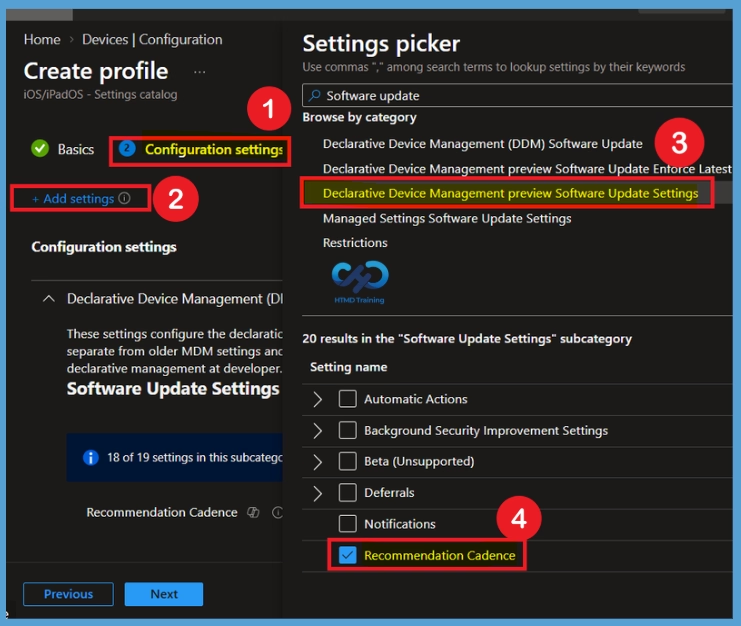
Change the Default Recommendation Cadence Setting
After closing the Settings Picker window, the Recommendation Cadence setting will appear under the configuration settings. By default, the value is set to All, which means the setting has not yet been changed to the specific recommendation you want to apply.
For this configuration, the default All value needs to be changed. Select the Recommendation Cadence option and choose the required value, such as Oldest, to define which available software update should be recommended to the user.
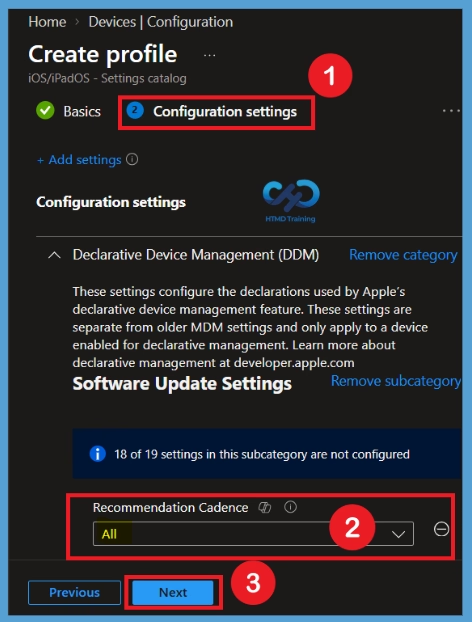
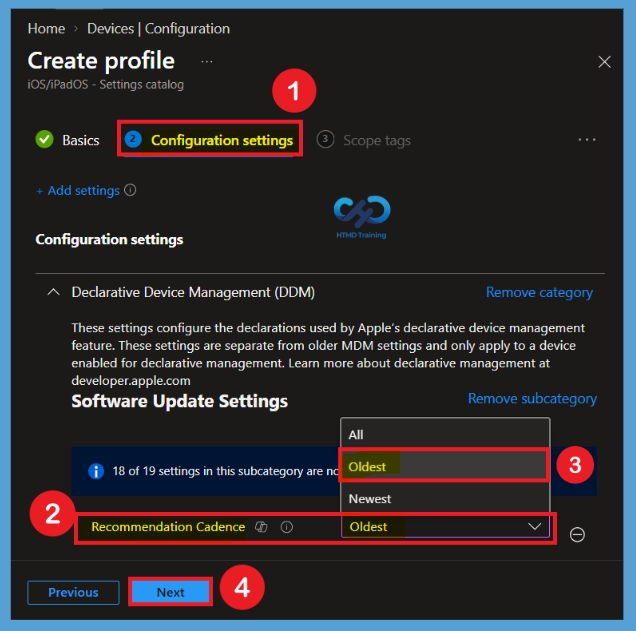
Select the Oldest Recommendation Cadence
The Recommendation Cadence setting is initially set to All. To change this, click the dropdown arrow next to the setting and select Oldest from the available options. Choosing Oldest allows the organization to recommend the earlier available software update instead of directing the device toward the newest available update. This can be useful when IT teams want to keep devices on an earlier OS version while they test and prepare for a major software upgrade.
- After selecting Oldest, review the configuration to make sure the correct value is displayed.
- Once the setting is configured, click Next to continue with the remaining policy configuration steps.
| Policy Settings | Info |
|---|---|
| Oldest | Shows only the oldest (lower numbered) software update version. |
| Newest | Shows only the newest (highest numbered) software update version |
Note: Only applicable on Supervised devices with iOS 18+ and MacOS 15+
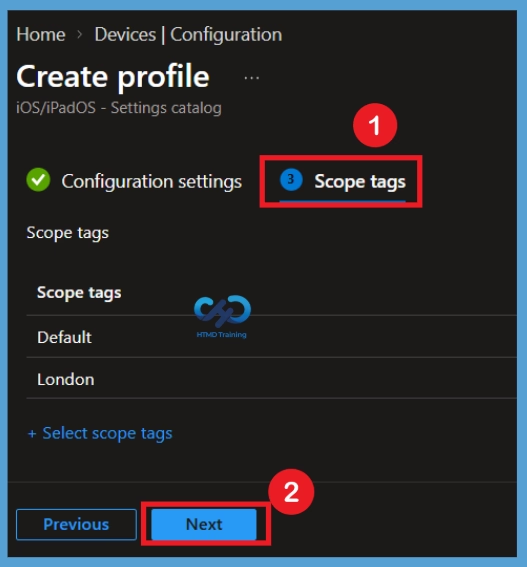
Scope Tag
Next, open Scope tags. Scope tags are useful when an organization has multiple Intune administrators and wants to limit which policies certain administrators can view or manage. If your organization uses scope tags, select the appropriate tag for the Apple Software Update Recommendation Cadence policy. If scope tags are not required, you can continue without adding one.
- Here I selected Appropriate scope tags like London for example then click on the Next to continue the configuration steps.
Assignments
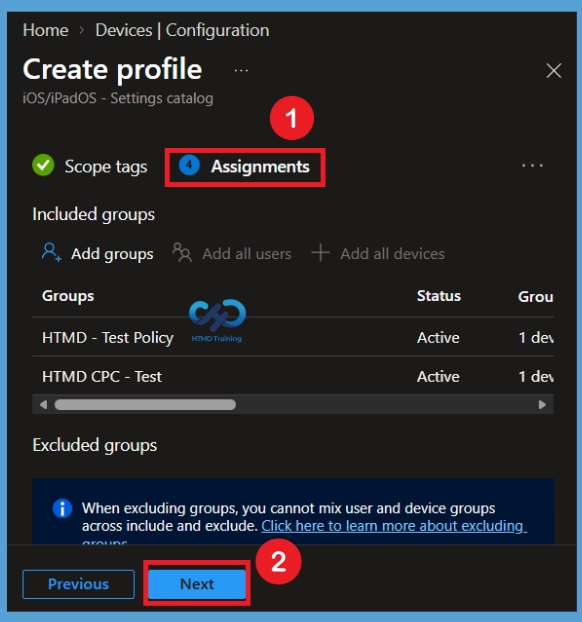
The next step is Assignments, where you select the user or device groups that should receive the policy. Under the assignment section, choose the required groups and add them to the policy. In this example, the HTMD test policy and HTMD CPC test groups are selected for deployment. Once the assignments are confirmed, click Next to continue to the following configuration step.
Review+ Create
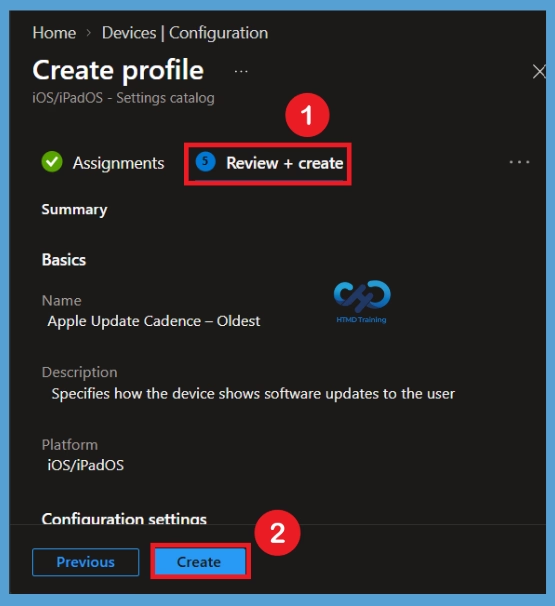
The Review + create page displays all the information configured throughout the policy creation process, including the Basics, Configuration settings, and Assignments sections. Review these details carefully to make sure the policy name, Recommendation Cadence value, and assigned groups are correct.
If you need to make any changes, select the Previous option to return to the earlier sections and update the required details. If everything is correct, select Create to complete the setup. Once the policy is successfully created, Intune displays a notification in the top-left corner confirming that the policy has been created.
Monitoring Status
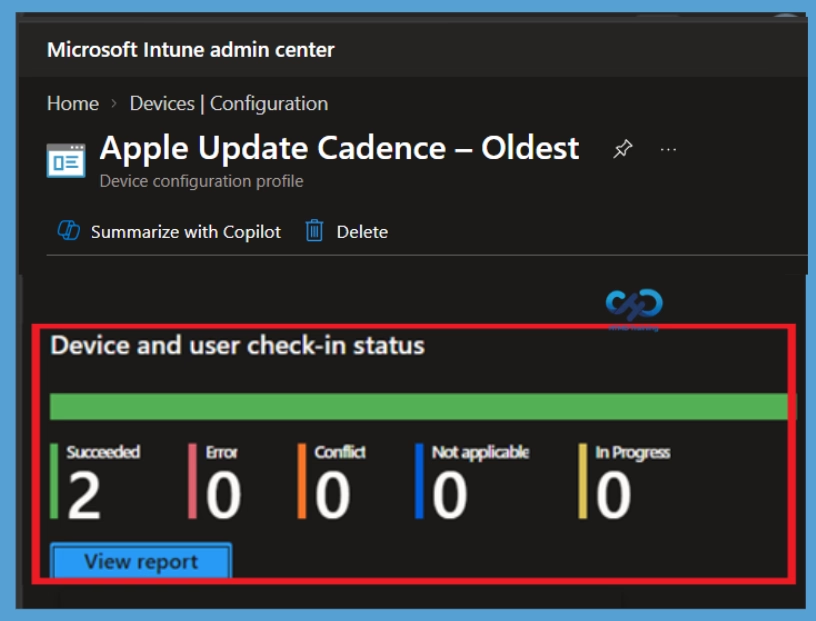
After creating the policy, it may take some time for the configuration to reach the assigned devices. You can use the Monitoring status section in Intune to check whether the Apple Update Cadence policy has been successfully deployed.
To check the status, go to Devices > Configuration profiles and select the Apple Update Cadence policy. This opens the policy’s Properties page, where you can review the deployment status for the assigned devices. In this example, the policy shows a Succeeded status for 2 devices, confirming that the configuration was successfully applied to them.
Remove Policy Group from Configuration
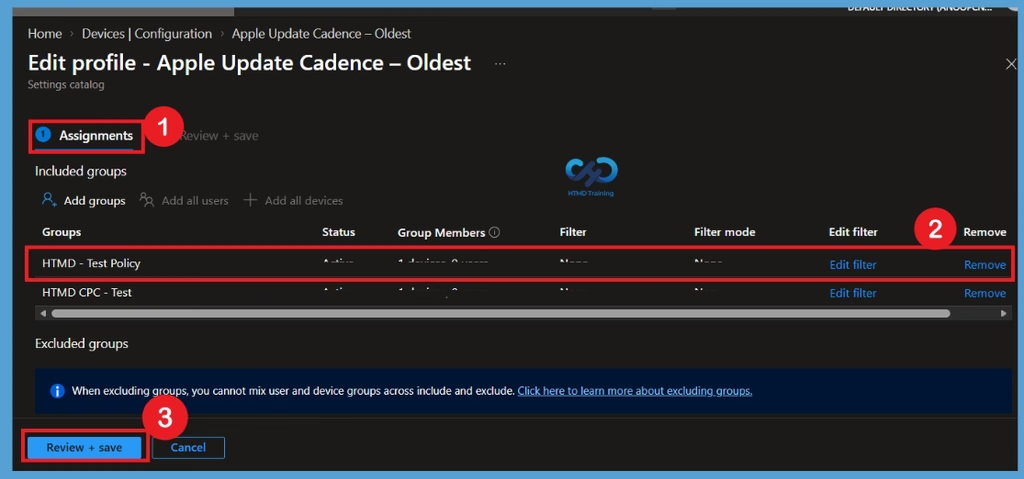
If you no longer want a particular group to receive the Apple Software Update Recommendation Cadence policy, open the policy and go to Assignments. Remove the group from the included assignments or change the assignment to another group. Removing an assignment does not delete the policy itself. It simply prevents that particular group from continuing to receive the profile through that assignment.
Delete the Apple Software Update Recommendation Policy Permanently
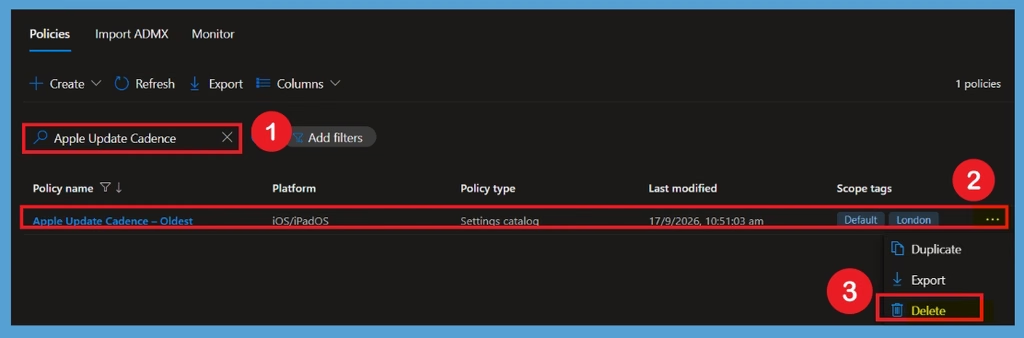
If the Apple Update Cadence policy is no longer required or contains an incorrect configuration, you can remove it from Intune. Before deleting the policy, first remove any assigned groups so that the profile is no longer targeted to users or devices. Once the assignments are removed, you can proceed with deleting the policy.
To delete the policy, go to Devices > Configuration profiles and locate the Apple Update Cadence policy. Select the 3-dot (⋯) menu next to the policy to open See more options. From the available options, select Delete. Intune will display a confirmation prompt asking whether you want to permanently remove the policy. Select Yes to confirm, and the Apple Update Cadence policy will be permanently deleted from your Intune tenant.
Need Further Assistance or Have Technical Questions?
Join the LinkedIn Page and Telegram group to get the latest step-by-step guides and news updates. Join our Meetup Page to participate in User group meetings. Also, join the WhatsApp Community and the Whatsapp channel to get the latest news on Microsoft Technologies. We are there on Reddit as well.
Author
Anoop C Nair is Workplace Technology solution architect with 25+ years of experience in global enterprise organizations such as JP Morgan, Capgemini, etc. He is Microsoft Certified Trainer. Microsoft MVP from 2015 onwards for consecutive 11 years! He also conducts Intune and modern workplace tech training for enterprise organizations. He is Blogger, Speaker, and Founder of HTMD Community and HTMD Conference. His focus is on Device Management technologies such as Intune, Windows, Cloud PC. He writes about technologies like Intune, SCCM, Windows, Cloud PC, Windows, Entra, Microsoft Security.
This is exactly the workflow I needed for our staged macOS rollouts — the cadence setting finally gives me control over pilot vs. broad deployment. One question: does this also pause the nudge notifications on supervised devices?