
Key Takeaways:
- Content Sharing with Google AI Mode and Lens Integrations Policy
- It helps to stop side-panel tab analysis
- Exists to prevent sensitive corporate data from being sent to Google’s servers
- Chrome evaluates generative AI permissions using a strict priority order
Let’s discuss about Control Google AI Mode Content Sharing and Protect Company Data using Intune Policy using Intune. This policy controls sharing of page and file content with Google AI Mode and Lens through Google Chrome side panel or tabs. This policy is helps users to save time by instantly summarize long web pages or extract text with Google Lens can save hours of work.
Table of Contents
Table of Contents
Control Google AI Mode Content Sharing and Protect Company Data using Intune Policy
Enable Content Sharing with Google AI Mode and Lens Integrations is one of the new policy added on Intune settings catalog. This policy doesn’t affect Google AI Mode on the web. It only controls how users can share information with it when using Google Chrome.
This policy will be ignored when Google Search is not users’ default search engine as the feature is disabled. This policy is independent of the AIModeSettings policy. The AIModeSettings policy only controls entry points on omnibox or NTP search box, while this policy controls context sharing through side panel or tabs.
Note: This policy also doesn’t control Google Gemini integration which can be disabled by GeminiSettings. If this policy is unset, its behavior is determined by the GenAiDefaultSettings policy.

- How Edge for Business Protects Users Across Every Device and Workplace
- Enable In-Browser Protection with Microsoft Edge for Business to Securing Cloud Apps Without Proxies
- Enable Super Drag Drop in Microsoft Edge to Control User Navigation and Search using Intune
- Enable Extensions Reporting Policy in Microsoft Edge for Sending Data about Extensions using Intune
Example Scenario
A marketing team conducts daily open-web competitive research. They utilize Google Lens and Chrome AI tabs to quickly extract text from public competitor imagery, compare public pricing pages, and synthesize market trends. For this group, IT leverages scoped Intune/Chrome configurations to permit the feature safely.
How to Configure Content Sharing with Google AI Mode Policy
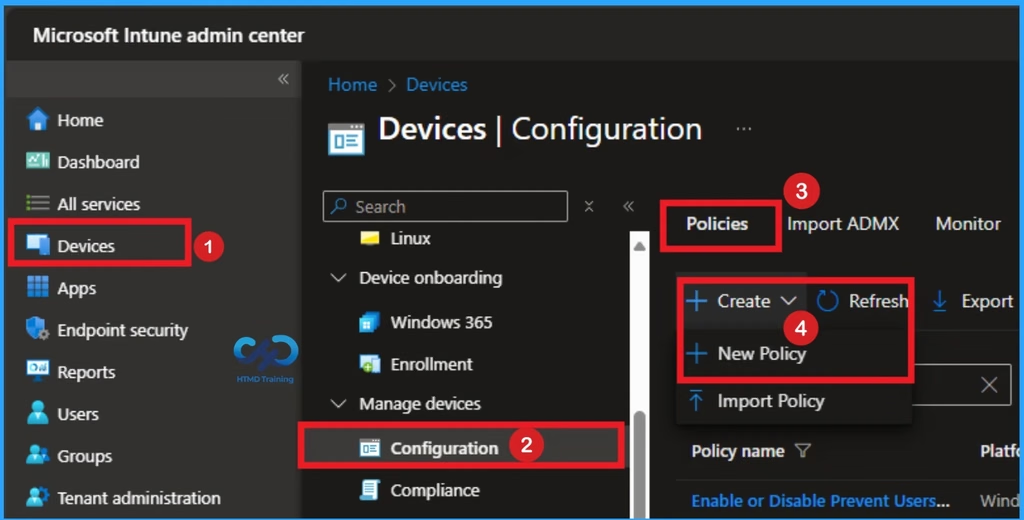
Using Microsoft Intune you can quickly configure Content Sharing with Google AI Mode and Lens Integrations. Sign in Intune Admin Center portal. Go to Devices > Windows > Configuration > Create > New Policy.
Choosing Profile and Platform
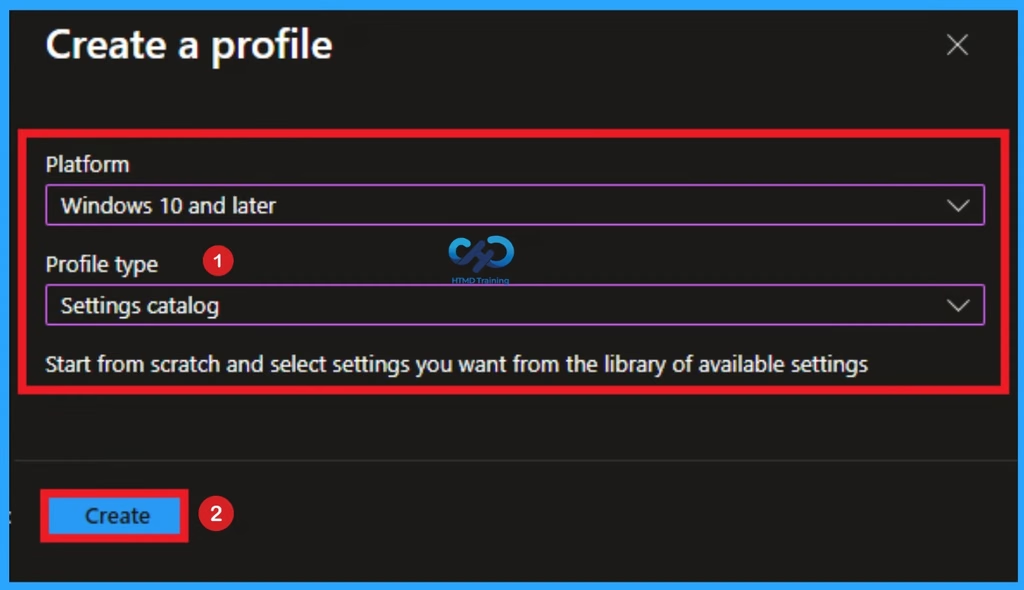
After that, you can Create a Profile for the policy which you want to configure. To create a profile you have to select platform and profile type. Here I selected Windows 10 and later as the Platform and Settings catalog as the profile type. Then click on the Create button.
Basic Tab for Naming Policy
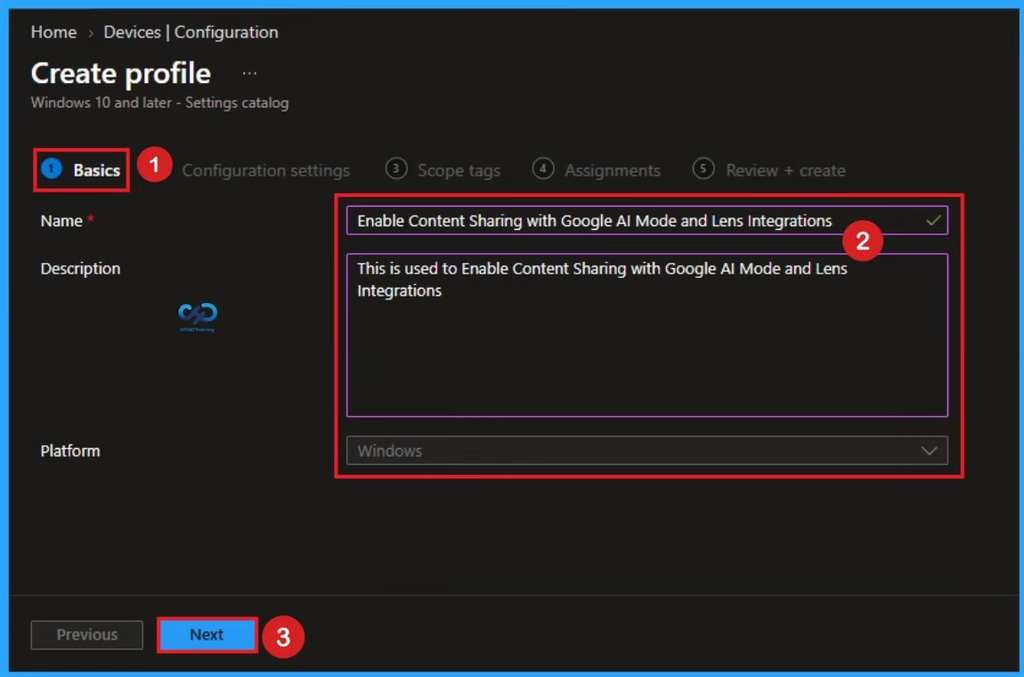
Basic Tab is used to give an identity for the policy by adding name and description. Here Name is Mandatory and Description is optional. After adding these details click on the Next button.
Configure the Content Sharing with Google AI Mode and Lens Integrations
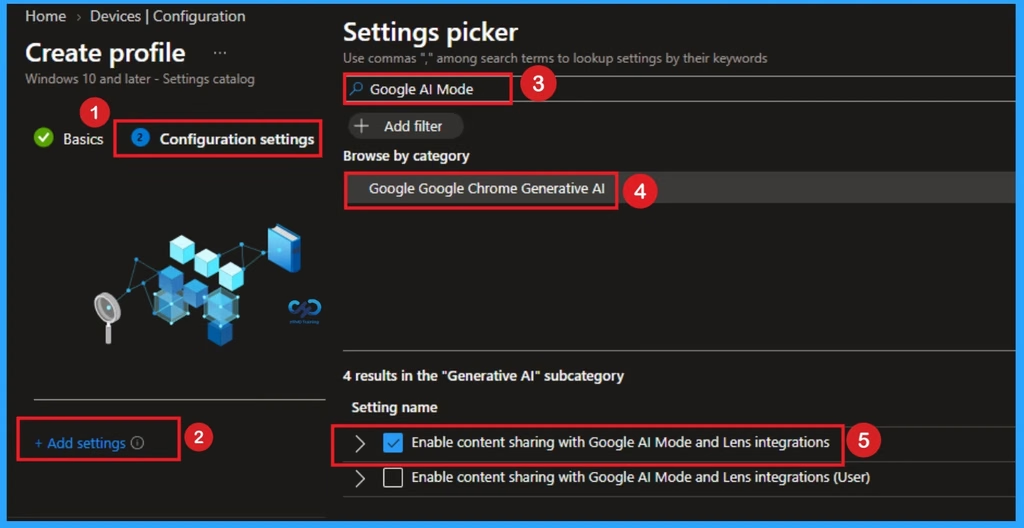
The Configuration settings page is helps to select specific settings to create the policy. The Settings Catalog provides a huge number of settings. To select a settings click on the +Add settings hyperlink. Then you will get Settings Picker. Choose Google Chrome > Generative AI and select Enable content sharing with Google AI Mode and Lens integrations. Then I close the Settings Picker.
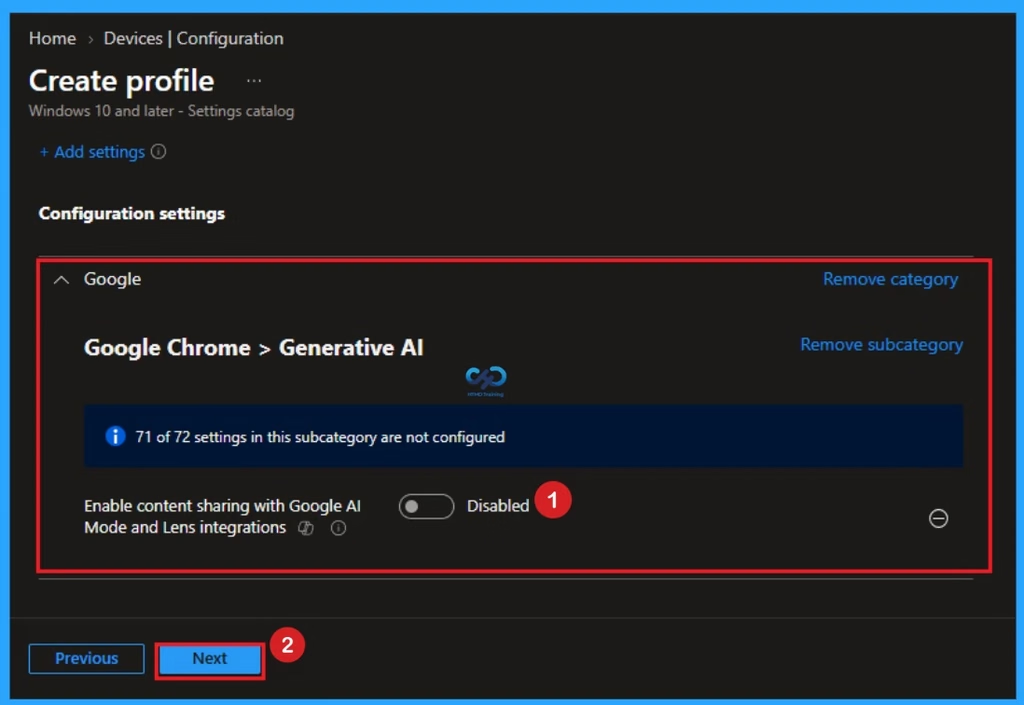
Disable Content Sharing with Google AI Mode and Lens Integrations
Disabling Content Sharing with Google AI Mode and Lens Integrations helps to avoid the chance of sharing confidential or sensitive data through Chrome AI sidebar Disable is the default value of this policy. If you like to go with this value, click on the Next button.
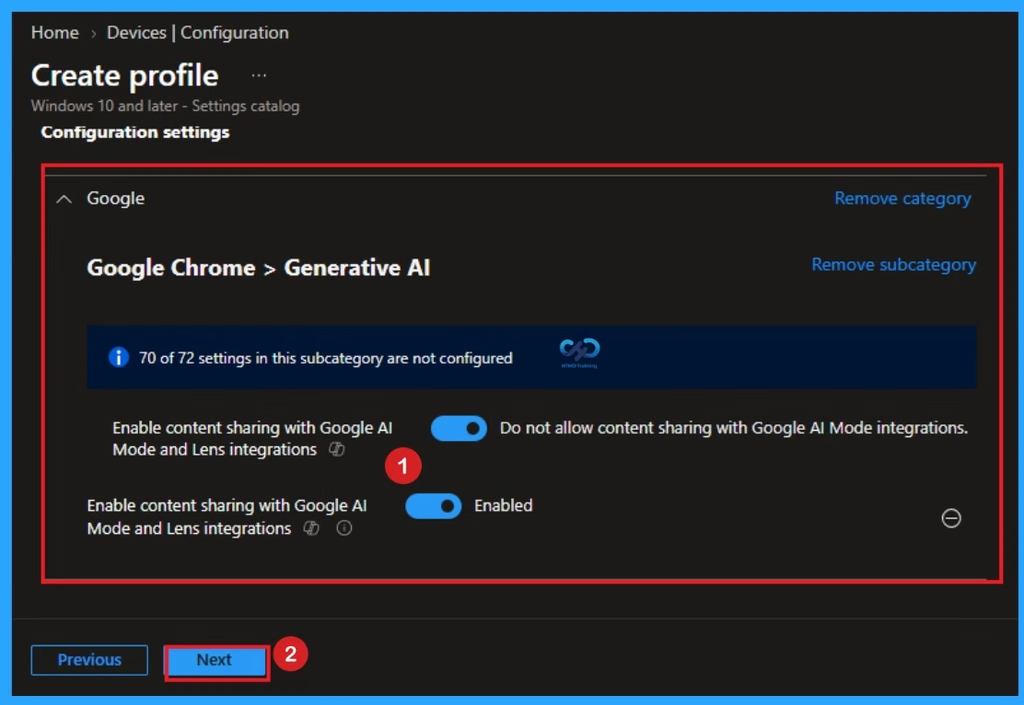
Enable Content Sharing with Google AI Mode and Lens Integrations
Enabling this policy provides many advantages for your organization. By enabling employees can highlight text, analyze web pages, or use Google Lens to understand complex information in seconds instead of reading through long blocks of text manually.
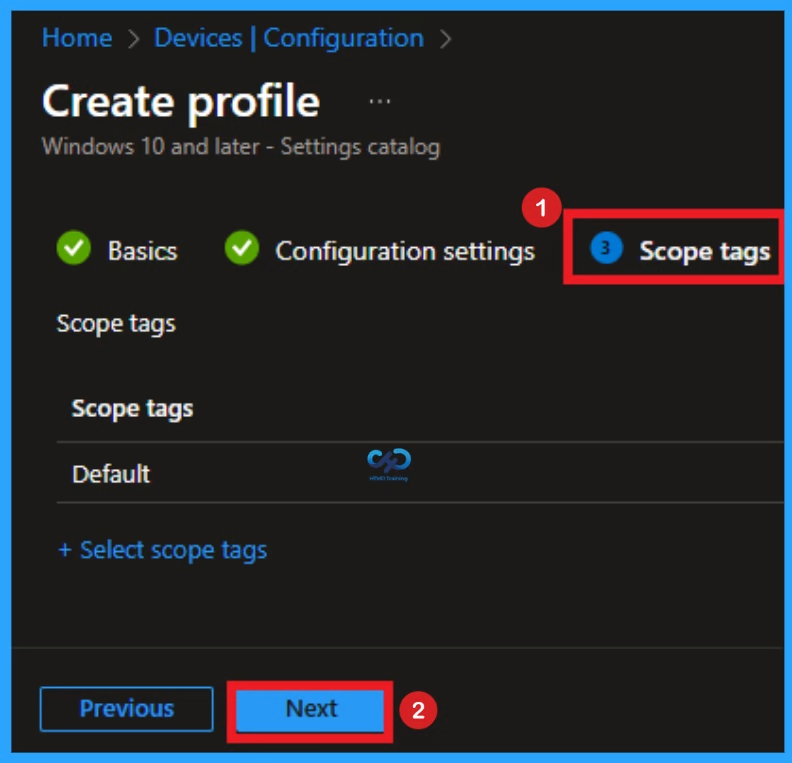
Scope Tags
By using scope tags you can restrict the visiblity of Enable Content Sharing with Google AI Mode and Lens Integrations Settings. It is helps to organize resources as well. Here I would like to skip this section, because it is not mandatory. Click on the Next button.
Assign this Policy to Specific Groups
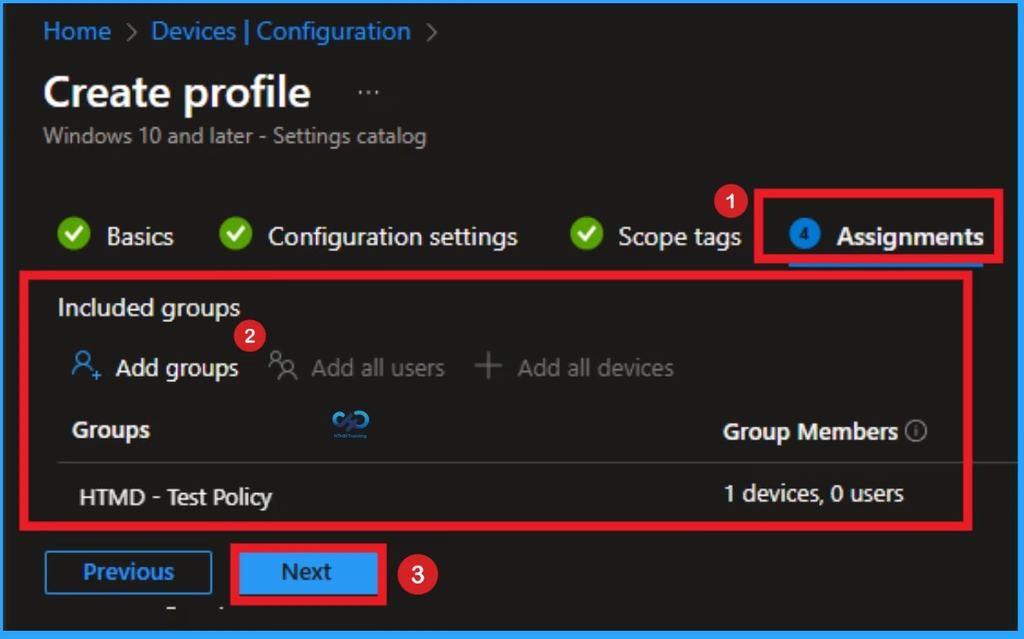
To assign the policy to specific groups you can use Assignment Tab. Here I click, +Add groups option under Included groups. I choose a group from the list of group and Click on the Select button. Again I click on the Select button to continue.
Final Step of Policy Creation
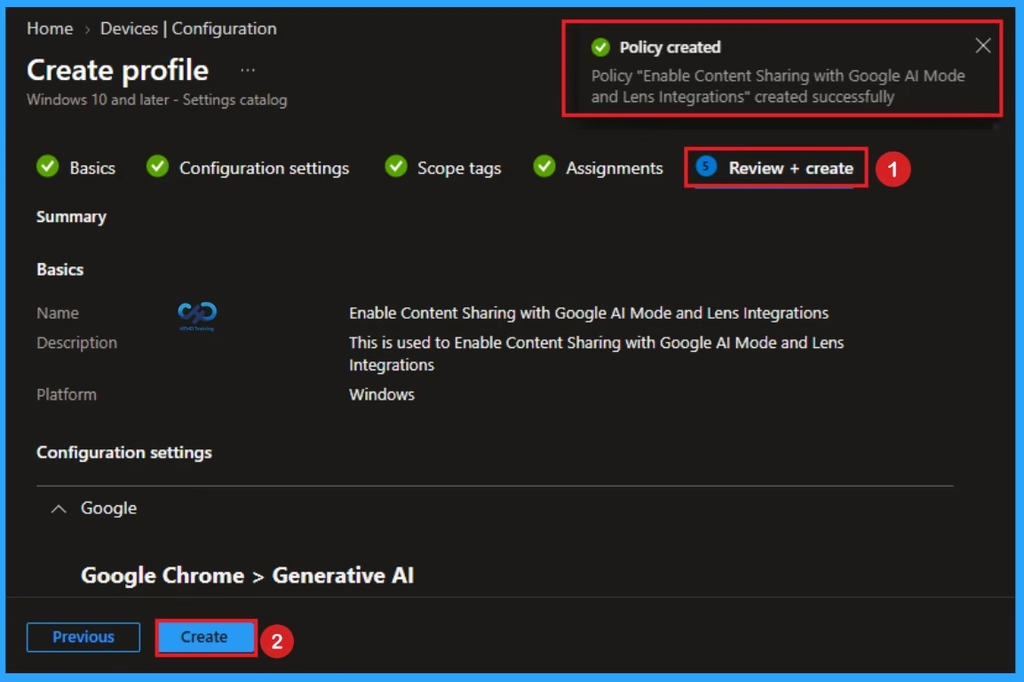
To complete the policy creation you can review all the policy details on the Review + create tab. It helps to avoid mistakes and successfully configure the policy. After varifying all the details click on the Create Button. After creating the policy you will get success message.
Device Check-in Status
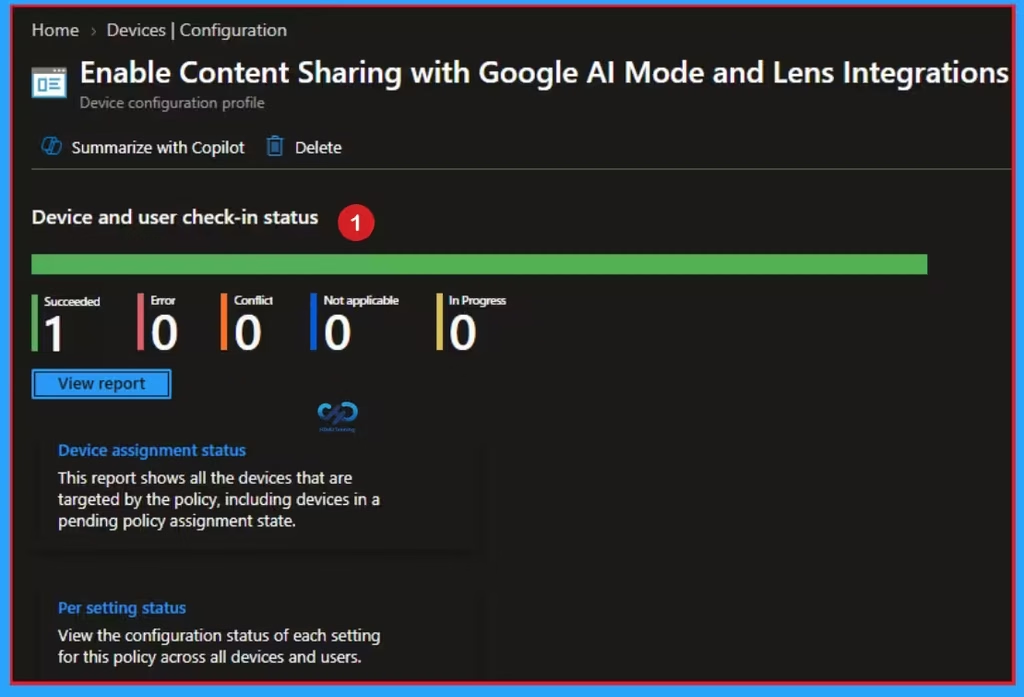
The Device Check-in Status page shows whether the policy has succeeded or not. To quickly configure the policy and take advantage of the policy sync, the device on the Company Portal, Open the Intune Portal. Go to Devices > Configuration > Search for the Policy. Here, the policy shows as successful.
Client Side Verification with Event Viewer
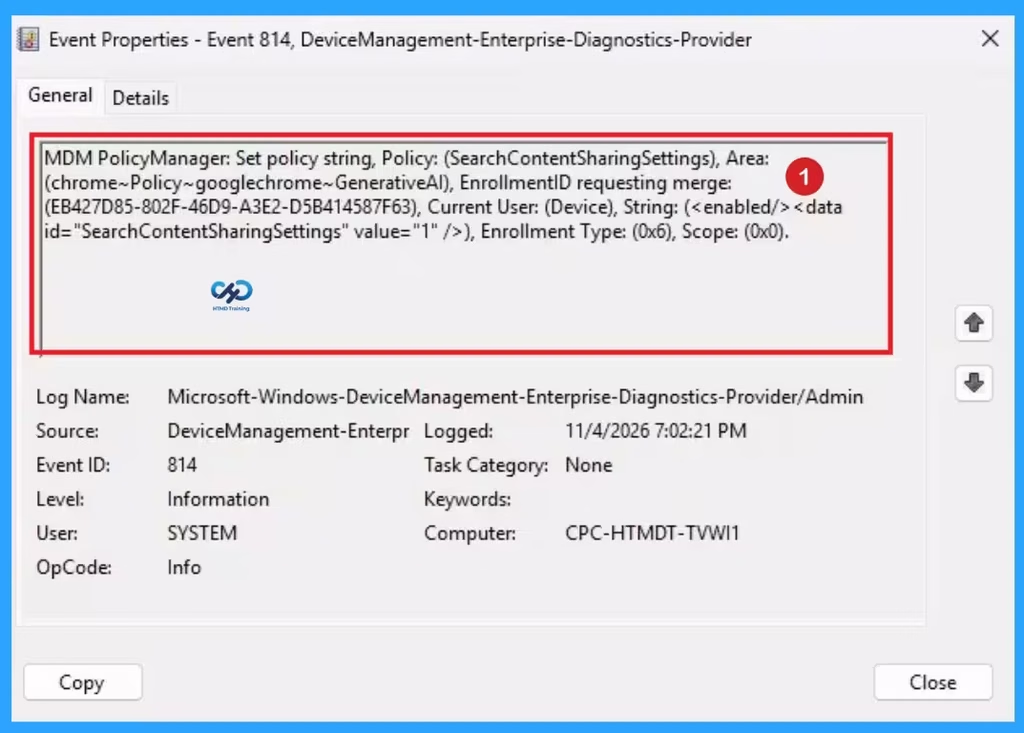
If you get success message, that doesn’t means you will get the policy advanatges. To varify the policy successfully configured to client device check the Event Viwer.
- Open Event Viewer: Go to Start > Event Viewer.
- Navigate to Logs: In the left pane, go to Application and Services Logs > Microsoft > Windows > DeviceManagement-Enterprise-Diagnostics-Provider > Admin.
- Filter for Event ID 814: This will help you quickly find the relevant logs.
| Event ID Details |
|---|
| MDM PolicyManager: Set policy string, Policy: (SearchContentSharingSettings), Area: (chrome~Policy~googlechrome~GenerativeAl), EnrollmentID requesting merge: (EB427D85-802F-46D9-A3E2-D5B414587F63), Current User: (Device), String: (), Enrollment Type: (0x6), Scope: (0x0). |
Removing the Assigned Group from Enable Content Sharing with Google AI Mode and Lens Integrations
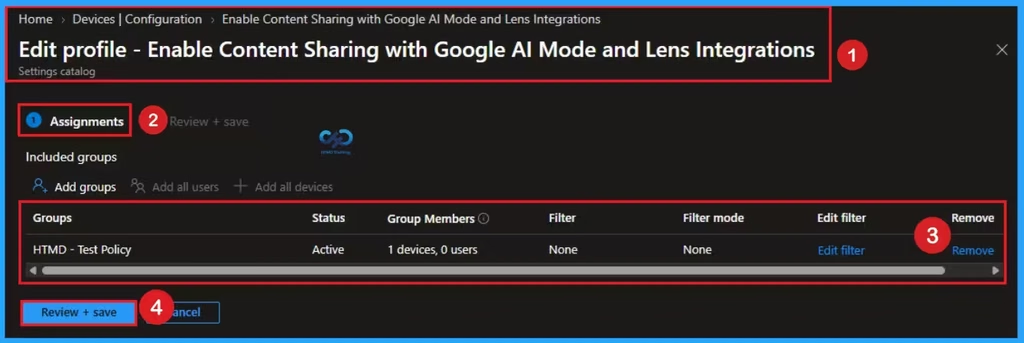
Removing policy is necessary for some situation. If you want to remove the Assigned group from the policy, it is possible from Intune Portal. To do this open the Policy on Intune Portal and Edit the Assignments tab and Remove the Policy.
How to Enable Delete Content Sharing with Google AI Mode and Lens Integrations
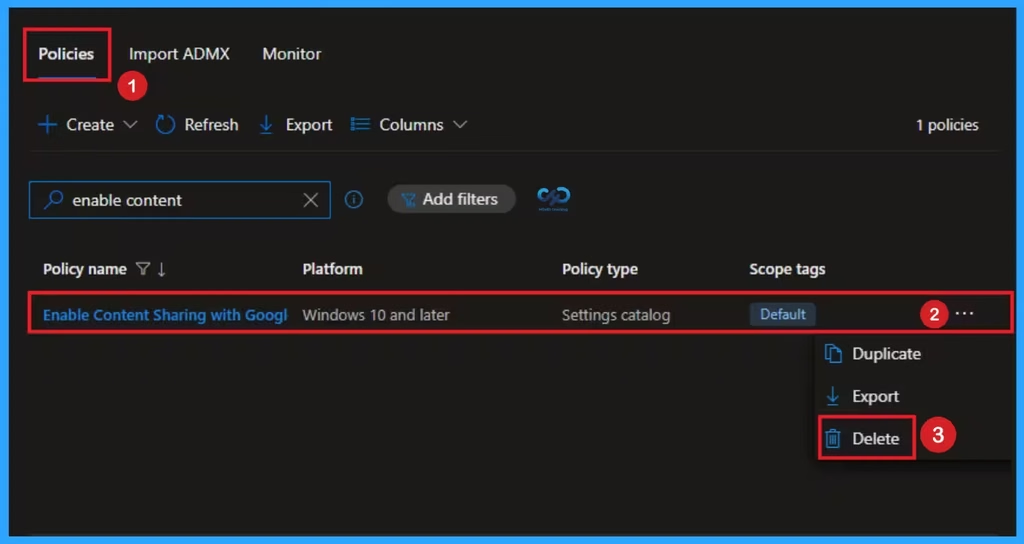
You can easily delete the Policy from Intune Portal. From the Configuration section you can delete the policy. It will completely remove from the client devices.
Need Further Assistance or Have Technical Questions?
Join the LinkedIn Page and Telegram group to get the latest step-by-step guides and news updates. Join our Meetup Page to participate in User group meetings. Also, join the WhatsApp Community and the Whatsapp channel to get the latest news on Microsoft Technologies. We are there on Reddit as well.
Author
Anoop C Nair is Workplace Technology solution architect with 25+ years of experience in global enterprise organizations such as JP Morgan, Capgemini, etc. He is Microsoft Certified Trainer. Microsoft MVP from 2015 onwards for consecutive 11 years! He also conducts Intune and modern workplace tech training for enterprise organizations. He is Blogger, Speaker, and Founder of HTMD Community and HTMD Conference. His focus is on Device Management technologies such as Intune, Windows, Cloud PC. He writes about technologies like Intune, SCCM, Windows, Cloud PC, Windows, Entra, Microsoft Security.