
Key Takeaways
- Prompt injection is a major LLM risk
- AI Gateway provides centralized protection
- Real-time threat detection and blocking
- Network-level security (no code changes needed)
- Consistent, universal enforcement
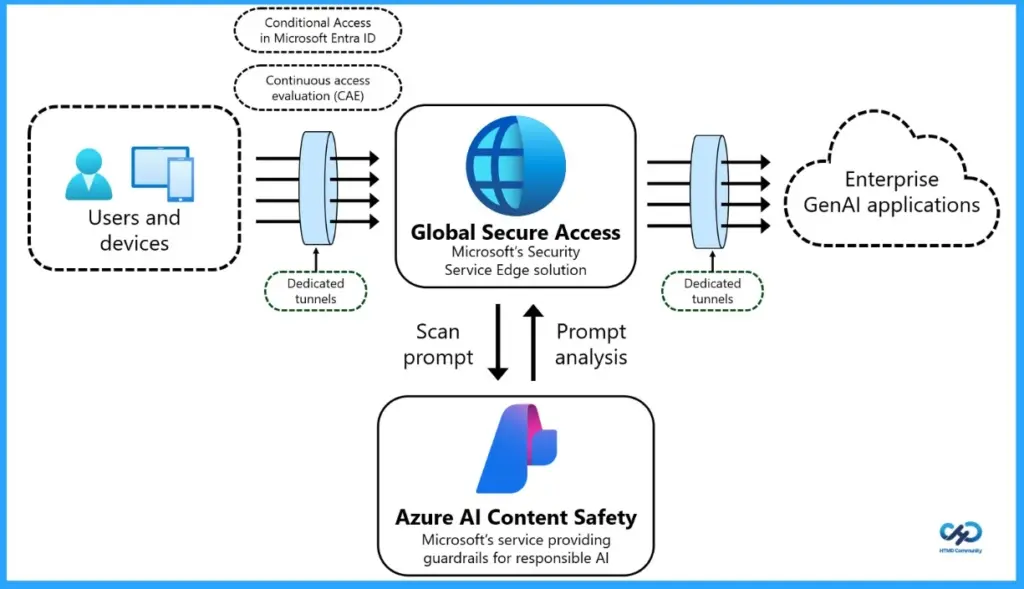
Instead of securing each AI application separately, Microsoft’s Prompt Injection Protection works at the network level, acting like a central security checkpoint. Every prompt sent by users passes through Global Secure Access, where it is inspected in real time and any harmful or malicious input is blocked before it reaches the AI model.
Table of Content
Table of Contents
What is Prompt Injection Protection?
It’s a security feature in Microsoft Global Secure Access that detects and blocks malicious prompts before they reach your AI models.
Why is Prompt Injection a Concern?
Attackers can manipulate inputs to make AI ignore rules, leak sensitive data, or perform unintended actions.
How Does this Protection Work?
It inspects every prompt in real time at the network level and blocks harmful or suspicious inputs automatically.

Do I Need to Update my AI Applications?
No. It works without any code changes, protecting all apps through a centralized layer.
What Environments Does it Cover?
It works across all devices, browsers, and applications, ensuring consistent security everywhere.
Who Should Use This?
Entra ID and GSA admins, security teams, and organizations using generative AI at scale.
What Problems Does it Solve?
It prevents jailbreak attempts, stops unauthorized actions, and protects sensitive data from being exposed.
Secure Every AI Prompt at the Network Level with Microsoft AI Gateway
To configure Prompt Injection Protection in your organization, start by enabling the Internet Access traffic forwarding profile and assign it to the right users. Next, set up Transport Layer Security (TLS) inspection and define the necessary policies to ensure encrypted traffic can be securely analyzed. After that, install and configure the Global Secure Access client on user devices so their traffic flows through the service.
Before proceeding, ensure that all user internet traffic is correctly routed through Global Secure Access. This is a critical step. Prompt Injection Protection will only work if traffic is flowing through the service.
| Feature | Description |
|---|---|
| Threat Blocking | Stops adversarial prompts and jailbreak attempts before they reach AI models |
| Data Protection | Prevents unauthorized actions and sensitive data exfiltration |
| Universal Coverage | Works across all devices, browsers, and applications with consistent enforcement |
| No Code Changes | Applies security centrally without modifying your AI applications |
| Preconfigured Models | Supports popular models like ChatGPT, Claude, Gemini, DeepSeek, Grok, Mistral, and Perplexity |
| Custom App Support | Protects custom JSON-based LLM apps using configurable URLs and JSON paths |
- Expansion of Entra Global Secure Access Advanced Threat Protection
- Entra Source IP Anchoring with Global Secure Access to Improve the Security Management of SaaS Apps
- Microsoft Entra Enhances Security with New AI face Check Feature
Prerequisites
Before setting up Prompt Injection Protection, make sure you have a few basics in place. You’ll need a valid Microsoft Entra Internet Access license (trial or paid), along with Windows devices or virtual machines that are joined to your organization’s Entra ID (either fully or in hybrid mode).
In addition, proper admin roles are required: a Global Secure Access Administrator to configure Global Secure Access settings, and a Conditional Access Administrator to manage access policies. These ensure you have the right permissions to set up and enforce security controls effectively.
How to Set Up Prompt Injection Protection
Setting up Prompt Injection Protection in Microsoft Global Secure Access is straightforward and can be done in a few key steps. By configuring traffic routing, inspection policies, and access controls, you can enforce consistent prompt security across all your AI applications without modifying any code.
- Users and devices
- Global secure access
- Enterprise GenAI applications
| Follow these steps: |
|---|
| Enable the Internet Access traffic forwarding profile and assign it to users |
| Configure TLS inspection settings and policies |
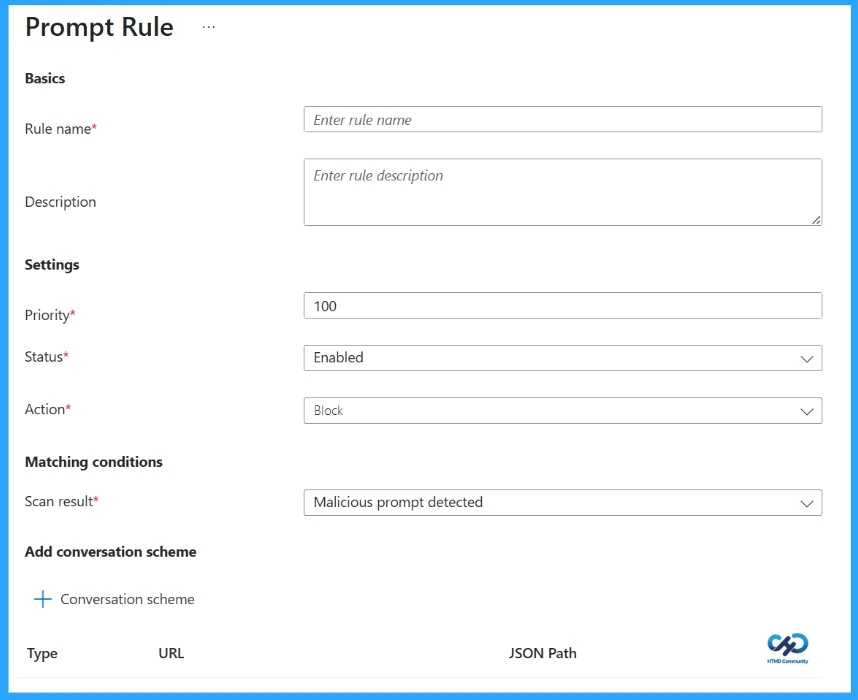
| Create a Prompt Policy (Global Secure Access → Secure → Prompt policies) and add rules to block malicious prompts |
| Link the Prompt Policy to a Security Profile |
| Create a Conditional Access policy targeting your security profile |
Resources
Need Further Assistance or Have Technical Questions?
Join the LinkedIn Page and Telegram group to get the latest step-by-step guides and news updates. Join our Meetup Page to participate in User group meetings. Also, join the WhatsApp Community and the Whatsapp channel to get the latest news on Microsoft Technologies. We are there on Reddit as well.
Author
Anoop C Nair is a Workplace Technology solution architect with 25+ years of experience. Microsoft Certified Trainer. Microsoft MVP from 2015 onwards for consecutive 11+ years! He is a blogger, Speaker, and Founder of HTMD Community and HTMD Conference. His main focus is on Device Management technologies like Intune, Windows, and Cloud PC. He writes about technologies like Intune, SCCM, Windows, Cloud PC, Entra, and Microsoft Security.