
Key Takeaways
- The Allow Apple Intelligence Report setting is available in the macOS Settings Catalog.
- The setting can be found under Declarative Device Management preview
- Changing the value to False disables Apple Intelligence Report.
- The policy is used to control the Apple Intelligence Report on managed macOS devices.
- The default value is True and can be changed to False based on the organization’s requirements.
In this post, we are discussing, Disable Apple Intelligence Report on macOS using Intune Policy. Microsoft Intune now includes a setting that helps administrators manage the Apple Intelligence Report on organization managed Mac devices. This setting is available through the macOS Settings Catalog, allowing administrators to create a configuration policy and apply it to selected devices or users. The setting is called Allow Apple Intelligence Report and is available under the Intelligence Settings category.
Table of Contents
Table of Contents
Disable Apple Intelligence Report on macOS using Intune Policy
By default, the setting is enabled, but administrators can change it to False when they want to disable the Apple Intelligence Report on managed Mac devices. In this article, we will go through the complete guide of creating the macOS configuration profile in Intune. The Allow Apple Intelligence Report setting gives administrators another way to manage Apple Intelligence capabilities on organization-managed Mac devices.
- Best way to Add Mac Devices to Apple Business Manager ABM or ASM and to Intune
- Deploy DDM-Based Line of Business Apps in Microsoft Intune for iOS and iPadOS Devices
- Enforce DDM Software Updates on macOS Device using Intune Settings Catalog
Open Device Configuration
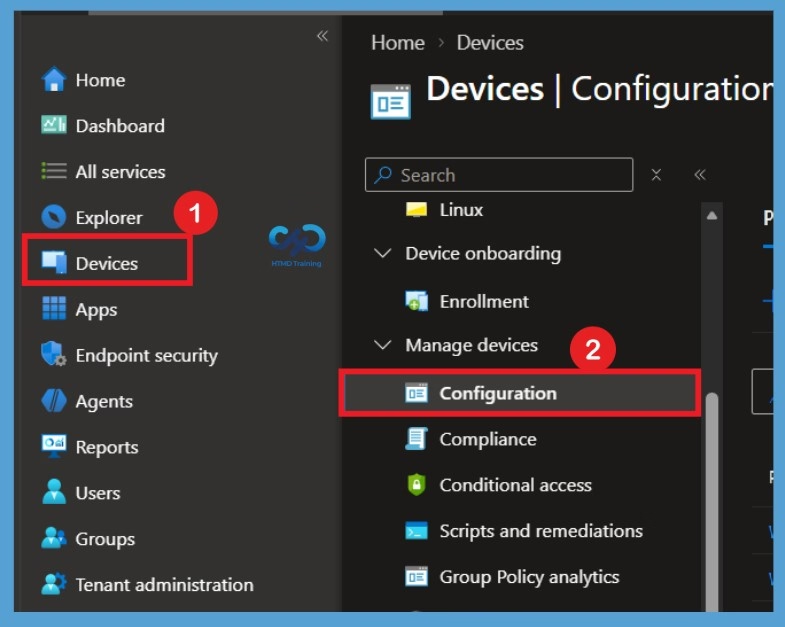
This policy is part of Apple’s declarative device management configuration for Apple Intelligence and is available in Intune’s macOS Settings Catalog. First, sign in to the Microsoft Intune admin center with an account that has permission to create device configuration policies. From the left navigation pane, select Devices and then open Configuration.
Create Profile
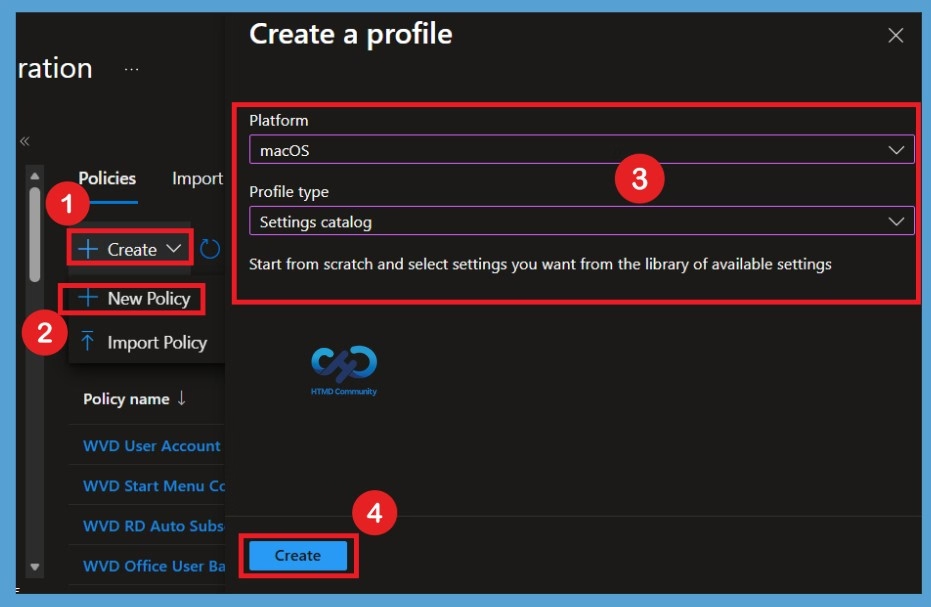
The Configuration page displays the device configuration profiles available in the tenant. This is also where you can create new configuration profiles for supported platforms. For this configuration, we will create a new profile specifically for macOS. On the Configuration page, select Create and then select New policy. Intune will open the profile creation screen where you can choose the platform and profile type.

Configure the Basic Information
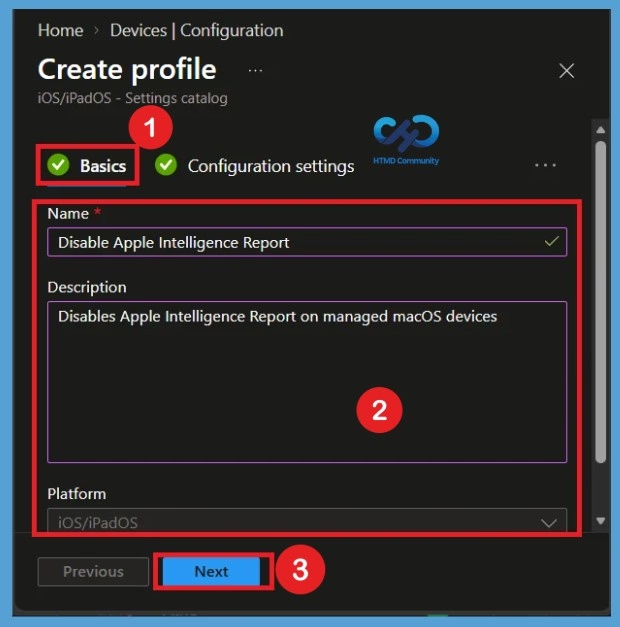
The Basics page is where you provide the name and other basic information for the configuration profile. Use a name that clearly explains what the policy is used to do, especially if your organization has a large number of configuration profiles. For this policy, you can use Disable Apple Intelligence Report as the profile name. You can also add a short description such as Disables Apple Intelligence Report on managed macOS devices. After entering the required information, select Next.
Add the Apple Intelligence Settings through Configuration
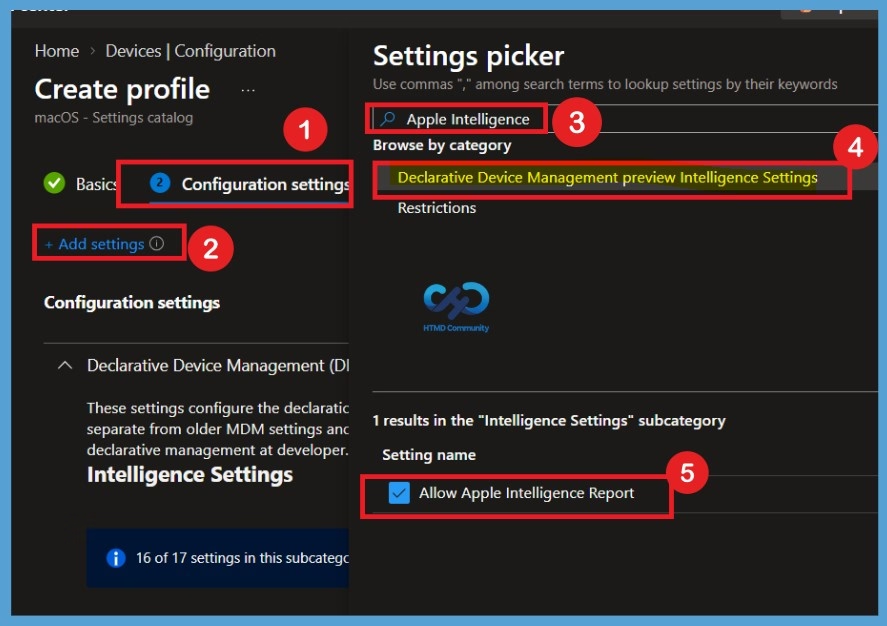
On the Configuration settings page, select Add settings to open the Settings picker. This is where you can search for the individual macOS setting that needs to be configured. In the search box, enter Apple Intelligence. From the results, select Declarative Device Management Preview Intelligence Settings. The Intelligence Settings category will open and display the available settings related to Apple Intelligence. Inside the Settings category, locate Allow Apple Intelligence Report and select the checkbox next to it. This adds the setting to the configuration profile.
Defaulted Settings
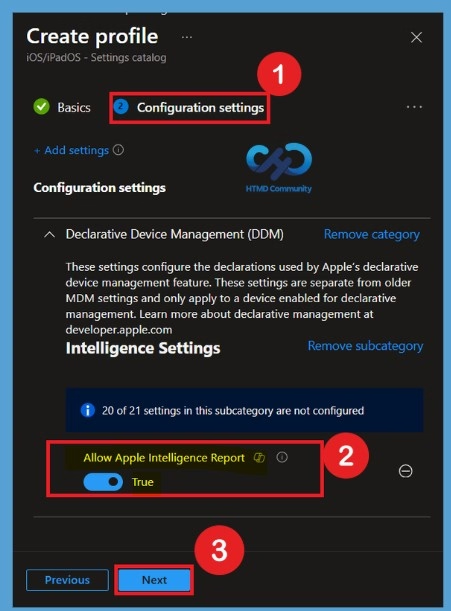
After selecting Allow Apple Intelligence Report, the setting will appear in the Configuration settings profile. You can see that the setting is enabled by default, with the value set to True. This is the default state of the setting, which allows Apple Intelligence Report on the targeted Mac devices. If you want to keep the default configuration, you can leave the value as True and select Next to continue with the remaining policy configuration.
Note: If false, disables Apple Intelligence Report.
Disable Allow Apple Intelligence Report
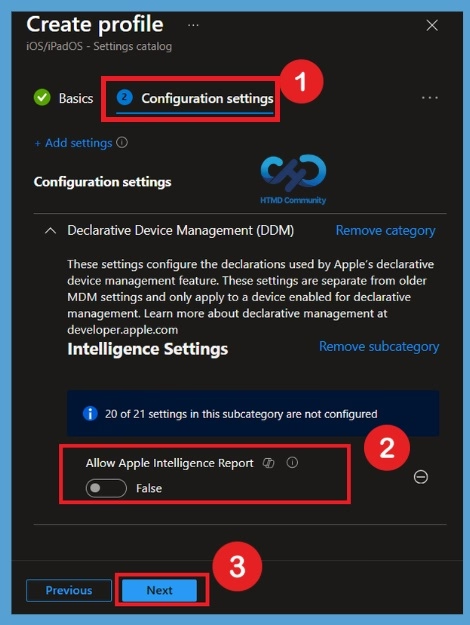
To disable Allow Apple Intelligence Report, change the setting from True to False using the available toggle. Once you turn off the setting, the value will change to False, indicating that Apple Intelligence Report will be disabled for the devices targeted by this policy. After changing the value to False, the toggle bar may appear greyed out because it is now configured in the profile. Select Next to continue with the policy configuration.
Configure Scope Tags
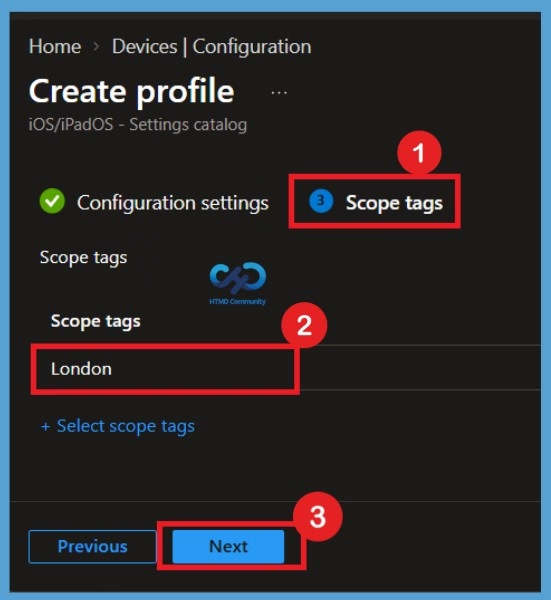
The next step is Scope tags. This section is used to determine which administrators can view and manage the configuration profile in Intune. Scope tags are optional, so if your organization does not require a specific scope tag for this policy, you can leave the default option unchanged and select Next to continue to the Assignments section.
Configure Assignments
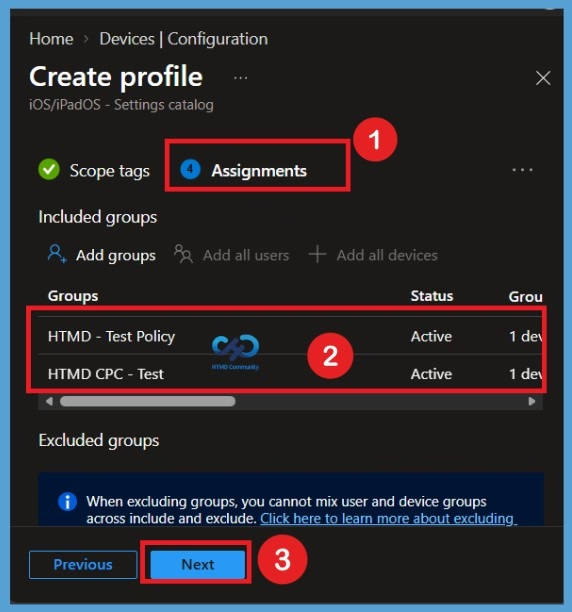
The next section is Assignments, where you choose the users or device groups that should receive the policy. Under the assignments section, select Add groups and choose the groups you want to target. In this example, I have selected the HTMD Test Policy and HTMD CPC Test Policies groups. After selecting the required groups, review the assignments to make sure the correct groups are included. The Assignments section is important because it determines which users or devices will receive the configuration. Once the required groups have been selected, click Next to continue to the Review + create section.
Review and Create the Policy
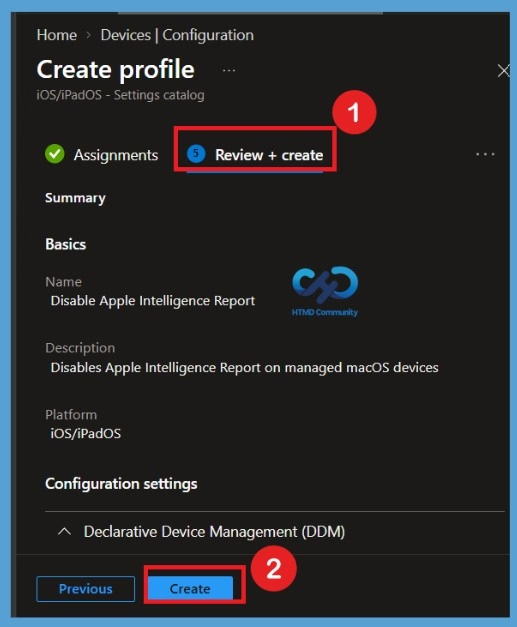
Review + create is the final stage of the policy creation process. Here, you can review all the details configured throughout the policy, including the basic information, platform and profile type, configuration settings, scope tags, and assignments. This gives you to check the complete configuration before creating the policy. Once you have reviewed everything and confirmed that the Allow Apple Intelligence Report setting is configured as required, select Create to finish the policy creation. After the policy is created successfully, Intune displays a notification confirming that the configuration profile was successfully created.
Monitoring Status
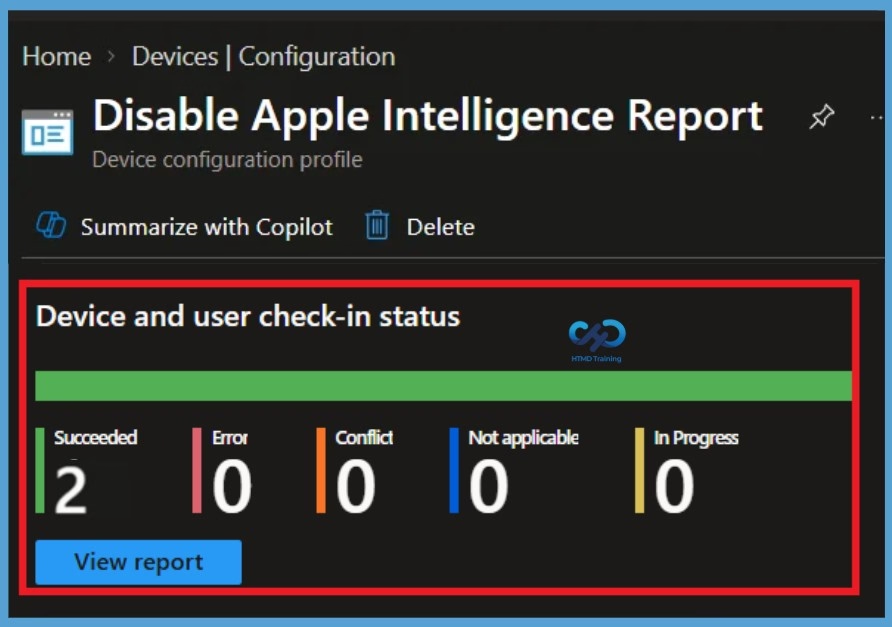
After the policy has been created, return to Devices > Configuration and open the Disable Apple Intelligence Report profile. Use the monitoring information available for the configuration profile to check the deployment status of the targeted devices. The status information helps you confirm whether the policy has been successfully processed by the assigned Mac devices. When the targeted device shows a successful deployment status, it confirms that the configuration has been successfully applied to that device.
Remove the Assigned Group
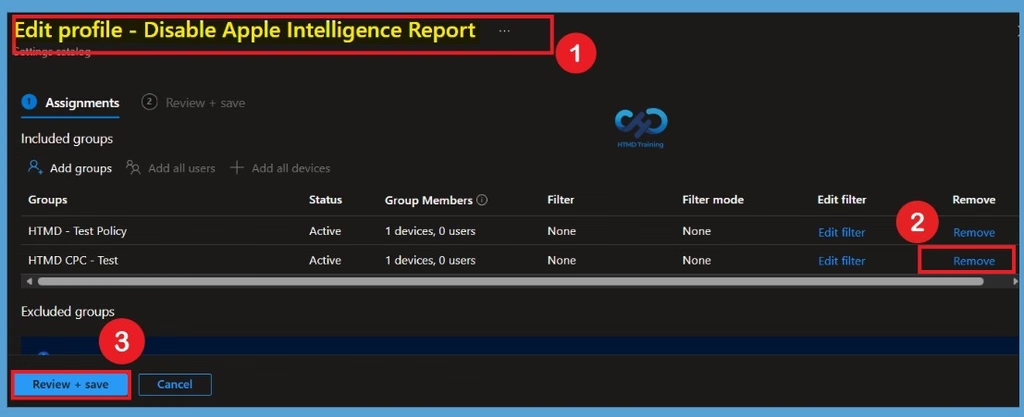
When the policy is no longer required, first remove the group assigned to the configuration profile. Open Devices > Configuration and select the disabled Apple Intelligence Report profile. Open the policy properties and go to Assignments. Select Edit, remove the group from the included assignments, and then save the changes. This removes the group from the policy, so the configuration profile is no longer assigned to that group.
Delete the Configuration Profile Permanently
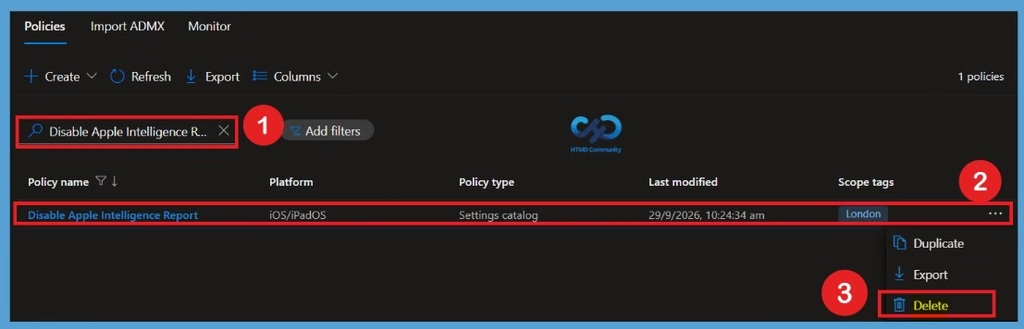
After removing the assignment, return to the Configuration page and locate the Disable Apple Intelligence Report profile. Open the options menu for the profile and select Delete.The configuration profile will then be removed from the Intune tenant and will no longer appear in the list of available configuration profiles.
Need Further Assistance or Have Technical Questions?
Join the LinkedIn Page and Telegram group to get the latest step-by-step guides and news updates. Join our Meetup Page to participate in User group meetings. Also, join the WhatsApp Community and the Whatsapp channel to get the latest news on Microsoft Technologies. We are there on Reddit as well.
Author
Anoop C Nair is Workplace Technology solution architect with 25+ years of experience in global enterprise organizations such as JP Morgan, Capgemini, etc. He is Microsoft Certified Trainer. Microsoft MVP from 2015 onwards for consecutive 11 years! He also conducts Intune and modern workplace tech training for enterprise organizations. He is Blogger, Speaker, and Founder of HTMD Community and HTMD Conference. His focus is on Device Management technologies such as Intune, Windows, Cloud PC. He writes about technologies like Intune, SCCM, Windows, Cloud PC, Windows, Entra, Microsoft Security.